|
Windows Vista
Tips And Tricks
|
How To Use Parental
Controls In Windows Vista
Windows Vista Parental
Controls let you decide how
your children or
grandchildren use your PC.
You can use Parental
Controls to set the time
limit that your children or
grandchildren can use the
computer; control the types
of games they can play;
restrict the types of
websites they can visit,
restrict the programs
installed on your computer
they can run.
By setting time limits on
your child or grandchild's
computer use you can prevent
them from logging on during
certain hours (like for
instance when you're
sleeping :-). You can even
set different log on hours
for different days of the
week. If they are logged on
and their allowed time limit
is reached, Windows will
automatically log them off.
You can also control the
games your kids will be
allowed to play. You can
control access to games and
allow or disallow games
based on their suggested
age-rating level (most games
have suggested ages for
which they're appropriate).
You can even choose which
games to block based on
content. You decide what
games you will allow them to
play and which you won't
based on age-level,
game-rating or game content.
Most importantly you can
restrict which websites your
children or grandchildren
can visit. You can block
specific websites (like
MySpace) or block websites
based on content that you
don't want your children or
grandchildren to see. You
can also restrict downloads,
set up filters to block
profanity and nudity, and
control your child or
grandchild's access to the
Web.
You can also prevent your
child or grandchild from
running certain programs on
your PC. And finally, you
can set up an "activity
report" that will track your
child's computer activity
and let you review
everything they've done
while using your PC.
1. To run Parental Controls
click Start and type
Parental Control in the
search box.
Note: It's important that
you set a password for
accounts with administrative
privileges to prevent others
people using your computer
from turning off the
Parental Controls you've
set.
2. Create an account if it
has not already been
created.
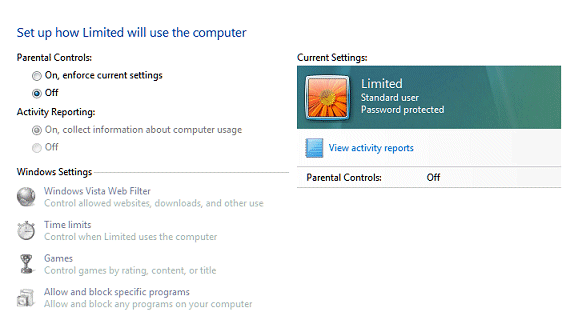
3. Turn Parental Controls
on.
4. Select whether or not you
want an activity report on
your child or grandchild's
activity while using your
computer.
5. On the Windows Setting
dialog, select the controls
for Internet, time limits,
games and programs.
Your child or grandchild
might be upset with the
limits and restrictions you
impose and you might have to
explain to them why you've
set restrictions. Also, be
aware that kids are pretty
computer savvy and they
might be able to hack the
parental controls you've
set. So it's still important
that you take an active role
in monitoring their computer
use and not rely on any
software to do all the work.
Hey, being a parent or a
grandparent is a huge
responsibility, but it does
bring tremendous rewards,
right? |
|
|
|
|
 SAVE 20% OFF REGISTRY MECHANIC
INSTANTLY! SAVE 20% OFF REGISTRY MECHANIC
INSTANTLY!
It's
Official! Registry Mechanic Is Our Most Reader-Recommended
Program Ever!
We've received more unsolicited reader testimonials for
Registry Mechanic
than we have for any other Cloudeight-recommended and endorsed
program. Each week we receive dozens of reader comments about
the big difference in computer performance Registry Mechanic has
made. These unsolicited comments come from readers just like you
who relate their own experiences with Registry Mechanic to us.
Here are a just
two of the many comments we received this week about Registry
Mechanic.
 A
Comment From Judith A
Comment From Judith
I kept reading positive comments about
Registry Mechanic in
your InfoAve Premium Newsletter so I finally bought it for my
year old laptop. That was about six weeks ago, I've had no
problems with it and last week I bought another subscription of
it for my 3 year old PC. It found/repaired 908 problems.
Registry Mechanic is one tool I would recommend for sure. I use
IE 7. Judith - happy computer user.
A Comment From Jim R.
"...before I knew about
Registry Mechanic, I
downloaded a different registry cleaner. In the scan it found
almost 1000 errors. When I got Registry Mechanic, it found 600
errors. I have often wondered about the difference. Then I got
your wonderful 3rd e-book. You speak often of registry cleaners
that cause problems. I believe that I was saved from a problem
by going with Registry
Mechanic. You two are the greatest! Take Care, Jim R..."
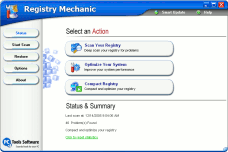
Registry Mechanic uses
a high-performance detection algorithm to quickly identify
missing and invalid references in your Windows registry. These
problems can occur for many reasons including being left-behind
after the un-installation or incorrect removal of software, by
missing or corrupt hardware drivers, or orphaned startup
programs.
Download
A Free Trial of Registry Mechanic by PC Tools
With a
few easy steps Registry
Mechanic will scan your entire registry for any invalid
entries and provides a list of the registry errors found, you
can then choose to selectively clean each item or automatically
repair them all. For your convenience and protection
Registry Mechanic can
also make a backup of any repairs made so that you can easily
recover any changes if required.
Try it
free now! Download A Free Trial of Registry Mechanic by PC Tools. |
Move up to InfoAve
Premium Edition - We hope you will join the thousands who have already made the
switch. Our InfoAve Premium Newsletter
contains almost three times more information than Information Avenue free edition, and no
third party advertisements! Upgrade to InfoAve Premium right now! An InfoAve Premium Newsletter
Subscription is only $11.95 per year, that's 52 great issues of news, tips, tricks, and
features you can really use. Subscribe
today, and save 50% on our new super Premium
E-book !
Close
This Window
All content is copyright ©2007
Cloudeight Internet LLC |
The above advertisements are provided by Google. Content of these
ads is the responsibilty of Google, Inc. |

