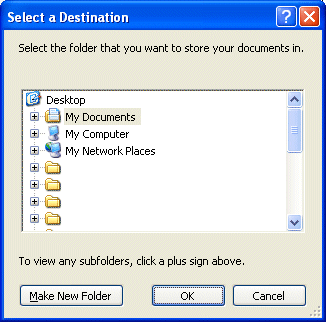
Tip for Windows XP Free Up Space on your "C" Drive (System Drive) and Protect My Documents too! System Restore will not change or touch anything in the My Documents folder. The files you place in My Documents are not backed up or restored by System Restore. So it's important, if you keep valuable files in this location, that you make sure you keep the My Documents folder safe. Note: If you are using signature files with Outlook Express, you will have to reassign the new location from Outlook Express. Don't worry about other programs being able to find "My Documents" such as MS Word; Windows knows right where to lead them if you move your MY DOCUMENTS folder according to these instructions. But, don't move My Documents any other way but the way we show you here! If you decide you want to revert back to the original location, there is a "Restore Default" option with Windows XP. Step I. First, go to the drive where you want to store "My Documents" and make a folder in that drive called "My Documents" Step II. Now, click Start, then right click on where you see "My Documents" on the menu, then click Properties. A window will open like the one below. Step III. Type in the name of the directory and new folder you made then click "Move" and Windows will do the rest for you. Be sure you type the Drive Letter, the colon and the backslash as shown below!
********************************************
For Advanced Users (or Alternate Way)
|