
Cloudeight InfoAve Weekly
Issue #1158
Volume 23, Number 9
December 19, 2025
Dear Friends,
Welcome to Cloudeight InfoAve Weekly Issue #1158. Thank you for subscribing and for being a part of our Cloudeight family. We appreciate your friendship and support very much! Please share our newsletters and our website with your friends and family.


This will be our last issue of InfoAve weekly before Christmas. We both want to wish you and your loved ones a very Merry Christmas! We have a little Christmas gift for you to download that we hope will add some fun to your computer at Christmastime and all through the winter. Read more about our Christmas gift here.
MERRY CHRISTMAS!
If you're not getting our InfoAve Daily newsletter, you're missing out on a lot of good stuff!
It's free and it only takes a few seconds to sign up. We'd love to have you with us. Visit this page to sign up for our Cloudeight InfoAve Daily Newsletter.
Christmas Holiday Sale

Cloudeight Direct Computer Care
Repair Keys Are Just $39 Right Now!
You can get a Cloudeight Direct Computer Care Key for just $39 during
our Christmas Holiday Sale! You save over 20% off our regular low price
of $50. Your Cloudeight Direct Computer Care Repair key never expires;
it's good until you use it. It's good for any computer repair that we
can do remotely.
Buy a Cloudeight Direct Computer Care Repair Key for just $39 during our
Christmas Holiday Sale!
Get your Cloudeight Direct Computer Care key for only $39 right
now!

I'm interested in your opinion of Proton Mail as an extra email account. The reviews I read indicate it's extremely secure, but I wonder if you have any info. I need an extra email address for the mail I handle for my elderly husband. He actually subscribes to your services but doesn't handle business mail well. TIA, and please don't publish my email address online...I appreciate confidentiality!
If you're really concerned about privacy and you don't use social media, then perhaps Proton Mail would be a good choice for an extra email account. But I know nothing on the internet is private, and I refuse to give in to any paranoid hype. I have several Gmail accounts and a Hotmail account. Neither Google nor Microsoft is a paragon of privacy, but the email accounts I have with them work for me. And I don't do any social media, nor do I have any expectation of privacy when using the internet.
I hope this helps you make a good decision, Marilyn.
Joy
has
some
questions
about
Zoom
Hi.
Could
you
give
instructions/settings
on
how
to
permanently
blur
the
background
when
one
is
on a
Zoom
telehealth
conference
or
other
Zoom
session
on a
computer?
Thank
you.
Our
answer
Hi
Joy.
The
following
is
for
Zoom
on
Windows
computers.
To
blur
your
background
on a
Zoom
call,
you
can
either
do
it
before
or
during
a
meeting.
The
blur
effect
is
part
of
Zoom's
"Virtual
Background"
feature.
Note
that
your
device
must
meet
certain
system
requirements
to
use
this
feature.
Before a Zoom call
Open the Zoom desktop client and click the Settings cog icon (it looks like a gear) in the top right corner.
In the menu on the left, click Background & Effects.
On the Virtual Backgrounds tab, select the Blur option. Your video preview will show your background blurred.
During a Zoom call
While in a Zoom meeting, hover your cursor over the video icon (looks like a gear) at the bottom left of the screen.
Click the small up arrow (^) that appears.
From the menu that pops up, select Blur My Background. The blur effect will be applied instantly.
The following is for the mobile app (iOS and Android phones)
While in a Zoom meeting, tap your screen to bring up the meeting controls.
Tap the More icon (•••) in the bottom right corner.
Tap Backgrounds & Effects.
Select
Blur
from
the
options.
Hope
this
helps
you,
Joy.
Louise has problems with Microsoft OneDrive.
Microsoft OneDrive repeatedly asks to delete 287 items, create a restore point, or the screen turns white or completely black & freezes. All of this just happened while writing this message again. Thank you
Our answer
Hi Louise. OneDrive only gives you 5 GB of free space; that's not very much. If you want to keep all your files on OneDrive, you'll need to buy more space. If you don't buy more space, OneDrive will delete any files on OneDrive over the 5 GB limit. This DOES NOT affect the files on your computer. OneDrive backs up files from your computer - if OneDrive deletes files because you're over the space limit, it does not affect the files on your computer. So you won't lose any files on your computer - even if OneDrive deletes the files it has backed up. If you're interested in more storage space on OneDrive, see this page.

Christmas Holiday Sale
Computer Cleanup, Checkup & Optimization Service
During our special Christmas Holiday Sale, you can buy a Cloudeight Direct Computer Care Cleanup, Checkup, and Optimization service key for just $19! That's right... for just $19...
** We’ll check your computer for malware and questionable programs
** We’ll check and optimize your startup programs
** We’ll check your computer performance to make sure your RAM and CPU usage are within normal ranges
** We’ll check to make sure your Windows settings are configured for the best performance and privacy.
** We’ll review your installed programs and make sure no questionable programs are installed.
Our Christmas Holiday Cleanup, Checkup, and Optimization can help ensure your computer is running at its best.
Take advantage of this special offer before it's gone. Get all the details here.
Marty wants to know about surge protectors and UPS (Universal Power Supply)
Which is better to use to protect your computer from voltage fluctuations, spikes, and blackouts - a surge protector or a UPS (uninterruptible power supply)?
Back in the day, I was always taught to avoid shutting down your PC “the bad way” - aka a hard shutdown using the power button (unless there was no other way). I was taught that doing that could lead to all sorts of corruptions, errors, and even damage.
It seems nowadays that things “may” have changed - as sometimes, if you’re in a jam, the only way to enter the “Recovery Environment” is to do a hard shutdown and restart three times in a row (if I got that correctly).
The UPS I have comes with a program that, once it senses a blackout or loss of power, will initiate a safe soft shutdown on its own, thereby preventing possible issues.
The problem is that all the name-brand UPS units I saw only offer limited protection from surges and spikes; the “Joule rating” is often less than 1,000.
On the other hand, a standalone “surge protector” almost always gives much better protection, with Joule ratings from 3,000 to 4,000 or higher. They are much more sensitive than a UPS.
The problem is that those surge suppressors do not offer a self-initiated soft shutdown option. So it seems like the choice is a trade-off - get better protection from spikes, etc., or get protection from a hard shutdown (at least until the UPS’s battery completely drains).
Right now, my “older Dell desktop” is plugged into a UPS. My new Dell is plugged into a Surge Suppressor.
In your expert opinion, which is the better way to go?
Our answer
Hi Marty. I've been using surge protectors for 20 years. I can't tell you if mine worked or not because I guess I never had a power surge, or they worked perfectly. They don't protect against a direct lightning strike. Make sure you use a surge protector and not cheap "power strips". These are simply multi-outlet extension cords and have no surge suppression components whatsoever. Always look for the terms "Surge Suppressor" or "Surge Protector" on the packaging. No consumer-grade surge protector can handle the immense power of a direct lightning strike to your home or power pole. They are designed to handle the residual surges that travel through the utility lines.
Things to look for when buying a surge protector:
1. Joule rating: This is the capacity to absorb energy. The higher the number (e.g., 2,000 to 4,000), the longer the unit will last and the better it can handle large surges.
2. Clamping voltage: Recommend 400 volts or less. This is the voltage level at which the device starts to divert power. Lower is better, as it prevents more excess voltage from reaching your gear.
A UPS is a power supply that works (for a while) when there is no power. It will keep a desktop running for maybe an hour or two. But if you plan on being on the internet and plug your modem and router into a UPS, you may have power for only 10 or 15 minutes. A UPS costs $60 to $100 or more- the longer lasting ones cost more. I'm not sure if they're worth the money. Most computers running Windows 10 or Windows 11 are not damaged by an unexpected shutdown like older Windows versions were. And if you have a laptop, and the power goes off, the laptop will continue working until its battery runs down. Of course, your internet won't work. It may not work with a UPS either if the ISP is affected by the power outage. All UPSs come with surge protection.
Hope this helps and saves you money.
Hello TC. Thanks for your previous help. Now I have another problem. It seems there is always something. Lately, I've been getting internet connection drops. There will be a good internet connection, and suddenly there will be a drop ( no internet). All the red lights on the modem are on. I unplugged the modem and plugged it back in, waited for all the green lights to turn on, and got a connection. That lasted for a few minutes, and I had another connection drop. I'm wondering if it's my internet adapter.
I have one on the other computer that I don't use much. Can I use that adapter on my current computer with the connection problems?
Do I just plug it into any USB port? Is it plug and play?
I tried to use the troubleshoot option and got this message:" The connection between your access point, router, or cable modem and the internet is broken." Please help. Thanks.
Our answer
Hi Uwe. The first step is calling your ISP and having them run a diagnostic on your Internet connection - your line coming in and your hardware (modem/router). Your ISP can usually do this from its office. If it all checks out, then you know it's your network card. There are USB Wireless Adapters you can buy for less than $20 that plug into a USB port and are easy to set up. You can read more about USB Wireless Adapters here. There are also USB Ethernet cards available if you're not using Wi-Fi.
You can't take the USB Wireless Adapter from one computer and use it on another unless you have the drivers that came with that particular adapter or know where to get them. Most USB network adapters are not plug-and-play.
I hope this helps you.
Linda's printer won't connect to her computer
I have an HP DeskJet 4255E printer that, when I send something to it to print, it doesn't print. The WIFI light is on, but it doesn't do anything. When I check to see what printer is available to print from, it says HP 8CIAC2 (HP Deskjet 4200 series). The only thing that has changed is that I needed new ink cartridges, and instead of buying HP, I bought ONM cartridges instead. It will print a page if I put it on the glass, no problem. But it won't print from my computer. Totally confused. I unplugged it, waited a while, and plugged it back in. Please help.
Our answer
Hi Linda. I'm assuming your printer is a wireless one. If so, the wireless connection was interrupted. The best way to fix this is to uninstall your printer and reinstall it as you would a new printer. We have written a step-by-step tutorial on how to do this... You can read that tutorial here.
>
Christmas Holiday Sale
Cloudeight Direct Computer Care Repair Keys Are Just $39 Right Now!
You can get a Cloudeight Direct Computer Care Key for just $39 during our Christmas Holiday Sale! You save over 20% off our regular low price of $50. Your Cloudeight Direct Computer Care Repair key never expires; it's good until you use it. It's good for any computer repair that we can do remotely.
Buy a Cloudeight Direct Computer Care Repair Key for just $39 during our
Christmas Holiday Sale!
Get your Cloudeight Direct Computer Care key for only $39 right
now!

How to Share Large Files Using Google Drive
Anyone with a Gmail (Google) account
Most email services limit the size of attachments you can send by email. For instance, you can only send attachments up to 25 MB using Gmail and 20 MB with Outlook. And with most email services, the file types you can send as attachments are restricted. For instance, using Gmail, you can’t send .exe (executable) files or even zipped files that contain exe files, as well as other types of executable files.
But no problem! If you use Gmail, you already have a Google account – and if you have a Google account, you have Google Drive. And you can share large files – up to 10 gigabytes – using Google Drive.
How to share files with anyone using Google Drive
First, if the file you want to share is not already on Google Drive, you’ll need to upload it.
1. Log in to Gmail and open Google Drive. Click on the icon that is a square with 9 square dots – it’s in the upper right of the page. See the screenshot below:
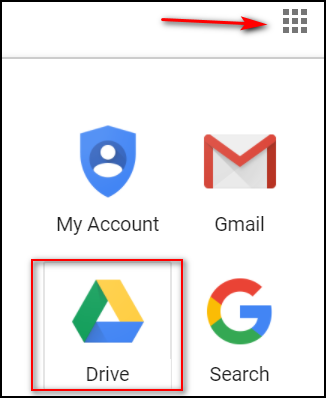
2. Click on Drive (see above).
3. When Google Drive opens, click on the + button labeled “NEW” on the left side, then click “File upload”.
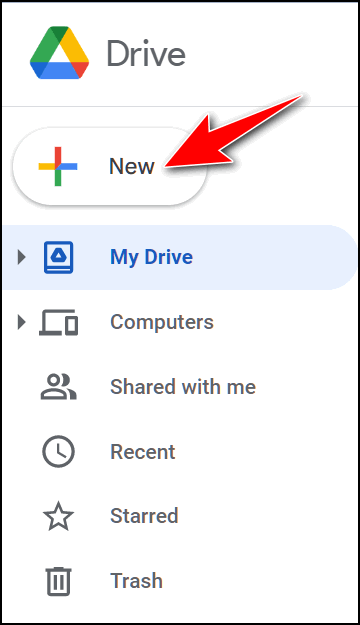
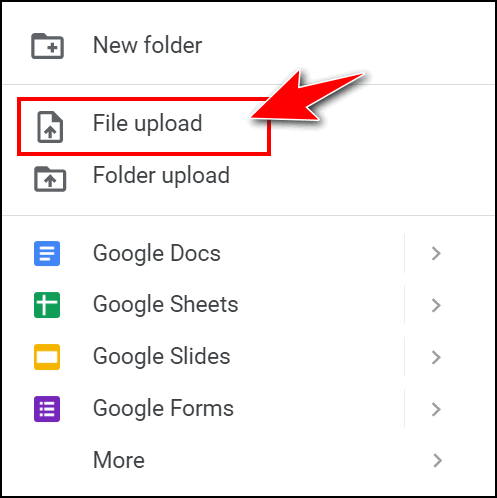
When you click “File upload” (above), a window will open. From there, you can navigate to the file on your hard drive that you want to upload to Google Drive.
4. Once your file is uploaded, locate the file on Google Drive and right-click on it. Then choose “Share” from the menu.
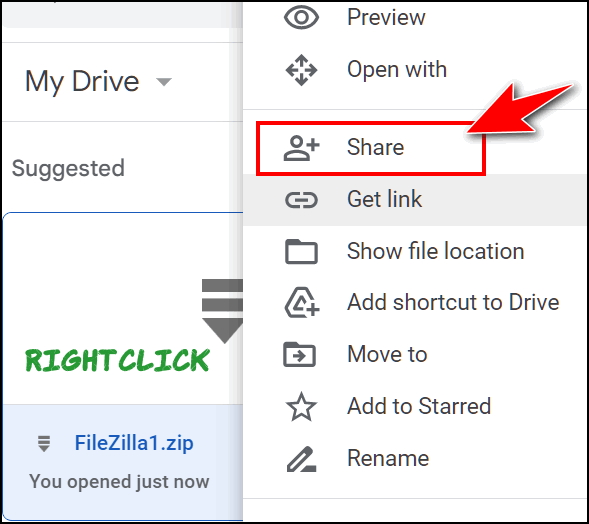
5. Once you click “Share,” you’ll see the following dialog (see screenshot below). Type the email address(es) of the person or persons you want to send the file to in the address box. You can add as many email addresses as you want (one at a time). If you leave the “Notify people” box checked, your recipients will receive a notification that you’re sharing a file with them. Note: You can access more file options by clicking the “gear” icon.
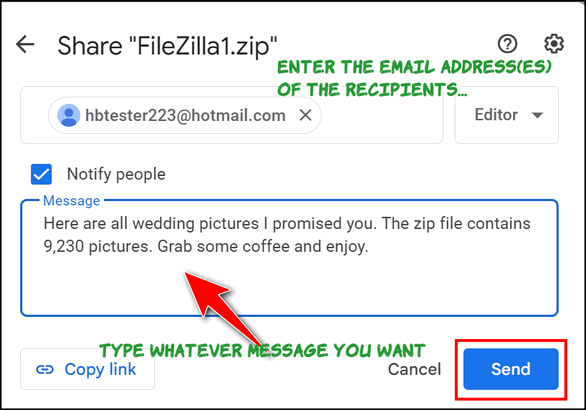
Once you have added the email addresses of the people you want to share your file with, you can add a note or leave it blank. Once you’ve entered a message, click “Send”.
6. Other options.
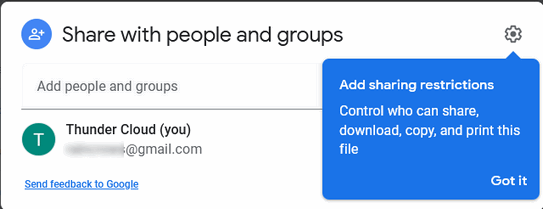
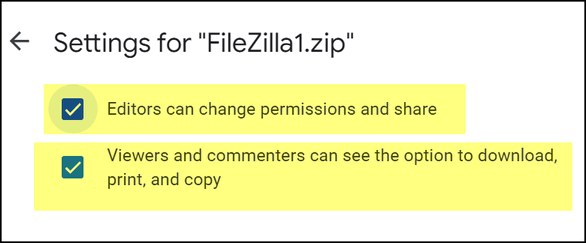
Most of you won’t be concerned with changing permissions. But if you need more control, by clicking the gear icon shown above, you can change your preferences. If you want recipients only to view the file, you can uncheck “Editors can change permissions and share” and “Viewers can see the option to download, print, and copy”.
Yes, you can share with people who don’t use Gmail!
And yes, you can share with people who do not have a Gmail account.
And if you’ve been around the block a few times, you already know that there are many file-sharing sites, some free, that will let you share large files. But if you already use Gmail, then you already have Google Drive – and you have access to a terrific way to share large files — up to ten gigabytes. So, why not use it?
Let’s Add Some Christmas Magic to Your Holiday Emails
Windows 11 (some features work on Windows 10)
These simple tips will help you add some Christmas fun to your emails this Holiday season. You can do everything shown in this article with the Emoji panel that comes with Windows 11. If you’re using Windows 10, you’ll have more limited options.
Who doesn’t like a little Christmas magic? Let’s make your holiday emails a little bit more magical and attention-grabbing!

First, please note that this won’t work with all email programs or social media platforms. But this tip does work in most webmail apps, including Gmail, Hotmail, Outlook.com, and Yahoo Mail. It also works in OE Classic. Thunderbird, MS Outlook (current version), the Windows 10 and 11 Mail app, and the version of Outlook.
Windows Emoji Pad (as we call it – others call it the Emoji Panel) is an oft-forgotten feature of Windows 10 and 11. Windows 11’s Emoji Pad (and to some extent Windows 10’s) allows you to easily add Holiday Magic to your emails (and social media posts on some platforms) with just a couple of clicks.
This post was written for Windows 11, and the Windows 11 Emoji Pad — the pictures of the Emoji Pad shown here are from Windows 11.
How to open the Emoji Pad
There are two easy ways to open the Emoji Pad in Windows 11 and 10.
Hold down the Windows key and tap the. (period) key.
— or—
Hold down the Windows key and tap the ; (semi-colon) key.
When the Emoji pad opens, it opens to the Emoji section. Right below the Emoji section, you’ll see the GIF section.
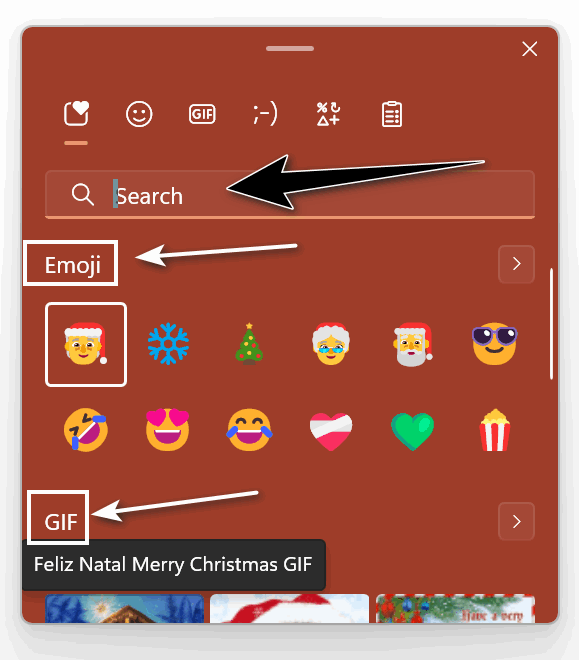
Note: You can search all sections of the Emoji pad by typing your search term in the Search box. Since we’re in the Christmas season now, we typed in Christmas.
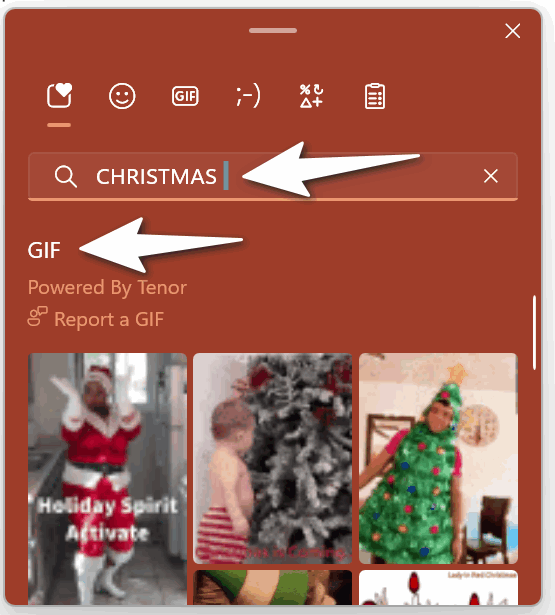
Let’s add some Christmas magic to your holiday emails. It’s easy

The Windows 11 Emoji Pad has a limited number of Christmas emojis, but a nice selection of animated Christmas GIFs. We will use the emoji to add some magic to the subject line and save the gifs for the message body – but you can use them any way you wish.
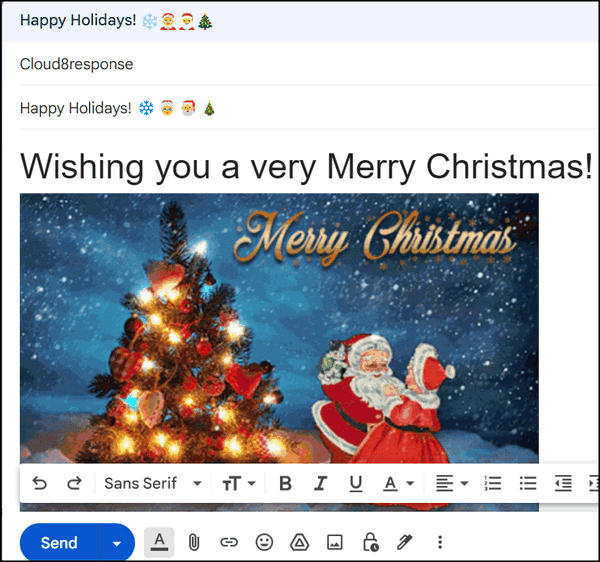
First, you can add an emoji from the Emoji Pad to the subject line by clicking in the subject line and then clicking the emoji you want to use in the Emoji Pad. Here we used a Santa and a Christmas tree.

Then, go ahead and type your message. You can add an animated GIF anywhere in the message body by opening the Emjoi Pad, scrolling down to the GIFS section, and clicking on the GIF you want to add. There are a lot of gifs, but you’ll have to type CHRISTMAS in the search box to see them all.

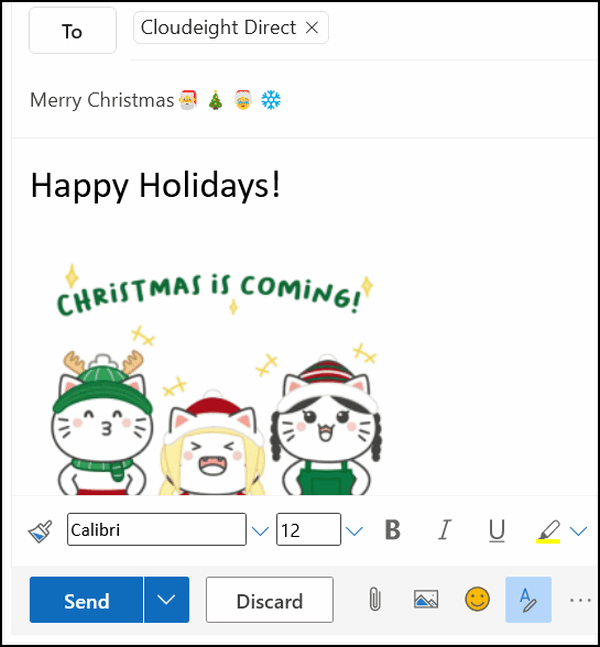
When your lucky recipient receives your email, they’ll see your cheery emoji in the subject line, your good wishes, and the animated gif in the body of the email… see?
You can use this tip in most email programs as well as in Gmail, Outlook.com, and Hotmail…
This screenshot is from the composition window in Gmail.
And this screenshot is from Hotmail/Outlook.com.
The Windows Emoji pad can help you add some Christmas fun and magic to your holiday emails!


Want to Change Your Computer’s Name? Here’s How to Do It.
Windows 10 / Windows 11
What’s your computer’s name? Is it something you chose or something the computer manufacturer chose? Whatever your computer name is, remember that computer names are an important part of networking and can make it easier for people to use and manage computers.
Giving computers names makes it easier for people to remember and refer to a computer. Instead of having to remember a long string of numbers or letters, people can simply use the computer’s name. And some people like to give their computers names that reflect their personality or interests. This can make the computer feel more personal. So instead of DELL0x16B, you might want to name your computer Strawberry-Fields or JenkinsFarms – something that means something to you – and something you can remember.
Computer names can also be important for networking. For instance, when you are connecting to a shared folder on a network, you will need to know the name of the computer on which that folder is located. If you’re using a remote desktop application, you will need to know the computer name you want to connect to.
There are many reasons why computers have names, and we’re going to show you how easy it is to change your computer’s name to whatever you want it to be, whether you’re using Windows 10 or Windows 11.
How to change your computer’s name
- Type ABOUT YOUR PC in the taskbar search.
- Press Enter when you see About your PC appear in the search results.
- Click on the “Rename this PC” button.
- In the dialog that opens, type whatever name you want for your computer.
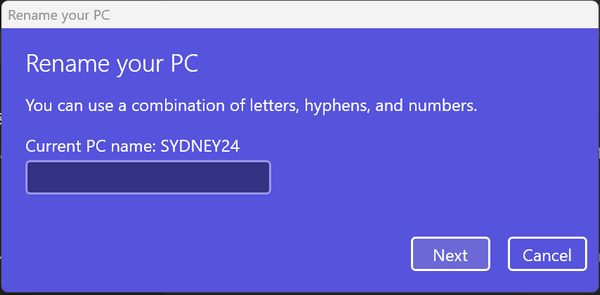
You can use letters, numbers, hyphens, and periods in computer names, but the names cannot contain more than 64 characters.
Hyphens and periods can be used in computer names, but the name cannot begin or end with a hyphen or a period.
The computer name cannot contain spaces.
The name cannot contain special characters, such as exclamation marks (!), question marks (?), quotation marks (“), asterisks, or the at sign (@).
The name cannot contain words that are considered to be offensive or vulgar.
You can name your computer anything you want as long as you follow the rules.
Now you know how to give your computer a name that means something to you.

Want more tips, tricks, and information?
We have thousands of Windows tips, tricks, and more on our InfoAve website.
Subscribe to our free InfoAve Daily newsletter.

Your gifts help us to keep on helping you and all our friends. Please consider making a small donation today!

Thousands of Free Christmas Wallpapers & Christmas Images

Since Christmas is fast approaching, we deemed it a great time to look for some free desktop wallpaper to use to spruce up our desktops for Christmas, as well as the holiday season. Our site pick today has over 4000 Christmas wallpapers and other holiday images you can use for your Christmas desktop or holiday projects. Far be it from us to tell you how to use the images and graphics for holiday projects.
All images are free, but watch out for stock photo ads
But one thing we can tell you is that all the images are free – unless you click on the images that are labeled “i-Stock”. Or other stock photo sites you’ll see advertised on Pixabay. Those are not free.
So, before writing to me and telling me that all of these images are not free, make sure you’re not clicking on i-Stock or other stock photo sites, which are ads disguised as non-ads and appear all over the site – especially when downloading the free images.
You don’t have to join anything or do anything you don’t want to, to get any of the free Christmas images. You’ll be asked to sign in or join, but you don’t need to do either. We figured the vast amount of free images they’re offering offset the annoyance.
Let’s move on to the fun stuff, shall we?
All of the images you see on this page are free from Pixabay, which has thousands of free images and Christmas Wallpapers. I spent a long time on the site browsing through, let’s say 577 of them, or the thousands of images, and I liked what I saw. I downloaded a dozen or so images and resized a few so you could get a glimpse of what awaits you.
Let’s take a look at some free Christmas wallpaper from Pixabay!






By now, you should have a pretty good idea of what you’ll find when you visit our site. If you don’t have a good idea of what you’ll find by now, you should lay off that spiked eggnog!
When you click on the download button, a couple of things may pop up asking for donations and other stuff, but they’re easy to close. And when downloading the images, you can choose from several sizes. When in doubt – especially for desktop wallpaper – choose the largest size.
OK, enough rambling…Are you ready to grab some free Christmas wallpaper and images for your holiday projects?
Visit Pixabay’s free Christmas Wallpaper and Christmas Images website right now.
And who knows, we may have more goodies for you before Christmas…
And speaking of Christmas, we used a Christmas image from Pixabay to wish you all a very MERRY CHRISTMAS!

Christmas Holiday Sale
Computer Cleanup, Checkup & Optimization Service
During our special Christmas Holiday Sale, you can buy a Cloudeight Direct Computer Care Cleanup, Checkup, and Optimization service key for just $19! That's right... for just $19...
** We’ll check your computer for malware and questionable programs
** We’ll check and optimize your startup programs
** We’ll check your computer performance to make sure your RAM and CPU usage are within normal ranges
** We’ll check to make sure your Windows settings are configured for the best performance and privacy.
** We’ll review your installed programs and make sure no questionable programs are installed.
Our Christmas Holiday Cleanup, Checkup, and Optimization can help ensure your computer is running at its best.
Take advantage of this special offer before it's gone. Get all the details here.

The Old Oak and the Christmas Tree Place 2025
Preface
This story started thirty years ago when my youngest son was 14. I wrote this essay when he was a freshman in college and living away from home for the first time. He’s 44 now and has a family of his own. We had our annual Christmas tree hunt for 25 years; it was a tradition. And now he carries on that tradition with his own children. Hopefully, his children will carry on that tradition long after I’m gone from this Earth.
I hope you enjoy reading this essay. It is the true story of a young boy and his dad searching for the perfect Christmas tree. This essay is an old one, but the story it tells is timeless. It’s the story of a father, his son, and the search for the perfect Christmas Tree.
In Search of The Perfect Christmas Tree
“One hundred years from now, it will not matter what my bank account was, how big my house was, or what kind of car I drove; but the world may be a little better, because I was important in the life of a child.” (Forest E. Witcraft)
For twelve years now, my youngest son and I have gone in search of the perfect Christmas tree. It was easier for us to carry out these yearly treks when he was younger and lived at home. But, as kids tend to do, he grew up, went off to college, and then to grad school, and now lives nearly four hours away.
But one thing about my youngest son, he’s a stickler for tradition. Neither mud, rain, snow, sleet, fog, thunderstorms, floods, nor sub-zero winds (and we’ve sloshed and nearly-froze-to-death through many of them) would stop him from completing our traditional yearly mission. And, who am I to scoff at tradition? I’m the family elder (and I get reminded of that often – even though I’m a child inside. It seems that your children never let you forget your age). I guess that makes me the current “Keeper of the Tradition”.
Each year for twelve years now, during the first week or two in December...
Read the rest of this Christmas essay here.

What is Typosquatting?
Typosquatting (also known as URL hijacking) is a form of cybercrime where attackers register domain names that are intentionally misspelled versions of popular websites. The goal is to catch users who make a mistake when typing a web address into their browser—for example, accidentally typing gogle.com instead of google.com.
Typosquatters rely on human error and the way we physically type on keyboards. Common tricks include:
Misspellings: Adding or removing a letter (e.g., facebok.com).
Transpositions: Swapping two adjacent letters (e.g., faecbook.com).
Wrong Suffix (TLD): Using .co, .net, or .org instead of .com (e.g., amazon.co).
Combosquatting: Adding a plausible word to a brand name (e.g., apple-support-login.com).
Homograph Attacks: Using characters from other alphabets that look identical to English letters (e.g., using a Cyrillic "?" instead of a Latin "a").
Omission/Addition of Hyphens: Adding or removing dashes (e.g., bank-ofamerica.com).
Now you know what typosquatting is.... so be careful when you type in URLs (web addresses).

Sales of the following products and services help support our newsletters, websites, and free computer help services we provide. MORE IMPORTANT STUFF!
Cloudeight Direct Computer Care:
Single Keys, SeniorPass, or Season Tickets - always a great deal. Cloudeight Direct Computer Care is like having PC insurance.
Get more information here.
Emsisoft Anti-Malware: Emsisoft is the only Cloudeight-endorsed and recommended Windows security program. It provides users with a complete antivirus, antimalware, anti-ransomware,
and anti-PUPs solution. We offer single Emsisoft licenses and multi-computer licenses at discount prices. Also, we offer our exclusive Emsisoft with Cloudeight installation & setup.
Get more information here.
Reg Organizer: Reg Organizer is the Swiss Army Knife of Windows tools. It's far more than just a registry optimizer and cleaner... it's a Windows all-in-one toolkit. Reg Organizer helps you keep your computer in tip-top shape and helps you solve annoying Windows problems. Reg Organizer works great with Windows 10
and Windows 11! Get more information about Reg Organizer (and get our special discount prices) here.
Your InfoAve Weekly Members' Home Page is located here.
Help us grow! Forward this email newsletter to a friend or family member - and have them sign up for InfoAve Weekly here!
Get our free daily newsletter! Each evening, we send a short newsletter with a tip or trick or a computer-related article - it's short and sweet - and free. Sign up right now.
We have thousands of Windows tips and tricks and computer articles posted on our Cloudeight InfoAve website. Our site has a great search engine to help you find what you're looking for, too! Please visit us today!
Help us by using our Start Page. It costs nothing, and it helps us a lot.
Print our Cloudeight Direct Flyer and spread the word about our computer repair service! If you want to help us by telling your friends about our Cloudeight Direct Computer Care service, you can download a printable flyer that you can hand out or post on bulletin boards, etc. Get the printable PDF Cloudeight Direct Computer Care flyer here.

We'd love to hear from you!
If you have comments, questions, a tip, a trick, a freeware pick, or just want to tell us off for something, let us know.
If you need to change your newsletter subscription address, please see "Manage your subscription" at the very bottom of your newsletter.
We received hundreds of questions for possible use in IA news. Please keep in mind that we cannot publish all questions and answers in our newsletters, but we try to answer every single question. We can only use a few in each week's newsletter. If you have a support question about a service or product we sell, please contact us here.
Subscribe to our Daily Newsletter! Get computer tips & tricks every night. Our daily newsletter features a computer tip/trick or two every day. We send it out every night around 9 PM Eastern Time (USA). It's short and sweet, easy to read, and FREE. Subscribe to our Cloudeight InfoAve Daily Newsletter!
We hope you have enjoyed this issue of Cloudeight InfoAve Weekly. Thanks so much for your support and for being an InfoAve Weekly subscriber.
Have a great weekend. Be safe!
Happy Holidays & Merry Christmas!
Darcy & TC
Cloudeight InfoAve Weekly - Issue #1158
Volume 23, Number 9
December 19, 2025
Not a subscriber? Subscribe to our FREE Cloudeight InfoAve Weekly Newsletter here.
"Cloudeight InfoAve Weekly" newsletter is published by:
Cloudeight Internet LLC
PO Box 73
Middleville, Michigan, USA 49333-0073
Read our disclaimer about the tips, tricks, answers, site picks, and freeware picks featured in this newsletter.
Copyright ©2025 by Cloudeight Internet