
Cloudeight InfoAve Weekly
Issue #1159
Volume 23, Number 10
December 26, 2025
Dear Friends,
Welcome to Cloudeight InfoAve Weekly Issue #1159. Thank you for subscribing and for being a part of our Cloudeight family. We appreciate your friendship and support very much! Please share our newsletters and our website with your friends and family.


Christmastime is a time of reflection. A time to look back and remember the good times and not-so-good times of the year that's almost past. It's a time to be thankful for the gifts we receive every day, from our friends, our families, and God, regardless of what our religion may be. Christmas is a time to forgive and remember those less fortunate. And to remember that the greatest gift we can ever give or receive, is the gift of love.
It's been our pleasure to have you in our Cloudeight family this year. We are thankful for you and for the help and support you always give us. We are very fortunate to have had you with us this year and we look forward to your friendship in the coming year.
This week's and next week's InfoAve Weekly newsletters will be review editions. Publishing review editions on major holidays gives us time to share with our families. Plus, it's a great way for us to feature and review some of the best content from previous InfoAve Weekly newsletters.
We hope that you will also take some time during the Holidays to make some wonderful memories.
We are thankful for every one of you. Thanks so much for all you do for us. Happy Holidays! Merry Christmas! God bless us, every one!
If you're not getting our InfoAve Daily newsletter, you're missing out on a lot of good stuff!
It's free and it only takes a few seconds to sign up. We'd love to have you with us. Visit this page to sign up for our Cloudeight InfoAve Daily Newsletter.
Christmas Holiday Sale

Cloudeight Direct Computer Care
Repair Keys Are Just $39 Right Now!
You can get a Cloudeight Direct Computer Care Key for just $39 during
our Christmas Holiday Sale! You save over 20% off our regular low price
of $50. Your Cloudeight Direct Computer Care Repair key never expires;
it's good until you use it. It's good for any computer repair that we
can do remotely.
Buy a Cloudeight Direct Computer Care Repair Key for just $39 during our
Christmas Holiday Sale!
Get your Cloudeight Direct Computer Care key for only $39 right
now!

Eileen has tried (almost) everything to fix her PC
Well, I got to the Advanced Boot Menu and tried both options and
neither of them worked. It went through diagnosing my PC, Auto
Repair and Reset PC. Response: "Auto Repair couldn't repair your PC"
and "Startup Repair couldn't repair your PC". What's next? Can I buy
some kind of disc that will fix my problem? Eileen
Our answer
Hi Eileen. Once you get to the advanced boot menu, click
"Troubleshoot" then click 'Reset" and choose the option to keep your
files.
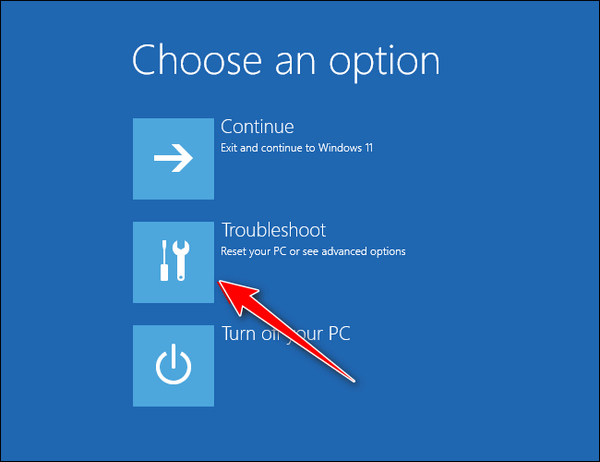
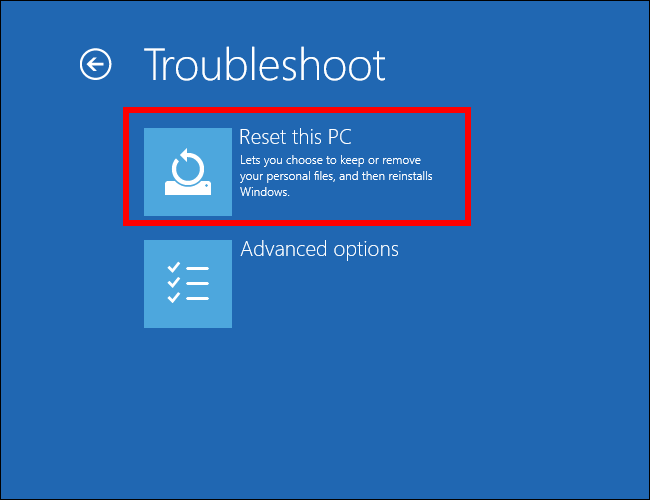
Resetting your PC and choosing the option to keep your files is the
quickest and easiest way to fix it. A reset will wipe out Windows
and all programs that you installed, save your files, reinstall a
fresh copy of Windows, and then put your files back. The only thing
you have to do after the reset is re-install any programs you need.
Please let us know if you need more help.
Steven wants to turn off AI
Overviews on Google Search
As I understand it, unfortunately, AI Overviews are baked into the
default search results page now on Google. Is there any way to
turn off the AI?
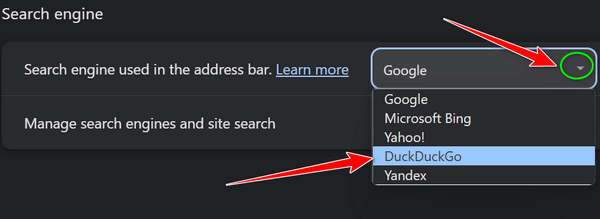
Hi Steven. Completely disabling AI in Google search isn't currently possible. Google uses AI to understand your searches and deliver relevant results.
Please help. When I checked my email the whole page format had changed. Everything on the page was tiny. I have tried Gmail settings, Gmail help, and even computer settings. Nothing works. Is there a simple solution? This happened unexpectedly.
Our answer
Hi Judy. Text size on
Gmail is not a function of your
computer or Gmail, it's a function
of your browser. Since I don't know
what browser you use, I can give you
an easy way of enlarging text on any
page (including Gmail) and enlarging
text in some other applications.
---------
Judy wrote back: "Thank you, you're a sweetheart. At first, I thought, as usual, I must have not been specific enough. I use that method all the time when I read articles online. I never experienced my INBOX being tiny but apparently, it works for browsers too. I know that I can set a certain zoom size permanently and be done with it. I've done it and my inbox was usually at a 125% zoom. A Windows update changed it. For some reason, updates always seem to cause me a little aggravation but they usually need only a simple fix. So thanks, folks. All is normal now and I am one happy camper. Judy."

Christmas Holiday Sale
Computer Cleanup, Checkup & Optimization Service
During our special Christmas Holiday Sale, you can buy a Cloudeight Direct Computer Care Cleanup, Checkup, and Optimization service key for just $19! That's right... for just $19...
** We’ll check your computer for malware and questionable programs
** We’ll check and optimize your startup programs
** We’ll check your computer performance to make sure your RAM and CPU usage are within normal ranges
** We’ll check to make sure your Windows settings are configured for the best performance and privacy.
** We’ll review your installed programs and make sure no questionable programs are installed.
Our Christmas Holiday Cleanup, Checkup, and Optimization can help ensure your computer is running at its best.
Take advantage of this special offer before it's gone. Get all the details here.
John wants to know if
completely shutting down a computer can help fix problems
I have heard and I have used..... If your computer is acting
up, won't boot, won't whatever... turn the computer off,
remove the power cord from the computer, and then push in
and hold the power button for 15 sec. or so.... the next
step, is to reconnect the power cord, and turn the
computer on normally and quite often the computer is back to
working fine?
One answer I have been able to get from a computer tech friend is that doing what I have mentioned above removes the electricity from the capacitors in the computer and this allows the computer to restart normally. My question to you all is my info correct? I have received your newsletters for many years, I have saved and organized all your tips and I just basically just really love, admire, support, and appreciate all your knowledge, faith, and ideas you put forth in your weekly, Friday reflection articles. Keep up your good work, I'm with you to the end.... oh and by the way, I'm now 85 and have been working in the computer world for 60 years, mainly helping older people. I also served as a helo pilot in the Air Force for 21 years. High light... serving in Vietnam rescuing downed pilots out of the jungle.
Looking forward to hearing from you and getting to know you even better than I do now... God Bless...
Our answer
Hi John. Thanks for all your nice comments!
Mark's right-click function on
Windows 10 no longer works
My right-click menu on my Windows 10 laptop stopped working and it's
very inconvenient not having a right-click function. I have been
using Windows 10 for 5 years and have never had a problem. Can you
help me? Thanks, Mark.
Our answer
Hi Mark. Try this:
1. Shut down your PC completely (all power lights off)
2. Wait for 4 or 5 minutes.
3. Turn on your computer.
4. Let Windows 10 load completely.
5. Try your computer and check to see if you still have problems.
If you still have the right-click problem, follow the instructions on this page.
I hope this helps you, Mark.
-------
Mark wrote back: "Wow! Thanks!. It's hard to believe that just
shutting off my computer for a few minutes fixed the problem. You
guys rock! Thank you! Mark."
Sharon needs to fill in PDF
forms on her computer
I need help as usual and turn to you guys, I have forms from my
doctor I need to fill out. They were sent to me by Gmail on
Windows 11 in PDF format. I can read them but cannot type on
them. I want to type on the forms on the PC. Help! Thank You!
>
Christmas Holiday Sale
Cloudeight Direct Computer Care Repair Keys Are Just $39 Right Now!
You can get a Cloudeight Direct Computer Care Key for just $39 during our Christmas Holiday Sale! You save over 20% off our regular low price of $50. Your Cloudeight Direct Computer Care Repair key never expires; it's good until you use it. It's good for any computer repair that we can do remotely.
Buy a Cloudeight Direct Computer Care Repair Key for just $39 during our
Christmas Holiday Sale!
Get your Cloudeight Direct Computer Care key for only $39 right
now!

Private
Browsing is Not Private... but there are
some things it's good for
Everyone who browses the internet
While private browsing is anything but private, there are some good reasons to use it, but none of them are related to hiding your activities, as you aren’t going to hide anything by using private browsing. Every site you visit is logged by your ISP and most of the time by the site you’re visiting. Your IP address is being logged; private browsing does not hide your IP address. Yet many people think they’re skulking around the Internet anonymously when they are using private browsing, but alas anonymity requires a lot more than using a browser’s private browsing mode. If it’s not private, then what good is it?
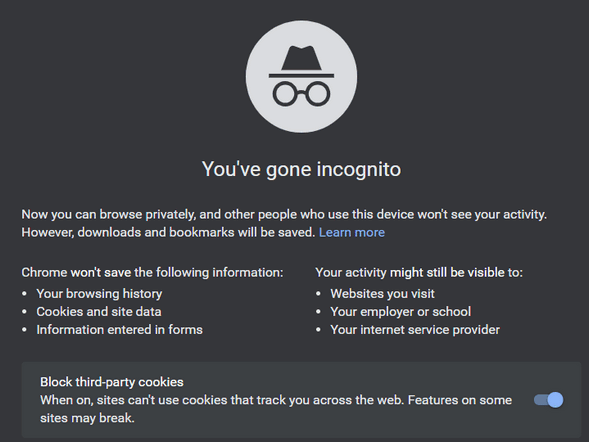
1. Use Private Browsing when you don’t want
cookies or temp files from sites you’ve
visited stored on your computer. Using
private browsing doesn’t store cookies or
the site URLs you visit on the local
computer. If you’re a lady looking for a new
husband, you don’t have to worry about your
husband looking through your temp files and
finding photos of your new prospective
husband or cookies from
www.soyourelookingforanewhusband.com – or
EB’s favorite www.sugardaddy4ubaby.com. I
only know EB frequents that site because I
snuck up on her while she was perusing a
gaggle of shirtless, fat, rich, old men.
2. Logging into multiple accounts from the same computer: If you’re logged into, let’s say one of your Gmail accounts and you try to log into another it will make you sign out of the account you’re logged into (there’s a way around this but that’s for another issue). If you want to open another Gmail account, etc. just open private browsing, and log into the other account. If you want to log into 5 Gmail accounts, for example, at one time just open 4 private browsing windows.
3. Search without cookies that identify you: You can search Amazon or PayPal etc. from a private browsing Window without seeing it come up on searches you perform when you’re logged into a site. Since cookies are not carried over from a private browsing session, sites cannot use them to identify you when you search using private mode, and then log into the site to purchase. This also provides you with a means whereby you can check the contents of a site as a new user and compare prices to make sure aren’t getting better prices than members. Hey, it happens all the time.
4. Checking email or browsing from someone else’s (or a public) computer. When need to check your email, check an account, or browse on someone else’s computer may want to use private browsing for that because browsing history, email provider, and accounts are not saved to the computer. Private browsing never saves web history, cookies or web data.
So private browsing is useful for a lot of things, but not for hiding your identity from your ISP, the FBI, the NSA, the famous super-sleuth, EB, or the websites you visit, I tells ya.
Oh, and we almost forgot – here are some keyboard shortcuts for launching a private browsing session:
Firefox and Microsoft Edge: Ctrl+Shift+P launches a new private browsing window.
Chrome, Brave, and Opera: Ctrl+Shift+N is the shortcut to open a new private browsing (incognito) window.
And there you go – everything you ever wanted to know about private browsing but were afraid to ask.
How to
Stop Windows from Tracking Everything You Do
Windows 10 / Windows 11
Yep! Windows Tracks Everything You Do?
Did you know that whether you’re using Windows 10 or Windows 11, Windows tracks everything you do. It’s called Timeline and Activity history in Windows 10 and Activity History in Windows 11.
If you don’t want Windows tracking everything you do on your computer here’s how to turn off Activity history and clear history already recorded.
Windows 10
Open Settings (Windows key + i ) and click on Privacy
In the left-hand pane, click on Activity history.
Under the “Manage your activity history” section, you’ll see two options:
Store my activity history on this device: Toggle the switch to Off if you don’t want Windows to store your activity history on your device.
Send my activity history to Microsoft: Toggle the switch to Off to prevent Windows from sending your activity history to Microsoft.
Disabling both options will completely turn off Activity history
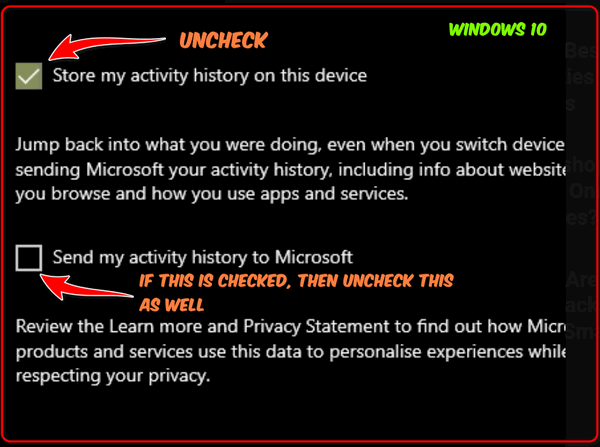
To clean up what Windows has already recorded, scroll down a bit further, and under “Clear activity history” click the “Clear” button.

Windows 11
Open Settings (Windows key + i)
In Settings click on “Privacy & security”
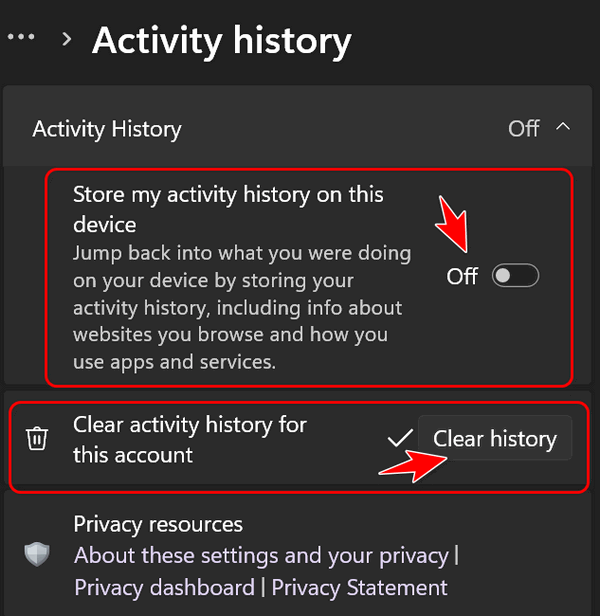
Under “Privacy & security” scroll down find “Activity history” and click on it.
In the “Activity history” dialog, toggle the switch next to “Store my activity history on this device” to the Off position.
And next to “Clear activity history for this account”, click on “Clear history”.
The
Quickest Way to Clear Your Brower's Cache
Firefox, Edge, Chrome, Opera, Brave, and
more...
Clearing your browser cache and history is
something you should do at least once a
month. And if you're having issues with your
browser, clearing your browser's cache is
the first thing you should do.
So with that in mind, here's a quick tip that will save you time when it's time to clear your browser's cache and history. Instead of opening the browser's settings, the following shortcut works on all major browsers.
With your browser open use the following keyboard shortcut to open to go directly to the dialog where you can clear your browser's history and cache.
CTRL+SHIFT+DELETE
You'll be able to choose how far back you want to go and what you want to clear. Once you've made your choices you can clear your browser's cache and history.
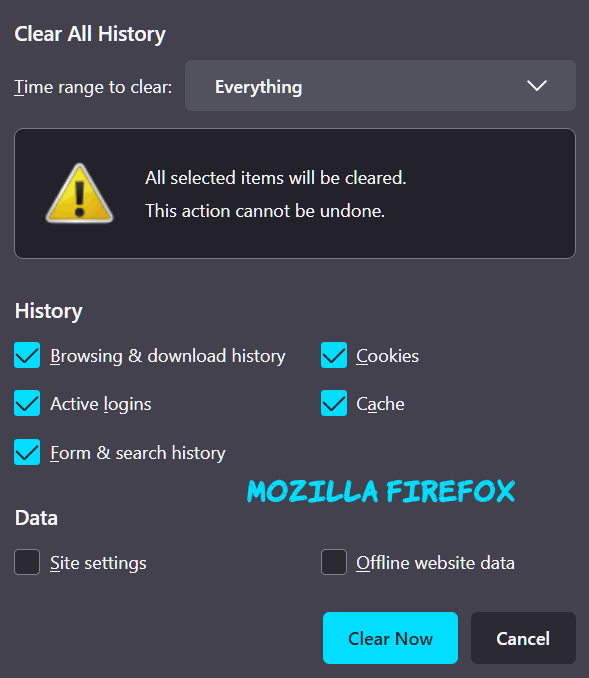
Above: Firefox's "Clear Recent History"
dialog. You can choose a time range to
clear, from the last hour to everything.
Most browsers have similar options.
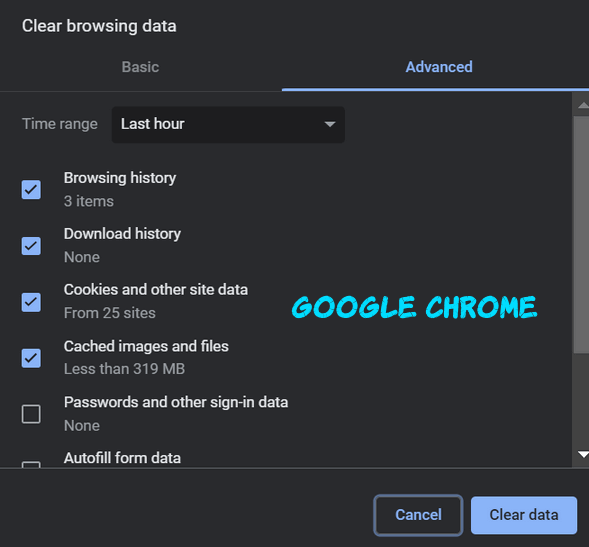
Above: Chrome's "Clear browsing data"
dialog.
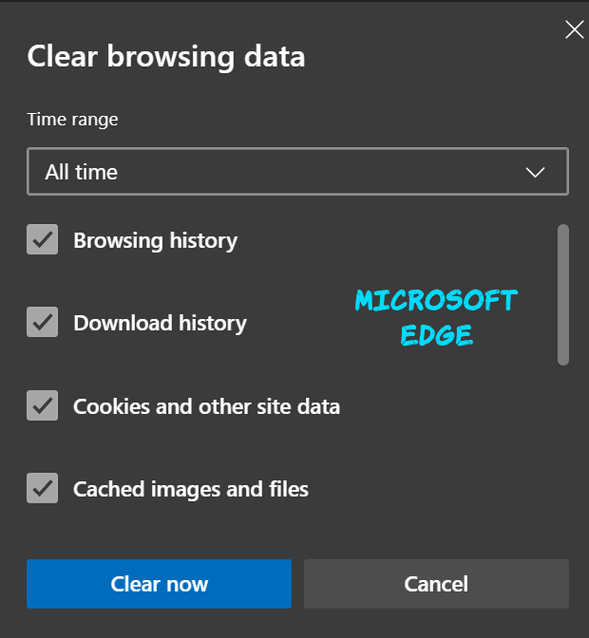
Above: The Clear browsing data dialog from
Microsoft Edge.
So, whenever you want to quickly clear your browser's history & cache, whether for the last hour, the last day, or for all time, just open your browser, and use the CTRL+SHIFT+DELETE keyboard shortcut. It will save you time, we tells ya!

Want more tips, tricks, and information?
We have thousands of Windows tips, tricks, and more on our InfoAve website.
Subscribe to our free InfoAve Daily newsletter.

Your gifts help us to keep on helping you and all our friends. Please consider making a small donation today!

Take This Test and Find Out if You’re Officially Old
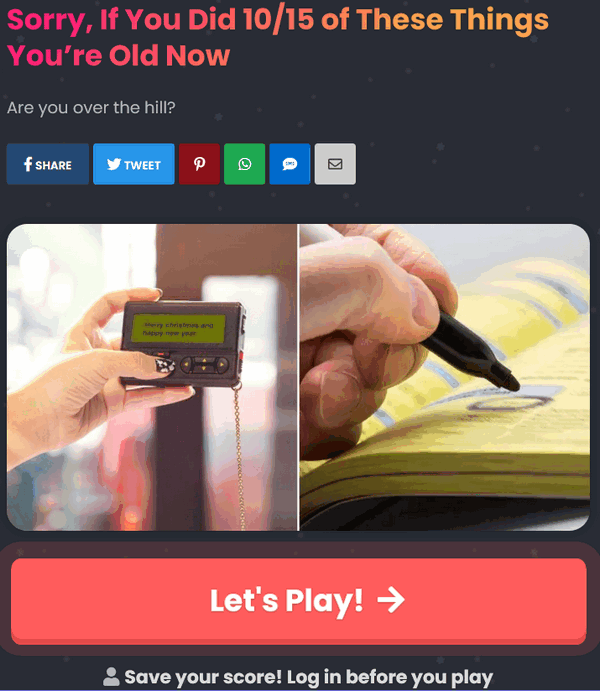
We all get old. When I used to tell my dad he was getting old, he used to tell me “It sure beats the alternative” (I’m not sure how he knew that, but that’s what he used to say.) And Mike “Mad Dog” Adams’ mantra is “Every day above ground is a GOOD DAY!” I agree with that.
Do you need to take a test to find out if you’re old? Nah! We know when we get old… heck even getting dressed can be a challenge, right EB?
This Cloudeight site pick is both a site pick and a test. You don’t have to sign up for anything or sign in to take the test but if you want to save your scores you need to create an account. There are a lot of fun quizzes on this site like the Mental Age Test, the Ink Blot Test, and many more.
But today, you’re going to find out if you’re officially old and “over the hill”. If you remember 10 of the 15 things on the test – for instance – “Have you ever made a telephone call from a phone booth?” – you’re old. Well, we can argue about that, but this is just for fun.
Have fun, take the “Sorry, If You Did 10/15 of These Things You’re Old” test, and find out if you’re officially old.
So, are you officially old… well are you? Visit this site to find out.
We are officially old, how about you?
Wait! You might enjoy some of the other quizzes on this site as well. While you’re there, take some of the other fun tests on Quizly.co too!
Christmas Holiday Sale
Computer Cleanup, Checkup & Optimization Service
During our special Christmas Holiday Sale, you can buy a Cloudeight Direct Computer Care Cleanup, Checkup, and Optimization service key for just $19! That's right... for just $19...
** We’ll check your computer for malware and questionable programs
** We’ll check and optimize your startup programs
** We’ll check your computer performance to make sure your RAM and CPU usage are within normal ranges
** We’ll check to make sure your Windows settings are configured for the best performance and privacy.
** We’ll review your installed programs and make sure no questionable programs are installed.
Our Christmas Holiday Cleanup, Checkup, and Optimization can help ensure your computer is running at its best.
Take advantage of this special offer before it's gone. Get all the details here.

The Gift That Keeps on Giving 2025
How many of you have seen National Lampoon’s Christmas Vacation? I’m pretty sure most of you have seen it. Do you remember when Clark Griswold’s Christmas Bonus turned out to be a one-year membership to the Jelly of the Month Club, and Eddie quipped, “That’s the gift that keeps on giving the whole year”?
I didn’t get a membership to the Jelly of the Month Club, but I did get a special gift last Christmas, and it turned out to be the gift that keeps on giving.
No one gave me this gift, it just crawled into my garage a week before Christmas… as I wrote then…
It was a week before Christmas and there were no sounds in the house, when suddenly from the garage door came a squeaking – like a mouse. I searched the garage for wild creatures that sometimes come looking for food in winter. But I saw nothing – yet I could still hear the little squeaking sounds coming from somewhere in the garage. Try as I might, I could find not a single critter in the garage – I could only hear its faint squeaking.
Frustrated at not being able to find the source of the tiny squeaks, I went to bed and thought no more of it as I drifted off into sleep.
Truffle on January 16, 2023.
The next morning arrived quickly as next mornings too often do. I had almost forgotten the little squeaks in the garage. I opened the door that led from the house to the garage. Three steps lead from the house to the garage floor, and as I looked down at the foot of those stairs I saw a tiny little kitten – shivering in the cold. It was a pitiful, heart-wrenching sight. A tiny kitten barely old enough to be separated from its mother – was now cowering and shivering in the cold in my garage.

Well, now four months have passed, and that tiny, dirty, stinky, shivering kitten has grown up into a loving and beautiful cat who has somehow stolen my heart.
Now my house is full of cat toys...

What is ghosting?
EB has tons of money and blows it on stuff like wild parties, yachts, fancy cars, and vacations. Another thing she does is buy up old haunted houses so she can go ghosting... you know, looking for ghosts.
No! No! No! Just kidding...
Ghosting is a term used to describe the act of abruptly ending all communication with someone without explanation. This can happen in any type of relationship, but it is most commonly used in the context of dating. Ghosting can be very hurtful and confusing for the person who is being ghosted, as they are left with no closure or explanation.
There are many reasons why someone might ghost someone else. Some people ghost because they are afraid of confrontation, while others do it because they don't want to hurt the other person's feelings. Still, others ghost because they are simply not interested in the relationship anymore.
I've thought about ghosting EB since she overworks me and underpays me. But I'm so poor and destitute -- every penny counts. Maybe someday soon she'll realize my worth and I'll get a huge bonus. Hope springs anew!

Sales of the following products and services help support our newsletters, websites, and free computer help services we provide.
MORE IMPORTANT STUFF!
Cloudeight Direct Computer Care:
Single Keys, SeniorPass, or Season Tickets - always a great deal. Cloudeight Direct Computer Care is like having PC insurance.
Get more information here.
Emsisoft Anti-Malware: Emsisoft is the only Cloudeight-endorsed and recommended Windows security program. It provides users with a complete antivirus, antimalware, anti-ransomware,
and anti-PUPs solution. We offer single Emsisoft licenses and multi-computer licenses at discount prices. Also, we offer our exclusive Emsisoft with Cloudeight installation & setup.
Get more information here.
Reg Organizer: Reg Organizer is the Swiss Army Knife of Windows tools. It's far more than just a registry optimizer and cleaner... it's a Windows all-in-one toolkit. Reg Organizer helps you keep your computer in tip-top shape and helps you solve annoying Windows problems. Reg Organizer works great with Windows 10
and Windows 11! Get more information about Reg Organizer (and get our special discount prices) here.
Your InfoAve Weekly Members' Home Page is located here.
Help us grow! Forward this email newsletter to a friend or family member - and have them sign up for InfoAve Weekly here!
Get our free daily newsletter! Each evening, we send a short newsletter with a tip or trick or a computer-related article - it's short and sweet - and free. Sign up right now.
We have thousands of Windows tips and tricks and computer articles posted on our Cloudeight InfoAve website. Our site has a great search engine to help you find what you're looking for, too! Please visit us today!
Help us by using our Start Page. It costs nothing, and it helps us a lot.
Print our Cloudeight Direct Flyer and spread the word about our computer repair service! If you want to help us by telling your friends about our Cloudeight Direct Computer Care service, you can download a printable flyer that you can hand out or post on bulletin boards, etc. Get the printable PDF Cloudeight Direct Computer Care flyer here.

We'd love to hear from you!
If you have comments, questions, a tip, a trick, a freeware pick, or just want to tell us off for something, let us know.
If you need to change your newsletter subscription address, please see "Manage your subscription" at the very bottom of your newsletter.
We received hundreds of questions for possible use in IA news. Please keep in mind that we cannot publish all questions and answers in our newsletters, but we try to answer every single question. We can only use a few in each week's newsletter. If you have a support question about a service or product we sell, please contact us here.
Subscribe to our Daily Newsletter! Get computer tips & tricks every night. Our daily newsletter features a computer tip/trick or two every day. We send it out every night around 9 PM Eastern Time (USA). It's short and sweet, easy to read, and FREE. Subscribe to our Cloudeight InfoAve Daily Newsletter!
We hope you have enjoyed this issue of Cloudeight InfoAve Weekly. Thanks so much for your support and for being an InfoAve Weekly subscriber.
Have a great weekend. Be safe!
Happy Holidays & Merry Christmas!
Darcy & TC
Cloudeight InfoAve Weekly - Issue #1159
Volume 23, Number 10
December 26, 2025
Not a subscriber? Subscribe to our FREE Cloudeight InfoAve Weekly Newsletter here.
"Cloudeight InfoAve Weekly" newsletter is published by:
Cloudeight Internet LLC
PO Box 73
Middleville, Michigan, USA 49333-0073
Read our disclaimer about the tips, tricks, answers, site picks, and freeware picks featured in this newsletter.
Copyright ©2025 by Cloudeight Internet