
Cloudeight InfoAve Weekly
Issue #1173
Volume 23 Number 24
April 3, 2026
Dear Friends,
Welcome to Cloudeight InfoAve Weekly Issue #1173 Thank you very much for subscribing and for being a part of our Cloudeight family. We appreciate your friendship and support very much! Please share our newsletters and our website with your friends and family.

If you're not getting our InfoAve Daily newsletter, you're missing out on a lot of good stuff!
It's free and it only takes a few seconds to sign up. We'd love to have you with us. Visit this page to sign up for our Cloudeight InfoAve Daily Newsletter.

We both wish you and those you love, a very happy Easter. This weekend, as on all major holiday weekends, we are publishing a review edition of Cloudeight InfoAve Weekly. Publishing a review edition on major holidays gives us some extra time to spend with our families and friends. We hope that you and those you love will be able to spend some time together this Easter weekend and that you all remember the reason for the season. And more than anything else, Easter is a time for hope and new beginnings. May you all have a blessed and Happy Easter. We'll be back next Friday with a brand-new edition of InfoAve Weekly. Happy Easter!

Andrew wants to format a flash drive
Dear Darcy & TC. In the past, you have recommended Puran File Recovery to recover deleted files on a USB memory stick. I have found this software invaluable; thank you for your recommendation. However, I now wish to securely delete all data on a USB memory stick so that all items are irrecoverable (even when using file recovery software) to pass the memory stick on to friends or my children. Can you please recommend a suitable software program that will permanently erase all the data on the memory stick, but that will not damage the stick?
Thank you in anticipation of your most valued advice and too for your treasured weekly and daily newsletters. Andrew
Our answer
Hi Andrew. Thanks for your nice comments. You don't need a program to format a flash drive or any drive. You can use Windows File Explorer.
Here's how to format a USB flash drive using File Explorer:
1. Open File Explorer (Windows Key + E)
2. Click on This PC from the left pane.
3. Right-click on the flash drive and select the Format option.
4. Use the "File system" drop-down menu and select the NTFS option.
5. In the "Allocation unit size," leave it set to default.
6. In the "Volume label" field, you can type in a descriptive name for example "16GB_Flash" (no quotes), or just leave it blank.
7. Under the "Format options" section, select the Quick format option. Unless the person you're giving it to is a forensic expert, Quick Format is fine. If you don't want to take any chances uncheck "Quick Format". This will set up a full format (which takes a lot longer) but any data that was on the drive will not be recoverable.
8. Click the Start button
9. Click the Yes button.
Once the format is complete the drive will be empty and ready to use.
--------
Andrew wrote back: "Dear TC. Thank you for your prompt reply and excellent advice and information. Your help and assistance are much appreciated and greatly valued. Thank you so much for being there and for your vast knowledge that you are kindly prepared to share with others. Please take care and keep safe. Best wishes, Andrew
Mary has no internet connection on her all-in-one computer
I have no internet on my all-in-one computer. It says the Ethernet adapter is disabled. Says update or get a new card. Cost? My computer is only 2 years old. Mary
Our answer
Hi Mary, if you can't enable your Ethernet adapter on Windows 11 (I'm assuming you're using Windows 11 since your computer is only 2 years old).
The most direct way to manage adapters in Windows 11 is to use Settings.
Open Settings (Press Win + I).
Click Network & Internet in the left sidebar.
Scroll down and click Advanced network settings (this is where adapter options are now hidden).
Under the "Network adapters" list, find your Ethernet adapter.
Click the Enable button next to it.
Note: If it says "Disable," it is already on. Try disabling and re-enabling it to reset the connection.
If the Ethernet adapter cannot be enabled, you can buy a USB Ethernet adapter that you can plug into any open USB port. You can buy them at Best Buy, Walmart, Amazon, Staples, etc. Here's one at Amazon for $12.00. They're easy to set up - just plug them into a USB port and plug your Ethernet cable from your PC into the open end.
You can also buy a wireless USB adapter ($15 or less) and use a wireless (Wi-Fi) connection instead of an Ethernet (cabled) connection. See our article here to learn more about USB Wi-Fi adapters.
I hope this helps you, Mary.
Rebecca wants to know the correct way to unsubscribe from mailings and cut down on spam
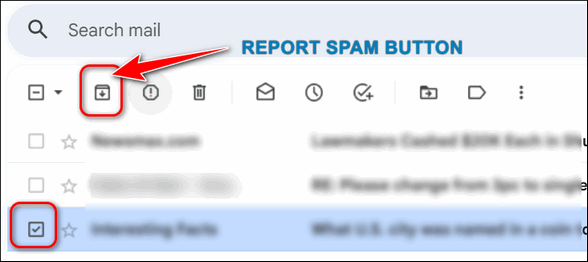
Hello friends, can you recommend a tool or app that can help me easily unsubscribe from all the junk email I receive? I still use an old Yahoo address for sign-ups, and I continue to receive messages from companies and websites I never subscribed to—possibly due to subscription bombing or data sharing/selling.
I usually use the automatic “unsubscribe” button in Gmail or Yahoo, or once in a while, click the unsubscribe link in the email footer (which I know is not best practice, as it indicates that the email address is monitored). I also update my email preferences directly on websites I intentionally subscribed to, which has been reliable.
What would you say is the safest and most effective way to unsubscribe from unwanted emails—both individually and in bulk?
Karen wants to know if she can change the size of dialog boxes on Windows 11
Hi TC & Darcy. Is there a way to enlarge the size of dialogue boxes in Windows 11? I tried Microsoft Community to no avail, and then I thought of you, the one place I get answers! Thanks, Karen.
Our answer
Hi Karen. You cannot specifically enlarge the size of dialog boxes or the text therein. But you can change the size of things on your screen including text inside dialog boxes and sometimes the size of some dialog boxes.
Method #1: Changing the scaling (be careful with this).
Open Settings > System > Display and find "Scale". Try setting it at 125 percent. Be sure to note the original number otherwise you may not be able to get back to what you had before you changed this. This changes the size of everything on your screen including text and dialog boxes.
Method #2: Changing the font size on your computer.
Press the Windows key and tap the U key to open Accessibility settings. Under "Vision" "Text size" > Click on Text size and use the slider to make the text on your screen bigger. This will make the text in some (but not all) dialog boxes bigger.
I hope this helps you, Karen.

THANK YOU FOR HELPING US!
When you support us with a small gift, you help us continue our mission to keep you informed, separate the truth from the hyperbole, and help you stay safer online. Plus, our computer tips make your computer easier to use.
Did you know that we provide support to thousands of people? Every week we help dozens of people via email at no charge. The questions and answers you see in our newsletters are from the email answers and help we provide to everyone free of charge.
Thanks to your gifts, we do a lot more than provide this free newsletter. We help you recognize online threats, fight for your online privacy, provide you with the knowledge you need to navigate the Web safely, provide you with suggestions for safe, free software and websites, and help you get more out of your PC.
Please Help us keep up the good fight with a small gift.
Interested in making an automatic monthly gift? Visit this page. Help us keep helping you... and help us keep you safe on the Web
Debbie is looking for fonts
I am using Windows 10. I'm looking for script and handwriting-type fonts. I'm hoping you can steer me in the right direction. Where can I find nice fonts without getting infected with malware? I would really like free fonts, but I want them to be from safe sites without risking getting infected. Thanks, Debbie.
Our answer
Hi Debbie. You're in luck. We just posted a new tip on our InfoAve website that lists 3 safe sites from which you can download nice fonts for free. Additionally, we show you how to install, find and preview fonts on Windows 10.
Visit this page to see our 3 site picks for fonts as well as how to install and preview fonts on Windows 10.
I hope this helps you, Debbie!
Dotty has a question about passkeys
It's me again. I have a question regarding the passkey. I'm getting pop-ups on all my password sites to use a passkey. Where do I get the passkey? Will every password site now be a different number? I know you have the answer. I really appreciate any help you can provide. May God's many blessings be with you both.
Richard has a couple of issues with Windows 11
I just upgraded to Windows 11. Two issues so far. First, the touch keypad no longer works. I'm typing this on an old keyboard I attached. Secondly, I see no way to attach a file folder to the taskbar. I put them in the start menu, which was not easy. Any help would be appreciated.
Our answer
Hi Richard. If you're talking about the Windows touch keyboard... if you right-click on the desktop, choose "Personalization" and look under "Taskbar corner icons" you'll see a switch for Touch Keyboard. You can turn it on from there. I just tried my touch keyboard in Windows 11 on both Windows 11 PCs and it works fine. If that doesn't work then you have a Windows issue that may require you to reinstall Windows 11 or run SFC/DISM scans. Or perhaps a future update will fix it.
Pinning a folder to the taskbar is not the same as Windows 10. Even in Windows 10, it was not just a matter of dragging and dropping but this does not work in Windows 11. If you're willing to do a little work you can pin files and folders to the taskbar in Windows 11 - although this can change with any Windows 11 updates.
It's easy to pin a folder or app to the Start menu in Windows 11, though. All you have to do is right-click and choose "Pin to start". So, I'm not sure why you're having trouble pinning apps/folders to the start menu. The main start menu does not show everything that is in the start menu, to see the entire start menu, click on "All apps" near the top right. When you see that you'll see a menu similar to other versions of Windows.

Now available: Reg Organizer 9.88
If you purchased or renewed Reg Organizer through Cloudeight within the last 12 months, you're entitled to a free version upgrade to Reg Organizer 9.88. Works great with Windows 10 and Windows 11.
Save $14 on Reg Organizer right now!
Reg Organizer - A Swiss Army Knife of Windows Tools - Works Great on Windows 10 and Windows 11.

Make Sure It’s Broke Before You Spend Time Fixing It
Windows 10, Windows 11
Here are two quick and easy tips that we are sure you'll use... "maybe not today, maybe not tomorrow, but soon. And for the rest of your life…"
Anyone who uses a computer knows they will have problems from time to time. It’s expected. It’s the nature of the beast. We’re here to remind you that if you start having computer problems, the first thing you should do is make sure there’s something really wrong with your computer before you set sail on a long, time-consuming voyage to fix it.
Here are two things you should always try as soon as you notice something’s not right with your computer:
1. Restart your computer.
As silly and simple as that sounds, restarting your computer can correct a lot of minor temporary errors and put your computer back on track. It won’t work every time, but it’s the first thing you should try if something isn’t right with your computer.
And… if restarting it does not work, we have one more simple thing you should do before you go off searching for help and fixes.
2. Shut down your computer completely and wait a few minutes...
Make sure all power is off and all power lights are off. Wait five minutes and then turn your computer back on.
You’ll find the second method may be successful if simply restarting your computer doesn’t work.
Now, we’re not here to convince you that these two simple tricks will fix all your problems and assuage all your computer woes – they won’t. But many times restarting your computer or shutting your computer down and waiting for a few minutes before restarting can correct many minor, yet annoying errors. And since it does not take much time or effort to try one or both of these tips, there’s no reason not to give them a try. We’ve seen restarting and shutting down the computer and waiting a few minutes before powering it back on, work many times on our own computers and other folks’ PCs as well.
And this trick also extends to other electronic devices – tablets, smartphones, streaming devices, etc. Sometimes the best fix is the simplest – just restart the device. It works more often than you think.
How to Repair or Reset Apps
Windows 10 / Windows 11
Many Windows apps come pre-installed on Windows 10 and Windows 11. Apps like “Mail”, “Photos”, “Weather”, “Edge”, “Notepad”, “Calculator”, and more all come with Windows 10 and Windows 11. And some apps, like Microsoft 365 apps, can be installed by the user.
Did you know most pre-installed and user-installed Windows apps can be repaired or reset if they are not working correctly? They can, and we’re going to show you how.
Windows 10
Open Settings (Windows key + I) and click on Apps. In “Apps,” click on “Apps & features”. Find the app you want to repair or reset in the list of apps, and click on it. When you click on the App’s name, you’ll see “Advanced options” appear.
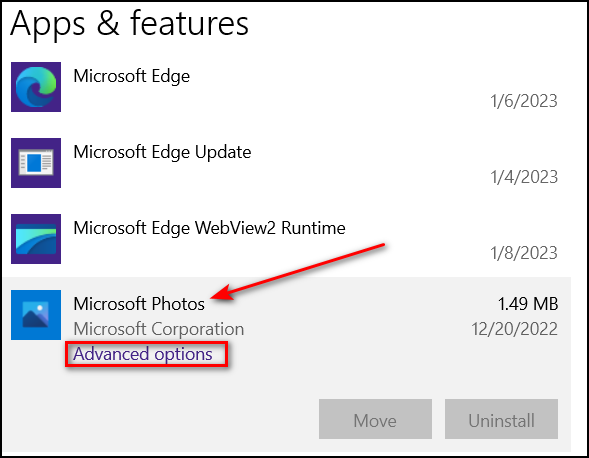
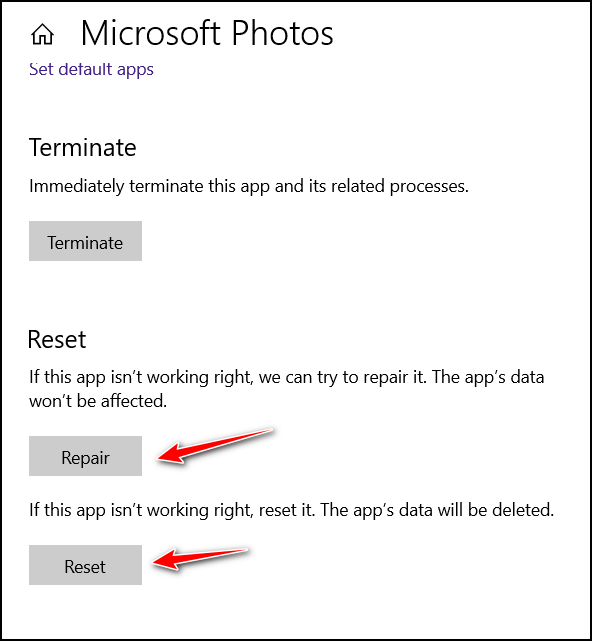
Click on Advanced options. You’ll see the option to repair or reset the app.
Windows 11
Open Settings (Windows key + I) and click on Apps. In “Apps”, click on “Installed apps”. Then find the app you want to repair or reset and click on the three-horizontal-dots icon to its right.
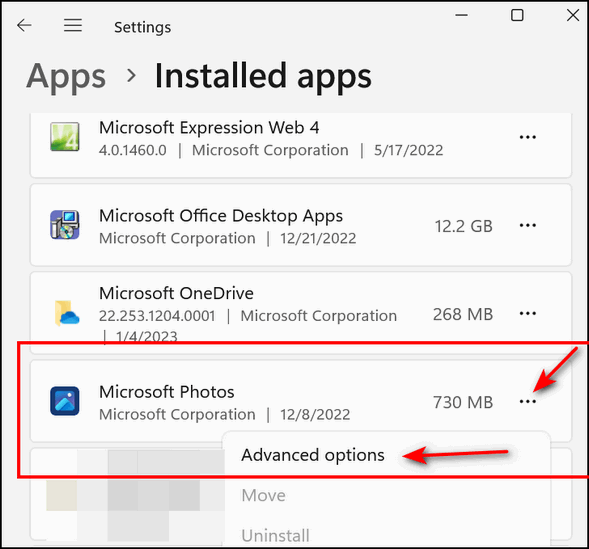
When you click on the 3-dots, you’ll see “Advanced options” appear. Click on “Advanced options…
You’ll see the “Repair” and “Reset” options. Always try the “Repair” option first. If it does not fix the app, try the “Reset” option.
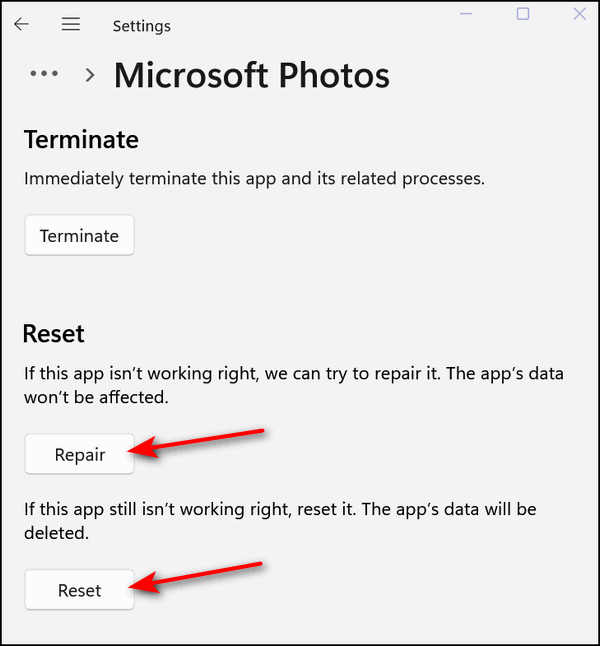
Most Windows apps allow you to repair or reset them, so if a Windows app starts misbehaving, try repairing or resetting it.
Using the End and Home Keys
Windows 10 and Windows 11
Darcy reminded me this morning to remind you about the End and Home keys and how handy they are and how much time they can save. But it seems that many people don’t know they even have End and Home keys on their keyboards or how those 2 keys can save you time.
First of all, you’ll have to locate the End and Home keys on your keyboard. There are so many different keyboard layouts and the location of the Home and End keys varies between laptops and desktops and even between computer manufacturers and models.
We’re going to show you a couple of places to look. However, keyboards vary, so you may have to look closely at your keyboard to find the End and Home keys.
Here are 2 examples:
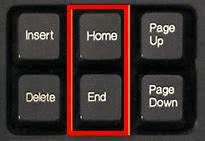
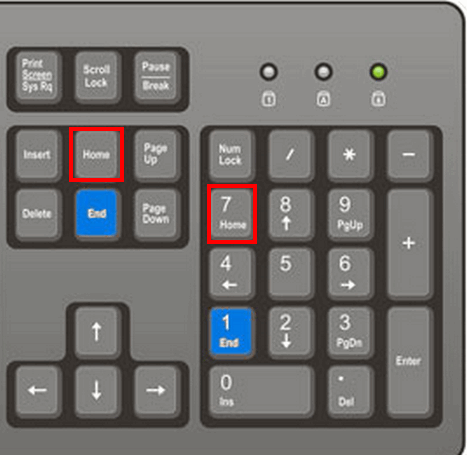
Once you find the Home and End keys on your keyboard…
The Home key takes you to the top of a web page or document; the End key takes you to the bottom of a web page or document. In some programs, you will need to use CTRL+Home and CTRL+End to move to the top or bottom of a document. Some laptop keyboards require you to use the fn key + CTRL + Home or fn key + CTRL+ End key to access the Home and End keys.
Anyway, using the Home and End keys (or CTRL+Home and CTRL+End) saves you time by taking you directly to the top or the bottom (or the end) of a webpage or document instantly.
If you want to get to the top or bottom of a page or document quickly, this is a little trick you won’t forget.

Want more tips, tricks, and information?
We have thousands of Windows tips, tricks, and more on our InfoAve website.
Subscribe to our free InfoAve Daily newsletter.
THANK YOU FOR HELPING US!
When you support us with a small gift, you help us continue our mission to keep you informed, separate the truth from the hyperbole, and help you stay safer online. Plus, our computer tips make your computer easier to use.
Did you know that we provide support to thousands of people? Every week we help dozens of people via email at no charge. The questions and answers you see in our newsletters are from the email answers and help we provide to everyone free of charge.
Thanks to your gifts, we do a lot more than provide this free newsletter. We help you recognize online threats, fight for your online privacy, provide you with the knowledge you need to navigate the Web safely, provide you with suggestions for safe, free software and websites, and help you get more out of your PC.
Please Help us keep up the good fight with a small gift.
Interested in making an automatic monthly gift? Visit this page. Help us keep helping you... and help us keep you safe on the Web

Tubi TV: Free TV with over 250,000 Titles to Choose From
Tubi TV is rather unique in the world of streaming services. Unlike its pricier counterparts, Tubi offers a massive library of movies and TV shows completely free. Tubi has no subscription fees and offers hundreds of hours of entertainment. Does that sound too good to be true? Let’s take a look and see what makes Tubi TV a great choice for streaming TV.

Above: Screenshot of Tubi TV running on my Windows 11 PC.
Tubi boasts a vast collection of over 250,000 titles, or over 52,000 movies. From cult classics and hidden gems to popular favorites and documentaries, there’s something for everyone. Feeling nostalgic? Tubi has a treasure trove of older movies and TV shows that will have you reminiscing. Want to catch up on a specific genre? Tubi offers a well-organized selection of comedies, dramas, thrillers, and more.

Above: Just a few of the thousands of movies available on Tubi TV.
Tubi TV is 100% free. You pay zero subscription fees. You can enjoy all this content without ever having to enter your credit card information. You don’t even have to create an account; it’s optional. But creating an account lets you create a list of favorites, pause what you’re watching, and pick back up where you left off whenever you are ready.
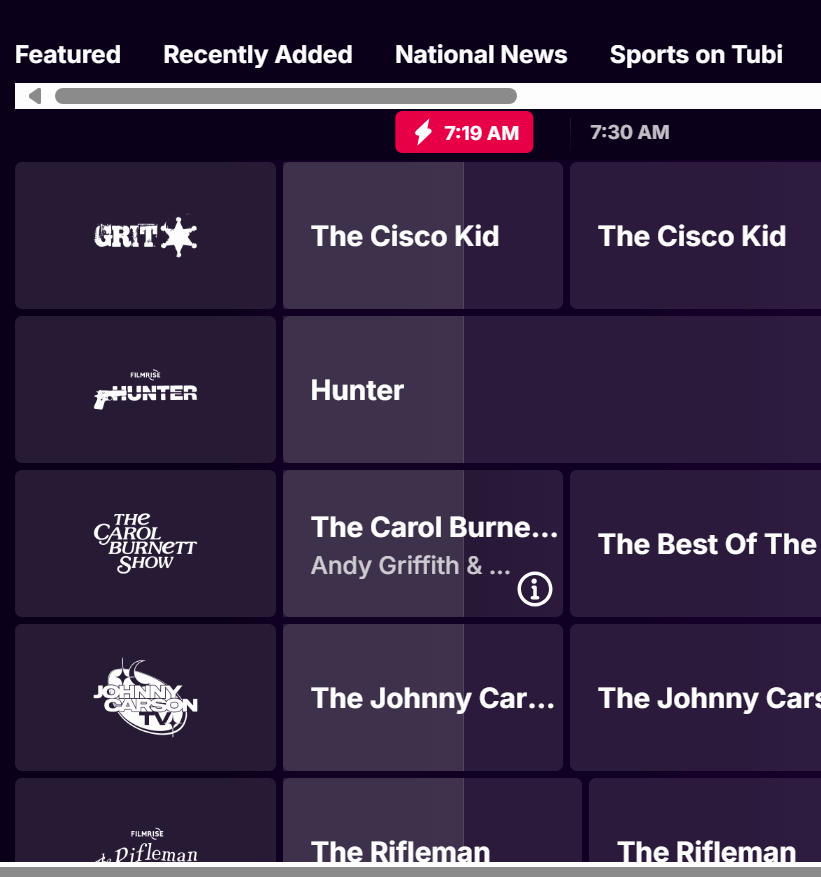
Above: Live TV guide on Tubi TV.
Tubi has a user-friendly interface that makes navigating the platform easy. Finding what you want to watch is easy with clear categories and a very good search feature. Tubi is also available on a wide range of devices, including smartphones, tablets, smart TVs, streaming devices, and Windows PCs, so you can watch your favorite shows on the go on your phone, on your laptop or desktop, or on your big-screen TV while you’re curled up on the couch.

Yes, there are ads… that’s why it’s free. Tubi uses commercial breaks to keep the platform running, but they are generally shorter and less frequent than broadcast television. Plus, unlike some free services, the ads on Tubi are not intrusive and don’t usually disturb your viewing experience.
I love Tubi TV. It’s my favorite streaming app. I pay good money for Netflix and Amazon Prime, but I can honestly say I watch Tubi TV more than either of those. Tubi TV is a fantastic option for anyone looking to save money on entertainment. With its impressive library of over 250,000 titles, user-friendly interface, and free price tag, Tubi TV offers incredible value.
You might not find the latest blockbusters here, but there’s plenty of great content to discover and enjoy. From newer movies to film noir, Tubi has them all. So, if you’re looking for a free and legal way to stream movies and TV shows, Tubi TV is worth checking out.
If you have a Roku, Amazon Fire TV Stick, or other streaming device, search for Tubi – it’s available for all popular streaming devices. It’s available for most Smart TVs. You can also use Tubi TV on Android smartphones and tablets, and Apple iPhones and iPads. You can also watch TV shows, movies, and more on your Windows PC.
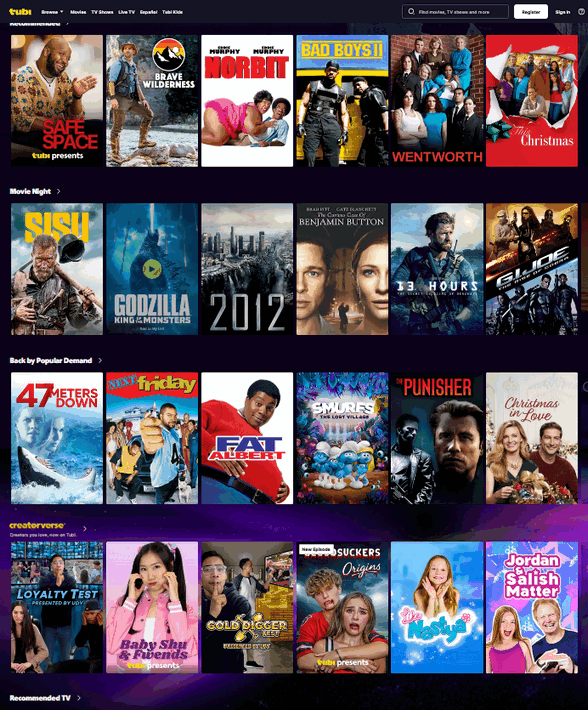
You can watch Tubi TV and all of the movies and content on Tubi on your Windows PC. Just visit https://www.tubitv.com/

Easter is almost here. It is a time of rejoicing and celebration for Christians worldwide. It is a time of rebirth and a renewal of faith.
But I was thinking how much we all need a resurrection – a resurrection within each of us. Each morning, when we wake, we can choose how we will be that day. In a sense, it’s like our own daily resurrection. Our spirits can be lifted, our bodies and our faith renewed. We can choose to be the person we’ve always wanted to be, or we can continue being the person we are.
If we are very lucky, we are both of those – the person we are is the person we have always wanted to be. But I believe that’s very rare. Most of us wish we were better people, more faithful, more compassionate, less judgmental, less confrontational, happier – more of some things and less of others.
I find myself judging others because of the way they look, how they live, what they have, what they don’t have, and what they have or have not done. But I have no right to do that. I have no right to judge anyone, no matter who they are, what they look like, how rich or poor, how they live, what they have, or what they’ve done. My resurrection comes every day I wake, and I get to choose what kind of person I will be that day. Will I and do I want to be who I was yesterday? Or do I want to be a better person today than I was yesterday?
You’re probably thinking that I can change all I want...

What is a VPN?
A VPN (Virtual Private Network) is basically a private, encrypted tunnel for your internet connection. Let's make a little analogy...
Imagine you're driving on a public highway (the internet). Everyone can see what car you're in and where you're going. A VPN lets you drive into a private, dark tunnel instead. Your real car (your device's identity and location) is hidden, and everything you do inside your car and the tunnel is encrypted, meaning no one—not your internet provider, not hackers, and not the websites you visit—can easily peep in and see what you're up to. It’s like a cloak of invisibility.
However, don't get carried away. Some VPN providers promise that their VPN services can prevent identity theft and scams, but I'm sorry to tell you that a VPN does not prevent identity theft, and a VPN cannot prevent you from being scammed or tricked.

Sales of the following products and services help support our newsletters, websites, and free computer help services we provide.
Cloudeight Direct Computer Care:
Always a great deal. Cloudeight Direct Computer Care is like having PC insurance. Get more information here.
Emsisoft Anti-Malware: Emsisoft is the only Cloudeight-endorsed and recommended Windows security program. It provides users with a complete antivirus, antimalware, anti-ransomware, and anti-PUPs solution. We offer single Emsisoft licenses and multi-computer licenses at discount prices. Also, we offer our exclusive Emsisoft with Cloudeight installation & setup. Get more information here.
Reg Organizer: Reg Organizer is the Swiss Army Knife of Windows tools. It's far more than just a registry optimizer and cleaner... it's a Windows all-in-one toolkit. Reg Organizer helps you keep your computer in tip-top shape and helps you solve annoying Windows problems. Reg Organizer works great with Windows 10 and Windows 11! Get more information about Reg Organizer (and get our special discount prices) here.
MORE IMPORTANT STUFF!
Your InfoAve Weekly Members' Home Page is located here.
Help us Grow! Forward this email newsletter to a friend or family member - and have them sign up for InfoAve Weekly here!
Get our free daily newsletter! Each evening we send a short newsletter with a tip or trick or a computer-related article - it's short and sweet - and free. Sign up right now.
We have thousands of Windows tips and tricks and computer articles posted on our Cloudeight InfoAve website. Our site has a great search engine to help you find what you're looking for too! Please visit us today!
Help us by using our Start Page. It costs nothing, and it helps us a lot.
Print our Cloudeight Direct Flyer and spread the word about our computer repair service! If you want to help us by telling your friends about our Cloudeight Direct Computer Care service, you can download a printable flyer you can hand out or post on bulletin boards, etc. Get the printable PDF Cloudeight Direct Computer Care flyer here.

We'd love to hear from you!
If you have comments, questions, a tip, a trick, a freeware pick, or just want to tell us off for something, let us know.
If you need to change your newsletter subscription address, please see "Manage your subscription" at the very bottom of your newsletter.
We received hundreds of questions for possible use in IA news. Please keep in mind we cannot answer all general computer questions. We try to personally answer as many as we can. We can only use a few in each week's newsletter, so keep this in mind. If you have a support question about a service or product we sell, please contact us here.
Subscribe to our Daily Newsletter! Get computer tips & tricks every night. Our daily newsletter features a computer tip/trick or two every day. We send it out every night around 9 PM Eastern Time (USA). It's short and sweet, easy to read, and FREE. Subscribe to our Cloudeight InfoAve Daily Newsletter!
We wish you all a very Happy and Blessed Easter!
Have a great Easter weekend...be safe!
Darcy & TC
Cloudeight InfoAve Weekly - Issue #1173
Volume 23 Number 24
April 3, 2026
Not a subscriber? Subscribe to our FREE Cloudeight InfoAve Weekly Newsletter here.
"Cloudeight InfoAve Weekly" newsletter is published by:
Cloudeight Internet LLC
PO Box 73
Middleville, Michigan USA 49333-0073
Read our disclaimer about the tips, tricks, answers, site picks, and freeware picks featured in this newsletter.
Copyright ©2026 by Cloudeight Internet