
Cloudeight InfoAve Weekly
Issue #1154
Volume 23, Number 5
November 21, 2025
Dear Friends,
Welcome to Cloudeight InfoAve Weekly Issue #1154. Thank you for subscribing and for being a part of our Cloudeight family. We appreciate your friendship and support very much! Please share our newsletters and our website with your friends and family.
We both wish you and your family all the best at Thanksgiving, during the Holiday Season, and always!

If you're not getting our InfoAve Daily newsletter, you're missing out on a lot of good stuff!
It's free and it only takes a few seconds to sign up. We'd love to have you with us. Visit this page to sign up for our Cloudeight InfoAve Daily Newsletter.
Help Us During
Our Fall Donation Drive When you support us with a small gift, you help us continue our
mission to keep you informed, separate the truth from the hyperbole, and
help you stay safer online. Plus, our computer tips make your computer
easier to use. Did you know that we provide support to thousands of people? Every
week, we help dozens of people via email at no charge. The questions and
answers you see in our newsletters are from the email answers and help
we provide to everyone free of charge. Thanks to your gifts, we do a lot more than provide this free
newsletter. We help you recognize online threats, fight for your online
privacy, provide you with the knowledge you need to navigate the Web
safely, provide you with suggestions for safe, free software and
websites, and help you get more out of your PC. Please help
us keep up the good fight with a small gift. Interested in helping us with a monthly gift? Visit
this page. Help us keep helping you... and helping you to
stay safe on the Web.


Mary
has
no
internet
connection
on
her
all-in-one
computer
I
have
no
internet
on
my
all-in-one
computer.
It
says
the
Ethernet
adapter
is
disabled.
Says
update
or
get
a
new
card.
Cost?
My
computer
is
only
2
years
old.
Mary
Our
answer
Hi
Mary,
if
you
can't
enable
your
Ethernet
adapter
on
Windows
11
(I'm
assuming
you're
using
Windows
11
since
your
computer
is
only
2
years
old).
The most direct way to manage adapters in Windows 11 is to use Settings.
Open Settings (Press Win + I).
Click Network & Internet in the left sidebar.
Scroll down and click Advanced network settings (this is where adapter options are now hidden).
Under the "Network adapters" list, find your Ethernet adapter.
Click the Enable button next to it.
Note: If it says "Disable," it is already on. Try disabling and re-enabling it to reset the connection.
If the Ethernet adapter cannot be enabled, you can buy a USB Ethernet adapter that you can plug into any open USB port. You can buy them at Best Buy, Walmart, Amazon, Staples, etc. Here's one at Amazon for $12.00. They're easy to set up - just plug them into a USB port and plug your Ethernet cable from your PC into the open end.
You can also buy a wireless USB adapter ($15 or less) and use a wireless (Wi-Fi) connection instead of an Ethernet (cabled) connection. See our article here to learn more about USB Wi-Fi adapters.
I hope this helps you, Mary.
Sidney asks what happens if a PC does not support biometrics and the user is not keen on face recognition. Can you still use passkeys?
I keep reading about passkeys, but I only see the options of fingerprint or face ID. My computer doesn't have a touch screen, so a fingerprint is out of the question. I don't really like the idea of my face ID. Is there another option?
Our answer
Hi Sidney. Every passkey I've created or that I have ever seen always gives me at least three options:
Rebecca wants to know the correct way to unsubscribe from mailings and cut down on spam
Hello friends, can you recommend a tool or app that can help me easily unsubscribe from all the junk email I receive? I still use an old Yahoo address for sign-ups, and I continue to receive messages from companies and websites I never subscribed to—possibly due to subscription bombing or data sharing/selling.
I usually use the automatic “unsubscribe” button in Gmail or Yahoo, or once in a while, click the unsubscribe link in the email footer (which I know is not best practice, as it indicates that the email address is monitored). I also update my email preferences directly on websites I intentionally subscribed to, which has been reliable.
What would you say is the safest and most effective way to unsubscribe from unwanted emails—both individually and in bulk?

We can fix your Windows computer... check out our low prices here!
If your computer had Windows on it previously, why didn't you have Windows reinstalled on your computer?
It's me again. I have a question regarding the passkey. I'm getting pop-ups on all my password sites to use a passkey. Where do I get the passkey? Will every password site now be a different number? I know you have the answer. I really appreciate any help you can provide. May God's many blessings be with you both.
I received this email from Microsoft about Microsoft Defender. I'm sending the info to you for your opinion on whether or not to install it.
Hope all is well with you.
Our answer
Hi
Leslie.
Here's the
scoop. If
you already
pay for
Microsoft
365,
apparently,
you are
"covered"
for stuff
you are
already
covered for,
such as
ransomware
and virus
protection
if you use
Microsoft
Defender.
However, now
they're
adding
credit
monitoring
(with
asterisk)
and identity
monitoring
(with
asterisk).

Now available: Reg Organizer 9.40
If you purchased or renewed Reg Organizer through Cloudeight within the
last 12 months, you're entitled to a free version upgrade to Reg
Organizer 9.31. Works great with Windows 10 and Windows 11.
Save $14 on Reg
Organizer right now!
Reg
Organizer - A Swiss Army Knife of Windows Tools - Works Great on Windows
10 and Windows 11.

How to Repair or Reset Apps
Windows 10 / Windows 11
Many Windows apps come pre-installed on Windows 10 and Windows 11. Apps like “Mail”, “Photos”, “Weather”, “Edge”, “Notepad”, “Calculator”, and more all come with Windows 10 and Windows 11. And some apps, like Microsoft 365 apps, can be installed by the user.
Did you know most pre-installed and user-installed Windows apps can be repaired or reset if they are not working correctly? They can, and we’re going to show you how.
Windows 10
Open Settings (Windows key + I) and click on Apps. In “Apps,” click on “Apps & features”. Find the app you want to repair or reset in the list of apps, and click on it. When you click on the App’s name, you’ll see “Advanced options” appear.
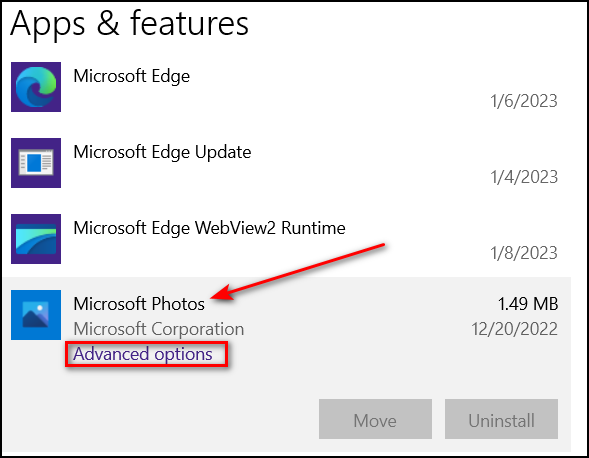
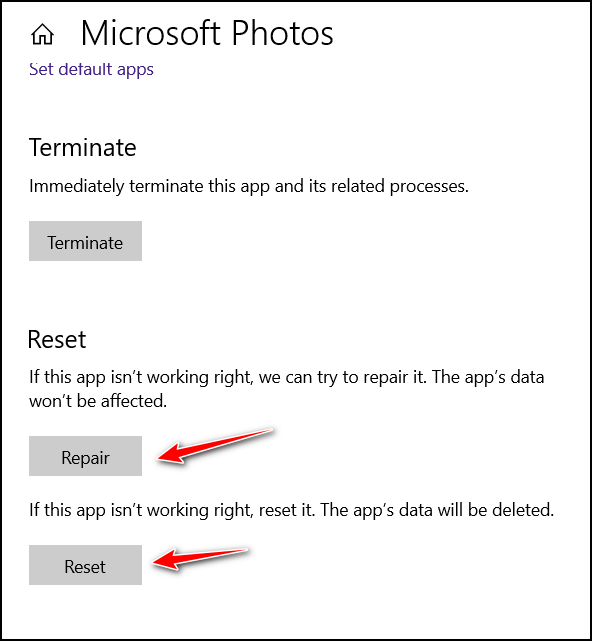
Click on Advanced options. You’ll see the option to repair or reset the app.
Windows 11
Open Settings (Windows key + I) and click on Apps. In “Apps”, click on “Installed apps”. Then find the app you want to repair or reset and click on the three-horizontal-dots icon to its right.
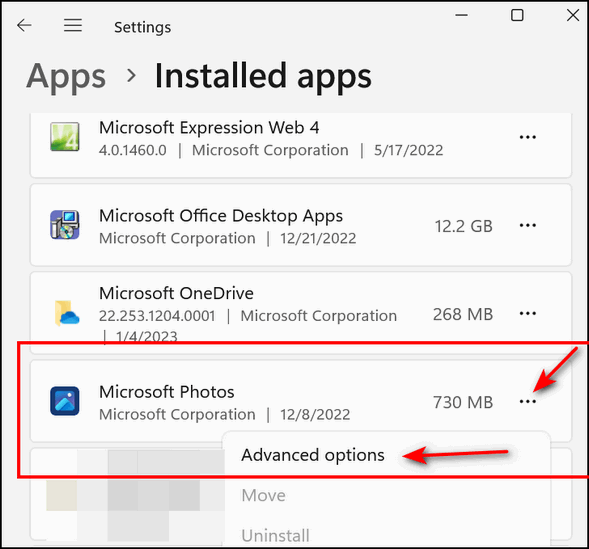
When you click on the 3-dota, you’ll see “Advanced options” appear. Click on “Advanced options…
You’ll see the “Repair” and “Reset” options. Always try the “Repair” option first. If it does not fix the app, try the “Reset” option.
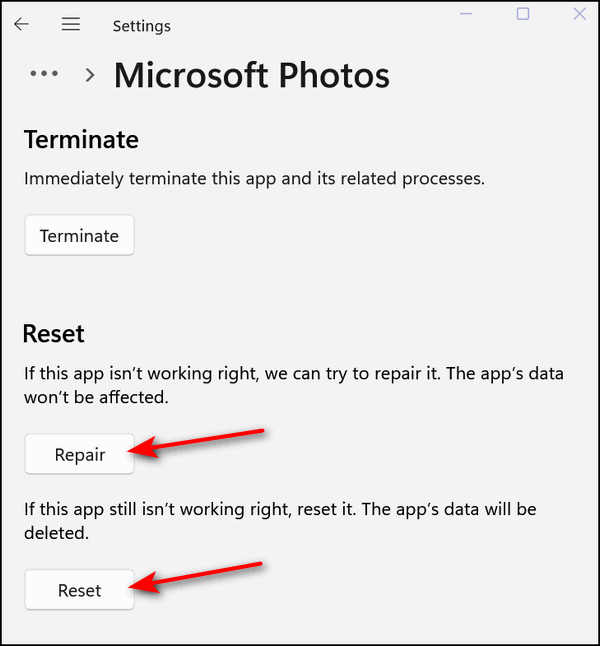
Most Windows apps allow you to repair or reset them, so if a Windows app starts misbehaving, try repairing or resetting it.
How to Block Almost All Ads On Your Android Phone Using Private DNS
For everyone using an Android phone
We’re going to step away from Windows tips and tutorials today to show you how to block ads on your Android smartphone. Since many of you have Android Smartphones, we hope you find this tip helpful.
“I am just a poor boy though my story’s seldom told… “ I have an Android Phone and I’ve been using Android smartphones for several years now, so I’m very familiar with them. And yes, I’m quite sure that iPhones have a similar setting, but since I don’t have (can’t afford) an iPhone or any Apple stuff, I can only provide this tip for Android users.
I’ve tested this ad-blocking method using Ablock’s free standard filter (dns.adguard.com). I was surprised how well it works. I was getting so frustrated with full-screen ads that wouldn’t close or ads that used a countdown timer before you could close them. I finally had enough, and my frustration led me to this solution.
So now, I’m going to show you how to use Android’s built-in Private DNS feature to block ads and trackers across most apps and web browsers on your phone. This method uses a free, reputable DNS service (like AdGuard DNS) that handles the filtering for you.
Best of all, this is an operating system setting and does not require installing any special app.
What is Private DNS?
Private DNS is a feature in modern Android versions (Android 9 Pie and newer) that routes all your network requests through a specific, secure server (a DNS server). By using a server that is pre-configured to block ad and tracking addresses, your phone prevents those ads from ever loading.
Here’s how to set up Ad-blocking via Android’s Private DNS feature
Step 1: Open Settings
Tap on the Settings app icon on your home screen or in your app drawer (it often looks like a gear).
Step 2: Navigate to Network/Connection Settings
Look for one of the following menu options, as the name varies slightly between phone manufacturers (Samsung, Google Pixel, etc.):
Connections (Samsung)
Network & internet (Google Pixel/Stock Android)
Wi-Fi & Network
Tap on the appropriate setting to proceed.
Step 3: Find the Private DNS Option
In the Network/Connection menu, look for a section called More connection settings, Advanced, or simply Private DNS.
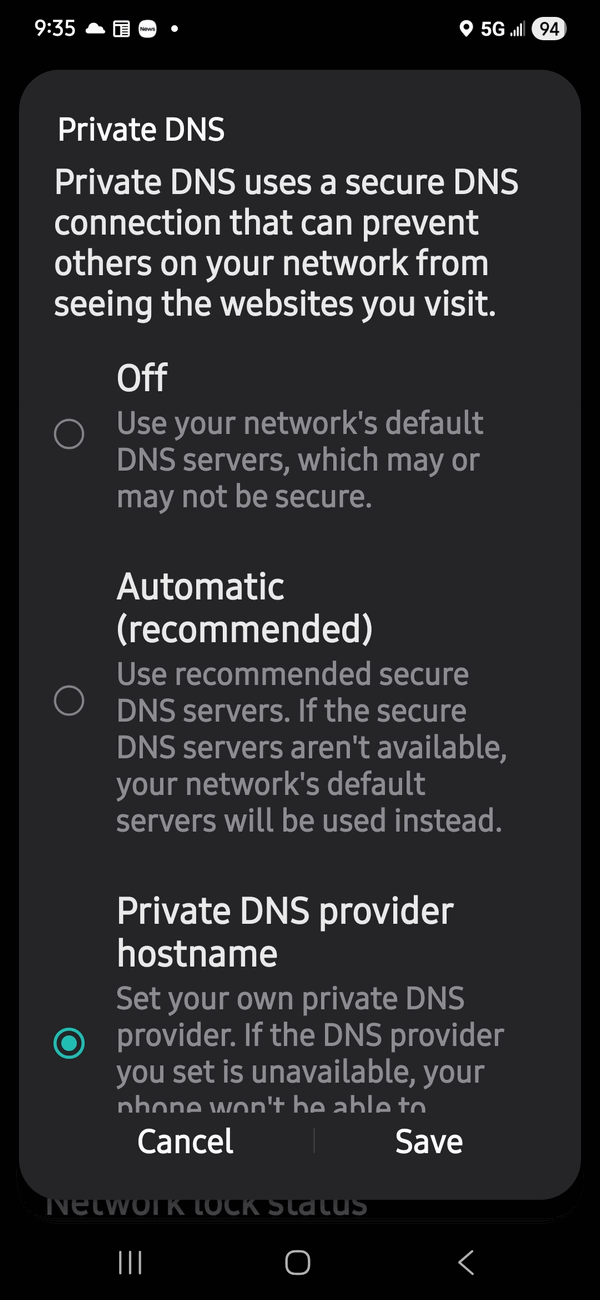
Tap on Private DNS.
Step 4: Enter the Ad-Blocking Hostname
The Private DNS menu usually has three options: Off, Automatic, and Private DNS provider hostname.
Select the option: Private DNS provider hostname.
In the text box that appears, you will enter the address for the ad-blocking DNS server. For most users, we recommend using AdGuard’s standard filter.
Type the following address exactly:
dns.adguard.com
Tap Save (or the checkmark/OK button).
Troubleshooting & Verification
Wait a few moments: It may take a few seconds for the new setting to apply across your phone’s network connections.
Test it out: Open your web browser (like Chrome or Firefox) and visit a popular news website. You should notice that spaces where ads previously loaded are now empty.
What if it doesn’t work? If you have trouble connecting or if ads still appear, try using a slightly more restrictive ad-blocking address (which may block more content, but is sometimes more robust):
dns-family.adguard.com (This blocks ads and adult content).
Warning: If you have any other VPN or firewall apps running, they may conflict with this setting. You may need to disable the other app’s VPN function for Private DNS to work correctly.
To Turn Ad Blocking Off
If you ever want to disable this feature:
Go back to Settings > (Network/Connections) > Private DNS.
Change the setting from “Private DNS provider hostname” back to “Automatic” or “Off”.
Tap Save.
Everything You Need to Know About Passkeys and Password Managers
Windows 10/Windows 11 & more
It seems so many of you have questions about passkeys, how they work, and why they’re so important. And, like any new technology, it can be scary, but unlike AI, passkeys have no downside. If everyone used passkeys instead of passwords, there would be no more phishing or theft by deception because a hacker can’t steal a passkey.
Occasionally, we receive a question that inspires a valuable tip or article, and the other day, we received one from Maria that we think will help you understand passkeys better and how password managers support them. We currently recommend three password managers: Bitwarden, LastPass, and RoboForm. Maria asked about Dashlane (a password manager), but this article applies to Bitwarden, LastPass, and RoboForm as well. Dashlane, RoboForm, LastPass, and Bitwarden can store passkeys and work seamlessly on Windows as well as all major Android and Apple devices, such as Android phones and tablets, iPhones, iPads, and Macs. Any of the aforementioned managers makes an excellent choice for syncing your data between any of the Windows, Apple, and Android devices you use. And they make cross-platform syncing of your passkeys easy and keep them available regardless of the device you are using when you log in.
These password managers all share the same core strength in their cross-platform compatibility, making it easy to access your passwords and passkeys wherever you are and with whatever device you happen to be using at the time.
Today, we’re going to share Maria’s question and our answer with you – because we believe it will help unravel some of the mysteries and eliminate some of the misunderstandings about passkeys. Passkeys are the future, but sadly, not all sites offer them yet. But there will come a day soon when all major sites that require log-ins will offer passkeys. And we think you’d be wise to choose passkeys wherever and whenever they’re available.
Maria’s question:
Good morning, I have questions about passkeys. I understand that passkeys are stored on my individual device and match up with the site I am logging into. Does that mean that our two computers and two iPhones will each have their own passkey? So, if I log in to a site on my computer and set up a passkey, will I then have to log in to the same site on my iPhone and create another passkey? If so, will Dashlane Premium store all four passkeys? I can’t envision signing in on any other devices, but if we wanted to, how would that work? Still nervous about using passkeys, I guess.
Our answer:
Hi Maria,
What a fantastic question, and I’m sure it is one that many people have. Passkeys are designed to be much more user-friendly across multiple devices, especially when you use a modern password manager. Here is how it works in simple terms, followed by the answer to your specific question about Dashlane and your devices.
How Password Managers Like Bitwarden, Dashlane, LastPass, RoboForm, etc. Handle Passkeys
Think of a passkey as two halves of a secure digital key:
The Public Half: This is given to and stored by the website (like Gmail or Amazon). It’s public, so if it gets stolen, it’s useless to a hacker.
The Private Half: This is the secret part that only you have. It is stored inside a secure “vault” on your device or in your password manager.
When you use a third-party password manager like the ones we’ve mentioned that supports passkeys, it essentially takes over the job of being the “secure vault” for the private half of the key. Instead of the private key being stored only in your phone’s hardware (which would keep it locked to just that phone), your Windows PC, or your Android device, the password manager encrypts the private key and stores it within your encrypted password vault in the password manager. Because the private key is now part of your password manager’s vault, the password manager can securely sync it—along with all your regular passwords—to all your other devices where you have the manager installed and you are logged in.
When you go to log in on your laptop, the password manager sees that the website is asking for a passkey, pulls the correct private key from its synchronized vault, and verifies it by asking you with your biometric ID (fingerprint, Face ID) or your PIN. The PIN normally would be the PIN you use to log into your device (phone, tablet, or computer).
A password manager turns a “device-bound” passkey into a “synced” passkey, solving the problem of having to create a new one on every device.
Now, let’s talk about your question, as you specifically asked about Dashlane…
Dashlane, other Passkey-capable password managers, and Multiple Devices
You are right to be nervous about the old way! If you only used the built-in storage on your phone (like Apple’s iCloud Keychain or Google Password Manager), your initial concern about having to create a separate passkey on every single device would be largely true.
However, using a cross-platform manager like Dashlane Premium or the others we mentioned completely changes this experience:
Will you have to create a new passkey on each device?
No, because you are using Dashlane Premium (or another passkey-capable password manager). When you set up the passkey for a site on your computer (or one of your iPhones), the private key is automatically saved to your Dashlane (password manager) vault.
Dashlane then securely syncs that single passkey across the internet to your other computer, other iPhone, and your other devices, as long as they are all logged into the same Dashlane account.
The next time you visit the site on a different device, Dashlane will automatically offer that synced passkey for login.
How does Dashlane store all four passkeys? It doesn’t. It will only store ONE passkey for that site, and you can use it on any of your four devices. Passkeys are designed to replace your username and password pair. For a single account on a single website, you only need one passkey (one private key/public key pair).
Dashlane Premium and most other passkey-capable password managers offer unlimited storage for both passwords and passkeys across an unlimited number of devices, so you have plenty of room for all your accounts.
What happens if you change devices or buy a new device? Nothing. It would be seamless. If you bought a new Android tablet, for example, you would download the Dashlane app/extension and log into your Dashlane account. The tablet would sync all your passwords and passkeys from the cloud.
When you go to log in to the site, Dashlane (and other passkey-capable password managers) would offer to use the existing passkey, and you would approve the login with your face, fingerprint, or PIN on the tablet.
We are all a bit nervous about new technology, but in this case, using a third-party password manager eliminates the major inconvenience of multiple passkeys you were worried about.
I hope this answers your questions, Maria.
This article applies to everyone who is using RoboForm, LastPass, Bitwarden, Dashlane, or other passkey-capable password managers.
And to all of you reading this, we hope this helps clear up some questions you may have had about passkeys and how password managers can make managing and synchronizing passkeys across multiple devices easier.
And remember, passkeys are just now coming of age; most major sites offer passkeys as an option, but some do not offer them yet. There is no question that passkeys are the future, and the more we understand why they are the future and how using passkeys is in our best interest, the safer we all will be. Phishing and online theft will be eliminated or drastically reduced, and it will be impossible for a hacker to trick you into accidentally revealing your passkeys.

Want more tips, tricks, and information?
We have thousands of Windows tips, tricks, and more on our InfoAve website.
Subscribe to our free InfoAve Daily newsletter.
THANK YOU FOR HELPING US!
When you support us with a small gift, you help us continue our mission
to keep you informed, separate the truth from the hyperbole, and help
you stay safer online. Plus, our computer tips make your computer easier
to use.
Did you know that we provide support to thousands of people? Every week,
we help dozens of people via email at no charge. The questions and
answers you see in our newsletters are from the email answers and help
we provide to everyone free of charge.
Thanks to your gifts, we do a lot more than provide this free newsletter. We help you recognize online threats, fight for your online privacy, provide you with the knowledge you need to navigate the Web safely, provide you with suggestions for safe, free software and websites, and help you get more out of your PC.
Please help us keep up the good fight with a small gift.
Interested in making an automatic monthly gift? Visit this page. Help us keep helping you... and help us keep you safe on the Web

Speechnotes.co: The No-Fuss Voice-to-Text Notepad

Have you ever wanted to write a special email, a story, an essay, or maybe a letter of complaint to a negligent business but didn’t because you didn’t feel like sitting at the computer and pecking at the keyboard trying to express your thoughts? Typing can be daunting if you’re not good at it … so that’s why we’re featuring this site pick today.
Speechnotes is an online notepad that lets you speak your thoughts and instantly converts them into text. It’s a tool for anyone who finds typing tedious or wants to capture ideas faster than their fingers can move. Forget installing complex software; this is a website-based tool designed for speed and simplicity.
What It Does Best (The Good Stuff)
The defining strength of Speechnotes is its sheer ease of use. You simply open the website in a Chrome or Edge browser, click the microphone button, and start talking—no sign-up, no account, and no complicated setup required.
1. Doesn’t Stop Listening: Unlike some other dictation software that stops when you pause to think or take a breath, Speechnotes is designed to keep listening. This “continuous dictation” feature is fantastic for writers or students who need to capture a stream of thought without interruption.
2. High Accuracy: The service relies on advanced speech recognition technology (powered by giants like Google and Microsoft). For clear audio and speaking, the accuracy is impressive, easily catching most words and professional terminology.
3. Built-in Efficiency: Speechnotes automatically handles capitalization at the start of sentences and includes handy voice commands for punctuation. You can just say “period,” “comma,” or “new line,” and the software inserts it instantly. It also includes auto-save and easy export options (like to a Word document or email).
Where It Falls Short (The Limitations)
While it’s great because of its simplicity, Speechnotes lacks some of the advanced features found in other paid or more complex transcription tools.
1. No Advanced Editing: If you have a long audio or video file you want transcribed, Speechnotes can do it, but that specific “file transcription” feature is a separate, pay-per-minute service (around $0.10/minute) and not part of the free dictation notepad. The main focus is live speech, not polishing long, pre-recorded files.
2. Not a Collaboration Tool: This is a personal notepad. It doesn’t offer features for team collaboration, summarization, or detailed AI-powered text enhancement like grammar correction—you’ll have to copy and paste your text into another tool for that kind of polish.
3. Punctuation Commands are Essential: Since it converts speech in real-time, you must remember to say your punctuation marks out loud. If you rely on it to guess where commas should go, you will need to do a fair amount of manual editing afterwards.
Should You Use Speechnotes?
If you need a fast, accurate, and totally distraction-free way to:
Quickly draft an email or report.
“Write” a long essay or blog post without your hands.
“Write” a special email
“Write” a complaint or a complimentary letter
Or capture spontaneous thoughts, notes, or to-do lists. Speechnotes is the perfect tool for the simplicity lover.
It’s an excellent, powerful, and reliable tool for basic, hands-free dictation, especially since the core voice-typing notepad is available for free (supported by a small, non-disruptive ad).
But if you need more complex services like multi-speaker identification or built-in summarization, you might need to look at more feature-rich (and likely more expensive) alternatives.
Are you interested?
If you’re interested in expressing your thoughts without a lot of typing and without a high learning curve, take a look at our site pick, Speechnotes.co. Your fingers will thank you.

Apple John
 The fluorescent lights of the hospital’s Intensive Care Unit cast a sickly, indifferent glare, turning every surface into a cold canvas of white and gray. Sepsis had brought me here and stripped me of my strength, my health, and my name, reducing me to a patient ID and a series of alarming medical-machine beeps. It was in a bland, sterile, depersonalizing cocoon that I met John, a man who, just over one hundred years old, seemed to carry the very scent of the earth under his skin.
John was an anachronism in Room 312. While I lay tethered to pumps and monitors, beeping like a child’s toy, battling a systemic failure of health, he was in for a minor, almost administrative inconvenience—a slight fall, the kind that reminded him, rather than the hospital, that even centenarians must follow the law of gravity. His name was John. But it was the legend, not his name, that defined him. After an interesting, story-filled afternoon of listening to his stories, punctuated by the rhythmic sigh of my beeping machines, I gave him a nickname: Apple John.
His life, he explained, unfolded in the quiet, sprawling, mostly flat, farmlands of northern Ohio. His home was an aging, unpretentious, white farmhouse, situated in front of his small, beloved apple orchard. His orchard was a hobby...
You're cordially invited to read the rest of this essay here.

What is "Jackpotting"?
Jackpotting is a hack where criminals force an ATM to spit out cash continuously, looking exactly like a slot machine hitting a jackpot.
The thieves steal directly from the bank, not from individual customer accounts. Your debit card number is safe during this attack.
Thieves often dress as repair technicians to avoid suspicion. They open the machine’s panel (usually the top part) to access the computer inside. They plug in a laptop or a malicious USB stick that overrides the ATM’s software. They send a command, and the machine empties its cash cassettes into their hands, like hitting the jackpot on a slot machine, hence the name "Jackpotting".
The jackpotting scam usually happens to older, standalone ATMs found in pharmacies, grocery stores, or drive-thrus, rather than the newer machines, which are built into the walls of banks.

Sales of the following products and services help support our newsletters, websites, and free computer help services we provide.
Cloudeight Direct Computer Care:
Single Keys, SeniorPass, or Season Tickets - always a great deal. Cloudeight Direct Computer Care is like having PC insurance.
Get more information here.
Emsisoft Anti-Malware: Emsisoft is the only Cloudeight-endorsed and recommended Windows security program. It provides users with a complete antivirus, antimalware, anti-ransomware,
and anti-PUPs solution. We offer single Emsisoft licenses and multi-computer licenses at discount prices. Also, we offer our exclusive Emsisoft with Cloudeight installation & setup.
Get more information here.
Reg Organizer: Reg Organizer is the Swiss Army Knife of Windows tools. It's far more than just a registry optimizer and cleaner... it's a Windows all-in-one toolkit. Reg Organizer helps you keep your computer in tip-top shape and helps you solve annoying Windows problems. Reg Organizer works great with Windows 10
and Windows 11! Get more information about Reg Organizer (and get our special discount prices) here.
MORE IMPORTANT STUFF!
Your InfoAve Weekly Members' Home Page is located here.
Help us grow! Forward this email newsletter to a friend or family member - and have them sign up for InfoAve Weekly here!
Get our free daily newsletter! Each evening, we send a short newsletter with a tip or trick or a computer-related article - it's short and sweet - and free. Sign up right now.
We have thousands of Windows tips and tricks and computer articles posted on our Cloudeight InfoAve website. Our site has a great search engine to help you find what you're looking for, too! Please visit us today!
Help us by using our Start Page. It costs nothing, and it helps us a lot.
Print our Cloudeight Direct Flyer and spread the word about our computer repair service! If you want to help us by telling your friends about our Cloudeight Direct Computer Care service, you can download a printable flyer that you can hand out or post on bulletin boards, etc. Get the printable PDF Cloudeight Direct Computer Care flyer here.

We'd love to hear from you!
If you have comments, questions, a tip, a trick, a freeware pick, or just want to tell us off for something, let us know.
If you need to change your newsletter subscription address, please see "Manage your subscription" at the very bottom of your newsletter.
We received hundreds of questions for possible use in IA news. Please keep in mind that we cannot publish all questions and answers in our newsletters, but we try to answer every single question. We can only use a few in each week's newsletter. If you have a support question about a service or product we sell, please contact us here.
Subscribe to our Daily Newsletter! Get computer tips & tricks every night. Our daily newsletter features a computer tip/trick or two every day. We send it out every night around 9 PM Eastern Time (USA). It's short and sweet, easy to read, and FREE. Subscribe to our Cloudeight InfoAve Daily Newsletter!
We hope you have enjoyed this issue of Cloudeight InfoAve Weekly. Thanks so much for your support and for being an InfoAve Weekly subscriber.
Have a great weekend. Be safe!
Darcy & TC
Cloudeight InfoAve Weekly - Issue #1154
Volume 23, Number 5
November 21, 2025
Not a subscriber? Subscribe to our FREE Cloudeight InfoAve Weekly Newsletter here.
"Cloudeight InfoAve Weekly" newsletter is published by:
Cloudeight Internet LLC
PO Box 73
Middleville, Michigan, USA 49333-0073
Read our disclaimer about the tips, tricks, answers, site picks, and freeware picks featured in this newsletter.
Copyright ©2025 by Cloudeight Internet