
Cloudeight InfoAve Weekly
Issue #1174
Volume 23 Number 25
April 10. 2026
Dear Friends,
Welcome to Cloudeight InfoAve Weekly Issue #1174. Thank you very much for subscribing and for being a part of our Cloudeight family. We appreciate your friendship and support very much! Please share our newsletters and our website with your friends and family.

If you're not getting our InfoAve Daily newsletter, you're missing out on a lot of good stuff!
It's free, and it only takes a few seconds to sign up. We'd love to have you with us. Visit this page to sign up for our Cloudeight InfoAve Daily Newsletter.

Our Spring Donation Drive is Underway!
Make a small donation and help us to keep on helping you!
Our annual spring donation drive is underway. Sales of our products and services help keep the lights on at Cloudeight. But if you don’t need any of our products or services right now, please help us with a donation. Even the smallest gift is appreciated. Every donation helps us to provide useful information that helps you with your computer as well as helps to keep you safe on the Internet. We offer free help to thousands of people every year… and we offer an honest and inexpensive computer repair service too. We do everything we can to help you with your computer and to help you stay safe too.
So, if you don’t need any of our products or services right now, please consider helping us with a small donation.
Please help us by donating right now.
Interested in making a monthly gift? Visit this page. Help us keep helping you!
Thank you so much for your support!
Help us keep helping you and helping you stay safe on the Web. Thank you so much!

Candace wants to know if she's supposed to
update our tech tips
Hi there. I enjoy reading your Tech Tips, but I'm confused. Are we to
update the ones on your tech tips page as well as those on the "check
for updates" page? Thanks. Candace
Our answer
Hi Candace, We don't have a 'Check for updates" page or a "Tech tips"
page. We have a website that features daily posts, including computer
tips, freeware picks, site picks, general computer info, computer news,
etc. But it's a website with thousands of pages and a good search engine
to help readers find a particular tip, trick, or article.
We also have a Start page which features daily tips and tricks, world news, and tech news. The world news and tech news come from sites other than ours. That page is updated daily.
Every Thursday, we have a feature called Thursday Tech Headlines that features articles I found interesting during the week. These are not necessarily tips; they are generally tech headlines leading to the articles I found interesting. They are not tips; we may or may not agree with the content of the articles featured.
We do not have an individual tech tips or check-for-updates page. And nothing on our site that you would have to update.
Yvonne is confused by some settings on her
Android phone
I need help and am puzzled. I have an Android phone (4G). I want to
prevent unnecessary battery drain. If I go into Power Saving
Exclusions, it says to select Apps to exclude from Battery Saver and
battery optimizations. This may drain the battery faster. There is a
long list of links, and I don't know what's safe to click on. Beside
each App, there is an oval box. Inside the box is a circle that has an
X. If I click on it, the X changes to a Checkmark. Do you know what is
safe to checkmark or leave as an X ? I hope my question was
understandable and not confusing. Thanks for your response!
Our answer
Hi Yvonne. Here is the "Golden Rule" for that screen: When in doubt,
leave it as an X. Here is exactly what those symbols mean and how
to handle that long list:
The "X" vs. The "Checkmark"
The X (Leave it alone): This means the app is being optimized. Android is allowed to "put it to sleep" when you aren't using it to save your battery. This is what you want for 99% of your apps!
The Checkmark (Exclude): This tells Android, "Do NOT touch this app. Let it run as much as it wants, even if it drains my battery."
What is Safe to "Checkmark"?
You should only change an X to a Checkmark for apps that must work in the background to be useful. If you exclude too many, your battery will drain much faster. Only checkmark these types of apps:
Alarms & Clocks: If you use a special alarm app and it doesn't go off because the phone "put it to sleep," you'll be late for something.
Medical Apps: If you have an app that monitors health data (like a glucose monitor or a heart rate tracker), it needs a Checkmark.
Messaging Apps (Sometimes): If you find you aren't getting notified of new emails or texts until you actually open the app, giving them a Checkmark ensures they "stay awake" to listen for new messages.
Security Apps: If you use an app like Emsisoft Mobile, you want that running all the time to keep you safe.
What should stay as an "X"? Everything else. Games, Shopping apps (like Amazon or Temu), Facebook, News apps, and Weather apps should all stay as X. They don't need to be running 24/7. They can wait until you tap on them to start working.
Since you mentioned you have a 4G phone, here is one more "Simple Change" that often saves more battery than those settings. Turn off Bluetooth and GPS (Location) when you aren't using them. Your phone spends a lot of battery power "searching" for devices to talk to or satellites to find. If you’re just sitting at home, you can swipe down from the top of your screen and turn those off to give your battery a rest.
I hope this helps you, Yvonne.
Bob is having trouble with Firefox
I am a long-time reader of your newsletter. It is a great source of
information. I hope you might give me some guidance to fix problems
with the Firefox browser. Lately, it has been freezing up on routine
use. It forces me to use the task manager to kill the app. What might
I try?
Our answer
Hi Bob. If Firefox is acting up, running slow, or showing strange
pop-ups, the best "fix-all" is the Refresh feature. This resets the
browser to its factory settings without deleting your important things
like bookmarks or saved passwords.
To do this, first open Firefox and look at the very top right corner of the window for three horizontal lines (the Menu button). Click that, and then look toward the bottom of the list for Help. Once you click Help, a second menu will appear; select More Troubleshooting Information.
A new page will open up. In the top right corner of that page, you will see a box that says "Give Firefox a tune-up." Simply click the button that says Refresh Firefox. A little confirmation box will pop up to make sure you’re ready; click Refresh Firefox one more time.
Firefox will close for a few seconds while it cleans itself up. When it reopens, a window will appear showing all the stuff it saved for you. Just click Finish, and Firefox should run perfectly.

We've helped hundreds and hundreds of you with your computers since we started our Cloudeight Direct Computer Care Service! If you're having computer problems - we CAN help you!
We all know that sooner or later our computers are going to start having problems. We can help you with any computer need -- from diagnosing and fixing Windows problems - to cleaning up malware and viruses - to cleaning up your computer and optimizing it -- and more. We can do just about anything need done and we guarantee our work - you're either satisfied or we'll refund your money.
We will connect to your computer via the Internet and fix any problems you may be having. You can watch us work and chat with us while we do. If you have any computer questions you'd like to ask we'll be glad to answer them for you. We don't just fix your computer, we explain what we're doing and why we're doing it and we are right there with the entire time. Since we've started we've helped hundreds of you with your computer problems and we've received dozens of referrals and testimonials from our readers and customers.
We offer many other computer services too! If you have a problem with your computer - we can fix it!
Get more information about Cloudeight Direct Computer Care and / or get your repair keys here.
Dotty has a great question about Gmail
Hello, my question concerns Gmail. I have several accounts, each with
a different purpose. I have set up folders/labels. I have added
numbers before the folder/label title so they will be in the correct
order, the way I want. Within each folder/label, I have created a
filter to skip the inbox and go directly to the correct folder/label.
I do hope this makes sense. My question is, is it possible to have too
many folders/labels? Here is what is happening: when I log in to my
Gmail account, I can see how many new messages I have in each
folder/label. I click the folder, and it takes about 30 to 45 seconds
to open. Then, when I click a message, it takes a minute or more to
open. Why is this happening? Can you please direct me on what to do
about this annoying problem? Thank you for all the great advice I have
received over the years. Blessings, Dotty.
Our answer
Hi Dotty. To answer you directly: Yes, it is possible to have too many
labels. Gmail starts to slow down significantly if you have a large
number of labels (especially over 500) combined with "Skip the Inbox"
filters. Every time you click a folder, your computer has to work
overtime to sort through thousands of messages to find exactly what
you're looking for.
To fix the slowdown in Gmail and get your speed back, follow these steps to streamline your account:
Try to reduce the number of labels you have. Having hundreds of labels forces Gmail to work overtime. Instead of using a different numbered label for every specific sender, try grouping them into broader categories. For example, combine multiple "Shopping" or "Reference" folders into one main label. You can still find specific emails quickly by using the Search bar at the top of the screen.
Try to reduce the number of "Skip the Inbox" Filters. Every filter you set to "Skip the Inbox" adds a complex instruction that Gmail must process the moment you log in. Review your filters and only use "Skip the Inbox" for truly low-priority mail (like newsletters). For everything else, let it land in the inbox first so Gmail doesn't have to sort your entire mail stream instantly.
You can hide unused labels. You can stop Gmail from constantly "counting" the unread mail in every single folder, which is a major cause of the lag:
1) Click the Settings (gear icon) in the top right and select See all settings.
2) Click the Labels tab at the top.
3) Look at the "In label list" column. For any labels you don't need to see every second, click Hide.
This doesn't delete your emails; it just puts the folder away into the "More" section so Gmail can load your active folders faster.
Optimize Your Browser: Since you are seeing a long delay of a minute or more, your web browser might be struggling to keep up with the data. Periodically clearing your browser's cache and cookies can remove the junk that slows down Gmail.
Some browser "add-ons" or extensions can interfere with how Gmail loads. Try opening Gmail in an Incognito or Private window; if it runs fast there, one of your extensions is likely the culprit.
By reducing the total number of active labels and "Skip" instructions, you'll see those long wait times disappear.
I hope this helps you. And thanks too for your long-time friendship
and support!
----
Dotty wrote back: "Hi TC, thank you for the great advice. I followed
your advice, and my computer is now running great with no lag. I knew
you would have the answer for me, now if 8ball would just get off her
yacht to help you. Have a blessed week. Thanks again. Dotty."
Diane wants to know about Shop Pay and
Shopify. What's the difference?
Good morning, TC and Darcy. What is Shop Pay or Shopify? Is it similar
to PayPal? I'm trying to place an order and pay with PayPal, but
Emsisoft blocks it, and I've never heard of Shop Pay or Shopify. Are
they safe? Are you familiar with these? I'm very afraid to make an
order without first consulting you.
Thank you very much for any information you can share with me. Diane.
Our answer
Hi Diane. If you wanted to build an online store to sell things, you
could use Shopify to build your online store. Shopify is a massive
platform that millions of businesses—from tiny boutiques to huge brands
like Allbirds or Spanx—use to build their online stores. It's not
something you would use unless you were building an online store.
Shop Pay is a specific feature created by Shopify to make your life easier when it’s time to pay. It’s an accelerated checkout service. It's similar to PayPal, but it works only with online stores built with Shopify.
PayPal is a digital global wallet that works everywhere, while Shop Pay provides high-speed checkouts and is specifically designed for stores powered by Shopify. Both Shop Pay and PayPal are safe; both use 128-bit encryption.
I hope this answers your question, Diane.
Dick wants to know how to add his favorite
websites to his desktop
Hi, wonderful folks. We are having a beautiful spring here in
Florida. Hope you are having a good time in your neck of the woods.
If you have a spare minute, could you help me solve this problem?
I am using Windows 11, and often I get a website up that I want to
save. It would be nice if I could make it an Icon on my Home page,
then click on it when I wanted to. There is probably an easy way to
do this, but it’s beyond my knowledge. Thank you so much in advance.
I think I can talk for the rest of us computer geeks out there, you
are both the greatest.
Our answer
Hi Dick. Thanks. The weather here is like it is every year in April: 80
degrees on Monday, 40 degrees on Tuesday -- back and forth like that
until mid-May (if we are lucky!).
Windows 11 makes it very easy to turn your favorite websites into icons that sit right on your desktop (what you call the "Home page").
The steps are slightly different depending on which browser you use.
If you use Google Chrome:
Open the website you want to save.
Click the three dots in the top right corner.
Select Save and Share, then click Install page as app (or sometimes it says Create Shortcut).
In the box that pops up, click Install or Create.
The icon will now be on your desktop. You can double-click it anytime to go straight to that site.
The "Old-School" Way (Works for any browser)
This is the fastest "universal" trick:
Make the browser window a little smaller so you can see a bit of your desktop background behind it.
Look at the address bar at the top (where it says www.google.com, etc.).
To the left of the web address, you will see a small Padlock icon.
Click and hold that Padlock, then drag it directly onto your desktop and let go.
Windows will instantly create an icon for that page.
Now, whenever you want to visit those sites, you don't even have to open the browser first—just double-click your new icon.
Hope this helps you, Dick.

Now available: Reg Organizer 9.88
If you purchased or renewed Reg Organizer through Cloudeight within
the last 12 months, you're entitled to a free version upgrade to Reg
Organizer 9.88. Reg Organizer works great with Windows 10 and Windows
11.
Save $14 on Reg
Organizer right now!
Reg Organizer -
A Swiss Army Knife of Windows Tools - Works Great on Windows 10 and
Windows 11.

What is Benchmarking?
Windows 10 / Windows 11
Benchmarking. Oh, how the geeks love to throw that word around as if it’s some arcane secret for only those “in-the-know” — i.e., other computer geeks.
If you are not a geek, think of benchmarking as a fitness test for your computer.
If you wanted to know how fit you were, you might time yourself walking a mile, see how many push-ups you can do, or check how much weight you can lift. Or… in my case, how fast I can get to the refrigerator for an ice-cold non-alcoholic beer. You’d end up with a set of numbers that you could compare to your results from last year or to some rippled athlete’s stats… or compare them to Darcy’s scores – email her!
Computer benchmarking is the same thing – only it’s a fitness test for your computer. Benchmarking is a series of standardized tests that push your computer’s “muscles” (its processor, memory, and storage) to their limits to learn how well they perform under stress. It gives you a score that tells you if your PC is a top-tier athlete or more of a couch potato.
WinSAT: Your Computer Built-in Fitness Checker
Your Windows PC has a built-in fitness checker – a benchmarking tool anyone can use. It’s called WinSAT. WinSAT stands for Windows System Assessment Tool. Back in the days of Windows 7, this tool powered the “Windows Experience Index,” which gave users computer performance scores from 1.0 to 7.9 so geeks could have something to brag about.
If you want to see your PC’s “fitness” scores, follow these simple steps:
Open the “Command Prompt”: Click your Start button, type
Right-click on it and select Run as Administrator.
-
Type the following and press Enter:
winsat formal Your computer might flicker, and you’ll see lines of text scrolling by. It’s testing how fast your hard drive can read files and how quickly your brain (the CPU) can crunch numbers. Don’t touch anything until it finishes!
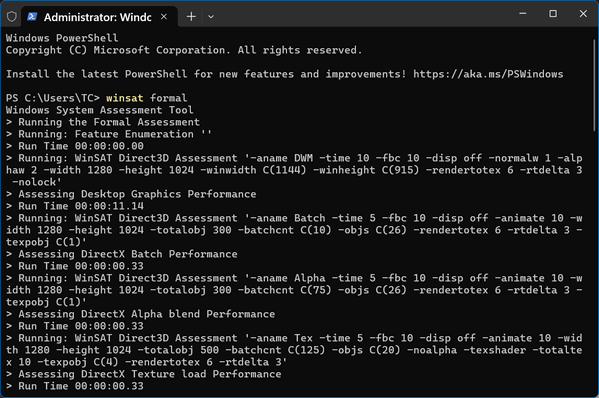
Once the test finishes, the window might just sit there. To see your results in a way that actually makes sense, Windows stores them in a hidden report.
The easiest “non-geek” way to see your score without digging through messy files is to:
Right-click your Start button and select Terminal (Admin) or PowerShell (Admin).
-
Type this command and hit Enter:
Get-CimInstance Win32_WinSAT
A list of numbers will appear. The scores usually range from 1.0 to 9.9. Here is what they actually mean in plain English:
CPUScore: How fast your computer “thinks” (Processor).
D3DScore: Your computer’s ability to handle 3D gaming and heavy video.
DiskScore: How fast your computer can open files (Hard Drive speed).
GraphicsScore: How smoothly your computer handles basic things like program windows and the taskbar.
MemoryScore: How well your computer can multitask (RAM).
WinSPRLevel: This is your Base Score.
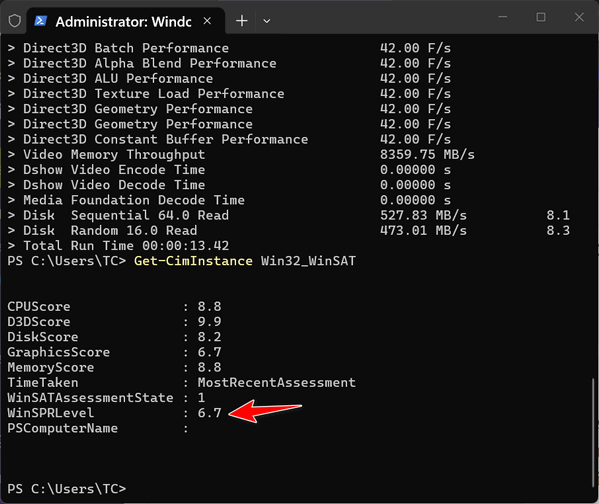
Your computer’s score is shown next to WinSPR Level and is always equal to your lowest individual score. This is because a computer is only as fast as its slowest part—like a sports car with bad tires, the tires limit the whole car!
Anything over 9 is a powerhouse – a geek’s machine. Anything lower? Well… if you’re not a geek, it probably won’t mean much to you. But let’s say this: Your computer should have a score of over 4.5. Otherwise, your computer might always be a little slow.
My cheap under $300 laptop scored 6.7. Not bad. But a real geek would say “tsk tsk”. But who really cares what the geeks think? Not me!
Passkeys: A Simpler and Safer Way to Log
In
A tip for everyone
Remember when passwords were simple? Maybe your dog’s name, or your birthday? Your phone number? Unfortunately, those days are gone. Hackers have become incredibly clever, and simple passwords won’t protect your accounts anymore. But wait! There’s a new, easier, and much safer way to log in, and it’s called a passkey.
The Problem with Passwords
We’ve all been there: forgetting a password, struggling to create a “strong” one with random letters and symbols, or worrying about a data breach where our passwords might be stolen. The truth is, passwords have several weaknesses:
Even “strong” passwords can be vulnerable to sophisticated hacking techniques.
Many of us (most of us) use the same password for multiple websites, meaning if one site is compromised, all our accounts are at risk.
Phishing scams and counterfeit websites can fool us into giving away our passwords.
Passkeys: A Simpler and Safer Way to Log In
Imagine logging into your favorite website or app simply by using your fingerprint, face scan, or PIN on your phone or computer. That’s the magic of passkeys.
How Do Passkeys Work?
Instead of a password you type in, a passkey creates a unique digital “key” for each website or app. This key is stored securely on your device (like your phone or computer) and is tied to that specific website.
When you create an account or enable passkeys, the website generates two keys: a public key and a private key. The public key stays with the website. The private key stays on your device, protected by your fingerprint, PIN, or face ID. When you log in, your device verifies your identity (fingerprint, PIN, face scan, etc.) and uses the private key to prove to the website that you’re you. No password to type, and no chance of someone stealing it.
Passkeys are more secure because:
- You don’t have to create or remember complex passwords.
- Since there’s no password to type, phishing scams become much less effective.
- Each passkey is unique, so even if one website is compromised, your other accounts are safe.
- Passkeys use advanced encryption, making them much harder to crack and much stronger than traditional passwords.
- Passkeys are stored locally on your device (computer, phone, tablet), meaning they are not being stored on a company’s server, where they could be stolen in a data breach.
- Most passkey systems offer cloud syncing, so if you get a new phone or computer, your passkey can safely transfer over.
How to Use Passkeys
Many popular websites and apps are starting to offer passkey support. Look for options like “passkeys,” “security keys,” or “biometric login” in your account settings.
Follow the website’s instructions to create a passkey. This usually involves verifying your identity with your device’s fingerprint, face scan, or PIN.
The next time you log in, you’ll be prompted to use your passkey. Simply verify your identity, and you’re in!
Will Passkeys Completely Replace Passwords?
While passkeys are a significant step forward, they will take time to replace passwords completely.
Some people are reluctant to try new technology, and not all websites and apps currently support passkeys.
As more and more companies embrace passkeys and as people realize how secure and easy to use they are, it is very likely that passwords will become less and less common and passkeys will become the primary way to log into online accounts in the future.
Passkeys offer a simpler, safer, and more convenient way to log in. They eliminate the hassle and risks of passwords and provide much stronger protection against hackers.
So, next time you see the option to use a passkey, give it a try. You might just find you never want to type another password again!
Google Chrome’s New Reading Mode: A
Blessing for Tired Eyes!
Windows 10/Windows 11 & Gmail
With version 146, Google quietly released a new reading mode. After trying it out for a couple of days, I rather like it. It’s different.
If you’re tired of trying to read articles on the web that are cluttered with ads, useless videos, and useless content — and you use Google Chrome — I think you’ll like the new Reading Mode.
To access it, to any page that contains content you want to read and right-click on the page. Then choose “Open in reading mode” from the drop-down menu that appears.
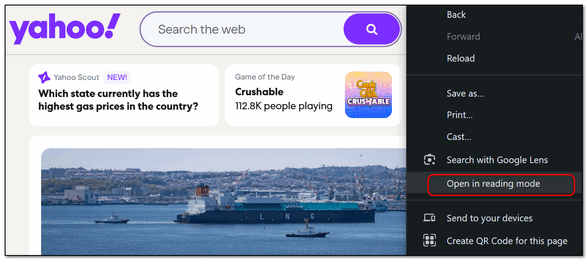
You can select any article on the page and open it in the new Reading Mode. You can also adjust the font, font-size, font-color, and more by using the toolbar at the top. You can also have the page read to you.
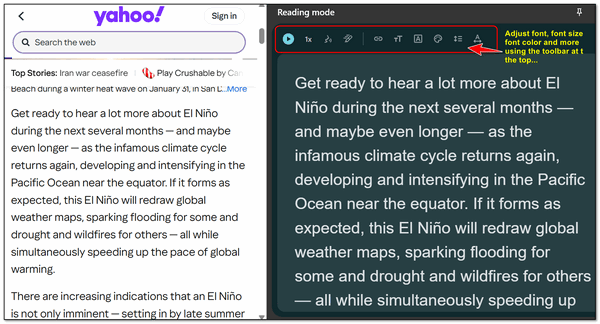
You can also adjust the size of the reading page on the right by grabbing the left edge and sliding it right or left to increase or decrease the size of the reading pane.
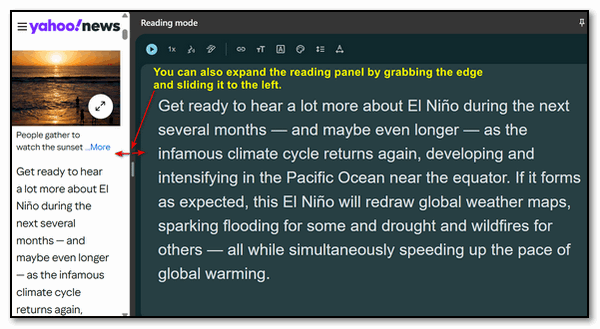
So, the next time you find yourself on a page and you’re having trouble reading it, try Chrome’s new Reading Mode.

Want more tips, tricks, and information?
We have thousands of Windows tips, tricks, and more on our InfoAve website.
Subscribe to our free InfoAve Daily newsletter.

THANK YOU!
Your gifts help us continue our mission to keep you informed, separate the truth from the hyperbole, and help you stay safer online. We provide support to thousands of people. Every week we help dozens of people via email at no charge. Thanks to donations, we do a lot more than provide this free newsletter. We help you recognize online threats, fight for your online privacy, provide you with the knowledge you need to navigate the Web safely and help you get more out of your PC. Help us keep up the good fight with a small donation.
After you donate, you will receive an invitation to become a Cloudeight Booster.
Help us keep up the good fight with a small donation.
Interested in making an automatic monthly gift? Visit this page.
Help us keep helping you and helping you stay safe on the Web. Thank you so much!

TC’s Amazin’ Stuff – Part 2
So, every week, Darcy and/or I search for a freeware pick or site pick to feature in our weekly newsletter. Yeah, it’s basically a non-technical technical newsletter for non-technical people who use Windows. We feature computer tips, how-tos, freeware picks, computer advice, and a lot of other stuff, as most of our subscribers know.
What? You're not a subscriber? Let’s fix that!
This week, while Darcy is exploring the Nile River with her socialite buddies, I decided to take the bull by the horns – so to speak – and create my own “Site of the Week” again. So here it is…
Our Spring Donation Drive is Underway!
Make a small donation and help us to keep on helping you!
Our annual spring donation drive is underway. Sales of our products and services help keep the lights on at Cloudeight. But if you don’t need any of our products or services right now, please help us with a donation. Even the smallest gift is appreciated. Every donation helps us to provide useful information that helps you with your computer as well as helps to keep you safe on the Internet. We offer free help to thousands of people every year… and we offer an honest and inexpensive computer repair service too. We do everything we can to help you with your computer and to help you stay safe too.
So, if you don’t need any of our products or services right now, please consider helping us with a small donation.
Please help us by donating right now.
Interested in making a monthly gift? Visit this page. Help us keep helping you!
Thank you so much for your support!
Help us keep helping you and helping you stay safe on the Web. Thank you so much!

The Old Clock
The old clock chimed eight times. He hated that old clock and its
incessant chiming. Every chime meant another slice of this life had been
taken from him. Time he would never get back.
They stuck him in the back bedroom, where it was quiet. He hated the
quiet and longed to hear the sounds of life. All he could hear in this
room was the sound of silence and the smell of death. He felt like a
prisoner, too sick to escape. Not that he hadn't devised complex plans
for his escape; he had many. His body, though, would not oblige, and he
lay in that rented hospital bed to daydream and plot.
He had a TV and a remote, but the constant bad news...
Read the rest of this essay here.

What is a QR Code, and what does QR stand for anyway?
Here's more information about QR codes than you ever wanted to know :-)
QR stands for "Quick Response" code.
It's a type of two-dimensional barcode that can store various information, including text, URLs, contact information, images, and even payment details.
It's made up of black squares arranged in a square grid on a white background.
It can be read quickly and easily on smartphones and other devices with built-in cameras.
How it works:
Generating a QR code: You can create QR codes using online generators or apps.
Scanning a QR code: Point your device's camera at the QR code.
Decoding the information: The device's software reads the pattern of squares and decodes the information stored in the code.
Taking action: The device then displays the information or performs the action associated with the code, such as opening a website, downloading a file, adding a contact, or making a payment.
Here's a QR code you might want to scan :-)


Sales of the following products and services help support our newsletters, websites, and free computer help services we provide.
Cloudeight Direct Computer Care: Always a great deal. Cloudeight Direct Computer Care is like having PC insurance. Get more information here.
Emsisoft Anti-Malware: Emsisoft is the only Cloudeight-endorsed and recommended Windows security program. It provides users with a complete antivirus, antimalware, anti-ransomware, and anti-PUPs solution. We offer single Emsisoft licenses and multi-computer licenses at discount prices. Also, we offer our exclusive Emsisoft with Cloudeight installation & setup. Get more information here.
Reg Organizer: Reg Organizer is the Swiss Army Knife of Windows tools. It's far more than just a registry optimizer and cleaner... it's a Windows all-in-one toolkit. Reg Organizer helps you keep your computer in tip-top shape and helps you solve annoying Windows problems. Reg Organizer works great with Windows 10 and Windows 11! Get more information about Reg Organizer (and get our special discount prices) here.
MORE IMPORTANT STUFF!
Your InfoAve Weekly Members' Home Page is located here.
Help us Grow! Forward this email newsletter to a friend or family member - and have them sign up for InfoAve Weekly here!
Get our free daily newsletter! Each evening we send a short newsletter with a tip or trick or a computer-related article - it's short and sweet - and free. Sign up right now.
We have thousands of Windows tips and tricks and computer articles posted on our Cloudeight InfoAve website. Our site has a great search engine to help you find what you're looking for too! Please visit us today!
Help us by using our Start Page. It costs nothing, and it helps us a lot.
Print our Cloudeight Direct Flyer and spread the word about our computer repair service! If you want to help us by telling your friends about our Cloudeight Direct Computer Care service, you can download a printable flyer you can hand out or post on bulletin boards, etc. Get the printable PDF Cloudeight Direct Computer Care flyer here.

We'd love to hear from you!
If you have comments, questions, a tip, a trick, a freeware pick, or just want to tell us off for something, let us know.
If you need to change your newsletter subscription address, please see "Manage your subscription" at the very bottom of your newsletter.
We received hundreds of questions for possible use in IA news. Please keep in mind we cannot answer all general computer questions. We try to personally answer as many as we can. We can only use a few in each week's newsletter, so keep this in mind. If you have a support question about a service or product we sell, please contact us here.
Subscribe to our Daily Newsletter! Get computer tips & tricks every night. Our daily newsletter features a computer tip/trick or two every day. We send it out every night around 9 PM Eastern Time (USA). It's short and sweet, easy to read, and FREE. Subscribe to our Cloudeight InfoAve Daily Newsletter!
We hope you have enjoyed this issue of Cloudeight InfoAve Weekly. Thanks so much for your support and for being an InfoAve Weekly subscriber.
Have a great weekend... be safe!
Cloudeight InfoAve Weekly - Issue #1174
Volume 23 Number 25
April 10. 2026
Not a subscriber? Subscribe to our FREE Cloudeight InfoAve Weekly Newsletter here.
"Cloudeight InfoAve Weekly" newsletter is published by:
Cloudeight Internet LLC
PO Box 73
Middleville, Michigan USA 49333-0073
Read our disclaimer about the tips, tricks, answers, site picks, and freeware picks featured in this newsletter.
Copyright ©2026 by Cloudeight Internet