
Cloudeight InfoAve Weekly
Issue #1175
Volume 23 Number 26
April 17, 2026
Dear Friends,
Welcome to Cloudeight InfoAve Weekly Issue #1175. Thank you very much for subscribing and for being a part of our Cloudeight family. We appreciate your friendship and support very much! Please share our newsletters and our website with your friends and family.

If you're not getting our InfoAve Daily newsletter, you're missing out on a lot of good stuff!
It's free, and it only takes a few seconds to sign up. We'd love to have you with us. Visit this page to sign up for our Cloudeight InfoAve Daily Newsletter.

Our Spring Donation Drive is Underway!
Make a small donation
and help us to keep on helping you!
Our annual spring donation drive is underway. Sales of our products
and services help keep the lights on at Cloudeight. But if you
don’t need any of our products or services right now, please help us
with a
donation. Even the smallest gift is appreciated. Every donation helps us
to provide useful information that helps you with your computer as well
as helps to keep you safe on the Internet. We offer free help to
thousands of people every year… and we offer an honest and inexpensive
computer repair service too. We do everything we can to help you with
your computer and to help you stay safe too.
So, if you don’t need any of our products or services right now, please consider helping us with a small donation.
Please help us by donating right now.
Interested in making a monthly gift? Visit this page. Help us keep helping you!
Thank you so much for your support!
Help us keep helping you and helping you stay safe on the Web. Thank you so much!

David got an email from
Microsoft
Hi Darcy, Hi TC. I
received this email from
Microsoft
Microsoft is committed to improving your Microsoft 365 subscription. We regularly review how our subscribers use features within Microsoft products. This email includes details regarding features going away next year and reminders about current benefits included with your subscription.
Beginning 10/1/2026, Microsoft Publisher will no longer be
supported as part of Microsoft 365. Many common Publisher scenarios are
available in other Microsoft 365 apps, including Microsoft Word and
PowerPoint.
Action Recommended: Before 10/1/2026, convert your existing
Publisher files to PDF or Word format. After this date, you will no
longer be able to open or edit these files with Microsoft Publisher.
Please help! I do not know what they are even talking about here. Later,
thanks, Dave.
Our Answer
Hi David. Microsoft is officially retiring Microsoft Publisher on
October 1, 2026, as part of an effort to streamline its 365 suite. To
avoid losing access to your work, you should convert existing Publisher
files to PDF or Word format before that date, as the application will no
longer be supported or capable of opening files. Despite this change,
your subscription will continue to provide access to alternative
creative tools in Word and PowerPoint, along with standard cloud storage
and security benefits.
It means, in plain English, if you use Microsoft Publisher, you should convert them to Word or PDF files before October. If you don't, you won't be able to open them.
If you don't use Microsoft Publisher, you can ignore that message from Microsoft.
Hope this helps, Dave!
Wilma wants "Copy to" / "Move to"
on her Windows 11 right-click menu
How can I put "Copy To" and "Move To" in Windows 11?
Our answer
Hi Wilma. We have written an easy tutorial on how to add "Copy to" and
"Move to" to your Windows 11 right-click menu.
You will find that tutorial here.
David gets
emails from
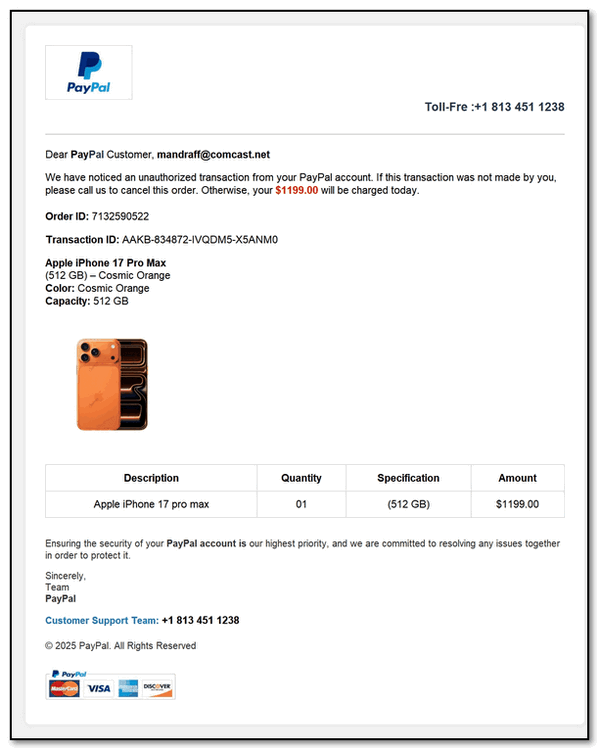
"PayPal" 4
times a week
Hi
Darcy. Here
is an
example of
emails I get
4/5 times a
week. James
R
Our answer
Hi Jim. This
message is
not from
PayPal.
Scammers
send out
millions of
emails like
this every
hour to any
address in
their
databases.
A clear sign it’s a scam is that it does not address you by name; it uses a generic greeting like “Dear PayPal Customer” and only references your email. Email providers such as Gmail often filter these automatically into spam, though protection can vary by provider.
This type of scam has been circulating for years. Fraudsters impersonate companies like MasterCard, Visa, Citibank, Huntington Bank, and others. They copy logos and branding from legitimate websites to make the messages appear authentic.
These emails are not related to actually using PayPal or any of those companies. They are simply phishing attempts. Even if only a small percentage of recipients respond, scammers can still make significant money.
For context, I’ve used PayPal both personally and professionally for many years (I think a quarter of a century now!) It remains one of the more secure payment processors available.
Best to you, Darcy.

We've helped hundreds and hundreds of you with your computers since we started our Cloudeight Direct Computer Care Service! If you're having computer problems - we CAN help you!
We all know that sooner or later our computers are going to start having problems. We can help you with any computer need -- from diagnosing and fixing Windows problems - to cleaning up malware and viruses - to cleaning up your computer and optimizing it -- and more. We can do just about anything need done and we guarantee our work - you're either satisfied or we'll refund your money.
We will connect to your computer via the Internet and fix any problems you may be having. You can watch us work and chat with us while we do. If you have any computer questions you'd like to ask we'll be glad to answer them for you. We don't just fix your computer, we explain what we're doing and why we're doing it and we are right there with the entire time. Since we've started we've helped hundreds of you with your computer problems and we've received dozens of referrals and testimonials from our readers and customers.
We offer many other computer services too! If you have a problem with your computer - we can fix it!
Get more information about Cloudeight Direct Computer Care and / or get your repair keys here.
Gary's old
laptop bit
the dust
My old
laptop is
dying
(sadly), and
I have
purchased a
new one. I
have moved
all my files
to the new
one
following
your
instructions.
The old one
probably
wouldn't be
good enough
to donate.
Should I do
a factory
reset or
remove the
hard drive
and smash
it? Thanks,
Gary.
Our answer
Hi Gary.
Thanks, I'm
glad we
helped you
with getting
things moved
to your new
computer.
You could use the old PC if you installed Linux on it -- but if you're giving it away, most people know nothing about Linux and probably wouldn't want it. If you wanted to learn to use Linux, I'm sure it would run on the old PC. Linux is free, easy to install, and fine for browsing the web, emailing, and learning something new. Linux comes in many versions (called "distros"), and some look like Windows. It comes with Firefox and an email program. But maybe that's more work than you want to do. If you're interested in Linux, let me know, and I'll help you.
The simplest solution, if the old PC is in bad shape, is to remove the hard drive, hammer it, and be done with it. Nothing lasts forever.
Terry asks
about Home /
End keys
While
reading the
newsletter,
the subject
of Home and
End came up
again. I
don't have a
Home key.
End, I have,
but no Home.
Any ideas on
how to find
it? I'm
using an
Acer Aspire5
with 12 Gigs
of RAM and a
close to
bilingual
keyboard.
Yes, I'm in
Canada.
Thanks for
all you do,
Terry.
Our answer
Hi Terry.
Laptops are
different
animals.
Since I've
been using
laptops for
almost 20
years, I've
always made
a point of
buying
laptops with
full
keyboards.
If you don't
look for
full
keyboards,
you might
get one of
the many
smaller
(compact)
keyboard
versions
that don't
have a full
set of keys.
To save space, some manufacturers sometimes remove the dedicated navigation cluster (Home, End, PgUp, PgDn) and hide those functions behind a Function (Fn) key. If you have one of those keyboards, usually, you hold Fn + Left Arrow for Home and Fn + Right Arrow for End.
On some laptop models, engineers sacrifice dedicated keys to keep the chassis slim or to make the main typing keys larger. On those laptops, Home and End are shared with the Left and Right arrow keys. If so, look for small text on the arrow keys; you’ll likely see "Home" and "End" printed in a different color or a smaller font.
So, if you don't see a Home key, it's probably because your laptop does not have a full keyboard and has one of the smaller keyboards with fewer keys to save space/weight/etc.
So while this may not help you, it does let you know you're not alone.
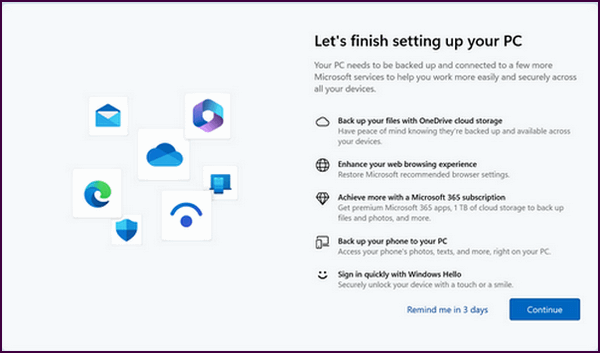
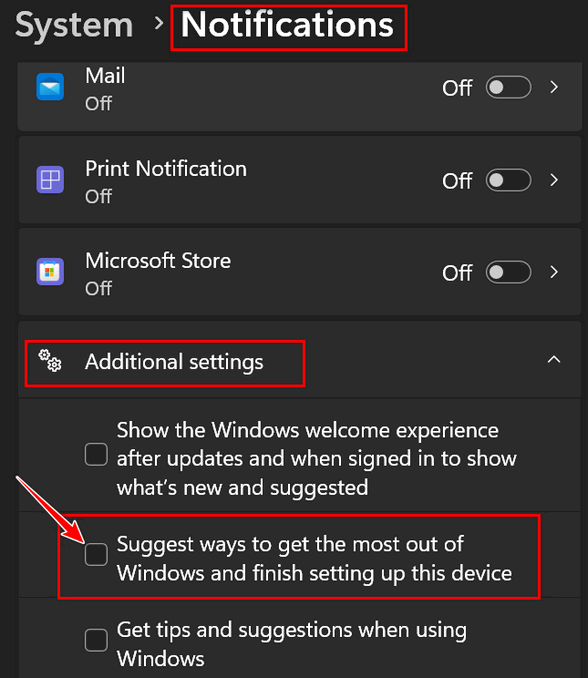
I just installed the latest Windows update, and now, when I reboot mu computer, it asks me f I want to finish setting up my computer.

Now available: Reg Organizer 9.88
If you purchased or renewed Reg Organizer through Cloudeight within the
last 12 months, you're entitled to a free version upgrade to Reg
Organizer 9.88. Reg Organizer works great with Windows 10 and Windows 11.
Save $14 on Reg
Organizer right now!
Reg
Organizer - A Swiss Army Knife of Windows Tools - Works Great on Windows
10 and Windows 11.

These
Browser
Shortcuts Will
Save You Time
Windows 10
/Windows 11
(most popular
browsers)
Most of these shortcuts work in Chrome, Edge, Firefox, and other browsers. The best way to find out if they work in your browser of choice is to try them. They’ll either work, won’t work, or will perform a different function than described.
Keyboard shortcuts are time savers. They can save you the time of hunting down a dialog box or menu item. The only problem with keyboard shortcuts is… remembering them. The best way to remember them is to use them. We don’t expect you to remember all of these keyboard shortcuts, but you might want to commit to memory the ones you find the most useful. It will save you time — we tells ya!
Ctrl + P –
Print the
current page
Ctrl + S – Save
the current page
Ctrl + O –
Browse files and
folders on your
computer
F5 – Reload the
current page
Esc – Stop page
loading
Ctrl + F5 –
Reload the
current page
(ignore cached
content)
Ctrl + D –
Bookmark the
current web page
Ctrl + Shift + D
– Save all open
pages as
bookmarks in a
new folder
Alt + Click on a
link – Download
link
Ctrl + F – Open
the browser’s
search box
F3 – Find the
next match for
your input in
the search box
Shift + F3 –
Find the
previous match
for your input
in the search
box
F11 – Open page
in full-screen
mode
Ctrl + + – Make
the text larger
Ctrl + – – Make
the text smaller
Ctrl + 0
(zero) –
Return text to
normal size
Ctrl + Shift
+ B – Toggle the
bookmarks bar
Ctrl + H – View
browser history
Ctrl + J – View
Recent Downloads
Ctrl + R —
Refresh the page
Shift + Esc –
View the
browser’s task
manager
Ctrl + Shift +
Delete – Open
the Clear
Browsing Data
Dialog
F1 – Open the
browse help page
in a new tab
Ctrl + U – View the current page’s source code
Dirty Links vs.
Clean Links
Everyone who
uses the
Internet
Nah! Not that kind of dirty! In the world of the internet, sometimes less is a whole lot more. We’re going to show you how to clean links before you send them, so that from now on, you only send clean links.
When you’re sharing an interesting story or a helpful tip with a friend, you probably just copy the address from your browser and paste it into an email. But have you ever noticed that some links look like a short sentence, while others look like an entire paragraph of gibberish, numbers, and percentage signs?
The difference between a Clean Link and a Dirty Link
What is a “Dirty Link”?
A dirty link is a URL that has been “salted” with tracking data. Companies use this to follow you around. They want to know your subscriber ID, which email campaign you clicked on, and what “medium” you used to get there. It’s all about marketing and analytics.
Take a look at this monstrosity:
Everything after that /? is just “noise.” It’s all that personal tracking data that makes links look suspicious, cluttered, and—frankly—unprofessional.
The Power of the “Clean Link”
A clean link is the “just the facts, ma’am” version. It’s the direct path to the content without all the garbage. It’s shorter, it’s easier to read, and it doesn’t set off “scam” alarm bells in your friends’ heads.
The same page as the link above can be reached with this:
How to Clean Links
It’s a simple trick that will make you look like a pro. Before you hit “send” on that email:
Look for the Question Mark!
Most tracking data starts with a ? or a /?. (Or sometimes a /ref=).
Highlight the Junk
Select everything from the question mark to the very end of the link and hit Delete!
By removing all of that personal/subscription tracking data, you’re making your links cleaner, your emails a lot more friendly, and the links you send more likely to be clicked.
Think about it? Which link are you more likely to click? The dirty link or the clean link?
But wait, there’s more!
If you want to do this automatically, Firefox has a built-in “Clean Link” feature. For Edge and Chrome (and other Chromium-based browsers like Brave), you can install a browser extension to do the work for you. Here are a couple.
Back Button
Hijacking: What
Is It?
Windows
10 / Windows 11
/ Most popular
browsers
Have you ever been browsing a website, clicked the “Back” button in your browser, and found yourself trapped? Instead of returning to the previous page, the site keeps you stuck, reloads the same page, or forces you to a different, often suspicious, website. If this sounds familiar, you have encountered Back Button Hijacking.
What Exactly Is It?
Back button hijacking is a deceptive technique used by some websites to manipulate your browser history. When you land on a page using this tactic, the site injects multiple “dummy” entries into your browser’s history stack in a fraction of a second. When you click “Back,” you aren’t going to the previous page; you are just moving to one of the fake, hidden entries the hijacker created.
Why Do They Do It? Money & Keeping You Locked In
The primary goal is user retention (locking you into their pages) and ad revenue. By preventing you from easily leaving, they force more ad views to generate revenue, redirect you to affiliate sites, and attempt to push fake “system updates” or intrusive software downloads.
How to Escape the Trap
If you find yourself stuck in a hijacking loop, try these methods to regain control:
1. The “Right-Click” Shortcut: Instead of clicking the Back button, right-click on it. A menu will appear showing your recent history for that tab. Select the site you were visiting before the current one to jump over all the fake entries at once.
2. Close the Tab: The simplest method. Just click the “X” on the browser tab to close it entirely.
3. Use the History Menu: Open your browser’s full History (Ctrl + H) and select a page you know you visited earlier.
How to Stay Safe
While browsers are constantly updated to block this behavior, it is smart to stay proactive.
1. Keep your browser updated to ensure you have the latest security patches.
2. Use a reputable ad-blocking extension, which can often identify and block the scripts responsible for manipulating browser history. We recommend uBlock Origin for Firefox, Edge, and most other browsers, and uBlock Origin Lite for Chrome.
3. Be skeptical of suspicious links found in emails or social media.
Your “Back” button is meant to be a safety net, not a cage.
Be vigilant, keep learning, and browse safely!

Want more
tips, tricks, and information?
We have thousands of Windows tips, tricks, and more on our InfoAve website.
Subscribe to our free InfoAve Daily newsletter.

THANK YOU!
Your gifts help us continue our mission to keep you informed, separate the truth from the hyperbole, and help you stay safer online. We provide support to thousands of people. Every week we help dozens of people via email at no charge. Thanks to donations, we do a lot more than provide this free newsletter. We help you recognize online threats, fight for your online privacy, provide you with the knowledge you need to navigate the Web safely and help you get more out of your PC. Help us keep up the good fight with a small donation.
After you donate, you will receive an invitation to become a Cloudeight Booster.
Help us keep up the good fight with a small donation.
Interested in making an automatic monthly gift? Visit this page.
Help us keep helping you and helping you stay safe on the Web. Thank you so much!

Cover Your Tracks
Electronic Frontier Foundation’s Cover Your Tracks Website
When you visit a website, it’s like asking a store for something. Your computer, tablet, or phone sends a “Hey, can I see this?” message. But here’s the thing — a lot of websites have sneaky code that makes your device automatically ask other, hidden stores for things too.
These hidden stores are most often ad companies and trackers, and every time your device asks them for something, it’s giving away little clues about you. Think of it like dropping breadcrumbs: your time zone, what kind of phone or computer you have, and what programs you’re using. Some of this stuff is necessary for the website to work right, like telling it what language to show you. But a lot of it is just being scooped up by these same ad and tracking companies.
A few breadcrumbs might not seem like a big deal. But when these companies gather up all those little clues, they can build a pretty good picture of who you are. They can guess things like what you like to buy, where you live, what you believe, and how much money you make. And as long as they can connect all those clues back to you, they can keep following you around the internet.
They do this by using things called “cookies” and “browser fingerprinting.” Cookies are like little tags that stick on your device to remember you, but cookies are usually easy to delete.
Browser fingerprinting is sneakier; it’s like figuring out who you are based on all the unique details of your device and how you use it. So basically, even if you delete your cookies and try to hide, they can still often figure out it’s you.
Electronic Frontier Foundation’s Cover Your Tracks website gives you a chance to see how well your browser protects you from tracking and fingerprinting…
Here’s what EFF has to say…
Test your browser to see how well you are protected from tracking and fingerprinting:
How does tracking technology follow your trail around the web, even if you’ve taken protective measures? Cover Your Tracks shows you how trackers see your browser. It provides you with an overview of your browser’s most unique and identifying characteristics.
Only anonymous data will be collected through this site.
Want to learn more about tracking? Read how it works with our guide.
Do you want to see what kinds of breadcrumbs you’re dropping as you interact with the websites you visit? Visit EFF’s Cover Your Tracks website right now.
Our Spring Donation Drive is Underway!
Make a small donation
and help us to keep on helping you!
Our annual spring donation drive is underway. Sales of our products
and services help keep the lights on at Cloudeight. But if you
don’t need any of our products or services right now, please help us
with a
donation. Even the smallest gift is appreciated. Every donation helps us
to provide useful information that helps you with your computer as well
as helps to keep you safe on the Internet. We offer free help to
thousands of people every year… and we offer an honest and inexpensive
computer repair service too. We do everything we can to help you with
your computer and to help you stay safe too.
So, if you don’t need any of our products or services right now, please consider helping us with a small donation.
Please help us by donating right now.
Interested in making a monthly gift? Visit this page. Help us keep helping you!
Thank you so much for your support!
Help us keep helping you and helping you stay safe on the Web. Thank you so much!

Dreams On a Sleepless Night
The first thing I notice is the smoke—the smell of it. An acrid, cloying stink overwhelms my senses and crawls over me like a billion ethereal tendrils. Fear grows inside: a grotesque, unyielding terror. It saturates me until my eyelids feel frozen shut. I am sick to my stomach. I hurt so badly I want to die.
With substantial effort, I force my eyes open. I see a wall aflame, dripping molten sheetrock, silvery and mercurial. It is the central wall of a strange, dark room. The wall holds for now, but the ceiling it supports bends in a convex arch. I know I must escape before it buries me. But I cannot move. I am frozen by indecision, and indecision is the only decision I can make...
Read the rest of this essay here.

Things to Remember When Changing Your Email Address
We get a lot of emails informing us of an email address change. Here are a few tips to remember when changing your email address:
1. Don't use your old email address to email your contacts to tell them that you are changing your email address. Use the new one.
2. If you have a PayPal account, be sure you log in to PayPal, add your new email address, and remove the old one.
3. Most newsletters have a way to change your address, and that
information can usually be found at or near the bottom of the
newsletter.

Sales of the following products and services help support our newsletters, websites, and free computer help services we provide.
Cloudeight Direct Computer Care:
Always a great deal. Cloudeight Direct Computer Care is like having PC insurance.
Get more information here.
Emsisoft Anti-Malware: Emsisoft is the only Cloudeight-endorsed and recommended Windows security program. It provides users with a complete antivirus, antimalware, anti-ransomware,
and anti-PUPs solution. We offer single Emsisoft licenses and multi-computer licenses at discount prices. Also, we offer our exclusive Emsisoft with Cloudeight installation & setup.
Get more information here.
Reg Organizer: Reg Organizer is the Swiss Army Knife of Windows tools. It's far more than just a registry optimizer and cleaner... it's a Windows all-in-one toolkit. Reg Organizer helps you keep your computer in tip-top shape and helps you solve annoying Windows problems. Reg Organizer works great with Windows 10
and Windows 11!
Get more information about Reg Organizer (and get our special discount prices) here.
MORE IMPORTANT STUFF!
Your InfoAve Weekly Members' Home Page is located here.
Help us Grow! Forward this email newsletter to a friend or family member - and have them sign up for InfoAve Weekly here!
Get our free daily newsletter! Each evening we send a short newsletter with a tip or trick or a computer-related article - it's short and sweet - and free. Sign up right now.
We have thousands of Windows tips and tricks and computer articles posted on our Cloudeight InfoAve website. Our site has a great search engine to help you find what you're looking for too! Please visit us today!
Help us by using our Start Page. It costs nothing, and it helps us a lot.
Print our Cloudeight Direct Flyer and spread the word about our computer repair service! If you want to help us by telling your friends about our Cloudeight Direct Computer Care service, you can download a printable flyer you can hand out or post on bulletin boards, etc. Get the printable PDF Cloudeight Direct Computer Care flyer here.

We'd love to hear from you!
If you have comments, questions, a tip, a trick, a freeware pick, or just want to tell us off for something, let us know.
If you need to change your newsletter subscription address, please see "Manage your subscription" at the very bottom of your newsletter.
We received hundreds of questions for possible use in IA news. Please keep in mind we cannot answer all general computer questions. We try to personally answer as many as we can. We can only use a few in each week's newsletter, so keep this in mind. If you have a support question about a service or product we sell, please contact us here.
Subscribe to our Daily Newsletter! Get computer tips & tricks every night. Our daily newsletter features a computer tip/trick or two every day. We send it out every night around 9 PM Eastern Time (USA). It's short and sweet, easy to read, and FREE. Subscribe to our Cloudeight InfoAve Daily Newsletter!
We hope you have enjoyed this issue of Cloudeight InfoAve Weekly. Thanks so much for your support and for being an InfoAve Weekly subscriber.
Have a great weekend... be safe!
Cloudeight InfoAve Weekly - Issue #1175
Volume 23 Number 26
April 17, 2026
Not a subscriber? Subscribe to our FREE Cloudeight InfoAve Weekly Newsletter here.
"Cloudeight InfoAve Weekly" newsletter is published by:
Cloudeight Internet LLC
PO Box 73
Middleville, Michigan USA 49333-0073
Read our disclaimer about the tips, tricks, answers, site picks, and freeware picks featured in this newsletter.
Copyright ©2026 by Cloudeight Internet