
Cloudeight InfoAve Weekly
Issue #1176
Volume 23 Number 27
April 24, 2026
Dear Friends,
Welcome to Cloudeight InfoAve Weekly Issue #1176. Thank you very much for subscribing and for being a part of our Cloudeight family. We appreciate your friendship and support very much! Please share our newsletters and our website with your friends and family.

If you're not getting our InfoAve Daily newsletter, you're missing out on a lot of good stuff!
It's free, and it only takes a few seconds to sign up. We'd love to have you with us. Visit this page to sign up for our Cloudeight InfoAve Daily Newsletter.

Our Spring Donation Drive is Underway!
Make a small donation
and help us to keep on helping you!
Our annual spring donation drive is underway. Sales of our products
and services help keep the lights on at Cloudeight. But if you
don’t need any of our products or services right now, please help us
with a
donation. Even the smallest gift is appreciated. Every donation helps us
to provide useful information that helps you with your computer as well
as helps to keep you safe on the Internet. We offer free help to
thousands of people every year… and we offer an honest and inexpensive
computer repair service too. We do everything we can to help you with
your computer and to help you stay safe too.
So, if you don’t need any of our products or services right now, please consider helping us with a small donation.
Please help us by donating right now.
Interested in making a monthly gift? Visit this page. Help us keep helping you!
Thank you so much for your support!
Help us keep helping you and helping you stay safe on the Web. Thank you so much!

Sam says the audio on some videos
crackles
Recently, when I was watching a video on my laptop, the audio had static
or a hard-to-understand crackle. Thank you for your help.
Our answer
Hi Sam. Since this happens while you're watching videos, the
culprit is probably your internet connection, not your computer or
speakers.
When your internet speed drops or fluctuates, the video tries to keep playing, but the audio gets compressed and "chopped up," which sounds like static or crackling. Here are a couple of things that you can try.
1. Lower the Video Quality. This is the fastest fix. On the video player (like YouTube), click the little Gear icon (Settings) and change the Quality from "Auto" or "1080p" down to 480p or 720p. This uses less data and usually stops the crackling immediately.
2. Check your internet connection speed. Go to www.fast.com and use the speed check feature to check your speed. If it's below 15 Mbps, then you should give your internet provider a call and have them check your connection. They will do this at no cost.
I hope this helps you, Sam.
Cindy wants to get rid of Copilot
Copilot - my shaky memory says you previously explained to us how to get
rid of Copilot. If so, can you direct me to that explanation? Cindy
Our answer
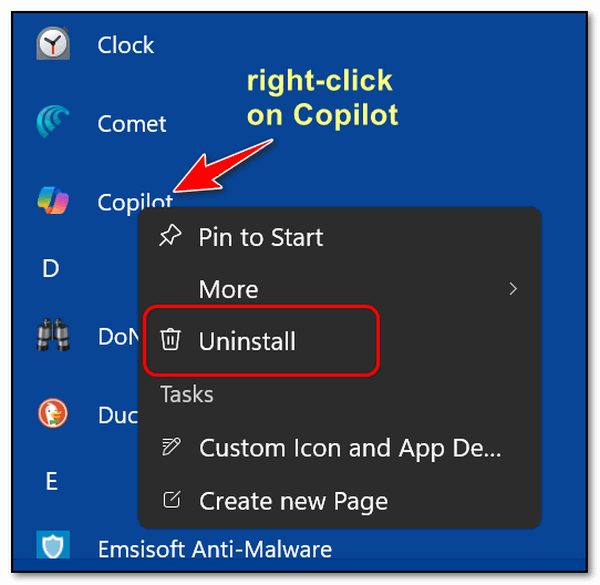
Hi Cindy. It's easy to remove Copilot. Click on the Start
button. At the top type Copilot. Right-click on the Copilot icon and
choose "Uninstall". Once you click on uninstall, just follow the
onscreen prompts.
have a rather dumb question concerning Passkeys. When I went to get into my PayPal account, they have it now where you have to have a passkey. They don't give you a choice anymore. No problem, as I made up the same password as I have to get into my computer. My question is, do we treat Pass Keys the same as we did passwords, and have a different pass key code for each account, or does one use the same pass key for all accounts? That has never been clear from all the articles I have read on the subject. So I would appreciate it if you could clarify that dumb question. Just want to be on the safe side. Take care. I always trust you guys. Have a great day, Arnold.
Hi Arnold. That is not a dumb question at all! Passkeys are a big shift from how we’ve done things for the last 30 years, and the articles can be pretty technical. Here is the straightforward answer:
No, you do not have to "make up" or remember a different code for every account. With passkeys, the "code" isn't something you create—it's actually a digital "handshake" between your device and the website. Here’s how to treat them:
When you log into PayPal (or any site using a passkey), you just use whatever you already use to unlock your computer or phone—whether that's your fingerprint, face ID, or the same PIN/password you use to get into your Windows or Mac desktop.
Even though you are using the "same" PIN to trigger the login, the technology behind the scenes is creating a unique digital key for PayPal that is different from the one it creates for your bank or your email. You don't have to do any of the work to keep them separate; your computer does it automatically.
Because the passkey is "bound" to your actual computer or phone, a hacker can’t "steal" it like they can a password. Even if they knew your computer PIN, they would also need to physically have your computer or phone in their hands to get into your account.
So in a way, you’re already doing it right. Just use your computer's unlock code (PIN or password) whenever a site for which you have already created a passkey asks for your passkey. You don’t need a notebook full of different codes or passwords anymore.
Thanks for your kind words and long-time support!

We've helped hundreds and hundreds of you with your computers since we started our Cloudeight Direct Computer Care Service! If you're having computer problems - we CAN help you!
We all know that sooner or later our computers are going to start having problems. We can help you with any computer need -- from diagnosing and fixing Windows problems - to cleaning up malware and viruses - to cleaning up your computer and optimizing it -- and more. We can do just about anything need done and we guarantee our work - you're either satisfied or we'll refund your money.
We will connect to your computer via the Internet and fix any problems you may be having. You can watch us work and chat with us while we do. If you have any computer questions you'd like to ask we'll be glad to answer them for you. We don't just fix your computer, we explain what we're doing and why we're doing it and we are right there with the entire time. Since we've started we've helped hundreds of you with your computer problems and we've received dozens of referrals and testimonials from our readers and customers.
We offer many other computer services too! If you have a problem with your computer - we can fix it!
Get more information about Cloudeight Direct Computer Care and / or get your repair keys here.
Richie wants to know if our website is compatible with Mac computers
I have been with you for years with my PC. My son-in-law recently gave me his old Mac. Is my new Mac compatible with your website?
Hi Richie. Thank you for being with us for a long time. We appreciate it.
The web (and any website on it) is accessible by any device that supports a web browser and an internet connection. It does not matter whether the device is Windows, Android, Apple Mac, Linux, a smartphone, a computer, or a tablet; the web is available to all internet-connected devices that support a web browser (like Chrome, Edge, Safari, Firefox, etc.), and since we're on the web, we too are available to all.
Kind of a long answer to a short question, but hopefully it gives you a bit of background for my answer.
Good afternoon, TC. Are we or are not to download the recent security updates? I'm reading about a security update, KB 5082065, but the updates on my computer are the cumulative KB5084068 and KB5082200 updates. I assume these are the right ones because they came from MS with Windows Update. I think I understand what is being written about this fake update, but then something is printed that makes me unsure. Thanks for your help.
Hi Jean. You are right to be cautious. It sounds like you're picking up on a very common trick used by scammers. If KB5084068 and KB5082200 are appearing inside your official Windows Update settings (Settings > Windows Update), yes, you should download them. These are the legitimate "Cumulative Updates" for April 2026. Microsoft uses these to bundle security fixes and performance improvements into one package. There is a high probability that the "KB5082065" you are reading about is part of a phishing scam or a "fake update" campaign. Scammers often write articles or send emails claiming a specific "KB" number is a "Critical Emergency Patch" and provide a link to download it. Microsoft never sends updates via email or links in articles. If an update doesn't show up in your official Windows Update menu, do not go looking for it on the web. Windows Update numbers change based on your specific version of Windows (e.g., Windows 11 vs. Windows 10) and your processor type. It is perfectly normal for someone else to have one KB number and you to have another.
My advice is only to install the updates that Windows Update is offering you automatically (KB5084068 and KB5082200). IGNORE any "KB5082065" you see mentioned in pop-ups, emails, or random websites. If it’s not in your Windows Update settings, you don't need it.
Maggie says she has lost the folder
list on the left side of her screen
I have lost the folder list on the left of the screen (downloads, pics,
docs, etc.). I used to have them on the taskbar - it is gone. Keep up
the good work, you guys are doing to help all of us. Thanks so much,
Maggie.
Our answer
Hi Maggie. Thanks you! Try this... Hold down the Windows key and press
the E key. It will open File Explorer. While File Explorer is open, look
in your taskbar, and you will see its icon ( it looks like a folder
icon). Click on that icon and choose "Pin to taskbar". Now, when you
click on that icon, you'll see a list of your folders, etc., on the left
side of your screen. Let me know if this helps you, Maggie.
------
Maggie wrote back: "It's like magic! It worked. Thanks so much!
Maggie."

Now available: Reg Organizer 9.88
If you purchased or renewed Reg Organizer through Cloudeight within the
last 12 months, you're entitled to a free version upgrade to Reg
Organizer 9.88. Reg Organizer works great with Windows 10 and Windows 11.
Save $14 on Reg
Organizer right now!
Reg
Organizer - A Swiss Army Knife of Windows Tools - Works Great on Windows
10 and Windows 11.

What Kind of Hard Drive Do You
Have?
Windows 10 / Windows 11
Whether you’re using Windows 10 or Windows 11, here is an easy way to find out if you have a standard hard drive (HDD), a solid-state hard drive (SSD), or maybe both.
Do you have an HDD (Standard Hard Drive) or an SSD (Solid State Hard Drive)?
Right-click on the Windows Start button. Click “Run” (or press Windows key + R). In the Run box, type dfrgui and press Enter.
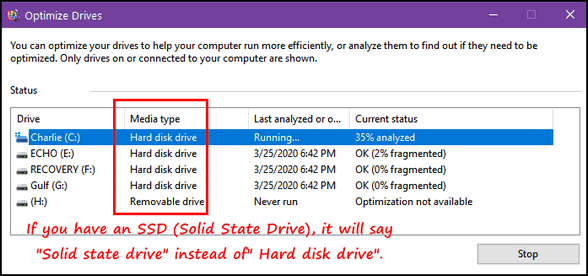
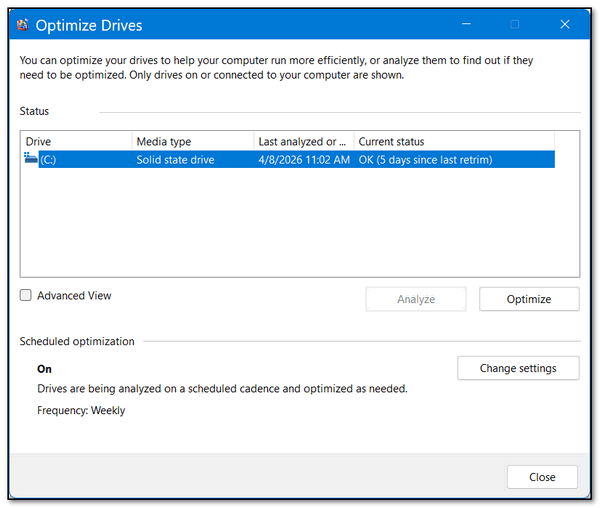
Look under “Media type”. Standard hard drives (HDDs) show up as “Hard disk” drives, and Solid State Drives (SSDs) show up as “Solid state” drives.
And what the heck does Retrim mean?
If you have a sharp eye, you saw in the last screenshot “5 days since last retrim.” In case you’re wondering what that means…
Retrim is often used interchangeably with TRIM when referring to solid-state drives (SSDs).
TRIM is a command that informs the SSD which data blocks are no longer in use.
This allows the SSD to efficiently manage its internal storage by marking these blocks as available for reuse. This process helps maintain the SSD’s optimal performance and longevity.
Finding Downloads Made Easy
Windows 10 / Windows 11
We’ve included this arcane shortcut in other long lists of shortcuts, but after I had to use it yesterday to find something quickly, I decided that it deserves its own honorable mention. And then I wondered how many of you have actually used the CTRL+J shortcut.
We’ve all been there: you download a photo, a manual, a program installer, or a PDF, and it simply vanishes. You know it’s on your computer somewhere, but hunting through folders is a frustrating waste of time.
The “secret” to ending the hunt is a simple two-key shortcut: CTRL + J.
Open your browser (Chrome, Edge, Firefox, or most any other modern browser).
Hold down the CTRL key and tap the J key.
Wham Bam! A dedicated page opens showing every single file you’ve recently downloaded.
The file you just saved will be right at the top of the list. Just click it, and it will open instantly.
CTRL+J It’s the fastest way to find your downloads.
Chrome’s New “Secret” PDF Power Tool: No Adobe Needed!
Windows 10 / Windows 11 / Google Chrome
We all know Google Chrome and many of us use it every day, but did you know it’s quietly becoming one of the best PDF editors around?
For years, if you wanted to sign a document or highlight a passage, you had to download bulky software like Adobe Reader. Not anymore!
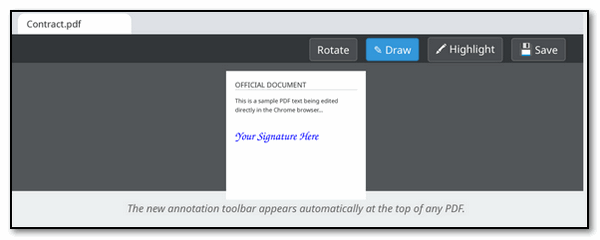
In the latest 2026 updates, Chrome has included a powerful suite of annotation tools right inside the browser window. It’s perfect for signing medical forms or contracts, marking up documents or maps, or highlighting important info in a manual.
How to Unlock the “Secret” Editor
You don’t need to install anything. If you have Chrome, you have this
tool. Here is how to use it:
1. Open the PDF
Just drag any PDF file from your computer directly into an open Chrome
tab. It will open instantly.
2. Find the Toolbar
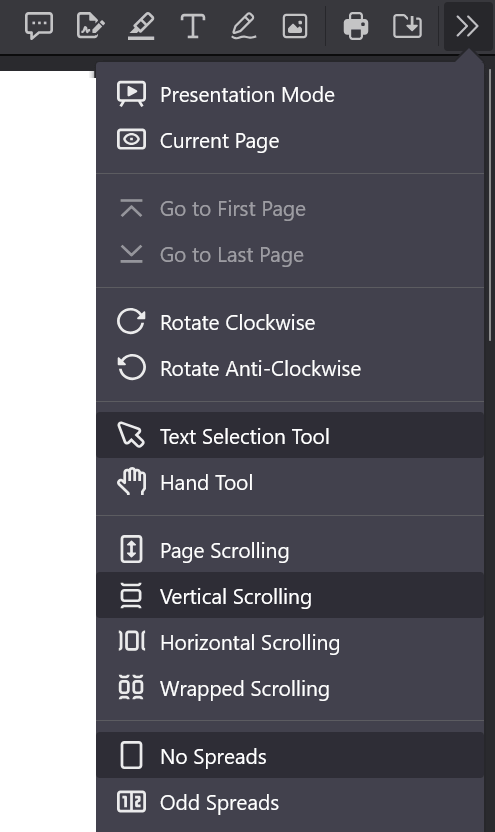
At the top of the PDF, you’ll see a new row of icons, including a pencil
(Draw) and a highlighter. If you click the double arrows on the right
edge, you’ll see a drop-down menu with more choices.
3. Mark it Up
Click the ‘Draw’ icon to sign your name with your mouse or stylus. You
can even change the color and thickness of the “ink.”
4. Save with Changes
This is the important part: When you click the Download icon, Chrome
will ask if you want the original or “With changes.” Choose “With
changes” to keep your signature and notes!
Another tip: If you don’t see the “Draw” or “Highlight” icons, your Chrome might need a quick update. Go to the three dots in the top right corner, click Help, then About Google Chrome to ensure you have the latest version!

Want more
tips, tricks, and information?
We have thousands of Windows tips, tricks, and more on our InfoAve website.
Subscribe to our free InfoAve Daily newsletter.

THANK YOU!
Your gifts help us continue our mission to keep you informed, separate the truth from the hyperbole, and help you stay safer online. We provide support to thousands of people. Every week we help dozens of people via email at no charge. Thanks to donations, we do a lot more than provide this free newsletter. We help you recognize online threats, fight for your online privacy, provide you with the knowledge you need to navigate the Web safely and help you get more out of your PC. Help us keep up the good fight with a small donation.
After you donate, you will receive an invitation to become a Cloudeight Booster.
Help us keep up the good fight with a small donation.
Interested in making an automatic monthly gift? Visit this page.
Help us keep helping you and helping you stay safe on the Web. Thank you so much!

The Mighty 3: 3 Freeware Apps You Need in 2026
If you’ve been a reader of our newsletter for a while, you know we have a bit of an obsession with installing stuff you don’t need and finding the perfect balance of small, non-intrusive apps with features that can make your Windows computer life a bit easier.
These three freeware programs prove that some of the best things in life (and on Windows) are still free.
1. IrfanView: The Ultimate Image Specialist
Darcy introduced me to IrfanView when I was still a young man – that seems like forever ago. But, you know what? I still use it almost every day.
Windows comes with a built-in photo viewer, but it can often feel sluggish or limited when you need to do more than just look at a picture. IrfanView has been a favorite for decades because it is lightning-fast and incredibly versatile.
It is useful because it can open almost any image format ever created, including rare and older types that modern apps ignore. Beyond just viewing, it allows you to quickly crop, resize, and convert images. Its most powerful feature is “Batch Conversion,” which lets you rename or resize hundreds of photos at once with just a few clicks—a huge time-saver for anyone managing a digital photo collection.
Read more about and/or download IrfanView here.
2. WizTree: The Fastest Space Finder on Earth
If you’ve ever looked at your hard drive and wondered how hundreds of gigabytes vanished into thin air, WizTree is your solution. It is arguably the fastest disk space analyzer available because it reads the drive’s Master File Table directly, scanning your entire system in just a few seconds.
It is useful because it provides a visual map of your hard drive, where the larger the block, the more space the file is taking up. This makes it incredibly easy to instantly spot forgotten movie files, massive game updates, or hidden temporary logs that are cluttering your storage.
Read more about and/or download WizTree here.
3. BleachBit: The Cleaner That Doesn’t Nag
Almost all legitimate “PC Cleaners” have become “nagware”—constantly popping up trying to sell you a Pro version. BleachBit is the refreshing, open-source alternative that focuses entirely on performance without the sales pitch. No nagging popups with BleachBit. What you see is what you get.
BleachBit is useful because it identifies and deletes hidden junk files, clears browser traces, and “vacuums” up data fragments that other programs leave behind. It even includes a shredder feature to permanently erase files, making it a powerful tool for anyone looking to reclaim disk space and enhance (as much as possible) their digital privacy.
Read more about and/or download BleachBit here.
As Darcy would say… Happy computing!
Our Spring Donation Drive is Underway!
Make a small donation
and help us to keep on helping you!
Our annual spring donation drive is underway. Sales of our products
and services help keep the lights on at Cloudeight. But if you
don’t need any of our products or services right now, please help us
with a
donation. Even the smallest gift is appreciated. Every donation helps us
to provide useful information that helps you with your computer as well
as helps to keep you safe on the Internet. We offer free help to
thousands of people every year… and we offer an honest and inexpensive
computer repair service too. We do everything we can to help you with
your computer and to help you stay safe too.
So, if you don’t need any of our products or services right now, please consider helping us with a small donation.
Please help us by donating right now.
Interested in making a monthly gift? Visit this page. Help us keep helping you!
Thank you so much for your support!
Help us keep helping you and helping you stay safe on the Web. Thank you so much!

All Around The World
To borrow a line from one of my favorite songwriters... "When I
was younger, so much younger than today..." I was morbidly afraid of
dying young. My mom passed away when I was ten. Having been with her
when she died brought unpleasant and painful memories that are still a
part of me.
Watching someone you love die is always terribly painful... the hurt
never really goes away. Being ten makes it even worse; your fragile
childhood world breaks into so many pieces and never, ever gets put back
together.
From then into my 20s and even my 30s, I worried about dying young.
Every unexplained pain was a potentially fatal disease. Driven by the
fear of dying young, I ate well, exercised, and ran three miles a day.
Now, I am an old man...
Read the rest of this essay here.

What is FAST?
Fast means moving rapidly or not eating. No! In the current internet
world of acronyms, FAST means Free Ad-Supported TV. In the current era,
it applies to streaming apps like Tubi and Pluto. But back when I was
growing up, it meant The Howdy Doody Show, Captain Kangaroo, and The
Lone Ranger, all brought to you by Ovaltine.

Sales of the following products and services help support our newsletters, websites, and free computer help services we provide.
Cloudeight Direct Computer Care:
Always a great deal. Cloudeight Direct Computer Care is like having PC insurance.
Get more information here.
Emsisoft Anti-Malware: Emsisoft is the only Cloudeight-endorsed and recommended Windows security program. It provides users with a complete antivirus, antimalware, anti-ransomware,
and anti-PUPs solution. We offer single Emsisoft licenses and multi-computer licenses at discount prices. Also, we offer our exclusive Emsisoft with Cloudeight installation & setup.
Get more information here.
Reg Organizer: Reg Organizer is the Swiss Army Knife of Windows tools. It's far more than just a registry optimizer and cleaner... it's a Windows all-in-one toolkit. Reg Organizer helps you keep your computer in tip-top shape and helps you solve annoying Windows problems. Reg Organizer works great with Windows 10
and Windows 11!
Get more information about Reg Organizer (and get our special discount prices) here.
MORE IMPORTANT STUFF!
Your InfoAve Weekly Members' Home Page is located here.
Help us Grow! Forward this email newsletter to a friend or family member - and have them sign up for InfoAve Weekly here!
Get our free daily newsletter! Each evening we send a short newsletter with a tip or trick or a computer-related article - it's short and sweet - and free. Sign up right now.
We have thousands of Windows tips and tricks and computer articles posted on our Cloudeight InfoAve website. Our site has a great search engine to help you find what you're looking for too! Please visit us today!
Help us by using our Start Page. It costs nothing, and it helps us a lot.
Print our Cloudeight Direct Flyer and spread the word about our computer repair service! If you want to help us by telling your friends about our Cloudeight Direct Computer Care service, you can download a printable flyer you can hand out or post on bulletin boards, etc. Get the printable PDF Cloudeight Direct Computer Care flyer here.

We'd love to hear from you!
If you have comments, questions, a tip, a trick, a freeware pick, or just want to tell us off for something, let us know.
If you need to change your newsletter subscription address, please see "Manage your subscription" at the very bottom of your newsletter.
We received hundreds of questions for possible use in IA news. Please keep in mind we cannot answer all general computer questions. We try to personally answer as many as we can. We can only use a few in each week's newsletter, so keep this in mind. If you have a support question about a service or product we sell, please contact us here.
Subscribe to our Daily Newsletter! Get computer tips & tricks every night. Our daily newsletter features a computer tip/trick or two every day. We send it out every night around 9 PM Eastern Time (USA). It's short and sweet, easy to read, and FREE. Subscribe to our Cloudeight InfoAve Daily Newsletter!
We hope you have enjoyed this issue of Cloudeight InfoAve Weekly. Thanks so much for your support and for being an InfoAve Weekly subscriber.
Have a great weekend... be safe!
Cloudeight InfoAve Weekly - Issue #1176
Volume 23 Number 27
April 24, 2026
Not a subscriber? Subscribe to our FREE Cloudeight InfoAve Weekly Newsletter here.
"Cloudeight InfoAve Weekly" newsletter is published by:
Cloudeight Internet LLC
PO Box 73
Middleville, Michigan USA 49333-0073
Read our disclaimer about the tips, tricks, answers, site picks, and freeware picks featured in this newsletter.
Copyright ©2026 by Cloudeight Internet