
Cloudeight InfoAve Weekly
Issue #1177
Volume 23 Number 28
May 1, 2026
Dear Friends,
Welcome to Cloudeight InfoAve Weekly Issue #1177. Thank you very much for subscribing and for being a part of our Cloudeight family. We appreciate your friendship and support very much! Please share our newsletters and our website with your friends and family.

If you're not getting our InfoAve Daily newsletter, you're missing out on a lot of good stuff!
It's free, and it only takes a few seconds to sign up. We'd love to have you with us. Visit this page to sign up for our Cloudeight InfoAve Daily Newsletter.

Our Spring Donation Drive is Underway!
Make a small donation
and help us to keep on helping you!
Our annual spring donation drive is underway. Sales of our products
and services help keep the lights on at Cloudeight. But if you
don’t need any of our products or services right now, please help us
with a
donation. Even the smallest gift is appreciated. Every donation helps us
to provide useful information that helps you with your computer as well
as helps to keep you safe on the Internet. We offer free help to
thousands of people every year… and we offer an honest and inexpensive
computer repair service too. We do everything we can to help you with
your computer and to help you stay safe too.
So, if you don’t need any of our products or services right now, please consider helping us with a small donation.
Please help us by donating right now.
Interested in making a monthly gift? Visit this page. Help us keep helping you!
Thank you so much for your support!
Help us keep helping you and helping you stay safe on the Web. Thank you so much!

Uwe is frustrated with Gmail
Hi Folks: How do I get into my Gmail account from my laptop? I went
through the motions:
1. Entered my email address
2. Put in the password
Then they say they will leave a code on my phone, but I don't want my phone involved. Besides, they don't have my phone number.
So I'm going round and round trying to get into Gmail. I hardly use Gmail, and got into the account easily sometime ago. They must have changed how to get in to check the email.
In short, I want to get into my Gmail account without using my phone. I just want to sign in from my laptop. Maybe I used the wrong URL? Please advise.
Our answer
Hi Uwe. It's simple to log into Gmail, provided you have:
Hi Dick. It is great to hear from you, and thank you so much for the kind words! Don't you worry about our schedule—we always have time for a friend. The short answer is: No, this change will not break your Publisher 2016. Since you aren’t using Microsoft 365 (the subscription version), you are in a much better position to keep using the software you like.
You own Microsoft Office 2016. Unlike the 365 version, which Microsoft can update or "turn off" features for remotely, your 2016 version is a standalone product. It will keep opening and running on your computer exactly as it does today. The news you read specifically targets the subscription users because Microsoft is actually removing Publisher from the 365 "bundle" entirely in 2026. Since you don't have 365, their plan to retire the app doesn't affect you.
Keep in mind that while Publisher 2016 will keep working, you should be aware that as Windows continues to update in 2026 and beyond, very old software can sometimes run into problems with newer versions of Windows. But for now, if you're using Windows 10 or Windows 11, you can keep using Microsoft Publisher 2016 just as you've always done.
You're all set, for now at least!
How can you recover your password so you can log into Microsoft with a new pc?
Hi Norman. Here is the most direct way to recover that password: Go to the Microsoft Reset Password page. You can do this from any computer or phone.
Enter your email address, phone number, or Skype name associated with the account.
Microsoft will ask how you want to receive your security code (usually via a secondary email or a text message to your phone).
Enter your email address or phone number associated with the account.
Microsoft will ask how you want to receive your security code (usually via a secondary email or a text message to your phone).
Check your phone or backup email for the 6-digit or 7-digit code they sent.
Type that into the reset screen.
Create a New Password: Pick something strong that you’ll remember
Hope this helps you, Norman.

We've helped hundreds and hundreds of you with your computers since we started our Cloudeight Direct Computer Care Service! If you're having computer problems - we CAN help you!
We all know that sooner or later our computers are going to start having problems. We can help you with any computer need -- from diagnosing and fixing Windows problems - to cleaning up malware and viruses - to cleaning up your computer and optimizing it -- and more. We can do just about anything need done and we guarantee our work - you're either satisfied or we'll refund your money.
We will connect to your computer via the Internet and fix any problems you may be having. You can watch us work and chat with us while we do. If you have any computer questions you'd like to ask we'll be glad to answer them for you. We don't just fix your computer, we explain what we're doing and why we're doing it and we are right there with the entire time. Since we've started we've helped hundreds of you with your computer problems and we've received dozens of referrals and testimonials from our readers and customers.
We offer many other computer services too! If you have a problem with your computer - we can fix it!
Get more information about Cloudeight Direct Computer Care and / or get your repair keys here.
Sandy wants to know about Winhance
I ran across a link on your home page, which I use religiously on all my browsers, that recommends a free Windows clean-up program called Winhance. It claims to perform many of the optimization tasks built into Windows, but performs some that require a registry tweak or are not available in Windows. I have downloaded the installer, but I will wait for your recommendation before I actually install it.
Our answer
Hi Sandy. Thanks for using our website. We have never
recommended Winhance on our home page, newsletters, or anywhere
else. You may have seen a 3rd-party advertisement on our site,
placed there by Google. Google places ads on our site, but we
don't control the ads they place. Their ads are (or should be)
clearly identified.
Our answer
Hi Sidney. Because I'm skeptical of Windows Updates, I
always delay installing them as long as I can so Microsoft can
fix the bugs that seem to infect most updates. After thirty
years of using Windows, I've finally learned how not to be a
Windows update guinea pig. So I'm still delaying the feature
update, so I cannot tell you firsthand if the update broke the
Copy to / Move to feature. But it's not uncommon for this
to happen - we've had at least 3 different Copy to / Move to
registry tweaks over the years. If the update did break the Copy
to / Move to feature, then we'll have to work on figuring out a
new tweak that will work with whatever Microsoft did to cause
the current Copy to / Move to script to stop working.
TC & Darcy. Found on my neighbor's chat this morning, a video of a guy who had an idea of stopping SPAM callers. Amazing, it works. This guy was on X 3 days ago. It's an endless loop and works perfectly. I can't do this, as an almost 87-year-old lady with not much knowledge of the computer. You have the skills to do this for yourselves, and maybe invent a program for your followers. Here's the URL https://x.com/i/status/2046937065955426680Thought you'd both really think this is the best thing since sliced bread.
Our answer
Hi Kris. The video, first of all, is clickbait. It's worded
to make you click a link. Actually, the video is about automated
scripts (revenge bots) that act like a confused, chatty elderly
person to keep telemarketers and spammers on the line for as long as
possible. It’s designed for "revenge"—wasting the scammer's time so
they aren't calling someone else. As you noted, setting this up
requires technical skills (like managing a VOIP server). It is not a
simple setting you turn on in your phone. While the "revenge" bots
are funny to watch on social media, they are for hobbyists. For
everyone else, "The Silent Treatment" (not answering and using
carrier blocks) is the only way to actually reduce the number of
calls over time.

Now available: Reg Organizer 9.88
If you purchased or renewed Reg Organizer through Cloudeight within the
last 12 months, you're entitled to a free version upgrade to Reg
Organizer 9.88. Reg Organizer works great with Windows 10 and Windows 11.
Save $14 on Reg
Organizer right now!
Reg
Organizer - A Swiss Army Knife of Windows Tools - Works Great on Windows
10 and Windows 11.

Back Button Hijacking
Windows 10 / Windows 11
Have you ever been browsing a website, clicked the "Back" button in your browser, and found yourself trapped? Instead of returning to the previous page, the site keeps you stuck, reloads the same page, or forces you to a different, often suspicious, website. If this sounds familiar, you have encountered Back Button Hijacking.
What Exactly Is It?
Back button hijacking is a deceptive technique used by some websites to manipulate your browser history. When you land on a page using this tactic, the site injects multiple "dummy" entries into your browser’s history stack in a fraction of a second. When you click "Back," you aren't going to the previous page; you are just moving to one of the fake, hidden entries the hijacker created.
Why Do They Do It? Money & Keeping You Locked In
The primary goal is user retention (locking you into their pages) and ad revenue. By preventing you from easily leaving, they force more ad views to generate revenue, redirect you to affiliate sites, and attempt to push fake "system updates" or intrusive software downloads.
How to Escape the Trap
If you find yourself stuck in a hijacking loop, try these methods to regain control:
1. The "Right-Click" Shortcut: Instead of clicking the Back button, right-click on it. A menu will appear showing your recent history for that tab. Select the site you were visiting before the current one to jump over all the fake entries at once.
2. Close the Tab: The simplest method. Just click the "X" on the browser tab to close it entirely.
3. Use the History Menu: Open your browser's full History (Ctrl + H) and select a page you know you visited earlier.
How to Stay Safe
While browsers are constantly updated to block this behavior, it is smart to stay proactive.
1. Keep your browser updated to ensure you have the latest security patches.
2. Use a reputable ad-blocking extension, which can often identify and block the scripts responsible for manipulating browser history. We recommend uBlock Origin for Firefox, Edge, and most other browsers, and uBlock Origin Lite for Chrome.
3. Be skeptical of suspicious links found in emails or social media.
Your "Back" button is meant to be a safety net, not a cage.
Be vigilant, keep learning, and browse safely!
Decluttering Your Windows Taskbar
Windows 10 / Windows 11
For some reason, Microsoft thinks it knows what you want on your Taskbar. But does it? NO! It doesn’t. The Windows taskbar is a great place to put the shortcuts for the apps you use most because when you put those shortcuts on your Taskbar, you save time. But if you have a large search bar and a bunch of other icons taking up space on your Taskbar, you have less space available to put shortcuts to the apps you use most on your Taskbar. Windows 11 adds other (for most people) useless icons like “Widgets” and “Task view” to your taskbar by default, too.
So let’s increase the amount of Taskbar space you have to work with. If you’re using Windows 10, jump over to this page for our tutorial on declutterizing your Windows 10 Taskbar.
Maximize the Taskbar Space on Windows 11
First of all, while it’s easy to move the Windows 11 Taskbar so that it’s aligned to the left, like all previous Windows versions, I’ve come to prefer having it centered. But I still don’t like the default clutter. At least in Windows 11, Microsoft removed the Cortana icon, the big search box, and the People icon that were displayed by default on Windows 10. But then they went and spoiled it all by putting a “Chat” icon (trying to convert Zoom users to Microsoft Teams – this was removed in a recent update. There’s also a Widgets icon that I never use (and you probably don’t either)
Maximize the Taskbar Space on Windows 11
First of all, while it’s easy to move the Windows 11 Taskbar so that it’s aligned to the left, like all previous Windows versions, I’ve come to prefer having it centered. But I still don’t like the default clutter. At least in Windows 11, Microsoft removed the Cortana icon, the big search box, and the People icon that were displayed by default on Windows 10. But then they went and spoiled it all by putting a “Chat” icon (trying to convert Zoom users to Microsoft Teams) and a Widgets icon that I never use (and you probably don’t either)
Step #1: Declutterizing the Windows 11 Taskbar
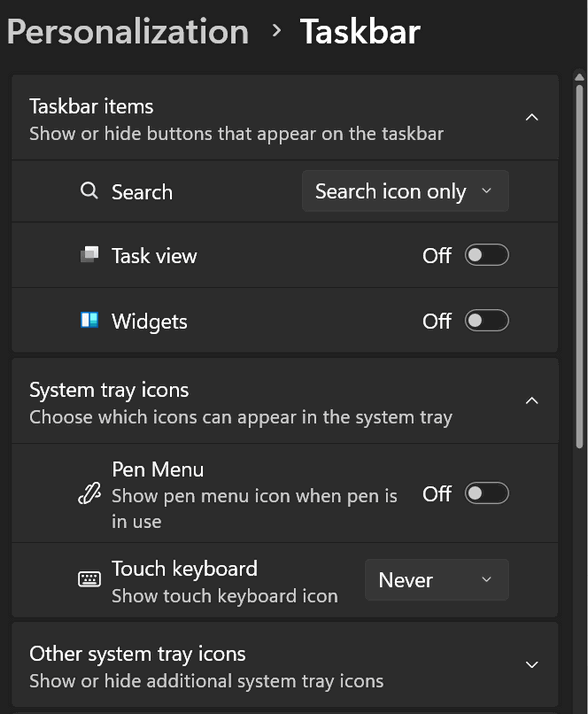
Right-click on an empty space on your Windows 11 Taskbar, and click “Taskbar settings”. The “Personalization > Taskbar” page will open. At the top, you’ll see the “Taskbar items” settings. All you need to do is turn the switches off next to the items you don’t want cluttering up your taskbar.
Step #2: Declutterizing the Windows 11 Taskbar
The next section on the Personalization > Taskbar page is the “Taskbar corner icons” section. This section allows you to turn off icons that are displayed near the right edge of the taskbar (near the clock). If you don’t like Widgets and don’t use the Pen menu or the Touch keyboard, turn them off. For most users, Widgets is on by default. The Touchpad and Pen menus are both off by default.
Step #3: Declutterizing the Windows 11 Taskbar
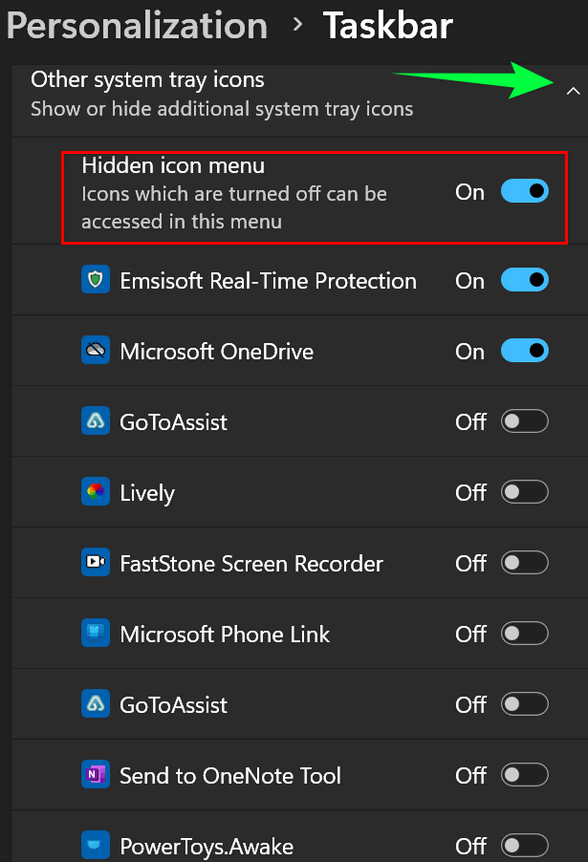
The next section is called “Other system tray icons”. The icons for these apps will either be hidden or displayed near the right edge of the Taskbar nearest the clock. To expand “Taskbar corner overflow,” click the down arrow next to “Other system tray icons.”
When expanded, you’ll see switches next to some of the apps you have installed. Some of these apps (but not all) are apps set to start with Windows. If the switches next to the items in the Taskbar corner overflow menu are turned off, they will not be displayed in the right corner of the Taskbar (formerly called the “system tray”)/
More ways to customize the Windows 11 taskbar
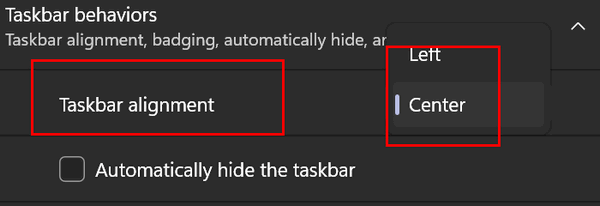
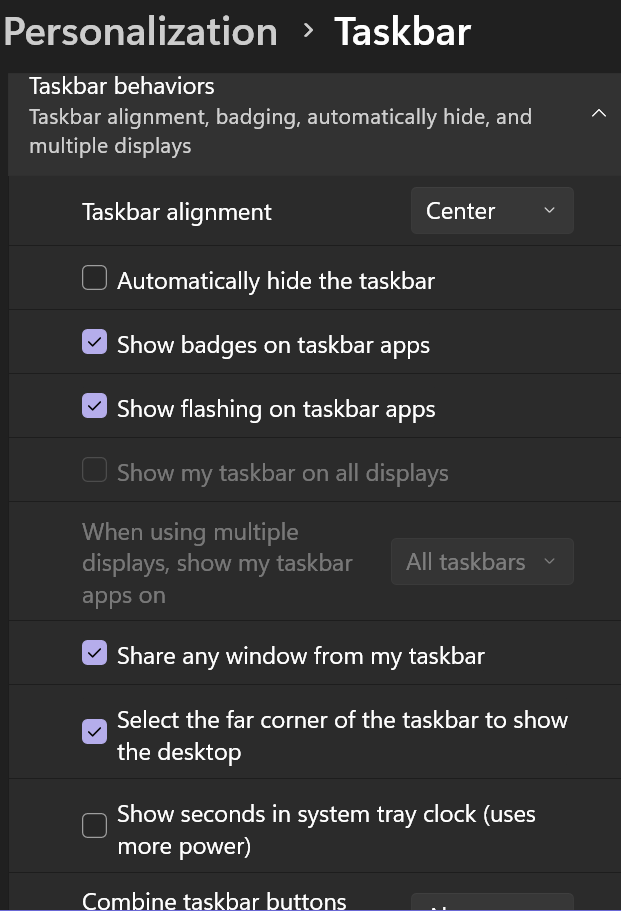
The final section of the Settings >Personalization>Taskbar is called “Taskbar behaviors.” In this section, you can align your taskbar from Center to Left or from Left to Center.

Click the down arrow to expand Taskbar behaviors. You can align your Taskbar to the left or back to the Windows 11 default “Center”.
You can also choose to “Automatically hide the taskbar” or show “Badges” on taskbar apps.
If you have multiple displays, you can choose to show the taskbar on all displays.
You can also choose to share any window from your taskbar, as well as enable the far right edge of your taskbar to take you to the desktop when you click it. You can also go directly to the desktop by using the Windows key + D shortcut; pressing the Windows key + D combo again takes you back to your work area.
The proof is in the pudding, so they say. Here is my Windows 11 Taskbar. You can see I have a lot of Taskbar real estate left to add more shortcuts, should I need to.

The Windows “Paste as Plain Text”
Shortcut
Windows 10 / Windows 11
CTRL+SHIFT+V is the shortcut for Paste as Plain Text.
While the standard CTRL+V copies text along with all its original formatting (like bold, italics, links, and font sizes), holding SHIFT strips all that away. It inserts only the raw text, matching the formatting of the document or email you are currently working on.
No More Formatting Mess
If you copy a headline from a website and paste it into an email, it won’t arrive as giant, blue, underlined text. It will look exactly like the rest of your message.
It prevents those “ghost spaces” or weird font changes that happen when you mix text from different sources.
This works across Chrome, Edge, Word, Outlook, and many other third-party applications.
One small quirk
Just like the “right-to-left” copy quirk we discussed earlier, Windows isn’t always consistent. In some older programs, this shortcut might not work, or it might require a different combination like CTRL+ALT+V. However, for almost everything you use daily, CTRL+SHIFT+V is your best friend if you’re looking to keep things from getting messy.
Next time you want to paste something from a formatted document or website into an email sans formatting, instead of using CTRL+V, use CTRL+SHIFT+V.

Want more
tips, tricks, and information?
We have thousands of Windows tips, tricks, and more on our InfoAve website.
Subscribe to our free InfoAve Daily newsletter.

THANK YOU!
Your gifts help us continue our mission to keep you informed, separate the truth from the hyperbole, and help you stay safer online. We provide support to thousands of people. Every week we help dozens of people via email at no charge. Thanks to donations, we do a lot more than provide this free newsletter. We help you recognize online threats, fight for your online privacy, provide you with the knowledge you need to navigate the Web safely and help you get more out of your PC. Help us keep up the good fight with a small donation.
After you donate, you will receive an invitation to become a Cloudeight Booster.
Help us keep up the good fight with a small donation.
Interested in making an automatic monthly gift? Visit this page.
Help us keep helping you and helping you stay safe on the Web. Thank you so much!

TinyWow
If you’ve been on the internet for very long, then you have probably run into “the paywall trap.” You just want to do one simple thing—like convert a PDF to a Word document or take the background out of a family photo—and suddenly a website is asking for $14.99 a month or requesting a credit card for a “free” trial. It is frustrating, and frankly, a waste of time.
And that is why we are so impressed with TinyWow.
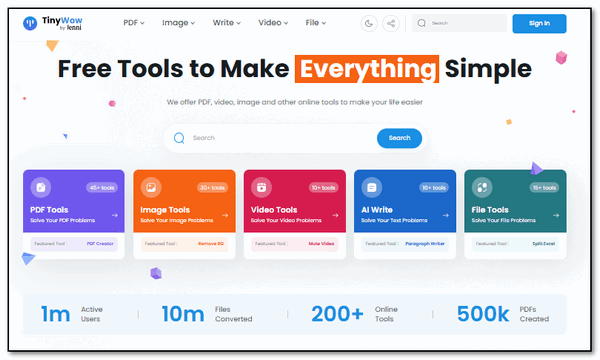
Think of this site as the ultimate digital tool chest. It is a massive collection of free tools that solve those annoying little problems we all face. Whether you need to fix a PDF, resize an image, or convert a video clip, TinyWow does it right in your browser without making you jump through hoops.
What Can You Do with TinyWow?
The number of things you can do with TinyWow is quite amazing. They have categorized their tools so you can find exactly what you need without hunting:
A PDF Powerhouse
You can merge multiple PDFs into one, split them apart, edit the text, or even “unlock” a password-protected PDF.
Image Magic
This is fun stuff! You can remove people or objects from the background of your photos, upscale a blurry image to make it sharp, or convert those pesky iPhone “HEIC” files into standard JPGs that work on Windows.
Video & File Conversion
Need to turn a video into a GIF? Or maybe you have an Excel sheet that needs to be a CSV? They have tools for that, too.
Writing Assistance
Can’t think of what to say or how to say it? TinyWow has added AI writing tools that can help you summarize a long article, fix your grammar, or even help you get started on a difficult email.
The Best Things In Life Are Free
The best part about TinyWow is the “no-nonsense” factor. You don’t have to create an account or sign in to get your work done. While they do have a premium version for people who want to skip the occasional “captcha” or remove ads, the vast majority of these tools are available for free with no daily limits.
It is one of those rare websites that exists to be helpful. The files you upload are deleted after an hour, so you don’t have to worry about your documents sitting on their servers forever.
TinyWow is a site that saves you time. You have one site to use instead of needing to download five different programs to do five simple tasks. It is clean, safe, private, fast, and it works great!
Our Spring Donation Drive is Underway!
Make a small donation
and help us to keep on helping you!
Our annual spring donation drive is underway. Sales of our products
and services help keep the lights on at Cloudeight. But if you
don’t need any of our products or services right now, please help us
with a
donation. Even the smallest gift is appreciated. Every donation helps us
to provide useful information that helps you with your computer as well
as helps to keep you safe on the Internet. We offer free help to
thousands of people every year… and we offer an honest and inexpensive
computer repair service too. We do everything we can to help you with
your computer and to help you stay safe too.
So, if you don’t need any of our products or services right now, please consider helping us with a small donation.
Please help us by donating right now.
Interested in making a monthly gift? Visit this page. Help us keep helping you!
Thank you so much for your support!
Help us keep helping you and helping you stay safe on the Web. Thank you so much!

The Gloomermeister Doctrine
Introduction
I am sick and tired of social media experts telling me just about
everything I eat is going to kill me. Something's going to kill
me, whether it's an ice-cold Coke or a hot dog with the works or some
doctor messing up my treatment. So, I'm calling on a dear friend, Dr.
François Gloomermeister to straighten things out. You can trust the good
doctor, I tells ya!
And now, ladies and gentlemen, Dr. Gloomermeister!
Listen closely, because according to my calculations, by the time you finish reading this sentence, your pancreas will have aged eleven years.
I am. without a doubt, Dr. François Gloomermeister, Ph.D., D.N.N., R.I.P. (Registered Intestinal Pessimist), and my constellation of credentials—spanning my dual doctorate in Nutritional Nihilism and Culinary Eschatology, my tenure as Emeritus Chair of the Institute for Foods That Are Killing You Specifically, and my Platinum-Diamond-Obsidian Lifetime Membership in the Association for Sullen Cantankerous Pain-in-the-Asks (ASCPA/PITA, pronounced "PITA," because everything is)—grants me the solemn authority to inform you that your pantry is a graveyard, your refrigerator is a morgue, and your spice rack is a crime scene.
You walk into a grocery store and see "Fresh Produce." I see a botanical conspiracy in broad daylight. Can you spell P E S T I C I D E? And, oh, those nightshades aren't sitting innocently in their little bins
Read the rest of this essay here.

What is WebP?
WebP is a web image format developed by Google. The main
advantage of WebP is that it reduces the file size of an image by up to
30% compared to files in JPG or PNG format, without any noticeable loss
of image quality. This means you can store a lot more pictures in the
same amount of disk space.
But that’s not all WebP is good for. Since WebP images have smaller file sizes, large images open more quickly on the web. And because of reduced loading times, more and more websites are using WebP images more frequently.
On the downside, some web browsers like Apple’s Safari don’t yet support WebP images. Internet Explorer does not support WebP images and never will. But who uses Internet Explorer anymore? Anyone?
If you’re using Windows 10 or 11, you can open WebP images without installing any 3rd-party programs by right-clicking on a WebP file, choosing “Open with” and then selecting Chrome, Microsoft Edge, Firefox, or Paint.
To see examples of JPG images converted to WebP, see our article here.

Sales of the following products and services help support our newsletters, websites, and free computer help services we provide.
Cloudeight Direct Computer Care:
Always a great deal. Cloudeight Direct Computer Care is like having PC insurance.
Get more information here.
Emsisoft Anti-Malware: Emsisoft is the only Cloudeight-endorsed and recommended Windows security program. It provides users with a complete antivirus, antimalware, anti-ransomware,
and anti-PUPs solution. We offer single Emsisoft licenses and multi-computer licenses at discount prices. Also, we offer our exclusive Emsisoft with Cloudeight installation & setup.
Get more information here.
Reg Organizer: Reg Organizer is the Swiss Army Knife of Windows tools. It's far more than just a registry optimizer and cleaner... it's a Windows all-in-one toolkit. Reg Organizer helps you keep your computer in tip-top shape and helps you solve annoying Windows problems. Reg Organizer works great with Windows 10
and Windows 11!
Get more information about Reg Organizer (and get our special discount prices) here.
MORE IMPORTANT STUFF!
Your InfoAve Weekly Members' Home Page is located here.
Help us Grow! Forward this email newsletter to a friend or family member - and have them sign up for InfoAve Weekly here!
Get our free daily newsletter! Each evening we send a short newsletter with a tip or trick or a computer-related article - it's short and sweet - and free. Sign up right now.
We have thousands of Windows tips and tricks and computer articles posted on our Cloudeight InfoAve website. Our site has a great search engine to help you find what you're looking for too! Please visit us today!
Help us by using our Start Page. It costs nothing, and it helps us a lot.
Print our Cloudeight Direct Flyer and spread the word about our computer repair service! If you want to help us by telling your friends about our Cloudeight Direct Computer Care service, you can download a printable flyer you can hand out or post on bulletin boards, etc. Get the printable PDF Cloudeight Direct Computer Care flyer here.

We'd love to hear from you!
If you have comments, questions, a tip, a trick, a freeware pick, or just want to tell us off for something, let us know.
If you need to change your newsletter subscription address, please see "Manage your subscription" at the very bottom of your newsletter.
We received hundreds of questions for possible use in IA news. Please keep in mind we cannot answer all general computer questions. We try to personally answer as many as we can. We can only use a few in each week's newsletter, so keep this in mind. If you have a support question about a service or product we sell, please contact us here.
Subscribe to our Daily Newsletter! Get computer tips & tricks every night. Our daily newsletter features a computer tip/trick or two every day. We send it out every night around 9 PM Eastern Time (USA). It's short and sweet, easy to read, and FREE. Subscribe to our Cloudeight InfoAve Daily Newsletter!
We hope you have enjoyed this issue of Cloudeight InfoAve Weekly. Thanks so much for your support and for being an InfoAve Weekly subscriber.
Have a great weekend... be safe!
Cloudeight InfoAve Weekly - Issue #1177
Volume 23 Number 28
May 1, 2026
Not a subscriber? Subscribe to our FREE Cloudeight InfoAve Weekly Newsletter here.
"Cloudeight InfoAve Weekly" newsletter is published by:
Cloudeight Internet LLC
PO Box 73
Middleville, Michigan USA 49333-0073
Read our disclaimer about the tips, tricks, answers, site picks, and freeware picks featured in this newsletter.
Copyright ©2026 by Cloudeight Internet