
Issue #1178
Volume 23 Number 29
May 8, 2026
Dear Friends,
Welcome to Cloudeight InfoAve Weekly Issue #1178. Thank you very much for subscribing and for being a part of our Cloudeight family. We appreciate your friendship and support very much! Please share our newsletters and our website with your friends and family.

If you're not getting our InfoAve Daily newsletter, you're missing out on a lot of good stuff!
It's free, and it only takes a few seconds to sign up. We'd love to have you with us. Visit this page to sign up for our Cloudeight InfoAve Daily Newsletter.

THANK YOU FOR HELPING US!
When you support us with a small gift, you help us continue our mission to keep you informed, separate the truth from the hyperbole, and help you stay safer online. Plus, our computer tips make your computer easier to use.
Did you know that we provide support to thousands of people? Every week, we help dozens of people via email at no charge. The questions and answers you see in our newsletters are from the email answers and help we provide to everyone free of charge.
Thanks to your gifts, we do a lot more than provide this free newsletter. We help you recognize online threats, fight for your online privacy, provide you with the knowledge you need to navigate the Web safely, provide you with suggestions for safe, free software and websites, and help you get more out of your PC.
Please help us keep up the good fight with a small gift.
Interested in making an automatic monthly gift? Visit this page. Help us keep helping you... and help us keep you safe on the Web.
Help us keep helping you and helping you stay safe on the Web. Thank you so much!

Rose wants to know what her 500 GB hard drive isn't 500 GB
Morning TC. Okay, the C drive was supposed to be 500 GB. I can't understand why I only get 236. Yes, I did the storage clean-up. I deleted pictures I had more than one of. I deleted folders of old stuff to free up space, but somehow my space never gets bigger...
Also, about RAM usage. I do have more than 30 tabs open on Firefox. I know that when you restart your computer, when Firefox opens, all the windows open up with only one tab on each. Rose.
Our answer
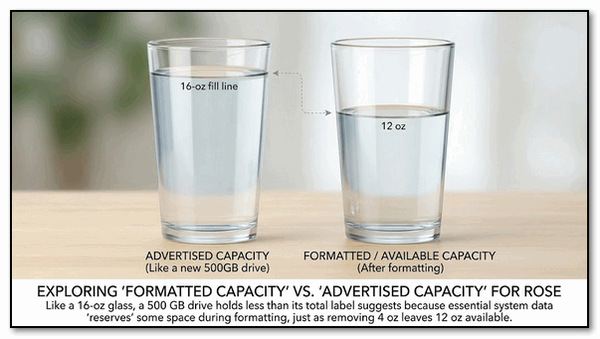
Hi Rose. If you buy a computer with a 500 GB hard drive, you won't have 500 GB of space left even if you never touch your computer. 500 GB is the capacity, and Windows and certain other apps that a computer manufacturer puts on it at the factory use up more space. So when you take the computer out of the box at home before you ever use it, you won't have 500 GB to use. You'll never see 500 GB remaining on a 500 GB drive. Once you start using it and saving files and installing programs, you may only have 230 GB of hard drive space left. There's nothing wrong with the drive - it's still a 500 GB hard drive. If you have a 16-oz water glass and it's full of water, it will theoretically hold 16 oz. of liquid. Once you drink a quarter of it, your glass only has 12 oz. left, but it is still a 16 oz. glass.
236 GB is 236,000 megabytes. When Darcy and I started Cloudeight, computers came with 540 MB hard drives. Your computer will run just fine as long as you have around 50 GB of space left. You have a long way to go before you reach that plateau.
You don't check drive space in Control Panel; you check in File Explorer > This PC. Right-click on the drive C: and choose "Properties," and you will see this:
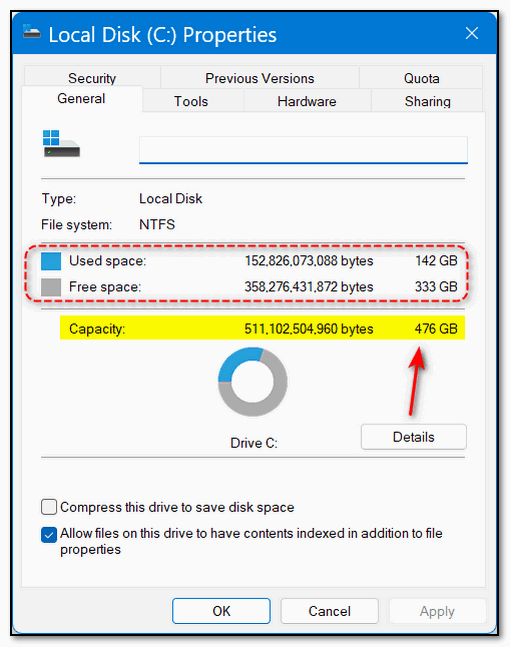
My hard drive is a 500 GB hard drive; but you can see in the yellow highlight it never really had 500 GB available. This computer is going on 3 years old and my drive shows 142 GB of my hard drive space is used just from Windows storing and deleting temp files, me installing programs, and saving files like documents, pictures, emails, music and video files etc. I never had 500 GB available to begin with. And even though I use OneDrive to save most of my files in the cloud (online), I have 333 GB.
A hard drive may have a 500 GB capacity but it will never have 500 GB available. My 16 oz. water glass analogy may also help you understand this concept:
As for Firefox, you need to change the setting to something other than when Firefox opens, restore the tabs that were open to something like open a new tab, or open a specific site. Having 30 pages open when Firefox opens is not a good idea; it's a waste of your computer's resources. And don't forget, any extension you install will show up in Task Manager as open instances of Firefox using up even more RAM.
I hope this helps you, Rose.
Jess is looking for a quicker way to restart
Is there a quick and easy way to do a restart in Windows 11? I use the power button now.
Our answer
Hi Jess. I suggest that you create a dedicated "Restart" button right on your desktop. It's actually very simple to do. Here is how you can set it up in Windows 11:
Right-click on any empty space on your desktop.
Hover over New and select Shortcut.
In the box that says "Type the location of the item," copy and paste the following command exactly:
shutdown /r /t 0
Click Next.
Type a name for the shortcut (like Restart PC) and click Finish.
That's it! If you click on that shortcut your computer will restart immediately.
If you prefer, you can drag and drop that new shortcut from your desktop onto your Taskbar at the bottom of the screen.
Now, you’re just one click away from a restart anytime with the click of your mouse.
I hope this helps you, Jess.
Sue may need help transferring files from one PC to another
A computer friend's computer whiz son was able to get into the BIOS (Greek to me) and find all of my documents, including my Photos file. He put it all on a high-speed transfer portable device. I've been afraid to do anything with it (for almost 2 yrs. now), trying to avoid the thought that maybe all the folders are empty, but it's time to bite the bullet. So my next request will certainly require a key (or TWO), which I bought some time ago, and I will ask you for help putting all my extracted stuff back together. Thank you for being here for us!! Honestly, I don't know what I'd do without you! Your grateful subscriber, Sue.
Our answer
Hi Sue. Thanks so much for all the nice comments!! just wanted to clear up a couple of things here and perhaps help you to understand how file transfer speed is affected.
The BIOS isn't a storage device like a hard drive or a thumb drive—you can't save your photos, music, or documents to it.
In the simplest terms, the BIOS is like the "wake-up call" for your computer. It is a small piece of software built into the computer's hardware that tells the machine how to start up. When you first push the power button, the BIOS is the very first thing to run. It checks to make sure the keyboard, screen, and memory are all working correctly, and then it goes and "wakes up" Windows so you can get to work.
I'm not sure what a "High-speed transfer portable device" is. I've never heard of it. Any USB stick or External Drive is generally connected to a computer via a USB port. The speed of the storage drive is not determined by the type of device (external hard drive or thumb drive), but by how that device is connected to the computer.
The two most common types of USB connections on Windows are the following:
USB 3.0 / 3.1 (The Standard):
These run between 5 Gbps and 10 Gbps. This is what most people use for everyday tasks like moving documents or photos to a thumb drive.
USB 2.0 (The Slowest):
This runs at only 480 Mbps (Megabits per second). It’s perfectly fine for a mouse or a keyboard, but you would never want to use it to back up your hard drive—it would take all night.
So, it's not the storage media or device that makes the difference; it's the connection type. Hopefully, he did not compress (zip) the files. That would be a mess.
I hope this helps you, Sue.

We've helped hundreds and hundreds of you with your computers since we started our Cloudeight Direct Computer Care Service! If you're having computer problems - we CAN help you!
We all know that sooner or later our computers are going to start having problems. We can help you with any computer need -- from diagnosing and fixing Windows problems - to cleaning up malware and viruses - to cleaning up your computer and optimizing it -- and more. We can do just about anything need done and we guarantee our work - you're either satisfied or we'll refund your money.
We will connect to your computer via the Internet and fix any problems you may be having. You can watch us work and chat with us while we do. If you have any computer questions you'd like to ask we'll be glad to answer them for you. We don't just fix your computer, we explain what we're doing and why we're doing it and we are right there with the entire time. Since we've started we've helped hundreds of you with your computer problems and we've received dozens of referrals and testimonials from our readers and customers.
We offer many other computer services too! If you have a problem with your computer - we can fix it!
Get more information about Cloudeight Direct Computer Care and / or get your repair keys here.
Larry wants a new Windows 11 computer, but doesn't want to spend a fortune
I always look forward to the help you folks send out to us. I do have one question that maybe you can answer. I am going to have to get a new computer soon, one that will run Windows 11. Can you recommend a good computer that meets the requirements, is reliable, but not too expensive? Any advice would be appreciated. Thank you so much for all the work you do!
Our answer
Thanks, Larry!
Here's a laptop with 16 GB of RAM, a fast quad-core N95 Processor, a 500 GB processor, a 15.6-inch screen, Backlit Keyboard, and Fingerprint Unlock...very similar to the one I'm using now (and have been using for over a year), for $299.99. It comes with Windows 11 Pro too.
This is essentially a "tuned-up economy car." It doesn't have the leather seats or the fancy badge of a luxury vehicle, but because it has a solid engine (the N95) and plenty of fuel in the tank (the 16GB RAM), it’ll get you down the highway just as fast as the expensive models!
I love mine, and mine is very similar to this one. Mine runs better than the $700 ASUS I had. I hope this helps you, Larry.
Maureen is still looking to replace Picasa
Hi Darcy, thanks for the encouraging words re the laptop. Unfortunately, Google has disabled Picasa, which I have loved and used for many years, managed to find some photos, but would like a program similar to that so they can be organized like before, free if possible, or a one-off payment. Many thanks. Maureen
Our answer
Hi Maureen. I completely understand why you miss Picasa. It was one of those rare programs that stayed out of your way and just let you look at your pictures! Even though Google retired it, the good news is that you don’t have to settle for anything complicated.
Here is our top choice for replacing the "Picasa way" of doing things:
FastStone Image Viewer (Free)
This is the one most former Picasa users end up loving. It’s totally free and very fast.
Why it's like Picasa: It uses a simple "folder tree" on the left side, just like Picasa did. You can browse through your folders and see your photos instantly.
What it does: It has great tools for cropping, removing red-eye, and resizing. It’s not fancy, but it’s very reliable and doesn't try to move your files around without asking.
It has also been our freeware pick several times in the past.
You can read our review of FastStone Image Viewer here.
Daniel read our tip on using Chrome's new PDF editing capabilities -- but he doesn't see them
TC and Darcy, So recently you talked about Chrome’s New “Secret” PDF Power Tool: No Adobe Needed! When I do what you said to bring up the built-in PDF viewer, it doesn't have a built-in typewriter, and it doesn't really look like the picture you put up, and the drop-down doesn't have any of that stuff on it. I checked to make sure I had the most current version of Chrome, and I'm all up to date, so I don't know why it doesn't have the things that your picture shows. I went to the Edge browser, and it had all the things you talked about. What am I doing wrong?
Our answer
Hi Daniel. I read a bit of confusion here about those new PDF tools. Maybe I didn't do a very good job of presenting how it works. There is no need to go hunting for a new icon on your desktop or a separate app to download—they are actually built right into the Google Chrome browser you already use.
To get started with these features, you just need to make sure the PDF is open inside a Chrome tab. Here are the two easiest ways to do that:
The Drag-and-Drop: Grab your PDF file from your folder and drag it directly into the address bar (the long box at the top where you type websites) of an open Chrome window.
The Right-Click: Right-click the PDF file on your computer, select "Open with," and then choose Google Chrome.
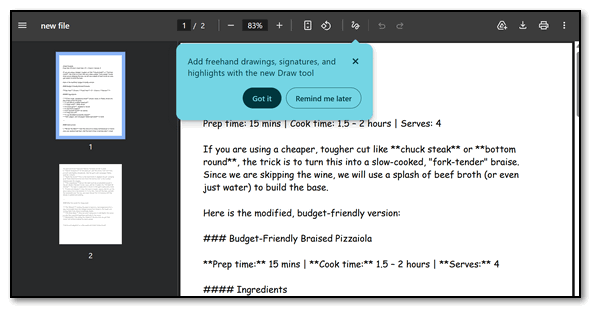
Once the file is open in the browser, you'll see the new toolbar pop up, letting you edit, annotate, or organize your document without ever leaving your web browser. It’s all in one place.
I hope this helps you, Daniel.

Now available: Reg Organizer 9.88
If you purchased or renewed Reg Organizer through Cloudeight within the last 12 months, you're entitled to a free version upgrade to Reg Organizer 9.88. Reg Organizer works great with Windows 10 and Windows 11.
Save $14 on Reg Organizer right now!
Reg Organizer - A Swiss Army Knife of Windows Tools - Works Great on Windows 10 and Windows 11.

The Windows 11 "Secret" Right-Click
Windows 11
Most users click the Start button to find their apps, but the most useful menu in Windows 11 is actually hidden behind a Right-Click.
By right-clicking the Start icon—or pressing Win + X on your keyboard—you open the Power User Menu. This is a "no-nonsense" shortcut list that bypasses the colorful interface of the standard Start menu and gives you instant access to the system’s most vital tools:
Installed Apps: The fastest way to reach the uninstaller list.
Terminal (Admin): Open the command line with full permissions in one click.
Disk Management: Quickly format a USB drive or partition a new SSD.
Device Manager: Instantly troubleshoot hardware or driver issues.
Task Manager: Jump straight to your process list to kill frozen programs.
It is the ultimate power-user shortcut for anyone who wants to skip the hunting and pecking of the Settings app and manage their PC with more efficiency.
Why Do Windows Updates Take So Long?
Windows 10 / Windows 11
The Windows Updates Lie: The Mystery of the “100%” Loading Screen
We have all been there. You reboot your computer, and suddenly Windows Update appears. You see a notification, “100%, Complete. Please don’t turn off your computer,” and you think, “Great, almost done!”
Then, you wait. And wait. The little circle spins for fifteen minutes while Windows insists it is 100% finished. Suddenly, your laptop reboots, only to greet you with a blue screen announcing that “Updates are underway.” It feels like being told you’ve reached the finish line of a marathon, only to realize there are another five miles to go.
If you’ve ever wondered why this process takes so “freaking long,” there is actually a method to the madness.
The “100%” Illusion
The first thing to understand is that in the world of Windows, 100% does not mean “Finished.” Usually, that percentage only tracks the Staging phase. This is when your computer is simply moving files from the internet into a temporary folder on your hard drive.
While that circle is spinning at 100%, your PC is doing some heavy-duty file processing behind the scenes:
Checking Integrity: It runs a “checksum” on every single file to ensure nothing was corrupted during the download.
Creating Backups: It saves the old versions of the files it is about to be replaced. This is your safety net; if the update fails, Windows needs those backups to “undo” the changes so your computer still works.
The Registry Shuffle: It is preparing thousands of tiny changes to the Windows Registry—the “brain” of your operating system.
The 70MPH Tire Change
You might wonder why it needs to reboot at all. Think of it this way: it is impossible to change the tires on a car while you are driving 60 mph down the highway. Similarly, Windows cannot replace core system files while it is currently using them to run your desktop.
When your computer reboots and says “Updates are underway,” it has entered a “pre-boot” environment. Since the main operating system isn’t fully active yet, the files are “unlocked.” Windows can finally replace the old files with the new ones and perform a final verification to ensure all the new code is communicating correctly.
Why It Feels Like an Eternity
There are a few reasons why this “slow and steady” pace feels so painful:
Cumulative Updates: Modern updates aren’t just one quick fix; they are often massive bundles containing every patch and security update from the last several months.
Background Battles: If you have aggressive antivirus software or heavy programs running, they often fight with the update process for “disk priority,” which acts like a massive brake on the installation speed.
Safety Over Speed: Windows is notoriously slow because it prioritizes stability. It records every single step of the process so that if your power suddenly cuts out, your laptop doesn’t turn into a permanent paperweight.
The Golden Rule: Don’t Touch That Button!
As frustrating as it is, the “15-minute rule” is a good sign. If your laptop eventually reboots and the screen changes, the update is working—it’s just being a turtle. As long as that little circle is spinning or the percentage is ticking up (no matter how slowly), do not force your computer to shut down. Cutting the power during the “committing” phase is the fastest way to corrupt your files.
Take a deep breath, grab a cup of coffee, walk away from the computer – you sitting there watching is like waiting for a pan of water to boil – and let Windows finish its chores. It’s annoying, but it’s the price we must pay for a stable and secure system.
Two Obscure but Useful Windows 11 Tips You May Not Know
Windows 11
Windows is full of little features that Microsoft seems to want to keep secret. Here are two of our favorite arcane Windows 11 tips to help you get more done with less clicking.
The Shakedown
If your screen is cluttered with multiple windows and you just want to focus on one, you don’t have to manually minimize them all. Just click and hold the title bar of the window you want to keep, and give it a quick shake with your mouse.
Windows will instantly minimize every other open program, leaving only your chosen window on the screen. If you want them all back again, give the window another shake!
(Note: If this doesn’t work on your PC, head to Settings > System > Multitasking and make sure “Title bar window shake” is turned on.)
Copying Text from “Uncopyable” Places
Have you ever tried to copy text from a weird error message or a dialogue box that won’t let you highlight the words? Instead of typing it out manually, just click on the window and press CTRL + C.
Even if there is no “Copy” button and the text doesn’t turn blue, Windows will often copy the entire contents of that dialogue box to your clipboard. You can then paste it (CTRL + V) into Notepad or an email to see exactly what that error message said.

Want more tips, tricks, and information?
We have thousands of Windows tips, tricks, and more on our InfoAve website.
Subscribe to our free InfoAve Daily newsletter.

THANK YOU!
Your gifts help us continue our mission to keep you informed, separate the truth from the hyperbole, and help you stay safer online. We provide support to thousands of people. Every week we help dozens of people via email at no charge. Thanks to donations, we do a lot more than provide this free newsletter. We help you recognize online threats, fight for your online privacy, provide you with the knowledge you need to navigate the Web safely and help you get more out of your PC. Help us keep up the good fight with a small donation.
After you donate, you will receive an invitation to become a Cloudeight Booster.
Help us keep up the good fight with a small donation.
Interested in making an automatic monthly gift? Visit this page.
Help us keep helping you and helping you stay safe on the Web. Thank you so much!

Aye, Me Mateys! The Truth is Stranger Than Fiction!

Once in a while, we like to take a break from the tips and tricks and fix-em-up business and have a little fun. Nothing wrong with that, right? So, mateys, once in a while, we create our own “site pick” for you to peruse. And today, we’re going to do just that – create our own “site pick” or “page pick” (if you will), and share with you some examples of how the truth is often stranger than fiction.
#1 Did you know that a glass of milk has more sodium than a serving of potato chips?
#2 Russia has more surface area than Pluto. (Russia covers about 17 million sq. km, while Pluto covers about 16.6 million sq. km.)
#3 Oxford University is older than the Aztec Empire. (Teaching existed at Oxford in 1096; the Aztec Empire was founded in 1325.)
#4 The national animal of Scotland is the Unicorn.
#5 Nintendo was founded while Jack the Ripper was still at large. (Nintendo was founded in 1889 as a playing card company.)
#6 A day on Venus is longer than a year on Venus. (It takes Venus 243 Earth days to rotate once, but only 225 Earth days to orbit the Sun.)
#7 Sharks have been around longer than trees. (Sharks have existed for 400 million years; trees for about 350 million years.)
#8 There are more life forms living on your skin than there are people on the planet.
#9 Bananas are berries, but strawberries are not.
#10 Saudi Arabia imports camels from Australia.
#11 Vending machines are statistically deadlier than sharks.
#12 The total weight of all the ants on Earth is roughly equal to the total weight of all the humans on Earth.
#13 There are more trees on Earth than stars in the Milky Way. (3 trillion trees vs. 400 billion stars.)
#14 You can’t hum while holding your nose. (Go ahead, try it.)
#15 Cleopatra lived closer to the invention of the iPhone than to the building of the Great Pyramid of Giza.
#16 Wombat poop is cube-shaped.
#17 Honey never spoils. Archeologists have found 3,000-year-old honey in Egyptian tombs that is still edible.
#18 The state of Maine is the closest U.S. state to Africa.
#19 A single cloud can weigh more than a million pounds (453,593 kg).
#20 There are more possible iterations of a game of chess than there are atoms in the known universe.
#21 The first oranges weren’t orange—they were green.
#22 A jellyfish is 95% water.
#23 If you fold a piece of paper 42 times, it would be thick enough to reach the Moon.
#24 The tongue of a blue whale is so large that 50 people could stand on it.
#25 Mammoths were still alive when the Egyptians were building the pyramids.
THANK YOU FOR HELPING US!
When you support us with a small gift, you help us continue our mission to keep you informed, separate the truth from the hyperbole, and help you stay safer online. Plus, our computer tips make your computer easier to use.
Did you know that we provide support to thousands of people? Every week, we help dozens of people via email at no charge. The questions and answers you see in our newsletters are from the email answers and help we provide to everyone free of charge.
Thanks to your gifts, we do a lot more than provide this free newsletter. We help you recognize online threats, fight for your online privacy, provide you with the knowledge you need to navigate the Web safely, provide you with suggestions for safe, free software and websites, and help you get more out of your PC.
Please help us keep up the good fight with a small gift.
Interested in making an automatic monthly gift? Visit this page. Help us keep helping you... and help us keep you safe on the Web.
Help us keep helping you and helping you stay safe on the Web. Thank you so much!

A Free Breakfast at Epiphanies
I lost my job. I lost my family. I lost my home. I lost everything. Last year was not a good year. In fact, the last couple of years haven’t been so hot.
I’m doing the best I can. Living on the streets of Memphis isn’t easy at any time—but it’s really tough in winter. It’s January now, and the winds blow through downtown like a wind tunnel. The buildings amplify the wind, and the wind amplifies the cold.
Almost all I own I carry with me in a plastic Walmart bag: some clean underwear, a bar of soap, a couple of pictures of my daughter, a few dollars, and an old cellphone that doesn’t work. I carry the cellphone that doesn’t work because it contains so many precious memories. Voicemails and text messages—bits and pieces of a life torn apart—are all locked in that little black phone.
I own one other thing, too. I will get to that later.
I take most of my meals at the food bank; I like the free meals...
Read the rest of this short story here.

The "What on Earth Did You Just Say?" Translator
If you’ve spent any time around a Gen Z-er lately, you’ve probably realized they aren't actually speaking English—they’re speaking a high-speed dialect of internet memes and vibes. If you want to try to understand what your grandkids are saying or why your grandkids are laughing), here are four terms currently dominating the "cool" Gen Z-er scene:
1. Rizz
The Translation: Charisma.
The Context: Derived from the middle of the word "cha-rizz-ma." If someone has "unspoken rizz," it means they are effortlessly charming or smooth. If they have "L rizz," well, they probably just tripped over their own shoelaces while trying to say hello.
2. Skibidi
The Translation: Honestly? It’s a total wildcard.
The Context: This one is the ultimate "Gen Alpha" litmus test. Originating from a bizarre YouTube series about singing heads in toilets (don't ask), it’s now used as an adjective for anything "bad," "weird," or sometimes just as a random exclamation. If a teenager tells you your dinner is "skibidi," you might want to check the expiration date on the milk.
3. Fanum Tax
The Translation: Stealing a bite of someone else’s food.
The Context: Named after a popular streamer, Fanum, who is known for "taxing" his friends by swiping a portion of their snacks. If you reach over and grab a single fry from your friend’s plate, you have officially levied the Fanum Tax.
4. Delulu
The Translation: Delusional.
The Context: Usually used in the phrase "Delulu is the solulu" (Delusional is the solution). It’s a humorous way of saying that having unrealistic confidence or a "fake it till you make it" attitude is the only way to get through life.
Beware: Don't try to use these around young people or you might cause them to physically recoil in cringe. Use with extreme caution, I tells ya!

Sales of the following products and services help support our newsletters, websites, and free computer help services we provide.
Cloudeight Direct Computer Care: Always a great deal. Cloudeight Direct Computer Care is like having PC insurance. Get more information here.
Emsisoft Anti-Malware: Emsisoft is the only Cloudeight-endorsed and recommended Windows security program. It provides users with a complete antivirus, antimalware, anti-ransomware, and anti-PUPs solution. We offer single Emsisoft licenses and multi-computer licenses at discount prices. Also, we offer our exclusive Emsisoft with Cloudeight installation & setup. Get more information here.
Reg Organizer: Reg Organizer is the Swiss Army Knife of Windows tools. It's far more than just a registry optimizer and cleaner... it's a Windows all-in-one toolkit. Reg Organizer helps you keep your computer in tip-top shape and helps you solve annoying Windows problems. Reg Organizer works great with Windows 10 and Windows 11! Get more information about Reg Organizer (and get our special discount prices) here.
MORE IMPORTANT STUFF!
Your InfoAve Weekly Members' Home Page is located here.
Help us Grow! Forward this email newsletter to a friend or family member - and have them sign up for InfoAve Weekly here!
Get our free daily newsletter! Each evening we send a short newsletter with a tip or trick or a computer-related article - it's short and sweet - and free. Sign up right now.
We have thousands of Windows tips and tricks and computer articles posted on our Cloudeight InfoAve website. Our site has a great search engine to help you find what you're looking for too! Please visit us today!
Help us by using our Start Page. It costs nothing, and it helps us a lot.
Print our Cloudeight Direct Flyer and spread the word about our computer repair service! If you want to help us by telling your friends about our Cloudeight Direct Computer Care service, you can download a printable flyer you can hand out or post on bulletin boards, etc. Get the printable PDF Cloudeight Direct Computer Care flyer here.

We'd love to hear from you!
If you have comments, questions, a tip, a trick, a freeware pick, or just want to tell us off for something, let us know.
If you need to change your newsletter subscription address, please see "Manage your subscription" at the very bottom of your newsletter.
We received hundreds of questions for possible use in IA news. Please keep in mind we cannot answer all general computer questions. We try to personally answer as many as we can. We can only use a few in each week's newsletter, so keep this in mind. If you have a support question about a service or product we sell, please contact us here.
Subscribe to our Daily Newsletter! Get computer tips & tricks every night. Our daily newsletter features a computer tip/trick or two every day. We send it out every night around 9 PM Eastern Time (USA). It's short and sweet, easy to read, and FREE. Subscribe to our Cloudeight InfoAve Daily Newsletter!
We hope you have enjoyed this issue of Cloudeight InfoAve Weekly. Thanks so much for your support and for being an InfoAve Weekly subscriber.
Have a great weekend... be safe!
Cloudeight InfoAve Weekly - Issue #1178
Volume 23 Number 29
May 8, 2026
Not a subscriber? Subscribe to our FREE Cloudeight InfoAve Weekly Newsletter here.
"Cloudeight InfoAve Weekly" newsletter is published by:
Cloudeight Internet LLC
PO Box 73
Middleville, Michigan USA 49333-0073
Read our disclaimer about the tips, tricks, answers, site picks, and freeware picks featured in this newsletter.
Copyright ©2026 by Cloudeight Internet