
Cloudeight InfoAve Weekly
Issue #1180
Volume 23, Number 31
May 22, 2026
Dear Friends,
Welcome to Cloudeight InfoAve Weekly Issue #1180. Thank you for subscribing and for being a part of our Cloudeight family. We appreciate your friendship and support very much! Please share our newsletters and our website with your friends and family.

Happy Memorial Day Weekend
As always, on major holiday weekends, we publish a review edition. Publishing a review edition allows us to take some time off to spend with our families and friends and gives us a chance to feature some of the best questions/answers, tips, and other content from past issues of Cloudeight InfoAve Weekly.
To all our friends in the USA, remember those who made the ultimate sacrifice to preserve our way of life and our freedom. And have a happy and safe Memorial Day weekend.
To all our friends in other countries around the world - have a great weekend!
And to everyone, everywhere, we hope you enjoy this special review edition of Cloudeight InfoAve Weekly.
If you're not getting our InfoAve Daily newsletter, you're missing out on a lot of good stuff!
It's free and it only takes a few seconds to sign up. We'd love to have you with us. Visit this page to sign up for our Cloudeight InfoAve Daily Newsletter.

THANK YOU FOR HELPING US!
When you support us with a small gift, you help us continue our
mission to keep you informed, separate the truth from the hyperbole,
and help you stay safer online. Plus, our computer tips make your
computer easier to use.
Did you know that we provide support to thousands of people? Every
week, we help dozens of people via email at no charge. The questions
and answers you see in our newsletters are from the email answers and
help we provide to everyone free of charge.
Thanks to your gifts, we do a lot more than provide this free newsletter. We help you recognize online threats, fight for your online privacy, provide you with the knowledge you need to navigate the Web safely, provide you with suggestions for safe, free software and websites, and help you get more out of your PC.
Please help us keep up the good fight with a small gift.
Interested in making an automatic monthly gift? Visit this page. Help us keep helping you... and help us keep you safe on the Web.

Mary has no internet connection on
her all-in-one computer
I have no internet on my all-in-one computer. It says the Ethernet
adapter is disabled. Says update or get a new card. Cost? My computer
is only 2 years old. Mary
Our answer
Hi Mary, if you can't enable your Ethernet adapter on Windows 11 (I'm
assuming you're using Windows 11 since your computer is only 2 years
old).
The most direct way to manage adapters in Windows 11 is to use Settings.
Open Settings (Press Win + I).
Click Network & Internet in the left sidebar.
Scroll down and click Advanced network settings (this is where adapter options are now hidden).
Under the "Network adapters" list, find your Ethernet adapter.
Click the Enable button next to it.
Note: If it says "Disable," it is already on. Try disabling and re-enabling it to reset the connection.
If the Ethernet adapter cannot be enabled, you can buy a USB Ethernet adapter that you can plug into any open USB port. You can buy them at Best Buy, Walmart, Amazon, Staples, etc. Here's one at Amazon for $12.00. They're easy to set up - just plug them into a USB port and plug your Ethernet cable from your PC into the open end.
You can also buy a wireless USB adapter ($15 or less) and use a wireless (Wi-Fi) connection instead of an Ethernet (cabled) connection. See our article here to learn more about USB Wi-Fi adapters.
I hope this helps you, Mary.
Sidney asks what happens if a PC
does not support biometrics and the user is not keen on face
recognition. Can you still use passkeys?
I keep reading about passkeys, but I only see the options of
fingerprint or face ID. My computer doesn't have a touch screen, so a
fingerprint is out of the question. I don't really like the idea of my
face ID. Is there another option?
Our answer
Hi Sidney. Every passkey I've created or that I have ever seen always
gives me at least three options:
Jim says his Dell PC with Windows 10
won't wake up from Sleep
Hello everyone... I have a Dell desktop computer that does not wake up
after being in energy-saving mode. I have to turn it off and wait for
a few minutes before restarting. Most of the time, it restarts fine
but occasionally when it restarts, it freezes at the hello screen and
will proceed to the sign-in screen. So I have to turn it off again and
go through the same process. I tried changing the settings to allow
the screen saver to run all the time. Unfortunately, this does not
make any difference. It freezes and will not wake up to allow me to
sign in to Windows. I ran the command prompt for SFC, but there were
no issues. I am at a loss as to fix this issue, and I was hoping you
could help me. Thanks for all you do for us. It's really appreciated.
Our answer
Hi Jim. Thanks! Sleep mode has been an issue with Windows 10 for some
time. We don't even use it on our computers anymore and haven't for
years. It's not necessary.
Right-click on the Start button, click on "Power options", and set "Sleep" to never (when plugged in - if using a laptop) and set "Turn off my screen" to "After 10 minutes" (when plugged in if using a laptop). When you set up your computer that way, the screen goes dark after 10 minutes, and the computer idles but does not sleep. When you're ready to use your computer again, just touch a key or move the mouse (or touch the touchpad).
It will use slightly more electricity this way - but the screen is what uses up most of the power and when it dims after 10 minutes it will be the same as if you chose sleep mode.
Another way to fix sleep mode is by doing a Windows reset while keeping your files. However, that's a time-consuming option when it's much easier just to stop using Sleep mode at all.
If you're using a desktop, it may not be a Windows issue at all, it may be an issue with your monitor. If the suggestions above don't help, consider testing your PC with a different monitor. If you don't have another monitor, you can use your flat-screen TV as a monitor - all you need is an HDMI cable to connect your computer to the TV.
We hope this helps you, Jim.

We can fix your Windows computer... check out our low prices here!
David wants to know if we still
recommend RoboForm
Some years ago, you advocated RoboForm as - among other things - a
'Log-In' saver. I have recently been encountering problems with this
and RoboForm help has only really told me to make sure RoboForm was
enabled in 'Edge' even though my present Browser of choice is Google
Chrome. Are you still promoting RoboForm for saving 'log-ins' or do
you suggest something different? Your reply will be greatly
appreciated as always!
Our answer
Hi David. Edge and Chrome can use the same extensions - they are both
Chromium browsers.
Here is the Google Store page for the free version of RoboForm for
Google Chrome.
Darcy still uses RoboForm and it's one of three password managers we
recommend. I use Bitwarden on my newer laptop and LastPass on my older
laptop although I'm switching the old laptop to Bitwarden also since I
can use the free version of Bitwarden on my tablet and smartphone too.
The three we recommend are...
RoboForm
Bitwarden
LastPass
We hope this helps you, David.
Lee asks about BulkCrap uninstaller
Hi Darcy and TC. I have used Geek Uninstaller for several years and
like it very much. However, I have just come across one called
BulkCrap Uninstaller, another free app recommended by a national
newspaper. Do you know anything about it? Would appreciate your
comments. Thanks Lee
Our answer
Hi Lee. There are literally dozens of uninstallers out there. We try
hard to recommend programs we trust and either use or would use. Bulk
Crap Uninstaller seems a little too aggressive, so unless you're
careful, you could end up removing the wrong registry keys.
I use HiBit Uninstaller, and have for years, because it's safe and
thorough enough, plus it also allows you to remove multiple programs
at once. I've been using it not only on my computers, but also on
computers I've worked on remotely. I don't see any advantages to using
Bulk Crap Uninstaller.
But if Bulk Crap works for you, then that's what you should use. We
will continue to use and recommend HiBit Uninstaller not only because
of its uninstaller function, but because of its startup cleaner, temp
files cleaner, browser extension cleaner, and other features usually
not found in other uninstallers.
You can read more about HiBit Uninstaller here.
Hope this gives you some food for thought, Lee.
Hi TC, I’ve been reading with great interest your recent articles about passkeys. I want to make the jump to passkeys, but I’m looking for a password/passkey manager that is both free and I can also use on both of my PCs (a Win11 and a Win10 - along with an iPhone and iPad). I “think Bitwarden is a product with a free version that I could use on all 4 of my devices. When you have a chance, please steer me in the right direction. Your last article on Passkeys spelled it all out so well that I’m no longer afraid to try and make the move to passkeys. Respectfully yours, Marty.
Our answer
Hi Marty. Here is some information from Bitwarden that I think will
help you.
Bitwarden treats passkeys as a highly secure, modern alternative to passwords and has integrated them into its platform in two main ways:
Bitwarden acts as a synchronizing passkey provider, meaning you can use it to manage your passkeys just like you manage your passwords.
When you visit a passkey-enabled website (like Google, PayPal, or GitHub) and choose to create a passkey, the Bitwarden browser extension or mobile app will prompt you to save it directly into your vault.
When you return to that site, Bitwarden will intercept the login request and offer to use the stored passkey to log you in instantly, typically requiring a quick biometric scan (fingerprint or face ID) or PIN to authenticate.
Because the passkey is stored in your Bitwarden vault, it is securely encrypted and synced across all your devices (desktop, mobile, tablet), ensuring you can use it anywhere.
Note: For mobile devices, you typically need iOS 17 or higher or Android 14 or higher to set Bitwarden as the default passkey provider.
You can read more about Bitwarden & passkeys at https://bitwarden.com/passwordless-passkeys/.
Hope this helps you, Marty.

Now available: Reg Organizer 9.88
If you purchased or renewed Reg Organizer through Cloudeight within
the last 12 months, you're entitled to a free version upgrade to Reg
Organizer 9.8.8. Works great with Windows 10 and Windows 11.
Save $14 on Reg
Organizer right now!
Reg
Organizer - A Swiss Army Knife of Windows Tools - Works Great on
Windows 10 and Windows 11.

How to Manage Your Browser
Extensions
Windows 10 / Windows 11 and Firefox, Chrome, or Edge
I think all of us get a little extension crazy sometimes. Sometimes you think you need an extension, and so you add it to your browser, and before you know it, you have 10-15 browser extensions. Most people can’t even remember the extension they’ve added. There’s nothing wrong with extensions – at least not the legitimate ones – but having too many extensions can slow down your browser. So, we recommend that you take a look at your browser extensions every so often and remove any that you don’t use or don’t need.
There’s an easy way to do it, too, regardless of which browser you use. And it’s all thanks to the puzzle-piece icon that almost all popular browsers, including Chrome, Firefox, and Edge, have adopted.
Manage your browser extensions the easy way.
1 > Open your browser and locate the “puzzle-piece” icon in the toolbar.

2 > Click on the puzzle-piece icon and click on “Manage extensions” in the drop-down menu.

And you’ll see this:

Above: Chrome extensions
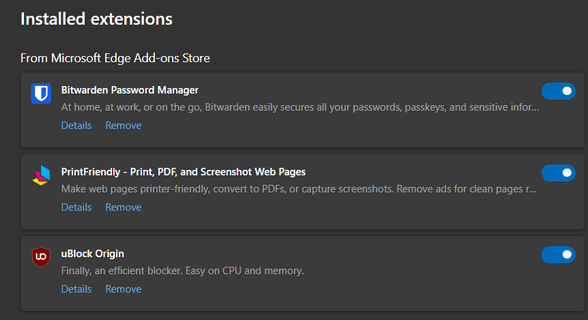
Above: Microsoft Edge extensions


Above: Mozilla Firefox extensions
All browsers give you the option to turn off extensions or remove them – either option has the same effect. The fewer extensions you have, the faster your browser will be.
So, take some time today to check out the extensions you’ve installed and turn off or remove any that you don’t use.
Driver Updater Programs: Poison for
Your Computer
Windows 10 / Windows 11
Most driver updater programs are no better than malware – and many come bundled with malware
Consider this a reminder from your old pals, TC & Darcy…
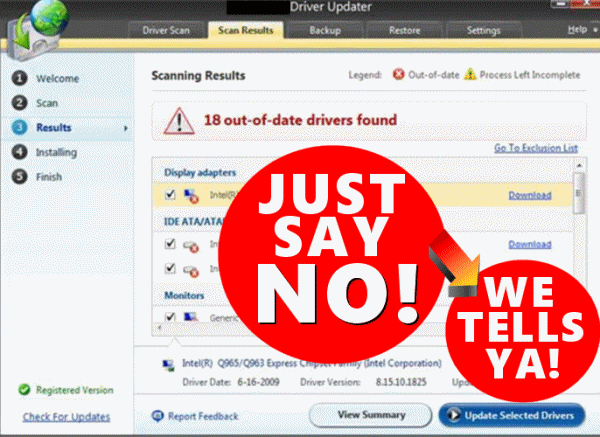
I don’t know how many times we’ve told you to avoid driver updater programs, but the last time we did was three years ago. I can’t remember what I did three days ago, let alone three years ago. So we are going to remind you that Driver Updaters are poison for your PC.
I can’t tell you how many times I’ve helped folks who were having problems with their computers, from Blue Screens of Death to unexplained crashes. But I’ve learned over the years to look for driver updater programs first, because plenty of times folks with BSODs and unexplained, unexpected crashes, had driver updater programs installed.
Driver updaters often recommend updates for drivers that are already functioning correctly. Installing unnecessary updates can lead to instability, performance issues, or even hardware malfunctions. Installing unnecessary drivers can lead to a range of problems, including system crashes, blue screens of death, and even complete system failure.
So, we want to remind you to check your installed programs for driver updater programs, and if you find one (or more), uninstall it (them) before your computer has big-time problems.
Darcy and I have been using Windows since Windows 3.1 (yes, there was such a thing), and we can’t remember when driver updater programs were necessary.
We can tell you this as well. Driver updaters are popular. They are consistently among the most downloaded programs. And they rank among the most useless (and trouble-causing) programs you can install on your Windows computer.
You don’t need third-party driver updater programs to tell you that you need a new driver. You only need to update a driver (or drivers) when a hardware device (printer, sound card, wireless card, etc.) is not working properly or the manufacturer recommends an update. Installing new drivers just because new drivers are available is unnecessary and many times can be a recipe for disaster.
Windows 10 and 11 are very good at updating drivers when necessary. But should you have a hardware device that is not working properly, you can download the correct driver from the device’s manufacturer’s website. Just make sure you know the version of Windows you’re using and the name, model, and manufacturer of your hardware device. Then go ahead and download and install the correct driver directly from the device manufacturer.
If you’re not having problems with your hardware devices, there’s no reason to update your drivers, even if new drivers become available.
Don’t be tempted to install a driver updater because you think it’s going to make your computer run better, run faster, or it’s going to make it easier for you to keep your drivers updated. Driver updaters are unnecessary and often cause serious problems with your computer. Think of driver updaters as poison for your PC.
Remember these two nuggets of sage advice from both of us:
- If it ain’t broke, don’t fix it.
- In the world of computer software, less is more.
Be smart and leave driver updaters alone. And if you find one has sneaked onto your computer via those nefarious software bundles that are all too common — or you were tricked into installing one — uninstall it with much alacrity… we tells ya!
3 Time-Saving Tips
Windows 10 / Windows 11
Tip #1
Let’s say you are filling out a Web form and you make a mistake - you
typed in the wrong email address or whatever. Instead of backspacing
to remove the incorrect address, put your cursor in the form field and
press the CTRL key plus the A key and then the Delete Key. CTRL + A
highlights everything in the form field. The Delete key deletes all
the highlighted text.
Tip #2
Now, imagine you’re viewing a very long web page and you want to go
back to the top. Instead of scrolling all the way back up, press the
HOME key. If you want to go to the bottom of the page, instead of
scrolling all the way down to the bottom, just press the END key. It’s
simple, I tells ya!
Tip #3
OK, last one: Here’s a really easy way to highlight a large block of
text. Put your cursor at the top of this tip and left-click. Now, put
it at the bottom of this tip and click while holding down the SHIFT
key. Pretty cool, huh?

Want more tips, tricks, and information?
We have thousands of Windows tips, tricks, and more on our InfoAve website.
Subscribe to our free InfoAve Daily newsletter.
THANK YOU FOR HELPING US!
When you support us with a small gift, you help us continue our
mission to keep you informed, separate the truth from the hyperbole,
and help you stay safer online. Plus, our computer tips make your
computer easier to use.
Did you know that we provide support to thousands of people? Every
week, we help dozens of people via email at no charge. The questions
and answers you see in our newsletters are from the email answers and
help we provide to everyone free of charge.
Thanks to your gifts, we do a lot more than provide this free newsletter. We help you recognize online threats, fight for your online privacy, provide you with the knowledge you need to navigate the Web safely, provide you with suggestions for safe, free software and websites, and help you get more out of your PC.
Please help us keep up the good fight with a small gift.
Interested in making an automatic monthly gift? Visit this page. Help us keep helping you... and help us keep you safe on the Web.

Pine Tools – A Treasure Chest of Useful Online Tools
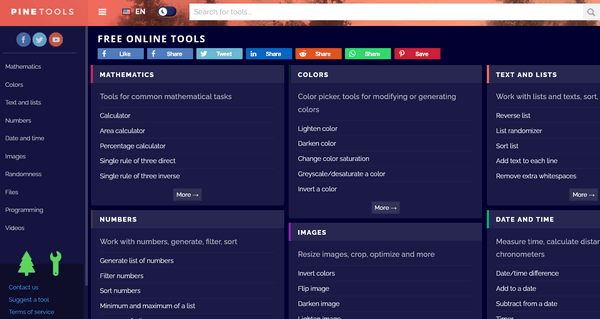
This Cloudeight website pick is a treasure chest of online tools – a toolbox extraordinaire. There are so many tools on the Pine Tools site that we’re not even going to try to list them all.
To give you some idea of the kinds of online tools you’ll find in this virtual treasure chest of online tools, we submit the following for your perusal:
MATHEMATICS
Calculator
Area calculator
Percentage calculator
Single rule of three direct
Single rule of three inverse…and more.
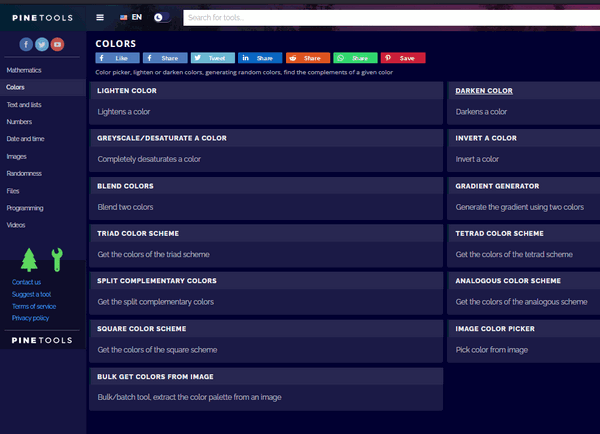
COLORS
Color picker, tools for modifying or generating colors
Lighten color
Darken color
Change color saturation
Greyscale/desaturate a color
Invert a color…and more.
TEXT AND LISTS
Work with lists and texts, sort, randomize, reverse
Reverse list
List randomizer
Sort list
Add text to
each line
Remove extra whitespaces…and more.
NUMBERS
Work with numbers, generate, filter, sort
Generate a list of numbers
Filter numbers
Sort numbers
Minimum and maximum of a list
Average of a list…and more.
DATE AND TIME
Measure time, calculate distance between dates, chronometers
Date/time difference
Add to a date
Subtract from a date
Timer
Stopwatch…and more.
IMAGES
Resize images, crop, optimize, and more
Invert colors
Flip image
Darken image
Lighten image
Change brightness…and more.
RANDOMNESS
Generate random numbers, randomize lists, common distributions
Random number generator
Coin flipper
Dice roller
Gaussian random number generator
Password generator…and more.
PROGRAMMING
Tools for programming and web development
Syntax highlighter
CSS Inliner
JSON formatter
CSS
beautifier
HTML beautifier…and more.
FILES
Convert, compress, join or split
Split files
Join files
Base64 encode
Base64 decode
Random file generator…and more.
What more can we say? If looking at the partial list of online tools above does not make your fingers twitch to click and visit Pine Tools, there’s nothing more we can do.

If you’re looking for one place to find dozens and dozens of useful online tools that can help you do just about anything, visit this Cloudeight Site Pick – Pine Tools. It is an amazing site!

The Tragic Twilight of the Life of
Howard Hughes
Howard Hughes once embodied the exhilaration of mid-century America: a
Hollywood magnate who discovered stars, an aviation pioneer who pushed
speed records, and one of the world’s first billionaires.
To the public, he seemed invincible. Yet when he died in 1976, the
spectacle of his end revealed a different truth—immense wealth could
not spare him a slow collapse into isolation and untreated mental
illness.
The crash that changed everything
On July 7, 1946, Hughes piloted an experimental XF-11 reconnaissance
plane that suffered a catastrophic propeller failure and tore into a
Beverly Hills neighborhood. He survived but with catastrophic
injuries: a crushed collarbone, shattered ribs, severe burns and a
traumatic brain injury.
The physical pain that followed was relentless...
Read the rest of this article here.

How to Copy and Paste
Copy and paste is something that we often mistakenly think every Windows user knows how to do. But, we know that many Windows users still don’t know how to copy and paste.
Copy & paste is a very basic Windows skill. It’s a real time saver, and it can help prevent common mistakes when trying to type registration keys, email addresses, website URLs, etc. Copy & paste eliminates the potential for errors.
So here’s a simple tutorial on how to copy & paste – probably the single most useful Windows feature ever.

Sales of the following products and
services help support our newsletters, websites, and free computer
help services we provide.
Cloudeight Direct
Computer Care: Always a great deal. Cloudeight Direct Computer
Care is like having PC insurance.
Get more information
here.
Emsisoft Anti-Malware:
Emsisoft is the only Cloudeight-endorsed and recommended Windows
security program. It provides users with a complete antivirus,
antimalware, anti-ransomware, and anti-PUPs solution. We offer single
Emsisoft licenses and multi-computer licenses at discount prices.
Also, we offer our exclusive Emsisoft with Cloudeight installation &
setup.
Get more information
here.
Reg Organizer: Reg
Organizer is the Swiss Army Knife of Windows tools. It's far more than
just a registry optimizer and cleaner... it's a Windows all-in-one
toolkit. Reg Organizer helps you keep your computer in tip-top shape
and helps you solve annoying Windows problems. Reg Organizer works
great with Windows 10 and Windows 11!
Get more information about Reg
Organizer (and get our special discount prices) here.
MORE IMPORTANT STUFF!
Your InfoAve Weekly Members' Home Page is located here.
Help us grow! Forward this email newsletter to a friend or family member - and have them sign up for InfoAve Weekly here!
Get our free daily newsletter! Each evening, we send a short newsletter with a tip or trick or a computer-related article - it's short and sweet - and free. Sign up right now.
We have thousands of Windows tips and tricks and computer articles posted on our Cloudeight InfoAve website. Our site has a great search engine to help you find what you're looking for, too! Please visit us today!
Help us by using our Start Page. It costs nothing, and it helps us a lot.
Print our Cloudeight Direct Flyer and spread the word about our computer repair service! If you want to help us by telling your friends about our Cloudeight Direct Computer Care service, you can download a printable flyer you can hand out or post on bulletin boards, etc. Get the printable PDF Cloudeight Direct Computer Care flyer here.

We'd love to hear from you!
If you have comments, questions, a tip, a trick, a freeware pick, or just want to tell us off for something, let us know.
If you need to change your newsletter subscription address, please see "Manage your subscription" at the very bottom of your newsletter.
We received hundreds of questions for possible use in IA news. Please keep in mind we cannot answer all general computer questions. We try to personally answer as many as we can. We can only use a few in each week's newsletter, so keep this in mind. If you have a support question about a service or product we sell, please contact us here.
Subscribe to our Daily Newsletter! Get computer tips & tricks every night. Our daily newsletter features a computer tip/trick or two every day. We send it out every night around 9 PM Eastern Time (USA). It's short and sweet, easy to read, and FREE. Subscribe to our Cloudeight InfoAve Daily Newsletter!
We hope you have enjoyed this issue of Cloudeight InfoAve Weekly. Thanks so much for your support and for being an InfoAve Weekly subscriber.
Have a great weekend. Be safe!
Darcy & TC
Cloudeight InfoAve Weekly - Issue #1180
Volume 23, Number 31
May 22, 2026
Not a subscriber? Subscribe to our FREE Cloudeight InfoAve Weekly Newsletter here.
"Cloudeight InfoAve Weekly" newsletter is published by:br />
Cloudeight Internet LLC
PO Box 73
Middleville, Michigan, USA 49333-0073
Read our disclaimer about the tips, tricks, answers, site picks, and freeware picks featured in this newsletter.
Copyright ©2026 by Cloudeight Internet