
Cloudeight InfoAve Weekly
Issue #1182
Volume 23, Number 33
June 5, 2026
Dear Friends,
Welcome to Cloudeight InfoAve Weekly Issue #1182. Thank you for subscribing and for being a part of our Cloudeight family. We appreciate your friendship and support very much! Please share our newsletters and our website with your friends and family.

If you're not getting our InfoAve Daily newsletter, you're missing out on a lot of good stuff!
It's free and it only takes a few seconds to sign up. We'd love to have you with us. Visit this page to sign up for our Cloudeight InfoAve Daily Newsletter.

Candace does not want Gemini
Hi Darcy/TC. I’m unable to access my Gmail. It opens to a page that asks
me to create an account, but I don’t wish to enable Gemini on my laptop
or our phones. What can be done to remove or disable it from our
devices? Thanks so much for your continued help. Candace
Our answer
Hi Candace. You do not need to use Gemini or even have it turned on to
use Gmail.
To keep things simple and get you right back into your email on your Windows computer, you can completely bypass that "create account" loop.
You do not need to enable Gemini to use your email. Here is the direct way to fix this on your computer and ensure Gemini stays turned off.
Step 1: Get Back Into Your Gmail (Windows)
Since the browser is currently stuck in a loop, let’s bypass it:
Open your internet browser (Chrome, Edge, or Firefox).
Open a Private or Incognito window in Chrome or Edge by pressing Ctrl + Shift + N on your keyboard. If you're using Firefox, the shortcut is Ctrl + Shift + P.
Once the private or incognito window opens, type mail.google.com in the address bar and press Enter. You should be able to log in by typing your Gmail address (your username) and your Gmail password.
If this works, it means your regular browser has some temporarily glitched data. You can fix that permanently by going into your browser settings and clearing your browser cache/cookies. See this page on how to do that.
Turn Off Gemini Features in Gmail
Once you are logged into Gmail on your computer, you can turn off the underlying AI features:
Click the Settings gear icon in the top right corner of Gmail, then click See all settings.
On the "General" tab, scroll down until you see Smart features and personalization (or Google Workspace smart features).
Click Manage Workspace smart feature settings.
Uncheck or turn off the smart features. This stops Google from using AI to scan your drafts or push Gemini prompts in your inbox.
Save your changes at the bottom and refresh the page.
As for your phones... You absolutely do not have to have Gemini active on your mobile devices, either. You can completely opt out of Gemini on both Android and iPhones by going into your phone's Google app settings and switching your digital assistant back to the classic Google Assistant, or simply deleting the standalone Gemini app if it was downloaded.
I hope this helps you, Candace.
Erik is having problems with a Windows
Update
Hello TC. I hope you are doing well. Since Windows installed the update
KB5089573 automatically, I have been getting a strange problem during
shutdown or restart. At shutdown/restart, a small error window appears
for about 2–3 seconds with an address similar to: 0x00007FFB2BCEBE.
After that, Windows still shuts down normally. I already tried several
things:
SFC /scannow
DISM restorehealth
uninstalling KB5089573
SFC and DISM report no corruption, and the system itself works normally.
However, Windows automatically reinstalls KB5089573 again after some time, and the same shutdown problem immediately returns. There are no blue screens, no crashes during normal use, and no obvious hardware problems.
I would like to know: Have you seen similar reports with KB5089573? Is this probably just a temporary Microsoft bug? Would you recommend hiding/blocking the update for now? Thank you very much for your opinion and expertise.
Our Answer
Hi Erik. You did some excellent troubleshooting here. Running SFC, DISM,
and temporarily isolating the update were exactly the right steps to
rule out local system file corruption.
We haven't seen many reports of this problem, mainly because our readers don't normally install "preview" updates, and we rarely recommend it.
But here's what's happening. When Windows shuts down, it sends a termination signal to all open processes. If a background process closes a fraction of a second after the memory space it was using has already been cleared by the OS, it throws this harmless memory read/write exception right as the screen goes black.
The KB5089573 update is a late-May 2026 Optional Preview Update for Windows 11. Because this specific update heavily modifies core system responsiveness profiles, background task scheduling, and app launch pathways, it has altered the subtle timing of how background processes close. You are seeing the direct result of a minor code conflict or a timing "race condition" introduced by this patch. Since it doesn't cause data loss, blue screens, or actual shutdown hangs, Microsoft classifies this as a low-severity cosmetic bug. It will likely be silently patched in the next cumulative update cycle when they refine the process termination timings.
Our advice — remove the update and block it from reinstalling. To prevent Windows from automatically reinstalling it, you can use Microsoft’s official (but hidden) utility, wushowhide.diagcab, to block it permanently.
Download the official, legacy Microsoft tool by clicking this direct
download link:
https://download.microsoft.com/download/f/2/2/f22d5fdb-59cd-4275-8c95-1be17bf70b21/wushowhide.diagcab
Go to Settings > Windows Update > Update History and uninstall KB5089573 one last time, then restart your PC.
Immediately open the downloaded wushowhide.diagcab file you downloaded above. Click Next, then select Hide updates. Check the box next to KB5089573 and finish the wizard. This tells the Windows Update agent to completely ignore the patch, giving you a clean, error-free shutdown while you wait for a patch update to be released.
I hope this helps you, Erik.
Have we helped you with your computer or helped you by answering your questions? Would you like to help us? Visit this page!
Cheryl wants to remove Copilot and MS365
ads from her new laptop
I have removed OneDrive from my new laptop. Is there a way to safely
remove CoPilot from my laptop as well? Also, can I safely remove the
Microsoft 365 option? Thank you. Cheryl
Our answer
Hi Cheryl. You can remove Copilot from Windows, but not from Edge (the
browser). Microsoft considers Copilot a core component of Edge. Here's
how to remove Copilot from Windows:
Thanks to user pushback, Microsoft made Copilot a removable app that you can simply uninstall.
Open Settings (Windows Key + I) and go to Apps > Installed Apps. Scroll down to find Copilot. Click the three dots (...) next to it and hit Uninstall.
MS365 — If you open your Windows Settings app and see suggestions (ads) trying to sell you Microsoft 365, or if you get pop-ups on your computer telling you to "Try 365 for Free," you can turn them off by disabling Microsoft's built-in advertising toggles.
Open your Settings menu (click your Start button and select the gear icon, or press Windows Key + I).
Click on System in the left sidebar, then select Notifications on the right side.
Scroll all the way down to the very bottom of the page and click on Additional settings to expand the menu.
Uncheck all three boxes you see there:
- Offer suggestions on how I can set up my device
- Suggest ways I can get the most out of Windows and finish setting up this device
- Get tips and suggestions when using Windows
Turning these off turns off Microsoft's "suggestions" (which is just Microsoft's polite word for ads).
And... If you don't use Microsoft Word, Excel, or PowerPoint and you want the pre-installed software completely off your hard drive to save space, you can safely uninstall them like any normal app.
Go back to your Settings app. Click on Apps in the left sidebar, then select Installed apps on the right. In the search bar at the top, type Microsoft 365 (or look for the blue hexagon "Office" icon). Click the three dots (...) next to the Microsoft 365 app and select Uninstall. Follow the quick prompt to remove it.
Note: If you see an app simply named "Office" or "Get Office", you can click the three dots and uninstall that one too—it's just a placeholder app Microsoft puts there to prompt people to subscribe.
Hope this helps you clean up those annoyances.

We can fix your Windows computer... check out our low prices here!
Carol wants to set her laptop battery's
maximum charge to 85% to increase battery life
Good morning, TC and Darcy! I believe my question should be directed to
TC. First of all, on my phone and tablet, they came with stop
percentages when charging. Phone stops at 85%, and tablet stops charging
at 80%. I would like to stop my laptop from charging at the most
beneficial percentage, also. I usually have it plugged in, and hardly
ever pull the plug. I've been reading about it and have decided I want
to save my battery and make it last longer, too.
I pulled the plug last night at around 11 pm, and when I sat down in front of the laptop this morning, it showed 87%. How can I set it to automatically stop charging at 85% or something different in order to save the battery? Below, I copied and pasted a link showing battery saving settings, but I still don't know exactly what I need to do in order to give the battery longer life. I'm sure you will have great info for me.
Also, in my settings, I saw that 91GB is being used of my 119GB. How is that possible? How can I be sure that what needs to be saved to the cloud is saved to the cloud? I have 12 RAM.
Right now, since I've been using my laptop for at least an hour, the battery percentage is 71%. When should I put the plug back in? I want it to stop at 85% when charging, while I'm not using it. Also, I read that the battery charging should never stay at 100%.
As always, I thank y'all for helping thousands of other loyal followers and me!! XOXO Carol
Our answer
Hi Carol. Thanks so much! You're right. Keeping a laptop plugged into
the wall at 100% all day places constant voltage strain on the battery
cells, which makes them degrade faster over time. Locking the charge
maximum at 80% or 85% safely stops that stress and can easily double or
triple the overall lifespan of your battery.
As for your laptop sitting at 87% in the morning: when you unplugged it at 11 PM, the computer was likely sitting in "Sleep" mode. Windows background processes (like fetching mail or checking for system updates) will naturally drain about 10% to 15% of a battery overnight if it isn't completely shut down.
To lock your battery at a safe limit permanently, you won't find a direct manual switch inside the standard Windows menus. Because every laptop brand uses different physical hardware, you have to turn this on using the specialized dashboard app that came pre-installed on your specific computer.
Look at the brand name on your laptop and follow these quick steps:
Lenovo: Open your Start menu and search for the Lenovo Vantage app. Go to Device > Power, and turn on Conservation Mode. This locks your charge at 80%.
Dell: Look for the Dell Power Manager or MyDell app. Click on Battery Information > Settings, and choose the "Primarily AC Use" profile, or select Custom to choose your exact percentage.
HP: Open the HP Command Center or HP Support Assistant app. Look for Battery Health Manager and choose "Maximize My Battery Health" to cap it at 80%.
ASUS: Open the MyASUS app. Go to Customization (or Device Settings) and switch "Battery Care Mode" to 80%.
Acer: Open the Acer Care Center or Acer Sense app. Click on Checkup > Battery Health, and turn on the "Battery Charge Limit" toggle.
Microsoft Surface: Open the built-in Surface App. Click Battery & Charging and look for the manual toggle to turn Smart Charging to 80%.
Once you turn that switch on for your brand, you can leave your power cord plugged in 24/7. Your laptop will safely run entirely off the wall power while your battery rests at its optimal level!
I hope this helps you, Carol.
Cynthia cannot access SSA
I cannot access SSA (Social Security Administration) with this
computer. It is the oddest thing. I get in fine with my other computer,
but with this one, I get the message: "Bad Request...your browser sent a
request that this server could not understand. Size of a request header
field exceeds server limit."
I use "login.gov", which allows me access, but when I click the linked account SSA, it doesn't work. I try logging directly into SSA, but as soon as I click "Sign in", I get that message. I do have a repair key from you, if that is needed. Thank you!
Our answer
Hi Cynthia. Luckily, this is a common browser issue and not a computer
issue. The SSA site is working just fine, I just checked.
Why "Bad Requests" happen: When you browse the web, websites store tiny bits of data called cookies on your computer to remember who you are. The Social Security Administration (SSA) website security is incredibly strict. Every time you try to log in, it adds more security data to those cookies. Eventually, those pieces of data get scrambled or too large. When your browser tries to send that massive pile of data to the SSA server, the server panics, throws its hands up, and says: "Bad Request... Size of a request header field exceeds server limit."
The Quick Fix: Clear Your Cache and Cookies. Follow the instructions on this page. Once you've cleared the browser's history, cookies, and cache, restart your computer and try Social Security again. You must restart after clearing the browser's history, cookies, and cache because restarting makes sure everything that should be removed is removed.
I hope this helps you, Cynthia.
-----
Cynthia wrote back: "Something so simple, yet I wouldn't have
thought of it. Thank you! Cynthia."
Have we helped you with your computer or helped you by answering your questions? Would you like to help us? Visit this page!
Stephanie continues to be pestered by
McAfee renewal ads
I keep getting emails from McAfee telling me that my computer isn't
protected and that I can fix that by buying their protection. I've used
and continue to renew Emsisoft through your website for many years, and
it appears to be current and up to date. Is McAfee "trying to pull a
fast one" and convince me that I need their program? Or is there
something I'm missing? No rush on an answer to this, but I thought the
best answer would come straight from you two. Thanks for all you do!
Stephanie
Our answer
Hi Stephanie. It's not McAfee at all; it's a browser hijacker that got
into your browser's history/cache from clicking an ad or a link by
mistake. Don't worry.
You’ll be glad to know you’re one of many who have had this problem, and even more glad to know you won’t have to reset or do anything major to your PC to fix it. There is a simple fix that works 100% of the time: All you need to do is reset your browser and clear your browser's cache.
Here’s our tutorial on how to reset and clear the cache for Microsoft Edge, Google Chrome, and Mozilla Firefox.
After you reset your browser and clear its cache, it’s a good idea to restart your computer before opening your browser again.
Remember, this is not a PUP or malware per se; it was something you clicked on — most likely in an email. It only resides in your browser’s history or cache. Once you clean that up, the pop-ups and ads disappear.
It's a good idea also to install uBlock Origin for Firefox or Edge or uBlock Origin Lite for Chrome. This will help prevent this kind of thing from happening again.
I hope this helps you, Stephanie.

Now available: Reg Organizer 9.88
If you purchased or renewed Reg Organizer through Cloudeight within
the last 12 months, you're entitled to a free version upgrade to Reg
Organizer 9.8.8. Works great with Windows 10 and Windows 11.
Save $14 on Reg Organizer right now!
Reg Organizer - A Swiss Army Knife of Windows Tools - Works Great on Windows 10 and Windows 11.

Advanced Windows and Browser Shortcuts
for You to Mull Over
Windows 10 / Windows 11
It’s been a while since I used the word mull. Maybe it will get your attention. The weekend is here, and you'll have time to mull over these advanced text editing and browser shortcuts we’ve prepared for you.
All bloviating aside, for once, today we are (hopefully) going to show you some text editing and browser tips that can really save you time. So, if you’re ready, here we go!
If you are aiming to eliminate the mouse while editing text and navigating the web, you need to look past basic tricks like Ctrl + C or Ctrl + T. Here are some advanced text manipulation and browser secrets built into Windows and Chromium-based browsers (Chrome, Edge, Brave — and most work in Firefox too) that will help you get things done faster.
Advanced Text & Editing Shortcuts
Most people edit text by clicking precisely with the mouse or pressing the backspace key dozens of times. These shortcuts allow you to manipulate text with great precision using only the keyboard.
1. The “Nuclear” Backspace & Delete
Instead of tapping backspace fifteen times to clear a mistyped sentence, you can delete entire blocks of text instantly.
Ctrl + Backspace: Deletes the entire word to the left of your flashing cursor.
Ctrl + Delete: Deletes the entire word to the right of your cursor.
2. High-Speed Cursor Navigation
Stop using the arrow keys to tap-tap-tap through a paragraph letter by letter.
Ctrl + Left / Right Arrow: Jumps the cursor over entire words at a time instead of individual characters.
Ctrl + Up / Down Arrow: Jumps your cursor to the beginning of the paragraph above or below.
Home / End: Instantly slams your cursor to the absolute beginning or end of the line you are currently typing on.
Ctrl + Home / End: Jumps to the absolute top or bottom of the entire document or email.
3. Precision Text Selection (Without a Mouse)
You can combine the navigation shortcuts above with the Shift key to select text flawlessly without trying to click and drag with a shaky cursor. Mull that over, Darcy!
Shift + Home / End: Highlights everything from your cursor’s current position to the exact start or end of that line.
Ctrl + Shift + Left / Right Arrow: Highlights one full word at a time as you tap the arrow keys.
Ctrl + Shift + Home / End: Instantly highlights everything from your cursor all the way to the very top or very bottom of the entire document.
Unique & Hidden Browser Shortcuts
These shortcuts work natively in Google Chrome, Microsoft Edge, Firefox, and Brave, turning your browser into a high-efficiency tool.
4. Jump Directly to a Specific Tab
If you keep dozens of tabs open, don’t waste time clicking through them to find your email or your patient portal. You can jump directly to them using numbers.
Ctrl + 1 through Ctrl + 8: Instantly switches to that exact tab number from the left. For example, Ctrl + 1 opens your first tab, and Ctrl + 4 opens the fourth tab.
Ctrl + 9: No matter how many tabs you have open (even if it’s 50), this instantly jumps to the absolute last tab on the far right.
5. Nuke a Tab (Without Clicking the X)
Closing tabs via the mouse requires precise aiming. Drop the mouse entirely.
Ctrl + W: Instantly closes the active tab you are looking at.
Ctrl + Shift + T: The ultimate safety net. If you accidentally hit Ctrl + W and closed a page you still needed, this instantly resurrects it exactly where you left off. You can press it multiple times to bring back the last 10 tabs you closed.
6. Command the Address Bar
The address bar at the top of your browser (the “Omnibox”) isn’t just for typing website URLs—it is a powerful tool modifier.
Ctrl + L: Instantly highlights the address bar, no matter where your mouse is. You can immediately start typing a new search or website link.
Type a URL + Alt + Enter: If you are currently reading a web page, but want to open a new website, highlight the address bar, type the new address, and hit Alt + Enter. It will launch the new site in a brand new background tab without overriding the page you are currently reading.
7. Navigate Pages Chronologically
Forget clicking the “Back” and “Forward” arrows in the upper-left corner of your browser window.
Alt + Left Arrow: Goes back one page in your history.
Alt + Right Arrow: Goes to the next page.
8. The Clear-Sighted Refresh
Sometimes a website gets stuck, a button freezes, or old data is causing an error on a portal. A normal refresh (F5) just reloads the page using files your computer already saved.
Ctrl + Shift + R (or Ctrl + F5): Forces a Hard Refresh. This wipes the temporary cache for that specific webpage and forces the browser to download a 100% fresh, clean copy from the live internet server.
OK, people, that should give you something to mull over!
Caring for Your Desktop or Laptop
Computer
Windows 10 / Windows 11
How to Care for a Desktop PC
Desktop PCs are built to last, but they’re basically dust magnets. That dust traps heat, makes your fans work overtime, and causes your processor to slow itself down just to stay cool. A little regular maintenance goes a long way.
The most important thing you can do is give your PC a deep clean every six months. Unplug it, take it somewhere with decent airflow, pop the side panel off, and gently spray the internals with a can of compressed air — focus on the fan blades, the CPU heatsink (the finned metal block), and the power supply area.
One thing people always miss: hold the fan blade still with a finger while you blow with the compressed air. Letting it spin freely can push electricity backwards into the motherboard and damage the bearings.
Beyond that, keep your tower off the carpet. The carpet smothers the bottom vents and pulls in a ridiculous amount of dust and fibers. A desk or a simple wooden riser works great. And leave at least 4–6 inches of space behind the back of the case so hot air has somewhere to go.
How to Care for a Laptop
Laptops are tightly packed machines, and small bad habits tend to snowball. The two things that fail first on most laptops are the battery and the display hinges — and both are, for the most part, avoidable.
On the battery front: keeping it plugged in at 100% all the time wears it out faster than you’d think. Most laptops from Dell, HP, Lenovo, and ASUS have a built-in battery app with a “Conservation Mode” or “Battery Charge Limiting” option. Turn it on — it caps charging at 80% and can seriously extend how long your battery lasts overall.
For the hinges, always open your laptop from the center or use both hands on the corners. Grabbing just one corner twists the display assembly and puts all the stress on one hinge until it eventually cracks the frame. Takes two extra seconds and saves an annoying repair.
When you’re going to be using your laptop for any appreciable amount of time, keep it on a hard surface. Using it on a bed, couch, or blanket blocks the bottom vents almost instantly, and things get hot fast. A lap desk or tray table is all you need.
Finally — and this one catches people off guard — always do a full Shutdown before putting your laptop in a carrying case or bag, don’t just close the lid. If a background Windows update wakes the machine up inside the laptop case or bag, it’ll run hot with zero ventilation and drain your battery to zero before you even get where you’re going.
It’s All About Privacy: How to Turn Off
Built-In Advertising and Telemetry In Windows 11
Windows 11
When you buy a new computer or install Windows 11, Microsoft sets up the system to look and feel ready to go out of the box. But behind the scenes, Windows 11 is quietly running a massive data-collection system.
If you value your privacy and want a cleaner, faster computer, it is highly recommended to take five minutes to turn off Windows 11’s built-in advertising and telemetry tracking. Here is why you should do it, what those words actually mean, and exactly how to turn them off.
What is “Telemetry”?
Most people have no idea what “telemetry” means, which is exactly how big tech companies prefer it. Think of telemetry as a digital surveillance system built directly into the foundation of your operating system. It is a feature that automatically records how you use your computer and transmits that data directly back to Microsoft’s corporate servers.
Whenever you open an app, click a menu, plug in a device, or experience a software crash, Windows packages that behavior up into a text log and uploads it. While Microsoft claims they use this data to find bugs and improve Windows, the reality is that Windows 11 tracks far more than is necessary for your computer to run smoothly.
Why You Should Turn It Off
There are three major reasons to take control of these settings:
Privacy
By default, Windows 11 tracks your physical location, assigns your computer a unique “Advertising ID” to profile your shopping habits, and can even log your typing keystrokes and handwriting patterns to “train” its language models.
Performance
Running a constant surveillance operation takes a toll on your hardware. Telemetry tools run in the background, consuming processing power and constantly hogging your internet bandwidth to upload data logs.
A Less Cluttered Desktop
Microsoft uses your tracking data to inject personalized advertisements directly into your Start menu, your Settings app, and your taskbar. Turning off tracking cuts off the fuel supply for these annoying pop-ups.
How to Turn Off Telemetry and Ads in Windows 11
Thankfully, Microsoft provides a way to turn these features off—they just hide them deep inside the settings menus. Follow these quick steps to reclaim your privacy:
Open the Privacy Settings
Step 1. Click your Start Button, open the Settings app (the gear icon), and select Privacy & Security from the left sidebar.
Strip Away the Advertising IDs
Step 2. Click on the General tab under the Windows Permissions section (some of you may find these toggles under "Privacy & security > Recommendations"). Flip every single toggle switch to OFF.
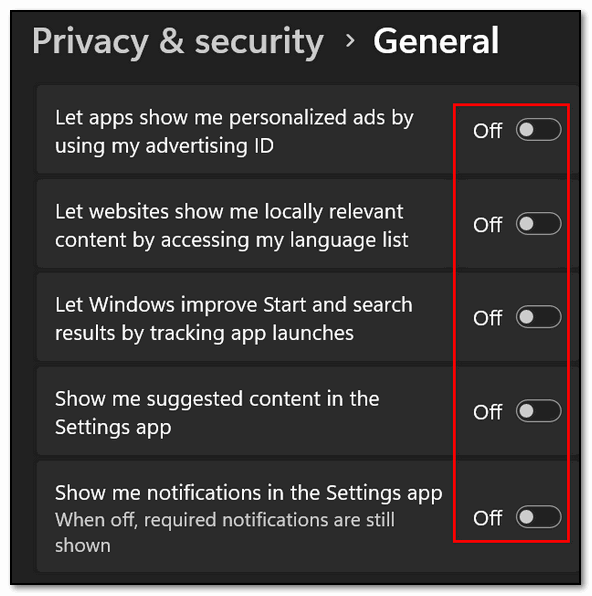
This disables your unique advertising profile, stops websites from tracking your language list, and blocks Windows from monitoring your app launches to suggest “recommended” content.
Shut Down Telemetry Tracking
Step 3. Go back one screen to Privacy & Security and click on Diagnostics & Feedback. Locate the toggle for Send Optional Diagnostic Data and turn it OFF. This drops your tracking down to the absolute bare minimum. Scroll down and also turn OFF the switches for Tailored Experiences and Diagnostic Data Viewer.
Clear Your Diagnostic Logs
Step 4. Right under those toggles, click the Delete button next to Delete Diagnostic Data to wipe out all the tracking logs Microsoft has already saved on your hard drive.
The Bottom Line
Your computer belongs to you, not Microsoft. Turning off telemetry and advertising won’t break your Windows Updates, it won’t crash your software, and it won’t change your daily experience—except to make your computer run a little bit faster, cleaner, and a whole lot more privately.

Want more tips, tricks, and information?
We have thousands of Windows tips, tricks, and more on our InfoAve website.
Subscribe to our free InfoAve Daily newsletter.

THANK YOU FOR HELPING US!
When you support us with a small gift, you help us continue our
mission to keep you informed, separate the truth from the hyperbole,
and help you stay safer online. Plus, our computer tips make your
computer easier to use.
Did you know that we provide support to thousands of people? Every
week, we help dozens of people via email at no charge. The questions
and answers you see in our newsletters are from the email answers and
help we provide to everyone free of charge.
Thanks to your gifts, we do a lot more than provide this free newsletter. We help you recognize online threats, fight for your online privacy, provide you with the knowledge you need to navigate the Web safely, provide you with suggestions for safe, free software and websites, and help you get more out of your PC.
Please help us keep up the good fight with a small gift.
Interested in making an automatic monthly gift? Visit this page. Help us keep helping you... and help us keep you safe on the Web.

A Treasure Trove of Free Music, Audiobooks, and More!
Welcome to yet another Cloudeight Site Pick. Let’s see, in 28 years, there have been hundreds of them, but this one is a bit different than most; this site pick will interest almost every one of you! If you have ears, you’re going to love this site pick!
You’ve hit the jackpot!
If you’ve been searching for a treasure chest of free music, classic books, or nostalgic audio, you have just hit the jackpot. The Internet Archive is a massive digital library that lets you stream and download millions of audio tracks, concerts, old radio shows, audiobooks, and more, entirely for free.
Grab a cup of coffee, settle in, because this is gonna take a while, and you will love it! There is an incredible amount of audio treasures waiting for you ahead.
Live Concerts & Bootlegs
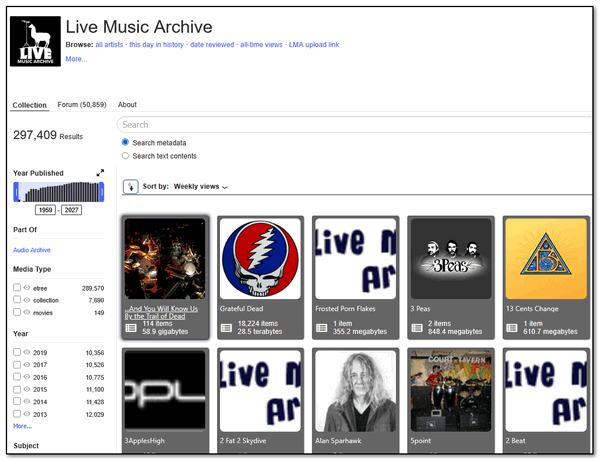
If you miss the days of tape-trading and those live music bootlegs, this section will feel nostalgic. The Archive hosts hundreds of thousands of high-quality concert recordings from artists who openly encourage fans to share their live shows. You can find legendary soundboards and audience recordings from bands like the Grateful Dead, The Smashing Pumpkins, and thousands of indie acts.
Classic Audiobooks & Literature
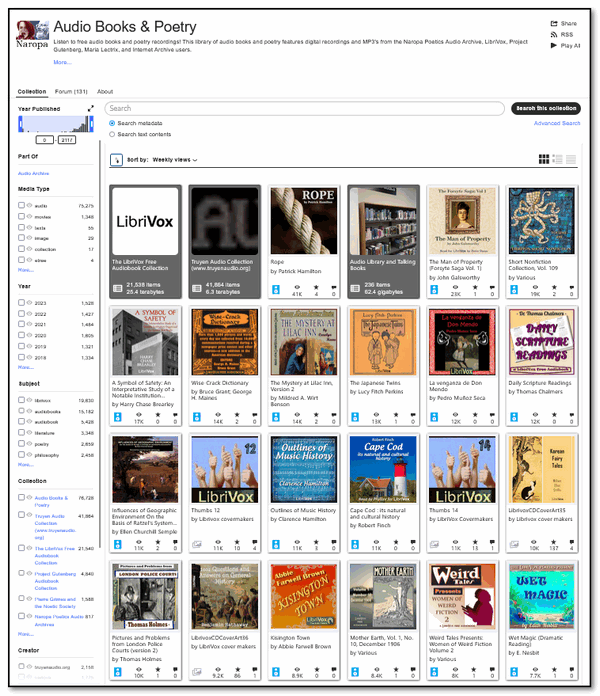
Why pay for expensive audiobook subscriptions when the greatest literature in human history is available for free? Thanks to amazing volunteer projects, you can download completely unabridged audiobooks of beloved classics—from Jane Austen, Herman Melville, and Arthur Conan Doyle to vintage poetry readings and historic speeches.
Vintage Music & That Old Vinyl Crackle
For the audiophile who happens to be a history buff, the Archive features a beautiful preservation project dedicated to digitizing music from the early 20th century. You can download early jazz, blues, and classical tracks digitized directly from antique 78 RPM discs and wax cylinders, complete with that beautiful, nostalgic vinyl crackle.
Old-Time Radio Shows
Take a trip back to the Golden Age of broadcasting! You can download thousands of original radio programs from the 1930s, 40s, and 50s. Whether you love vintage sci-fi, classic detective mysteries like The Shadow, or old-school comedy hours, it is a true audio time capsule.
A Quick Tip on Downloading
When you click on any of the collections above, just select an album or book you like. Look toward the right side of your screen for the Download Options box. You can choose standard MP3s for your phone or computer, or high-quality FLAC files if you still have a home stereo.
Happy listening!

Just a quick note; an introduction if you will...This week, I thought I'd do something different and write a poem instead of an essay. So, if you were expecting a new essay today, check back next week. Don't worry, my poem is the old-fashioned kind - not freestyle or modern poetry. It's just me, writing from my heart. I hope you take the time to read it; it would mean a lot to me.
Used to Be
It used to be so easy when the skies were crystal blue,
And the clouds created Canyons just for me and you.
Dragon heads, tiara crowns, and beasts no eyes can see,
Floating high above our heads today in silent majesty.
Devastated magic trills the thunder rolling through
Ancient eyes evoke the gloom that was once so bright and true.
It used to be so easy to dance and praise the rain...
Please read the rest of this poem here...

What are fanless Heat Sinks?
Did you ever wonder why your tablet or smartphone doesn't have a noisy cooling fan? New thin modern laptops don't either. It's all thanks to something called a fanless heat sink. A fanless heat sink (or passive heat sink) is a solid block of aluminum or copper with zero moving parts. Instead of using a noisy, motorized fan to blow heat away, it relies entirely on natural physics to keep electronics cool and completely silent.
It is the secret behind why your smartphone, tablet, or modern thin laptop is so quiet - no whirring fans for you!
How It Works
Raw heat moves directly out of the burning hot computer chip and rises into the attached metal heat sink. The heat spreads into thin metal fins. As the air touching those fins warms up, it naturally rises away, allowing cooler room air to flow in and take its place. The heat sink often links straight to the device's metal outer casing, turning the whole machine into a giant radiator that leaks heat out into the room.
Fanless heat sinks trade heavy-duty processing speed for perfect silence and zero maintenance.

Sales of the following products and
services help support our newsletters, websites, and free computer
help services we provide.
Cloudeight Direct
Computer Care: Always a great deal. Cloudeight Direct Computer
Care is like having PC insurance.
Get more information here.
Emsisoft Anti-Malware:
Emsisoft is the only Cloudeight-endorsed and recommended Windows
security program. It provides users with a complete antivirus,
antimalware, anti-ransomware, and anti-PUPs solution. We offer single
Emsisoft licenses and multi-computer licenses at discount prices.
Also, we offer our exclusive Emsisoft with Cloudeight installation &
setup. Get more
information here.
Reg Organizer: Reg
Organizer is the Swiss Army Knife of Windows tools. It's far more than
just a registry optimizer and cleaner... it's a Windows all-in-one
toolkit. Reg Organizer helps you keep your computer in tip-top shape
and helps you solve annoying Windows problems. Reg Organizer works
great with Windows 10 and Windows 11!
Get more information about Reg Organizer (and get our special discount
prices) here.
MORE IMPORTANT STUFF!
Your InfoAve Weekly Members' Home Page is located here.
Help us grow! Forward this email newsletter to a friend or family member - and have them sign up for InfoAve Weekly here!
Get our free daily newsletter! Each evening, we send a short newsletter with a tip or trick or a computer-related article - it's short and sweet - and free. Sign up right now.
We have thousands of Windows tips and tricks and computer articles posted on our Cloudeight InfoAve website. Our site has a great search engine to help you find what you're looking for, too! Please visit us today!
Help us by using our Start Page. It costs nothing, and it helps us a lot.
Print our Cloudeight Direct Flyer and spread the word about our computer repair service! If you want to help us by telling your friends about our Cloudeight Direct Computer Care service, you can download a printable flyer you can hand out or post on bulletin boards, etc. Get the printable PDF Cloudeight Direct Computer Care flyer here.

We'd love to hear from you!
If you have comments, questions, a tip, a trick, a freeware pick, or just want to tell us off for something, let us know.
If you need to change your newsletter subscription address, please see "Manage your subscription" at the very bottom of your newsletter.
We received hundreds of questions for possible use in IA news. Please keep in mind we cannot answer all general computer questions. We try to personally answer as many as we can. We can only use a few in each week's newsletter, so keep this in mind. If you have a support question about a service or product we sell, please contact us here.
Subscribe to our Daily Newsletter! Get computer tips & tricks every night. Our daily newsletter features a computer tip/trick or two every day. We send it out every night around 9 PM Eastern Time (USA). It's short and sweet, easy to read, and FREE. Subscribe to our Cloudeight InfoAve Daily Newsletter!
We hope you have enjoyed this issue of Cloudeight InfoAve Weekly. Thanks so much for your support and for being an InfoAve Weekly subscriber.
Have a great weekend. Be safe!
Darcy & TC
Cloudeight InfoAve Weekly - Issue #1182
Volume 23, Number 33
June 5, 2026
Not a subscriber? Subscribe to our FREE Cloudeight InfoAve Weekly Newsletter here.
"Cloudeight InfoAve Weekly" newsletter is published by:
Cloudeight Internet LLC
PO Box 73
Middleville, Michigan, USA 49333-0073
Read our disclaimer about the tips, tricks, answers, site picks, and freeware picks featured in this newsletter.
Copyright ©2026 by Cloudeight Internet