
Cloudeight InfoAve Weekly
Issue #1183
Volume 23, Number 24
June 12, 2026
Dear Friends,
Welcome to Cloudeight InfoAve Weekly Issue #1183. Thank you for subscribing and for being a part of our Cloudeight family. We appreciate your friendship and support very much! Please share our newsletters and our website with your friends and family.

If you're not getting our InfoAve Daily newsletter, you're missing out on a lot of good stuff!
It's free and it only takes a few seconds to sign up. We'd love to have you with us. Visit this page to sign up for our Cloudeight InfoAve Daily Newsletter.

Susan wants to know how to get on the
internet without Chrome
How do you get on the internet on a computer that no longer has
Google on it? I deleted Google and was going to load a different one,
but I can't because I have no internet. I am back on my laptop. Susan
Our answer
Hi Susan. Google is a search engine - Google Chrome is a web
browser. Every Windows computer comes with Microsoft Edge (a web
browser). Open your start menu, look for Microsoft Edge and open it. It
works just like Google Chrome. If you decide you still want Chrome, you
can download it in Microsoft Edge by going to
https://google.com/chrome/.
Diane wants to know if she should update to Windows 11 25H2
My friend has told me I should be upgraded to 25H2 on my Windows 11. Your advice? I never do anything without your approval. Thank you, Diane.
Hi Diane. The update has been around for quite a while (since last fall), and it's as safe as it's ever going to be. It's not a major feature update, so you don't need to worry about losing any files, photos, or programs.
Windows 11 version 25H2 is a very small, routine update. It updates your computer's security behind the scenes but won't change how your computer feels, looks, or acts.
1. Open your "Settings" app.
2. Click "Windows Update".
3. Click "Check for updates".
If you see "Feature Update to Windows 11, version 25H2" there, go ahead and click "Download and Install". It will take just a few minutes (usually less than 10) and a quick restart to finish.
I hope this helps you, Diane.
Have we helped you with your computer or helped you by answering your questions? Would you like to help us?

Frank has live captions turned off on his computer, yet he still gets them
LIVE CAPTIONS are turned off on this desktop and have never been turned on. Recently, it has been popping up while watching YouTube and movies. I turn it off, but it still returns. Why?
Our answer
Hi Frank. This is happening because Windows isn't the one turning the captions on—your Web browser or website is doing it.
Here are some reasons why it keeps coming back and some things you
can try:
1. The YouTube "Show when Muted" Setting
YouTube changed how its video player works. If a video starts
playing while muted, or if your volume is turned down low, YouTube
automatically forces captions to turn on. Because of a glitch, they
often stay turned on even after you turn the volume back up.
What to do: Play any YouTube video, click the Gear icon (Settings)
on the video player, click Captions, and turn off the setting that
says "Show when muted" or "Always show captions."
2. Google Chrome or Microsoft Edge Accessibility Settings
Both Chrome and Edge have their own built-in "Live Captions" feature
that is completely separate from the Windows setting you turned off.
If this is enabled in your browser, it will force captions onto
every movie or video you watch.
What to do: Click the three dots in the top right corner of your
browser, go to Settings, type Accessibility into the search bar, and
turn off Live Captions.
3. AI Browser Extensions
If you recently installed an AI extension or a video summarizing
tool in your browser, these programs are programmed to automatically
turn on captions so the AI can "read" the video text.
What to do: Click the puzzle piece icon in the top right of your
browser and temporarily disable any recently added extensions to see
if the problem stops.
I hope this helps solve your problem, Frank.

We can fix your Windows computer... check out our low prices here!
AZJudy can't find File Explorer on her
new Windows 11 laptop
Hi guys. I could probably use your expert help. Bought a
laptop with Windows 11 on it. I cannot seem to find Internet
Explorer (I think that's what it is called.) I need access to the
files, drives, and my docs. I use Chrome. I know that some years
back, I bought 2 annual repair tickets, so I might as well start on
one. I looked all over and couldn't find where I scheduled an appt.
Thanks, AZJudy
Our answer
Hi Judy. This is not something that requires a repair, just
a little coaching and updating :) Once upon a time, File Explorer
was called Windows Explorer. Internet Explorer was a web browser
like Chrome that no longer exists; it was replaced by Microsoft
Edge. So what you're looking for is File Explorer, which is on every
Windows 11 computer.
Besides the icon on the taskbar that looks like a folder, Windows gives you several handy shortcuts to open File Explorer—and better yet, a special trick to make it open directly to This PC (once called "My computer") every single time instead of the cluttered "Home" or "Quick Access" view.
3 Ways to Open File Explorer
1. The Super-Fast Keyboard Shortcut (Highly Recommended!)
Press the Windows Key (the key with the Windows logo on it) and the letter E at the same time (Windows + E). This works no matter what you are doing on your computer. Even if you have a web browser open, hitting this shortcut pops File Explorer right up on your screen instantly. To see your drives etc., look in the left panel, scroll down, and you'll see "This PC". Once upon a time, "This PC" was called "My computer". Click on this PC, and you'll see all your files, folders, and drives.
2. The Taskbar Icon
Look at the very bottom of your screen (the Taskbar). You will see an icon that looks like a file folder. Click it once, and File Explorer opens right up.
3. The Start Menu Right-Click
Right-click on your Start button (the Windows logo in the left edge of your screen). A menu will pop up, and you can just click File Explorer from that list.
How to Make It Open Directly to "This PC"
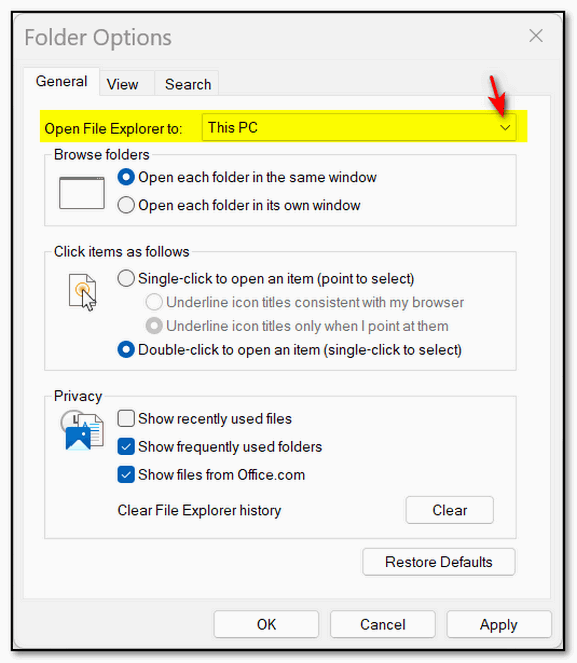
By default, Windows likes to open File Explorer to a page called "Home" or "Quick Access," which just shows your recently opened files. If you prefer the classic view that shows your hard drives, devices, and main folders (Documents, Downloads, etc.), you can force it to open to This PC every time by following these quick steps:
- Open File Explorer using any of the methods above.
- Look at the very top menu bar and click on the three dots (...) (usually located on the right side of the top toolbar).
- Click on Options from the dropdown menu. A small window called Folder Options will pop up.
- Look at the very top of that window where it says "Open File Explorer to:"
- Click the little down-arrow and change it from Home (or Quick Access) to This PC.
- Click Apply and then click OK at the bottom.
AZJudy wrote back: Hi TC. Thanks so much. You know, if you had just a dollar for every time you share your knowledge, you'd be a rich man. Seriously though, you are already a member of Cloudeight and friends who appreciate all you do. I knew I had the wrong name, but thankfully, you knew I meant Windows Explorer. Now I am a happy camper. I even found a way to pin it to the start menu and taskbar. Again, thanks. AzJudy (Too many Judys, so this one is Azjudy.)
Nick's new laptop booted up
instantly, but after an update, there's a 30-second delay
Hi TC and Darcy. My fairly new laptop is the fastest
laptop I've ever had. As soon as I open the lid, the laptop logo
appears, then it jumps quickly to the Windows 11 lock screen.
However, after the recent Microsoft update, it takes 30 seconds
for the laptop logo to appear. Is there any way I can restore
the quickness to the laptop's startup?
Thank you. Nick (follower since 1996).
Our answer
Hi Nick. Thanks so much for your long-time support and
friendship!
2. Click Power Options (if you don't see it, change "View by" in the top right to "Large icons").
3. On the left side, click "Choose what the power buttons do."
4. Click the link at the top: "Change settings that are currently unavailable" (you may need to click 'Yes' to an admin prompt).
5. Down at the bottom, uncheck the box next to "Turn on fast startup."
6. Click "Save changes."
Have we helped you with your computer or helped you by answering your questions? Would you like to help us?
!
Rhonda wants to know how to open Microsoft Publisher files
Hi Rhonda. You are certainly not alone in finding yourself without Publisher. Microsoft has actually announced they are retiring the program completely this fall, so they have stopped including it in many of its latest Office bundles. It is a frustrating change for those of us who have years of .pub files saved up!
Because Microsoft kept the Publisher format completely "closed" and proprietary for so many years, there isn't a direct, 100% perfect free clone that will open a .pub file and let you edit it exactly like Microsoft did. However, we have two excellent, reliable, and completely free workarounds for you that will get those documents edited without spending a dime.
Method 1: The Best Free Software Alternative (LibreOffice Draw)
If you want a single piece of free software installed on your computer that can directly open and edit a Microsoft Publisher file, your absolute best bet is LibreOffice.
LibreOffice is a completely free, highly respected, open-source competitor to Microsoft Office. When you install the suite, it includes a program called LibreOffice Draw.
- How to use it: You simply open LibreOffice Draw, click File > Open, and select your existing .pub file.
- The Reality: Draw has a built-in filter that does a remarkably good job of translating Publisher files into editable text boxes and images.
- A Caveat: Because it is translating Microsoft's private code, the layout might not look perfectly precise on the first try. You might have to nudge a picture back into place or slightly resize a text box, but all your text and images will be there and fully editable!
Method 2: The "Word" Trick (Best for Heavy Text Editing)
If your Publisher documents are mostly text-heavy (like newsletters or forms) and you already have the latest Microsoft Word installed, you can use a clever two-step trick using standard PDF conversion:
- Convert to PDF: Go to a safe, free online conversion site like Zamzar.com or CloudConvert.com. Upload your existing .pub file and convert it into a standard PDF document.
- Open in Microsoft Word: Open up your new Microsoft Word program, click Open, and select that newly created PDF file. Word has a fantastic built-in tool that automatically converts PDFs back into fully editable Word documents.
Word will do its best to keep the layout intact, and you'll
be able to type, edit, and save it right inside the Office
program you already own and are comfortable with. We suggest
downloading the completely free LibreOffice
suite first and giving "Draw" a try with one of your
existing files. It is the closest thing to a free Publisher
replacement available today.
I hope this helps you, Rhonda.

Now available: Reg Organizer 9.88
If you purchased or renewed Reg Organizer through Cloudeight within
the last 12 months, you're entitled to a free version upgrade to Reg
Organizer 9.8.8. Works great with Windows 10 and Windows 11.
Save $14 on Reg Organizer right now!
Reg Organizer - A Swiss Army Knife of Windows Tools - Works Great on Windows 10 and Windows 11.

Why You Should Turn Off Windows 11
Notifications
Windows 11
Imagine if you had a loudspeaker system installed in your house, and
a booming voice blared out a notification every single time someone
turned on a faucet, turned on the stove, or opened the refrigerator.
Not only would it drive you absolutely crazy within an hour, but it
would also make you wonder: Who on earth is monitoring my house
close enough to know all of that?
Yet, that is exactly what Microsoft Windows 11 does by default. It constantly chimes and pops up little boxes to tell you about things you don’t need to know, from random news stories to tips on features you will never use.
Worse yet, to send you those notifications, Windows has to constantly monitor your activity in the background. If you want to reclaim your peace of mind, quiet your PC, and get a little bit of your privacy back, here is how to turn those annoying notifications off for good.
How to Turn Off Notifications in Windows 11
Microsoft doesn't make it obvious, but you can silence the entire
system with just a couple of clicks.
Press the Windows Key + I on your keyboard to instantly open your Settings app.
Click on System (the top option on the left menu).
On the right side, click on Notifications.
Right at the very top, you will see a master toggle switch labeled Notifications.
Action: Flip that switch to OFF.
Shifting into "Total Privacy" Mode
Once you turn off the master switch, Windows stops the pop-ups. But
while you are on this page, let's scroll all the way to the bottom
and uncheck three hidden boxes that Microsoft uses to nose into your
business.
Click on Additional settings at the bottom of the page, and uncheck these three options:
Offer suggestions on how I can set up my device
Get tips and suggestions when I use Windows
Show the Windows welcome experience...
By unchecking these, you are telling Windows to stop tracking how you use your computer just to pitch you "helpful tips" or advertise Microsoft products.
What If I Want Notifications from Just One App?
If you completely turn off notifications, you might miss a
legitimate email or a calendar reminder. If you want to keep those
but block all the junk, leave the master switch ON, and simply
scroll down the page to the section called "Notifications from apps
and other senders."
Here, you will see a list of every app on your computer. You can go down the list and surgically turn OFF the real troublemakers (like the Microsoft Store, your web browser, or built-in games) while leaving your Email or Calendar turned ON.
Your computer should be a tool that works for you, not a digital chatterbox that constantly begs for your attention. Take two minutes to shut those notifications down, and enjoy a quieter, more private PC!
VPNs: Brought to You By GOFF!
For everyone using the internet
That’s right. VPNs are everywhere, and thanks to GOFF (Good Old-Fashioned Fearmongering), you’re in deep trouble if you don’t use one. WRONG!
Don’t misunderstand me here, VPNs do have a place, but that place is not for those who use their computers at home on their own Wi-Fi network or Ethernet to use social media, check email, browse the web, and watch videos.
The fearmongers have us convinced that if we don’t use a VPN, we are all fools because, without a VPN, we are vulnerable to:
Viruses
Trojans
All kinds of malware
Phishing attempts
Counterfeit websites
Boogeymen (AKA “Hackers”)
Identity theft
Tech Support Scams
Password theft
Thanks, fearmongers, for all the misinformation.
Now we’re going to set the record straight, so you won’t be a victim of fearmongering and throw away money or throttle your bandwidth using a VPN when you do not need one.
The Truth About VPNs
A VPN (Virtual Private Network) is not an antivirus program. It is not an identity theft shield. It is not a magic wand that stops you from making a mistake online.
A VPN has exactly one primary job: it encrypts the connection between your computer and the internet. Think of it like a secure, private extension tube. Anyone looking at your connection from the outside can only see the tube; they cannot see what is traveling inside it.
That sounds wonderful, doesn’t it? But here is what the GOFF salesmen won’t tell you: if your home network is already password-protected and secure, you are already inside a safe tube. Adding a VPN at home is like putting a second roof on your house just because it might rain. It doesn’t give you extra protection; it just makes things complicated!
The Cold, Hard Facts: What a VPN Cannot Do
Let’s bust the big myths circulating out there in internet-land. A VPN cannot protect you from the most common dangers on the web today:
It won’t stop malware or viruses: If you download a nasty file or a Trojan from a shady website, a VPN will happily and securely pass that virus right into your computer. It encrypts the delivery, but it doesn’t clean the package.
It won’t stop phishing or scams: If you get an email claiming to be from your bank and you click the link, a VPN won’t stop you. If you type your password into a counterfeit website, the VPN will encrypt your password as it sends it straight to the scammers!
It won’t stop tech support scams: A VPN cannot stop your phone from ringing when a scammer pretends to be from Microsoft, nor can it stop a scary pop-up from appearing if you stumble onto a bad page.
To stay safe from those things, you don’t need a VPN. You need a good antivirus, a secure browser, and a healthy dose of common sense!
So, When Do You Actually Need a VPN?
We aren’t saying VPNs are completely useless. They are actually
fantastic tools—when used in the right place at the right time.
There are three specific times you should use one:
When using Public Wi-Fi: If you take your laptop or
phone to Starbucks, an airport, a hotel, or a doctor’s office, that
public Wi-Fi network is totally open. Anyone sitting near you with
the right software can snoop on your connection. This is when you
turn on your VPN. It locks your connection down so the guy at the
next table can’t see your business.
For Remote Work: Many employers require a specialized VPN so you can securely log into the office network from your couch at home.
To Bypass Regional Blocks: If you travel abroad and want to read your local hometown news, but that country blocks American websites, a VPN can make it look like you are still sitting back home in the USA, Great Britain, Australia, New Zealand, et.al.
Illegal activities online: If you’re planning on doing illegal things online, then you’ll need a VPN – although you should be aware that authorities can obtain your web activities from the logs most VPN providers claim they don’t keep, but do. Proceed at your own peril.
The Problem with Leaving a VPN On All the Time
Many browsers and software packages now offer “free” or built-in VPNs, like the Firefox VPN. They tempt you to just flip the switch and leave it running forever.
But as many folks find out the hard way, these built-in options can be incredibly finicky. They frequently clash with your computer’s default settings (like your DNS resolver), causing websites to suddenly stop loading or your internet to grind to a painful halt.
Worse yet, most of these free options come with a strict bandwidth limit—usually around 50 GB a month. While 50 GB is a mountain of data if you are just reading our newsletters and checking email, it disappears in the blink of an eye if you watch videos. High-Definition streaming on YouTube, Netflix, or Prime Video eats up about $3\text{ GB}$ of data every single hour!
If you leave that VPN running while watching a movie at home, you will smash through your monthly limit in days. The moment you do, the “free” software changes its tune, constantly coaxing, coercing, and nagging you with pop-ups to upgrade to its expensive, paid monthly subscription.
Don’t Let Goff Scare You!
Don’t let the fearmongers separate you from your money. If you are computing from the comfort of your own home on your secure network, you do not need a VPN. Save your money, use your knowledge, keep your antivirus updated, and be very careful what you click.
Windows K2: Microsoft’s Mission to
Make Your PC Yours Again
Windows 11
Most of you have noticed that using Windows 11 can feel a bit like walking through a department store. You want to open a file or find a photo, but instead, you are greeted by pop-ups trying to sell you on OneDrive, widgets you never asked for, and a Start menu that feels sluggish and not very customizable.
For the past couple of years, Microsoft has been so infatuated with artificial intelligence that it has completely forgotten what was important – you and me, the ones who use Windows 11 every day. To add insult to injury, they took away the basics that users loved—like ensuring that your taskbar is customizable and actually works the way you want it.
Well, here’s a bit of good news for you. Microsoft has quietly launched an internal rescue mission codenamed Windows K2. Named after the notoriously difficult mountain peak, K2 isn’t a brand-new operating system or “Windows 12.” Instead, it is a huge corporate shift to stop rushing out new features and finally fix the everyday things that regular users care about.
Moving New Features from “Fast” to “Good”
For years, Microsoft has seemed to base its work on a philosophy of “move fast and break things.” They rush out a half-baked, poorly tested feature, wait for millions of users to complain, and then, weeks (or months) later, patch it.
According to insiders, the K2 initiative is throwing that playbook in the trash. Microsoft is reportedly slowing its update schedule and refusing to include new features in public preview builds until they meet much stricter quality standards.
The engineers have been given three simple goals to focus on: Performance, Craft, and Reliability. Here is what that means for you.
Putting a Stop to the Slowdowns
If you feel like Windows 10 was snappier than Windows 11, you aren’t imagining things. The layers of web-based code stuffed into Windows 11 have made the interface feel bloated. Under K2, engineers are rewriting core parts of the operating system to make them lean and mean again.
The biggest target, right now, is the Start menu. Microsoft is rebuilding it from scratch, aiming to make it up to 70% faster to open and search. They are also working to lighten the operating system’s overall memory footprint, which is great news if you use a less expensive desktop or laptop.
Giving You Back Control (Yes, a Movable Taskbar)
“Craft” is Microsoft’s internal word for making the operating system feel like a cohesive unit rather than a collection of unwanted or half-baked new features and ads. For a long time, it felt like different Microsoft engineering teams were competing to see who could jam the most bloatware into your Windows 11 computer.
Under K2, Microsoft has already started testing features on its experimental branch that look, to me, like a massive apology to all of us users. They are finally bringing back the option to move your taskbar to any edge of the screen—a basic feature they stripped away years ago to the dismay of millions.
They are also adding options to completely hide the “Recommended” section in the Start menu, clean up the cluttered File Explorer search bar so it stops mixing up web results with your local documents, and let you hide your name and email address if you frequently share your screen on video calls.
Predictable Updates (Fewer Random Reboots)
We’ve all been caught off guard: you leave your computer for five minutes to get a cup of coffee, only to return and find it has restarted itself to install an update, wiping out your open windows.
Another goal of K2 is to make Windows reliable enough that it only needs a reboot about once a month. Furthermore, they are changing how background drivers work. If your graphics or audio drivers need an update, Windows will hold them back until you choose to restart, rather than letting your screen flicker or your sound cut out in the middle of a movie or a game.
A Step in the Right Direction
It’s easy to be cynical about Microsoft’s promises. After all, Microsoft didn’t suddenly become altruistic; they are doing this because user trust has eroded, and many people are now seriously considering alternatives to Windows. Microsoft might be getting a little nervous.
But whatever the motivation, the Windows K2 initiative is a breath of fresh air. It is a rare admission from Microsoft that a great computer doesn’t need to reinvent itself every six months with flashy gimmicks; it just needs to work and do what users want.
Sometimes, the most valuable thing a tech company can do is stop adding new unwanted features and roll up its sleeves, and make sure the features that are already there are the ones users want and that they work as they are supposed to.
It does finally look like Microsoft is listening to Windows users -and it’s about time!

Want more tips, tricks, and information?
We have thousands of Windows tips, tricks, and more on our InfoAve website.
Subscribe to our free InfoAve Daily newsletter.

THANK YOU FOR HELPING US!
When you support us with a small gift, you help us continue our
mission to keep you informed, separate the truth from the hyperbole,
and help you stay safer online. Plus, our computer tips make your
computer easier to use.
Did you know that we provide support to thousands of people? Every
week, we help dozens of people via email at no charge. The questions
and answers you see in our newsletters are from the email answers and
help we provide to everyone free of charge.
Thanks to your gifts, we do a lot more than provide this free newsletter. We help you recognize online threats, fight for your online privacy, provide you with the knowledge you need to navigate the Web safely, provide you with suggestions for safe, free software and websites, and help you get more out of your PC.
Please help us keep up the good fight with a small gift.
Interested in making an automatic monthly gift? Visit this page. Help us keep helping you... and help us keep you safe on the Web.

Cloudeight Freeware Hall of Fame: AbleWord
We are happy to add to our Freeware Hall of Fame a program we’ve featured before and one I now find myself using almost every day.
Let’s be clear right from the start: this is not meant to be a
full-blown replacement for Microsoft Word or LibreOffice. If you are
creating massive, complex documents with data tables or advanced
formatting, you will still need those larger suites. But for the
vast majority of us who just need to open, read, edit, or quickly
create standard documents, those massive programs are overkill. They
can be bulky, slow to load, and complicated.
.
Meet Our New Hall of Fame Inductee, AbleWord.
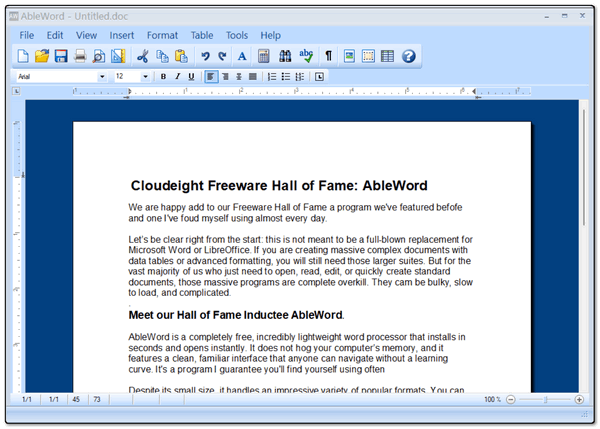
AbleWord is a completely free, incredibly lightweight word processor that installs in seconds and opens instantly. It does not hog your computer’s memory, and it features a clean, familiar interface that anyone can navigate without a learning curve. It’s a program I guarantee you’ll find yourself using often.
Despite its small size, it handles an impressive variety of popular formats. You can use it to create, open, read, and edit:
Microsoft Word documents (.doc and .docx)
Adobe Acrobat files (.pdf)
Rich Text Format (.rtf)
Plain Text (.txt)
HTML web pages
The Surprise Feature: Free PDF Editing
Usually, if you want to edit a PDF file, software companies expect you to shell out a hefty annual subscription fee. AbleWord surprises everyone by including a built-in PDF editor completely free. You can open a PDF file, type corrections directly into the text, and save it right back as a PDF. It is remarkably handy for filling out forms or fixing quick mistakes.
We Welcome AbleWord to Our Hall of Fame
If you are tired of waiting for Microsoft Word to load just to read a simple attached document, AbleWord is the fast, clean, and uncomplicated tool you’ve been looking for. It does exactly what it promises without the bloat.
A Quick Reminder
AbleWord is an older software program that is no longer actively updated by its original developers. While it still runs beautifully on Windows 10 and Windows 11, please make sure to download it only from their official website to avoid sketchy third-party download sites that try to bundle extra junk with it.
Download AbleWord and give it a try. I think you’ll see why we added it to our Cloudeight Freeware Hall of Fame.

You’re Not An Elephant
I married Emma 61 years ago. She was a beautiful young lady, and I was a rambunctious young cad.
We had no plans to grow old together. We were young and full of hope, brimming with untethered youthful vigor and never-ending fairytale dreams.
I’m not sure anyone can plan on growing old together any more than anyone can plan on how they’re going to handle the challenges and hurdles that growing old often brings. I guess neither of us had time to give the blessings of youth much thought, yet I am quite sure we took advantage of them.
We had two beautiful, healthy boys, the family that Emma dreamed of since she was a little girl, playing mom with her dolls...
Please read the rest of this essay here.

Is It a "Browser" or a "Search Engine"?
It is easy to treat the internet as one big magical entity, but two of the most common tools you use every day are frequently confused: Web Browsers and Search Engines. While we often use them together, they actually do two completely different jobs.
Think of a Web Browser as the car you use to drive around the internet. It is the actual software application installed on your computer or phone that allows you to open and view webpages. When you click an icon to "go online," you are opening a browser. The most common examples are Google Chrome, Microsoft Edge, Mozilla Firefox, and Apple Safari. Without a browser, you wouldn't have a window to see the web at all.
A Search Engine, on the other hand, is a specific website that lives *inside* your browser. Think of it like a massive directory or the yellow pages. You use it to search the vast internet for specific information, recipes, or news. Examples of search engines include Google, Bing, DuckDuckGo, and Yahoo.
To put it all together: You open your browser (like Microsoft Edge, Google Chrome, Firefox, etc.) so you can visit a search engine (like Google or DuckDuckGo) to search the web and find whatever you're looking for

Sales of the following products and
services help support our newsletters, websites, and free computer
help services we provide.
Cloudeight Direct
Computer Care: Always a great deal. Cloudeight Direct Computer
Care is like having PC insurance.
Get more information here.
Emsisoft Anti-Malware:
Emsisoft is the only Cloudeight-endorsed and recommended Windows
security program. It provides users with a complete antivirus,
antimalware, anti-ransomware, and anti-PUPs solution. We offer single
Emsisoft licenses and multi-computer licenses at discount prices.
Also, we offer our exclusive Emsisoft with Cloudeight installation &
setup. Get more
information here.
Reg Organizer: Reg
Organizer is the Swiss Army Knife of Windows tools. It's far more than
just a registry optimizer and cleaner... it's a Windows all-in-one
toolkit. Reg Organizer helps you keep your computer in tip-top shape
and helps you solve annoying Windows problems. Reg Organizer works
great with Windows 10 and Windows 11!
Get more information about Reg Organizer (and get our special discount
prices) here.
MORE IMPORTANT STUFF!
Your InfoAve Weekly Members' Home Page is located here.
Help us grow! Forward this email newsletter to a friend or family member - and have them sign up for InfoAve Weekly here!
Get our free daily newsletter! Each evening, we send a short newsletter with a tip or trick or a computer-related article - it's short and sweet - and free. Sign up right now.
We have thousands of Windows tips and tricks and computer articles posted on our Cloudeight InfoAve website. Our site has a great search engine to help you find what you're looking for, too! Please visit us today!
Help us by using our Start Page. It costs nothing, and it helps us a lot.
Print our Cloudeight Direct Flyer and spread the word about our computer repair service! If you want to help us by telling your friends about our Cloudeight Direct Computer Care service, you can download a printable flyer you can hand out or post on bulletin boards, etc. Get the printable PDF Cloudeight Direct Computer Care flyer here.

We'd love to hear from you!
If you have comments, questions, a tip, a trick, a freeware pick, or just want to tell us off for something, let us know.
If you need to change your newsletter subscription address, please see "Manage your subscription" at the very bottom of your newsletter.
We received hundreds of questions for possible use in IA news. Please keep in mind we cannot answer all general computer questions. We try to personally answer as many as we can. We can only use a few in each week's newsletter, so keep this in mind. If you have a support question about a service or product we sell, please contact us here.
Subscribe to our Daily Newsletter! Get computer tips & tricks every night. Our daily newsletter features a computer tip/trick or two every day. We send it out every night around 9 PM Eastern Time (USA). It's short and sweet, easy to read, and FREE. Subscribe to our Cloudeight InfoAve Daily Newsletter!
We hope you have enjoyed this issue of Cloudeight InfoAve Weekly. Thanks so much for your support and for being an InfoAve Weekly subscriber.
Have a great weekend. Be safe!
Darcy & TC
Cloudeight InfoAve Weekly - Issue #1183
Volume 23, Number 24
June 12, 2026
Not a subscriber? Subscribe to our FREE Cloudeight InfoAve Weekly Newsletter here.
"Cloudeight InfoAve Weekly" newsletter is published by:
Cloudeight Internet LLC
PO Box 73
Middleville, Michigan, USA 49333-0073
Read our disclaimer about the tips, tricks, answers, site picks, and freeware picks featured in this newsletter.
Copyright ©2026 by Cloudeight Internet