
Cloudeight InfoAve Weekly
Issue #1184
Volume 23, Number 25
June 19, 2026
Dear Friends,
Welcome to Cloudeight InfoAve Weekly Issue #1184. Thank you for subscribing and for being a part of our Cloudeight family. We appreciate your friendship and support very much! Please share our newsletters and our website with your friends and family.

If you're not getting our InfoAve Daily newsletter, you're missing out on a lot of good stuff!
It's free and it only takes a few seconds to sign up. We'd love to have you with us. Visit this page to sign up for our Cloudeight InfoAve Daily Newsletter.

Barry says Microsoft Edge has taken
over his computer
I am incredibly frustrated with Windows 11. I have used Google
Chrome for years, and I have explicitly set my default web browser
to Chrome in my system settings. Yet, every single time I click a
link inside a Windows widget, an email help link, or the Windows
search bar, it stubbornly forces Microsoft Edge to open instead. It
completely ignores my choice. Am I doing something wrong, or is
Windows broken? Thanks, Barry.
Our answer
Hi Barry. You aren't doing anything wrong—and you aren't crazy. What
you are running into is a deliberate design choice by Microsoft.
Even when you set Chrome or Firefox as your default browser, Windows
still uses a hidden protocol called MICROSOFT-EDGE:// for internal
links (such as search results or widgets). This protocol forces
those specific links to bypass your default choice and launch Edge
anyway.
To completely break Edge's hold on your system, you have to use a free, open-source third-party tool. The most popular and reliable one is called MSEdgeRedirect (available free from Major Geeks). It runs silently in the background, intercepts those forced Microsoft Edge links, and instantly routes them through your actual default browser instead. If you prefer not to install background tools, your next best bet is to change your default search engine inside Edge to Google so that when it does force its way open, you at least get the search results you want.
I hope this helps you, Barry.
Patricia has a major problem with her
taskbar after an update
Hi guys! I turned on my computer after a recent Windows update, and
everything on the bottom right side of my screen is completely gone.
The clock, the calendar, my Wi-Fi bar, etc., have all totally
disappeared. My icons on the left side work fine.
I've restarted my computer, I've completely shut it down and restarted it, but nothing has changed. How do I get my whole taskbar back?
Our Answer
Hi Patricia. This is a known, incredibly annoying issue tied to
recent Windows 11 quality updates (specifically affecting the
system's Shell Experience Host configuration). Essentially, the
background service that creates that specific corner of your screen
crashed or failed to register during the update.
Don't worry—your icons aren't gone forever. We can force Windows to rebuild that part of your taskbar using a quick trick:
#1 Press Ctrl + Shift + Esc to open the Task Manager.
#2 Under the Processes tab, scroll all the way toward the
bottom until you find Windows Explorer. Right-click on it and select
Restart.
Your screen will flicker for a second. If they don't reappear after a restart, the local icon cache is likely corrupted.
Press the Windows Key + R, type wsreset.exe, and press Enter. This clears the Windows Store components cache and usually forces the missing system tray elements to load right back up.
I hope this helps you, Patricia.
Have we helped you with your computer or helped you by answering your questions? Would you like to help us?

Sandy says OneDrive took her files,
and she wants them back
I went to look for some family photos on my local hard drive
yesterday, and I noticed that my entire 'Pictures' and 'Documents'
folders now have little green checkmarks next to them. When I look
closely at the folder path, it says they are inside 'OneDrive'. I
never asked for my files to be put on the internet! Did Windows move
my physical files without my permission, and how do I get them back
on my computer? Thanks for any help you can give me. Your files are
still safe, but you need to untangle them carefully so you don't
accidentally delete them:
Our answer
Hi Sandy. Look at the bottom right corner of your screen (near the
clock) and click the little OneDrive Cloud icon.
Click the Gear icon (Settings).
Go to the Sync and backup tab on the left, then click Manage backup.
Turn off the switches for Documents, Pictures, and Desktop.
Windows will stop routing your files to the cloud. Note: OneDrive might leave a shortcut icon on your desktop called "Where are my files"—simply click that shortcut, select all your photos, and drag them back into your local physical computer folders.
Hope this helps you, Sandy.

We can fix your Windows computer... check out our low prices here!
Mark gets the "Aw Snap!" error any
time he opens a website in Google Chrome
I use Google Chrome for everything, but out of nowhere, it has
become completely unusable. Every time I open a website—even basic
ones like Google or news sites—the page instantly crashes and gives
me an 'Aw, Snap! Something went wrong' error page. I cleared my
history and cookies, disabled my extensions, and even uninstalled
and reinstalled Chrome entirely, but the error keeps happening. I'm
forced to use Edge just to write this email. How do I fix this? I
can't even load the settings page! Thanks so much.
Our answer
Hi Mark. I'm sorry you're having so much trouble with Chrome. When a
complete uninstallation and reinstall doesn't fix Chrome, it means
the issue isn't actually with the Chrome application itself.
Instead, the corruption is buried deep inside your hidden local User
Profile data, which Windows intentionally leaves behind on your hard
drive when you uninstall the program, so you don't lose your
bookmarks. If that profile data gets corrupted, a fresh install of
Chrome just hooks right back into the broken data and keeps
crashing.
Since you can't even get into the Chrome settings menu to fix it, we have to bypass it using Windows:
Close Chrome completely.
Press the Windows Key + R to open the Run dialog box.
Type or paste the following path exactly and hit Enter: %localappdata%\Google\Chrome\User Data
In the folder that pops open, look for a folder named Default (this holds your history, bookmarks, and extensions).
Right-click the Default folder and rename it to Backup Default.
Now, reopen Chrome. Because it can't find the "Default" folder, it will automatically build a brand-new, completely clean user profile from scratch. The crashing will stop instantly. If you need your old bookmarks back, you can sign into your Google account to sync them, or copy the "Bookmarks" file out of your Backup Default folder and drop it into the newly created Default folder.
I hope this fixes your Chrome browser!
-------
Mark wrote back: "Wow! It worked like a charm! Chrome is back
and working great. Thanks so very much. Mark".
Joy lost her MS365 (Office)
programs
I had to renew my Microsoft 365. I did it back in April or May.
We lost power, and when I turned the computer back on, it was
gone. I could not do anything with Word. So I tried to renew,
and it showed it took $99.99 using PayPal. I tried to download
it, and I did not think it worked. All of a sudden, Word was
working again, or so I thought. Now I have nothing against.
Help!
Our answer
Hi Joy. Don't worry! You didn't lose your subscription.
Microsoft 365 isn't tied to your physical computer; it lives in
the cloud, tied directly to your Microsoft account (the email
address and password you used when you first bought or activated
it).
Getting it back is a pretty straightforward process. Here is how you can reinstall it:
First, open a web browser (like Edge, Chrome, or Firefox, etc.) and go to https://account.microsoft.com/services. You will need to log in using the exact Microsoft account email and password associated with your Microsoft 365 subscription.
Once you are signed in, you will see a list of products you own under "Services & subscriptions." Just scroll down until you see Microsoft 365 (or Office) and click the "Install" button next to it. This will download a small setup file to your computer. Depending on your internet speed, it should only take a few minutes. Once it downloads, open that file and follow the on-screen prompts to let MS365 reinstall.
If you run into any roadblocks, it's usually because of one of two things. If you can't remember which email you used, check your alternative email inboxes (like Gmail, Yahoo, Outlook, Hotmail, etc.) and search for the phrase "Your Microsoft order" or "Microsoft 365" to find your original purchase receipt. If you just forgot your password, you can click "Forgot password?" right on the sign-in page to have a reset code sent to your recovery phone number or backup email.
Once the software finishes installing, all you have to do is open one of the MS365 programs like Word or Excel, sign in one last time with that same email address, and your apps will be fully activated and ready to use!
Let me know if you run into any trouble.
Have we helped you with your computer or helped you by answering your questions? Would you like to help us?
!
Barbara wants to remove her
accounts and info from websites she no longer uses
Hi TC and EB. I have a lot of logins in my RoboForm account that
I am no longer using and would like to get rid of. I am assuming
that I should not just delete the login information from
RoboForm but somehow close out the account associated with each
website. I have looked at many of them and don't find any way to
do that on their websites. What is the correct way to do this?
Do I have to contact each one to ask for my account to be
closed? And how do I know that they have actually done that? I
am trying to be sure that once I no longer use the websites and
logins, my information isn't just floating around out there for
the "bad guys" to get hold of. Thanks for any help. And, as
always, thanks for all you have done for so many of us over the
years. It is greatly appreciated. Barbara
Our answer
Hi Barbara. Thank you so much for your kind words!
You are absolutely correct. Leaving old, unused accounts floating around the Web is exactly how the "bad guys" get hold of our data when a random website suffers a breach, even if it is years down the road. Unfortunately, companies intentionally make it difficult to delete your data because they want to keep their user numbers high.
Here is the best way to handle this digital maze.
First, instead of hunting through every website, try the website JustDeleteMe at https://www.justdelete.me. It lists hundreds of popular websites alphabetically and provides a direct link straight to their hidden account deletion pages. If the site you want to get rid of is on there, it will save you a ton of time. The hardest ones to delete info from are in red; the easier ones are in green.
If a site isn't on that list, you'll have to log in and search for the button yourself. Companies usually hide it at the very bottom of pages under menus labeled "Settings," "Privacy," or "Data Management." Look for tiny text that says "Close Account" or "Delete Profile."
For older or smaller websites, you may indeed have to use their "Contact Us" form to message them. Just tell them: "Please permanently delete my account and erase all personal data associated with this email address."
As for knowing whether they actually did it, there is no official receipt, but you can test it yourself. Wait a few days after deleting the account, and then try to log in again. If the website gives you an error saying "Account not found," you're all set.
If you ever run across a website that makes it completely impossible to delete your account, here is a great workaround: log in one last time and change your profile to fake information. Change your name to John Jones, use 000-000-0000 as the phone number, and change the password to random gibberish. That way, if that site ever gets hacked, the thieves only get useless junk.
Once you've confirmed an account is gone or scrambled, you can safely delete the login from your RoboForm.
I hope this helps you, Barbara. Let me know if you need anything else or have any more questions.

Now available: Reg Organizer 9.88
If you purchased or renewed Reg Organizer through Cloudeight within
the last 12 months, you're entitled to a free version upgrade to Reg
Organizer 9.8.8. Works great with Windows 10 and Windows 11.
Save $14 on Reg Organizer right now!
Reg Organizer - A Swiss Army Knife of Windows Tools - Works Great on Windows 10 and Windows 11.

How to
Quickly Rename All Files In a Folder
Windows 10 / Windows 11
Here’s a quick, easy, and useful tip. If you have a folder full of files with arcane names that do not describe what the files are, you can quickly rename all the files in a folder with descriptive names. This trick is very handy when you have a folder of photos from your phone or camera. Most times, files that come directly from your camera or phone have obscure names that don’t describe the photos. But you can fix that by quickly renaming all the files in the folders using this tip.
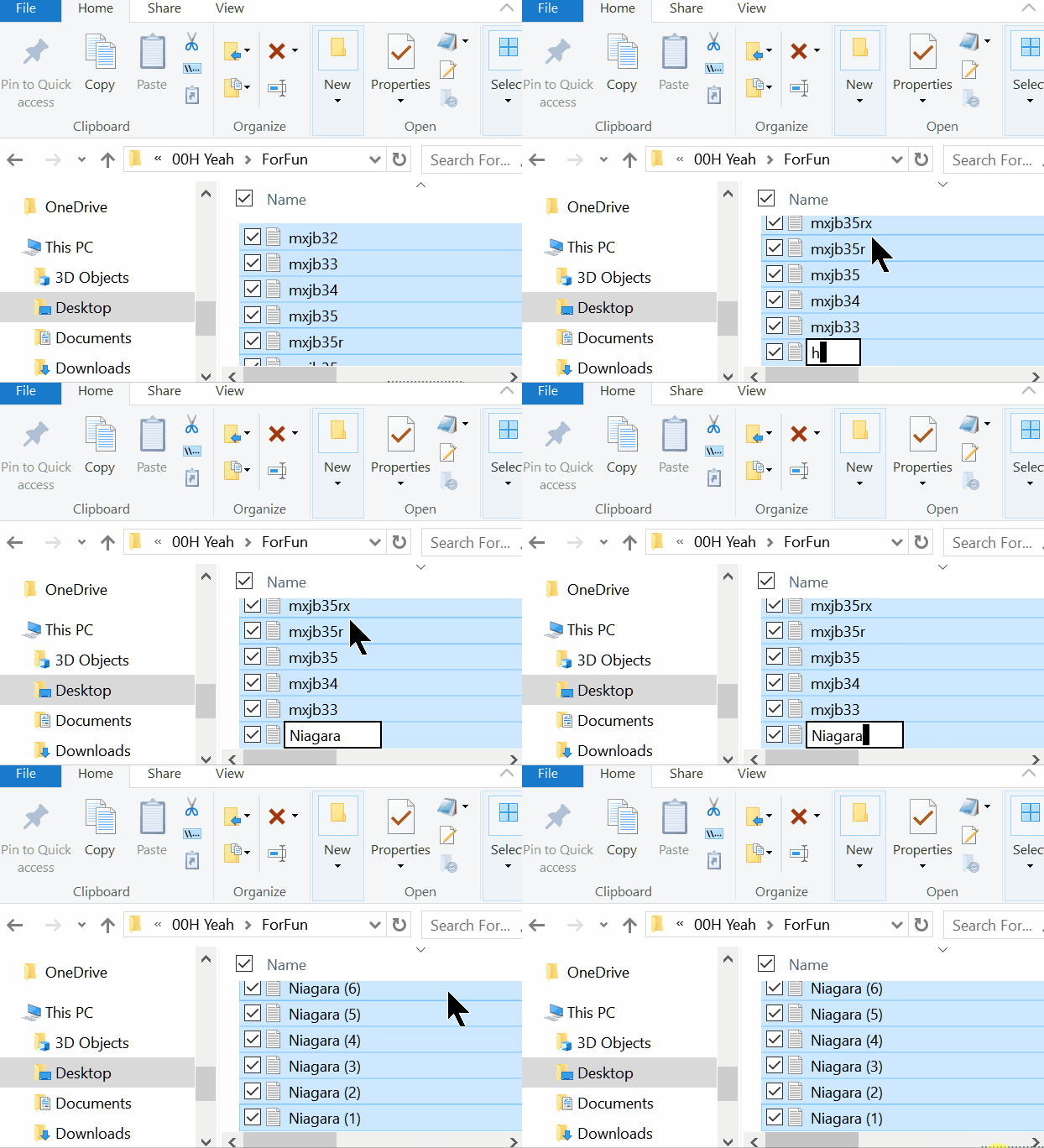
Open the folder where the files you want to rename are located. Highlight one file and then press CTRL+A to select them all. Next, press the F2 key to rename one of the files in the list and give the file a new name. Then press Enter. Windows will automatically rename all the other files in the folder with the name you typed, appended with (1), (2), (3), and so on after the file name.
For this example, I chose a folder full of files with names that meant nothing to me. But suppose these were all pictures from a special trip to Niagara Falls. It would be useful to at least have the word “Niagara” in the file name, right? So, I pressed F2, renamed one file “Niagara'” then pressed “Enter” and watched as Windows renamed the rest...
It’s easy – see?
How Your Personal Information is
Collected, Sold, and What You Can Do About It
For everyone using the internet
Every single time we log onto the internet, check the news, or shop online, we leave behind a digital trail of breadcrumbs. This trail is made up of your Personal Information. It includes obvious things like your name and email address, but it also tracks your hidden browsing habits, the things you put in your online shopping carts, and your entire purchase history.
Companies love this data because your information is worth money. While sharing this data can sometimes give you a more personalized experience when shopping, it also raises major red flags about your privacy and who really controls your life online.
Here is a look at how the data dragnet works—and how you can fight back.
The Data Collection Dragnet: It’s All About YOU!
Data brokers don’t just guess who you are; they gather the pieces of your life from four main areas:
1. Directly from You: This is the easiest way for them to get it. Whenever you sign up for a new website, fill out a form for a freebie, or buy something online, you hand your information over voluntarily.
2. Social Media: Every post you write, photo you share, and post you “like” adds another piece to your digital jigsaw puzzle.
3. Mobile Apps: Many smartphone apps quietly track your physical location, your web history, and how often you use your phone, even when you aren’t actively using the app.
4. Data Brokers: These are hidden companies that buy up public records, store loyalty card data, and court documents to build a massive file on you.
Putting the Puzzle Pieces Together
Once these companies gather your data, they use smart computer programs to link them all together. They take a random email address you used years ago and connect it to your real name, your current home address, your cell phone number, and your relatives.
Once they have a complete profile of you, they put YOU up for sale in the marketplace.
Who is Buying Your Profile?
Businesses buy these massive data files for three main reasons:
Targeted Advertising: Ever talk about buying a new toaster, only to see toaster ads on every website you visit ten minutes later? That’s data profiling at work.
Market Research: Companies want to track overall buying trends to see what people in your age group or zip code are spending money on.
Risk Assessment: Lenders, banks, and insurance companies sometimes buy data to help judge your financial risk or creditworthiness.
Taking Back Control: How to Opt Out
You don’t have to just sit back and let these companies sell your life. Here are a few practical, easy steps to lock down your privacy:
Use Better Privacy Tools: Install a highly rated, free ad-blocker like uBlock Origin, or uBlock Origin Lite (Chrome), and use DuckDuckGo instead of Google for your everyday web searches to stop companies from tracking your clicks.
Manage Your App Permissions: Take a look at the apps on your smartphone. If a simple flashlight or game app is asking for permission to see your location or your contacts, say no!
Opt-Out of Data Brokers: Many of the biggest data collection companies legally have to let you opt out if you ask them to. Keep in mind, though, that new brokers pop up all the time, so keeping your name off their lists is a never-ending chore.
A Quick Note on Privacy Regulations
Depending on where you live (like Europe or states like
California), strict new privacy laws give you the legal “right
to be forgotten.” This means you can demand that a company
completely delete your history from its servers. Check your
local state laws to see what rights you have!
The Big Names in Data Brokering
To give you an idea of who is tracking you, here is a short list of some of the biggest data brokerage firms operating today:
LiveRamp (Formerly known as Acxiom)
Experian (Yes, the credit reporting giant is also a massive data
broker!)
Epsilon
CoreLogic
Oracle America (Which bought out Datalogix)
Intelius & PeekYou (People-search engines)
There are many more – with new ones popping up every day.
Want to See How Much of You is Out There?
If you want to know exactly how much of your personal information is floating around on the dark web or public databases, you can run a quick, free scan using these reputable services we have tried ourselves:
1. Mozilla Monitor (Run by the trusted folks behind the Firefox browser)
2. Optery (They offer a complimentary scan)
The internet brings us so much convenience every day, but it shouldn’t cost you your privacy. By using a few smart tools and staying informed, you can take control of your digital footprint and navigate the web with a little more peace of mind!
But as we always say, the internet will never be a private place, no matter what you do.

Four Mouse and Keyboard
Tricks for You
Windows 10 / Windows 11
Here are four seldom-used mouse and keyboard tricks that can save you time.
1. Use your mouse wheel to close a browser tab.
You can do it, yes, you can. Most of us use the mouse wheel to scroll pages and other common mouse wheel stuff. But if you press down on your mouse wheel, you’ll notice it depresses just a bit. Well, did you know that just a bit is enough to allow you to close a browser tab (among other things)? Try it and see. Position your mouse pointer in the middle of a browser tab and press down on the control wheel. See?
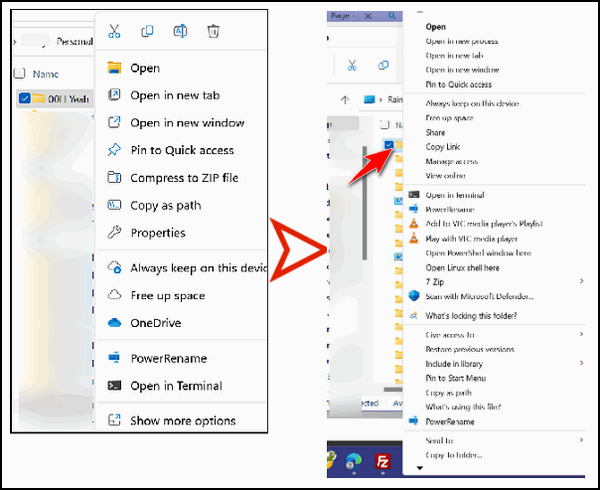
2. Use the Shift key + the right mouse button to extend the Context Menu.
When you right-click on the desktop document icon, you will see a context menu. But did you know there’s another context menu called the extended context menu? To see the extended context menu, just press and hold the Shift key and then right-click on an icon to open the extended context menu. Here’s an example from Windows 11.
In the screenshot below, on the left, you can see the standard Windows 11 context menu, but by using the Shift key and the right mouse button, you can open the extended context menu. See?
3. Use the Shift key to select text.
Most of you know that you can select files and folders by holding the Shift key and clicking on the first and then the last file/folder. But this also applies to selecting text in documents like MS Word docs as well as text files (and Web pages).
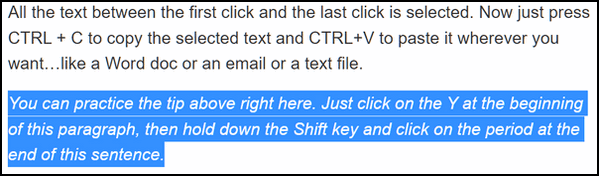
All you have to do is click on the first character in the text you want to copy, then hold down the Shift key and point to the last character you want to copy. All the text between the first click and the last click is selected. Now just press CTRL + C to copy the selected text and CTRL+V to paste it wherever you want…like a Word doc, an email, or a text file.
You can practice the tip above right here. Just click on the Y at the beginning of this paragraph, then hold down the Shift key and click on the period at the end of this sentence.
4. Maximize any program window with a double-click.
Instead of fumbling around looking for the maximize button between the – and the X in the top-right corner of most program and file windows, just double-click anywhere on the title bar (or top bar) to maximize or minimize the window.

The title bar or top bar in Firefox (also referred to as the
menu bar.

The top bar or title bar (Microsoft Edge)

The top bar or title bar (Google Chrome)

The title bar (OE Classic)

The title bar (Microsoft Word)
That’s enough, you get the idea. You can maximize or minimize a program window by double-clicking on the title bar, menu bar, or top bar.
Want more tips, tricks, and information?
We have thousands of Windows tips, tricks, and more on our InfoAve website.
Subscribe to our free InfoAve Daily newsletter.

THANK YOU FOR HELPING US!
When you support us with a small gift, you help us continue our
mission to keep you informed, separate the truth from the hyperbole,
and help you stay safer online. Plus, our computer tips make your
computer easier to use.
Did you know that we provide support to thousands of people? Every
week, we help dozens of people via email at no charge. The questions
and answers you see in our newsletters are from the email answers and
help we provide to everyone free of charge.
Thanks to your gifts, we do a lot more than provide this free newsletter. We help you recognize online threats, fight for your online privacy, provide you with the knowledge you need to navigate the Web safely, provide you with suggestions for safe, free software and websites, and help you get more out of your PC.
Please help us keep up the good fight with a small gift.
Interested in making an automatic monthly gift? Visit this page. Help us keep helping you... and help us keep you safe on the Web.

Cover Your Tracks (by the Electronic Frontier Foundation)
Have you ever searched for a pair of shoes online, only to have ads for those exact shoes follow you around the internet for weeks? Most of us know that advertisers use cookies to track us. You delete your cookies, clear your history, maybe even turn on a VPN, and think you’re invisible.
But modern tracking is much sneakier than that.
Today, data companies use a technique called browser fingerprinting. Every time you visit a website, your browser hands over tiny pieces of information so the page displays correctly. When you bundle all those tiny details together, they create a highly specific, unique “fingerprint” that belongs only to your computer. Trackers can identify you across millions of other web surfers without ever needing a cookie or your IP address.
In fact, these data points have a 90% to 99% accuracy rate of identifying your specific machine out of millions.
What are websites actually learning about your
computer?
When you load a webpage, your browser engages in a massive,
split-second data exchange with the website’s server. It doesn’t
just see your IP address; it scans your software, checks your
hardware, and tests how your computer processes data:
Basic Identity: It logs your precise browser version (Chrome, Edge, Firefox) and your core operating system (Windows 11, macOS, Android).
Hardware & Screens: It checks your exact screen resolution, your monitor’s color depth, and even your device’s battery status.
Your Digital “Font Registry”: The site checks which specific fonts are installed on your hard drive. Because you have custom fonts from software you use (like Microsoft Office or Adobe), your unique list of fonts acts like a barcode.
Canvas Fingerprinting (The Graphics Test): A website can run a script that tells your browser to draw a hidden, invisible 3D shape. Because of tiny variations in your graphics card (GPU) and monitor drivers, your computer renders that image subtly differently than anyone else’s, creating a permanent mathematical tracking signature.
Audio & Peripherals: Sites can play a silent audio frequency to test your sound card’s signature, and check how many microphones, speakers, or cameras are plugged into your system.
Environmental Clues: It logs your precise timezone and checks if you are using an ad-blocker. Ironically, using a generic ad-blocker often makes you stand out more in a crowd because your signature looks unique.
You cannot easily block these scans because websites genuinely need this data just to display properly. If your browser blocked a website from knowing your screen resolution or language, the website would look like a broken, unreadable mess.
Test your defenses in 30 seconds
That’s where Cover Your Tracks comes in. Created by the digital privacy heroes at the Electronic Frontier Foundation (EFF), this free, non-profit tool lets you test your security defenses securely.
When you visit the site and click “Test Your Browser,” it simulates loading various hidden trackers and invisible beacons. It then gives you a plain-English report card showing if you are successfully blocking tracking ads, if you are stopping invisible tracking beacons, and exactly how unique your digital fingerprint is compared to millions of other users.
It is an eye-opening reality check for anyone who values their online privacy. If your results reveal that you’re leaving a wide trail behind you, the site provides excellent, simple recommendations on how to tighten your defenses (like using privacy-focused extensions or shifting to a fingerprint-resistant browser).
Don’t take your browser’s default privacy settings for granted! Go see how you look to the rest of the web.
Check out Cover Your Tracks right now!

The Unseen
The wind howls from the south and rattles the windows. I watch the storm and revel in its power — surrendering to its majesty, admiring its beauty and strength — sitting mesmerized before the glass.
It occurs to me that no one truly knows where the wind comes from or where it goes. It blows where it will, when it will, and we are powerless to stop it. We cannot see the wind, but we can see its effects. We can see the trees bending, the branches breaking; we can see the wind push enormous cottony clouds across an increasingly pale sky.
The wind shakes the house. I watch as shingles are torn from a neighbor’s roof and sent tumbling like scraps of paper down the street. A peaceful lane...
Read the rest of this essay here.

What is a Shell Extension?
Sometimes a crab will crawl up on land and try to reach low-hanging fruit. But it can't quite reach it because its shell is so limiting. The crab needs a shell extension!. Nah!
Shell extensions are usually very small programs that you install like a regular program, but which do not appear on the start menu. You "run" these programs by right-clicking on a file or folder. When you do, the shell extension displays an additional menu..
Shell extensions are one of our favorite types of software because they are most often focused on performing useful tasks. For instance, one of our favorite shell extensions is called "ContextMagic," which allows the user, simply by right-clicking on a file, to move or copy the file to any other location on the computer, to copy the "file path" to the clipboard and several other useful things - all accessible by a simple right-click.
ContextMagic is a great example of a useful shell extension - but there are hundreds of others. Try ContextMagic and you'll be hooked on Shell Extensions like we are. Shell Extensions - small, useful utilities that you run simply by right-clicking on a file or folder!

Sales of the following products and
services help support our newsletters, websites, and free computer
help services we provide.
Cloudeight Direct
Computer Care: Always a great deal. Cloudeight Direct Computer
Care is like having PC insurance.
Get more information here.
Emsisoft Anti-Malware:
Emsisoft is the only Cloudeight-endorsed and recommended Windows
security program. It provides users with a complete antivirus,
antimalware, anti-ransomware, and anti-PUPs solution. We offer single
Emsisoft licenses and multi-computer licenses at discount prices.
Also, we offer our exclusive Emsisoft with Cloudeight installation &
setup. Get more
information here.
Reg Organizer: Reg
Organizer is the Swiss Army Knife of Windows tools. It's far more than
just a registry optimizer and cleaner... it's a Windows all-in-one
toolkit. Reg Organizer helps you keep your computer in tip-top shape
and helps you solve annoying Windows problems. Reg Organizer works
great with Windows 10 and Windows 11!
Get more information about Reg Organizer (and get our special discount
prices) here.
MORE IMPORTANT STUFF!
Your InfoAve Weekly Members' Home Page is located here.
Help us grow! Forward this email newsletter to a friend or family member - and have them sign up for InfoAve Weekly here!
Get our free daily newsletter! Each evening, we send a short newsletter with a tip or trick or a computer-related article - it's short and sweet - and free. Sign up right now.
We have thousands of Windows tips and tricks and computer articles posted on our Cloudeight InfoAve website. Our site has a great search engine to help you find what you're looking for, too! Please visit us today!
Help us by using our Start Page. It costs nothing, and it helps us a lot.
Print our Cloudeight Direct Flyer and spread the word about our computer repair service! If you want to help us by telling your friends about our Cloudeight Direct Computer Care service, you can download a printable flyer you can hand out or post on bulletin boards, etc. Get the printable PDF Cloudeight Direct Computer Care flyer here.

We'd love to hear from you!
If you have comments, questions, a tip, a trick, a freeware pick, or just want to tell us off for something, let us know.
If you need to change your newsletter subscription address, please see "Manage your subscription" at the very bottom of your newsletter.
We received hundreds of questions for possible use in IA news. Please keep in mind we cannot answer all general computer questions. We try to personally answer as many as we can. We can only use a few in each week's newsletter, so keep this in mind. If you have a support question about a service or product we sell, please contact us here.
Subscribe to our Daily Newsletter! Get computer tips & tricks every night. Our daily newsletter features a computer tip/trick or two every day. We send it out every night around 9 PM Eastern Time (USA). It's short and sweet, easy to read, and FREE. Subscribe to our Cloudeight InfoAve Daily Newsletter!
We hope you have enjoyed this issue of Cloudeight InfoAve Weekly. Thanks so much for your support and for being an InfoAve Weekly subscriber.
Have a great weekend. Be safe!
Darcy & TC
Cloudeight InfoAve Weekly - Issue #1184
Volume 23, Number 25
June 19, 2026
Not a subscriber? Subscribe to our FREE Cloudeight InfoAve Weekly Newsletter here.
"Cloudeight InfoAve Weekly" newsletter is published by:
Cloudeight Internet LLC
PO Box 73
Middleville, Michigan, USA 49333-0073
Read our disclaimer about the tips, tricks, answers, site picks, and freeware picks featured in this newsletter.
Copyright ©2026 by Cloudeight Internet