
Cloudeight InfoAve Weekly
Issue #1185
Volume 23, Number 26
June 26, 2026
Dear Friends,
Welcome to Cloudeight InfoAve Weekly Issue #1185. Thank you for subscribing and for being a part of our Cloudeight family. We appreciate your friendship and support very much! Please share our newsletters and our website with your friends and family.

If you're not getting our InfoAve Daily newsletter, you're missing out on a lot of good stuff!
It's free and it only takes a few seconds to sign up. We'd love to have you with us. Visit this page to sign up for our Cloudeight InfoAve Daily Newsletter.

Murray wants to know why his Recycle
Bin is showing bizarre file names like "$R4ABC12.docx"
I went to empty a single file from my Recycle Bin yesterday, and the
confirmation box asked if I wanted to delete some weird code instead
of my actual file name. Am I infected with a virus, or did my files
get corrupted?
Our answer
Hi, Murray. You do not have a virus, and your data is perfectly
safe. You’ve just bumped into a brand-new glitch introduced in
Microsoft’s June 2026 Windows 11 update (specifically patch
KB5094126).
The update accidentally broke the Recycle Bin's visual interface. When you delete a file, Windows normally hides it under a cryptic internal tracking name until you empty it. Right now, a bug is causing Windows to accidentally show you that hidden tracking code instead of the real name.
Microsoft is working on a permanent fix. Until it rolls out, just be extra careful before you permanently delete anything from the bin, because you won't be able to rely on the file name to double-check what you are tossing out.
Maureen wants to know why her specialized office software can no longer open Microsoft Word Documents
Hi Maureen. This is a notorious new Windows bug. It is currently driving IT administrators crazy. The June 2026 patch accidentally broke a background Windows feature called OLE Automation.
Have we helped you with your computer or helped you by answering your questions? Would you like to help us?

Jim wants to know how to fix a computer stuck on a blue "BitLocker Recovery" screen after an update
Hi Jim. This is a big problem right now. The latest Windows 11 update tried to refresh the computer’s secure boot certificates. On many computers (especially HP business models), the hidden partition where those files are stored ran out of space, causing the security system to think the PC was being tampered with, thus triggering the BitLocker padlock.
1. Grab a smartphone or another working computer and go to this page.
2. Log in with the Microsoft email account you used when you first bought or set up the computer.
3. Microsoft automatically backs up your 48-digit key to the cloud when you first activate a PC.

We can fix your Windows computer... check out our low prices here!
Emma wants to know why her
computer screen randomly flickers or goes completely black for a
second
Now and then, while I'm typing or browsing, my Windows
11 screen will suddenly blink, flicker, or go entirely black for
one or two seconds before coming back on. It’s incredibly
disruptive. Is my monitor dying, or is Windows having issues?
Our answer
Hi Emma. While it certainly seems it could be a serious hardware
failure, this is a very common issue caused by a brief
communication lag between Windows 11 and your graphics card.
When the graphics software gets stuck or encounters a tiny error
in the background, it freezes up, causing the screen to go
black.
Thankfully, Windows has a secret "emergency reset" keyboard shortcut designed to fix this without forcing you to restart your computer.
Next time your screen flickers or acts up, press this combination all at once: Windows Key + Ctrl + Shift + B
The moment you hit those four keys together, your computer will emit a sharp beeping sound, and the screen will quickly blink once. This is completely normal. The shortcut tells Windows to instantly freeze, restart, and refresh your entire graphics subsystem from scratch. It takes less than two seconds, clears out the background digital issues, and usually stops the random flickering completely.
I hope this fixes your problem, Emma.
Sandy's computer fan never turns off
For the past month, my computer fan has not turned off, and my computer will only shut down if I do a hard shutdown by pressing the power button. The computer is also temperamental about going into and staying in sleep mode. Around the time that this problem started, I received a pop-up stating that my hard drive was full. I freed up some space, but the problem persists.
Our Answer
Hi, Sandy. The continuous fan noise and refusal to shut down normally usually mean a background process is completely stuck. It's working your system's processor so hard that it's generating constant heat, and it's refusing to let the computer cleanly turn off or stay asleep.
Because this started right when your hard drive maxed out, a critical system process or file likely got corrupted when it ran out of room to write data. Even though you've freed up space, that process is trapped in a permanent loop trying to read a broken file.
Here are three direct things you can do to break that loop and fix it.
First, let's look for the stuck program. Press Ctrl + Shift + Esc on your keyboard to open the Task Manager. If it's a small window, click "More details" at the bottom. Click the top of the CPU column so the highest percentage is at the top. Is there a single program constantly hogging 50% to 100% of your processor? If you see something like an antivirus scan or a browser process stuck up there, you can right-click it and choose End Task to see if the fan immediately calms down.
Second, we need to disable a Windows feature called "Fast Startup," which is the absolute number one cause of computers refusing to shut down or sleep properly. To do this, open your Control Panel and go to Power Options. On the left side, click "Choose what the power buttons do." Click the blue link at the top that says "Change settings that are currently unavailable." Then, go to the bottom of the screen, uncheck the box next to "Turn on fast startup," and save your changes. This forces Windows to actually turn off when you tell it to, rather than getting stuck in a half-asleep loop.
Third, let's have Windows repair any files that broke when the drive filled up. Click your Windows Start button, type cmd, right-click on Command Prompt, and select Run as administrator. In the black box that pops up, type sfc /scannow and hit Enter. Let it run for about 10 minutes. It will search out any corrupted system plumbing and fix it automatically.
Once you've done those steps, click Start, then Power, and select Restart (do not use the physical power button this time). A true restart forces the system to completely dump its clogged memory and start fresh. Give those a shot and let me know if the fan finally quiets down.
Have we helped you with your computer or helped you by answering your questions? Would you like to help us?
Judy has problems accessing files
When I try to pull up a photo file or document on my computer, I haven't used it in a while. I get an unexpected error that is keeping you from copying the file. Error 0x800701DB: The cloud provider failed to acknowledge a message before the timeout expired. I can still get files I use most often and regularly, but not others. I have one drive, but it won't take my password. Help! Although I don't use those files often, I still want to keep them. Thank You!
----------

Now available: Reg Organizer 9.88
If you purchased or renewed Reg Organizer through Cloudeight within
the last 12 months, you're entitled to a free version upgrade to Reg
Organizer 9.8.8. Works great with Windows 10 and Windows 11.
Save $14 on Reg Organizer right now!
Reg Organizer - A Swiss Army Knife of Windows Tools - Works Great on Windows 10 and Windows 11.

Five Windows 11 Features That
Behave Like Spyware
Windows 11
We love technology, but we don’t love it when big tech companies decide that your private computer belongs to them. In the old days, you had to actually download something to get spyware; nowadays, Microsoft builds data-harvesting apps right into Windows 11 and calls them “features". If you want your computer to be your personal computer rather than a spyware-laden tracking device, it’s time to clean house. Below are five built-in Windows 11 features that act an awful lot like spyware. We’ll show you exactly how you can shut them down.
1. Inking & Typing Personalization (The Personal Keylogger)
Microsoft says this feature helps improve text prediction and handwriting recognition by learning your unique writing style.
The Spyware Behavior: In practice, this functions exactly like a keylogger. According to Microsoft’s own privacy statements, the operating system collects samples of what you type, write, or dictate and sends those snippets to the cloud. Sending physical text logs off your machine is a massive privacy risk.
The Fix: Go to Settings > Privacy & security > Inking & typing personalization and turn Custom inking and typing dictionary off. Next, head back to Privacy & security > Diagnostics & feedback, find Improve inking and typing, and turn it off as well.
2. Find My Device (The Passive Beacon)
Find My Device periodically pings your current location coordinates back to Microsoft’s database so your PC can be tracked on a map if stolen. This might be helpful if your computer is stolen. What are the odds of that? In the meantime, Microsoft pings your computer – so Microsoft always knows where your computer is — and probably where you are too.
The Spyware Behavior: It runs silently in the background, updating your geographical movements without an active app window open.
The Fix: Go to Settings > Privacy & security > Find my device and toggle it off.
3. Clipboard Cloud Sync (The Password Siphoner)
Windows has a handy “Clipboard History” feature ($Win + V$) that lets you copy multiple items. However, Microsoft includes an optional setting that automatically syncs whatever you copy straight to their servers.
The Spyware Behavior: Think about what you copy and paste: passwords, two-factor authentication codes, bank numbers, and private messages. If cloud sync is turned on, every piece of data you hit Ctrl+C on is instantly broadcast to the web for sharing with your “other devices.”
The Fix: Go to Settings > System > Clipboard. Look for Sync across your devices and make sure it is switched off.
4. Optional Diagnostic Data & Telemetry
During initial PC setup, Windows strongly nudges you to turn on “Optional” diagnostics under the guise of helping them fix system bugs and crashes.
The Spyware Behavior: This telemetry stream goes far beyond simple crash logs. Microsoft’s documentation admits it tracks your hardware IDs, the websites you browse, and deep app-usage metrics. Worst of all, their privacy policy states that what they collect is “subject to change” at any time, giving them legal flexibility to expand their data harvesting.
The Fix: Go to Settings > Privacy & security > Diagnostics & feedback. Switch Send optional diagnostic data to Off.
5. Start Menu “Search Highlights” (The Desktop Web-Tracker)
Your Start Menu isn’t just a way to find your local programs anymore. By default, Microsoft has hardwired it directly into the Bing search network.
The Spyware Behavior: Every time you open your Start Menu and type a search—even if you are just looking for a local file or a basic tool like “Notepad”—Windows instantly beams that text string across the internet to Bing. It tracks your local searches to feed you trending internet news, “search highlights,” and targeted web suggestions right inside your OS.
The Fix: Go to Settings > Privacy & security > Search permissions. Scroll down to More settings and turn off Show search highlights.
A reminder!
Keep an eye on your computer after major Windows Updates! Microsoft has a sneaky habit of resetting these privacy toggles or introducing new ones under the name “Tailored Experiences.” It is always smart to revisit your Diagnostics & feedback menu once a month to make sure things stay turned off.
How to Access Your Hard
Drives’ S.M.A.R.T. Data on Windows 11
Windows 11
Accessing S.M.A.R.T. (Self-Monitoring, Analysis, and Reporting Technology) data allows you to check the health and predict potential failures of your hard drives and SSDs. While Windows offers some basic built-in tools, third-party software and manufacturer utilities provide much more detailed information.
Here’s how you can access S.M.A.R.T. data on Windows 11.
Windows 11 provides a quick, high-level check of your drive’s health, which relies on S.M.A.R.T. data.
Go to Settings.
Click on System in the left sidebar.
Click on Storage in the right pane.
Scroll down and click on Advanced storage settings.
Click on Disks & volumes.
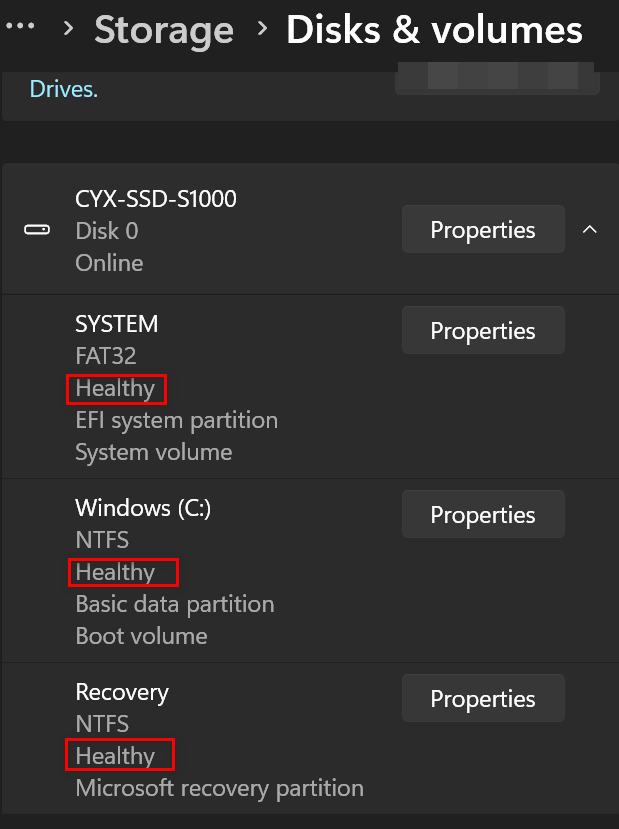
Look under the drive you’re checking (normally you’ll check “Windows C” and “System”). You’ll see a short description and the drive status: “Healthy,” “Warning,” or “Bad.”

The Free
VPN Hidden Right inside Your Windows PC
Windows 10 / Windows 11 / Microsoft Edge
If you watch any video online or listen to a podcast, you’ve probably been bombarded by ads for paid VPN services. They love to use scare tactics—making it sound like a hacker is waiting behind every corner to steal your identity if you don’t fork over a monthly subscription fee.
Let’s be honest, if you are sitting at home on your private, password-protected home Wi-Fi network, you generally do not need a VPN.
However, there is one place where a VPN is an absolute must: public Wi-Fi. When you connect to the open, password-free networks at the airport, a coffee shop, the grocery store, or a restaurant, your device’s connection is wide open. Anyone else sitting on that same network with a cheap piece of snooping software can intercept the data flowing out of your laptop.
If you just want to protect yourself on public Wi-Fi without buying another subscription, the tool you need is already sitting on your computer. It’s built right into Microsoft Edge.
The Microsoft Edge “Secure Network”
Maybe you don’t like it and don’t use Edge, and that’s fine. But one thing is for sure: every Windows 10 and Windows 11 computer comes with Edge installed. That means if you are using a Windows PC, you have access to a free VPN when you find yourself needing or wanting to use an insecure public network.
Microsoft quietly partnered with Cloudflare (one of the largest internet infrastructure and security companies in the world) to build a free VPN right into the Edge browser. It’s called Secure Network.
Every single Windows user who logs into Edge with a standard, free Microsoft account automatically gets 5 GB of free encrypted data every single month.
While 5 GB isn’t enough to stream movies all day, it is more than enough to safely check your email, log into your bank account, buy a plane ticket, or do some online shopping while sitting at a coffee shop or waiting for a flight.
How to Turn It On
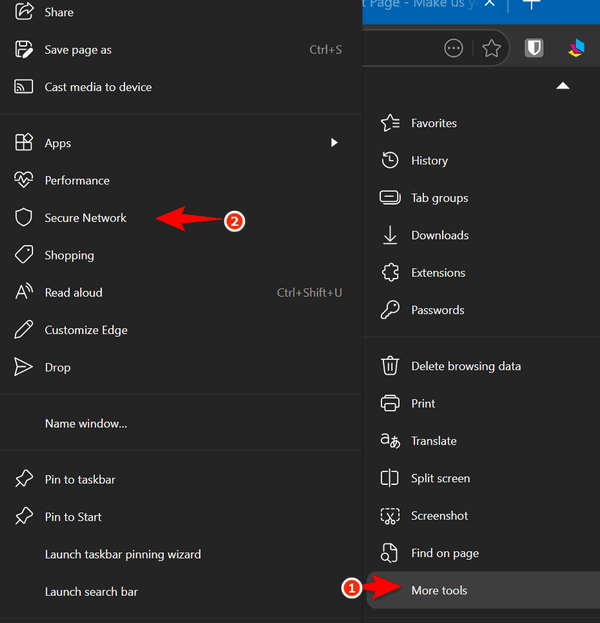
Because Microsoft hides this feature a bit, most users have no idea it exists. Here is how to find and activate it:
-
Open Microsoft Edge.
-
Click the three dots in the top right-hand corner.
-
Hover your mouse over More tools and select Secure Network from the slide-out menu. Alternatively, you can just click the small Shield icon that appears next to your address bar.
-
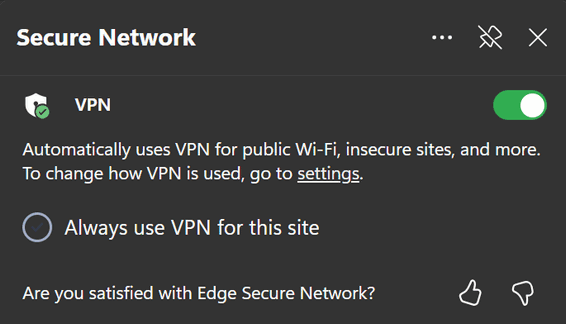
Toggle the feature to On.
The “Optimized” Mode
When you turn it on, Edge defaults to an Optimized setting. This means the VPN is smart. It stays completely turned off while you are browsing safe, secure networks. But the second you connect to an open, public Wi-Fi hotspot, it automatically kicks in and encrypts your browsing data.
Even better, unlike commercial VPNs that pretend you are in Iceland or Japan—which often causes websites to lock you out or think you’ve been hacked—Edge routes your data through a local secure hub. Websites will still see you as being in your general region, so local news, weather, and maps still work perfectly.
It’s free, it’s already installed, and it solves the one real security headache the average browser faces on the road. Give it a try next time you take your laptop out of the house.
Want more tips, tricks, and information?
We have thousands of Windows tips, tricks, and more on our InfoAve website.
Subscribe to our free InfoAve Daily newsletter.

THANK YOU FOR HELPING US!
When you support us with a small gift, you help us continue our
mission to keep you informed, separate the truth from the hyperbole,
and help you stay safer online. Plus, our computer tips make your
computer easier to use.
Did you know that we provide support to thousands of people? Every
week, we help dozens of people via email at no charge. The questions
and answers you see in our newsletters are from the email answers and
help we provide to everyone free of charge.
Thanks to your gifts, we do a lot more than provide this free newsletter. We help you recognize online threats, fight for your online privacy, provide you with the knowledge you need to navigate the Web safely, provide you with suggestions for safe, free software and websites, and help you get more out of your PC.
Please help us keep up the good fight with a small gift.
Interested in making an automatic monthly gift? Visit this page. Help us keep helping you... and help us keep you safe on the Web.

Save Money on Food & Cut Down on Waste…Let’s Eat!
Sometimes, perfectly good food gets tossed out just because it looks a little funny. Maybe a carrot has a weird shape or a pepper has a tiny bruise. It’s a shame to waste it, especially when it’s still fresh and tastes great. And sometimes perfectly good food is tossed just because its getting near its “Best used by” date. It’s still good to eat, but it gets thrown away.
A few services are now making it easy to save that food, save some money, and/or get groceries delivered right to your door or pick up from a local shop.
You will need an Android or an iPhone to take full advantage of these special services – and they are available in the USA only (for now).
Let’s dig and see how it works.
Misfits Market & Imperfect Foods
These two companies teamed up to help cut down on waste. They source “ugly” produce—fruits and vegetables that stores won’t buy because they aren’t “perfect” looking—and deliver them to your home.
What you get
Boxes filled with fresh produce and pantry basics for less than you’d pay at a typical supermarket.
It’s convenient, the quality is high, and you’re keeping good food out of the landfill.
Learn more at misfitsmarket.com
Too Good To Go
This one is a little different. It’s an app that connects you with local restaurants, bakeries, and cafes that have extra food at the end of the day that didn’t sell.
What you get
You purchase a “Surprise Bag” through the app and pick it up at the shop before they close. It’s a great way to get a deal on fresh bread, pastries, or even a full lunch.
You help out local businesses, cut down on waste, and get a bargain.
Learn more at toogoodtogo.com
Flashfood: A Great Way to Save on Groceries
If you’re looking for another helpful tool to add to your list, Flashfood is a fantastic option. While some apps focus on “surprise bags” or produce boxes, Flashfood works directly with grocery stores to help them sell items that are nearing their “best-by” date.
What you get
You can browse real-time inventory from local grocery stores right in the app, picking out specific items like meat, dairy, produce, and bakery goods at a steep discount (often 50% off or more).
Unlike other services where you don’t know exactly what you’re getting until you pick it up, Flashfood lets you hand-pick exactly what you need for your weekly meals. It’s perfect for planning your groceries around what’s on sale.
How it works
You buy the items through the app, then head to the store’s designated pickup zone—usually near the customer service desk—to collect your order.
Learn more at flashfood.com
These three services—Misfits Market/Imperfect Foods, Too Good To Go, and Flashfood—all offer different ways to rescue great food while keeping a bit more money in your pocket.
Saving food doesn’t have to be complicated. Whether you’re ordering a box for the week or grabbing a surprise bag from a local shop, it’s a simple way to make sure good food gets eaten.

Take This for Example
The English language is strange. Whether other languages are as
strange, I do not know; I'm only vaguely familiar with Spanish.
I can say useful phrases such as, "Where is the bathroom?"
"Where is the beach?" "Brush my teeth," and "Where is the dog?"
Anyway, let's get back to English, the only language I'm
intimately knowledgeable about (though some of you will strongly
disagree).
Let's take the word "take" for example. Apparently, we are a
nation of takers. We are told to take a break, take a nap, and
take a vacation. Then, once we have taken all of those, we are
told to relax and take it easy. But using the word "take" like
that is a huge linguistic leap. In fact, that kind of taking
might be a logistical impossibility.
If you could really take a nap, or take a break, where would you
take it from? Is there a lost-and-found bin somewhere where old
breaks are stored? Is there a shelf at the store next to the
hand lotion labeled "Breaks—Small, Medium, and Large"? I went
looking for one yesterday, but all I found was a sale on lip
balm. If I cannot find a break, I certainly cannot take one.
And then there is the nap. People tell you to "take a nap"...
Read the rest of this essay here.

Why Is the Mouse Arrow Tilted?
Have you ever noticed that your Windows mouse pointer sits at a slight, quirky angle instead of pointing straight up? It’s actually a fix for a 40-year-old problem.
Back in 1981, engineers at Xerox created the first computer mouse. Originally, they designed the arrow pointing straight up.
However, computer screens back then had very low resolution. The pixels were so big and blocky that a perfectly straight vertical arrow blended right into lines of text, making it nearly impossible to find.
To fix this, the design team tilted the arrow to the left by about 45 degrees. The angle created a sharp, distinct silhouette that immediately stood out against text and layout lines.
When Microsoft built the very first version of Windows, it kept the tilted design. We have crystal-clear screens today, but that little angled arrow remains a permanent nod to the early days

Sales of the following products and
services help support our newsletters, websites, and free computer
help services we provide.
Cloudeight Direct
Computer Care: Always a great deal. Cloudeight Direct Computer
Care is like having PC insurance.
Get more information here.
Emsisoft Anti-Malware:
Emsisoft is the only Cloudeight-endorsed and recommended Windows
security program. It provides users with a complete antivirus,
antimalware, anti-ransomware, and anti-PUPs solution. We offer single
Emsisoft licenses and multi-computer licenses at discount prices.
Also, we offer our exclusive Emsisoft with Cloudeight installation &
setup. Get more
information here.
Reg Organizer: Reg
Organizer is the Swiss Army Knife of Windows tools. It's far more than
just a registry optimizer and cleaner... it's a Windows all-in-one
toolkit. Reg Organizer helps you keep your computer in tip-top shape
and helps you solve annoying Windows problems. Reg Organizer works
great with Windows 10 and Windows 11!
Get more information about Reg Organizer (and get our special discount
prices) here.
MORE IMPORTANT STUFF!
Your InfoAve Weekly Members' Home Page is located here.
Help us grow! Forward this email newsletter to a friend or family member - and have them sign up for InfoAve Weekly here!
Get our free daily newsletter! Each evening, we send a short newsletter with a tip or trick or a computer-related article - it's short and sweet - and free. Sign up right now.
We have thousands of Windows tips and tricks and computer articles posted on our Cloudeight InfoAve website. Our site has a great search engine to help you find what you're looking for, too! Please visit us today!
Help us by using our Start Page. It costs nothing, and it helps us a lot.
Print our Cloudeight Direct Flyer and spread the word about our computer repair service! If you want to help us by telling your friends about our Cloudeight Direct Computer Care service, you can download a printable flyer you can hand out or post on bulletin boards, etc. Get the printable PDF Cloudeight Direct Computer Care flyer here.

We'd love to hear from you!
If you have comments, questions, a tip, a trick, a freeware pick, or just want to tell us off for something, let us know.
If you need to change your newsletter subscription address, please see "Manage your subscription" at the very bottom of your newsletter.
We received hundreds of questions for possible use in IA news. Please keep in mind we cannot answer all general computer questions. We try to personally answer as many as we can. We can only use a few in each week's newsletter, so keep this in mind. If you have a support question about a service or product we sell, please contact us here.
Subscribe to our Daily Newsletter! Get computer tips & tricks every night. Our daily newsletter features a computer tip/trick or two every day. We send it out every night around 9 PM Eastern Time (USA). It's short and sweet, easy to read, and FREE. Subscribe to our Cloudeight InfoAve Daily Newsletter!
We hope you have enjoyed this issue of Cloudeight InfoAve Weekly. Thanks so much for your support and for being an InfoAve Weekly subscriber.
Have a great weekend. Be safe!
Darcy & TC
Cloudeight InfoAve Weekly - Issue #1185
Volume 23, Number 26
June 26, 2026
Not a subscriber? Subscribe to our FREE Cloudeight InfoAve Weekly Newsletter here.
"Cloudeight InfoAve Weekly" newsletter is published by:
Cloudeight Internet LLC
PO Box 73
Middleville, Michigan, USA 49333-0073
Read our disclaimer about the tips, tricks, answers, site picks, and freeware picks featured in this newsletter.
Copyright ©2026 by Cloudeight Internet