
Cloudeight InfoAve Weekly
Issue #1187
Volume 23, Number 28
July 10, 2026
Dear Friends,
Welcome to Cloudeight InfoAve Weekly Issue #1187. Thank you for subscribing and for being a part of our Cloudeight family. We appreciate your friendship and support very much! Please share our newsletters and our website with your friends and family.

If you're not getting our InfoAve Daily newsletter, you're missing out on a lot of good stuff!
It's free and it only takes a few seconds to sign up. We'd love to have you with us. Visit this page to sign up for our Cloudeight InfoAve Daily Newsletter.

Beverly says her computer is low on
disk space and memory
When I check properties on OS(C), it says used space 139 GB and Free
space 78.7 GB, so it would seem memory should no longer be a
problem. Would you agree with that? The problem seems to be when I
am using Microsoft Edge. That is when things seem to go crazy. When
I am playing games or using Microsoft Word and Excel, the computer
works fine. I make my living playing the stock market, so I use
finance sites like Yahoo a lot, which means using Microsoft Edge.
When I have many tabs open in Microsoft Edge, it sometimes becomes
slow, and things can freeze. I am truly wondering if that is where
my whole problem lies.
Hi Beverly. That detail about Microsoft Edge and Yahoo Finance explains everything that is going on with your computer. To clear up the confusion about storage, your 78.7 GB of free disk space means your drive has plenty of room. The issue isn't your hard drive space at all; it is your physical memory, or RAM. Hard drive space holds your files permanently, while RAM is the temporary workspace (memory) the computer uses to run active programs. When you turn the computer off, the memory clears out completely.
The reason your games, Word, and Excel run well while Edge causes a meltdown comes down to how heavy modern websites are. Yahoo Finance is notorious for devouring physical memory. It isn't a static page; it is constantly streaming live stock tickers, flashing charts, updating percentages, and running heavy data scripts in the background. Every single window and tab you open acts like a separate, demanding program. When you have many of them open at once, they rapidly consume all of your physical RAM until the computer simply runs out of workspace, freezes, and triggers that recovery screen.
Because your system runs fine otherwise, your operating system is healthy, and you do not need to do a Windows Reset. Instead, we just need to change a couple of settings inside the Edge browser to make it manage memory better.
First, open Microsoft Edge, click the three dots in the top right corner, and go to Settings. On the left sidebar, click System and performance. Under the Optimize Performance section, turn on Efficiency mode and ensure that the option to save resources with sleeping tabs is switched on. This forces tabs you aren't actively looking at to go to sleep, so they stop stealing your RAM.
Second, give the browser a fresh slate by clearing out old, heavy background data. While inside Edge, press Ctrl + Shift + Delete on your keyboard. Set the time range to All Time, check the boxes for Cookies and Cached images and files, and click Clear now. You can leave your browsing history and passwords unchecked so you don't lose your saved sign-ins.
Try these two quick adjustments next time you are working, and they should instantly lighten the load on your system memory and stop the freezing while you track the market.
Simone gets a troublesome pop-up on Gmail
Hello. I keep getting a pop-up upon opening my Gmail account that says: "Oops, something went wrong. Recent changes have not been saved." What does this mean? And how do I fix the issue? Thanks!
Our answer
Hi Simone. That pop-up message does not mean your
account has been compromised or that you are losing your emails.
This specific pop-up usually appears when Gmail experiences a
temporary split-second disconnect from Google's servers. Because
Gmail tries to save your drafts and folder changes automatically
in real-time, it flashes this warning if the constant connection
drops for a moment. Lately, this has been a known minor glitch
often tied to an outdated browser cache, a conflict with a
browser extension, or even an image file in an email signature.
Have we helped you with your computer or helped you by answering your questions? Would you like to help us?

JoAnn needs help fixing her MS365 apps
Hi Darcy & TC. I need help fixing my Microsoft apps, Word, Outlook, etc. I have the yearly Microsoft plan that you recommended years ago, but recently stopped seeing the help screens saying my version is out of date. Also, I'm still on Win10 and wonder if I need to update to Win11. As always, thank you for your wonderful help! JoAnn
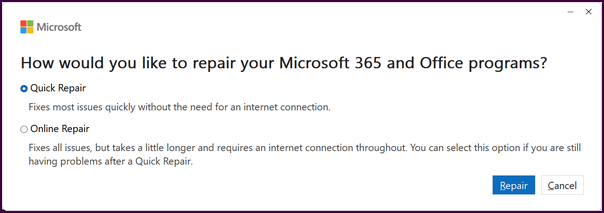

We can fix your Windows computer... check out our low prices here!
Larry is having keyboard issues
I haven't needed any computer help for years. I did have some online help since I was last on Cloudeight. I do remember I had 4 'keys' that I purchased on sale and never had to use. I did use your online service sometime after we had moved to Selbyville, Delaware, and it was fabulous. Anyway, you'll notice some of the handywork of my computer above, excessive keystrokes. The second problem just happened after I tried to type the period after the word 'above'; it took about 15 seconds. When you're typing a password and the computer hesitates or adds info, and it takes 5 or 10 minutes to plug in your password, it SUCKS!
I would definitely appreciate some help resolving this problem, a general cleanup, and any other positive magic you can accomplish. Thanks, Larry.
Our answer
Hi Larry, do you have a laptop or desktop? It looks
to me like you need a new keyboard. You can buy a new
wireless desktop keyboard for less than $30.
Marilyn says her desktop PC is locked.
My desktop computer is completely locked by a scammer. I can only get as far as the sign-in page. to sign in. Then it says locked. Do I have to buy a new computer? I am using a Google tablet to write to you.
Hi Marilyn. Your computer is not infected, and you do not need to buy a new one.
What you are seeing on your computer screen is a total fake. It is a very common internet trick designed to scare you into thinking your computer is broken, so you will call a number and give them money. The scammers have not actually locked your machine; they have just trapped your internet browser on a nasty webpage that won't let you click away normally.
Since you are using your tablet to read this, we can easily fix your computer without even needing to turn it off.
All you need to do is reach back behind your computer and unplug the internet cable, or turn off your home Wi-Fi for just a couple of minutes.
Once your computer loses its internet connection, that scary locking screen will freeze up. As soon as it freezes, you will be able to close that bad webpage by clicking the little "X" at the very top-right of the internet screen, or you can just restart the computer.
Once that page is gone, you can plug your internet back in or turn your Wi-Fi back on, and your computer will be right back to normal.
Just remember: never call any phone numbers that pop up like that, and never give them any money. Your computer is going to be just fine!
Have we helped you with your computer or helped you by answering your questions? Would you like to help us?
Jerry wants to know what's so great about the iPhone; his Android phone does everything he needs
Hi Jerry. If your Android phone already does everything you want it to, an iPhone won't be "better" for you. In fact, switching would probably just feel frustrating and way overpriced. The reason Apple products cost so much more than your Android isn't that the parts inside are twice as good. It really comes down to how Apple runs its business:
First, you are paying a huge "brand tax." Apple operates as a luxury status symbol. Because of that logo on the back, they can charge a massive markup that has nothing to do with the actual cost of the processors or screens inside. From a pure hardware-to-dollar ratio, Windows and Android win every single time.
Second, Apple controls a completely closed ecosystem. They own the phone, the operating system, and the App Store. Because they don't have to make their software work with tens of thousands of different apps and drivers from thousands of different manufacturers as Android and Windows do, their engineering job is a whole lot easier.
They use this closed system to build a "velvet cage" where everything they sell connects together smoothly. For example, if you have an iPhone and an Apple computer, you can copy text on your phone and instantly paste it onto your computer screen. Moving a file between their devices happens instantly without wires. Plus, because they approve every single app that goes onto their phones, it is very hard for a regular user to accidentally download a virus or a bad piece of software.
Finally, they have tailor-made efficiency. They custom-mold their software to their exact computer chips. An Android phone often needs twice as much RAM (memory) to stay fast because the Android software has to be generic enough to run on hundreds of different phone brands. Apple gets away with using lower specs because its software is hyper-optimized for its specific hardware.
People don't buy Apple because it has magical features that Android lacks—they buy it because it's Apple - it has a prestige factor. And they want a highly secure, simplified system where they never have to think about settings, customization, or compatibility.
But if you like having control over your device, want the best features for your money, and enjoy the freedom of an open system, your Android is already the superior choice. Apple is overpriced because it can get away with it.
Keep your money in your wallet, Jerry.

Now available: Reg Organizer 9.88
If you purchased or renewed Reg Organizer through Cloudeight within
the last 12 months, you're entitled to a free version upgrade to Reg
Organizer 9.8.8. Works great with Windows 10 and Windows 11.
Save $14 on Reg Organizer right now!
Reg Organizer - A Swiss Army Knife of Windows Tools - Works Great on Windows 10 and Windows 11.

HEADS UP
WINDOWS 10 USERS: You Can Now Use Windows 10 Safely Through
October 12, 2027
Windows 10
Microsoft Extends ESU Support for Windows 10 Through October 12, 2027
Well, look what Microsoft did now! If you are one of the millions of folks still happily clicking away on Windows 10, we have some fantastic news for you.
In a surprising but very welcome turn of events, Microsoft has quietly updated its official support pages to give Windows 10 users a whole extra year of life. The Extended Security Updates (ESU) program, which was originally set to wrap up in October 2026, has been officially extended to October 12, 2027.
What Do Current ESU Customers Have to Do?
If you already signed up for the ESU program to protect your computer, you are probably wondering what you have to do—or how much extra you'll have to pay to get this bonus year.
You don't have to do a single thing.
Microsoft confirmed that if your computer is already enrolled in the consumer ESU program, your coverage automatically rolls over to the new 2027 end date. You don't need to re-enroll, you don't need to change any settings, and you won't be charged a penny extra. Your monthly security patches will just keep arriving right through Windows Update, exactly as they have been all the way through October 12, 2027.
Not Enrolled Yet? It’s Not Too Late!
If you haven’t signed up for the ESU program yet because you were dreading the original 2026 deadline, Microsoft is making it easier (and cheaper) than ever to jump on board.
You can enroll your eligible Windows 10 PC (running version 22H2) by heading over to Settings > Update & Security > Windows Update and clicking the Enroll now link.
Microsoft offers three ways to get your machine covered until October 2027:
-
The Free Route: If you log into your PC with a Microsoft Account and turn on Windows Backup to sync your PC settings to OneDrive, Microsoft will give you the ESU coverage completely free of charge.
-
The Rewards Route: If you use Microsoft Rewards, you can redeem just 1,000 points to unlock your ESU license.
-
The Flat Fee Route: If you prefer to keep things local and skip the settings sync, you can make a one-time purchase of $30 USD.
-
A Reminder: One single ESU license can cover up to 10 of your personal devices. If you use the free backup method or buy the $30 license, you can add your other home Windows 10 PCs under the same account without paying or setting up anything extra.
Why the Sudden Change of Heart?
While Microsoft hasn't revealed the reasons for this extension, it isn't hard to read between the lines. Millions of perfectly fine, fast computers simply don't meet the strict hardware requirements to upgrade to Windows 11. Rather than leaving a massive chunk of the world's computers vulnerable to security risks, Microsoft decided to do the right thing and give everyone a little more time to transition to Windows 11 (or a new computer) on their own schedule.
So, if you love your Windows 10 machine and aren't ready to buy a new computer yet, you can relax. You've got until late 2027 to enjoy your Widows 10 PC with total peace of mind.
Introducing the Point-in-Time
Restore Feature in Windows 11
Windows 11
The new Point-in-Time Restore feature is a major upgrade from the classic System Restore. Instead of just saving basic system files, it creates an exact mirror of your entire setup at that moment.
The old System Restore only saved system settings and left your apps and files in a weird limbo. This new version takes a complete, comprehensive snapshot of your entire PC state—meaning it rolls back your operating system, your settings, your apps, and your local files all at once.
Windows automatically takes these snapshots every 24 hours. You don't have to remember to do a thing.
Remember: Point-in-Time is a safety net, not a full-blown image backup. It only keeps these snapshots for up to 72 hours. It’s strictly meant to rescue you from unexpected disasters, not to restore something you accidentally deleted three months ago.
The Big Catch (Hold on there, pardner! Whoa!!)
Because this resets the entire state of your computer to an exact moment in time, any local files you created or edited after that snapshot was taken will be permanently lost.
Anything saved to cloud services like OneDrive or Google Drive is completely safe and won't be touched. But if you saved a brand new spreadsheet or photo strictly to your local Desktop or Documents folder an hour ago, and then you roll back to yesterday's snapshot, that file will vanish. Always keep this in mind before starting a Point-in-Time recovery.
How to check it out or use it right now
If you are running a standard Windows Home or Pro machine, every 24H2 or newer Windows 11 PC with a decent-sized hard drive has Point-in-Time. Microsoft has actually turned this on by default. You can check its status right now by going to:
Settings > System > Recovery > Point-in-time restore
If your computer ever completely crashes and refuses to boot up normally, Windows will automatically kick you into the blue Recovery Screen after a few failed attempts to boot into Windows. From there, you just click Troubleshoot > Point-in-time restore, enter your BitLocker recovery key if you use BitLocker; otherwise, you just pick your timestamp, and let it restore your computer and get it back up and running with minimal data loss.
Point-in-Time ensures you'll never again have to spend hours formatting your PC or doing a full reinstallation of Windows just because of a computer disaster.
I looked, but I don't see Point-in-Time!
If you don't see Point-in-time restore in Settings > System > Recovery yet, here's why:
While Microsoft officially announced the feature and built the framework into the 24H2 foundation, they are currently testing it via a gradual rollout. Because it actually touches and changes your local user files (unlike old system recovery tools), Microsoft is being uncharacteristically cautious. Really! They are slowly activating the setting via background Windows Updates. If you don't see it, your specific machine hasn't been handed the active "toggle switch" from Microsoft's servers yet.
---OR---
Your hard drive is too small (Yes, size matters!)
Is your C: drive smaller than 200 GB? (For example, a 128GB SSD). If so, Windows automatically disables and hides the interface menu. Do you have less than 20 GB of free space left? If your storage is heavily choked, the OS will automatically suspend the feature so it doesn't cause your computer to lock up.
If you're wondering how much better Point-in-time is than System Restore, here's a comparison:
Classic System Restore
Core Function: A long-standing recovery tool that rolls back a PC to a previous state by reverting system files, registry settings, drivers, and apps.
Creation: Restore points can be generated manually by the user or automatically before major system changes.
Data Impact: Only affects system files; it does not touch or recover personal files and documents.
Retention: Starting with the Windows 11 24H2 update in 2025, restore points are kept for a maximum of 60 days.
Underlying Tech: Relies on the Volume Shadow Copy Service (VSS) to take system snapshots without interrupting workflow.
New Point-in-Time Restore
Core Function: A modernized, highly precise backup tool arriving in Windows 11 that captures the entire PC state—including user files, apps, settings, passwords, and keys.
Data Impact: Because it reverts the entire local system, any local files or changes made after the snapshot will be lost (cloud storage like OneDrive remains untouched).
Schedule & Retention: Operates purely on an automated schedule (new snapshots every 4, 12, 16, or 24 hours). Snapshots are only held for a maximum of 72 hours. Regular users cannot manually create these snapshots.
Storage Requirements: This is an optional feature located in the modern Settings menu. It is enabled by default on drives 200GB or larger, defaulting to 2% of total drive capacity (a minimum of 2GB must be reserved).
Future Features: Microsoft plans to add remote management support in future updates.

The “Scroll-Over” Volume Trick
Windows 11
This is a small, hidden adjustment Microsoft added to Windows 11 that completely removes the need to click open a slider to adjust the volume on a webpage, YouTube video, or music player.
Normally, when you want to change the volume on your computer, you have to move your mouse to the little speaker icon in the bottom-right corner, click it, wait for the menu to pop open, and then drag the volume slider left or right.
But now, on Windows 11, there is a built-in shortcut that completely skips the clicking.
Here’s How to Do It
The next time you are listening to music, watching a video, or on a video call:
Move your mouse cursor down to the bottom right corner of your screen and rest it directly over the Speaker icon (or anywhere on the time/battery icons right next to it).
Do not click.
Simply roll your mouse’s scroll wheel upward to turn the volume up, or roll the wheel downward to turn the volume down.
A small volume indicator will instantly slide onto the screen, showing the numbers changing, and it will respond immediately. It lets you instantly mute an annoyingly loud video or boost the volume in a fraction of a second, without having to interrupt what you are looking at on the main part of your screen.
Hopefully, that trick was one you didn’t already know. It’s good to learn something new every day!
Want more tips, tricks, and information?
We have thousands of Windows tips, tricks, and more on our InfoAve website.
Subscribe to our free InfoAve Daily newsletter.

THANK YOU FOR HELPING US!
When you support us with a small gift, you help us continue our
mission to keep you informed, separate the truth from the hyperbole,
and help you stay safer online. Plus, our computer tips make your
computer easier to use.
Did you know that we provide support to thousands of people? Every
week, we help dozens of people via email at no charge. The questions
and answers you see in our newsletters are from the email answers and
help we provide to everyone free of charge.
Thanks to your gifts, we do a lot more than provide this free newsletter. We help you recognize online threats, fight for your online privacy, provide you with the knowledge you need to navigate the Web safely, provide you with suggestions for safe, free software and websites, and help you get more out of your PC.
Please help us keep up the good fight with a small gift.
Interested in making an automatic monthly gift? Visit this page. Help us keep helping you... and help us keep you safe on the Web.

Cloudeight Site Pick: 123apps
We love it when our readers share their favorite internet discoveries with us! We were recently made aware of a fantastic website called 123apps by long-time reader Leslie W., who wrote in and asked us to check it out. Well, Leslie, we did, and you hit the nail right on the head—this one is an absolute gem and a certified Cloudeight Site Pick!
Have you ever needed to trim a few seconds off a video clip, chop down an audio file to make a ringtone, or convert a tricky PDF document into something you can edit in Word? Usually, tasks like these mean hunting down, downloading, and installing bulky software, or worse, sneaking in unwanted junkware.
123apps solves all of that. It is essentially a digital Swiss Army knife right inside your web browser.
The site bundles dozens of single-purpose, incredibly simple tools into one clean page. You don’t have to install anything. Just visit the site, click the tool you need, upload your file, let it do its magic, and download the finished product. It’s fast, neat, and very easy to use.
Free vs. Premium
When you visit the site, you will notice two levels of service
available: a Free version and a Paid Premium tier.
We are specifically featuring and recommending the Free version, which we have tested using many of the apps on the site. While the premium tier removes ads and lets you upload massive files, the free version is more than adequate for most users. If you are editing everyday photos, converting standard audio tracks, or manipulating normal-sized PDF files, you will likely never need to spend a single dime.
123apps covers an amazing variety of daily tasks:
Video Tools: Trim, crop, rotate, change speed, or loop videos.
Audio Tools: Change volume, join multiple audio tracks together, or convert audio formats.
PDF Tools: Split, merge, compress, protect, or convert PDFs to Word, Excel, and JPG.
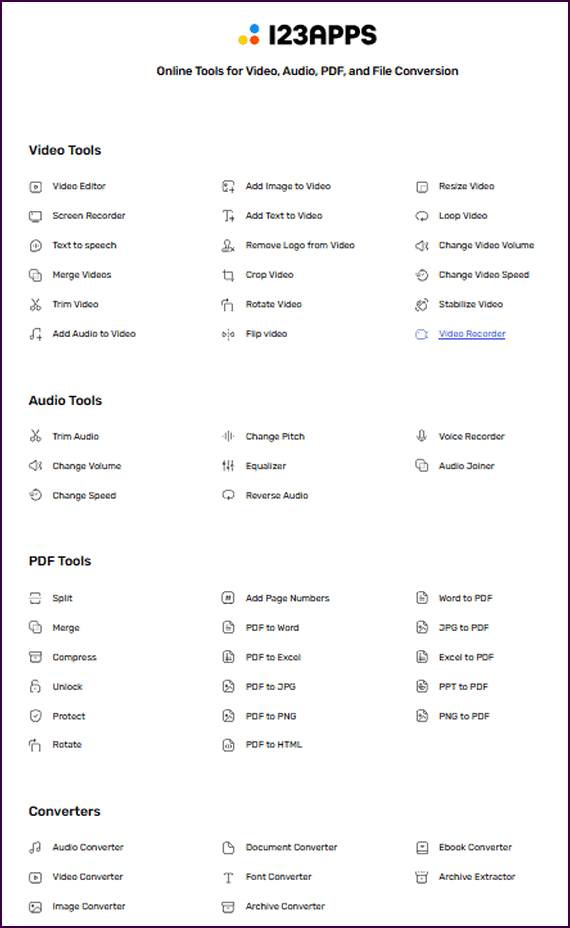
A big Cloudeight thank you to Leslie W. for bringing this amazing resource to our attention.
If you are looking for a collection of incredibly handy tools, all in one place, ready for the next time a stubborn file refuses to cooperate, you’ll want to give it a look.
Check out our newest Cloudeight Site Pick at https://123apps.com/

.Always In Between
Imagine you are a wave on the ocean, and you’re born of the salt
and the wind. As you are born, you see nothing but the blue of
the sea and an endless journey before you.
You are small and insignificant – there are mightier waves all
around you. You are young and light, aqua and translucent. You
are a tiny wave traveling the ocean, protected and comforted,
hidden by the bigger waves all around you.
And for the longest time, you travel the ocean drifting between
magnificent blue swells and gigantic angry waves, old and
crested with white, bitter and ancient and sad. And wise.
Read the rest of this essay here.

Keyboard tricks
Most people use Backspace exclusively to erase text. But
mechanically, Backspace deletes characters to the left of your
flashing cursor, while Delete (often labeled Del) erases
characters to the right of it. If you want to take this to the
next level, hold down the Ctrl key while you press either one.
Instead of painfully deleting one single letter at a time, Ctrl
+ Backspace will vaporize the entire word behind your cursor,
and Ctrl + Delete will wipe out the entire word in front of it.
Mastering this distinction doesn't just speed up your typing; it
also explains why hitting Delete while selecting a file in
Windows sends it straight to the Recycle Bin, while hitting
Backspace in a file folder simply takes you back to the previous
folder you were looking at. They are entirely different commands
masquerading as the same button.

Sales of the following products and
services help support our newsletters, websites, and free computer
help services we provide.
Cloudeight Direct
Computer Care: Always a great deal. Cloudeight Direct Computer
Care is like having PC insurance.
Get more information here.
Emsisoft Anti-Malware:
Emsisoft is the only Cloudeight-endorsed and recommended Windows
security program. It provides users with a complete antivirus,
antimalware, anti-ransomware, and anti-PUPs solution. We offer single
Emsisoft licenses and multi-computer licenses at discount prices.
Also, we offer our exclusive Emsisoft with Cloudeight installation &
setup. Get more
information here.
Reg Organizer: Reg
Organizer is the Swiss Army Knife of Windows tools. It's far more than
just a registry optimizer and cleaner... it's a Windows all-in-one
toolkit. Reg Organizer helps you keep your computer in tip-top shape
and helps you solve annoying Windows problems. Reg Organizer works
great with Windows 10 and Windows 11!
Get more information about Reg Organizer (and get our special discount
prices) here.
MORE IMPORTANT STUFF!
Your InfoAve Weekly Members' Home Page is located here.
Help us grow! Forward this email newsletter to a friend or family member - and have them sign up for InfoAve Weekly here!
Get our free daily newsletter! Each evening, we send a short newsletter with a tip or trick or a computer-related article - it's short and sweet - and free. Sign up right now.
We have thousands of Windows tips and tricks and computer articles posted on our Cloudeight InfoAve website. Our site has a great search engine to help you find what you're looking for, too! Please visit us today!
Help us by using our Start Page. It costs nothing, and it helps us a lot.
Print our Cloudeight Direct Flyer and spread the word about our computer repair service! If you want to help us by telling your friends about our Cloudeight Direct Computer Care service, you can download a printable flyer you can hand out or post on bulletin boards, etc. Get the printable PDF Cloudeight Direct Computer Care flyer here.

We'd love to hear from you!
If you have comments, questions, a tip, a trick, a freeware pick, or just want to tell us off for something, let us know.
If you need to change your newsletter subscription address, please see "Manage your subscription" at the very bottom of your newsletter.
We received hundreds of questions for possible use in IA news. Please keep in mind we cannot answer all general computer questions. We try to personally answer as many as we can. We can only use a few in each week's newsletter, so keep this in mind. If you have a support question about a service or product we sell, please contact us here.
Subscribe to our Daily Newsletter! Get computer tips & tricks every night. Our daily newsletter features a computer tip/trick or two every day. We send it out every night around 9 PM Eastern Time (USA). It's short and sweet, easy to read, and FREE. Subscribe to our Cloudeight InfoAve Daily Newsletter!
We hope you have enjoyed this issue of Cloudeight InfoAve Weekly. Thanks so much for your support and for being an InfoAve Weekly subscriber.
Have a great weekend. Be safe!
Darcy & TC
Cloudeight InfoAve Weekly - Issue #1187
Volume 23, Number 28
July 13, 2026
Not a subscriber? Subscribe to our FREE Cloudeight InfoAve Weekly Newsletter here.
"Cloudeight InfoAve Weekly" newsletter is published by:
Cloudeight Internet LLC
PO Box 73
Middleville, Michigan, USA 49333-0073
Read our disclaimer about the tips, tricks, answers, site picks, and freeware picks featured in this newsletter.
Copyright © 2026 by Cloudeight Internet