
Cloudeight InfoAve Weekly
Issue #1189
Volume 23, Number 30
July 24, 2026
Dear Friends,
Welcome to Cloudeight InfoAve Weekly Issue #1189. Thank you for subscribing and for being a part of our Cloudeight family. We appreciate your friendship and support very much! Please share our newsletters and our website with your friends and family.

If you're not getting our InfoAve Daily newsletter, you're missing out on a lot of good stuff!
It's free and it only takes a few seconds to sign up. We'd love to have you with us. Visit this page to sign up for our Cloudeight InfoAve Daily Newsletter.

Brenda gets a white square covering
part of her screen
When I turned on my laptop computer this morning, I had a white
square in the top left-hand corner of my screen. It measures 4X5-3/4
inches. I have tried to restart my computer, and I have tried
changing my background under Personalize Your Device. Nothing gets
rid of it. Do you have any suggestions?
Our answer
Hi Brenda, if you've noticed a strange, blank white box taking up a
corner of your desktop lately, you are definitely not alone.
According to reports, a growing number of Windows 10 and Windows 11 users are waking up their computers only to find a stubborn "white window" blocking parts of their screen. This glitch usually pops up right after starting up, restarting, or unlocking your PC. Because the window covers a pretty big chunk of your desktop, it can be incredibly frustrating since it completely blocks you from clicking on anything underneath it.
The good news is that it isn't permanent. You can read more about what's causing this issue and find the step-by-step fix by visiting this page.
I hope this helps you, Brenda!
Buji wants
to know what we think of a new AI-Powered office suite
What do you think of the new WPS AI-Powered Office Suite "free"
download? Is it risky to use? Thanks!
Our answer
Hi Buji. The basic office suite (Word, Excel, and PowerPoint
alternatives) is completely free, runs fast, and handles
Microsoft files perfectly. It even organizes everything into
convenient browser-like tabs.
However, the "free" tag on the new AI features is a bit of a catch. It works on a credit system—you get a small handful of free credits to try the AI out, but once those run out, the AI features lock up until you pay for a premium subscription. The free version also includes sidebar advertisements.
It's a good free alternative to Microsoft Office for standard document editing, but if you are downloading it solely for a free AI assistant, you are better off just using a web-based AI tool.
Have we helped you with your computer or helped you by answering your questions? Would you like to help us?

Mary
wants to know if Lotus software will run on Windows 10
Will my Lotus WordPro and Lotus 1-2-3 work on
Windows 10?
Our answer
Hi Mary. If you are using the older, classic DOS or
Windows 3.1 versions of Lotus 1-2-3, they will not run
natively on Windows 10. To have the best chance of
success, you need Lotus SmartSuite Millennium Edition
(specifically version 9.8). This was the final 32-bit
version ever released, which allows Windows 10 to
attempt to read it. It's not made to run on Windows 10,
but you might be able to make it run if you can have or
can find or have the Lotus SmartSuite Millennium Edition
version 9.8. But even if you find that version, you'll
have to put up with some major glitches. And,
unfortunately, this is not something I can help with as
I'm not familiar with Lotus software at all. For those
using Windows 11, you'll run into even bigger
roadblocks..

We can fix your Windows computer... check out our low prices here!
Ted has questions about
iDrive and OneDrive
I have a question: I have both OneDrive and
iCloud, so my system and files are backed up. However, I
would like my files on my computer as well. Is there a
way to do that?
Our
answer
Hi Ted. Both OneDrive and iCloud have settings that
allow you to keep copies of your files permanently on
your computer’s local drive, rather than just keeping
them in the cloud to save space. I don't use iCloud or
any Apple product, so I'll include a link to Apple's
support page telling you how to keep copies of your
files on your computer.
2. Locate your OneDrive folder on the left sidebar.
3. Right-click on the main OneDrive folder or select specific folders inside it.
4. Click "Always keep on this device".
2. Click the Gear icon Settings) > Settings.
3. Go to the Sync and backup tab and click Advanced settings.
4. Under "Files On-Demand", select Download all files.
Joy bought a Samsung tablet and wants to know how to stay secure using it on Public Wi-Fi
Hi TC. I recently bought a new Samsung 11+ tablet to use when traveling. I set it up, transferring data (including banking & passwords autofill) from my Emsisoft-secured laptop. However, when traveling, I use whatever hotel Wi-Fi system is offered. How can I secure this tablet from hackers while traveling and using it out of the home? I am very much a non-tech person, so please be detailed. Thanks a bunch.
Hi Joy. The easiest way is with a browser-based VPN. The easiest way to do that is to install Firefox for Android on your Samsung tablet. When traveling and using public Wi-Fi, you can just click the VPN button on the Firefox toolbar. You get 50 GB of free monthly VPN protected data, which is plenty. Just be sure you turn off the VPN when watching movies or videos on your tablet, or that will use up your 50 GB of free VPN data quickly. You can read more at https://play.google.com/store/apps/details?id=org.mozilla.firefox&hl=en_US, and you can download Firefox for your Samsung tablet from the Google Play Store.
Once you install Firefox on your tablet, you'll see the VPN button (turn VPN on/off) on the toolbar. Click it to turn it on when on public networks - click it off when on secure networks.
I hope this helps, Joy.
Have we helped you with your computer or helped you by answering your questions? Would you like to help us?
Cathy's desktop wallpaper turns black
I have been having this problem. Every time I get out of my settings and get on the home screen, my background color goes to black. I can still read everything on the screen. How can I keep it from going black? Cathy
Hi Cathy. Windows 11 has a known, frustrating little glitch where the desktop background (your wallpaper) turns black, but your icons and taskbar remain visible. This usually happens because Windows "loses" the path to your wallpaper file or has a temporary problem when exiting the Settings app.
Here are some of the easiest solutions:
Restart "Windows Explorer" (The Quickest Fix)
Instead of restarting your whole computer, you can restart just the system that runs your desktop and settings menu. This usually wakes your background right back up.
1. Open Task Manager: Press the Ctrl + Shift + Esc keys on your keyboard at the same time to open the Task Manager.
2. Find Windows Explorer: In the list of processes (under the "Processes" tab), scroll down until you find Windows Explorer. (It looks like a little yellow folder icon).
3. Restart it: Right-click on Windows Explorer and select Restart. Your screen might flicker for a second, and your wallpaper should instantly reappear.
Check Accessibility Settings
Press Windows Key + U, click on Visual effects (right near the top of the list). Make sure the toggle for Animation effects is turned ON. Sometimes, turning this off to make Windows run faster accidentally tricks the computer into disabling the desktop wallpaper as well.
Check the Image File You're Using for a Desktop Background
If the image file you are using is stored on a USB drive, an external hard drive, iDrive, or OneDrive, Windows can temporarily "lose" it when you close Settings.
Find the picture you want to use as your background in your folders.
Right-click on the image file and select Set as desktop background.
To prevent this from happening again, make sure the picture is saved directly in your computer's Pictures folder (on your main C: drive) rather than a cloud folder or external drive.
These are the easiest solutions. If you still have problems, let me know.
Now available: Reg Organizer 9.88
If you purchased or renewed Reg Organizer through Cloudeight within
the last 12 months, you're entitled to a free version upgrade to Reg
Organizer 9.8.8. Works great with Windows 10 and Windows 11.
Save $14 on Reg Organizer right now!
Reg Organizer - A Swiss Army Knife of Windows Tools - Works Great on Windows 10 and Windows 11.

How to Turn On the Scareware
Blocker in Microsoft Edge
Windows 10/Windows 11/Microsoft Edge
We’ve all seen them: those terrifying pop-up alerts that scream your computer is infected with 47 viruses, or that your system is about to crash unless you call a toll-free “Microsoft Support” number immediately. Or even worse, it locks your screen and prevents you from doing anything on your computer (unless you’re very computer-savvy) until you pay the scammers to fix it.
This is scareware. Scareware is software designed to trick you into believing your computer has a major problem, so you buy useless or harmful apps or repair and cleanup services. It is one of the most common ways everyday computer users get scammed.
Thankfully, if you use Microsoft Edge, there is a built-in feature specifically designed to block these shady, low-reputation scareware sites and related apps before they even reach your machine. This feature is called “Scareware blocker
Today, we’re going to show you how to switch it on and keep your PC safer/
How to Turn on the Scareware blocker in Microsoft Edge
To activate this protection, follow these quick steps:
1. Open the Edge Settings menu:
Open Microsoft Edge. Click on the three dots (…) in the upper-right corner of your browser window and select Settings near the bottom of the drop-down menu.
2. Go to Privacy, Search, and Services:
In the left-hand sidebar, click on Privacy, Search, and Services (it has a lock icon next to it).
3. Scroll down to the Security section:
Scroll down the page until you find the Security heading. Under this
section, locate the toggle switch labeled Scareware blocker.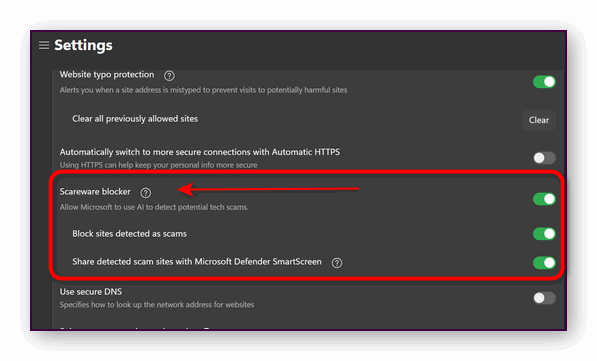
4. Toggle the main Scareware blocker switch to ON:
Click the toggle switch next to Scamware blocker so that it turns green – two additional settings, “Block sites detected as scams”, and “Share detected scam sites with Microsoft Defender Smartscreen”, will also turn on. If you don’t want to share scamware sites with Microsoft, you can turn that switch off.
However, remember that your screenshots and images remain strictly on your computer, as this analysis runs locally. The only thing Microsoft ever sees is the addresses of flagged scareware sites. This goes straight to Microsoft Defender SmartScreen so it can wave a red flag if you (or anyone else) try to visit them.
Take 30 seconds to turn on Edge’s Scareware blocker today—it is one of the easiest ways to save yourself a lot of grief down the road.
You Can’t Trust Your Eyes (or
Your Caller ID) Anymore!
A tip for everyone
Today, we want to talk about a devastating scam that is draining bank accounts nationwide.
It starts with a phone call. You glance at your screen, and the Caller ID displays your bank’s real name and number. You could even Google that number mid-ring to confirm it—and it checks out.
The voice on the other end sounds calm and professional. They tell you someone’s attempting to drain your account through Zelle or Cash App, and they need your immediate help to stop it.
Just because it looks like your bank, talks like your bank, or calls from your bank’s phone number doesn’t mean it is your bank.
AI Makes the Illusion Complete
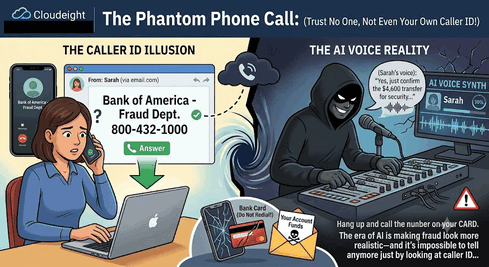
We’re now in an age where advanced AI and spoofing tools let scammers hijack your Caller ID display with ease, showing your actual bank’s info. Beyond that, AI can replicate a real fraud department’s tone, phrasing, and even ambient office sounds with startling accuracy.
These criminals don’t need to hack your account—they just need to make you panic. They’ll coach you through steps to supposedly “reverse the fraud” or “secure your funds” in a different account.
Here’s the catch: you end up authorizing the transfer with your own hands. Since you technically approved it, banks and apps typically deny refund requests. A Chicago woman lost $4,600 in mere minutes this way, and her bank refused to return any of it. (Notably, Cash App’s parent company recently paid $45 million to settle a lawsuit over misrepresenting these protections to customers.)
Our Golden Safety Rule
So how do you stay safe when even Caller ID can lie to you? One rule covers it all: If you get an unexpected fraud call from your “bank”? Hang up immediately.
Skip the argument, skip the explanation, and never use the redial button or call back the number that called you. Instead, find your debit or credit card, flip it over, and dial the number printed on the back. Or open your browser, type in your bank’s official website address yourself, and pull their verified contact info from there.
Things a Real Bank Will Never Ask You To Do:
- Move money into a “safe” account.
- Send yourself funds via Zelle or Cash App to undo a fraudulent charge.
- Read a one-time security PIN back to them over the phone.
Any pressure to act fast before “more money disappears” is a clear sign of fraud. Pause, hang up, and reach out through a number or website you verified yourself—never one the caller gave you.

Clicking the Unsubscribe Link in Unwanted Emails Might Be the
Worst Thing You Can Do
For everyone who uses
email
We’ve all been there. You open your email, and there it is: another junk email message about a miracle drug, discount vacations you never asked for, a “once-in-a-lifetime” investment opportunity, or something equally spammy. Your first thought is clicking that tempting “Unsubscribe” link at the bottom of that email. But hold on a minute. What if I told you that clicking that seemingly innocent link is often the worst thing you can do?
Why You Should Never Click the Unsubscribe Link or Button In a Spam Email or Other Email You Didn’t Ask For
1. You’re Confirming You’re a Real Person (and that your email address is active)
Spammers send out millions of emails, hoping to find active email addresses. When you click that unsubscribe link, even if it doesn’t unsubscribe you, you’ve just told the spammer, “Hey! This email address is real; it’s active, and someone is actually reading your emails!
Now you’re no longer just a random address on a list; you’re a verified spam target. And guess what? And you can bet the spammer will probably sell your “active” email address to other spammers, meaning you’ll likely get even more spam. It’s like saying, “Yes, please, send me more junk!”
2. It Could Be a Trap! (Phishing and Malware)
Here’s something even scarier. Not all “unsubscribe” links or buttons are just trying to confirm your email. Some are malicious links designed to trick you into trouble. Clicking these links might take you to a fake website that looks legitimate (like a bank or a well-known online store). It might then ask you to “log in” to confirm your unsubscribe request, and wham! You’ve just given your username and password directly to a scammer. They can then use that information to access your real accounts.
Also, clicking an unsubscribe button or link can silently download harmful software (malware, Trojans, spyware) onto your computer or phone. You probably won’t even realize it’s happening until it’s too late and your device is compromised.
Spammers are sneaky. They know you want to clean up your inbox, and they exploit that natural desire to trick you.
3. Spammers don’t play fair. They don’t have any rules. The unsubscribe button or link might not even work!
Legitimate companies, like us, are legally required to provide an unsubscribe option, and those work. But spammers? They don’t care about rules or laws. Their goal is to get your attention and potentially your money or data. So, even if you click their fake “unsubscribe” link, it’s highly unlikely they’ll actually remove you from their list. They’re just looking for you to confirm that your email address is active or to trick you.
So, What Should You Do with Spam Emails?
Instead of clicking the unsubscribe button or link in spam emails, here’s the safer approach:
Mark it as Spam/Junk
Every email service (Gmail, Outlook, Yahoo, etc.) has a “Report Spam” or “Mark as Junk” button. When you use this, you’re not just deleting the email; you’re teaching your email provider’s spam filter that this kind of message is spam. Over time, your email provider’s spam filters get smarter and will automatically send similar emails straight to your spam folder, where you’ll never have to see them.
Delete It
Once you’ve marked it as spam (or if you just know it’s junk without even opening it), delete it. Out of sight, out of mind.
Block the Sender
Most email services also allow you to block specific senders. This is a good option if you are getting messages from the same annoying address. One caveat, however – Blocking email addresses used by spammers does not often work because most spammers send from forged email addresses and rarely send from the same email address more than once.
And we know that keeping your inbox clean often feels like a never-ending battle, but by avoiding that “Unsubscribe” button or link in those suspicious emails, you’re protecting yourself from more junk mail and potentially harmful scams. Play it safe; don’t use the spam button or link in those spammy emails. You’ll be helping to keep your inbox a little cleaner and a lot more secure!
Want more tips, tricks, and information?
We have thousands of Windows tips, tricks, and more on our InfoAve website.
Subscribe to our free InfoAve Daily newsletter.

THANK YOU FOR HELPING US!
When you support us with a small gift, you help us continue our
mission to keep you informed, separate the truth from the hyperbole,
and help you stay safer online. Plus, our computer tips make your
computer easier to use.
Did you know that we provide support to thousands of people? Every
week, we help dozens of people via email at no charge. The questions
and answers you see in our newsletters are from the email answers and
help we provide to everyone free of charge.
Thanks to your gifts, we do a lot more than provide this free newsletter. We help you recognize online threats, fight for your online privacy, provide you with the knowledge you need to navigate the Web safely, provide you with suggestions for safe, free software and websites, and help you get more out of your PC.
Please help us keep up the good fight with a small gift.
Interested in making an automatic monthly gift? Visit this page. Help us keep helping you... and help us keep you safe on the Web.

The Ultimate Music Manager: MusicBee
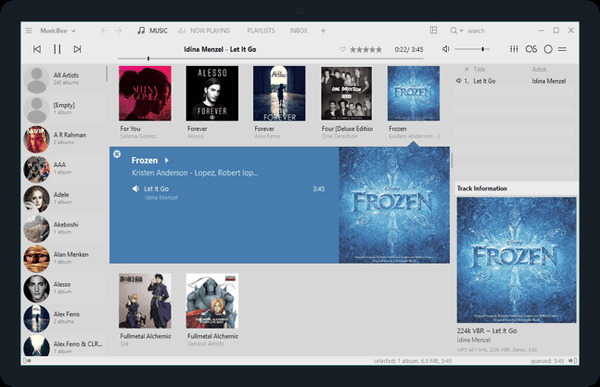
The other day we had a request from one of our subscribers asking about music players, organizers, and CD rippers. I had to be honest – we’re not the biggest audiophiles in the world. So we did a little checking and digging and found MusicBee – the ultimate music manager.
If you have tons of MP3s, CDs you’ve ripped over the years, or high-quality audio files, you already know the struggle. Big streaming apps don’t handle local files well, and basic media players feel a bit too bare-bones when you’re trying to find that one specific track.
That’s why we recommend MusicBee. This little freeware pick is widely considered the absolute best choice for anyone who still loves owning their own music library. It’s packed with incredible features, but it won’t bog down your computer or hog your PC’s memory.
More about Music Bee
-
It Organizes Enormous Collections Instantly: Whether you have 500 songs or 50,000, MusicBee catalogs them effortlessly without lagging, freezing, or crashing.
-
Fixes Messy Song Titles Automatically: If your music folders are a mess of “Track 01” and missing album covers, MusicBee has built-in smart tools to look up missing info, grab the right album art, and even pull up the song lyrics automatically.
-
Sounds Incredible: For audiophiles, it supports high-end audio formats and features native WASAPI and ASIO support, bypassing the standard Windows sound mixer for the cleanest, crispest sound possible.
-
Make it Look However You Want: Don’t like the layout? Change it! You can skin MusicBee to look like a sleek modern app, a classic music player, or a colorful jukebox.
-
Easy Syncing: It makes it a breeze to move your favorite playlists and albums over to your Android phone, tablet, or a portable USB drive.
And the best part? It’s Truly Free.
There are no ads, no annoying premium pop-ups trying to get your credit card, and no hidden junkware. It’s just clean, brilliant software that does exactly what it promises. It works on Windows 10 and Windows 11. You can download it directly from the official Microsoft Store or the MusicBee website—or get a “portable” version from the MusicBee website that doesn’t even require a formal installation.
Here’s what MusicBee’s developer has to say:
The Ultimate Music Manager and Player
MusicBee makes it easy to manage, find, and play music files on your computer. MusicBee also supports podcasts, web radio stations and SoundCloud integration.
Simple, Powerful, and Fast
Play your music the way you want. Turn your computer into a music jukebox. Use auto-tagging to clean up your messy music library. Enjoy a great music experience with MusicBee.
Beautiful Skins
Change the appearance of MusicBee by choosing from the included skins or download more from our Add-on section.
Skins are a great way to personalize MusicBee to your liking.You can also make your own skin and share it with others.
Sync with Devices
Sync your music collection with devices you use. MusicBee supports playlist and podcast syncing, even supports audio books with 2 way syncing.
Convert formats on the fly if your device does not support certain formats.
You can also sync your Android and Windows Phone (8.1+) devices.
last.fm, CD Ripping, Tagging tools…. plus more!
MusicBee packs a comprehensive set of features to make your music experience better.
Yet it is one of the most lightweight player using about 25-70 MB ram* with skins and add-ons, and packs all of these under 10 MB!
If you’ve been looking for a highly customizable media player and manager for Windows designed to organize, find, and play large digital music collections. And a media player that serves as an advanced alternative to software like iTunes or Windows Media Player, offering robust tagging, gapless playback, and audiophile-grade sound card support, MusicBee is what you’ve been looking for.
It’s a Cloudeight Freeware Pick! You can read more about MusicBee and/or download it here.

The Ketchup Factory — Days Long Past
When I was a boy, summer vacation from school started the first week in June and ended the first week of September. By the end of those three months, summer vacation seemed like it lasted forever. I became bored with it – summer was too long. I eagerly awaited autumn and couldn’t wait to get back to school – or should I say, to get back to my friends in school.
Now I’m an old man sitting here in late July, finding it extremely difficult to believe that in just a little more than a month, summer will dissolve into autumn. Winter will come in on autumn’s coattails with its bitter cold and wintry mixes of rain, sleet, and snow.
And just imagining winter’s bone-chilling breath makes my old arthritic bones ache, and my aging heart yearn.
Incomprehensibly, I find myself in the winter of my life. August is but a calendar flip away, and autumn’s...
Read the rest of this essay here...


Sales of the following products and
services help support our newsletters, websites, and free computer
help services we provide.
Cloudeight Direct
Computer Care: Always a great deal. Cloudeight Direct Computer
Care is like having PC insurance.
Get more information here.
Emsisoft Anti-Malware:
Emsisoft is the only Cloudeight-endorsed and recommended Windows
security program. It provides users with a complete antivirus,
antimalware, anti-ransomware, and anti-PUPs solution. We offer single
Emsisoft licenses and multi-computer licenses at discount prices.
Also, we offer our exclusive Emsisoft with Cloudeight installation &
setup. Get more
information here.
Reg Organizer: Reg
Organizer is the Swiss Army Knife of Windows tools. It's far more than
just a registry optimizer and cleaner... it's a Windows all-in-one
toolkit. Reg Organizer helps you keep your computer in tip-top shape
and helps you solve annoying Windows problems. Reg Organizer works
great with Windows 10 and Windows 11!
Get more information about Reg Organizer (and get our special discount
prices) here.
MORE IMPORTANT STUFF!
Your InfoAve Weekly Members' Home Page is located here.
Help us grow! Forward this email newsletter to a friend or family member - and have them sign up for InfoAve Weekly here!
Get our free daily newsletter! Each evening, we send a short newsletter with a tip or trick or a computer-related article - it's short and sweet - and free. Sign up right now.
We have thousands of Windows tips and tricks and computer articles posted on our Cloudeight InfoAve website. Our site has a great search engine to help you find what you're looking for, too! Please visit us today!
Help us by using our Start Page. It costs nothing, and it helps us a lot.
Print our Cloudeight Direct Flyer and spread the word about our computer repair service! If you want to help us by telling your friends about our Cloudeight Direct Computer Care service, you can download a printable flyer you can hand out or post on bulletin boards, etc. Get the printable PDF Cloudeight Direct Computer Care flyer here.

We'd love to hear from you!
If you have comments, questions, a tip, a trick, a freeware pick, or just want to tell us off for something, let us know.
If you need to change your newsletter subscription address, please see "Manage your subscription" at the very bottom of your newsletter.
We received hundreds of questions for possible use in IA news. Please keep in mind we cannot answer all general computer questions. We try to personally answer as many as we can. We can only use a few in each week's newsletter, so keep this in mind. If you have a support question about a service or product we sell, please contact us here.
Subscribe to our Daily Newsletter! Get computer tips & tricks every night. Our daily newsletter features a computer tip/trick or two every day. We send it out every night around 9 PM Eastern Time (USA). It's short and sweet, easy to read, and FREE. Subscribe to our Cloudeight InfoAve Daily Newsletter!
We hope you have enjoyed this issue of Cloudeight InfoAve Weekly. Thanks so much for your support and for being an InfoAve Weekly subscriber.
Have a great weekend. Be safe!
Darcy & TC
Cloudeight InfoAve Weekly - Issue #1189
Volume 23, Number 30
July 24, 2026
Not a subscriber? Subscribe to our FREE Cloudeight InfoAve Weekly Newsletter here.
"Cloudeight InfoAve Weekly" newsletter is published by:
Cloudeight Internet LLC
PO Box 73
Middleville, Michigan, USA 49333-0073
Read our disclaimer about the tips, tricks, answers, site picks, and freeware picks featured in this newsletter.
Copyright © 2026 by Cloudeight Internet