
Cloudeight InfoAve Weekly
Issue #1190
Volume 23, Number 31
July 31, 2026
Dear Friends,
Welcome to Cloudeight InfoAve Weekly Issue #1190. Thank you for subscribing and for being a part of our Cloudeight family. We appreciate your friendship and support very much! Please share our newsletters and our website with your friends and family.

If you're not getting our InfoAve Daily newsletter, you're missing out on a lot of good stuff!
It's free and it only takes a few seconds to sign up. We'd love to have you with us. Visit this page to sign up for our Cloudeight InfoAve Daily Newsletter.

Our answer
Hi Joy. The easiest way is with a browser-based VPN.
The easiest way to do that is to install Firefox for Android on
your Samsung tablet. When traveling and using public Wi-Fi, you
can just click the VPN button on the Firefox toolbar. You get 50
GB of free monthly VPN protected data, which is plenty. Just be
sure you turn off the VPN when watching movies or videos on your
tablet, or that will use up your 50 GB of free VPN data quickly.
You can read more at
https://play.google.com/store/apps/details?id=org.mozilla.firefox&hl=en_US,
and you can download Firefox for your Samsung tablet from the
Google Play Store.
Brenda has a problem opening a
file and opening her browser
I opened my emails as usual (I still use Thunderbird), with a
mail from my garage asking that I confirm my appointment this
Friday for an MOT on my car and would I confirm online. I
clicked on their link and received the following error message:-
"This file does not have an app associated with it for performing this action. Please install an app or, if one is already installed, create an association in the Default Apps Settings page."
I didn't understand this and thought there was a problem with the link, because I had never seen this error message before.
I thought I would Google this message, which I always do in the first instant, clicked on Chrome to access Google, and received this error message:-
" The application has failed to start because its side-by-side configuration is incorrect. Please see the application event log or use the command-line sxstrace.exe tool for more detail".
Now I realized that it was my computer that was wrong; something had happened overnight, and I first thought it must be an update from MS because, as per your original advice, I don't turn my computer off; it just goes to sleep. In the past, instead of my computer just waking up, I have to actually put in my PIN if there has been an update overnight.
So I could not use Google to explore these messages, so I had to open Edge and then search for Google, which I thought was through Bing.
I took screenshots of the messages and resized them through my Serif program, which I still use and which still works adequately for the cards etc. that I make. (I am aware that I should be dragged kicking and screaming into the current century, but I had always worked on "if it ain't broke don't fix it". I should have, of course, saved the resized page in the correct format, but by now I was getting close to panic stations. Everything has always jogged along quite happily with me solving most of the problems I encountered, even though I do use some old programs.
I searched most of the day and followed certain instructions I found, but realized that as I didn't really understand the error message and I was loath to delve too deeply without knowing what I was doing, I thought I would appeal to you.
I am quite happy to follow your clear instructions if you can sort this problem. Hope I have made it clear this time. I'm aware that without the attachment to my email, it must have been totally confusing for you. Thanks once again for coming back so quickly. Kind Regards, Brenda.
Our answer
Running all the Windows scans in the world won't fix
this. This is not a Windows problem.
Brenda wrote back: "Dear TC: What can I say, you've done it again, so quickly and easily. Chrome was mended instantly, and I feel ashamed that I did not think of that myself, but it was the jargon in the error message that threw me. The other message was what I thought in the first place, and the garage had not used whatever format it was before. I had logged in and confirmed their questions on my phone, so I am not worried about the original email on my computer now; I have binned it. But you have solved the major problem for which I am so grateful. Many thanks again, Brenda"
Have we helped you with your computer or helped you by answering your questions? Would you like to help us?

Sandy keeps getting an HP.OMEN pop-up
I keep getting a pop-up asking if I want to accept this:
HP.OMEN overlay.
I always press NO. Should I press yes?
Our answer
Hi Sandy. You can rest easy: this is not a virus or a scam. What
you are seeing is a legitimate Windows prompt caused by software
pre-installed on your computer called the OMEN Gaming Hub by HP.
The HP.OMEN.Overlay.Helper is a tool designed for gamers to show real-time performance stats—like your computer's temperature, frame rates, and memory usage—on top of your screen while you are playing games. If you don't play games where HP.OMEN is needed, then it's just bloatware. A recent software update or permission glitch often causes this specific helper program to aggressively ask for permission every single time you start your computer or open certain apps.
If you don't use this feature, the constant pop-ups can be incredibly annoying. You can safely turn it off or remove it completely without hurting your computer. Choose whichever option works for you.
Option 1: Turn off the overlay feature (If you still want the main app)
Open the OMEN Gaming Hub app from your Windows Start menu.
Click on Settings (the gear icon) or look for the Overlay tab.
Toggle the Overlay feature to Off.
Option 2: Disable it from starting up
Press Ctrl + Shift + Esc on your keyboard to open the Task Manager.
Click on the Startup Apps tab on the left menu (it looks like a little speedometer icon).
Find HP.OMEN.Overlay.Helper or OMEN Gaming Hub in the list.
Right-click it and select Disable.
Option 3: Uninstall it completely (Best if you don't use it)
If you aren't a heavy gamer or you never use the OMEN software, you can remove it entirely. Your computer will run perfectly fine without it.
Open your Windows Settings (press the Windows Key + I).
Click on Apps on the left, then Installed apps.
Scroll down until you find OMEN Gaming Hub.
Click the three dots next to it and select Uninstall.
Hope this helps, Sandy.

We can fix your Windows computer... check out our low prices here!
Terry is going to switch
from standard landline telephone to VOIP
How-deee!I just got through reading your, as
always, Newsletter #1190. In it you handled (gently) a
question about tablet use in public.
I'm curious to learn how you feel about using a VOIP telephone service via my ISP as opposed to my standard landline. It would come with auto spam dumping, filters for no-caller-displayed calls, etc. Voicemail is also part of the deal and comes with the ability to send notification calls to email. Is there anything I should be concerned about when making the switch? Thanks a bunch, Terry
Our answer
Hi Terry. Making the switch from a traditional copper-wire landline
to a VoIP (Voice over Internet Protocol) service through your
internet provider is usually a massive upgrade. The features you
mentioned—automatic spam blocking, anonymous call filtering, and
voicemail-to-email notifications—make life a whole lot quieter and
more convenient. However, because VoIP relies entirely on your
internet connection rather than the old physical telephone network,
there are a few important things you should be aware of before
making the switch:
1. Power Outages
Traditional landlines carry their own electricity through the copper wires, which is why they still work even if your neighborhood loses power. VoIP is different: your phone plugs directly into your internet modem. If your house loses power, your internet goes down, and your phone goes down with it.
So, if you want emergency backup, you can ask your provider if their modem includes a backup battery, or you can plug your modem into a small electronics battery backup (called a UPS). Of course, if you have a reliable cell phone, that works perfectly as a backup too.
2. Emergency 911
When you dial 911 from an old landline, dispatchers instantly see your physical address. Because VoIP sends calls over the internet, your provider has to manually connect your address to your digital line. Just double-check with your ISP during setup to ensure they have your correct address registered for "Enhanced 911." Also, keep in mind that if you ever move your internet modem to a new house, you have to update your address with the provider immediately so emergency services don't get sent to your old location.
3. Internet Reliability
Keep in mind...no internet ...no phone. Since your phone calls share the exact same internet connection as your computer, TV streaming, and web browsing, your phone service is only as reliable as your internet. If your internet goes out completely, your phone goes out too.
For the majority of people, the reduction in spam calls and the modern convenience features heavily outweigh the drawbacks. And if you have a cell phone handy for the rare occasions when the power or internet goes out, you will likely find the switch to VoIP quite an enhancement.
Let me know if you have any more questions.
Jan gets tech support scam
pop-ups on her MSN homepage
My home page is set to MSN. When I open the
internet and start browsing that page, I repeatedly get a
pop-up that says "suspicious activity detected. An unusual
login attempt has been detected on your account from IP
address 104.244.42.1 (United States). To protect your
personal information, please confirm your identity or close
this page immediately". Then there is a button to close this
page and another button to confirm identity. Choosing either
button freezes my mouse, and all kinds of pop-ups show up
saying to call Microsoft and not to try to restart my
computer, etc. If I just click on the X at the top of the
tab, it closes but then keeps showing up. If I go to another
bookmark like Facebook, it doesn't show up again. Is this
something having to do with my home page, and if so, how do
I stop it? Thanks in advance for your help!
Our answer
Hi Janet. What you are experiencing is a very common trick called a
Tech Support Scam. The message itself is entirely fake. There is no
suspicious activity, your account hasn't been breached, and that IP
address is just a random number thrown in to make it look scary.
Reopen without restoring. When you open your browser again, it might ask if you want to restore your previous tabs. Click NO or Close. If you say yes, it will bring the scam page right back.
https://chromewebstore.google.com/detail/ublock-origin-lite/ddkjiahejlhfcafbddmgiahcphecmpfh?hl=en&pli=1
Have we helped you with your computer or helped you by answering your questions? Would you like to help us?
Carol wants to get rid of McAfee completely
Hi TC and Darcy. Just a little note about McAfee. I found it in Settings> Apps. Tried to uninstall it, but of course, it was so embedded that the usual "uninstall" didn't work. Using Google, I was told how to do it. Looked for the .exe file - not sure where I got it from- it was several weeks ago. Anyway, it worked. No more McAfee. I'm wondering if it's automatically installed every time there's an update?
Hi Carol. If it's removed completely, it won't come back after an update.

Now available: Reg Organizer 9.93
If you purchased or renewed Reg Organizer through Cloudeight within
the last 12 months, you're entitled to a free version upgrade to Reg
Organizer 9.93. Works great with Windows 10 and Windows 11.
Save $14 on Reg Organizer right now!
Reg Organizer - A Swiss Army Knife of Windows Tools - Works Great on Windows 10 and Windows 11.

How to Change Your
Browser’s Default Search Engine
Windows 10/Windows 11 Users with Chrome, Edge,
and/or Firefox browsers installed
In this tip, we’ll show you how to change the default search engine on the desktop (Windows) versions of the three most popular browsers, Google Chrome, Microsoft Edge, and Mozilla Firefox.
Surprisingly, for those of you who like DuckDuckGo, Chrome, Edge, and Firefox, it is easy for you to make DuckDuckGo the default search engine instead of Google or Bing. This is not a recommendation to use DuckDuckGo – we are just showing you that DuckDuckGo is an option in Chrome, Edge, and Firefox.
OK, ready? Here’s how to change your default search engine in the three most popular browsers.
Google Chrome
To change the default search engine in Google Chrome, follow these steps:
Open Google Chrome. Type or copy & paste
chrome://settings/search
In the address bar, and press Enter.
Scroll down to the “Search engine” section and click on the down arrow to the right of “Search engine to be used in the address bar”.
In the “Search engines” list, click on the search engine you would like to use as your default engine when you search from the Address bar. (See screenshot above).
Next, click on “Manage search engines and site search”
Under “Search engines,” click the 3 horizontal dots to the right of the search engine you want to use and click “Make default” (see screenshot below)
:
Close the “Settings” tab, and your new default search engine will be used from now on.
Note: If you don’t see the search engine you want to use in the list, you can add it by clicking on the “Add a new search engine” button and following the on-screen instructions.
Microsoft Edge
Type or copy & paste edge://settings/search in the address bar

Scroll down the page until you find “Search engine used in the address bar”. \
Next, click the little down arrow (see screenshot above) and choose whichever one you want. The default choices are Yahoo, Google, and DuckDuckGo.
You can add more search engines if you want, but those choices should be enough to get you started.
Mozilla Firefox
Type or copy & paste about: preferences#search in the Firefox address bar.
Under “Default Search Engine,” click the down arrow next to the current default search engine (see screenshot below)…

Select the search engine you want to set as your default from the menu that appears.
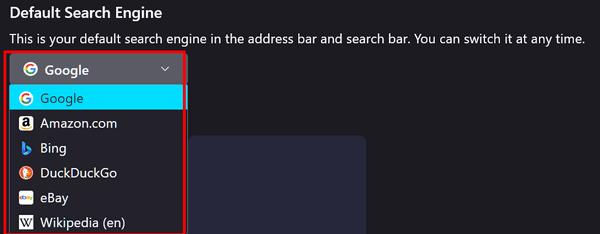
After you make your choice, the search engine you chose will be your default.
As with Chrome and Edge, Firefox allows you to add more search engines to the list of search engine choices.
And now you know how to change the default search engine in your favorite browser.
Five Shifty Windows Tricks
Windows 10 / Windows 11
Today’s tip features tricks featuring the Shift key. The Shift key is a handy modifier in Windows, especially when combined with a mouse click.
Here are five useful Shift + Click tricks for you!
Use Shift + Click to Open a New Instance of an App
Press and hold the Shift key, then click an app icon on the Taskbar.
This will open a completely new window/instance of that application (e.g., a second File Explorer window, a second browser window, or a new instance of a text editor).
Access the Classic Context Menu (Windows 11) or the Extended Context Menu (Windows 10)
Hold down the Shift key and Right-Click a file, folder, or the Desktop.
This bypasses the condensed default context menu and immediately shows the classic Windows context menu (the one in Windows 11 with the “Show more options” entries already expanded), often revealing additional developer or legacy options.
For those using Windows 10, it displays an extended context menu, which often includes extra options like “Open command window here” (or “Open in Windows Terminal”).
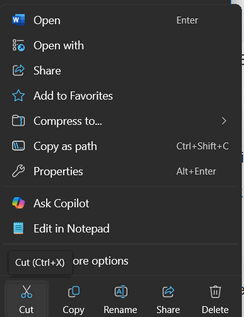
Windows 11’s default truncated context menu
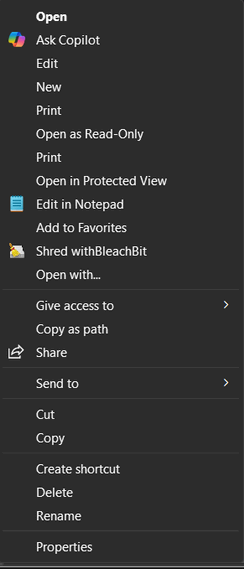
Windows 11’s context menu expanded with the Shift key.
Select a Range of Files or Items
Click the first file in a list, then hold down the Shift key and click the last file.
This selects the entire block of files or items between the two clicks. This works in File Explorer, lists of emails, text documents (to select a block of text), and many other lists.
Pin/Unpin an Item to the Start Menu/Taskbar (Shortcut)
Hold down the Shift key and Right-Click a program’s shortcut or its executable file (in File Explorer).
The context menu for the item will often include the options “Pin to Start” or “Pin to taskbar,” allowing for quick pinning of application shortcuts.
Skip the Recycle Bin (Permanent Delete)
Select a file or folder in File Explorer, then hold down the Shift key and press the Delete key.
This will permanently delete the file without moving it to the Recycle Bin. You will usually get a confirmation prompt asking if you are sure you want to permanently delete the item.

What’s Your Windows 11 Expiration Date?
Windows 11
Even if you are already safely using Windows 11, the specific build you are running—whether it’s 23H2, 24H2, or 25H2—has its own quiet countdown clock and expiration date.
Most people never think to check this until an update stops showing up, or worse, until something goes wrong and they realize their system hasn’t received a critical security patch in months.
This isn’t Microsoft trying to force you into anything crazy. It’s just how they’ve structured updates for years now. Every annual Windows 11 feature update gets a fixed window of support, and that window depends entirely on your specific edition:
-
Home and Pro editions typically get 24 months of servicing per feature release.
-
Enterprise and Education editions usually get 36 months.
Because of this, the same version number can have two completely different expiration dates depending on who is running it!
How to Check Your Windows 11 Expiration Date
If you’d rather know now than find out the hard way, checking exactly when your specific version runs out only takes two quick steps.
Step 1: Find your version and edition
-
Hold down the Windows Key on your keyboard and tap the letter R (this opens the Run box).
-
Type winver into the box and press Enter.
-
A small window will pop up. Look at the main paragraph to find your Edition (Home, Pro, Enterprise, etc.) and look right next to it to find your 4-digit Version number (like 23H2 or 24H2).
Step 2: Match it to the official countdown timeline
Once you know your version and edition, you can see exactly when your support clock runs out:
-
Windows 11, Version 23H2:If you are running the Home or Pro edition, your clock already ran out on November 11, 2025. You are no longer protected by Microsoft’s latest security updates. If you are on Enterprise or Education, you still have until November 10, 2026.
-
Windows 11, Version 24H2: Home and Pro editions stick around until October 13, 2026, while Enterprise and Education editions on this same build get to keep going until October 12, 2027.
-
Windows 11, Version 25H2: The newer edition keeps Home and Pro users safe until October 12, 2027, and Enterprise or Education users until October 10, 2028.
Don’t Worry!
The good news is that you don’t need to buy a new computer when a specific version expires. As long as your Windows Updates are turned on and working properly, Windows 11 will automatically download the next yearly version for free, resetting your countdown clock all over again.
Keep those updates coming! Check your winver box if updates seem stuck or aren’t installing, and stay safe and well ahead of the countdown!
Want more tips, tricks, and information?
We have thousands of Windows tips, tricks, and more on our InfoAve website.
Subscribe to our free InfoAve Daily newsletter.

THANK YOU FOR HELPING US!
When you support us with a small gift, you help us continue our
mission to keep you informed, separate the truth from the hyperbole,
and help you stay safer online. Plus, our computer tips make your
computer easier to use.
Did you know that we provide support to thousands of people? Every
week, we help dozens of people via email at no charge. The questions
and answers you see in our newsletters are from the email answers and
help we provide to everyone free of charge.
Thanks to your gifts, we do a lot more than provide this free newsletter. We help you recognize online threats, fight for your online privacy, provide you with the knowledge you need to navigate the Web safely, provide you with suggestions for safe, free software and websites, and help you get more out of your PC.
Please help us keep up the good fight with a small gift.
Interested in making an automatic monthly gift? Visit this page. Help us keep helping you... and help us keep you safe on the Web.

Three Great Website Picks for Older Folks Like Us
Pondering and finding a site or app of the week is sometimes difficult because there are so darned many websites and apps out there. Heck, even Darcy doesn’t know them all. So sometimes we run a “best of” series featuring more than one app or website. Today we’re featuring three outstanding websites — all of them for older folks like Darcy. And me. And you!
These three fantastic, high-quality websites balance usefulness and entertainment—perfect for older adults who want to stay sharp, learn something new, or just have a little fun.
1. For Lifelong Learning & Tech Skills: Senior Planet
-
Website: https://www.seniorplanet.org/
-
What it is: Created by AARP, this is an online community built specifically for adults aged 60 and older.
-
Why you’ll love it: It offers completely free live classes on everything from how to navigate digital tools and apps to fitness classes like Tai Chi, online book clubs, and home budget tips. It’s explicitly designed to be welcoming, patient, and easy to use for anyone looking to build up their digital confidence.
2. For Daily Brain Fitness: The New York Times Games
-
Website: https://nytimes.com/crosswords
-
What it is: You don’t need a newspaper subscription to access their most popular daily puzzles.
-
Why you’ll love it: Beyond the world-famous Wordle, this hub features incredibly popular (and free) daily mind-sharpeners like Connections (a word-grouping game), Mini Crosswords, and Strands. It is a wonderful, low-stress morning routine to keep memory and cognitive pathways firing over a cup of coffee. Darcy– did you read that?
3. For Lifestyle, Humor, & Community: Sixty and Me
-
Website: https://www.sixtyandme.com
-
What it is: A digital magazine and global community founded by Margaret Manning, geared specifically toward women and men navigating life after 60.
-
Why you’ll love it: Unlike standard news sites that focus solely on the medical or heavy financial sides of aging, this site is purely uplifting. It features articles on travel, fashion, romance, grandparenthing, and shifting careers later in life, alongside daily inspiration videos.
Quick Tip: If you find the text hard to see on any of these sites, remember our famous Zoom tutorial and make the text as large as you need it to be.

Join Me in Wishing Darcy a Very
Happy Birthday
The year is 1997. Darcy is hanging around the early internet,
running a place called Michigan^Tavern. It was a chat site
disguised as a bar, run by the one and only Darcy. Seriously!
This is back in the day of ICQ, PIRCH, and mIRC.
Before we had modern apps like Discord, WhatsApp, or Slack,
real-time internet conversation was heavily dominated by IRC
(Internet Relay Chat). To connect to it, you needed client
software on your desktop—and PIRCH and mIRC were the main
contenders.
Anyway, I don’t know how, but of all the gin joints in all the
world, I happened upon Michigan^Tavern and went in for a drink
(not really). Darcy greeted me. I was a know-it-all back then
because I actually knew nothing. Darcy found me to be a
challenge. But as aggravating and obnoxious as I was, we began
chatting. I think I became her special recovery project.
She devoted a lot of time to teaching this "know-it-all" a lot
of stuff I didn’t actually know...
Read the rest of this essay here...


Sales of the following products and
services help support our newsletters, websites, and free computer
help services we provide.
Cloudeight Direct
Computer Care: Always a great deal. Cloudeight Direct Computer
Care is like having PC insurance.
Get more information here.
Emsisoft Anti-Malware:
Emsisoft is the only Cloudeight-endorsed and recommended Windows
security program. It provides users with a complete antivirus,
antimalware, anti-ransomware, and anti-PUPs solution. We offer single
Emsisoft licenses and multi-computer licenses at discount prices.
Also, we offer our exclusive Emsisoft with Cloudeight installation &
setup. Get more
information here.
Reg Organizer: Reg
Organizer is the Swiss Army Knife of Windows tools. It's far more than
just a registry optimizer and cleaner... it's a Windows all-in-one
toolkit. Reg Organizer helps you keep your computer in tip-top shape
and helps you solve annoying Windows problems. Reg Organizer works
great with Windows 10 and Windows 11!
Get more information about Reg Organizer (and get our special discount
prices) here.
MORE IMPORTANT STUFF!
Your InfoAve Weekly Members' Home Page is located here.
Help us grow! Forward this email newsletter to a friend or family member - and have them sign up for InfoAve Weekly here!
Get our free daily newsletter! Each evening, we send a short newsletter with a tip or trick or a computer-related article - it's short and sweet - and free. Sign up right now.
We have thousands of Windows tips and tricks and computer articles posted on our Cloudeight InfoAve website. Our site has a great search engine to help you find what you're looking for, too! Please visit us today!
Help us by using our Start Page. It costs nothing, and it helps us a lot.
Print our Cloudeight Direct Flyer and spread the word about our computer repair service! If you want to help us by telling your friends about our Cloudeight Direct Computer Care service, you can download a printable flyer you can hand out or post on bulletin boards, etc. Get the printable PDF Cloudeight Direct Computer Care flyer here.

We'd love to hear from you!
If you have comments, questions, a tip, a trick, a freeware pick, or just want to tell us off for something, let us know.
If you need to change your newsletter subscription address, please see "Manage your subscription" at the very bottom of your newsletter.
We received hundreds of questions for possible use in IA news. Please keep in mind we cannot answer all general computer questions. We try to personally answer as many as we can. We can only use a few in each week's newsletter, so keep this in mind. If you have a support question about a service or product we sell, please contact us here.
Subscribe to our Daily Newsletter! Get computer tips & tricks every night. Our daily newsletter features a computer tip/trick or two every day. We send it out every night around 9 PM Eastern Time (USA). It's short and sweet, easy to read, and FREE. Subscribe to our Cloudeight InfoAve Daily Newsletter!
We hope you have enjoyed this issue of Cloudeight InfoAve Weekly. Thanks so much for your support and for being an InfoAve Weekly subscriber.
Have a great weekend. Be safe!
Darcy & TC
Cloudeight InfoAve Weekly - Issue #1190
Volume 23, Number 31
July 31, 2026
Not a subscriber? Subscribe to our FREE Cloudeight InfoAve Weekly Newsletter here.
"Cloudeight InfoAve Weekly" newsletter is published by:
Cloudeight Internet LLC
PO Box 73
Middleville, Michigan, USA 49333-0073
Read our disclaimer about the tips, tricks, answers, site picks, and freeware picks featured in this newsletter.
Copyright © 2026 by Cloudeight Internet