
Cloudeight InfoAve Weekly
Issue #1192
Volume 24, Number 1
November 6, 2026
Dear Friends,
Welcome to Cloudeight InfoAve Weekly Issue Issue #1192. Thank you for subscribing and for being a part of our Cloudeight family. We appreciate your friendship and support very much! Please share our newsletters and our website with your friends and family.

Why you haven't received our weekly newsletter since issue # 1191 - August 7, 2026
Shortly after we published issue Issue #1192 on 7 August 2026. TC became seriously ill and was hospitalized almost all of August and September. He spent the month of October at home recovering and working part time with Cloudeight. He has been writing our daily newsletter for the past two weeks. But the weekly newsletter is a much more daunting task and he has not been able to publish that until now. He is still recovering, still undergoing physical therapy and weekly home nurse visits, but is slowly recovering. We thank you for your support, prayers, and good wishes during this trying time and hope that you enjoy this issue of InfoAve Weekly!
If you're not getting our InfoAve Daily newsletter, you're missing out on a lot of good stuff!
It's free and it only takes a few seconds to sign up. We'd love to have you with us. Visit this page to sign up for our Cloudeight InfoAve Daily Newsletter.

Larry has an overheating
problem
I changed my keyboard per your suggestion, and it solved my
problem. Now I need help with overheating. I vacuumed the
solid-state computer on the back of my screen; my screen has
started this 'black screen' flickering on and off within the
last few weeks; and I can't turn on my 'location services'.
Would appreciate your help, Larry.
Our answer
Hi Larry. Here is a quick breakdown to help you tackle these
issues:
1. Overheating - If you have already cleaned out the dust
and air vents, the remaining causes are usually:
-- Airflow restriction: Ensure your PC isn't pressed tight
against a wall, kept in an enclosed desk space, or resting
on a soft surface.
-- Hardware failure: A failed cooling fan or degraded
thermal paste/heat sink on your processor. Unless you are
comfortable opening the PC and replacing thermal paste or
fans, a local repair shop can swap these out quickly.
2. Flickering Screen -
Press Win + Ctrl + Shift + B to restart your graphics driver
instantly.
Press Ctrl + Shift + Esc. If Task Manager flickers, it’s a
graphics driver issue. Go to Device Manager > Display
adapters, right-click your display adapter, and choose
Update driver (or Uninstall device and restart to let
Windows clean-reinstall it). If Task Manager stays steady
while the background flickers, an incompatible app (like an
outdated antivirus or screen recorder) is causing it.
3. Location Services Won't Turn On
Press Win + R, type services.msc, and hit Enter. Scroll down
to Geolocation Service and double-click it.
Set Startup type to Automatic, click Start, then hit Apply
and OK.
Hope this helps get everything running smoothly again,
Larry!
Wilma switched to
Microsoft Edge and is now besieged with pop-ups
T C & Darcy, I usually use Firefox
Browser but the other day I tried Microsoft Edge. That
is when the problem started. I do not know if I clicked
something wrong on Edge or if something just went
bonkers. I am sorry about this, but I don't know what to
do. The pop-ups keep coming and coming. I keep clicking
on the X at the top of the box, and they just keep
coming. I can't use the right part of my screen; they
are all there all the time.
Our answer
Hi Wilma. Microsoft constantly tries to get people to
switch to Edge - even using trickery to do so. They make
it hard to switch back to your preferred browser. You
could fix the pop-up problem by clearing the cache and
history in Edge, but the easiest way to fix this is to
make Firefox your default browser again. Here's how:
Click the Start Menu (the Windows icon at the bottom center of your screen) and select the Settings icon (it looks like a gear).
On the left sidebar, click Apps.
On the right side, click Default apps.
In the search box under "Set defaults for applications", type Firefox.
Click on Firefox in the search results list.
At the very top of the page, click the Set default button. You'll see checkmarks appear next to common web formats (.html, .htm, HTTP, HTTPS).
Let me know if this helps you.
Have we helped you with your computer or helped you by answering your questions? Would you like to help us?

Debbie has a
shutdown problem
It's me again with another question, LOL.
Lately, I've been using my desktop computer &
somehow when I go to reach something on my desk
I hit something on my keyboard & the computer
screen says, "shutting down."Is there any way to
stop it? I hit Esc, but it does nothing. TY in
advance & for all the help & hints you've
provided me since you began years ago!
Our answer
Hi Debbie. This usually happens
because either a key on your keyboard is
programmed to trigger a shutdown shortcut, or
Windows is configured to put the computer to
sleep or shut down whenever the physical power
button on your computer case is pressed.
Here is how to fix it step by step:
#1. Change Power Button Behavior in Control
Panel
(Prevents the physical power button or case
bumps from shutting down)
Open the Start menu, type Control Panel, and press Enter. Click on Hardware and Sound, then select Power Options. In the left-hand column, click on "Choose what the power buttons do". Next to "When I press the power button:", change the setting from Shut down to Do nothing (or Sleep if you prefer). Click Save changes at the bottom.
Pressing your computer's physical power button no longer brings up the shutdown prompt.
2. Check for Macro Keys or Dedicated Power
Keys
(Applies to keyboards with built-in power
buttons)
Look closely at your keyboard layout—some keyboards have a dedicated Power, Sleep, or "Shut Down" key located near the function keys or top corners (often right next to the Escape or Insert keys). If your keyboard came with proprietary software (like Logitech G HUB, Razer Synapse, or Corsair iCUE), open the software settings and remap or disable that specific macro or power key.
Accidentally striking that corner key no longer initiates a shutdown sequence on your screen.
Note: If you choose "Do nothing" for your power button, remember that you will need to shut down your computer normally through the Start menu (Start > Power > Shut down), since pressing the physical tower button will no longer turn it off automatically.
Also, here's how to cancel an accidental shutdown via Command Prompt if this happens again.
If the shutdown screen does pop up and pressing Escape doesn't stop it, you can instantly abort the countdown. Press Windows Key + R on your keyboard to open the Run dialog box, type shutdown -a into the box, and press Enter. A small notification will pop up in the corner saying "Logoff cancelled," stopping the shutdown immediately.\ The shutdown dialog box disappears, and your desktop remains active.
Hope this helps you, Debbie.

We can fix your Windows computer... check out our low prices here!
Cheryl needs more
help with video files
Hi TC. Thank you for the speedy
response to my problem with .MOV video files in
Windows Movie Maker. I jumped straight in to
download Handbrake, and it was great converting
to MP4 so quickly and easily with your
instructions, but unfortunately, when I went to
create a movie again, Windows Movie Maker
wouldn't import the files. I've attached the
screenshot of what came up.
Disappointing effort again. If there is anything else you could suggest, I would be very grateful. Cheers, Cheryl.
Our answer
Hi Cheryl. If you're not an expert with
video/audio files, you're much better off using
Clipchamp. We hesitate to publish unofficial
updated versions of old software because so much
of the time, as soon as Microsoft discovers the
"workaround" software, they release a new update
to break it. If you're not an expert with
outdated software and Microsoft's trickery, then
you're better off using modern audio/visual
software that Microsoft won't break.
Clipchamp: The easiest direct replacement for Windows Movie Maker on
Windows 10 and 11 is Microsoft Clipchamp.
Microsoft acquired Clipchamp specifically to
replace Movie Maker, and it actually comes
pre-installed on Windows 11 (and is a free
download from the Microsoft Store for Windows
10).
If you loved Movie Maker’s simple drag-and-drop
layout, Clipchamp feels very familiar, but
modernized. You just drag your videos,
pictures, and music onto a simple timeline at
the bottom of the screen. Clipchamp is 100% free
and It's installed by default on Windows 10 and
11 computers.
Microsoft Photos App: If you
don't even want a new app and just need to put a
few photos and videos together with background
music, consider using the Windows
Photos app you already have. Open the Photos
app, select the videos/photos you want, click
the three dots (...) at the top, and select
Create a video. It's great for slideshows, home video
trimming, and simple family photo montages.
Shotcut: If you
dislike web-based or modern app interfaces and
prefer traditional desktop software that looks
and feels like software from the Windows 7 era,
Shotcut is completely open-source,
free, and runs entirely on your computer
offline.
It's made for those who want a basic,
traditional editing program that handles almost
any old or rare video file format without
needing conversions. It's free.
You
can download it here.
I hope this helps, Cheryl.
Peter asks us
about Proton Mail
Hi TC. I recently saw an advertisement
for Proton Mail. Do you have any thoughts on it,
please? Peter.
Our Answer
Hi Peter. Proton Mail is not just like Gmail,
and generally it is not free if you were to use
it as your only email. It does have similar
features, though.
First, regarding the cost: Proton Mail actually
does have a genuinely free tier. They offer a
basic free account that includes 1 GB of storage
and core email functionality without ads.
However, it can be a bit restrictive, and they
certainly push paid upgrades (like Mail Plus or
Unlimited) pretty heavily for features like
custom domains, extra storage, and unlimited
folders.
They advertise privacy above all. They do comply
with Swiss court orders: Because Proton is based
in Switzerland, they are legally obligated to
comply with valid orders issued by Swiss courts
(which can include requests originating from
international agencies like Interpol via Swiss
authorities). For instance, in high-profile
legal cases, Swiss courts have compelled Proton
to log IP addresses or metadata for specific
targeted accounts going forward.
Proton uses zero-access encryption for the
content of your emails. This means they
physically cannot hand over the actual text or
attachments of your encrypted emails because
they don't hold the decryption keys. However,
unencrypted data—like email addresses,
timestamps, subject lines (in some cases), and
account creation IP addresses—can be turned over
if a Swiss legal order forces them to collect
it.
So while Proton is vastly more private than
traditional providers like Gmail or Yahoo, it is
not a complete shield against law enforcement or
formal legal processes.
Let me know if you have any other questions,
Peter.

Now available: Reg Organizer 9.93
If you purchased or renewed Reg Organizer through Cloudeight within
the last 12 months, you're entitled to a free version upgrade to Reg
Organizer 9.93. Works great with Windows 10 and Windows 11.
Save $14 on Reg Organizer right now!
Reg
Organizer - A Swiss Army Knife of Windows Tools - Works Great on Windows
10 and Windows 11.

One of
Windows 11’s Best Hidden Features: Real-Time
Live Captions for Everything
Windows 11
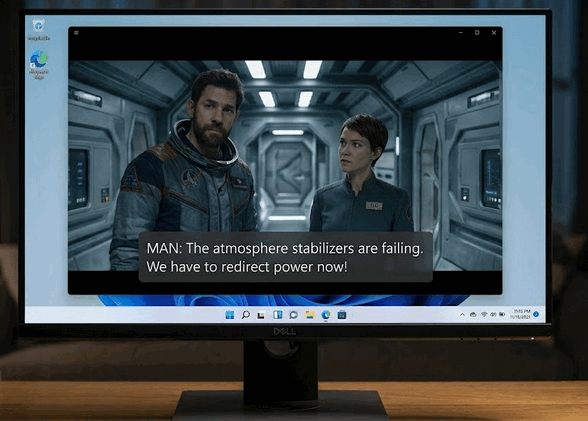
Have you ever struggled to hear what someone is saying in a video on your computer? Maybe your computer’s built-in speakers are tiny and tinny, or maybe your hearing just isn’t what it used to be. Or perhaps you’re trying to watch a video late at night without disturbing your spouse or housemates by turning the volume way up.
Whatever the reason, Microsoft includes a very useful feature in Windows 11 that almost nobody knows about: Live Captions. Unlike regular closed captions—which rely on YouTube or a video player to provide subtitles—Windows 11’s Live Captions work system-wide. That means it creates live, automatic subtitles (captions) for any audio playing on your PC in real time!
Windows 11 Live Captions Are a Game-Changer!
Windows 11 Captions can help when:
Your Hearing Isn’t What It Used to Be:
Dialogue in movies, news broadcasts, or video calls can often sound muffled or rushed. Live Captions give you clear, instant text on your screen so you never miss a word.
Watching videos, movies, or news broadcasts in quiet environments:
Need to keep the volume down so you don’t bother anyone nearby? Mute your sound completely and simply read along on screen!
If your computer speakers aren’t what they should be:
Many laptop and desktop speakers lack clarity and bass, making speech sound muddy. Live Captions bypass bad hardware entirely by displaying the text right over your screen.
Windows Captions is a great Windows 11 feature that is 100% private and works offline.
Windows processes the captions right on your device. Nothing is sent to the internet, keeping your audio private while allowing it to work even without a network connection!
How to Turn On Live Captions (The Easy Way)
The fastest way to turn Live Captions on or off is with a simple keyboard shortcut. Press Windows Key + Ctrl + L on your keyboard.
Note: The first time you turn it on, Windows will quickly download a tiny speech pack (this takes about a minute). Once downloaded, a neat black bar will appear at the top or bottom of your screen.
Now, play any video, podcast, or audio file—even a video call—and watch as Windows transcribes the words onto your screen live!
You can customize it to suit your eyes!
You can customize how the captions look so they are comfortable for you to read.
Change Position: Click the little Settings gear icon on the caption bar to move the bar to the top of your screen, bottom of your screen, or set it as a floating box you can drag anywhere.
Change Text Style: In the settings, you can choose Large text, Yellow on blue, or custom colors to make the words easier to read.
Give Windows Key + Ctrl + L a try
today—it’s one of the most useful features
of Windows 11.
Windows 11’s New "Point-in-Time
Restore": Is It Better Than System Restore?
Windows 11
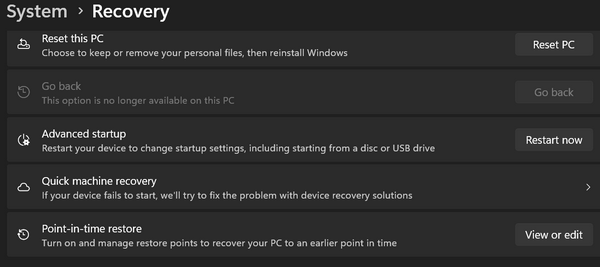
Recovery features are like insurance for your PC — you don't think about them until you need them. For over two decades, System Restore has been a somewhat trusty "undo button" that rolls back Windows without touching any personal files. Windows 11 recently introduced a new feature called Point-in-Time Restore. Here is what it does and how it compares.
Microsoft silently introduced a new feature in Windows 11 called Point-in-Time Restore. It does not replace the old System Restore many of you are familiar with; rather, it provides yet another option to recover from a computer disaster. We wanted to make sure that you're aware of it, what it does, and how it works.
What Makes Point-in-Time Restore Different from System Restore?
-
Automatic Daily Snapshots: Point-in-Time Restore automatically creates a snapshot every 24 hours, whereas System Restore relies on major updates or manual creation.
-
More Thorough Rewind: System Restore only rolls back system files and settings. Point-in-Time Restore also removes apps installed and personal files created after the snapshot.
-
72-Hour Window: Snapshots auto-delete after 3 days to save space.
- Point-in-Time is Enabled by Default: Point-in-time is enabled on most PCs with at least 200 GB of storage. Windows System Restore is not.
How to Adjust Storage Settings
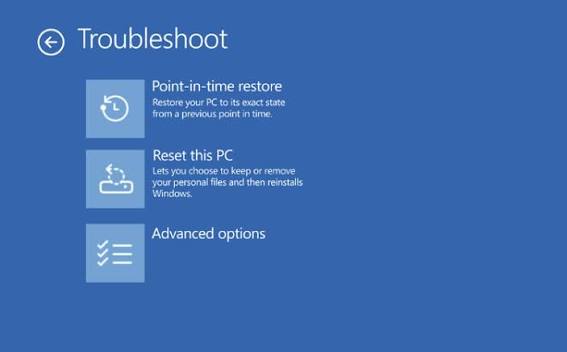
How to Run a Point-in-Time Restore
-
Hold Shift while clicking Restart in the Start Menu to enter Recovery Mode.
-
Select Troubleshoot > Point-in-Time Restore.
-
Have your BitLocker key ready if encrypted, choose a restore point, and follow the prompts.
Quick Comparison
-
Storage: System Restore keeps points as long as storage allows (good for old issues but bad for disk space). Point-in-Time Restore deletes points after 72 hours (best for immediate fixes and saving drive space).
-
Launch Method: System Restore runs directly from Windows; Point-in-Time Restore requires Recovery Mode.
Our Advice: Keep both enabled for maximum protection.

The Taskbar is On
The Move!
Windows 11
Windows 11 Finally Brings Back Freedom of Choice!
If you were among the millions of Windows users who upgraded to Windows 11 only to find you couldn't move your taskbar from the bottom of the screen, you'll be happy to know Microsoft finally acquiesced to the many Windows 11 users who were unhappy that they could not move the taskbar.
When Microsoft released Windows 11, one of the biggest complaints from long-time PC lovers was the completely locked-down Taskbar. For years in Windows 10 (and Windows 7 before that), you could drag or park your taskbar along the top, left, right, or bottom of your screen. Windows 11 glued it to the bottom.
Well, Microsoft listened to the endless feedback, and the wait is officially over: Movable Taskbars are back in Windows 11!
Move Your Windows 11 Taskbar Anywhere You Want!
Left or Right Edge: Perfect for widescreen monitors! Placing the taskbar on the side saves valuable vertical screen real estate, making reading web pages and documents much easier.
Top Edge: Keeps your active apps, system tray clock, and Start menu right at eye level.
Bottom Edge: The classic Windows look.
How to Move Your Taskbar in Windows 11:
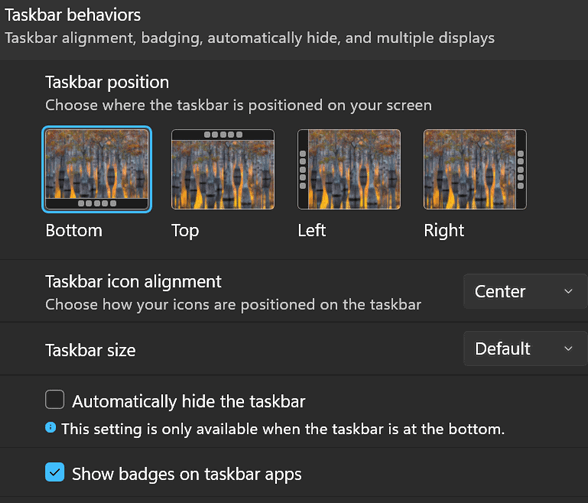
1. Right-click any empty space on your Taskbar and select Taskbar settings.
2. Scroll down and click to expand. Taskbar behaviors.
3. Look for Taskbar position and click the drop-down menu or visual thumbnails.
4. Pick Top, Left, Right, or Bottom and watch your taskbar jump to your selected edge instantly!
Other Taskbar Improvements You Might Like
Moving the taskbar isn't the only enhancement Microsoft packed into recent Windows 11 updates. Here are a few other fantastic tweaks that make daily computing much smoother.
Taskbar Sizing Options
You can now toggle between Default and Small taskbar icon sizes (available when the taskbar is parked at the top or bottom), giving you even more screen space for your active programs!
Instant "End Task" Right-Click Toggle
No more opening Task Manager when a frozen browser or app gets stuck! You can now enable a quick shortcut right on the taskbar:
Go to Settings > System > For developers and toggle End Task to ON
Now, whenever a program freezes, just right-click its icon on the taskbar and press End Task.
Want more tips, tricks, and information?
We have thousands of Windows tips, tricks, and more on our InfoAve website.
Subscribe to our free InfoAve Daily newsletter.

THANK YOU FOR HELPING US!
When you support us with a small gift, you help us continue our
mission to keep you informed, separate the truth from the hyperbole,
and help you stay safer online. Plus, our computer tips make your
computer easier to use.
Did you know that we provide support to thousands of people? Every
week, we help dozens of people via email at no charge. The questions
and answers you see in our newsletters are from the email answers and
help we provide to everyone free of charge.
Thanks to your gifts, we do a lot more than provide this free newsletter. We help you recognize online threats, fight for your online privacy, provide you with the knowledge you need to navigate the Web safely, provide you with suggestions for safe, free software and websites, and help you get more out of your PC.
Please help us keep up the good fight with a small gift.
Interested in making an automatic monthly gift? Visit this page. Help us keep helping you... and help us keep you safe on the Web.

Drive & Listen
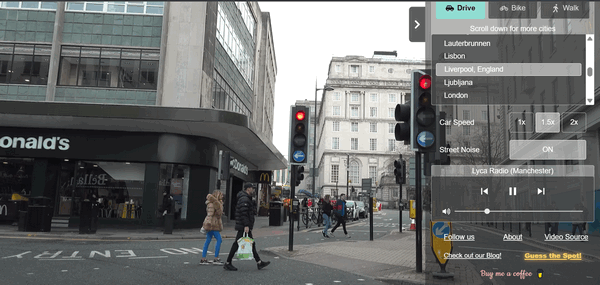
Above: Driving in Liverpool
Ever felt like taking a peaceful Sunday drive through Tokyo, Paris, or San Francisco (where Tony Bennet left his heart) without leaving your favorite easy chair or spending a single penny on gas? This week’s Site Pick lets you do just that!
Drive & Listen is a unique, simple web app created by Erkam Seker that pairs high-definition dashboard camera footage from dozens of cities around the world with real-time local radio stations and/or street noise (really!).
Whether you want to hear what’s playing on pop radio in London, listen to local news in Toronto, or just enjoy the street noise of Havana, it puts you right in the passenger seat.
Why We Like Drive & Listen
Nothing to Install
Drive & Listen works directly in your browser (Chrome, Edge, Firefox, Safari, etc.)—no software to download, no plugins to install, and no registration or sign-up required.
Easy to Use
A simple on-screen menu lets you switch cities instantly, toggle car speed (1x, 1.5x, or 2x), turn street noise on or off, and swap radio stations on the fly.
Safe and Ad-free!
Drive & Listen is clean, browser-based fun with no bloatware or annoying pop-ups or annoying ads.
If you want to relax or enjoy some background scenery while working, reading, or relaxing, Drive & Listen is a delightful virtual getaway.
Come on! Grab the wheel and give it a spin!
Step on the accelerator and take a look at this week’s Cloudeight Site Pick: Drive & Listen

TC’s Journey
In the darkness, green lights flashed on and
off, on and off, on and off. A horrible,
repeating thump filled the air. Thump. Thump.
Thump. My body felt as if a thousand bees were
stinging me, tiny but painful stings from my
face to my toes. It seemed to last forever, and
no matter how painful or frightening the
nightmare was, I couldn’t wake myself up.
Flashing green lights and black, thumping
darkness, relentless. Whoosh, thump, whoosh,
thump, over and over. The stinging covered my
entire body. I could not open my eyes or make
sense of the horrid dream.
It was my LifeFlight helicopter ride to the
hospital in Cleveland, as I learned five days
later when I finally woke up.
According to my family (I don’t remember any of
it), I shouted, “I can’t breathe! Please help
me, I can’t breathe!” at the paramedic attending
me as I lay helpless, strapped to a gurney. As
they wheeled me out to the ambulance, my
heart...
Read the rest of this true story here.


Sales of the following products and
services help support our newsletters, websites, and free computer
help services we provide.
Emsisoft Anti-Malware:
Emsisoft is the only Cloudeight-endorsed and recommended Windows
security program. It provides users with a complete antivirus,
antimalware, anti-ransomware, and anti-PUPs solution. We offer single
Emsisoft licenses and multi-computer licenses at discount prices.
Also, we offer our exclusive Emsisoft with Cloudeight installation &
setup. Get more
information here.
Reg Organizer: Reg
Organizer is the Swiss Army Knife of Windows tools. It's far more than
just a registry optimizer and cleaner... it's a Windows all-in-one
toolkit. Reg Organizer helps you keep your computer in tip-top shape
and helps you solve annoying Windows problems. Reg Organizer works
great with Windows 10 and Windows 11!
Get more information about Reg Organizer (and get our special discount
prices) here.
MORE IMPORTANT STUFF!
Your InfoAve Weekly Members' Home Page is located here.
Help us grow! Forward this email newsletter to a friend or family member - and have them sign up for InfoAve Weekly here!
Get our free daily newsletter! Each evening, we send a short newsletter with a tip or trick or a computer-related article - it's short and sweet - and free. Sign up right now.
We have thousands of Windows tips and tricks and computer articles posted on our Cloudeight InfoAve website. Our site has a great search engine to help you find what you're looking for, too! Please visit us today!
Help us by using our Start Page. It costs nothing, and it helps us a lot.

We'd love to hear from you!
If you have comments, questions, a tip, a trick, a freeware pick, or just want to tell us off for something, let us know.
If you need to change your newsletter subscription address, please see "Manage your subscription" at the very bottom of your newsletter.
We received hundreds of questions for possible use in IA news. Please keep in mind we cannot answer all general computer questions. We try to personally answer as many as we can. We can only use a few in each week's newsletter, so keep this in mind. If you have a support question about a service or product we sell, please contact us here.
Subscribe to our Daily Newsletter! Get computer tips & tricks every night. Our daily newsletter features a computer tip/trick or two every day. We send it out every night around 9 PM Eastern Time (USA). It's short and sweet, easy to read, and FREE. Subscribe to our Cloudeight InfoAve Daily Newsletter!
We hope you have enjoyed this issue of Cloudeight InfoAve Weekly. Thanks so much for your support and for being an InfoAve Weekly subscriber.
Have a great weekend. Be safe!
Darcy & TC
Cloudeight InfoAve Weekly - Issue #1192
Volume 24, Number 1
November 6, 2026
Not a subscriber? Subscribe to our FREE Cloudeight InfoAve Weekly Newsletter here.
"Cloudeight InfoAve Weekly" newsletter is published by:
Cloudeight Internet LLC
PO Box 73
Middleville, Michigan, USA 49333-0073
Read our disclaimer about the tips, tricks, answers, site picks, and freeware picks featured in this newsletter.
Copyright © 2026 by Cloudeight Internet