Using Cloudeight Stationery with Windows Live Mail
Compatible with all versions of Windows (Live Mail must be set as default email program to use) -
Download the file specific for Windows Live Mail and install -
Click Documents, My Stationery and find the stationery you want to use -
Double Click to open the stationery, write your mail and send! On top border stationery, click your enter (return) key a few times until your cursor is below the image and then begin typing your email. Important! If you are not seeing a Preview when selecting Stationery, Click here! Microsoft removed the ability to use margins in Windows Live, so we are limited to full faded backgrounds and top border stationery for Windows Live Collections. Create Shortcut for quick access to Windows Live Stationery: Go to Cloudeight Stationery folder in Documents / My Stationery, right-click the folder, hold down your right-mouse button, and drag to the Start button. Let go of the mouse when your folder is over the start button. That folder will be automatically added to the start menu. Or you can create desktop shortcut. Click here to see current collections for Windows Live. IMPORTANT Notes for Windows Live Mail users: -
Where does the Stationery Install? Our installer will install the stationery to your Documents, My Stationery, Cloudeight folder. Each collection will be in its own folder for ease in finding what you want. (this is necessary because Windows Live Mail (2011) has no built-in stationery functionality)
-
Margins: Latest Microsoft update in January removed the ability to set margins in Windows Live Mail. This has been very frustrating for us, as well as our subscribers. As of March 2011, we are now only creating top border and faded full page backgrounds. On top border stationery, click your enter (return) key a few times until your cursor is below the image and then begin typing your email.
-
Windows Live Must Be Default Mail Program: You can only use this stationery in Windows Live Mail if Windows Live Mail is your default email program. When you double-click a selection, it will open in Windows Live Mail - if it doesn't then Windows Live Mail is not your default email program.
-
Music and Scrolling: As of April 2011 we are no longer including music based on your responses to our feedback forms. Top border will no longer scroll, but full page faded backgrounds will scroll.
-
Uninstall: Go to Documents, My Stationery. Look in the Cloudeight folder and you can delete here.
Click here to contact us if you are unable to find the answer to your question. Preview Pane Enabling the Preview Pane in Windows 7: On Windows 7 you should be able to see a preview of the stationery by clicking it once. Make sure you have "Preview" enabled as shown below. (Click here to return to top of page) On XP/Vista, you cannot see preview of eml. You can run this small installer on XP to preview the stationery: Click here, choose run. Now you can preview eml files! 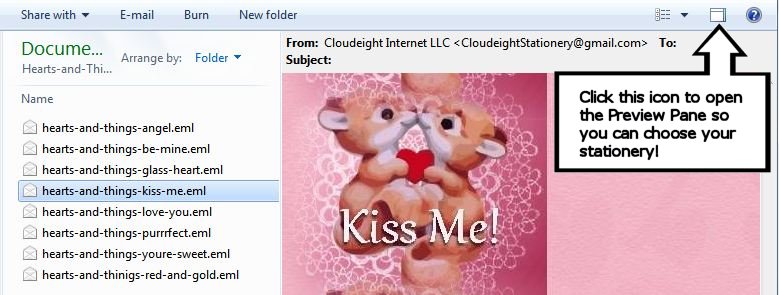 Cloudeight Help Page - Cloudeight Home - Information Avenue - NotOverTheHill - Contact Us All text, images, and help information on this page are copyright ©1999-2016 by Cloudeight Internet/Cloudeight Stationery (all rights reserved). Any duplication or reproduction of the information on this page or other Cloudeight information, without the written consent of Cloudeight Internet is prohibited by U.S. and International copyright laws and treaties. |