
Cloudeight InfoAve Weekly
Issue #1160
Volume 23 Number 11
January 2, 2026
Dear Friends,
Welcome to Cloudeight InfoAve Weekly Issue #1160 Thank you very much for subscribing and for being a part of our Cloudeight family. We appreciate your friendship and support very much! Please share our newsletters and our website with your friends and family.

Happy New Year 2026!

The new year is here and it's both an ending and a beginning.
And it seems like last year flew by - and here we are starting a brand new year. This is the first issue of InfoAve Weekly for 2026 This week's InfoAve Weekly newsletter is a review edition. Publishing review editions on major holidays allows us to take time off to share with our families. Plus, it's a great way for us to feature and review some of the best content from previous issues of InfoAve Weekly. Next week, we'll start off with a brand new edition of InfoAve Weekly!
It's been our pleasure to have you in our Cloudeight family this year. We are thankful for you and for the help and support you always give us. We are very fortunate and we look forward to your friendship and support in the new year.
Thanks so much for all you do for us. We wish you all a very safe, happy, and healthy new year! May all your dreams come true!
If you're not getting our InfoAve Daily newsletter, you're missing out on a lot of good stuff!
It's free and it only takes a few seconds to sign up. We'd love to have you with us. Visit this page to sign up for our Cloudeight InfoAve Daily Newsletter.

Our Winter Donation Drive is underway!
This week we gladly helped dozens of people solve their computer problems by email quickly and free of charge.
Make a small donation and help us help you!
If you don't need any of our products or services right now, please help us with a donation. Even the smallest gift is appreciated. Every donation helps us to provide useful information that helps you with your computer as well as helps us to keep you safe on the Internet. We offer free help to thousands of people every year... and we offer an honest and inexpensive computer repair service too. We do everything we can to help you with your computer and keep you safe too.So if you don't need any of our products or services right now, please help us by making a donation right now.
Interested in making a monthly gift? Visit this page. Help us keep helping you!
Thank you so much for your support!

My keyboard does not have a caps lock indicator. Some time ago I had an app that sat in the system tray and indicated the status of the caps and Num lock. It has disappeared and I can't remember what it was called. Do you know a safe app for a visual caps lock indicator?
I do like your newsletter and your useful information. Thanks, Rhonda
Our answer
Hi Rhonda. I spent some time looking around for something that would do what you need it to do. I found one and tested it on my laptop -even though I have a Caps lock indicator. The program worked well and you don't even have to install it - just click to run it. It will alert you when the Caps lock key is on as well as NumLock and Scroll Lock keys are on. You can also configure it just to show when Caps Lock is on and nothing else if that's how you want to configure it.
The program is called Caps Lock Indicator and you can read more about it and/or download it here.
We hope this works for you.
MaryLee has a problem with Microsoft
Edge
I've been having trouble
updating Edge. I was just going to
search Cloudeight for instructions on
this and found your article about
running
SFC and DISM. So I followed
instructions; it took about half an hour
to get to 8%. Three hours later, it's
stuck at 8%. I think I'll have to use my
Repair Key, which I purchased when you
first made them available.
Our
answer
Hi MaryLee. You don't have to use a
repair key to fix Edge. All you need to
do is reset it.
See this page to learn how to reset
Microsoft Edge.
Once you do that, close and reopen Edge.
Then type (or copy/paste) this into the
Edge address bar...
edge://settings/help
It will tell you if your Edge browser is
up to date and if not, give you the
option to update it.
DISM/SFC scans are for finding and
fixing or replacing Windows system
files. If the scans stop when running
them, you might want to close all open
programs before running them again.
We hope this helps you. MaryLee.
Marilyn fell for a tech support
scam
I have been using Emsisoft
for years. I thought that
it was a Malware and Antivirus
protector. Recently, my
computer was invaded by a
Trojan, and Emsisoft never
caught it or apparently knew
anything about it. Do they
not cover that type of malware?
I had to go through Microsoft to
have it removed and install
SAFESYS Innovations.
Our
answer
Hi Marilyn. I'm sorry to
say that you were scammed.
Microsoft does not install
software or fix personal
computers. Emsisoft protects
users from all malware,
including Trojans. You were
victimized by a tech support
scam.
Cheryl wants to know how to switch back
to using a password or PIN in Windows 10
Hello my computer guru friends, hope all
is well with you and your families. In
Issue #962, the question, "Sandi doesn't
want to use a password".
Well, I can't remember (nor could I find
the instructions on the home page), how
to make sure I am asked for my Microsoft
sign-in on my Windows 10 computer. Would
you please be kind enough to share the
instructions with me so I can reset my
sign-in option? Thank you kindly, Cheryl
L.
Our
answer
Hi Cheryl. Thanks so much.
Press the Windows key + R. In the run
box type NETPLWIZ and press Enter.
Select the account you want to change.
Tick the box next to "Users must enter a
user name and password to use this
computer".
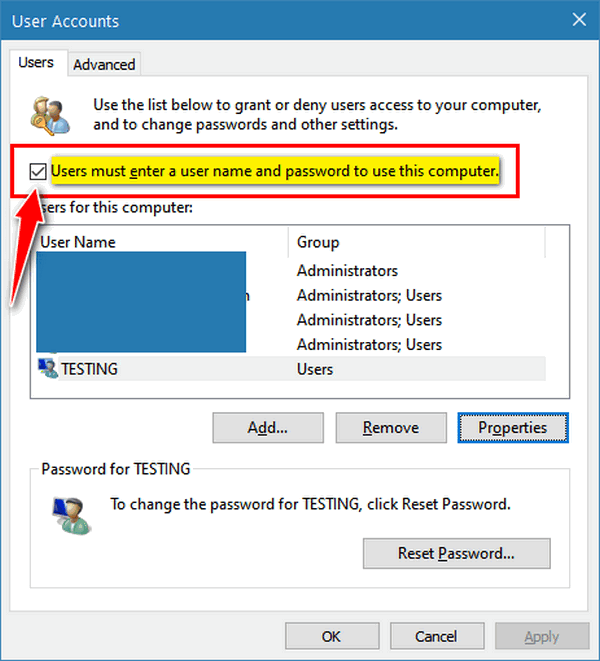
Whether or not the account has a
password or not, click the "Reset
password" button and enter a password.
Click Apply/OK.
After you do this, if you would rather
use a PIN than a password, type SIGN-IN
OPTIONS in the taskbar search press
Enter. Then select the PIN option. You
can make a simple 4-digit PIN there.
We hope this helps you, Cheryl.

We've helped hundreds and hundreds of you with your computers since we started our Cloudeight Direct Computer Care Service! If you're having computer problems - we CAN help you!
We all know that sooner or later our computers are going to start having problems. We can help you with any computer need -- from diagnosing and fixing Windows problems - to setting up a wireless network for you - to safeguarding by creating an image-based backup (the only kind that really works when you really need it to work) - to cleaning up your computer and optimizing it -- and more. We can do almost anything you need done and we guarantee our work - you're either satisfied or we'll refund your money.
We connect to your computer and fix it while you watch
We will connect to your computer via the Internet and fix any problems you may be having. You can watch us work and chat with us while we do. If you have any computer questions you'd like to ask we'll be glad to answer them for you. We don't just fix your computer, we explain what we're doing and why we're doing it and we are right there with the entire time. Since we've started we've helped hundreds of you with your computer problems and we've received dozens of referrals and testimonials from our readers and customers.
We offer many other computer services too! If you have a problem with your computer - we can fix it!
Get more information about Cloudeight Direct Computer Care and / or get your repair keys here.
I just ran into a problem that I can't figure out. I'm trying to copy my sister's bookmarks from Google Chrome to transfer to her new computer. When I try to save them, they are saved into an HTML file that can only be opened in Edge. Is there anything that will stop them from going to an HTML file?
Terry
gets Blue Screens and wants to
send his Event Logs to Microsoft
How can I send Microsoft an
event log? Maybe you can give a
site where to upload a log to
get answers. While using MS
Solitaire and Causal Games I get
a BSOD and the PC restarts and
all is OK If you want the Event
Log I can send it. I need
answers before I do a clean
reinstall of Windows.
Our
answer
Hi Terry. We seldom use Event
Logs. They're not reliable,
they're sometimes
incomprehensible, and they are
replete with dozens - even
hundreds - of inconsequential
errors,
I don't know if you're using
Windows 10 or Windows 11 or if
the games you're using were
those that came with Windows or
games you installed. There are a
lot of tips going around on how
to make Windows 7 games work on
Windows 10 and Windows 11 that
can cause big problems.
Blue Screens are not caused by
games - they're caused by driver
errors or corrupted operating
system files. If you installed a
driver updater (for instance),
these types of programs can
cause serious errors and blue
screens. If your Windows
installation has corrupt system
files this could cause the
problem. You can run SFC and
DISM scans to find and fix
Windows corruption. The
procedure is the same whether
you're using Windows 10 or
Windows 11. See this page for a
tutorial. Keep in mind if you're
trying to run Windows 7 games on
Windows 10 or Windows 11 this
will prevent the games from
running on Windows 10 or Windows
11 because they are not meant to
run on those operating systems.
And one other thing, with
Windows Reset (Windows
10/Windows 11) you rarely have
to do a clean install to fix a
problem. You can run a Windows
Reset and reinstall a fresh copy
of Windows and still keep all
your personal files.
See this page to learn how.
Other than my comments and
suggestions above, I don't have
enough information to give you a
more definitive answer but I
doubt the Event Logs would be
helpful.
Leora uses RoboForm and she wonders if
she will lose her passwords if she gets
a new PC
My computer is getting old and slow. If
it should decide not to start one of
these days and I have to get a new one
will I lose all my passwords on
RoboForm? I have been using RoboForm for
quite a while so I am hoping my info is
saved online. Thanks! Leora.
Our
answer
Hi Leora. If your computer stops
working, or your computer turns into
strawberry jam, or if it turns into a
giraffe and runs off to join a circus,
you won't lose your passwords. You can
install RoboForm on your new PC and sign
in with your username and master
password and voila! Your passwords are
all there and ready to use just like on
your old PC.
As long as you remember your master
password and your user name - your
passwords are safe no matter what.
I hope this eases your mind, Leora.

Now available: Reg Organizer 9.88
If you purchased or renewed Reg Organizer through Cloudeight within the
last 12 months, you're entitled to a free version upgrade to Reg
Organizer 9.88. Reg Organizer works great with Windows 10 and Windows 11.
Save $14 on Reg
Organizer right now!
Reg
Organizer - A Swiss Army Knife of Windows Tools - Works Great on Windows
10 and Windows 11.

An Easy Tip to Make Windows Easier to Use
Windows 10 / Windows 11
A Quick Quiz for You…
What is the quickest way to access all the following items in Windows?
Apps & Features/Installed apps, Mobility Center, Power Options, Event Viewer, Device Manager, Network Connections, Disk Management, Computer Management?
A. Settings
B. Control Panel
C. Start Menu
D. Hidden Start Menu
E. None of these
Who said D? You’re right!
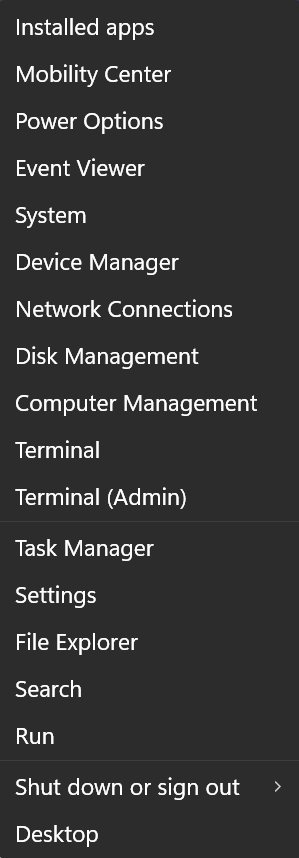
The hidden start menu, also known as the right-click Start menu or the Power users’ menu is the fastest way to access Device Manager, Power Options, Event Viewer, Disk Management, etc. You can access this menu by right-clicking the Windows start button or, if you’re a keyboard shortcut fan like us, you can open this menu by holding down the Windows key and tapping X. In Windows 11, the way you access the menu makes a difference.
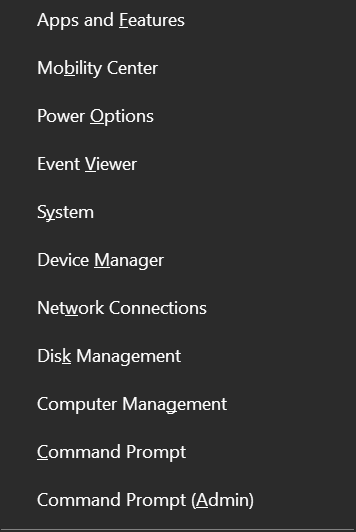
Above: The right-click or hidden Start menu (Windows 10).
Below: The right-click or hidden Start menu (Windows 11) when you right-click the Start button.
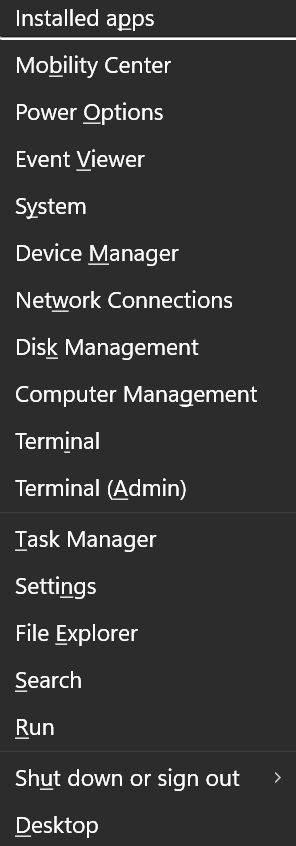
Below is the right-click or hidden Windows 11 Start menu you’ll see when you use the Windows key shortcut Windows Key + X. Do you see the difference? Underlined letters let you use shortcuts to select an item from the menu. For instance, with the menu open tap the Y key to access “System” or tap “M” to open “Device Manager”.
Now you know an easy way to access some important Windows features with only a click or a Windows Key shortcut.
Let’s Make
Windows 11 a Little Less Annoying
Windows 11
Windows 11 has its annoyances – many more than we will cover here today, but this little tutorial will get you started making Windows 11 just a little bit less annoying.
Right-click on the Taskbar, choose “Taskbar settings”, and turn off “Task view” and “Widgets”.
Next to ‘Search”, choose “Search icon only”. It has the same functionality as the full search bar but takes up less room. Taskbar space is valuable. Why clutter it up?
Now, click on Settings > System (on the left) and turn off Notifications. Who needs all those annoying notifications popping up?
Next, click on Settings > Personalization> Lock screen and uncheck “Get fun facts, tips, tricks, and more on your lock screen.” It’s just another annoyance and another way for Microsoft to advertise.

Moving right along. Now, click on “Privacy & security” (on the left),
Under “General,” turn all of the switches off.

Under Privacy & security > Diagnostics and feedback, make sure “Send optional data…” is turned off.
Next, under Privacy & security > Search permissions, turn the switch off under “Search highlights”
This is just a start, but just doing the little things above will help you make Windows 11 less annoying and less intrusive.
Windows 10 / Windows 11
 We
get a lot of emails asking us how to fix a
printer that was printing and suddenly
stopped printing for reasons unknown. It may
have stopped printing due to a power outage,
a Windows update, an internet connection
problem, or something else. While
frustrating, it usually can be fixed by
reinstalling your printer the same way you
would if it were a new printer.
We
get a lot of emails asking us how to fix a
printer that was printing and suddenly
stopped printing for reasons unknown. It may
have stopped printing due to a power outage,
a Windows update, an internet connection
problem, or something else. While
frustrating, it usually can be fixed by
reinstalling your printer the same way you
would if it were a new printer.
Before we get started, we want to point out that most printers with touchscreens have a test mode. So most printers, even one that is not connected to a computer, will print using its touchscreen. That’s the printer’s test mode; it has nothing to do with printing things from your computer.
OK… So Let’s Get Started!
First, unplug your printer from its power supply.
Next, type PRINTERS AND SCANNERS in the taskbar search. Press Enter when you see Printers & Scanners appear in the search results. In Windows 10, find your printer in the list and click on it, then choose “Remove device”. In Windows 11, the default printer shows at the top. Click on the “Remove” button.
Restart your computer – this is an important step – don’t skip it.
Once you have done the steps above, go to the printer manufacturer’s site. For instance, www.hp.com. You’ll need to know your printer’s model number. When on the manufacturer’s site, search for the full installation software for your printer model. For example, search for “Installation software for HP Envy 5565 Printer”.
Once you find the full installation software for your printer brand and model, download it to your computer, but do NOT install it yet.
Plug the printer into its power source and run the installation software you downloaded above. If this sounds familiar, it is. It’s exactly how you set up your printer when it was new.
If you cannot find the printer’s installation software – let us know, and we’ll help you find it. NEVER search for “Printer drivers” or “Printer installation software” because if you do that you’ll almost always end up with a bunch of fake sites trying to get you to download malware.

Want more tips, tricks, and information?
We have thousands of Windows tips, tricks, and more on our InfoAve website.
Subscribe to our free InfoAve Daily newsletter.
Our Winter Donation Drive is underway! This week we gladly helped dozens of people solve their
computer problems by email quickly and free of charge.
Make a small donation and help us help you!
If you don't need any of our products or services right now, please help
us with a donation. Even the smallest gift is appreciated. Every
donation helps us to provide useful information that helps you with your
computer as well as helps us to keep you safe on the Internet. We offer
free help to thousands of people every year... and we offer an honest
and inexpensive computer repair service too. We do everything we can to
help you with your computer and keep you safe too.
So if you don't need any of our products or services right now,
please help us by making
a donation right now.
Interested in making a monthly gift?
Visit
this page. Help us keep helping you!
Thank you so much for your support!

Microsoft PowerToys: Superpowers for Your Windows Computer
If you’ve ever found yourself wishing Windows could do just a little more to make your computer life easier, trust me, you’re not alone. But you’re in luck. Microsoft PowerToys is like a Swiss Army knife for your PC. It’s free, open-source, and packed with clever little tools that make everyday tasks smoother, faster, and way more customizable.
Originally a cult favorite back in the Windows 95 days, PowerToys has been reborn for Windows 10 and 11. And let me tell you—it’s not just for power users or techies. If you love tweaking your PC your way, or just want to work smarter, PowerToys is for you!
PowerToys Has Some Cool Features You’ll Actually Use

1. FancyZones: Window Management Wizardry
Forget the default Snap Layouts—FancyZones is like
Snap Layouts on steroids. You can design your own
grid layouts and snap windows into place with a
simple Shift + drag. If you’ve got a big monitor or
multiple screens, this will make your workspace feel
so much more organized.
2. PowerToys Run: Your Keyboard’s Best
Friend
Hit Alt + Space and boom—a cool search bar pops up.
It’s fast, it’s smart, and it does way more than
just launch apps. You can run commands, do math,
convert units, and even peek at running processes.
It’s like Spotlight for Windows, but with a little
extra pizazz!
3. Image Resizer: No Image Editors Needed
Right-click an image (or a bunch of them), choose
your size, and you’re done. Whether you need
thumbnails or full-size banners, this tool saves you
from opening a bulky editor just to shrink a photo.
Great for resizing images for email and social
media. You’ll love it.
4. Keyboard Manager: Customize Your Keys
Ever wanted to turn Caps Lock into something useful?
Now you can. Remap any key or shortcut to whatever
suits your workflow. It’s perfect for fixing
annoying key placements or creating your own
shortcuts.
5. Color Picker: Eyedropper for the
Entire Screen
Designers and creatives, rejoice. Hit Win + Shift +
C and grab any color from anywhere on your screen.
You’ll get the HEX, RGB, and HSL codes instantly—and
it even remembers your recent picks.
6. Text Extractor: Copy Text from
Anything
This one works like magic. Use Win + Shift + T, draw
a box around any text—even if it’s in an image or
locked PDF—and it’s copied to your clipboard. OCR
for the win.
7. File Explorer Add-ons & Peek: Preview
Like a Pro
Want to preview Markdown or SVG files without
opening them? Done. Just select the file and hit
Ctrl + Space to get a quick full-screen preview.
It’s fast, clean, and super handy.
8. Always On Top: Keep What Matters in
View
Do you need your calculator or notes app to stay
visible while you work? Press Win + Ctrl + T and pin
that window above all other windows. No more digging
through layers of open apps.

PowerToys is one of those rare free tools that feels like it should be built into Windows. I wonder why it’s not. Anyway, it gives you control over things you didn’t even realize you wanted to tweak. Whether you’re a techie, power user, or just an average Windows user, PowerToys is worth the download. So go ahead—give your PC a little superpower boost.
You can download Microsoft PowerToys from the Microsoft Store here.
It’s 100% free.

We can fix your computer while you watch. You never have to leave your home. Just sit back, relax, and watch us work. Get PC service from folks you trust at the best prices you'll find anywhere.
Get more information here.

Happy New Year from Both of Us... to All of YOU!
I t's
the last day of 2025. Tomorrow, we'll begin a new
year. It will be our 28th year for our little
business, which we call Cloudeight.
t's
the last day of 2025. Tomorrow, we'll begin a new
year. It will be our 28th year for our little
business, which we call Cloudeight.
It's been an amazing ride, but we would not be here if it weren't for the support and generosity of many of you.
You've kept us going. Because of you, we've been able to survive the only way we want to survive: by being honest and helping as many of you as we can at little or no cost to you.
Recently, we started our Winter Donation Drive and, well, what can we say? Your response has been wonderful as always.
We are looking forward to the new year with hope and with gratitude for all of you who we consider part of our Cloudeight family.
These past 27 years have been a roller coaster ride
Read the rest of this essay here.

What is doxing?
According to the International Encyclopedia of Gender, Media, and Communication, doxing is the intentional revelation of a person’s private information online without their consent, often with malicious intent. This includes the sharing of phone numbers, home addresses, identification numbers and essentially any sensitive and previously private information such as personal photos that could make the victim identifiable and potentially exposed to further harassment, humiliation and real-life threats including stalking and unwanted encounters in person.

Sales of the following products and services help support our newsletters, websites, and free computer help services we provide.
Cloudeight Direct Computer Care:
Always a great deal. Cloudeight Direct Computer Care is like having PC insurance. Get more information here.
Emsisoft Anti-Malware: Emsisoft is the only Cloudeight-endorsed and recommended Windows security program. It provides users with a complete antivirus, antimalware, anti-ransomware,
and anti-PUPs solution. We offer single Emsisoft licenses and multi-computer licenses at discount prices. Also, we offer our exclusive Emsisoft with Cloudeight installation & setup. Get more information here.
Reg Organizer: Reg Organizer is the Swiss Army Knife of Windows tools. It's far more than just a registry optimizer and cleaner... it's a Windows all-in-one toolkit. Reg Organizer helps you keep your computer in tip-top shape and helps you solve annoying Windows problems. Reg Organizer works great with Windows 10
and Windows 11! Get more information about Reg Organizer (and get our special discount prices) here.
MORE IMPORTANT STUFF!
Your InfoAve Weekly Members' Home Page is located here.
Help us Grow! Forward this email newsletter to a friend or family member - and have them sign up for InfoAve Weekly here!
Get our free daily newsletter! Each evening we send a short newsletter with a tip or trick or a computer-related article - it's short and sweet - and free. Sign up right now.
We have thousands of Windows tips and tricks and computer articles posted on our Cloudeight InfoAve website. Our site has a great search engine to help you find what you're looking for too! Please visit us today!
Help us by using our Start Page. It costs nothing, and it helps us a lot.
Print our Cloudeight Direct Flyer and spread the word about our computer repair service! If you want to help us by telling your friends about our Cloudeight Direct Computer Care service, you can download a printable flyer you can hand out or post on bulletin boards, etc. Get the printable PDF Cloudeight Direct Computer Care flyer here.

We'd love to hear from you!
If you have comments, questions, a tip, a trick, a freeware pick, or just want to tell us off for something, let us know.
If you need to change your newsletter subscription address, please see "Manage your subscription" at the very bottom of your newsletter.
We received hundreds of questions for possible use in IA news. Please keep in mind we cannot answer all general computer questions. We try to personally answer as many as we can. We can only use a few in each week's newsletter, so keep this in mind. If you have a support question about a service or product we sell, please contact us here.
Subscribe to our Daily Newsletter! Get computer tips & tricks every night. Our daily newsletter features a computer tip/trick or two every day. We send it out every night around 9 PM Eastern Time (USA). It's short and sweet, easy to read, and FREE. Subscribe to our Cloudeight InfoAve Daily Newsletter!
We hope you have enjoyed this issue of Cloudeight InfoAve Weekly. Thanks so much for your support and for being an InfoAve Weekly subscriber.
Wishing you all a Happy New Year and a great weekend too... be safe!

Darcy & TC
Cloudeight InfoAve Weekly - Issue #1160
Volume 23 Number 11
January 2, 2026
Not a subscriber? Subscribe to our FREE Cloudeight InfoAve Weekly Newsletter here.
"Cloudeight InfoAve Weekly" newsletter is published by:
Cloudeight Internet LLC
PO Box 73
Middleville, Michigan USA 49333-0073
Read our disclaimer about the tips, tricks, answers, site picks, and freeware picks featured in this newsletter.
Copyright ©2026 by Cloudeight Internet