
Cloudeight InfoAve Weekly
Issue #1161
Volume 23 Number 12
January 9, 2026
Dear Friends,
Welcome to Cloudeight InfoAve Weekly Issue #1161. Thank you very much for subscribing and for being a part of our Cloudeight family. We appreciate your friendship and support very much! Please share our newsletters and our website with your friends and family.

If you're not getting our InfoAve Daily newsletter, you're missing out on a lot of good stuff!
It's free, and it only takes a few seconds to sign up. We'd love to have you with us. Visit this page to sign up for our Cloudeight InfoAve Daily Newsletter.

Our Winter Donation Drive is underway!
This week, we were happy to help dozens of people resolve their computer issues via email quickly and at no charge.
Make a small donation and help us help you!
If you don't need any of our products or services right now, please help us with a donation. Even the smallest gift is appreciated. Every donation helps us to provide useful information that helps you with your computer as well as helps us to keep you safe on the Internet. We offer free help to thousands of people every year... and we offer an honest and inexpensive computer repair service too. We do everything we can to help you with your computer and keep you safe too.So if you don't need any of our products or services right now, please help us by making a donation right now.
Interested in making a monthly gift? Visit this page. Help us keep helping you!
Thank you so much for your support!

Susan gets
a graph instead of a blank page in
Microsoft Word
I don’t know how I did it, and don’t
know how to undo it or fix it.
Microsoft won’t help as usual. In my
Word program, when I open a page, a
graph-like page appears. It looks
like this:

I can not get a blank page. Could you fix it for me? Thanks, Susan
Our answer
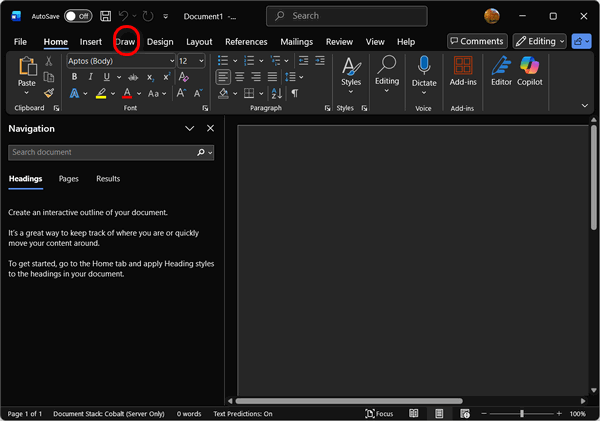
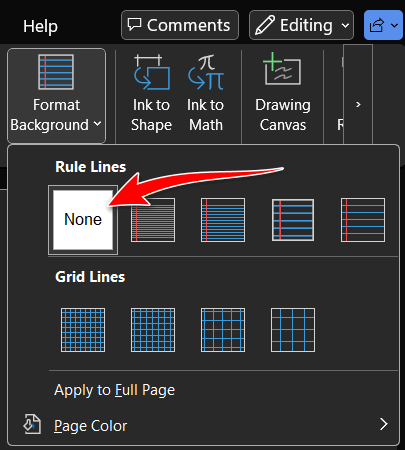
Hi Susan. It sounds like you
accidentally turned on the Gridlines
feature. This is a common "oops" in
Microsoft Word—it's meant to help
people align images or shapes, but
to a regular writer, it just looks
like the page has turned into graph
paper.

Press the Windows Key and type Manage BitLocker, then press Enter.
Find the drive you want to back up (usually C:).
Click Back up your recovery key.
Choose your preferred method:
Save to your Microsoft account: (Recommended) Uploads the key to Microsoft's secure servers tied to your email.
Save to a file: Saves a .txt file. Important: Windows will not let you save this file to the same drive you are encrypting. Use a separate USB drive or network location.
Print the recovery key: Creates a physical copy. Store this in a safe or filing cabinet, not with your laptop.
Save to a USB flash drive: Saves the key directly to a thumb drive.
We hope this helps you, Wendy.
Uwe
wants to know what "Network
Discovery" is
Hello TC: What is network
discovery, and what does it do?
Can it affect the other devices
that I stream with? Thanks. Uwe
Our
answer
Hi Uwe. In Windows, Network
Discovery is just a simple
setting that controls whether
your computer can "see" (and be
seen by) other devices on your
local network. When you turn
Network Discovery ON (usually on
your home Wi-Fi or a trusted
office network):
Your computer can find
others: You can see and connect
to other computers, shared
printers, smart TVs, and network
storage devices (like a NAS)
that are connected to the same
Wi-Fi or router.
Others can find your computer:
Other devices on your network
can see your Windows computer
and access any files or printers
you have specifically set up to
share.
This makes sharing things at
home or work very easy.
Unless you're streaming
something from your computer to
another device on your network
(in your home), it does not
affect streaming.
I hope this answers your
question, Uwe.

We've helped hundreds and hundreds of you with your computers since we started our Cloudeight Direct Computer Care Service! If you're having computer problems - we CAN help you!
We all know that sooner or later our computers are going to start having problems. We can help you with any computer need -- from diagnosing and fixing Windows problems - to cleaning up malware and viruses - to cleaning up your computer and optimizing it -- and more. We can do just about anything need done and we guarantee our work - you're either satisfied or we'll refund your money.
We will connect to your computer via the Internet and fix any problems you may be having. You can watch us work and chat with us while we do. If you have any computer questions you'd like to ask we'll be glad to answer them for you. We don't just fix your computer, we explain what we're doing and why we're doing it and we are right there with the entire time. Since we've started we've helped hundreds of you with your computer problems and we've received dozens of referrals and testimonials from our readers and customers.
We offer many other computer services too! If you have a problem with your computer - we can fix it!
Get more information about Cloudeight Direct Computer Care and / or get your repair keys here.
Sue says all of her desktop
icons have vanished
All my icons have
disappeared from my desktop.
When I used Google Chrome,
it was easy to do, but now
that I have EDGE its not
very easy. Is there an
easier way to put them back
on my desktop? Thanks for
all your help. Keep up the
good fight. Sue.
Our answer
Hi Sue. The browser
you use doesn't affect your
desktop icons. Try this:
Linda
installed a driver updater
(malware) and can't get rid of
its pop-ups.
Hi guys, I'm having a problem
with this website that keeps
popping up, it's called PD
Helpsoft Driver Updater Pro.
I've uninstalled it, but it
keeps popping up on my PC. Help!
Our
answer
Hi Linda. This is something that
often happens when you download
malware or a PUP supported by
advertising. While you can
remove the program, the pop-ups
and advertising will still
appear because they emanate from
your browser. You will need to
clear your browser's history and
cache and then restart your
computer. If you're using
Firefox, Chrome, or Microsoft
Edge, you can
follow the instructions on this
page to clear your browser's
cache and history. It's
important to remember that after
you do this to restart your
browser, or better yet, restart
your computer. Once you do, all
the pop-ups should disappear.
I hope this helps you, Linda.
Margaret's browser's start page has been
hijacked
I have been using Google Chrome for the
internet. I did uninstall it and
reinstall it, but the same website keeps
coming up, and I have to click on a star
at the top of the screen to get Google.
The website is msofcryingfora.com. Do
you know of a way to get rid of it?
Our
answer
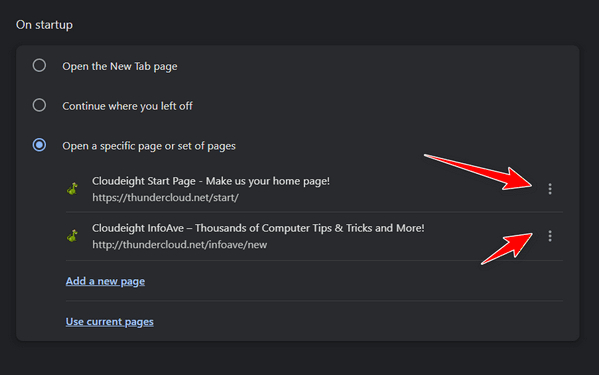
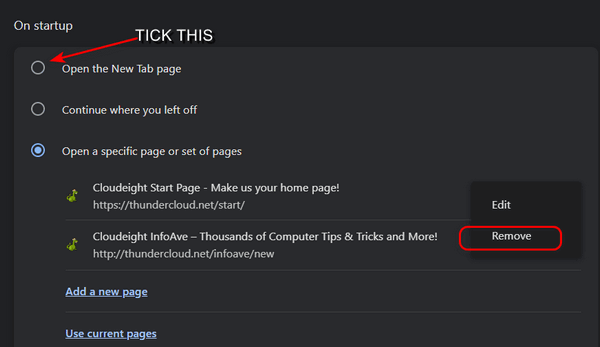
Hi Margaret. Somehow, you've
installed a browser hijacker that has
changed your Chrome start page.

Now available: Reg Organizer 9.88
If you purchased or renewed Reg Organizer through Cloudeight within the
last 12 months, you're entitled to a free version upgrade to Reg
Organizer 9.88. Reg Organizer works great with Windows 10 and Windows 11.
Save $14 on Reg
Organizer right now!
Reg
Organizer - A Swiss Army Knife of Windows Tools - Works Great on Windows
10 and Windows 11.

Windows 10 / Windows 11
SysMain was called “SuperFetch” back in 2018. Microsoft has since changed its name but not its function.
SysMain is supposed to be a system optimization feature to help speed up your PC’s performance. However, SysMain can often cause high disk, CPU, or Memory (RAM) usage that can make your PC run slower. Luckily, you can easily turn off SysMain without harming your computer or Windows installation.
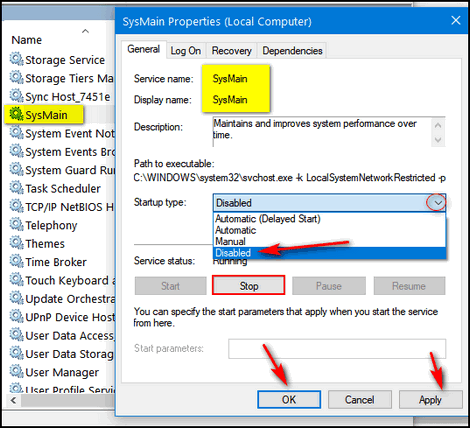
Here’s how to disable SysMain on your Windows 10 or Windows 11.
1. Type SERVICES.MSC in the taskbar search
and press Enter.
2. Locate SysMain and double-click it.
3. Next to “Startup type,” click on the down
arrow to expand the list and choose “Disabled.”
4. Click the “Stop Button.”
5. Click Apply/OK
6. Restart your computer.
If your computer is running slowly, turning off SysMain is one of the things that might help speed it up without causing any problems.
Make Things
Easier to See With Windows Magnifier
Windows 10 / Windows 11
One thing we all share besides this blue planet is getting old. And getting old comes with its frustrations, most of which I won’t get into here. However, one of the things most older people have is trouble seeing things on a computer screen. Sometimes, it gets frustrating. Windows Magnifier can help.
Until recently, I thought Magnifier was for the severely sight-impaired, but I was wrong. It’s for anyone who has trouble seeing some things on the screen. It’s very customizable, and you may want to play with the settings to get it to work exactly as you need it to work. This tutorial was written for Windows 11. If you’re using Windows 10, the instructions are the same, except Accessibility is called “Ease of Access” in Windows 10.
Using Magnifier in Windows 11
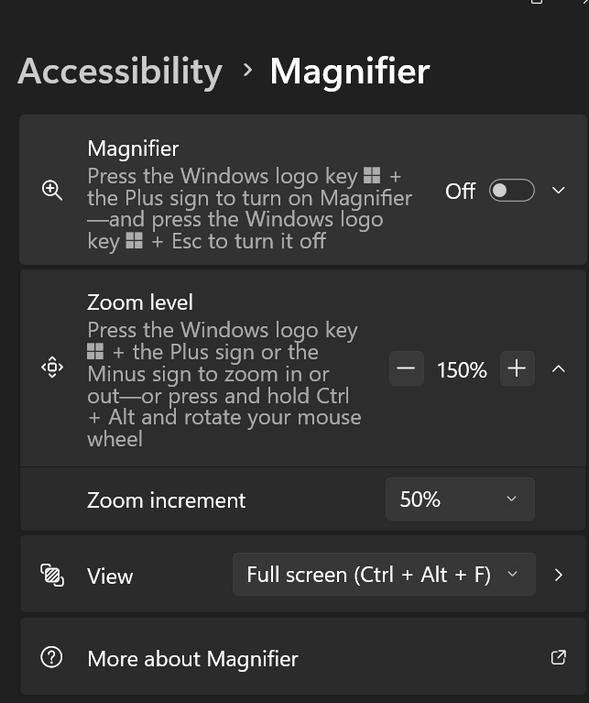
1. Turn on Magnifier
Keyboard Shortcut: Press the Windows logo key + Plus sign (+).
Or you can press Windows Key + U to go to
Accessibility settings:
In Accessibility, turn on the Magnifier switch.
2. Adjust Magnification
Zoom In: Press the Windows logo key + Plus sign (+).
Zoom Out: Press the Windows logo key + Minus sign (-).

3. Change Views:
Keyboard Shortcut: Press the Windows logo key + Ctrl + M to cycle through the views.
Settings: Go to Settings > Accessibility > Magnifier and select a view from the Change Magnifier view dropdown menu.
4. Turn Off Magnifier
Keyboard Shortcut: Press the Windows logo key + Esc.
If you want to use your mouse, open Accessibility (Windows Key + U click on Magnifier, and turn off the Magnifier switch.
We’ve covered the basics of Windows Magnifier and how to use it. To learn more, see this Microsoft page.
What’s Your Computer’s
Reliability Score? Let’s Find Out!
Windows 10 / Windows 11
The Windows Reliability Monitor is one of the most useful “hidden” tools in Windows. Instead of a vague star rating, it gives you a Stability Index from 1 to 10 based on how your specific PC has performed over the last few weeks.
Here is how to find your rating and what those numbers actually mean for Windows 10 and 11.
How to find your Reliability Rating
Both Windows 10 and 11 hide this app deep in the Control Panel, but you can find it in seconds:
Press the Windows Key.
Type “Reliability” into the search bar.
Select “View reliability history.”
All About the “Stability Index” (1–10)
The graph shows a blue line that fluctuates daily. The blue line tells your computer’s reliability score for each day.
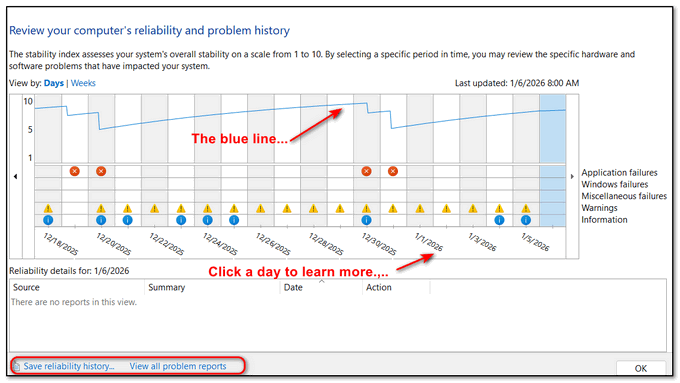
As you can see in the screenshot above, my
laptop score averages around 7 – so I’m in
good shape – or at least my laptop is!
What’s your computer’s reliability score?
10 (Perfect): Your system has had zero “critical” events (crashes, forced restarts, or hardware failures) for several days.5–9 (Normal): You’ve had a few “Application Failures” (like a web browser closing unexpectedly), but the Windows “Kernel” (the brain of the OS) is stable.
1–4 (Critical): Your system is likely experiencing “Blue Screens of Death” (BSODs), driver failures, or unresponsiveness.
Understanding the “Critical Events” Follow the little blue line!
Below the graph, you will see icons for each day. Clicking on a day reveals the culprit:
Red X (Critical Event): A program or Windows itself crashed.
Blue “i” (Information): A successful update or installation.
Yellow Warning: A non-fatal error (like a driver that failed to load but didn’t crash the PC).
Also, be sure to look for any items in the list that say “Check for a solution” in the status column. If you seen one, click that link, and Windows will “phone home” to Microsoft’s servers to find a solution for that particular issue. If it finds one, follow the prompts to install it. This is often the fastest way to fix a Windows stability issue.

Want more tips, tricks, and information?
We have thousands of Windows tips, tricks, and more on our InfoAve website.
Subscribe to our free InfoAve Daily newsletter.
Our Winter Donation Drive is underway! This week, we were happy to help dozens of people resolve
their computer issues via email quickly and at no charge.
The Internet Archive
“Wayback Machine”: Time Travel Made Easy
Make a small donation and help us help you!
If you don't need any of our products or services right now, please help
us with a donation. Even the smallest gift is appreciated. Every
donation helps us to provide useful information that helps you with your
computer as well as helps us to keep you safe on the Internet. We offer
free help to thousands of people every year... and we offer an honest
and inexpensive computer repair service too. We do everything we can to
help you with your computer and keep you safe too.
So if you don't need any of our products or services right now,
please help us by making
a donation right now.
Interested in making a monthly gift?
Visit
this page. Help us keep helping you!
Thank you so much for your support!

All Aboard the Nostalgia Express

Do you remember Rocky & Bullwinkle? If you do, then you’ll remember the “Wayback Machine.” That was one of my favorite parts of the Rocky & Bullwinkle show – along with “Fractured Fairy Tales”.
If you’ve been on and around the Web for as long as we have, then you, too, have seen tremendous changes to the way the Web looks and works. Back in the mid-90s, when we first laid eyes on the Internet, it was a far different place than it is today. Back then, if someone asked what you did last night and you said “I surfed the web,” you were labeled a geek, a kook, or worse. The Internet was an oddity. And back then, I don’t think even Darcy & I, who both loved the Internet the minute we first laid eyes on it, ever thought it would develop into what it is today. The Internet grew from an oddity to a necessity in less than twenty-five years.
For those of you, like us, who sometimes find yourself longing for the good old days of the web, there’s a website that can transport you back in time – back to the days when the web was a simpler place – a place where almost everything was free and the term “web designer” was used to describe spiders – the kind with eight legs.
Let’s go back nearly 22 years and take a look at Cloudeight Stationery. Back in those days, our site was ranked in the top 1000 most popular sites. Here is what Cloudeight Stationery looked like on June 2, 2004.
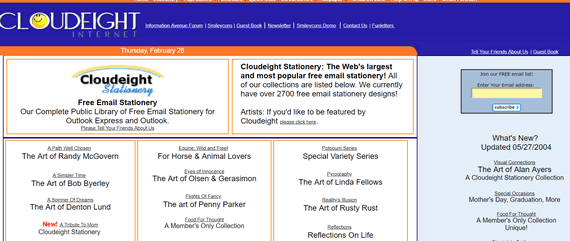
If you go back farther than that, you’ll get the “Netscape version” of our site, no matter what browser you use. Back in those days, only Internet Explorer rendered our site and stationery correctly – but that was OK then, over 95% of everyone using Windows and browsing the Internet used Internet Explorer – there was no Firefox or Chrome.
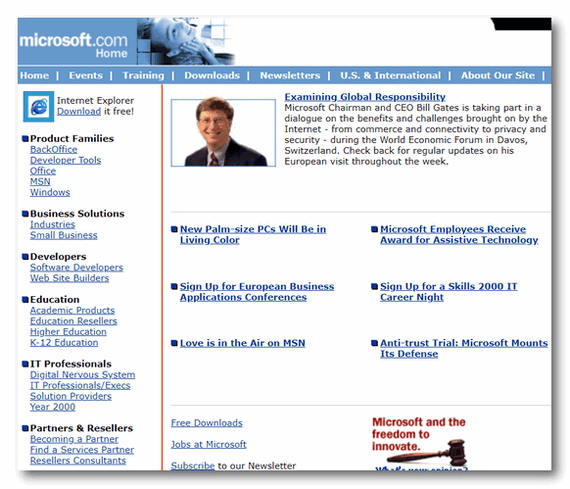
How about Microsoft circa 1998?
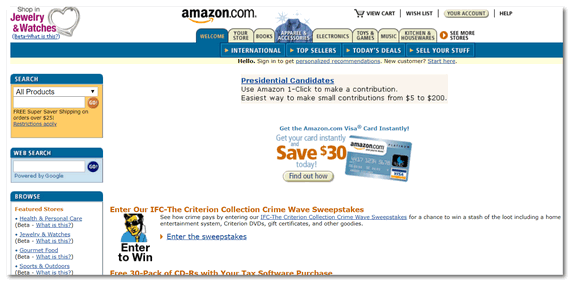
Or Amazon in 1999?
How about Yahoo? Here’s Yahoo circa 1998.

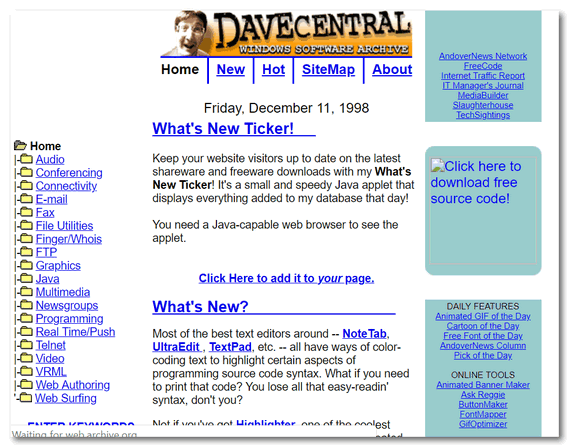
And one of my favorite sites of all time – unfortunately long gone from the Web: DaveCentral.com – The first thing I’d do every morning is get up, go to DaveCentral, and download all the new freeware he recommended for that day. Darcy used to laugh at the stuff I’d put on my computer. I ran into problems being so aggressive and installing new programs so prolifically, but I also discovered some really great programs, too, by trying Dave’s recommendations. RIP DaveCentral!
Here’s DaveCentral in 1999
Do you have favorite sites that have faded away or sites that you once loved that have changed for the worse? Are you just curious about what the Web used to look like way back when?
Our site pick today, The Internet Archive: Wayback Machine, has over ONE TRILLION web pages archived and ready for your perusal.
Are you ready to hop in the Internet time machine and go back to another place and time? If you are, click here to visit The Internet Archive: Wayback Machine ….
Have fun!

We can fix your computer while you watch. You never have to leave your home. Just sit back, relax, and watch us work. Get PC service from folks you trust at the best prices you'll find anywhere.
Get more information here.

Meditation on Continuation
When a loved one dies, they disappear forever... or so we think. But no one we’ve ever loved disappears; they change form. Just because we can’t see them as we could before doesn’t mean they don't exist.
Think about the wind. We can’t see it, yet it exists.
Tulips waving in the spring breeze. The summer wind rustles the summer trees. The autumn leaves, gold and brittle, let go of a brittle branch to spin softly to the ground on a soft and gentle autumn sigh. Snowflakes dancing on winter's cold breath.
The wind that we cannot see touches you and touches me.
We search for a familiar face and find a flowing field of wildflowers swaying just beyond the forest.
Read the rest of this essay here.

 What
is the Windows kernel?
What
is the Windows kernel?The Windows kernel is the hidden "manager" of your computer. It acts as the bridge between your software (apps) and your hardware (parts like the CPU and RAM). It translates app requests into hardware actions, like telling the screen to display a pixel or the drive to save a file. It keeps apps organized so they don't crash each other or steal each other's data. If the kernel fails, the whole computer fails—this is usually what causes a Blue Screen of Death. Windows is literally "built around" the Windows kernel.
And now know the difference between the Windows kernerl and The Colonel.

Sales of the following products and services help support our newsletters, websites, and free computer help services we provide.
Cloudeight Direct Computer Care: Always a great deal. Cloudeight Direct Computer Care is like having PC insurance. Get more information here.
Emsisoft Anti-Malware: Emsisoft is the only Cloudeight-endorsed and recommended Windows security program. It provides users with a complete antivirus, antimalware, anti-ransomware, and anti-PUPs solution. We offer single Emsisoft licenses and multi-computer licenses at discount prices. Also, we offer our exclusive Emsisoft with Cloudeight installation & setup. Get more information here.
Reg Organizer: Reg Organizer is the Swiss Army Knife of Windows tools. It's far more than just a registry optimizer and cleaner... it's a Windows all-in-one toolkit. Reg Organizer helps you keep your computer in tip-top shape and helps you solve annoying Windows problems. Reg Organizer works great with Windows 10 and Windows 11! Get more information about Reg Organizer (and get our special discount prices) here.
MORE IMPORTANT STUFF!
Your InfoAve Weekly Members' Home Page is located here.
Help us Grow! Forward this email newsletter to a friend or family member - and have them sign up for InfoAve Weekly here!
Get our free daily newsletter! Each evening we send a short newsletter with a tip or trick or a computer-related article - it's short and sweet - and free. Sign up right now.
We have thousands of Windows tips and tricks and computer articles posted on our Cloudeight InfoAve website. Our site has a great search engine to help you find what you're looking for too! Please visit us today!
Help us by using our Start Page. It costs nothing, and it helps us a lot.
Print our Cloudeight Direct Flyer and spread the word about our computer repair service! If you want to help us by telling your friends about our Cloudeight Direct Computer Care service, you can download a printable flyer you can hand out or post on bulletin boards, etc. Get the printable PDF Cloudeight Direct Computer Care flyer here.

We'd love to hear from you!
If you have comments, questions, a tip, a trick, a freeware pick, or just want to tell us off for something, let us know.
If you need to change your newsletter subscription address, please see "Manage your subscription" at the very bottom of your newsletter.
We received hundreds of questions for possible use in IA news. Please keep in mind we cannot answer all general computer questions. We try to personally answer as many as we can. We can only use a few in each week's newsletter, so keep this in mind. If you have a support question about a service or product we sell, please contact us here.
Subscribe to our Daily Newsletter! Get computer tips & tricks every night. Our daily newsletter features a computer tip/trick or two every day. We send it out every night around 9 PM Eastern Time (USA). It's short and sweet, easy to read, and FREE. Subscribe to our Cloudeight InfoAve Daily Newsletter!
We hope you have enjoyed this issue of Cloudeight InfoAve Weekly. Thanks so much for your support and for being an InfoAve Weekly subscriber.
Have a great weekend... be safe!
Cloudeight InfoAve Weekly - Issue #1161
Volume 23 Number 12
January 9, 2026
Not a subscriber? Subscribe to our FREE Cloudeight InfoAve Weekly Newsletter here.
"Cloudeight InfoAve Weekly" newsletter is published by:
Cloudeight Internet LLC
PO Box 73
Middleville, Michigan USA 49333-0073
Read our disclaimer about the tips, tricks, answers, site picks, and freeware picks featured in this newsletter.
Copyright ©2026 by Cloudeight Internet