
Cloudeight InfoAve Weekly
Issue #1162
Volume 23 Number 13
January 16, 2026
Dear Friends,
Welcome to Cloudeight InfoAve Weekly Issue #1162. Thank you very much for subscribing and for being a part of our Cloudeight family. We appreciate your friendship and support very much! Please share our newsletters and our website with your friends and family.

If you're not getting our InfoAve Daily newsletter, you're missing out on a lot of good stuff!
It's free, and it only takes a few seconds to sign up. We'd love to have you with us. Visit this page to sign up for our Cloudeight InfoAve Daily Newsletter.

Our Winter Donation Drive is underway!
This week, we were happy to help dozens of people resolve their computer issues via email quickly and at no charge.
Make a small donation and help us help you!
If you don't need any of our products or services right now, please help us with a donation. Even the smallest gift is appreciated. Every donation helps us to provide useful information that helps you with your computer as well as helps us to keep you safe on the Internet. We offer free help to thousands of people every year... and we offer an honest and inexpensive computer repair service too. We do everything we can to help you with your computer and keep you safe too.So if you don't need any of our products or services right now, please help us by making a donation right now.
Interested in making a monthly gift? Visit this page. Help us keep helping you!
Thank you so much for your support!

Sharon
wants to know the safest way to
eliminate duplicate photos on her
computer
What is the safest and easiest way
to find and delete duplicate
pictures on my computer? Thank you
for being so helpful once again.
Our answer
Hi Sharon. There is no 100% safe
way. Many apps claim to find and
delete duplicate pictures - but many
of them don't do a very good job,
and some delete photos that are not
duplicates. The best way we have
found, with the least chance of
deleting actual duplicates, is by
using a free program called
Anti-Twin.
You can read more about Anti-Twin
here.
My old mind has become a little useless. I just want to get a new password manager, but have had no luck with NordPass/LastPass,/RoboForm. Please advise me what you recommend that's easy and simple. Don’t really care about cost.
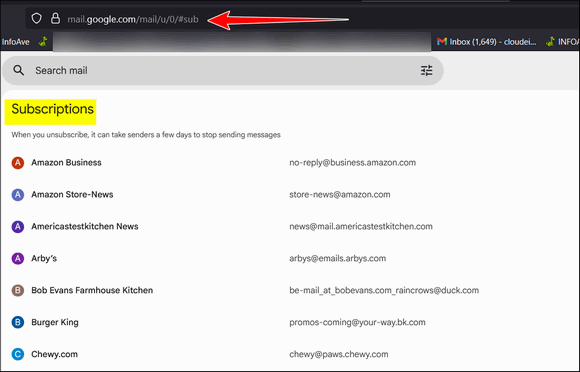
I was excited when I saw your article on Gmail subscriptions. I was hoping to find out what all my subscriptions were and get rid of many of them. However, I clicked the link. I got the big M. The bar went through to the end, and nothing else happened. I never got any of the subscriptions to pop up. I tried going out and doing it again. My Gmail was open. I tried doing it from the Gmail page. The same result. I was disappointed that it didn't work for me.

We've helped hundreds and hundreds of you with your computers since we started our Cloudeight Direct Computer Care Service! If you're having computer problems - we CAN help you!
We all know that sooner or later our computers are going to start having problems. We can help you with any computer need -- from diagnosing and fixing Windows problems - to cleaning up malware and viruses - to cleaning up your computer and optimizing it -- and more. We can do just about anything need done and we guarantee our work - you're either satisfied or we'll refund your money.
We will connect to your computer via the Internet and fix any problems you may be having. You can watch us work and chat with us while we do. If you have any computer questions you'd like to ask we'll be glad to answer them for you. We don't just fix your computer, we explain what we're doing and why we're doing it and we are right there with the entire time. Since we've started we've helped hundreds of you with your computer problems and we've received dozens of referrals and testimonials from our readers and customers.
We offer many other computer services too! If you have a problem with your computer - we can fix it!
Get more information about Cloudeight Direct Computer Care and / or get your repair keys here.
Thomas wants to modify the
Windows 11 clock so that it
shows the day of the week.
Hi. Can you tell me if it's
possible to show the day of
the week along with the time
and date on the taskbar?
Thanks in advance.
Our answer
Hi Thomas. Windows 11 does
not show the day of the week
by default. That capability
will be added with the next
version update (coming out
soon), along with the
ability to move the taskbar
to the sides of the screen.
You can modify the current
Windows 11 clock so it
displays the name of the
week by using this
workaround:
Open the Control Panel's
Region settings:
Press the Windows key + R to
open the Run dialog.
Type intl.cpl and press
Enter.
The Region window will open.
Access Date format settings:
On the Formats tab, click
the Additional settings...
button.
In the Customize Format
window, click the Date tab.
Edit the Short date format:
In the Date formats section,
find the Short date field.
Add the necessary characters
for the day of the week to
the beginning of the current
format.
Code Result (e.g., for
Monday)
ddd Mon
dddd Monday
For example, if your current
format is M/d/yyyy, you
could change it to:
ddd M/d/yyyy (for an
abbreviated day, e.g., Mon
1/12/2026)
dddd M/d/yyyy (for the full
day name, e.g., Monday
1/12/2026)
Apply and Save:
Click Apply, then OK on the
Customize Format window.
Click Apply, then OK on the
Region window.
The taskbar clock should
immediately update to
display the day of the week.
I don't know of any calendar
that works with Windows 11
that would display the name
of the week in or near the
clock.
Hope this helps you get the day of the week on your Windows clock.
Norman
has a problem opening MS Word
documents
I have a new Dell laptop. Every
Word document I try to open is
read-only. How can I change that
so I can both update and change
the doc?
Our
answer
Hi Norman. Here are some things
to try.
Hi Darcy & TC. I was told this in a PC course I was taking. If you live in an area where you get a lot of lightning, tie a loose knot in the power cord before you plug it into the outlet. The instructor actually saw a power cord that was burned off at the knot after a lightning strike. It's better to replace the cord and not the PC!
Hi Randy. Thanks for sharing that. It’s really interesting to hear the different tips that come up in those courses. Unfortunately, it's not very good advice.
While I'm sure the instructor did see a cord snap at the knot, it’s actually a bit of a "tech myth" that the knot protects the computer. Think of it like a high-pressure fire hose: if you put a sharp kink in the hose and then blast water through it at 10,000 PSI, the hose will likely burst right at that kink. However, the water still reaches the nozzle at the end of the line; at the same time, the hose explodes.
The same thing happens with electricity. The knot creates a "weak point" or bottleneck. When a massive surge hits, that point melts or blows out—which makes it look like it caught the lightning—but the surge has usually already reached the PC's power supply. In fact, tying knots can be a fire hazard during normal use because it damages the internal copper strands.
A quick tip for staying safe during a storm: If you’re using a laptop, simply unplug it from the wall and run it on battery power. As long as it isn't physically connected to the house's electrical grid, it’s 100% safe from a power surge. For a desktop PC, use a certified surge protector. But a surge protector - even the best ones won't protect your devices from a direct lightning strike. Keep in mind that for any computer that is plugged in during a storm, the only 100% certain way to keep it safe is to pull the plug until the storm passes.
I hope this helps you keep your equipment safe.

Now available: Reg Organizer 9.88
If you purchased or renewed Reg Organizer through Cloudeight within the
last 12 months, you're entitled to a free version upgrade to Reg
Organizer 9.88. Reg Organizer works great with Windows 10 and Windows 11.
Save $14 on Reg
Organizer right now!
Reg
Organizer - A Swiss Army Knife of Windows Tools - Works Great on Windows
10 and Windows 11.

Get a Free
Second Phone Number with Google
Voice
Anyone with a Gmail account
Google Voice gives you a free second phone number (with some caveats) for calls, texts, and voicemail. It works over the internet (VoIP) and forwards calls to your existing phones (mobile or landline). It’s not entirely free in all aspects (e.g., international calls cost money), and availability is limited to certain countries. Google Voice provides a separate number managed through Google that you can use as a second phone number.
Google Voice is easy to set up, it works great, and allows you to make and receive phone calls without revealing your real phone number to the person or company you’re calling and without having to use the old *67 trick. I’ve been using Google Voice for almost two years now, and I like it… It works great.
Using a Google Voice number is a great idea when calling people you don’t know well and when calling companies you’re not familiar with. It’s also a great idea if you have a small business or side hustle, but don’t have a business phone number.
Here are some of the many advantages of having a Google Voice phone number:
- It’s Free: If you are in the USA, Canada, or another country where Google Voice is available and have a Google Account, you can get a Google Voice number for free. You can use it as a second number, a business phone number, etc. Google Voice. For a list of countries where Google Voice is available and additional info, see this page.
- Link your Google Voice number to your phone. You can link your Google Voice number to your cell phone or your landline number.
- You can make and receive free calls and send and receive free texts to the US and Canada. Google Voice users can make and receive free calls and texts to the US and Canada. Note: Most International calls are not free.
- Flexible call forwarding. Google Voice allows you to forward your calls to any phone number. This is great for managing multiple phone numbers or taking calls while you’re traveling.
- Voicemail transcription. Google Voice transcribes your voicemails into text. This is a great way to quickly and easily read your voicemails, especially if you are on the go. You can have the transcribed voicemails sent to your Gmail address.
- Call blocking and filtering. Google Voice allows you to block and filter unwanted calls. This can help you to reduce spam and telemarketing calls.
- Call recording. Google Voice allows you to record your calls (where legal). This can be useful for business meetings or personal protection.
- Call screening. Google Voice can screen your calls and let you know who is calling before you answer.
- Group messaging. Google Voice allows you to create group messaging threads with multiple people.
- Simultaneous ring. Google Voice can ring multiple phone numbers at the same time. This is great for when you are expecting an important call and want to ensure you don’t miss it.
- Call routing. Google Voice allows you to route your calls to different phone numbers based on the time of day or the caller’s identity.
- Use your Google Voice number as your business phone number. If you have a small business, you could use your Google Voice number for your business number. Publish your new business number with confidence that your real number and identity will remain hidden.
How to get your free Google Voice number
If you have a Gmail Account (and if you have a Gmail address, you do), you can create a Google Voice phone number in just a couple of minutes.
Click this link to go to Google Voice
If not already signed into your Gmail account, sign in.
Review the terms and proceed to the next step.
You’ll see a list of phone numbers you can choose from. Or, if you like, you can search by city or area code.
Verify the number and enter the phone number you want to link to your Voice account. You can link a landline phone or a cell phone number.
Google will then send you a six-digit code to enter to continue setting up your Google Voice account.
Once you’ve signed in, you can set up your Google Voice number and enable some of its features by clicking on the Settings icon (the gear icon) at the top of the Google Voice page.
If you have an Android or Apple smartphone, download the Google Voice app. The Google Voice app makes it easy to use your Google Voice number and all its features on your smartphone. It’s like getting a second phone number free!
A
Reminder: Never Use Your Name in Your
Email Address
For everyone
who uses email

Now that Gmail has decided they are going let users change their email address (read more here), maybe you’ll want to change yours. So, dear friend, we want to remind you again that while we understand how tempting and how really cool it is to use your first name, or first and last name in your email address, there’s a really good reason why you shouldn’t.
And here it is.
Suppose your name is the same as EB’s – Darcy Goobergoober. Now it would be mighty handy and cool to have an email address like DarcyGoobergoober@vodkatower.com. Well, yes, Darcy Goobergoober is a fine name, there’s no doubt about it. However, what happens when a spammer gets hold of that address? You know, over time, they probably will.
Here’s what could happen…
The National Bank of Willard
Your savings place and a whole lot more
Car Loans 50% OFF!Dear Darcy Goobergoober,
Thanks for banking with us. Believe it or not, we just found out that $4 million dollars was deposited in your checking account! It was transferred to your account from your cousin Lotus Overbaum from Kreaker, Lower Slobovia AB49072, First Slobovian Bank Cartel, LLC.
Yes, you’re shocked. We’re shocked too! But it’s true. All $4 million is yours. And all you have to do to claim it is to click this link and verify your bank account number and password.
After you give us the information we require, just think! You’ll be one of our richest customers. You’ll get to sit in the plush offices of our president, smoke Havana cigars and drink Grey Goose and Key Lime with our board of directors – any time you like! And just think, you’ll have $4 million in your checking account you can use to buy whatever tickles you.
Yes, Darcy Goobergoober, you could be $4 million richer just by clicking this link right now!
Thanks so much for banking with us, Darcy Goobergoober.
Sincerely yours,
H. M. Hummer
President
National Bank of Willard
If you’re sharp, you’ll think, “Gee, I don’t have any relatives in Lower Slobovia,” and you’ll delete this email straight away. Hopefully, if you have been with us for a while, we’ve impressed upon you why you should always be wary of emails from banks, credit card companies, and other emails of that ilk that try to get you to click links in them. NEVER CLICK LINKS IN EMAILS FROM BANKS, CREDIT CARD COMPANIES, FINANCIAL INSTITUTIONS, or ANY SITE THAT DEALS IN MONEY OR ASKS FOR VERY PERSONAL INFORMATION, SUCH AS YOUR SOCIAL SECURITY NUMBER OR HOME ADDRESS, ETC.
But let’s say you did get an email from someone, and it’s addressed to your name (as Darcy Goobergoober did). What happens if you’re tired, have had too much to drink, or have to work with an evil boss as I do, and you are brow-beaten into a miserable, weary state and can barely think? You might not be as sharp as usual, and you may decide, heck, $4 mil is worth a chance! Click! Click!
But what if your email address did not have your name in it? What if it were RollyPollyPolarBear140@Nebraska-is-flat.com? Then what would the spammers write?
Something like this…
“Dear RollyPollyPolarBear140”
And you’d say, “Wait! My name is Darcy Goobergoober… not RollyPollyPolarBear140 – these guys are spammers or scammers! No matter how tired you were, how much you had to drink, how much of a rush you were in, or how brow-beaten you were, you’d still -hopefully – know what your name is.
Of course, as always, I’ve gone to extremes to prove a point. Most spammers and phishers don’t bother with names – but the best ones do. And now, assisted by AI, if your name is in your email address, there’s a good chance the email will be addressed in your name and not just “Dear cardholder”, “Dear customer”, or “Hey Handsome”, “Hey lover”, or “Hey baby!” as many illegitimate spammy emails are. I just made up the “Hey Handsome”, “Hey Lover”, and “Hey baby!”, “Hey, Spammers don’t use those, do they? Well, yes, maybe romance scammers and dating site scammers might.
Anyway, with AI now “The Next Big Thing, spammers and scammers will certainly become more and more sophisticated. See? They can even include pictures of Darcy Goobergoober, created in seconds by AI! I’m telling you – this is as realistic as it can be…

So, you can count on scammers and spammers being even more cunning by using the latest AI technology to trick you. Why help them by giving them your name by using your first, last, or first and last names in your email address?
Using something other than your name as your email address is a very good idea. Take it from your pals, TC & Darcy. We are here trying hard to help keep you safe on the Web.
Now I’m off to see if RollyPollyPolarBear @gmail.com is available!
Managing the Task Manager
Windows 11
If you’ve been using a Windows computer for a while, you know that Windows can sometimes get a little glitchy. Sometimes it seems to get stuck, frozen, or just plain misbehaves! When that happens, your best friend is a tool that’s been around since 1995: the Task Manager.
Over the years, Microsoft has given the Task Manager several facelifts. In the latest versions of Windows 11, they’ve given this old workhorse a modern design and even a “Dark Mode” for those of you who, like me, find the bright white screens a bit hard on the eyes. At first glance, it might look a little intimidating with all those moving numbers, but it’s actually quite easy to use once you know where to click.
Here are three simple tips to help you master the Task Manager and keep your PC running smoothly.
1. Customize Your View (Expand and Contract)
When you first open Task Manager, you’ll see columns for things like CPU, Memory, and Disk. But did you know you can see even more?
Right-click on any column header (like where it says “Name”). A list will appear, and you can checkmark items like “Power usage” or “GPU” to see what’s consuming your battery or graphics power.
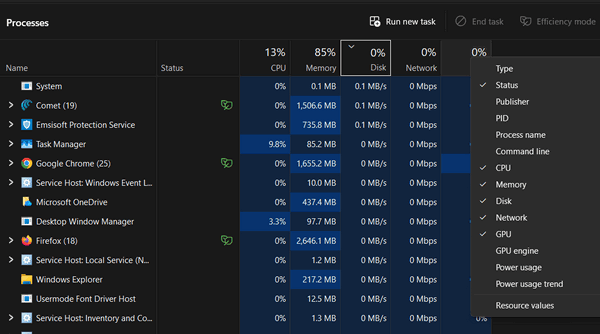
You can arrange the columns in any order you want. Click and drag those columns to move them around. You can also grab the little lines between the columns with your mouse to make them wider or narrower so you can more easily read what’s there!
2. The “Mini” Monitor (Graph Summary View)
Sometimes you want to keep an eye on your computer’s “vital signs” without having a window full of info and numbers taking up the screen.
Go to the Performance tab (it looks like a little heartbeat monitor on the left). Now, double-click on any of the graphs (like CPU or Memory).
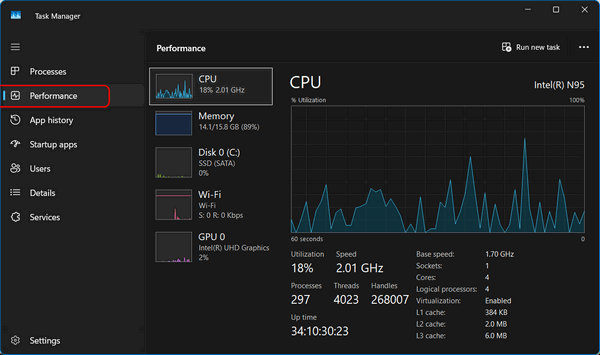
The whole window shrinks down into a tiny, tidy little box that floats on top of your other programs. It stays right where you can see it, so you’ll know exactly when your computer is working too hard. To get back to the big view, just double-click it again!
3. The “Magic Elixir” (Restarting Windows Explorer)
This is one of our favorite tricks for fixing a “glitchy” computer without having to reboot or shut down. Windows Explorer is the heart of Windows. If your icons disappear or the Taskbar freezes up, or the start menu doesn’t work, or if things seem glitchy, restarting Explorer usually fixes the problem.
Find Windows Explorer in the list of processes. Right-click it and choose Restart. Your screen might flicker for a second, and your taskbar will disappear and come right back.
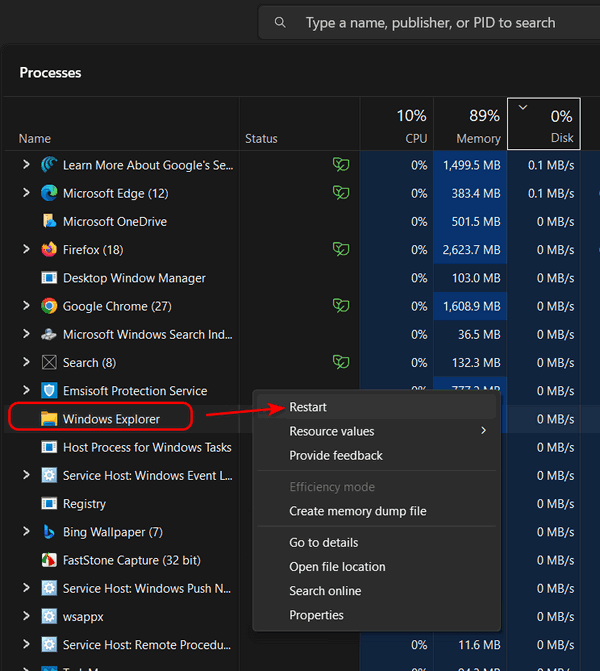
Don’t worry—this won’t close your Word documents, lose anything you were working on, and you won’t lose any data; it just “refreshes” Windows.

Want more tips, tricks, and information?
We have thousands of Windows tips, tricks, and more on our InfoAve website.
Subscribe to our free InfoAve Daily newsletter.
Our Winter Donation Drive is underway! This week, we were happy to help dozens of people resolve
their computer issues via email quickly and at no charge.
Make a small donation and help us help you!
If you don't need any of our products or services right now, please help
us with a donation. Even the smallest gift is appreciated. Every
donation helps us to provide useful information that helps you with your
computer as well as helps us to keep you safe on the Internet. We offer
free help to thousands of people every year... and we offer an honest
and inexpensive computer repair service too. We do everything we can to
help you with your computer and keep you safe too.
So if you don't need any of our products or services right now,
please help us by making
a donation right now.
Interested in making a monthly gift?
Visit
this page. Help us keep helping you!
Thank you so much for your support!

Google Chrome’s “What’s New” Archive Page
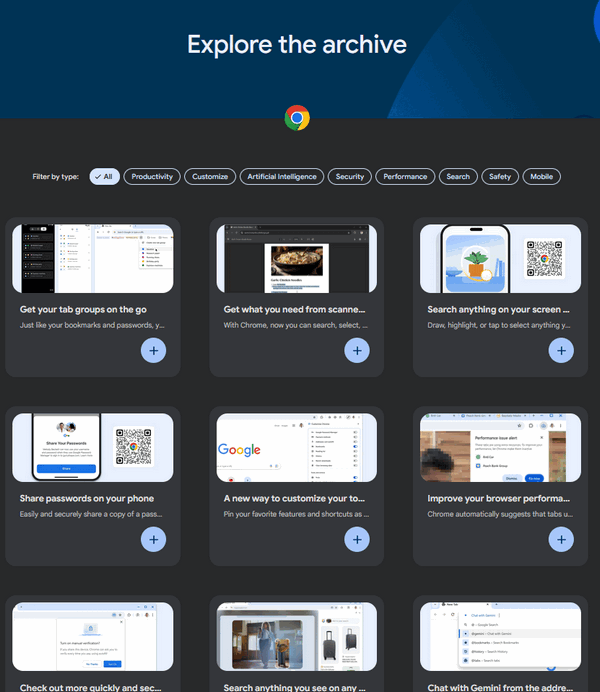
Google Chrome updates quite frequently, and it’s hard to keep track of all the updates. Most of the time, these updates happen behind the scenes to keep your browser secure. However, every few weeks, Google adds new features that can actually make your daily browsing easier—if you know where to find them.
Instead of you having to hunt through menus to find these changes, Google has a “What’s New” page. It’s written in plain English and designed specifically for everyday users rather than computer experts.
How to Access the “What’s New” Page
You don’t need to search the web to find this information. You can see it directly in your browser using either of these two methods:
-
The Address Bar: Type chrome://whats-new into the bar at the top of your browser and press Enter.
-
The Menu: Click the three vertical dots in the top-right corner of your browser. Select Help, then click on What’s New.
- Or just go to the URL.. https://www.google.com/chrome/whats-new/archive/
It’s Not Just a List of Meaningless Technical Fixes!
The “What’s New” page isn’t just a list of technical fixes. It’s a visual guide that highlights:
-
Privacy and Security: It will often show you new ways to check if your passwords are safe or how to manage the “cookies” that websites use to track you.
-
Organization Tools: If Google adds a new way to save bookmarks or organize your open tabs, they will post a short video or animation there showing exactly how it works.
-
Performance: It explains new settings that can help your computer run faster or save battery life if you are using a laptop.
Here are a few of the featured items on Chrome’s What’s New Archive page today (12 January 2026)
- Get your tab groups on the go.
Just like your bookmarks and passwords, your tab groups are now available across all your devices. Get started on one device and pick up your project on another device. - With Chrome, now you can search, select, or copy the text you want in scanned PDFs.
- Search anything on your screen with Google Lens in Chrome
- Share passwords on your phone
Easily and securely share a copy of a password with your family group in Google Password Manager on your phone. - A new way to customize your
toolbar
Pin your favorite features and shortcuts as toolbar buttons. - Improve your browser performance with one click
A Tip for Our Readers
You don’t need to check this every day. However, if you notice that Chrome looks slightly different after a restart, or if a new icon appears that you don’t recognize, the “What’s New” page is the first place you should look for an explanation. It’s the quickest way to stay informed without feeling overwhelmed by “tech-talk.”

We can fix your computer while you watch. You never have to leave your home. Just sit back, relax, and watch us work. Get PC service from folks you trust at the best prices you'll find anywhere.
Get more information here.

Grateful and Lucky
So, last year wasn't a great year for me, and I got a little morose. But letting things get me down has never been the way I wanted to be, so my inner sunshine took over and lit the way forward. Melancholy brings nothing but sadness. Feeling sorry for yourself does nothing but make things worse and drive your friends away.
But I think it's human nature to feel sorry for yourself when things go badly. Then again, human nature is naturally full of flaws and imperfections, which is why we call it human nature.
Last year at this time, I was crunching through the snow, walking four miles every day in the bitter January cold. This year I can barely walk out to the mailbox. Naturally, it's frustrating to go from up there to down here. But that's no excuse for being melancholy, or bitter, or morose. Sometimes it feels good to feel sorry for yourself - you sure don't want others feeling sorry for you. No one wants someone else's pity. So we allow ourselves a little bit of secretive self-pity...
Read the rest of this essay here.

What the heck is "The Cloud" anyway?
You hear the term "The Cloud" everywhere. It may sound vague and mysterious, but it isn’t as mystical as it sounds. In the old days, if you saved a photo, it lived on your computer’s hard drive—and nowhere else. If the computer broke, the photo was gone.
"The Cloud" is simply a fancy way of saying "someone else's computer." When you use services like OneDrive, iCloud, or Google Drive, you are saving a copy of your files onto a giant, secure computer in a data center.
There are many benefits to storing files in "The Cloud". Here is one of them: If you get a new computer or want to look at a photo on your phone, you just sign in, and there it is! It’s the ultimate "safety net" for your precious memories. Accessing your files from many different devices is just one benefit of using "The Cloud" to store your files.

Sales of the following products and services help support our newsletters, websites, and free computer help services we provide.
Cloudeight Direct Computer Care: Always a great deal. Cloudeight Direct Computer Care is like having PC insurance. Get more information here.
Emsisoft Anti-Malware: Emsisoft is the only Cloudeight-endorsed and recommended Windows security program. It provides users with a complete antivirus, antimalware, anti-ransomware, and anti-PUPs solution. We offer single Emsisoft licenses and multi-computer licenses at discount prices. Also, we offer our exclusive Emsisoft with Cloudeight installation & setup. Get more information here.
Reg Organizer: Reg Organizer is the Swiss Army Knife of Windows tools. It's far more than just a registry optimizer and cleaner... it's a Windows all-in-one toolkit. Reg Organizer helps you keep your computer in tip-top shape and helps you solve annoying Windows problems. Reg Organizer works great with Windows 10 and Windows 11! Get more information about Reg Organizer (and get our special discount prices) here.
MORE IMPORTANT STUFF!
Your InfoAve Weekly Members' Home Page is located here.
Help us Grow! Forward this email newsletter to a friend or family member - and have them sign up for InfoAve Weekly here!
Get our free daily newsletter! Each evening we send a short newsletter with a tip or trick or a computer-related article - it's short and sweet - and free. Sign up right now.
We have thousands of Windows tips and tricks and computer articles posted on our Cloudeight InfoAve website. Our site has a great search engine to help you find what you're looking for too! Please visit us today!
Help us by using our Start Page. It costs nothing, and it helps us a lot.
Print our Cloudeight Direct Flyer and spread the word about our computer repair service! If you want to help us by telling your friends about our Cloudeight Direct Computer Care service, you can download a printable flyer you can hand out or post on bulletin boards, etc. Get the printable PDF Cloudeight Direct Computer Care flyer here.

We'd love to hear from you!
If you have comments, questions, a tip, a trick, a freeware pick, or just want to tell us off for something, let us know.
If you need to change your newsletter subscription address, please see "Manage your subscription" at the very bottom of your newsletter.
We received hundreds of questions for possible use in IA news. Please keep in mind we cannot answer all general computer questions. We try to personally answer as many as we can. We can only use a few in each week's newsletter, so keep this in mind. If you have a support question about a service or product we sell, please contact us here.
Subscribe to our Daily Newsletter! Get computer tips & tricks every night. Our daily newsletter features a computer tip/trick or two every day. We send it out every night around 9 PM Eastern Time (USA). It's short and sweet, easy to read, and FREE. Subscribe to our Cloudeight InfoAve Daily Newsletter!
We hope you have enjoyed this issue of Cloudeight InfoAve Weekly. Thanks so much for your support and for being an InfoAve Weekly subscriber.
Have a great weekend... be safe!
Cloudeight InfoAve Weekly - Issue #1162
Volume 23 Number 13
January 16, 2026
Not a subscriber? Subscribe to our FREE Cloudeight InfoAve Weekly Newsletter here.
"Cloudeight InfoAve Weekly" newsletter is published by:
Cloudeight Internet LLC
PO Box 73
Middleville, Michigan USA 49333-0073
Read our disclaimer about the tips, tricks, answers, site picks, and freeware picks featured in this newsletter.
Copyright ©2026 by Cloudeight Internet