
Cloudeight InfoAve Weekly
Issue #1164
Volume 23 Number 15
January 30, 2026
Dear Friends,
Welcome to Cloudeight InfoAve Weekly Issue #1164. Thank you very much for subscribing and for being a part of our Cloudeight family. We appreciate your friendship and support very much! Please share our newsletters and our website with your friends and family.

If you're not getting our InfoAve Daily newsletter, you're missing out on a lot of good stuff!
It's free, and it only takes a few seconds to sign up. We'd love to have you with us. Visit this page to sign up for our Cloudeight InfoAve Daily Newsletter.

Our Winter Donation Drive is underway!
This week, we were happy to help dozens of people resolve their computer issues via email quickly and at no charge.
Make a small donation and help us help you!
If you don't need any of our products or services right now, please help us with a donation. Even the smallest gift is appreciated. Every donation helps us to provide useful information that helps you with your computer as well as helps us to keep you safe on the Internet. We offer free help to thousands of people every year... and we offer an honest and inexpensive computer repair service too. We do everything we can to help you with your computer and keep you safe too.So if you don't need any of our products or services right now, please help us by making a donation right now.
Interested in making a monthly gift? Visit this page. Help us keep helping you!
Thank you so much for your support!

Linda has
a new computer and has questions
about WMPL
I purchased a new computer in
November to update to Windows 11. It
came with WMPL as an installable (is
that a word?) option, which I did
without any problems. Anyway, being
of unsound mind, apparently, I
uninstalled it for whatever reason,
and now it is totally gone, and
Microsoft doesn't offer it anywhere
that I can find. Is there a way to
copy it from my old machine and
install it on the new one? Is there
a better option for a media player
that I can use to burn CDs and
manage my music files? You guys are
the best, and you know how we old
folks can mess things up. Thanks for
any help/suggestions! Linda.
Our answer
Hi Linda. WMPL is just short for
Windows Media Player Legacy.
Microsoft knows that many folks have
spent years building up music
libraries and playlists in the
classic Windows Media Player (the
one with the blue icon). Even though
they have a brand-new player now,
they kept the old "Legacy" version,
so you don't have to learn a whole
new program if you don't want to.
Dear Darcy and TC, When I bought my computer about 18 months ago It appeared to have CCleaner on it. I have never used it, and today I decided to uninstall it and download BleachBit, one of your recommendations. However, when I tried to uninstall it, Geek couldn't find it, nor is it showing in the Apps in my Settings. If I click on the CCleaner icon on my desktop, it opens up a window that shows various info and a box to click to run the program. Do you know how I can remove CCleaner? Thanks, Lee.
Hi Lee. If CC Cleaner does not show up in Settings > Installed Apps (Windows 11) or Settings > Apps and features (Windows 10), then the best way to uninstall it is to reinstall it ( I know). Then reboot your computer, and then uninstall it. It looks like CCleaner's uninstaller was removed in error, or it got corrupted. So reinstall it. Then immediately reboot, then uninstall it with Geek. Let me know if you need any more help.
-----
Lee wrote back: "Thanks for the advice. Yes, it worked, and CCleaner has now been removed. Kind regards. Lee."
Hi to both of you, hope you're handling this horrible weather! I have a question regarding an article I just read about AI. There is a site called JustTheBrowser that is supposed to remove AI features from Chrome, Edge & Firefox. It sounds too good to be true! Are you familiar with this site? If so, what do you think about it? Thanks for any info you can provide! Stay safe!
Hi Sue. JustTheBrowser is a website that offers a cleanup script for Chrome, Edge, Firefox (and possibly others). It uses professional IT settings (Group Policies) to force your browser to hide the things that annoy you most. Mostly, it gets rid of your browser's built-in AI features.
It's not malware; it was built by a highly regarded tech journalist. However, it requires you to execute a PowerShell script to install it. After running it, your browser settings will say "Managed by your organization." This is normal (it's how the tool works), but it can be annoying for home users who think a stranger has taken over their PC. To install it on Windows, as mentioned, you have to run a "PowerShell" script as an Administrator. For someone who isn't "techy," this can feel intimidating or dangerous. It cleans up the browser buttons and menus, but it won't stop ads or AI from appearing inside a website (like on a Facebook feed or a news site).
Our honest opinion? As we always say, if it ain't broke, don't fix it. I would not use Justthebrowser.com because I am not that annoyed by AI, and I don't really see the benefit of removing a few AI features from a browser when AI is just about everywhere these days, with more AI coming every day.

We've helped hundreds and hundreds of you with your computers since we started our Cloudeight Direct Computer Care Service! If you're having computer problems - we CAN help you!
We all know that sooner or later our computers are going to start having problems. We can help you with any computer need -- from diagnosing and fixing Windows problems - to cleaning up malware and viruses - to cleaning up your computer and optimizing it -- and more. We can do just about anything need done and we guarantee our work - you're either satisfied or we'll refund your money.
We will connect to your computer via the Internet and fix any problems you may be having. You can watch us work and chat with us while we do. If you have any computer questions you'd like to ask we'll be glad to answer them for you. We don't just fix your computer, we explain what we're doing and why we're doing it and we are right there with the entire time. Since we've started we've helped hundreds of you with your computer problems and we've received dozens of referrals and testimonials from our readers and customers.
We offer many other computer services too! If you have a problem with your computer - we can fix it!
Get more information about Cloudeight Direct Computer Care and / or get your repair keys here.
Hi, for some years, I shared Microsoft 365 with a friend through his family subscription. This year, I cancelled due to the exorbitant price. I then found years of my Word docs were not available for me to edit, print, etc. I installed LibreOffice on your recommendation, but now I would like to try ONLYOFFICE. I've taken out one month free subscription with Microsoft 365, hoping to overcome the problem of being locked out of my Word documents. Do you have any solution to this awful problem? I'm sure I'm not the only one experiencing this! Thank you both for your always brilliant tips and tricks! Elaine.
Hi Elaine. Even if you don't have MS 365, Microsoft does not lock you out of anything, even if you download another office program like ONLYOFFICE.
When you cancel MS365, your OneDrive storage drops from 1TB (1,000GB) down to the free tier of 5GB. If you are under 5GB: Nothing changes. You can still upload, edit, and sync files. If you are over 5GB, your account will be "frozen." You can still see and download your files, but you cannot upload new ones, sync changes, or even send/receive emails if your Outlook inbox is also full.
You don't need a subscription to open a .docx or .xlsx file. You have three main options:
You can use the web versions of Word, Excel, and PowerPoint at Office.com for free. They have fewer features than the desktop apps, but are great for basic editing.
Your installed desktop apps (Word, Excel) will enter "Reduced Functionality Mode." You can open and print documents, but you won't be able to edit them or save changes.
Since your files are standard formats, you can open them in free alternatives like Google Docs, ONLYOFFICE, LibreOffice, or Open Office.
If you did not save your documents to your computer and instead saved them to "The Cloud", you'll need to download your files to your computer. Then you open them with ONLYOFFICE or another free office program.
Once they're downloaded, all you have to do is right-click on them and choose "Open with," then choose your free office program, such as ONLYOFFICE. If you decide to use ONLYOFFICE, it will ask if you want to make it the default program to open MS Office files when you install it; if you say YES, you are all set. It will automatically open all MS Office / MS 365 documents.
I was reading the Thursday tech headlines. I am one of those who Microsoft screwed up my Outlook, including my work emails. Ugh! I was reading the article about DNS. I have NordVPN, and I work from home, but I turned it off as it slowed down my internet connection. I was wondering about this DNSCrypt. I went to the home page. It sounded good, but it also sounded like it might be hard to install. I would only be using it on my Windows 11 laptop. Your opinion on this?
Our
answer
Hi Sandy. A DNS service
may prevent your ISP from seeing
what sites you visited (so will
a VPN), but no DNS service like
DNSCrypt, Cloudflare, OpenDNS,
or any other is going to prevent
or stop Windows Updates. It
would be negligent for a DNS
service or a PC user to turn off
updates because updates keep
your PC safe and keep miscreants
from attacking unpatched Windows
systems.
I am unable to access my LastPass Vault. I can only log in with my old email, which is no longer valid, but when I try to log in, the message given is check my inbox for an email sent to Appleton@xxxxxxxx. That is the account I used for LastPass for years, but that email no longer works. I can't receive any email that not sure how I can change my email with Last Pass if I cant access my Last Pass account.
HI Jean. If you can't access the contact info you gave to LastPass, then there's no way I know of to access your account. If you didn't update your email address and contact info with LastPass, they have no way of verifying that it is really you; it's for your protection that you are locked out of LastPass.
You can try to contact LastPass
and explain what happened.
Perhaps if you contact LastPass
and explain the situation, and
you know your master password,
they might be able to help. Try
using the account recovery help
page.
I'm sorry I can't be of more
help. But one thing we've tried
to impress on folks is to always
keep your login information
(email address, phone number)
up-to-date,

Now available: Reg Organizer 9.88
If you purchased or renewed Reg Organizer through Cloudeight within the
last 12 months, you're entitled to a free version upgrade to Reg
Organizer 9.88. Reg Organizer works great with Windows 10 and Windows 11.
Save $14 on Reg
Organizer right now!
Reg
Organizer - A Swiss Army Knife of Windows Tools - Works Great on Windows
10 and Windows 11.

The
"Scroll to Top" Shortcut Trick + A
Bonus Tip
Windows 10 / Windows 11
If you are deep in a folder with thousands of files or at the bottom of a long Settings page, you don't have to grab the scroll bar.
Here's the trick: Press the Home key on your keyboard. You'll go directly to the top of the page or folder. And if you press the "End" key, you'll go right to the very bottom.
Bonus tip... Shake it up, baby, now!
If you have multiple windows open and want to focus on just one, grab the title bar of the window you want to keep and "shake" it with your mouse. Windows will instantly minimize every other open app. Shake it again to bring them all back.
More Windows Run Box Tricks
Windows 10 / Windows 11
The Windows Run dialog, which in our vernacular is called the Run Box, is still a very useful tool, even in Windows 10 and Windows 11, where it has largely been supplanted by taskbar search. But some of these more “geeky” commands must be run from a Windows Run box… but then again, not all of them.
Let’s open a Run dialog (or Run box as we call it):
Right-click on the Windows 10 or Windows 11 start button and click “Run”. Or press the Windows key + R
Now that we have that out of the way, let’s do some geeky stuff!
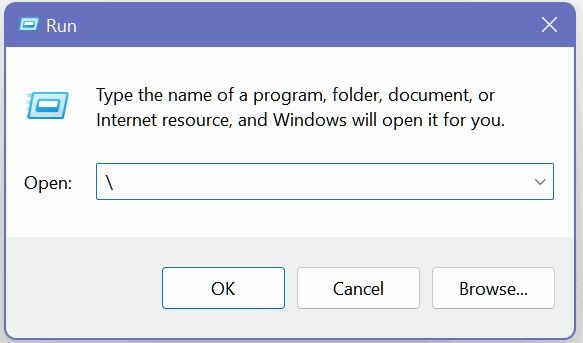
Open the C: Drive
1. Open a Run box (Windows key + R)
2. Type a backward slash – (that would
be this: \ ) in the Run box
3. Press Enter
Open the Users folder
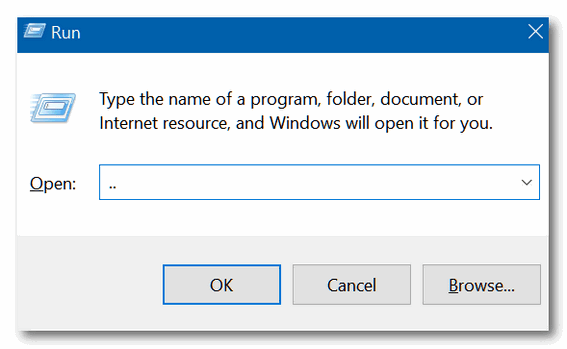
1. Open a Run box (Windows key + R)
2. Type two dots in the Run box
3. Press Enter
Check your PC for performance issues
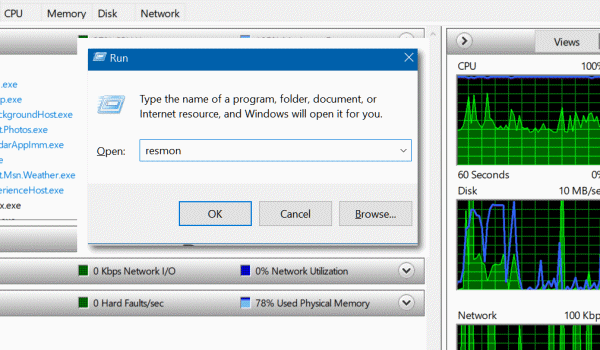
1. Open a Run box (Windows Key + R)
2. Type RESMON in the Run box
3. Press Enter
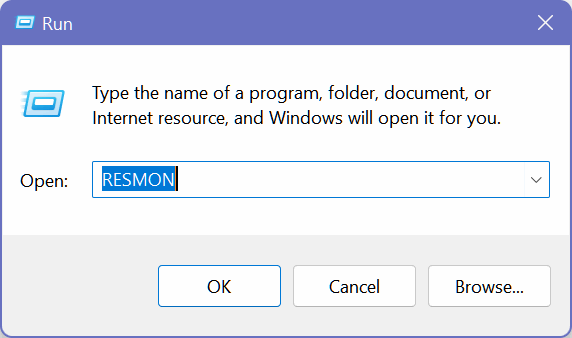
(Hey, you’re right! You can also type this in the taskbar search and run it.)
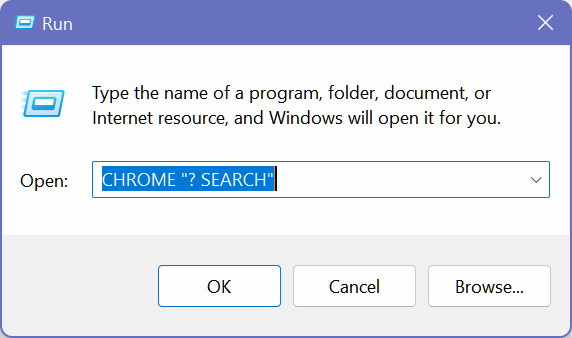
Search directly from a Run box using Chrome
1. Open a Run box (Windows Key + R)
2. Type CHROME “?Search” in the Run box
– replacing the word Search with
whatever you’re searching for
3. Press Enter
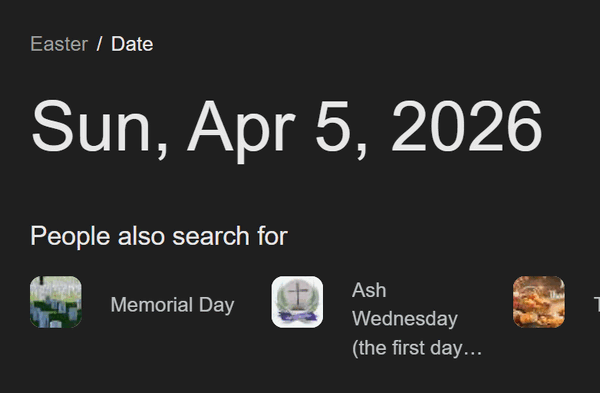
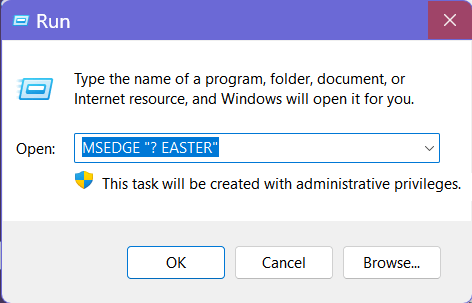
You can also use Microsoft Edge and its default search engine, Bing, to search from a Run Box. Just type MSEDGE “? and whatever you’re searching for in the Run Box. In this case, we’re searching for the date of Easter this year (2024).
We’re not sure how useful these are, but you can dazzle your friends, confound your enemies, or have fun playing around with these tricks. Who knows? You might even discover your own geeky Run Box trick.
One more geeky trick for Windows 11 only…
Did you know you can open Windows 11’s volume control by using the keyboard shortcut CTRL + Windows Key + V?
The
“Slide to Shut Down” Trick
Windows 10 / Windows 11.
Here’s a Windows trick that not many people know. If you want to expand or boost your Windows knowledge or impress your friends with your Windows acumen, you’ll love this easy Windows trick.
If you want a hidden, “stylized” way to turn off your PC that looks like a mobile interface, regardless of whether you’re using a laptop, desktop, or all-in-one, Windows has a hidden executable file that can make that happen. And it’s so easy to do.
Right-click your desktop and select New > Shortcut.
Type the following (exactly): slidetoshutdown.exe
In the “Name the shortcut” type Slide to Shutdown (or whatever you want)
Click Next and Finish.
Now, double-click the Slide to Shutown (or whatever you name it) icon. A “shade” will drop halfway down your screen. You can slide it down with your mouse to shut down your PC.
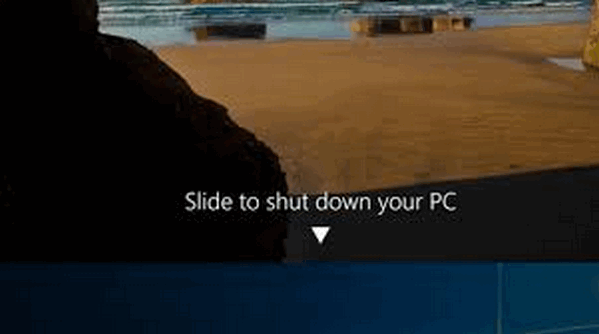
Yep! We know it’s completely useless in terms of productivity. It’s a file that has been hidden in the System32 folder for a decade that 99% of people have never seen or even heard of. Plus, if you use it, you have another Windows shutdown option.

Want more tips, tricks, and information?
We have thousands of Windows tips, tricks, and more on our InfoAve website.
Subscribe to our free InfoAve Daily newsletter.
Our Winter Donation Drive is underway! This week, we were happy to help dozens of people resolve
their computer issues via email quickly and at no charge.
Make a small donation and help us help you!
If you don't need any of our products or services right now, please help
us with a donation. Even the smallest gift is appreciated. Every
donation helps us to provide useful information that helps you with your
computer as well as helps us to keep you safe on the Internet. We offer
free help to thousands of people every year... and we offer an honest
and inexpensive computer repair service too. We do everything we can to
help you with your computer and keep you safe too.
So if you don't need any of our products or services right now,
please help us by making
a donation right now.
Interested in making a monthly gift?
Visit
this page. Help us keep helping you!
Thank you so much for your support!

ONLYOFFICE: A Cloudeight Freeware Pick
For years, the “big names” in free office software were OpenOffice and LibreOffice. While they are great and we’ve recommended them many times, sometimes they feel a bit outdated, kind of like going back 20 years. Today’s freeware pick, ONLYOFFICE, is a modern, sleek-looking, and completely free alternative that feels like it belongs in 2026.
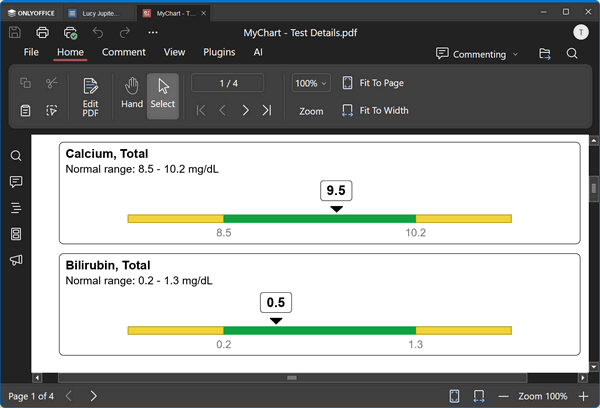
ONLYOFFICE is an open-source – that’s a good thing! – office suite that includes everything most folks will ever need: a powerful Word-compatible document editor, a full-featured spreadsheet program, and a presentation builder. It even includes a full-fledged PDF editor that lets you edit text and add annotations without any extra software.
WHY WE PICKED ONLY OFFICE
The “Tabbed” Interface
This is the best part! Instead of having five different windows open for five different files, ONLYOFFICE uses tabs—just like your web browser. You can have a spreadsheet, a letter, and a slideshow all running in one single window.
It’s Almost a Microsoft Office Twin
It was built specifically to handle .docx, .xlsx, and .pptx files. If you’ve ever opened a Word file in another program and found the pictures and fonts were all messed up, you’ll love ONLYOFFICE. It keeps the formatting near-perfect.
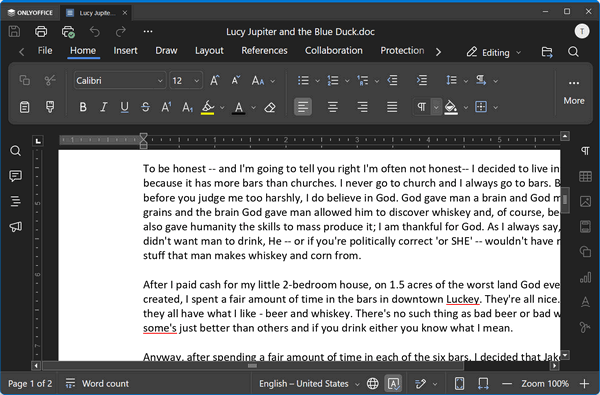
Above: A MS Word document (.docx), open in ONLYOFFICE.
Below: A PDF file opens in ONLYOFFICE.
No Bloat
Unlike the official Microsoft Office suite, which can take up gigabytes of space and run background “telemetry” (phone-home) services, ONLYOFFICE is much smaller. It’s fast and doesn’t nag you to log in to a cloud account just to type a letter.
Optional AI assistant
Yes! We hear you. Many of you automatically sneer when the letters AI appear anywhere. But wait, it’s the future, and maybe you should open your mind a little and give it a try? The newest versions have added an AI assistant (don’t worry, it’s optional!) that can help you summarize long documents or provide tips to improve your writing and grammar, plus a “Slide Master” for presentations that makes them look professional in seconds.
While we have been recommending OpenOffice and LibreOffice for years, ONLYOFFICE turned our heads. What a fantastic free Office-like application this is!
If you want an office suite that looks like MS Office but respects your privacy and is free, ONLYOFFICE is our new #1 pick. It’s perfect for Windows 10 and 11, and it’s a great way to “ditch the subscription” treadmill for good.
Download ONLYOFFICE Desktop Editors here.
Note: When you first install it, you’ll be asked to allow it to access your location. Don’t worry, if that bothers you, you can decline to let it access your location, and ONLYOFFICE will still w

We can fix your computer while you watch. You never have to leave your home. Just sit back, relax, and watch us work. Get PC service from folks you trust at the best prices you'll find anywhere.
Get more information here.

I Really
Does Hates Verbs
I’ve never much cared for verbs. I’m an
adjective kind of guy.
This morning, I came across a quote from one of
my favorite authors, Lewis Carroll. I don’t have
many favorite authors, but Lewis Carroll is one
of them because of his wonderful word play.
You’re probably thinking, “What quote?” aren’t
you? I will get to that after I submit to you my
reasons for my abject hatred of verbs.
Verbs are nasty things. They has a nasty, vile
temper. They is always angry and disagreeable
and they has to agree or they doesn’t work. What
kind of nonsense is that? You can’t say “You
done good.” Done do not agree with “you” or
“good” – I’m confused about which, but the verb
don’t agree. Most verbs doesn’t agree naturally,
they needs to be coddled. They is disagreeable
things, I tells ya!
Why are verbs so disagreeable? Because they are
nasty...
Read the rest of this essay here.

Always Tell the Truth
Not many of us want to give out personal information to Websites. I think by now, we're all a little gun-shy when it comes to answering questions like:
"What was the name of your first school?"
"Where did you mean your spouse?"
"What was your first phone number?"
"In what city did you get married?"
"What model was your first car?"
"Where was your grandmother's maiden name?"
"Where was your father born?"
When you sign up for an online account, sometimes websites will ask you security questions that they can use down the road to prove the person logging in to the site is really you. It's really a good thing. It protects you. Not many hackers would know your grandmother's maiden name was Ramsey. Or that your father was born in Bleakmold, Kansas. So, if you have your username, password, and the answer to your security question at the ready, you'll be able to log into your account.
But what happens is, there's always a part of us that doesn't want to give out this kind of information, so instead of saying grandmother's maiden name was Ramsey, you said it was Pocahontas. It's cute and clever, but what if a couple of years from now you want to log in to your bank account and the bank asks you to answer your security question? Are you going to remember you fibbed and said her maiden name as Pocahontas? Nah. You won't remember. And if you don't remember, you will go through a lot of hassle trying to get into your account.
So, our Back to Basics tip of the day is always tell the truth when setting up an account that asks you to set security questions. They are generally for your own good, and they do a good job of keeping hackers with stolen passwords from accessing your account(s).
Keep Mark Twain in mind when setting up your online accounts: "If you always tell the truth, you don't have to remember anything.

Sales of the following products and services help support our newsletters, websites, and free computer help services we provide.
Cloudeight Direct Computer Care: Always a great deal. Cloudeight Direct Computer Care is like having PC insurance. Get more information here.
Emsisoft Anti-Malware: Emsisoft is the only Cloudeight-endorsed and recommended Windows security program. It provides users with a complete antivirus, antimalware, anti-ransomware, and anti-PUPs solution. We offer single Emsisoft licenses and multi-computer licenses at discount prices. Also, we offer our exclusive Emsisoft with Cloudeight installation & setup. Get more information here.
Reg Organizer: Reg Organizer is the Swiss Army Knife of Windows tools. It's far more than just a registry optimizer and cleaner... it's a Windows all-in-one toolkit. Reg Organizer helps you keep your computer in tip-top shape and helps you solve annoying Windows problems. Reg Organizer works great with Windows 10 and Windows 11! Get more information about Reg Organizer (and get our special discount prices) here.
MORE IMPORTANT STUFF!
Your InfoAve Weekly Members' Home Page is located here.
Help us Grow! Forward this email newsletter to a friend or family member - and have them sign up for InfoAve Weekly here!
Get our free daily newsletter! Each evening we send a short newsletter with a tip or trick or a computer-related article - it's short and sweet - and free. Sign up right now.
We have thousands of Windows tips and tricks and computer articles posted on our Cloudeight InfoAve website. Our site has a great search engine to help you find what you're looking for too! Please visit us today!
Help us by using our Start Page. It costs nothing, and it helps us a lot.
Print our Cloudeight Direct Flyer and spread the word about our computer repair service! If you want to help us by telling your friends about our Cloudeight Direct Computer Care service, you can download a printable flyer you can hand out or post on bulletin boards, etc. Get the printable PDF Cloudeight Direct Computer Care flyer here.

We'd love to hear from you!
If you have comments, questions, a tip, a trick, a freeware pick, or just want to tell us off for something, let us know.
If you need to change your newsletter subscription address, please see "Manage your subscription" at the very bottom of your newsletter.
We received hundreds of questions for possible use in IA news. Please keep in mind we cannot answer all general computer questions. We try to personally answer as many as we can. We can only use a few in each week's newsletter, so keep this in mind. If you have a support question about a service or product we sell, please contact us here.
Subscribe to our Daily Newsletter! Get computer tips & tricks every night. Our daily newsletter features a computer tip/trick or two every day. We send it out every night around 9 PM Eastern Time (USA). It's short and sweet, easy to read, and FREE. Subscribe to our Cloudeight InfoAve Daily Newsletter!
We hope you have enjoyed this issue of Cloudeight InfoAve Weekly. Thanks so much for your support and for being an InfoAve Weekly subscriber.
Have a great weekend... be safe!
Cloudeight InfoAve Weekly - Issue #1164
Volume 23 Number 15
January 30, 2026
Not a subscriber? Subscribe to our FREE Cloudeight InfoAve Weekly Newsletter here.
"Cloudeight InfoAve Weekly" newsletter is published by:
Cloudeight Internet LLC
PO Box 73
Middleville, Michigan USA 49333-0073
Read our disclaimer about the tips, tricks, answers, site picks, and freeware picks featured in this newsletter.
Copyright ©2026 by Cloudeight Internet