
Cloudeight InfoAve Weekly
Issue #1165
Volume 23 Number 16
February 6, 2026
Dear Friends,
Welcome to Cloudeight InfoAve Weekly Issue #1165. Thank you very much for subscribing and for being a part of our Cloudeight family. We appreciate your friendship and support very much! Please share our newsletters and our website with your friends and family.

If you're not getting our InfoAve Daily newsletter, you're missing out on a lot of good stuff!
It's free, and it only takes a few seconds to sign up. We'd love to have you with us. Visit this page to sign up for our Cloudeight InfoAve Daily Newsletter.

Our Winter Donation Drive is underway!
This week, we were happy to help dozens of people resolve their computer issues via email quickly and at no charge.
Make a small donation and help us help you!
If you don't need any of our products or services right now, please help us with a donation. Even the smallest gift is appreciated. Every donation helps us to provide useful information that helps you with your computer as well as helps us to keep you safe on the Internet. We offer free help to thousands of people every year... and we offer an honest and inexpensive computer repair service too. We do everything we can to help you with your computer and keep you safe too.So if you don't need any of our products or services right now, please help us by making a donation right now.
Interested in making a monthly gift? Visit this page. Help us keep helping you!
Thank you so much for your support!

Teddie
wants to know if a link is safe
TC, I found this website
that has the Quicken Medical Expense
Manager software on it. Is this a
safe place to download the program? https://quicken-medical-expense-manager.software.informer.com/
Our
answer
Hi Teddie. Though it looks like
a Quicken site, it is not. I
would strongly advise against
downloading anything from that
link. While the website itself
(Software Informer) is a
well-known catalog, using it to
download discontinued software
like the Quicken Medical Expense
Manager is like buying a used
car that’s been sitting in a
swamp for 15 years—it might look
okay on the outside, but it's
dangerous once you try to run
it.
Our answer
Hi Kim. Thanks! OneDrive is
a legitimate program from Microsoft
- it can't hack your computer.

We've helped hundreds and hundreds of you with your computers since we started our Cloudeight Direct Computer Care Service! If you're having computer problems - we CAN help you!
We all know that sooner or later our computers are going to start having problems. We can help you with any computer need -- from diagnosing and fixing Windows problems - to cleaning up malware and viruses - to cleaning up your computer and optimizing it -- and more. We can do just about anything need done and we guarantee our work - you're either satisfied or we'll refund your money.
We will connect to your computer via the Internet and fix any problems you may be having. You can watch us work and chat with us while we do. If you have any computer questions you'd like to ask we'll be glad to answer them for you. We don't just fix your computer, we explain what we're doing and why we're doing it and we are right there with the entire time. Since we've started we've helped hundreds of you with your computer problems and we've received dozens of referrals and testimonials from our readers and customers.
We offer many other computer services too! If you have a problem with your computer - we can fix it!
Get more information about Cloudeight Direct Computer Care and / or get your repair keys here.
Hi Julia. I can assure you it has nothing to do with Cloudeight - I have never even heard of a company called Cloud Drive. That subject line has "SCAM" written all over it. Scammers love to put "Re:" (which stands for "Regarding" or "Reply") at the start of a subject line even if you’ve never spoken to them before. They do this to trick your brain into thinking you've been in contact with them before and supposedly trust them."Project Review" is a classic corporate-sounding phrase designed to make you think you’ve forgotten to respond to something and someone is waiting for your reply. Because it doesn't name a specific project, it’s a "fishing" tactic—they’re hoping you’ll click just to find out what the email is all about.
I would delete that email immediately, as it is almost certainly a scam email.
My problem is the audio. It's really garbled. I'm old and technology-challenged. I am retired, so I'm home most of the time, just not early in the morning. I am using an HP computer and Windows 11.
Hi Deanna. A Windows update would not affect your phone. The internet connection comes from your provider and is broadcast by your router; neither has anything to do with a Windows update.
Here are the
instructions on how to uninstall
the most recent update(s). I've
included instructions for
Windows 11 and Windows 10.
For Windows 11
Right-click the Start button and
click on Settings.
On the left-side menu, click the
very last option: Windows
Update.
In the main window, click on
Update history (it has a small
clock icon).
Scroll all the way to the bottom
and click Uninstall updates.
Find the most recent update at
the top of the list. Click the
Uninstall button next to it.
A small box will pop up asking
if you're sure; click Uninstall
again.
Wait: The computer may need to
restart. Let it finish—it might
stay on a "Working on updates"
screen for a few minutes.
For Windows 10
Right-click on the Start button
and click on Settings.
Click on Update & Security.
On the main screen, click View
update history.
At the very top of the page,
click the blue link that says
Uninstall updates.
A new window will open with a
list. Look for the update with
the most recent date.
Right-click that update and
select Uninstall.
Click Yes when it asks to
confirm.
Wait: Follow any prompts to
restart the computer.
I hope this helps you, Deanna.

Now available: Reg Organizer 9.88
If you purchased or renewed Reg Organizer through Cloudeight within the
last 12 months, you're entitled to a free version upgrade to Reg
Organizer 9.88. Reg Organizer works great with Windows 10 and Windows 11.
Save $14 on Reg
Organizer right now!
Reg
Organizer - A Swiss Army Knife of Windows Tools - Works Great on Windows
10 and Windows 11.

Controlling Text with the CTRL Key
Windows 10 / Windows 11
This tip will work in any email program like OE Classic, Thunderbird, Outlook, and with most webmail applications like Gmail and Outlook.com. It also works in word processors such as Microsoft Word and many others. And they’ll also work in WordPad, but WordPad is being discontinued.
If you want to make a sentence or word bolded, highlight the word or sentence and press CTRL + B. See?
If you want to underline a sentence or word, highlight the sentence or word you want to underline and press CTRL + U. See?
If you want to italicize a word or sentence, highlight the word or sentence and press CTRL+ i … See?
If you want to make a word or sentence bold and italic and underline, just highlight and press CTRL+B, CTRL+ i, and CTRL+U. SEE?
If you want to go to the beginning of a document or email, press CTRL+Home.
If you want to go to the end of a document or email, press CTRL+End.
If you want to find a word in a document, press CTRL+F and type what you’re looking for into the search box that appears.
If you want to make a hyperlink (a link to a website), highlight the word or phrase and press CTRL+K. When you press CTRL+K, a dialog will appear, type or paste the website address (URL) into the address field, and voila! You have a link to a website. See?
And if you want to create a new document, press CTRL+N.
There are many more tricks like this.
CTRL+C copies the selected text. CNTL+V pastes the copied text. If you accidentally make a change or delete something you didn’t mean to change or delete, press CTRL+Z right away; it will undo or redo whatever you’ve done. And if you want to undo CTRL+Z, use CTRL+Y.
Many tricks don’t use the CTRL key – like pressing Home to go to the beginning of a line and pressing END to go to the end of a line. But today we’re all about controlling text using the CTRL key.
Drag and Drop Fonts to Install Them
Windows 10 and Windows 11
Back in the old days, installing and viewing fonts in Windows was a daunting proposition, but no more. Windows 10 and Windows 11 allow you to drag and drop fonts to install them. Plus, all installed fonts are displayed in a clean and uncluttered window, and you'll see all your fonts just the way they'll look when you use them. No more guessing which font might look right for your project.
Here's a screenshot from Windows 10 showing the "Drag and drop to install" feature.
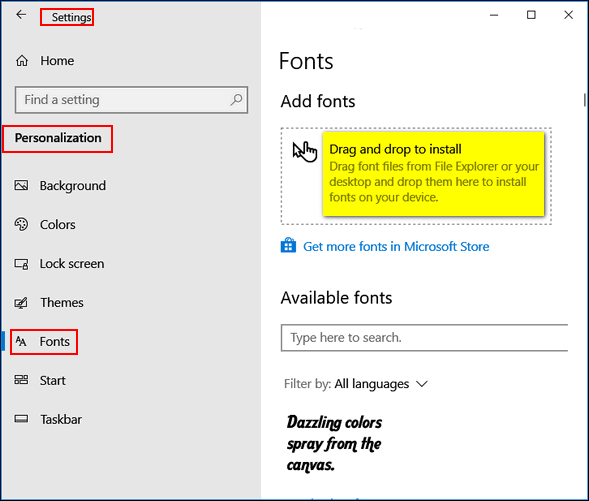
And in the same dialog, you can scroll through all your fonts and see exactly what they look like.
And here's the same dialog in Windows 11...
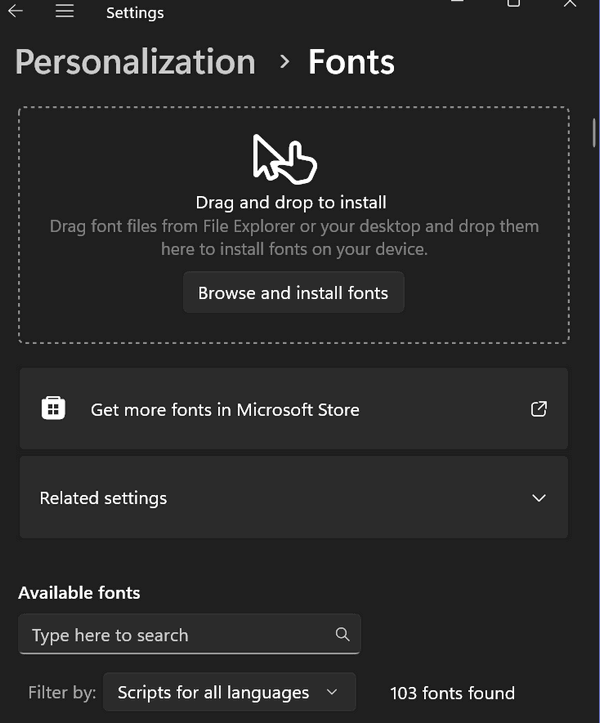
You can find the Drag & Drop font installer and preview all your fonts this way:
1. Right-click your desktop
2. Click "Personalize."
3. When the "Personalization" settings
app opens, click on Fonts in the left
pane. That's it!
Check
Your Hard Drive for Errors
Windows 10 / Windows 11
Windows 10 and 11 let you scan your hard drive(s) for errors while you use your computer – and it’s easy to do.
Let’s check your Windows drive (usually C:\) for errors.
Open File Explorer (Windows Key + E). On the left pane under This PC, right-click on your C:\ drive, and click “Properties”. (Windows 11 users note: You will need to click on “Show more options” to click on “Properties.”) When the “Properties” dialog opens, click the “Tools” tab, and then click the “Check” button.
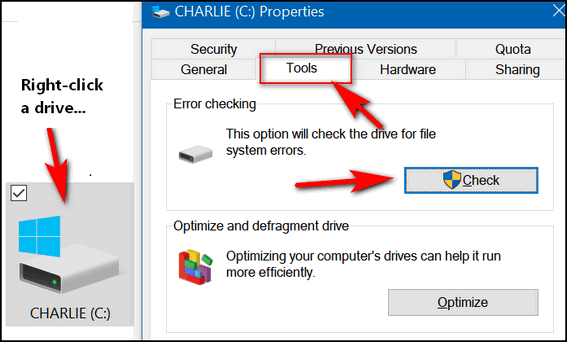
Above: Windows 10. Below: Windows 11.
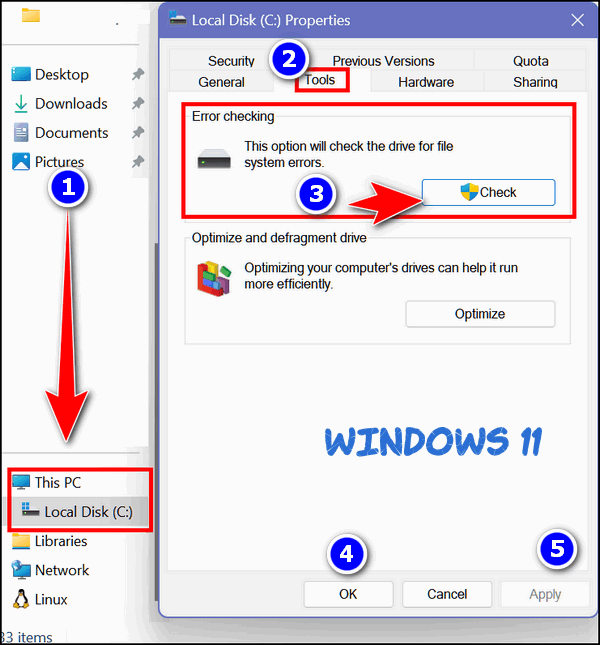
Once you click the “Check” button, the following dialog will appear. It will tell you if you need to scan the drive for errors. If you don’t (as below), it will also tell you that. Even if it says, “You don’t need to scan this drive,” you can still scan the drive if you want to. Just click “Scan drive.”
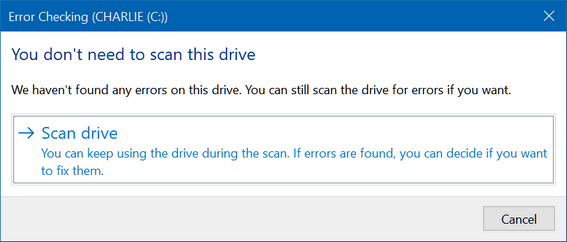
You can scan any hard drive using this tip.
How to check your hard drive(s) using the Command Prompt.
1.) Type CMD in the taskbar search.
2.) In the search results, click “Run as
administrator”.
3.) Type the following command at the prompt
and press Enter. (Make sure you leave a
space before the slash.)
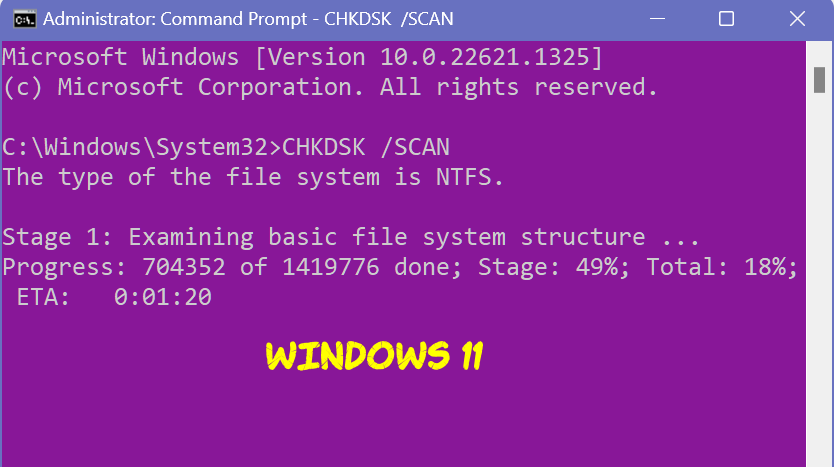
CHKDSK /SCAN
Windows will scan your drive…
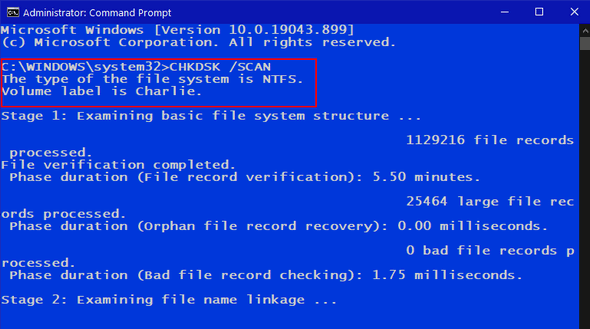
Above Windows 10: Below Windows 11.
When the scan is finished, Windows will tell you if further action is required. As you can see, I don’t need to do anything more. My drive is fine. Yay!
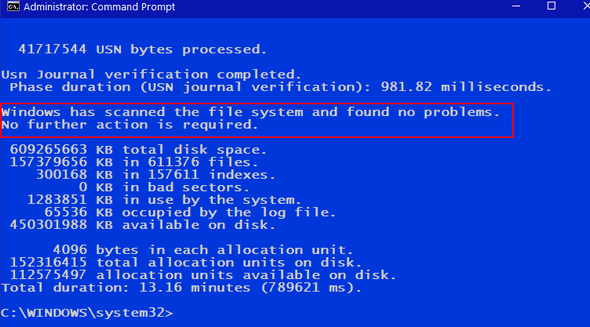
Now you know how to check your hard drives for errors!
And a couple more things…
If drive errors are found, you can fix them by following the instructions displayed on the screen.
You can use this tip to scan any drive, not just the Windows drive ( usually Drive C:\).

Want more tips, tricks, and information?
We have thousands of Windows tips, tricks, and more on our InfoAve website.
Subscribe to our free InfoAve Daily newsletter.
Our Winter Donation Drive is underway! This week, we were happy to help dozens of people resolve
their computer issues via email quickly and at no charge.
Make a small donation and help us help you!
If you don't need any of our products or services right now, please help
us with a donation. Even the smallest gift is appreciated. Every
donation helps us to provide useful information that helps you with your
computer as well as helps us to keep you safe on the Internet. We offer
free help to thousands of people every year... and we offer an honest
and inexpensive computer repair service too. We do everything we can to
help you with your computer and keep you safe too.
So if you don't need any of our products or services right now,
please help us by making
a donation right now.
Interested in making a monthly gift?
Visit
this page. Help us keep helping you!
Thank you so much for your support!

Four Browser Extensions We Love
Browser extensions “extend” the functionality of your browser. While too many can bog down your browser, the right ones can make a big difference in your browsing experience. Here are four extensions we use and recommend, along with a short description and a download link for Chrome, Edge, and Firefox.
1. uBlock Origin (The “Silence the Noise” Tool)
If you only install one thing today, make it this one. Unlike some “ad blockers” that actually sell your data or let some ads through, uBlock Origin is completely free, open-source, and incredibly lightweight.
uBlock Origin (and uBlock Origin Lite) strip away those blinking, blinding banners, pop-ups, and—best of all—those annoying 30-second ads before YouTube videos.
It makes pages load faster because your computer doesn’t have to download all that advertising “junk.”
Download Links
2. Dark Reader (Save Your Eyes!)
Ever open a website at night and feel like you’re staring directly into the sun? Dark Reader fixes that instantly by giving every website a “Night Mode.”
Dark Reader transforms bright white websites (such as Wikipedia or news sites) into dark gray or black backgrounds with white text.
You can adjust the brightness and contrast yourself. It’s a lifesaver for those of us who are getting older and have trouble reading the black text on bright screens.
3. OneTab (For those who don’t like closing tabs)
We’ve all been there: you start with one tab, and an hour later, you have 30 open, and your computer is starting to slow down.
Once you install OneTab and you click the OneTab icon, it instantly “shrinks” all your open tabs into a single, neat list on one page.
We like it because it saves up to 95% of your computer’s memory (RAM) instantly. Whenever you want to go back to a page, just click it from the list. It’s like a pause button for browsing.
OneTab for Chrome
OneTab for Edge
OneTab for Firefox
4. Grammarly Free Version (A Digital Proofreader)
Even the best writers make typos. Grammarly sits quietly in the corner of your browser and watches while you type emails, Facebook posts, or comments.
Grammarly underlines spelling and grammar mistakes in red. Just hover your mouse over the word, and it suggests the fix.
We love it because it works inside almost every website and many online apps. It will help you make sure your writing is the best it can be.
Grammarly for Chrome
Grammarly for Edge
Grammarly for Firefox

We can fix your computer while you watch. You never have to leave your home. Just sit back, relax, and watch us work. Get PC service from folks you trust at the best prices you'll find anywhere.
Get more information here.

Ode to Winter
Winter is death incarnate. Its bleak, sullen skies and early sunsets stir up a morose soup that seeps deep into my soul sadly and lingers there. I can’t digest it. I can’t shake it. I can’t get rid of it. The darkness is everywhere. Even the melancholy morning sun mourns and yearns for spring. But in our eternal disregard of the brutal truths written on the sad but truthful pages of The Book of Our Lives, we pay no attention to it. Spring and its soft breezes of light and life are eternally far away – winter hasn’t even really been born yet.
Winter, borne on the dying breath of autumn, is shallow and tenuous at first, so ethereal and nebulous that we don’t even notice that life is being slowly drained from the world around us...

What is the BIOS?
Think of the BIOS (Basic Input/Output System) as the "Wake-Up Call" for your computer.
Before Windows even starts, the BIOS is the very first thing that turns on when you push the power button. It’s a tiny piece of software stored on a chip on your motherboard, and it has one main job: To make sure the hardware is ready to work.
But before you get too engaged with the BIOS, consider this:
UEFI is the modern, faster, and much smarter replacement for the old BIOS. While we still use the word "BIOS" because it’s a habit that’s hard to break, almost every computer made in the last 10 years actually uses UEFI (Unified Extensible Firmware Interface).
So BIOS and UEFI both refer to the same thing...it's the wake-up call for your computer that runs before Windows starts to make sure all your computer's necessary hardware is working.

Sales of the following products and services help support our newsletters, websites, and free computer help services we provide.
Cloudeight Direct Computer Care: Always a great deal. Cloudeight Direct Computer Care is like having PC insurance. Get more information here.
Emsisoft Anti-Malware: Emsisoft is the only Cloudeight-endorsed and recommended Windows security program. It provides users with a complete antivirus, antimalware, anti-ransomware, and anti-PUPs solution. We offer single Emsisoft licenses and multi-computer licenses at discount prices. Also, we offer our exclusive Emsisoft with Cloudeight installation & setup. Get more information here.
Reg Organizer: Reg Organizer is the Swiss Army Knife of Windows tools. It's far more than just a registry optimizer and cleaner... it's a Windows all-in-one toolkit. Reg Organizer helps you keep your computer in tip-top shape and helps you solve annoying Windows problems. Reg Organizer works great with Windows 10 and Windows 11! Get more information about Reg Organizer (and get our special discount prices) here.
MORE IMPORTANT STUFF!
Your InfoAve Weekly Members' Home Page is located here.
Help us Grow! Forward this email newsletter to a friend or family member - and have them sign up for InfoAve Weekly here!
Get our free daily newsletter! Each evening we send a short newsletter with a tip or trick or a computer-related article - it's short and sweet - and free. Sign up right now.
We have thousands of Windows tips and tricks and computer articles posted on our Cloudeight InfoAve website. Our site has a great search engine to help you find what you're looking for too! Please visit us today!
Help us by using our Start Page. It costs nothing, and it helps us a lot.
Print our Cloudeight Direct Flyer and spread the word about our computer repair service! If you want to help us by telling your friends about our Cloudeight Direct Computer Care service, you can download a printable flyer you can hand out or post on bulletin boards, etc. Get the printable PDF Cloudeight Direct Computer Care flyer here.

We'd love to hear from you!
If you have comments, questions, a tip, a trick, a freeware pick, or just want to tell us off for something, let us know.
If you need to change your newsletter subscription address, please see "Manage your subscription" at the very bottom of your newsletter.
We received hundreds of questions for possible use in IA news. Please keep in mind we cannot answer all general computer questions. We try to personally answer as many as we can. We can only use a few in each week's newsletter, so keep this in mind. If you have a support question about a service or product we sell, please contact us here.
Subscribe to our Daily Newsletter! Get computer tips & tricks every night. Our daily newsletter features a computer tip/trick or two every day. We send it out every night around 9 PM Eastern Time (USA). It's short and sweet, easy to read, and FREE. Subscribe to our Cloudeight InfoAve Daily Newsletter!
We hope you have enjoyed this issue of Cloudeight InfoAve Weekly. Thanks so much for your support and for being an InfoAve Weekly subscriber.
Have a great weekend... be safe!
Cloudeight InfoAve Weekly - Issue #1165
Volume 23 Number 16
February 6, 2026
Not a subscriber? Subscribe to our FREE Cloudeight InfoAve Weekly Newsletter here.
"Cloudeight InfoAve Weekly" newsletter is published by:
Cloudeight Internet LLC
PO Box 73
Middleville, Michigan USA 49333-0073
Read our disclaimer about the tips, tricks, answers, site picks, and freeware picks featured in this newsletter.
Copyright ©2026 by Cloudeight Internet