
Cloudeight InfoAve Weekly
Issue #1167
Volume 23 Number 18
February 20, 2026
Dear Friends,
Welcome to Cloudeight InfoAve Weekly Issue #1167. Thank you very much for subscribing and for being a part of our Cloudeight family. We appreciate your friendship and support very much! Please share our newsletters and our website with your friends and family.

If you're not getting our InfoAve Daily newsletter, you're missing out on a lot of good stuff!
It's free, and it only takes a few seconds to sign up. We'd love to have you with us. Visit this page to sign up for our Cloudeight InfoAve Daily Newsletter.

Your gifts help us continue our mission to keep you informed, separate the truth from the hyperbole, and help you stay safer online. We provide support to thousands of people. Every week we help dozens of people via email at no charge. Thanks to donations, we do a lot more than provide this free newsletter. We help you recognize online threats, fight for your online privacy, provide you with the knowledge you need to navigate the Web safely and help you get more out of your PC. Help us keep up the good fight with a small donation.
After you donate, you will receive an invitation to become a Cloudeight Booster.
Help us keep up the good fight with a small donation.
Interested in making an automatic monthly gift? Visit this page.
Help us keep helping you and helping you stay safe on the Web. Thank you so much!

Hello. Can you tell me what you know about the NoScript extension for Firefox? I'm considering installing it, but I won't do so until I hear from you. It's supposed to protect me from Trackers and Fingerprinting. Thank you for any information you can give me. Steven.
Our answer
Hi Steven. While NoScript sounds like a grand idea, it can break
websites. JavaScript by itself is not a threat, and many sites use
it to provide site navigation and other important features. Blocking
JavaScript in many cases would break sites that use it.
Because NoScript blocks JavaScript by default, it can break many
websites that rely on it for functionality. This can lead to:
> Broken forms
> Non-functioning interactive elements
Plus, users must then manually allow scripts from specific domains, which can be tedious.
That's my take on NoScript, Steven.
Sandy needs to change her Wi-Fi password
My Last Pass is not working. Do you know if something is wrong with it? It is black instead of red. I can open it, and it wants a username and a master password, which I have had for many years, and that doesn't work.
Log in to your account (this is required to verify your paid status).

We've helped hundreds and hundreds of you with your computers since we started our Cloudeight Direct Computer Care Service! If you're having computer problems - we CAN help you!
We all know that sooner or later our computers are going to start having problems. We can help you with any computer need -- from diagnosing and fixing Windows problems - to cleaning up malware and viruses - to cleaning up your computer and optimizing it -- and more. We can do just about anything need done and we guarantee our work - you're either satisfied or we'll refund your money.
We will connect to your computer via the Internet and fix any problems you may be having. You can watch us work and chat with us while we do. If you have any computer questions you'd like to ask we'll be glad to answer them for you. We don't just fix your computer, we explain what we're doing and why we're doing it and we are right there with the entire time. Since we've started we've helped hundreds of you with your computer problems and we've received dozens of referrals and testimonials from our readers and customers.
We offer many other computer services too! If you have a problem with your computer - we can fix it!
Get more information about Cloudeight Direct Computer Care and / or get your repair keys here.
In the last few months, I've gotten the blue screen telling me an error has occurred and the computer needs to be shut down and restarted. It does it on its own. Is it telling me I should get a new computer? I don't remember and can't seem to find how old my computer is. I'm using Windows 10 and have checked and it isn't able to support Windows 11. I know you have told us many times what to get in a new computer, but I don't remember what they are. Can you please tell me, or tell me where to find what to look for in a new computer? I prefer a desktop, not a laptop. Thank you so much.
Thanks again for your endless help to us!!! A couple of things are nagging me:
1- I have done the suggested steps to return to the legacy right click on the screen, but it only works about 1/2 of the time! Is there really a permanent fix for such a frustrating thing?
2- When I compose and email in Gmail, my contact list gives me names in order of the FIRST name- but when I go to my contact list, all are in LAST name order - can I change it so that when composing a Gmail message, I get the list last name first?
3- Waiting patiently to get the boss's (Wife Annie) Gmail changed as you suggested, so she doesn't have her name in the address. Are they still "rolling this out"? God bless you both! SIOTW! (Spring is on the way).

Now available: Reg Organizer 9.88
If you purchased or renewed Reg Organizer through Cloudeight within the
last 12 months, you're entitled to a free version upgrade to Reg
Organizer 9.88. Reg Organizer works great with Windows 10 and Windows 11.
Save $14 on Reg
Organizer right now!
Reg
Organizer - A Swiss Army Knife of Windows Tools - Works Great on Windows
10 and Windows 11.

Windows 10 / Windows 11
 We
get a lot of emails asking us
how to fix a printer that was
printing and suddenly stopped
printing for reasons unknown. It
may have stopped printing due to
a power outage, a Windows
update, an internet connection
problem, or something else.
While frustrating, it usually
can be fixed by reinstalling
your printer the same way you
would if it were a new printer.
We
get a lot of emails asking us
how to fix a printer that was
printing and suddenly stopped
printing for reasons unknown. It
may have stopped printing due to
a power outage, a Windows
update, an internet connection
problem, or something else.
While frustrating, it usually
can be fixed by reinstalling
your printer the same way you
would if it were a new printer.
Before we get started, we want to point out that most printers with touchscreens have a test mode. So most printers, even one that is not connected to a computer, will print using its touchscreen. That’s the printer’s test mode; it has nothing to do with printing things from your computer.
OK… So Let’s Get Started!
First, unplug your printer from its power supply.
Next, type PRINTERS AND SCANNERS in the taskbar search. Press Enter when you see Printers & Scanners appear in the search results. In Windows 10, find your printer in the list and click on it, then choose “Remove device”. In Windows 11, the default printer shows at the top. Click on the “Remove” button.
Restart your computer – this is an important step – don’t skip it.
Once you have done the steps above, go to the printer manufacturer’s site. For instance, www.hp.com. You’ll need to know your printer’s model number. When on the manufacturer’s site, search for the full installation software for your printer model. For example, search for “Installation software for HP Envy 5565 Printer”.
Once you find the full installation software for your printer brand and model, download it to your computer, but do NOT install it yet.
Plug the printer into its power source and run the installation software you downloaded above. If this sounds familiar, it is. It’s exactly how you set up your printer when it was new.
If you cannot find the printer’s installation software, let us know, and we’ll help you find it. NEVER search for “Printer drivers” or “Printer installation software” because if you do that, you’ll almost always end up with a bunch of fake sites trying to get you to download malware.
Using Windows Key Shortcuts Saves You
Time
Windows 10 / Windows 11
OK…we’ve featured Windows key shortcuts several times, but sadly not enough to convince some of you just how much of a time-saver Windows key shortcuts can be.
Casting “Zulu” from my laptop to my Roku
Just last evening, I was using my laptop and wanted to watch something on TV via my Roku player. When I watch a particular streaming service (I’ll call it Zulu for convenience) on my TV, I have to watch all of the commercials because I’m too cheap to pay the extra $6.95 a month to buy the ad-free version of “Zulu.”
I discovered, however, that if I log into “Zulu” on my laptop and “cast” it from my laptop to my TV, good old uBlock Origin (or if using Chrome, uBlock Origin Lite) blocks all the ads on “Zulu” and effectively gives me the ad-free version at no extra moolah. Is this cheating? I don’t know – it was accidentally discovered, so I think not.
What the heck does this have to do with Windows key shortcuts? A lot, actually. I use the Windows key + K shortcut to open the “Cast” dialog in Windows 11 (it works on Windows 10 too). When the Cast dialog opens, I can see my 3 Roku players (2 Roku Express and 1 Roku Ultra).
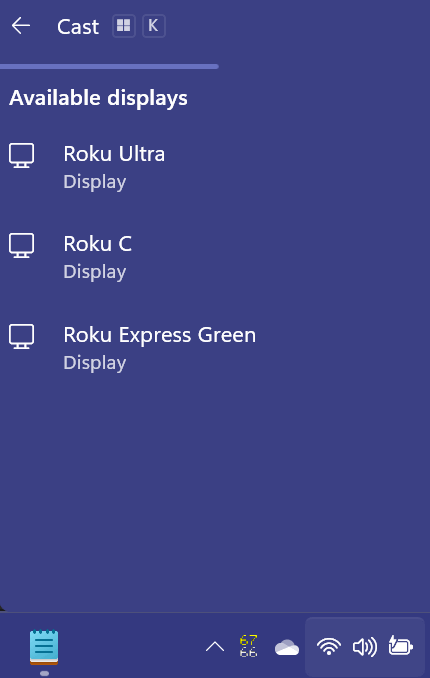
Using the Windows key + K shortcut opens the “Cast” dialog immediately. And I use the Windows key + K shortcut just about every evening. Or whenever I want to stream something without ads and without paying extra because "I am just a poor boy...".
And not many days pass by that I don’t use the Windows key + R (Run box), Windows key + I (Settings), the Windows key + V to paste from the extended clipboard, Windows key + X to open the Start button right-click menu, Windows key + S to open a search box, and many others.
Let this be a reminder that using Windows key shortcuts can save you a lot of time, and the more you use them, the more you’ll remember them, and the more you remember, the more they’ll become part of your computer skill set.
What is the Windows key, and where can you find it?
We’re glad you asked. Some of you are afraid to ask where the Windows key is because you think it’s a stupid question. But you know, the only stupid question is the one you don’t ask.
The Windows key is on the bottom of the keyboard between the Ctrl key and the Alt key… or if you’re using a laptop, it is usually between the Fn key and the Alt key. You can find it easily as it’s the only key with the Microsoft Windows logo on it.

And when we say, for example, Windows key + R (or Winkey+R), what we mean is that you hold down the Windows key while tapping the “R” key. So, Windows key + means holding down the Windows key while tapping the key after the “+” (plus) sign. To further shorten our Windows key shortcuts, we use “Winkey” instead of “Windows key” – but they are the same. Easy peasy, right?
Here’s a list of some great Windows Key shortcuts for you
Pressing the Windows key (Winkey) by itself opens the Windows Start
menu
Winkey + E opens File Explorer
Winkey + C opens Copilot
Winkey + D shows the Desktop no matter how many windows are open.
Winkey + G activates the Xbox Game Bar to let you record games or take
screenshots.
Winkey + H opens Microsoft speech services (Dictation)
Winkey + I opens the Windows Settings app
Winkey + K activates the Connect (Cast) feature to stream to wireless
displays/audio devices
Winkey + L locks your computer
Winkey + M minimizes all open Windows
Winkey+Ctrl + M opens Windows Magnifier settings
Winkey + R opens a Run box.
Winkey + S opens Search
Winkey + U opens the Ease of Access Center on Windows 10 and
Accessibility on Windows 11
Winkey+ PrtScr key takes a screenshot of your computer screen
Winkey+ Fn + PrtScr key takes a screenshot of your computer screen (some
laptops)
Winkey + X opens the power user menu (Same as right-clicking the Windows
Start button.)
Winkey + Ctrl + D creates a new virtual desktop
Winkey + Ctrl + F4 closes a virtual desktop
Winkey + Ctrl + Left or Right arrow switches between virtual desktops
There are many more, but these will get you started.
Now,
That’s What You Call “Refreshing!”
Windows 10 / Windows 11
To understand why refreshing a webpage ensures you’re seeing the current version, it’s essential to grasp the concept of “caching.”
Caching does speed things up, but sometimes it can cause problems. When you visit a website, your browser saves copies of certain elements (like images, style sheets, and other files) on your device (cache). This is called “caching.”
The next time you visit that website, your browser loads these saved files from your device instead of downloading them again from the web. Caching significantly speeds up page loading, but sometimes you see the page as it was, not the way it actually is. Refreshing a page ensures you’re seeing the most updated version of it.

Every browser has a refresh function on its toolbar. Here are samples of the refresh function and its icon on four popular browsers…

Above: Refresh icon – Google Chrome

Above: Refresh icon – Microsoft Edge

Above: Refresh icon – Mozilla Firefox

Above: Refresh icon – Brave browser
Are you seeing a pattern here? Every browser has a refresh icon (or refresh button) on its toolbar. It’s usually located to the left of the address bar. When you click the refresh icon, the page you’re viewing will be refreshed, and you’ll see the page as it really is on the web, not the page stored in your browser’s cache.
Another way to refresh a web page
You can use the F5 function key to refresh any web page you’re viewing. The F5 function key is usually located on the top row of your computer’s keyboard.
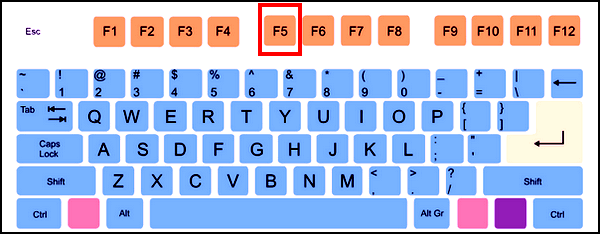

When viewing any web page, regardless of the browser you use, tapping the F5 key while viewing the page will refresh it instantly.
F5 Key BONUS TIP
Here are some other functions you can perform with the F5 key:
Reload a document in a word processing
program
Restart a slideshow in a presentation
program
Open the “Find and Replace” window in a
spreadsheet program
Back to refreshing a web page…
You can also refresh the page you’re viewing by putting your cursor at the end of the website URL (address) in the address bar and pressing the Enter key to refresh the page. But using the browser’s refresh button (icon) or using the F5 key on your keyboard are easier and faster ways to refresh the page you’re viewing.
When you refresh a webpage, you’ll always be sure you’re viewing the newest version of that page.

Want more tips, tricks, and information?
We have thousands of Windows tips, tricks, and more on our InfoAve website.
Subscribe to our free InfoAve Daily newsletter.
Your gifts help us continue our mission to keep you informed, separate the truth from the hyperbole, and help you stay safer online. We provide support to thousands of people. Every week we help dozens of people via email at no charge. Thanks to donations, we do a lot more than provide this free newsletter. We help you recognize online threats, fight for your online privacy, provide you with the knowledge you need to navigate the Web safely and help you get more out of your PC. Help us keep up the good fight with a small donation.
After you donate, you will receive an invitation to become a Cloudeight Booster.
Help us keep up the good fight with a small donation.
Interested in making an automatic monthly gift? Visit this page.
Help us keep helping you and helping you stay safe on the Web. Thank you so much!

Is Your Hard Drive Full? Meet WizTree!
Despite today’s large hard drives, it seems that lately we’ve had quite a few folks write us and tell us their hard drive is full. Windows pops up with that dreaded red bar: “Disk Space Low.” Usually, this means a “digital cleaning” is in order, but finding where the clutter is hiding is like looking for a needle in a haystack. Without an app to help you, it can be a real chore to find out what’s using up all your hard drive space.
Today, we have a great “freeware” program for you called WizTree. WizTree is a disk space analyzer. It’s a tool that takes an “X-ray” of your hard drive and shows you exactly which files are hogging all the space and where they’re hiding.
In the past, we’ve recommended other programs that do this, like our old favorite WinDirStat, but they can be slow. When you click the “Scan” button, you can go make a pot of coffee and have a cup before the results are in. But WizTree is different. It is lightning fast. Because of the unique way it reads your computer’s “internal index” (the MFT), it can scan a massive hard drive in less than 15 seconds.
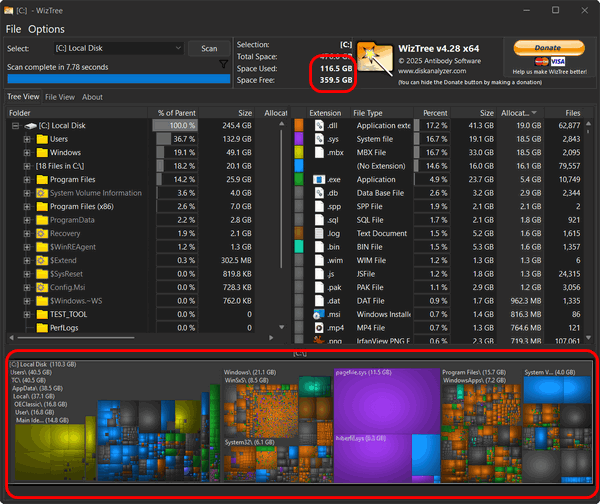
You don’t need to be a geek to use it. When it finishes scanning your drive, it shows you a colorful map of blocks. The bigger the block, the bigger the file. If you see a giant purple square taking up half the screen, you can be pretty sure that’s the culprit that’s using up a lot of your hard drive space. You can click on that square, and WizTree will tell you exactly what it consists of, and if it’s junk or something you don’t need, you can delete it.
WizTree is safe. It’s free for personal use (they do have a “Donate” button if you want to show your appreciation). WizTree doesn’t install any “junkware” or “toolbars” or any of the kind of stuff we always warn you about.
So, if you’re getting low disk space errors or you just want to declutter your hard drive to make sure you’re making the best use of the available space, WizTree is what you need to do the job quickly and safely.
BUT…
Just remember, you’ll need to “THINK” before you delete a giant file and make sure it isn’t something Windows needs! If it’s in a folder called “Windows” or “System,” it’s best to leave it alone. But if it’s 100GB of temp files or a 10 GB movie from 2015, you can delete it and free up a lot of space.
You can read more about and/or download WizTree here. It’s available as a portable app, or you can download the installer. Either way, WizTree is a great freeware program if you’re looking to find out what’s using your disk space.

We can fix your computer while you watch. You never have to leave your home. Just sit back, relax, and watch us work. Get PC service from folks you trust at the best prices you'll find anywhere.
Get more information here.

TC vs. AI: Crispy or Crisco?
This week's essay is not an essay, but a transcript of a "conversation" between TC and Google's Gemini chatbot...
The world is going nuts over AI. Many people distrust and dislike AI, while many others embrace it, and still others find it quite concerning. Put me in that last group. The biggest problem with AI is that unless you are sure of the answer you're looking for – or at least have a general idea of what the answer might be- AI can be wrong, and when it is wrong, and you try to correct it, AI will make excuses or even try to gaslight you.
AI is not always right; it makes errors. Sometimes it makes a lot of them. The following is a little chat I had with Google’s Gemini – one of the top AI agents- on a simple question. It led to quite a discussion between Gemini and me. This will demonstrate why you cannot always trust AI chatbots to provide accurate answers or correct information. My questions and responses are in blue italics.
TC: Which is healthier: lard or vegetable shortening?
GEMINI: This is a classic kitchen showdown. If we’re strictly talking about “health,” the answer has shifted over the years as food processing has changed. Currently, lard is generally considered the “healthier” option of the two, primarily because it is a natural, minimally processed fat, whereas vegetable shortening is a highly engineered product...
There's a lot more of this conversation, and you can read it here.

The "Magic Trio": Ctrl + X, Y, and Z
These three keyboard shortcuts will be your best friends. We use them multiple times almost every day. Best of all, they not only work on Windows 10 and 11, but they also work in almost every program on your computer!
Ctrl + X: The "Cut" Command
Think of this as picking up an object to move it. When you highlight text or a photo and press Ctrl + X, it disappears from its current spot and waits on your computer's Clipboard until you're ready to "Paste" it (Ctrl + V) somewhere else. It’s much tidier than "Copy," which leaves a duplicate behind!
Ctrl + Z: The "Oops" Button (Undo)
This is, in our opinion, one of the most important shortcuts ever
invented. Did you accidentally delete a whole paragraph? Did you move a
folder into the wrong place? Don’t panic! Just press Ctrl + Z. It’s like
a "Time Machine". It takes you back exactly one step to before the
mistake happened.
Ctrl + Y: The "Redo" Button
Sometimes I "Undo" something and then realize... wait, I actually liked it better the other way! That’s where Ctrl + Y comes in. It "Undoes the Undo," taking you one step forward in time again. In many programs, it can also be used to repeat your last action, like bolding several different headers in a row.

Sales of the following products and services help support our newsletters, websites, and free computer help services we provide.
Cloudeight Direct Computer Care: Always a great deal. Cloudeight Direct Computer Care is like having PC insurance. Get more information here.
Emsisoft Anti-Malware: Emsisoft is the only Cloudeight-endorsed and recommended Windows security program. It provides users with a complete antivirus, antimalware, anti-ransomware, and anti-PUPs solution. We offer single Emsisoft licenses and multi-computer licenses at discount prices. Also, we offer our exclusive Emsisoft with Cloudeight installation & setup. Get more information here.
Reg Organizer: Reg Organizer is the Swiss Army Knife of Windows tools. It's far more than just a registry optimizer and cleaner... it's a Windows all-in-one toolkit. Reg Organizer helps you keep your computer in tip-top shape and helps you solve annoying Windows problems. Reg Organizer works great with Windows 10 and Windows 11! Get more information about Reg Organizer (and get our special discount prices) here.
MORE IMPORTANT STUFF!
Your InfoAve Weekly Members' Home Page is located here.
Help us Grow! Forward this email newsletter to a friend or family member - and have them sign up for InfoAve Weekly here!
Get our free daily newsletter! Each evening we send a short newsletter with a tip or trick or a computer-related article - it's short and sweet - and free. Sign up right now.
We have thousands of Windows tips and tricks and computer articles posted on our Cloudeight InfoAve website. Our site has a great search engine to help you find what you're looking for too! Please visit us today!
Help us by using our Start Page. It costs nothing, and it helps us a lot.
Print our Cloudeight Direct Flyer and spread the word about our computer repair service! If you want to help us by telling your friends about our Cloudeight Direct Computer Care service, you can download a printable flyer you can hand out or post on bulletin boards, etc. Get the printable PDF Cloudeight Direct Computer Care flyer here.

We'd love to hear from you!
If you have comments, questions, a tip, a trick, a freeware pick, or just want to tell us off for something, let us know.
If you need to change your newsletter subscription address, please see "Manage your subscription" at the very bottom of your newsletter.
We received hundreds of questions for possible use in IA news. Please keep in mind we cannot answer all general computer questions. We try to personally answer as many as we can. We can only use a few in each week's newsletter, so keep this in mind. If you have a support question about a service or product we sell, please contact us here.
Subscribe to our Daily Newsletter! Get computer tips & tricks every night. Our daily newsletter features a computer tip/trick or two every day. We send it out every night around 9 PM Eastern Time (USA). It's short and sweet, easy to read, and FREE. Subscribe to our Cloudeight InfoAve Daily Newsletter!
We hope you have enjoyed this issue of Cloudeight InfoAve Weekly. Thanks so much for your support and for being an InfoAve Weekly subscriber.
Have a great weekend... be safe!
Cloudeight InfoAve Weekly - Issue #1167
Volume 23 Number 18
February 20, 2026
Not a subscriber? Subscribe to our FREE Cloudeight InfoAve Weekly Newsletter here.
"Cloudeight InfoAve Weekly" newsletter is published by:
Cloudeight Internet LLC
PO Box 73
Middleville, Michigan USA 49333-0073
Read our disclaimer about the tips, tricks, answers, site picks, and freeware picks featured in this newsletter.
Copyright ©2026 by Cloudeight Internet