
Cloudeight InfoAve Weekly
Issue #1168
Volume 23 Number 19
February 27, 2026
Dear Friends,
Welcome to Cloudeight InfoAve Weekly Issue #1168. Thank you very much for subscribing and for being a part of our Cloudeight family. We appreciate your friendship and support very much! Please share our newsletters and our website with your friends and family.

If you're not getting our InfoAve Daily newsletter, you're missing out on a lot of good stuff!
It's free, and it only takes a few seconds to sign up. We'd love to have you with us. Visit this page to sign up for our Cloudeight InfoAve Daily Newsletter.

Your gifts help us continue our mission to keep you informed, separate the truth from the hyperbole, and help you stay safer online. We provide support to thousands of people. Every week we help dozens of people via email at no charge. Thanks to donations, we do a lot more than provide this free newsletter. We help you recognize online threats, fight for your online privacy, provide you with the knowledge you need to navigate the Web safely and help you get more out of your PC. Help us keep up the good fight with a small donation.
After you donate, you will receive an invitation to become a Cloudeight Booster.
Help us keep up the good fight with a small donation.
Interested in making an automatic monthly gift? Visit this page.
Help us keep helping you and helping you stay safe on the Web. Thank you so much!

Sharon wants the old Windows
Paint program back
I used Windows 10 Paint a
lot, but I really don't like
the Windows 11 version. Can
I download the older,
simpler version of Paint, or
is there an alternative that
is very similar? Thank you!
Our answer
Hi Sharon. If you're using
Windows 11, there's no way
you can download the "old"
Windows 10 Paint from
Microsoft. But you can
download the older Windows 7
version of Paint, which was
also installed on the
earlier versions of Windows
10. We have NOT tested it,
but they claim it works on
Windows 10 and Windows 11.
According to the info I researched, there is a popular and safe third-party project that packages the original Windows 7 version of Paint into an installer for Windows 10 and 11.
Pam wants to know what brand of computer we recommend
Is there a certain brand of computer that you recommend? Also, minimum RAM, CPU, amount of memory, and SSD or HDD drives? I'm thinking about buying a new laptop.
Hi Pam. We don't recommend any brand of computer. We recommend at least 8 GB of RAM ( more if you can afford it). A 500 GB SSD (solid-state hard drive or larger). Any processor (not CPU) that can run Windows 11 will suffice for most users. For those who use processor-intensive applications like database software, high-end video processing, or gaming, we recommend at least an Intel i5 processor or equivalent. But all things considered, RAM (Memory) is the most important. For more tips on buying a new computer, see our recently updated article here.
I hope this helps you make a great decision, Pam.
Ed
wants to get rid of the
clutter on a new Windows 11
laptop
Will be buying my wife a new
computer in a week or two;
it will come with Windows 11
Pro. Would like to know what
you think is the best
program to declutter all the
junk Microsoft adds to new
computers before I start
moving all her programs and
files.
Our answer
Hi Ed. Windows 11 now allows
you to remove any Microsoft
app or program you decide is
clutter. The biggest clutter
on new PCs isn't from
Microsoft anyway; it's
McAfee or Norton that comes
installed on most new PCs.
You can't uninstall either
using the included
uninstaller; you have to
download a separate
uninstaller from McAfee or
Norton to remove them. Other
than that, you can remove
any app/program, or
Microsoft installed app or
program from Settings >
Installed apps. No other
software is necessary.
Hope this helps, Ed.

We've helped hundreds and hundreds of you with your computers since we started our Cloudeight Direct Computer Care Service! If you're having computer problems - we CAN help you!
We all know that sooner or later our computers are going to start having problems. We can help you with any computer need -- from diagnosing and fixing Windows problems - to cleaning up malware and viruses - to cleaning up your computer and optimizing it -- and more. We can do just about anything need done and we guarantee our work - you're either satisfied or we'll refund your money.
We will connect to your computer via the Internet and fix any problems you may be having. You can watch us work and chat with us while we do. If you have any computer questions you'd like to ask we'll be glad to answer them for you. We don't just fix your computer, we explain what we're doing and why we're doing it and we are right there with the entire time. Since we've started we've helped hundreds of you with your computer problems and we've received dozens of referrals and testimonials from our readers and customers.
We offer many other computer services too! If you have a problem with your computer - we can fix it!
Get more information about Cloudeight Direct Computer Care and / or get your repair keys here.
Margaret purchased something from a fraudulent website
Our answer
Hi
Margaret. Always
keep in mind that
neither Emsisoft nor
any other antivirus
can prevent you from
being tricked into
giving your credit
card number to
scammers. This is a
common misconception
most likely spawned
by Norton and VPN
commercials claiming
they can prevent
things like this...
they can't. Emsisoft
can prevent you from
downloading
malicious software.
But the only way to
prevent being
scammed is to be
extra careful when
trusting sites with
which you are not
familiar with your
credit card and
other personal
information - and
always remember if
something seems too
good to be true,
there's a good
chance it is.
Hi folks, how do I make my Wi-Fi network private? It's listed as a public network. Thanks. Uwe.
Our answer
Hi
Uwe. When it comes
to Wi-Fi networks,
Public and Private
don't mean what you
think. 'It may seem
counterintuitive
that your home Wi-Fi
defaults to
"Public," but there
is a good
privacy-based reason
behind it. The
"Public" (default)
setting is the safer
setting because it
makes your computer
invisible to other
devices on the same
network.

Now available: Reg Organizer 9.88
If you purchased or renewed Reg Organizer through Cloudeight within the
last 12 months, you're entitled to a free version upgrade to Reg
Organizer 9.88. Reg Organizer works great with Windows 10 and Windows 11.
Save $14 on Reg
Organizer right now!
Reg
Organizer - A Swiss Army Knife of Windows Tools - Works Great on Windows
10 and Windows 11.

How to
Use Windows Storage Sense to
Clean Up Your Computer
Windows 10 / Windows 11
There are dozens of free and paid programs that you can download to clean up your Windows computer. Windows even comes with Disk Cleanup, which Microsoft was supposed to deprecate some time ago but hasn’t—at least not yet. Of course, then there are PrivAzer and BleachBit, as well as the popular (but not popular with us) CCleaner, which we most strongly do not recommend.
Somewhere, along the way, Windows Storage Sense has been forgotten. So, we’re going to remind you about the benefits of Windows Storage Sense. We’ll cover Storage Sense in Windows 10 and the more streamlined Storage Sense in Windows 11.
Windows 10 Storage Sense
Right-click the Start button and choose Settings. In Settings, choose System > Storage.
If you have not done so already, turn on Storage Sense by sliding the switch to the “On” position.
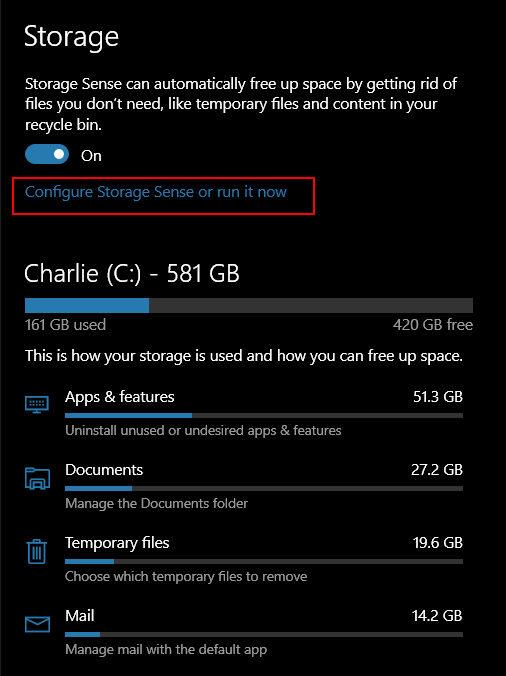
If you want to run a quick cleanup, click “Configure Storage Sense or run it now."
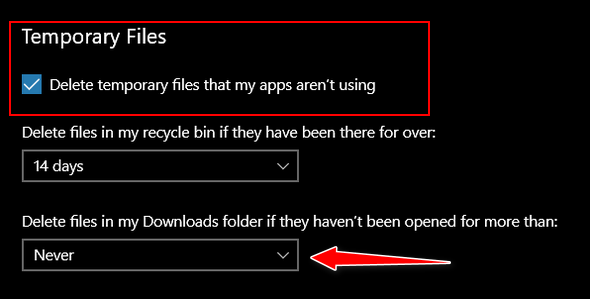
Under “Temporary Files, ” check the selection box next to “Delete temporary files my apps aren’t using”. And then check to make sure you have “Never” selected under “Delete files in my downloads folder if they haven’t been open for more than:”. You can easily clean up your Downloads folder manually.
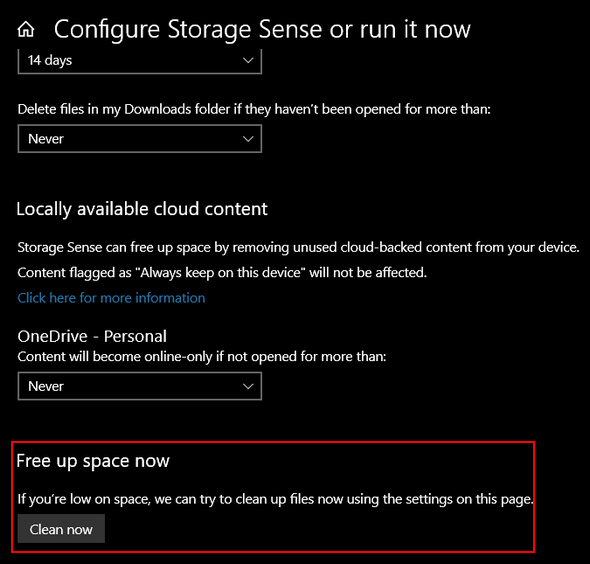
Next, under “Free up space now”, click the “Clean now” button.
That’s all there is to using Storage Sense in a basic cleanup. If you’re an advanced user and like to tinker with settings, you can fine-tune Storage Sense and customize it to your liking.
Windows 11 Storage Sense
Right-click the Start button and choose Settings from the menu. Then click on System > Storage. Yep! Just like Windows 10.
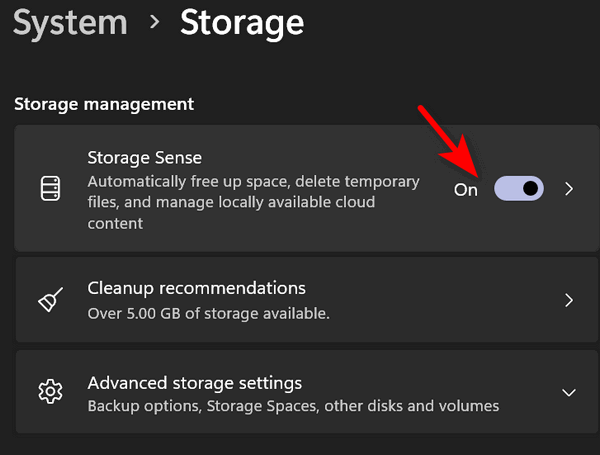
When Storage opens, click on “Storage Sense”…
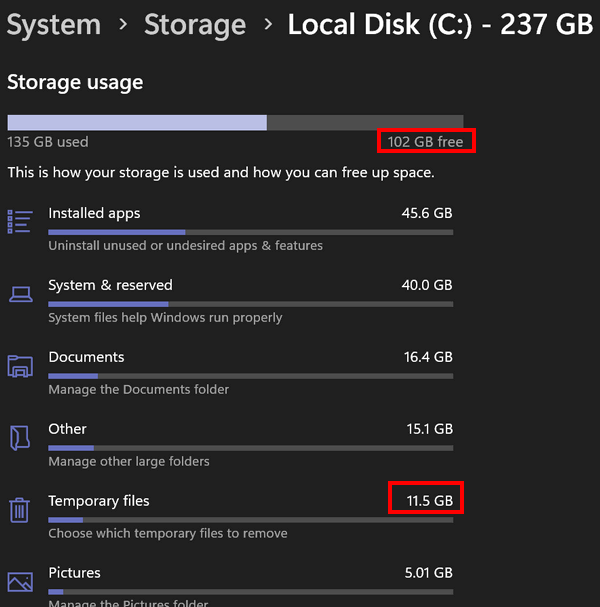
In the System > Storage > Storage Sense section, turn the switch to “On” under “Automatic user content cleanup.”
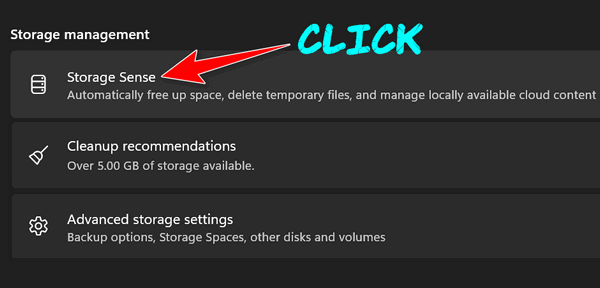
Next, scroll down and click “Storage Sense”…
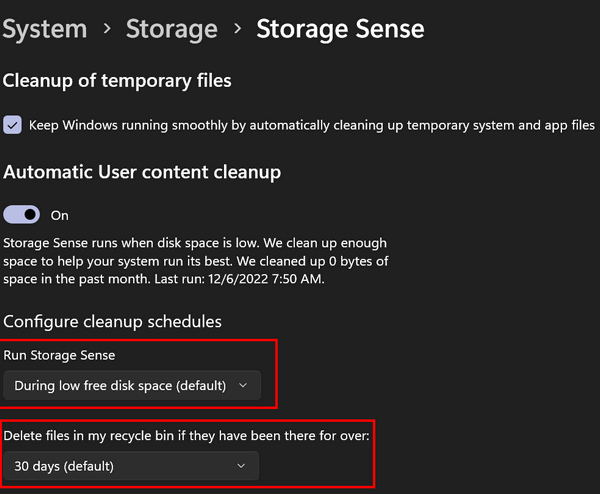
We recommend that you change the settings for “Run storage sense” and “Delete files in my recycle bin…” as follows…
“Every week” and “14 days” respectively
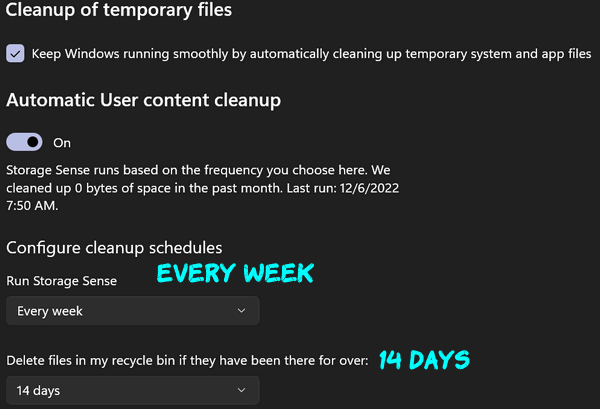
And once you get Storage Sense customized so it runs every week and automatically cleans up your recycle bin every 14 days, you can go ahead and run it now. Just scroll down and click on “Run Storage Sense now”.
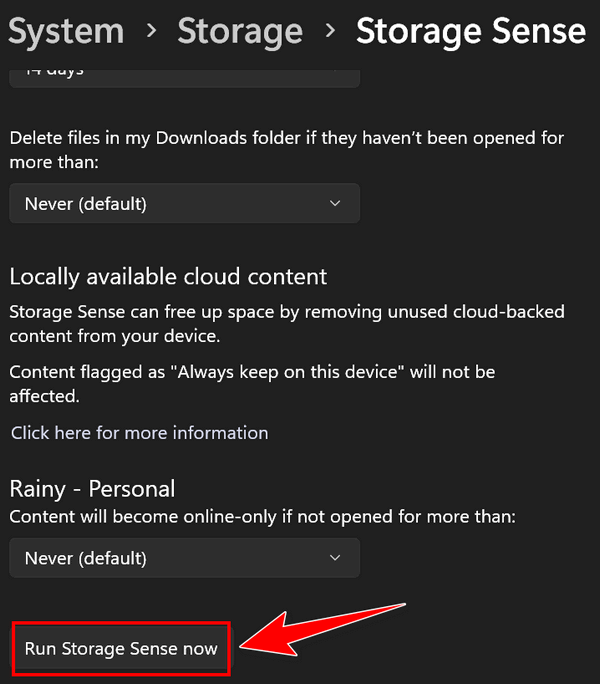
And if you want to do some fine-tuning…
Storage Sense in Windows 11 allows users to fine-tune and customize Storage Sense cleanup settings. To access these settings, go back to System > Storage > Storage Sense and click on “Cleanup recommendations”…
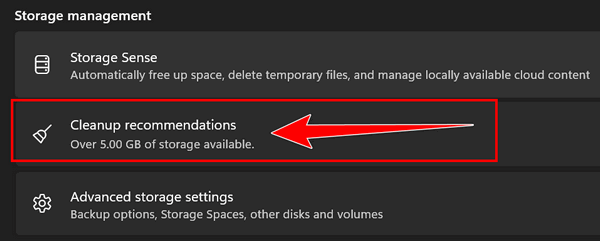
Windows 11 will also let you know which files are safe to clean.
Now you know another way to clean up your Windows 10 or Windows 11 computer.
How to Bring
Back “Copy To” and “Move To” in Windows
11’s Right-click Menu
Windows 11
Many of you have been asking how to restore “Copy to” and “Move to” to the Windows 11 right-click context menu. If you’re one of those folks who are missing the classic “Copy To” and “Move To” options in your right-click menu, we’ve got good news for you.
You can bring “Copy to” and “Move to” back to your right-click menu with a simple, safe registry tweak. Here is how to do it.
Right-click here and choose “Save link as”. Save the zip file to your computer and unzip it. You’ll see a file called c2m2.reg. Double-click the c2m2.reg file. You’ll receive two warnings; the file is safe, so you can click away both.
If you’re using Emsisoft, you may get a warning from it because the file will modify your registry (that’s what it’s supposed to do). Click on “Wait, I think this is safe.” (or similar).
The registry file will change your registry so that “Copy to folder” and “Move to folder” appear on your Windows 11 right-click context menu. To use it, you’ll need to right-click on the file(s) or folder(s) you want to copy or move and choose “Show more options” before you can see “Copy to folder” and “Move to folder” on your right-click context menu.
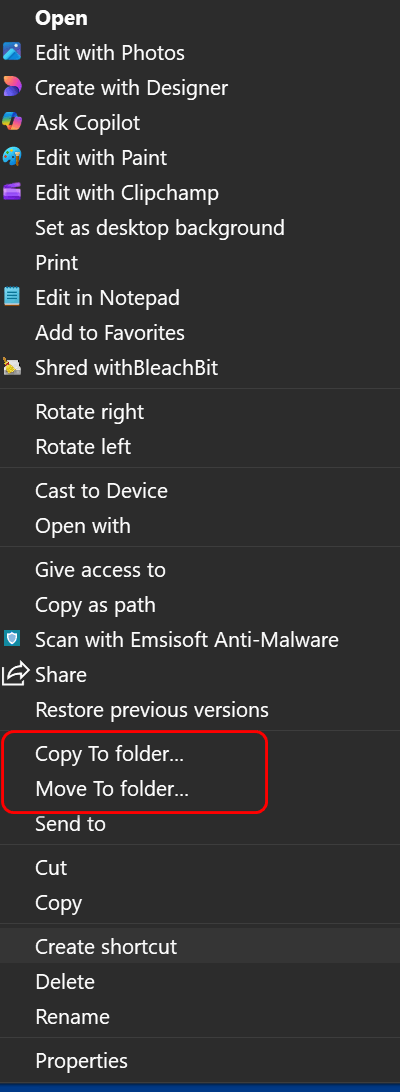
Happy right-clicking!
Windows 10 / Windows 11
Once you begin to use these 3 keyboard shortcuts, they will become your best friends. We use them multiple times almost every day. Best of all, they not only work on Windows 10 and 11, but they also work in most programs on your computer.
Ctrl + X: The “Cut” Command
Think of this as picking up an object to move it. When you highlight text or a photo and press Ctrl + X, it disappears from its current spot and waits on your computer’s Clipboard until you’re ready to “Paste” it (Ctrl + V) somewhere else. It’s different from “Copy” (Ctrl + C), which leaves a duplicate behind.
Ctrl + Z: The “Oops” Button (Undo)
This is one of the most important shortcuts ever invented. Did you accidentally delete a whole paragraph? Did you move a folder into the wrong place or delete the wrong file? Don’t panic! Just press Ctrl + Z. It’s like a “Time Machine”. It takes you back exactly one step to before the mistake happened.
Ctrl + Y: The “Redo” Button
Sometimes I “Undo” something and then realize… wait, I actually liked it better the other way! That’s where Ctrl + Y comes in. It “Undoes the Undo,” taking you one step forward in time again. In many programs, it can also be used to repeat your last action, like bolding several different headers in a row.
Now you know your XYZs; use them on your PC…please!

Want more tips, tricks, and information?
We have thousands of Windows tips, tricks, and more on our InfoAve website.
Subscribe to our free InfoAve Daily newsletter.
Your gifts help us continue our mission to keep you informed, separate the truth from the hyperbole, and help you stay safer online. We provide support to thousands of people. Every week we help dozens of people via email at no charge. Thanks to donations, we do a lot more than provide this free newsletter. We help you recognize online threats, fight for your online privacy, provide you with the knowledge you need to navigate the Web safely and help you get more out of your PC. Help us keep up the good fight with a small donation.
After you donate, you will receive an invitation to become a Cloudeight Booster.
Help us keep up the good fight with a small donation.
Interested in making an automatic monthly gift? Visit this page.
Help us keep helping you and helping you stay safe on the Web. Thank you so much!

Ten Alternate Browsers You Can Try Safely
Every Windows user has a default browser – the one browser that opens links when you click on them. It can be any browser you have installed, but you can only choose one.
But did you know you can install as many browsers on your computer as you want – with only your good sense to limit you? And there is nothing wrong with having two or three browsers, besides your default browser, installed. You might find that by exploring and trying a different browser, you will discover a browser you like better than the one you’re using. Who knows?
For instance, Darcy uses MS Edge as her default browser, and TC uses Firefox as his default, but we both still use Google Chrome a lot. TC also has Brave, Arc, and DuckDuckGo browsers installed, but uses them less frequently than the others.
We’ve put together a list of 10 alternate browsers that are safe to download and install. And if you don’t like them, they’re easy to uninstall. For this article, we’re going to assume you all know the big three – Edge, Chrome, and Firefox. But if you haven’t given Firefox a try, consider downloading it from here and giving it a try. You might like it.
Here’s our list of alternate browsers that we’ve tested at one time or another, along with a brief description from their respective publisher and the browser’s official home page and download link. All browsers listed are free of charge, and all are safe to install.
Ten Alternative Browsers You Might Want to Try
Opera
Ditch the default. With its built-in ad-blocker, free VPN,
integrated messengers, crypto wallet, and so much more, Opera offers a
complete web experience you can’t get from system defaults such as
Chrome, Safari, and Edge.
Vivaldi
Get an easy-to-use browser that doesn’t track you. Essentials
is a minimal, uncluttered setup with privacy options that put you in
control of your data. A lot of Vivaldi’s functionality is hidden to keep
things streamlined. But it’s there if you need it.
Making the browser is our job. How you use it is none of our business. We don’t track or profile you. We don’t do data collection. We don’t sell your data to third parties.
Brave
The best privacy online. Browse privately. Search privately.
And ditch Big Tech. By default, Brave blocks the trackers & creepy ads
on every website you visit. And that thing where ads follow you across
the Web? We block that, too.
Iridium
A browser securing your privacy. That’s it.
Waterfox
The best way to browse the web today. Waterfox gives you a sane way to
browse the web. Built with you, the user, in mind. Waterfox’s Enhanced
Tracking Protection safeguards your privacy while you surf.
Pale Moon
Pale Moon offers you a browsing experience in a browser completely built
from its own, independently developed source that has been forked off
from Firefox/Mozilla code several years ago, with carefully selected
features and optimizations to improve the browser’s stability and user
experience, while offering full customization and a growing collection
of extensions and themes to make the browser truly your own.
Slim Browser
Fastest web browser for Windows that blocks all Ads
Colibri
Browse without tabs. Colibri browser is designed to be fast, efficient,
and uncluttered… It helps you browse the Internet faster without endless
tabs.
Home page and download information.
DuckDuckGo Browser
Search and browse more privately with the DuckDuckGo browser. Unlike
Chrome and other browsers, DuckDuckGo claims they don’t track you.
Home page, download page, and more info.
Dia (Arc) Browser
Arc says: “A familiar design that weaves AI into everyday tasks.”
Home page, download page, and more info.
Go Ahead, Explore!
Don’t feel you are stuck with Chrome, Edge, or Firefox. There’s a whole world of browsers out there, and you might just find one you like better than Edge or Chrome. So go ahead, explore your wild side! Download 2 or 3 new browsers from our list of alternative browsers, and give them a try. If you don’t like them, they’re easy to uninstall. And every one of the browsers on our list is free.

We can fix your computer while you watch. You never have to leave your home. Just sit back, relax, and watch us work. Get PC service from folks you trust at the best prices you'll find anywhere.
Get more information here.

Thoughts
Now, about six months into the semi-ambulatory stage of my old age, I have rediscovered a favorite old pastime of my younger days: reading. It provides another escape, besides sleeping, from the inescapable torments of aging.
Sleeping is easier during the day when the pain pills are in full vigor, and the buzzing of life is all around. Sleeping at night is more challenging since it is quieter and therefore easier to hear my bones creak and crack when I toss and turn as I attempt to find the most painless position for sleeping. I’ve discovered there is none, but I try just the same. It’s become a ritual by now.
The racing thoughts of an old man seem to become stranger and harder to ignore at night. The cascading cacophony of thoughts, combined with the creaky, muffled sounds of the night, makes for a terrible night...
Read the rest of this essay here.

Use Your Favorite Browser to Browse Files on Your Computer
Did you know that you can use your favorite browser (Firefox, Chrome, Edge, Brave, etc.) as a file explorer? Yes, you can.
Open your favorite browser right now. Open a new, blank tab, and press the Ctrl key plus the O key (that's an O, not a zero).
You will see a File Explorer window open in your browser. We use this trick all the time. It's sometimes quicker than opening File Explorer, especially if your browser is already open.
Even if it's not, at least now you know you can do it. Try it. You just might like it as much as we do!

Sales of the following products and services help support our newsletters, websites, and free computer help services we provide.
MORE IMPORTANT STUFF!
Cloudeight Direct Computer Care:
Always a great deal. Cloudeight Direct Computer Care is like having PC insurance. Get more information here.
Emsisoft Anti-Malware: Emsisoft is the only Cloudeight-endorsed and recommended Windows security program. It provides users with a complete antivirus, antimalware, anti-ransomware,
and anti-PUPs solution. We offer single Emsisoft licenses and multi-computer licenses at discount prices. Also, we offer our exclusive Emsisoft with Cloudeight installation & setup. Get more information here.
Reg Organizer: Reg Organizer is the Swiss Army Knife of Windows tools. It's far more than just a registry optimizer and cleaner... it's a Windows all-in-one toolkit. Reg Organizer helps you keep your computer in tip-top shape and helps you solve annoying Windows problems. Reg Organizer works great with Windows 10
and Windows 11! Get more information about Reg Organizer (and get our special discount prices) here.
Your InfoAve Weekly Members' Home Page is located here.
Help us Grow! Forward this email newsletter to a friend or family member - and have them sign up for InfoAve Weekly here!
Get our free daily newsletter! Each evening we send a short newsletter with a tip or trick or a computer-related article - it's short and sweet - and free. Sign up right now.
We have thousands of Windows tips and tricks and computer articles posted on our Cloudeight InfoAve website. Our site has a great search engine to help you find what you're looking for too! Please visit us today!
Help us by using our Start Page. It costs nothing, and it helps us a lot.
Print our Cloudeight Direct Flyer and spread the word about our computer repair service! If you want to help us by telling your friends about our Cloudeight Direct Computer Care service, you can download a printable flyer you can hand out or post on bulletin boards, etc. Get the printable PDF Cloudeight Direct Computer Care flyer here.

We'd love to hear from you!
If you have comments, questions, a tip, a trick, a freeware pick, or just want to tell us off for something, let us know.
If you need to change your newsletter subscription address, please see "Manage your subscription" at the very bottom of your newsletter.
We received hundreds of questions for possible use in IA news. Please keep in mind we cannot answer all general computer questions. We try to personally answer as many as we can. We can only use a few in each week's newsletter, so keep this in mind. If you have a support question about a service or product we sell, please contact us here.
Subscribe to our Daily Newsletter! Get computer tips & tricks every night. Our daily newsletter features a computer tip/trick or two every day. We send it out every night around 9 PM Eastern Time (USA). It's short and sweet, easy to read, and FREE. Subscribe to our Cloudeight InfoAve Daily Newsletter!
We hope you have enjoyed this issue of Cloudeight InfoAve Weekly. Thanks so much for your support and for being an InfoAve Weekly subscriber.
Have a great weekend... be safe!
Cloudeight InfoAve Weekly - Issue #1168
Volume 23 Number 19
February 27, 2026
Not a subscriber? Subscribe to our FREE Cloudeight InfoAve Weekly Newsletter here.
"Cloudeight InfoAve Weekly" newsletter is published by:
Cloudeight Internet LLC
PO Box 73
Middleville, Michigan USA 49333-0073
Read our disclaimer about the tips, tricks, answers, site picks, and freeware picks featured in this newsletter.
Copyright ©2026 by Cloudeight Internet