
Cloudeight InfoAve Weekly
Issue #1170
Volume 23 Number 21
March 13. 2026
Dear Friends,
Welcome to Cloudeight InfoAve Weekly Issue #1170. Thank you very much for subscribing and for being a part of our Cloudeight family. We appreciate your friendship and support very much! Please share our newsletters and our website with your friends and family.

If you're not getting our InfoAve Daily newsletter, you're missing out on a lot of good stuff!
It's free, and it only takes a few seconds to sign up. We'd love to have you with us. Visit this page to sign up for our Cloudeight InfoAve Daily Newsletter.

THANK YOU SO MUCH!
Your gifts help us continue our mission to keep you informed, separate the truth from the hyperbole, and help you stay safer online. We provide support to thousands of people. Every week we help dozens of people via email at no charge. Thanks to donations, we do a lot more than provide this free newsletter. We help you recognize online threats, fight for your online privacy, provide you with the knowledge you need to navigate the Web safely and help you get more out of your PC. Help us keep up the good fight with a small donation.
After you donate, you will receive an invitation to become a Cloudeight Booster.
Help us keep up the good fight with a small donation.
Interested in making an automatic monthly gift? Visit this page.
Help us keep helping you and helping you stay safe on the Web. Thank you so much!

Terri wants to know how
to open .ico files
How can I open a .ico
file? Is there a free
program I can use to
open it? I looked
online, and there are
dozens of programs that
can open .ico files, but
I don't know which ones
are safe. I would
appreciate your help.
Thank you, Terri.
Our answer
Hi Terri. A file with an .ico
extension is an
icon file. We use IrfanView to open and
view them.
ICO files are not
actually images - they
are image containers for
computer icons.
Generally, one ICO file
contains multiple icon
sizes and color depths
for viewing in various
settings. For example,
if you view a folder
icon in File
Explorer, it appears
very small, but if you
place a folder icon on
your desktop, it will be
much larger. Windows
also lets you resize
icons from very small to
extra large. These are
all contained in one
.iso file.
Here is a link to IrfanView: https://www.irfanview.com. You can also download IrfanView from here. IrfanView is freeware.
We hope this helps
you, Terri.
Mark wants to copy/move files on
Windows 11
Hello. Is there a copy to / move to for Windows 11? I am unable
to easily transfer the files from one location to another. Any help you
can give, I would appreciate. Thanks, Mark.
Our answer
Take a look at our article here. It's a tutorial on adding "Copy to
folder" and "Move to folder" to the right-click menu in Windows 11. Just
so you know, by default, it won't show up on the main right-click menu;
you have to click on "Show more options".
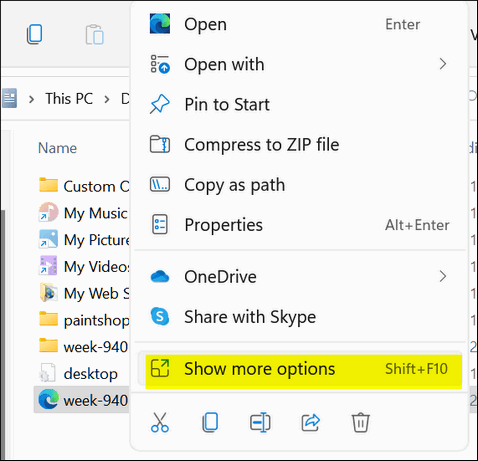
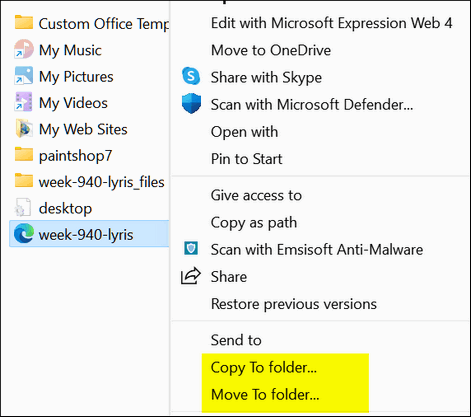
I hope this helps you, Mark.
Robert wants to know if
HiBit Uninstaller is no
longer available
Is HiBit Uninstaller no
more? I can't update the one
I have, and can't download
it to install it.
Our answer
Hi Robert. HiBit was created and is maintained by an Iranian developer,
so perhaps the current conflict with Iran may be a problem, but I do not
know for sure.
I do know that you can still download it from a trusted site, MajorGeeks. I rarely update mine since it already does what I need it to do better than anything else.

We've helped hundreds and hundreds of you with your computers since we started our Cloudeight Direct Computer Care Service! If you're having computer problems - we CAN help you!
We all know that sooner or later our computers are going to start having problems. We can help you with any computer need -- from diagnosing and fixing Windows problems - to cleaning up malware and viruses - to cleaning up your computer and optimizing it -- and more. We can do just about anything need done and we guarantee our work - you're either satisfied or we'll refund your money.
We will connect to your computer via the Internet and fix any problems you may be having. You can watch us work and chat with us while we do. If you have any computer questions you'd like to ask we'll be glad to answer them for you. We don't just fix your computer, we explain what we're doing and why we're doing it and we are right there with the entire time. Since we've started we've helped hundreds of you with your computer problems and we've received dozens of referrals and testimonials from our readers and customers.
We offer many other computer services too! If you have a problem with your computer - we can fix it!
Get more information about Cloudeight Direct Computer Care and / or get your repair keys here.
I keep getting ads in my email on my phone with no delete option. How do I get rid of them? I don't get them on my computer.
Our answer
Hi Rita. You
cannot
delete ads,
but you can
block them
so you don't
see them.
For your Android smartphone, you can get rid of almost all ads by following the instructions on this page.
You have helped me so much in the past, and I am hoping you can work your magic once again. I am still using Windows 10 with Opatch as you suggested. I do not want to change to Windows 11. My needs are very basic, and I seem to be using mainly Chrome and the attachments. Based on my needs, I was thinking about changing to a Chrome box. I would like to know what you think of this proposal and ask if you could recommend a suitable Chrome Box. Is there anything that could be a potential problem or drawback?
Hi Stanley. Thanks for your nice comments.
A Chromebook is a laptop. A Chromebox is a compact, "mini-PC" (similar in size to a Mac Mini or a thick stack of coasters) that runs Google's ChromeOS. It doesn't come with a screen, keyboard, or mouse; you plug in your own and use it as a stationary workstation.
If you're concerned about privacy, you should know that neither Chromebooks nor Chromeboxes allow you to store files locally (on your computer); everything, including apps and your personal files, is stored in the cloud. You basically cannot use them without an internet connection.
Also, Windows programs and apps won't run on Chrome OS. So you can't use MS Office apps (Word, Excel, etc.) or many programs (image editors, text editors, or other Windows programs or apps). While there are literally tens of thousands of freeware programs for Windows, the selection of totally free apps for Chrome OS is very limited - most are either subscription-based, one-time payment, or free with ads - the ads can be many and can be annoying.
So, if you don't mind your files being stored online on Google servers and the inability to run the Windows programs and freeware you're used to, then perhaps a Chromebox or Chromebook is for you. I bought a Chromebook several years ago and used it briefly, but now it sits in the closet unused. It was just not my cup of tea. But to each his or her own.
HI Vicky. Thanks!
Hardware acceleration conflict is the most likely cause. Most web browsers (Chrome, Edge, Firefox) use your Graphics Processing Unit (GPU) to make videos play smoothly. If there’s a glitch in that handoff, the video frame turns green.
You can try fixing that this way:
1. Open your browser settings.
2. Search for "Hardware Acceleration."
3. Turn it Off, restart your browser, and try the video again.
Outdated graphics drivers are another common cause of problems. Your graphics card is the "translator" between your computer and your screen. If the drivers are outdated, it might fail to render certain video formats correctly.
You can try fixing this problem this way:
1. Right-click the Start button and select Device Manager.
2. Expand Display adapters
3. Right-click your graphics card (usually Intel, NVIDIA, or AMD) and select Update driver.
4. Choose Search automatically for drivers.
Finally, if the computer is getting old, the graphics card may be starting to fail. If this is the cause, the only fix is to replace it. If you can't replace the card yourself, you'll need to have someone do it, which may be expensive. In this case, you might want to consider putting that money into a new computer.
Hope this helps!

Now available: Reg Organizer 9.88
If you purchased or renewed Reg Organizer through Cloudeight within the
last 12 months, you're entitled to a free version upgrade to Reg
Organizer 9.88. Reg Organizer works great with Windows 10 and Windows 11.
Save $14 on Reg
Organizer right now!
Reg
Organizer - A Swiss Army Knife of Windows Tools - Works Great on Windows
10 and Windows 11.

The Six Windows
Tips & Tricks We
Use Most Often
Windows
10 / Windows 11
Here are a few Windows tips we use almost every day. These tips save time and are super easy, and we’re going to share them with you. These tips work in both Windows 10 and Windows 11.
1: Bring up the Lock Screen
Pressing the Windows key plus L brings up the lock screen in Windows 10 and Windows 11. If you use a password, Windows Key + L will “lock” your Windows PC until you enter your password or PIN.
2: Make any word or phrase a hyperlink
If you want to create a hyperlink out of a word or a phrase, like “Visit our InfoAve Website“, it’s super easy to do. Highlight the word or words you want to make into a hyperlink and press CTRL+K. A dialog will appear. In the dialog type or paste the URL (website address) and press Enter. If you did that correctly, the word or words you highlighted will now be a clickable hyperlink. This works with most word processors and email programs. It also works in Gmail. Try it!
3: Open a new instance of a program with just the click of your mouse
Did you know that on most computer mice, you can click the scroll wheel? You can, and we call it the “middle mouse button”. If you middle-click on the taskbar icon of an open program, a new instance of that program opens. Try it. This works with Chrome, Edge, Firefox, Notepad, File Explorer, Thunderbird, and many other programs. This will work with any program that allows multiple instances to run.
4: Open the Task Manager with a keyboard shortcut
Just press CTRL+SHIFT+ESC, and Task Manager will open.
5: Hide all open windows in a hurry
If you want to hide all open windows on your desktop quickly, press the Windows Key plus the M key. To reopen them again, press Windows Key+SHIFT+ M.
6: Get the full right-click menu on Windows 11
By default, Windows 11’s right-click context menu is truncated; you have to click “Show more options” to see the entire menu. If you want to see the full context menu without clicking “Show more options”, just hold down the CTRL key while you right-click a file or folder.
A Simple
Multitasking
Trick
Windows 10 /
Windows 11
Did you know
that in Windows
10 and 11, the
Windows key +
Tab key shortcut
shows all your
open programs on
your desktop?
That’s right!
When you use the
Windows key +
Tab key
shortcut,
you can see all
open programs on
your desktop at
once.
Let’s take a
look…
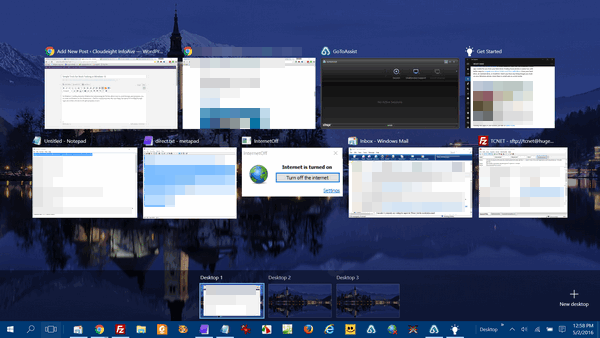
Above: Windows 10

Above: Windows 11
If you’re using Windows 10 or 11 and you want to see how many programs you have open, just press and hold the Windows Key and tap the Tab key. And you can click on any “thumbnail” and bring that program or app into focus. You can also close any of the programs by clicking on the “X” in the top-right corner of any of those open programs/apps without bringing them into focus… that’s correct, you can close any open program or app from its “thumbnail” on the desktop you see when you use the Windows key + Tab key shortcut.
How
to Bring Back
the Old Notepad
in Windows 11
Windows 11
For decades, Notepad was a distraction-free, plain-text editor. Then, Microsoft deprecated WordPad. Now, Microsoft is trying to turn Notepad into WordPad. If you miss the days when Notepad was a simple text editor that didn’t offer text formatting, didn’t remember your last session, or offer to rewrite your sentences with AI, you can easily restore the “old” Notepad.
It’s easy to turn the “new” Notepad back into its old self. You don’t need to download any third-party software or dig into the Windows Registry. You simply need to flip three specific toggles in Notepad’s Settings menu.
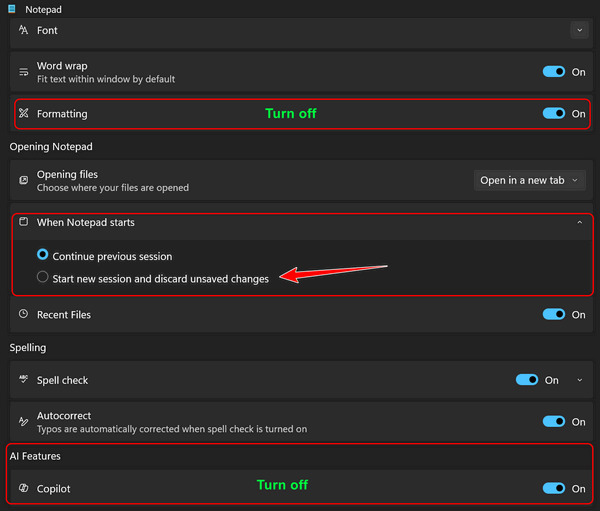
Step 1: Turn Off “Formatting”
The first section in the new Notepad Settings is Formatting. By default, the “nwe” Notepad tries to support rich-text elements like bolding, italics, and lists, which can interfere if you are using Notepad to strip formatting from web text, turn formatted text into plain text, or write clean code.
Open Notepad and click the Gear Icon in the top right corner.
Locate the Formatting toggle at the very top of the list.
Switch it to Off.
Result: The formatting toolbar disappears, and Notepad turns into a simple, plain text editor.
Step 2: Change “When Notepad starts”
The second section controls how the app launches. The “WordPad-style” behavior is to reopen every tab and file you had active when you last closed the app. To return to a clean start:
In Notepad Settings, find “When Notepad starts.”
Click the arrow to the far right of “When Notepad starts”. Change the setting from “Continue previous session” to “Start new session and discard unsaved changes.”
Now, every time you open Notepad, you get a single, empty document rather than a cluttered row of old tabs.
Step 3: Remove “Copilot” (AI Features)
The final section at the bottom of the settings menu is dedicated to Copilot and Generative AI. This integration adds “Rewrite” and “Explain” buttons to your toolbar and right-click menus, which may be a privacy concern or a visual distraction for many users.
Scroll to the bottom to find the Copilot (or “AI Features”) toggle.
Switch it to Off.
Result: All AI-assisted buttons and prompts are stripped from the interface, leaving you with only your text.
By following the steps above, you’ve effectively “downgraded” the Notepad. Your Notepad is now once again a fast, “dumb,” and reliable plain text editor.

Want more
tips, tricks, and information?
We have thousands of Windows tips, tricks, and more on our InfoAve website.
Subscribe to our free InfoAve Daily newsletter.
THANK YOU!
Your gifts help us continue our mission to keep you informed, separate the truth from the hyperbole, and help you stay safer online. We provide support to thousands of people. Every week we help dozens of people via email at no charge. Thanks to donations, we do a lot more than provide this free newsletter. We help you recognize online threats, fight for your online privacy, provide you with the knowledge you need to navigate the Web safely and help you get more out of your PC. Help us keep up the good fight with a small donation.
After you donate, you will receive an invitation to become a Cloudeight Booster.
Help us keep up the good fight with a small donation.
Interested in making an automatic monthly gift? Visit this page.
Help us keep helping you and helping you stay safe on the Web. Thank you so much!

The Helium Browser – A Cloudeight Freeware Pick
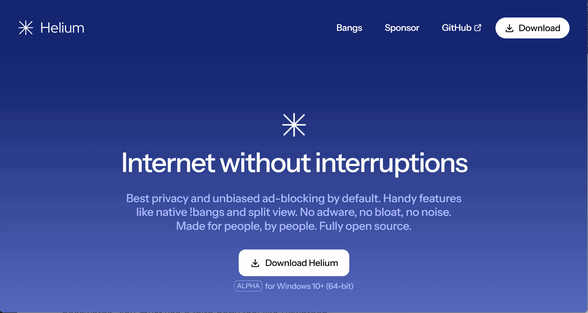
In the world of browsers, Helium is the “antidote” to the so-called “modern”, AI-obsessed, useless–feature-heavy modern browsers like Chrome, Edge, and even Brave.
If you are looking for a browser that feels refreshingly simple and clean, like browsers used to feel, I’m pretty sure you’ll love Helium.
Helium is already gaining a loyal following, and after using it and importing all my bookmarks from Firefox and Chrome, I can see why.
It’s a Better Browser; It’s Even Braver than Brave
Helium is built on Ungoogled Chromium. Its goal is to provide the speed and compatibility of Chrome without any of the Google telemetry, background data collection, AI chatbots, or “crypto-bloat” found in Brave. Helium is “zero-request” software—meaning when you open it, it doesn’t “phone home” to any server until you actually type a URL.
Helium’s Interface Is What Most People Want: Basic and Simple
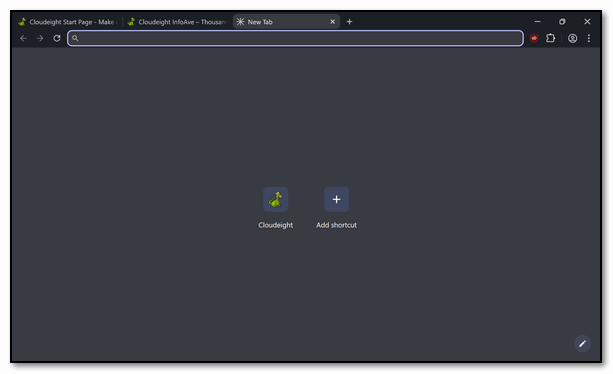
The first thing you’ll notice is the Compact user interface. The tab and address bars are significantly thinner than Chrome’s, giving you more vertical space to see the actual website.
-
The Good Stuff: It’s incredibly fast and “snappy,” even on older machines. It uses all your favorite Google Chrome Extensions.
-
The Catch? None for me, really. There are no themes or fancy icons. Customization is very limited. If you like colorful themes or lots of widgets on your homepage, you won’t find them here. Helium is basic browser – like browsers used to be.
2. Helium’s “No-Nonsense” Features
Helium doesn’t just strip things away; it adds a few clever features:
-
Native uBlock Origin: This is great for everyone: pre-installed uBlock Origin. Unlike other browsers that use their own (sometimes very biased) ad-blockers, Helium ships with a full, uninhibited version of uBlock Origin pre-installed. As you may already know, uBlock Origin is a Cloudeight favorite.
-
Split View: You can open two pages side-by-side in a single window—perfect for comparing products or watching a tutorial while you code.
-
Offline!Bangs: Borrowing from DuckDuckGo, you can type
!wto search Wikipedia or!ghto open GitHub directly from the address bar. -
Private Extensions:/span> It proxies your requests to the Chrome Web Store so Google doesn’t know which extensions you are downloading. And all Chrome extensions work with Helium.
3. OK, So What’s Missing?
Because Helium is laser-focused on privacy and minimalism, it lacks several “standard” features that might make it a tough daily driver for some:
-
No Built-in Password Manager: By design, it does not save passwords. This is a great security feature. You must use a third-party tool like Bitwarden.
-
No Cloud Sync: There is no “Helium Account” to sync your bookmarks between your phone and computer.
-
No DRM (Yet): As of March 2026, many users report issues with Netflix, Prime Video, or Spotify because Helium strips out the “DRM Blobs” required to play protected media.
-
Auto Updates: While the Mac version has auto-updates, Windows users often still have to manually download new versions from the Helium website.
The Bottom Line
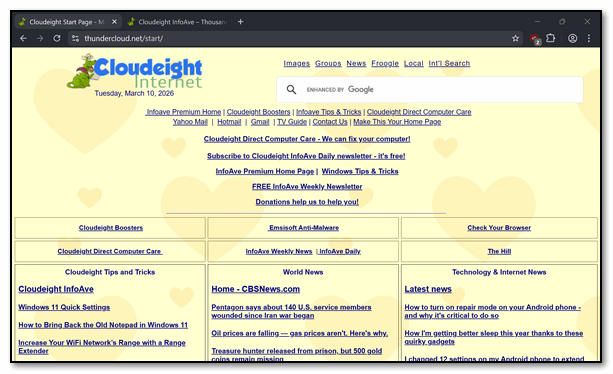
This is for those of you who want a browser that’s just a browser. It’s for those who don’t want AI integration or a bunch of bells and whistles. If you’re tired of apps that feel like a puzzle or waste your time with crazy, unnecessary stuff, you’ll feel right at home with Helium. It’s built for the computer user who takes privacy seriously and wants a simple browser that simply works. And busy professionals who need things to work correctly the first time, every time, without needing a manual, will be more than happy with Helium.
It’s a privacy browser that beats Brave by a long shot and makes the DuckDuckGo browser seem slow.
If you’re looking to ditch the bells and whistles and the ever-intrusive AI that all those “modern” browsers seem to be piling on, then Helium is a great choice. If you want a browser that makes your life easier instead of more complicated, Helium might be exactly what you’re looking for.

The Best Computer Care and Repair - Anywhere!
We can fix your computer while you watch. You never have to leave your home. Just sit back, relax, and watch us work. Get PC service from folks you trust at the best prices you'll find anywhere.
Get more information here.

Small Things
Sometimes, when I look back, I am frustrated that it took me so long to learn that life is not about the big events—the planned birthday celebrations and anniversaries, the houses, the cars, or money. It’s not about the struggles, or victories, or losses, or even our loves and losses that make our lives special.
It’s the small things.
A hug from a grandfather after hitting a little league home run. Waking up to the smell of my grandmother’s apple pie, made with Granny Smith apples and love, baking in the oven. A three-year-old child running down the driveway as soon as she sees Daddy coming home from work.
The smell of the air after a strong summer thunderstorm. The first insignificant flake of snow that marks the end...
Read the rest of this essay here.

What is FAST?
Well, I'm so glad you asked that. You want to know what fast is? Fast is how quickly Darcy disappears whenever I get up the nerve to ask her for a raise. That's FAST!
Nah, just kidding folks. FAST is an acronym that stands for Free Ad-Supported TV. Examples of streaming FAST channels are Tubi and Pluto TV. Instead of charging a subscription fee, they provide free programming supported by advertising.
Isn't that how free TV started?

Sales of the following products and services help support our newsletters, websites, and free computer help services we provide.
Cloudeight Direct Computer Care:
Always a great deal. Cloudeight Direct Computer Care is like having PC insurance.
Get more information here.
Emsisoft Anti-Malware: Emsisoft is the only Cloudeight-endorsed and recommended Windows security program. It provides users with a complete antivirus, antimalware, anti-ransomware,
and anti-PUPs solution. We offer single Emsisoft licenses and multi-computer licenses at discount prices. Also, we offer our exclusive Emsisoft with Cloudeight installation & setup.
Get more information here.
Reg Organizer: Reg Organizer is the Swiss Army Knife of Windows tools. It's far more than just a registry optimizer and cleaner... it's a Windows all-in-one toolkit. Reg Organizer helps you keep your computer in tip-top shape and helps you solve annoying Windows problems. Reg Organizer works great with Windows 10
and Windows 11!
Get more information about Reg Organizer (and get our special discount prices) here.
MORE IMPORTANT STUFF!
Your InfoAve Weekly Members' Home Page is located here.
Help us Grow! Forward this email newsletter to a friend or family member - and have them sign up for InfoAve Weekly here!
Get our free daily newsletter! Each evening we send a short newsletter with a tip or trick or a computer-related article - it's short and sweet - and free. Sign up right now.
We have thousands of Windows tips and tricks and computer articles posted on our Cloudeight InfoAve website. Our site has a great search engine to help you find what you're looking for too! Please visit us today!
Help us by using our Start Page. It costs nothing, and it helps us a lot.
Print our Cloudeight Direct Flyer and spread the word about our computer repair service! If you want to help us by telling your friends about our Cloudeight Direct Computer Care service, you can download a printable flyer you can hand out or post on bulletin boards, etc. Get the printable PDF Cloudeight Direct Computer Care flyer here.

We'd love to hear from you!
If you have comments, questions, a tip, a trick, a freeware pick, or just want to tell us off for something, let us know.
If you need to change your newsletter subscription address, please see "Manage your subscription" at the very bottom of your newsletter.
We received hundreds of questions for possible use in IA news. Please keep in mind we cannot answer all general computer questions. We try to personally answer as many as we can. We can only use a few in each week's newsletter, so keep this in mind. If you have a support question about a service or product we sell, please contact us here.
Subscribe to our Daily Newsletter! Get computer tips & tricks every night. Our daily newsletter features a computer tip/trick or two every day. We send it out every night around 9 PM Eastern Time (USA). It's short and sweet, easy to read, and FREE. Subscribe to our Cloudeight InfoAve Daily Newsletter!
We hope you have enjoyed this issue of Cloudeight InfoAve Weekly. Thanks so much for your support and for being an InfoAve Weekly subscriber.
Have a great weekend... be safe!
Cloudeight InfoAve Weekly - Issue #1170
Volume 23 Number 21
MMarch 13. 2026
Not a subscriber? Subscribe to our FREE Cloudeight InfoAve Weekly Newsletter here.
"Cloudeight InfoAve Weekly" newsletter is published by: br />
Cloudeight Internet LLC
PO Box 73
Middleville, Michigan USA 49333-0073
Read our disclaimer about the tips, tricks, answers, site picks, and freeware picks featured in this newsletter.
Copyright ©2026 by Cloudeight Internet