
Cloudeight InfoAve Weekly
Issue #1171
Volume 23 Number 22
March 20. 2026
Dear Friends,
Welcome to Cloudeight InfoAve Weekly Issue #1171. Thank you very much for subscribing and for being a part of our Cloudeight family. We appreciate your friendship and support very much! Please share our newsletters and our website with your friends and family.

If you're not getting our InfoAve Daily newsletter, you're missing out on a lot of good stuff!
It's free, and it only takes a few seconds to sign up. We'd love to have you with us. Visit this page to sign up for our Cloudeight InfoAve Daily Newsletter.

THANK YOU SO MUCH!
Your gifts help us continue our mission to keep you informed, separate the truth from the hyperbole, and help you stay safer online. We provide support to thousands of people. Every week we help dozens of people via email at no charge. Thanks to donations, we do a lot more than provide this free newsletter. We help you recognize online threats, fight for your online privacy, provide you with the knowledge you need to navigate the Web safely and help you get more out of your PC. Help us keep up the good fight with a small donation.
After you donate, you will receive an invitation to become a Cloudeight Booster.
Help us keep up the good fight with a small donation.
Interested in making an automatic monthly gift? Visit this page.
Help us keep helping you and helping you stay safe on the Web. Thank you so much!

Scott is annoyed by the
ads on our website
I have been on your list
for many years. But why
are there so many ads
now? When I try to read
your tips, it is very
annoying, so much so
that I might stop
getting them.
Our answer
Hi Scott. We use ads to help pay the costs of running a
website, including domain charges, server charges, and network tech
support charges. These are not free. But we also understand some
folks' aversion to ads, and that's why we've consistently
recommended uBlock Origin (ad blocker). uBlock Origin blocks almost
all ads, not only on our site but on all sites, and it's free.
If you use Chrome, you can install uBlock Origin Lite (see this page). If you use Edge, Firefox, or another browser, you can use uBlock Origin. Once you install uBlock Origin Lite or uBlock Origin, you will see very few ads, if any. And it won't cost you anything.
We hope you'll stay with us, Scott!
Carol wants to wipe a computer's
hard drive before recycling it
Would it be possible to purchase a computer key to uninstall Emsisoft
and reset the hard drive for recycling for my departed husband's Windows
10 computer? I would like to have the tower wiped before I take it
to the electronics recycle. Not sure if this is something you can help
me with. Kind regards, Carol.
Our answer
Hi Carol. We are both sorry to learn of your husband's passing.
Our sincere condolences to you and your family.
We can't wipe your hard drive remotely because we would not be able to stay connected to finish the process. But don't worry, we have a tutorial for you that gives you step-by-step instructions on how to wipe your hard drive before giving your computer away - or, in your case, recycling it. See this page for instructions.
Tip! You can print that article for your convenience by clicking the green Print Friendly button near the top of that article.
If you have any questions or need more help, please let us know.
Again, our sincere condolences on the loss of your husband.
It has been so long since I could access my e-mail any way other than through Zimbra. I had a technician fix it, but as soon as I sign out, it comes back again to Zimbra, and has the word Meca on the page when I am in my e-mail. What is going on that I can't change it back and stay there?
Our answer
Hi Joyce. It seems that a number of things are confusing you. First, you're using Zimbra for your email client. Either you chose that, or your tech did. Zimbra is an email client. You could use OE Classic, Thunderbird, Outlook, or any number of email clients (programs). You can use whatever email program you choose.
Secondly, you're using a small ISP for email (mchsi.com). Many smaller ISPs cannot afford to keep up with the changing technologies and upgrade their mail servers anymore. The reason you're seeing MECA in your email client while using an @mchsi.com (Mediacom) email address is that Mediacom (your ISP) doesn't actually run its own email hardware anymore in the Midwest. Instead, they "lease" or share the email platform from MECA (Midwest Electric Community Association). MECA recommends Zimbra and encourages you to use it, but you can use any email program you choose.
As long as you're using your mchsi.com address (Mediacom) and the Zimbra email program, you will continue to see the MECA
You have other choices. For instance, you can get a free Gmail account and set it up in any email program or check your email with a browser. You will no longer see the MECA branding, and you'll be able to access your email from anywhere using any internet-connected device (computer, smartphone, tablet).
I hope this clarifies things for you, Joyce. If you need more help, please let us know.

We've helped hundreds and hundreds of you with your computers since we started our Cloudeight Direct Computer Care Service! If you're having computer problems - we CAN help you!
We all know that sooner or later our computers are going to start having problems. We can help you with any computer need -- from diagnosing and fixing Windows problems - to cleaning up malware and viruses - to cleaning up your computer and optimizing it -- and more. We can do just about anything need done and we guarantee our work - you're either satisfied or we'll refund your money.
We will connect to your computer via the Internet and fix any problems you may be having. You can watch us work and chat with us while we do. If you have any computer questions you'd like to ask we'll be glad to answer them for you. We don't just fix your computer, we explain what we're doing and why we're doing it and we are right there with the entire time. Since we've started we've helped hundreds of you with your computer problems and we've received dozens of referrals and testimonials from our readers and customers.
We offer many other computer services too! If you have a problem with your computer - we can fix it!
Get more information about Cloudeight Direct Computer Care and / or get your repair keys here.
How can I copy my Gmail from my iPhone to my PC? I'd like to read and respond from my PC. I have Windows 10. Thanks.
Hi Jeanie. You don't have to transfer or copy your Gmail account. You can log into it from any device, including an iPhone, an Android Smartphone, an iPad, a Windows tablet, an Android tablet, or any computer. All you have to do is go to https://www.gmail.com/ and log in with your username (your email address) and your password. Once you log in, you will see your email and send and receive emails the same way you do on your smartphone or any other internet-connected device. Once you're logged in, you can read your email, send an email, or check your email. You can be simultaneously logged in on your phone, computer, or tablet. It's just that easy.
Jim plays a
YouTube
video, but
cannot get
rid of
YouTube's
Picture-in-Picture
view
I play a
'bird
sounds'
video and
YouTube
paints a '
Picture-in-Picture'
in a 4-inch
square in
the lower
right corner
of the
display
panel (can
move it
around/resize
with the
mouse). If I
bring up
another app,
in another
tab, I
cannot get
rid of that
Pic-in-Pic
display
unless I
click X to
turn it off.
In doing so,
it stops the
YouTube
'bird
sounds'
video, which
I want
running in
the
background
while doing
other things
in other
tabs. It's a
new Windows
11 computer,
I use
Firefox as
my default
browser, and
I never
install
extensions,
etc., in
Firefox.
Would you know of a way to block that Pic-in-Pic pop-up window and yet not cause the stoppage of the YouTube video playing in another tab? Regards, Jim.
Our Answer
Hi Jim.
Since it's a
new Windows
11 machine,
Firefox
likely has
its
"Auto-PiP"
or
"Tab-switching
PiP"
behavior
enabled by
default.
Firefox
sometimes
tries to be
helpful by
popping the
video out if
it thinks
you're
navigating
away but
still want
to watch.
"Picture-in-Picture" (PiP) window is a built-in Firefox feature designed to be helpful, but it clearly isn't in your case. When you click the "X" on that small floating window, Firefox thinks you want to close the video playback entirely. Since you just want the audio to play in the background without the visual clutter, you have a couple of quick fixes.
Instead of clicking the "X" on the floating mini-player, look for the small icon inside that floating window that looks like a square with an arrow pointing back toward a larger square. Clicking this will "un-dock" the video and send it back to its original YouTube tab. The video (and audio) will keep playing, but the pop-up window will disappear from your screen.
If you never want Firefox to automatically offer to open a PiP window, you can disable the toggle that sits on the video player. Open Firefox Settings (the three horizontal lines in the top right and open Settings. In the General panel, scroll down to the Browsing section. Uncheck the box that says: "Enable picture-in-picture video controls." This removes the little blue button that often triggers PIP by accident.
Hope this helps you, Jim.
Carl wants to turn off "AI Overviews" in Google Search
Do you know how to turn off AI Overviews in Google Search? I find it a very annoying "Feature". Thanks, Carl.
Our answer
Hi Carl. Right now, Google does not provide an official "Off" switch in the settings to disable AI Overviews entirely. However, some workarounds may help you.
#1 Workaround
After you perform a search, click the Web filter at the top of the results page (you might need to click More to find it). This strips away the AI Overview, videos, and "People Also Ask" boxes, leaving only standard website links.
#2 Workaround
If you use Chrome, you can set his browser to always use the "Web" mode so he never has to see the AI box again.
Go to Settings > Search engine > Manage search engines and site search.
Click Add under "Site search" and fill it out like this:
Name: Google (Web)
Shortcut: @web
URL: https://www.google.com/search?q=%s&udm=14
Click Add, then click the three dots next to your new entry and select Make default.
Note: The udm=14 part is the "secret code" that tells Google to only show web links
#3 Workaround
If you are in a hurry and just want to bypass the AI for a single search, you can add -ai to the end of your search query (for example: how to bake banana bread -ai). This often tricks the algorithm into hiding the AI Overview because it thinks he is specifically trying to exclude AI-related content.
Hopefully, Google will include an Off Switch for AI Overview soon, but until they do, we hope one of these workarounds helps you, Carl.

Now available: Reg Organizer 9.88
If you purchased or renewed Reg Organizer through Cloudeight within the
last 12 months, you're entitled to a free version upgrade to Reg
Organizer 9.88. Reg Organizer works great with Windows 10 and Windows 11.
Save $14 on Reg
Organizer right now!
Reg
Organizer - A Swiss Army Knife of Windows Tools - Works Great on Windows
10 and Windows 11.

How to Close a
Frozen Program
with Just Two
Clicks
Windows
11
Have you ever had one of those Windows moments where a program freezes up on you? Maybe it’s a browser tab that decided to stop responding or a game that’s taking up a bit too much of your computer’s resources.
Usually, when that happens, the little “X” in the corner does nothing. We’ve all been taught to open the Task Manager, find the culprit, and right-click on it and choose End Task to shut it down. It works, but it’s not quick and easy, is it?
Well, I stumbled across a little surprise today that makes Windows life just a little bit easier!
The “Two-Click” Solution to a Frozen Program
Microsoft has added a smart new feature that lets you “End Task” right from your taskbar. No more hunting through the Task Manager. If an app is acting up, you just:
-
Right-click the app’s icon on your taskbar.
-
Click End Task.
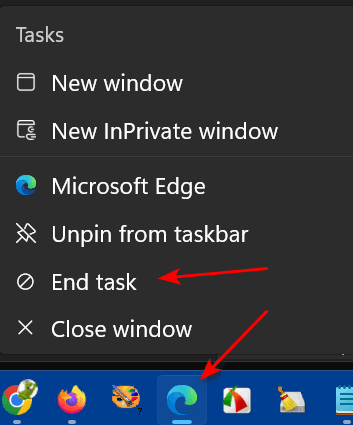
And just like that, the stubborn program is gone!
How to Turn It On
This feature might not be turned on by default on your computer yet. I’m not sure exactly which update brought it to my computer, but I’m glad it’s here. If you don’t see the option when you right-click, here is how you can enable it:
-
Open the Settings app (click your Start button and then the little gear icon).
-
Go to System and then click on Advanced.
-
Look for the toggle that says “Enable end task in taskbar by right click” and switch it to On.
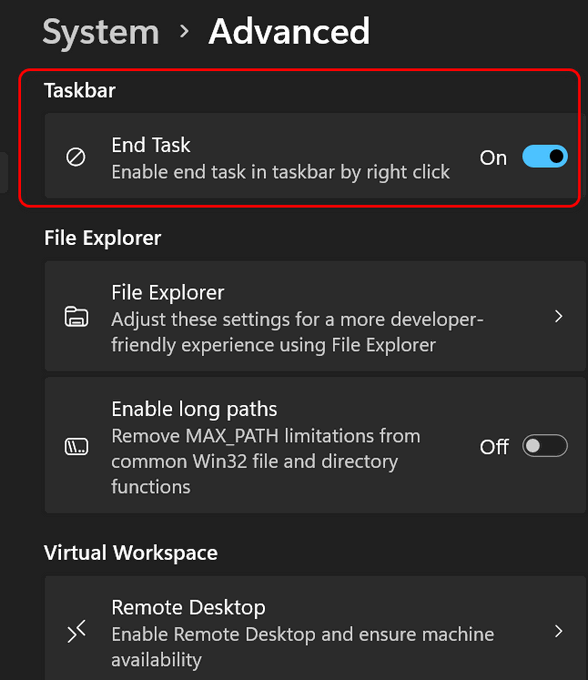
(Note: In some versions of Windows 11, you might find this under “System > For Developers” instead—don’t let the word “Developer” scare you, it’s perfectly safe for everyone to use.)
It’s a quick and easy change, but it really saves time when a program or app decides to act up and be difficult.
I’ll be using this tip a lot. I bet you will be too.
The Mysterious
Gmail “All Mail”
Folder
Demystified
Windows 10 /
Windows 11 and
Gmail
Most of you use Gmail. And all of you who use Gmail have an “All Mail” folder. Google defines the “All Mail” folder this way…
Gmail does not use Folders. We use Labels. Even Inbox is considered a Label
All Mail contains all of the mail in your Gmail account. Gmail only has one copy of any email, but can have multiple views of the same messages depending on what Labels you set up. Any email you delete from any view is deleted from all views.
You cannot clear out the All Mail folder (it’s not a folder anyway). That would be like deleting all of your mail.
So the mystery grows because we call it a folder and Google says they don’t use folders – they use Labels. We’ll continue to call them “Folders” and not “Labels” because a rose by any other name is still a rose.
Anyway, if you check your Gmail accounts on your computer, tablet, and/or smartphone, you’ll be glad to know that all of your mail is stored in the “All Mail” folder, even if it’s in your Inbox or another folder (Label). No, there are not multiple copies of the same email – there’s only one copy – but regardless of how many other folders (Labels) a mail shows up in, it will always show in the All Mail folder. But there are no duplicates or triplicates. Got it?
The All Mail Folder is Your Friend
Let’s let go of the confusing notion of shadowing/mirroring and just remember that the All Mail folder can be your friend. If you’re searching for an email, search the All Mail folder -because regardless of the folder (Label) that it is in, it will always be in your All Mail folder.
If you delete an email from your Gmail inbox or any other folder (Label), it will be deleted from your All Mail folder and placed in your Trash folder (Label). And any mail in your Trash folder will remain there for 30 days. After that, Gmail will automatically delete it (unless you delete it from the Trash folder first).
If you want to clean out your Inbox without deleting the emails in the Inbox, select the email(s) you want to archive, and then click the archive icon. See the screenshot below.
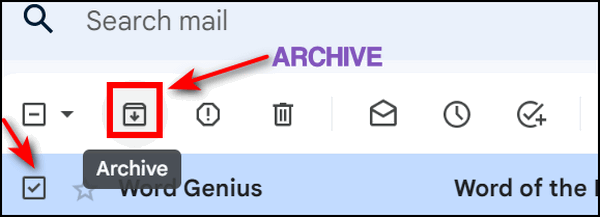
All selected emails will disappear from your Inbox but remain in your All Mail folder. This is a great way to back up your emails!
Where is the All Mail folder?
Your All Mail should appear in the list of folders (Labels) on the left when you open your Gmail account on the web. If you don’t see it, make sure you did not hide it. To check, log into www.gmail.com, click settings (the gear icon), and then choose Labels. You will see All Mail in that list. Be sure “SHOW” is chosen. See the screenshot below.
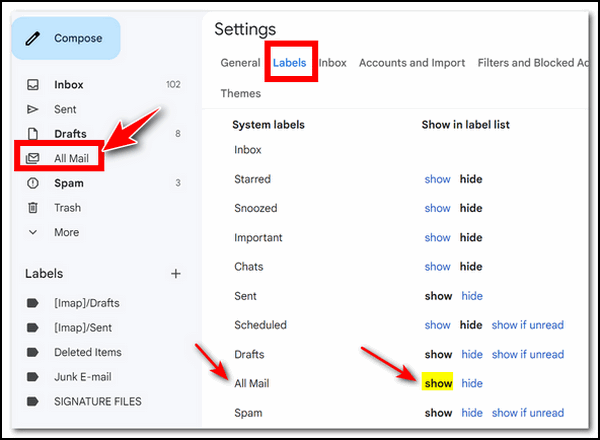
Another Gmail tip
While you’re there, it would be a great time to HIDE those folders “social, updates, forums, promotions” that are included by default.
Zoom Power!
Windows
10 / Windows 11
Over the months and years we’ve been around, we’ve received hundreds of emails from people asking for help because the text and other items on webpages or emails have become too small to read comfortably, and asking us, “How can I make things bigger and easier to read?”
While each browser and email program has its own “view” options, Zoom Power will work on almost any browser or email program. So, it’s kind of like “one size fits all”, only this one-size-fits-all really does!
To enlarge the text in your email reading pane or when using your Web browser, hold down the CTRL key and move the mouse wheel away from you until the text is as large as you want it. You can also hold down the CTRL key and keep tapping the + (plus) key until the text is as big as you want it. This works when reading an email, as well as when composing an email. It also works on most web pages in most browsers.
If you want to make the text smaller, hold down the CTRL key and move the mouse wheel toward you. Or hold down the CTRL key and keep tapping the – (minus/dash) key until the font is the size you want it. As with making text larger, this works in most email programs when reading mail as well as when composing mail. It also works in most browsers on most web pages.
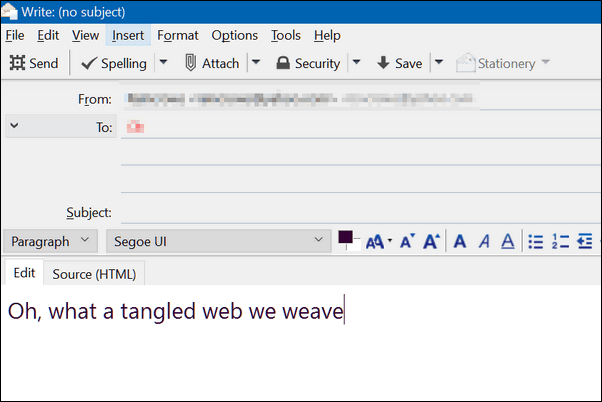
Above is the compose window in Thunderbird. The text is the normal size. But, my eyes are weary, and I’m having trouble reading that, so a little CTRL Key + moving the scroll wheel away from me (toward the screen) and look!
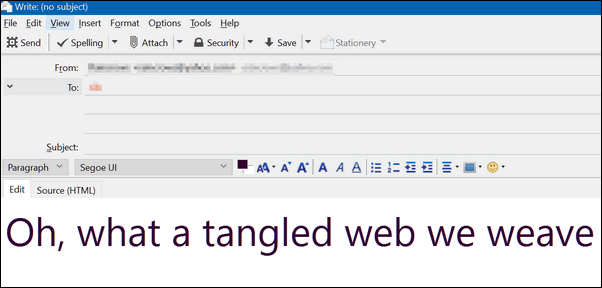
No matter how blurry my eyes were or where my glasses were, I could still read that!
And it works the same in the reading pane (window):
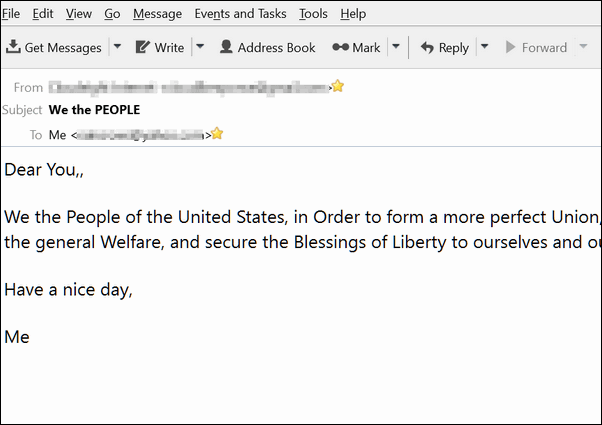
Above. I was feeling patriotic and decided to send myself the Preamble to the U.S. Constitution. But when I received it, sans glasses, I couldn’t read it very well. But then, a little Ctrl Key magic and… look ma! No more squinting!
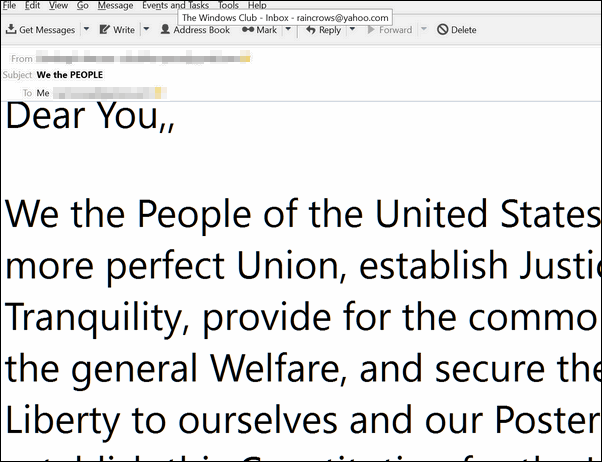
Now, look up there. See? Now I can see the double comma I didn’t realize was there.
So if you’re having problems reading or writing an email because the text is too small and you want a quick way to make it bigger, just use Zoom Power!
In Thunderbird (and some other email programs), the text will remain larger until you restart the programs. In most browsers, changing the text size as above only works for the current tab or Web page.
Note: When composing an email, you also make your font bigger in your email program’s options/settings. But be careful with this: If your recipient has normal vision, your text may look HUGE to them if you change the font size in your email program. If you use the method above, the recipient will see the normal text size set in their email program, but you’ll see the text as big as you need it to be.
Zoom Power works in any browser, too!
This works in any browser, including Firefox, Chrome, Opera, Microsoft Edge, Brave, Vivaldi, and more. You can make page contents, including text, bigger or smaller using the Ctrl key and your mouse wheel.
Let’s use Zoom Power on some webpages…
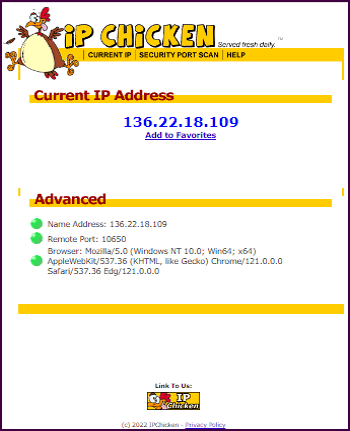

Here’s a site more familiar to you (we hope)…
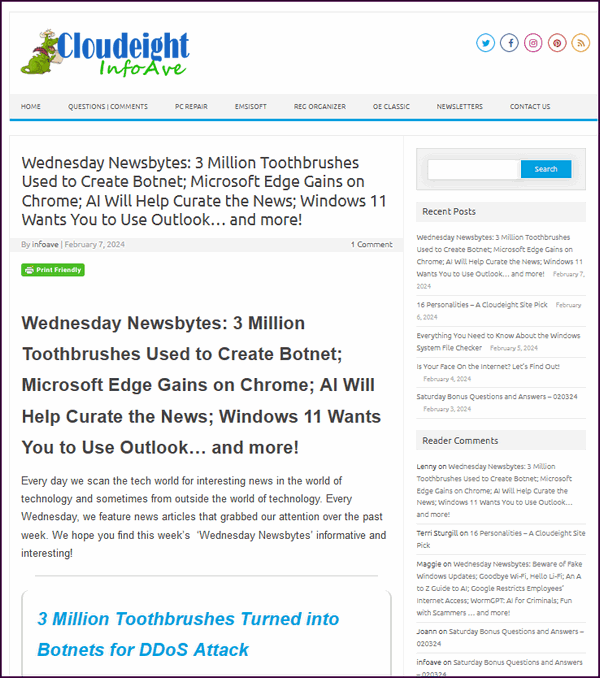
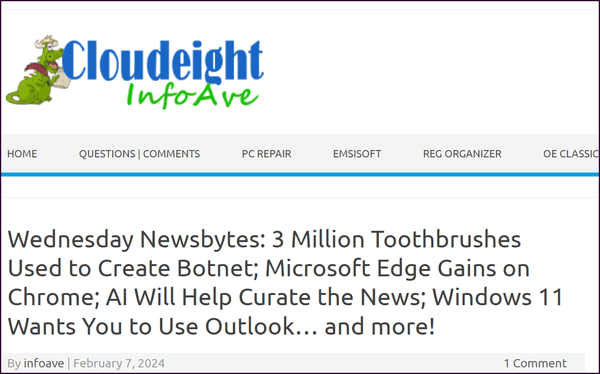
You can use Zoom Power on any webpage to make the text and images on it any size you want – from the minuscule to the magnificent. You can control the size of the items on any page using Zoom Power!
Did you know that you can use Zoom Power to make File Explorer or Desktop icons bigger (or smaller)?
Yes, you can! You can use CTRL + mouse wheel to make your desktop icons larger or smaller. You can also use the same method to change the size of icons in File Explorer. Check out the screenshots below:
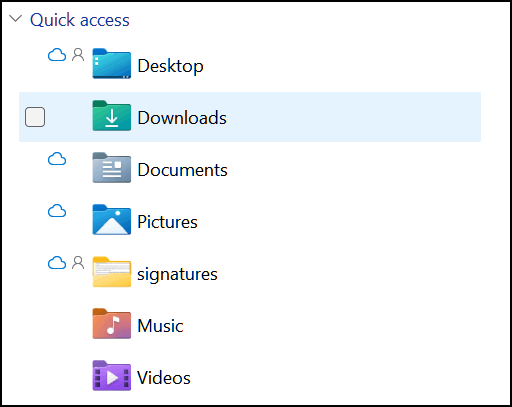
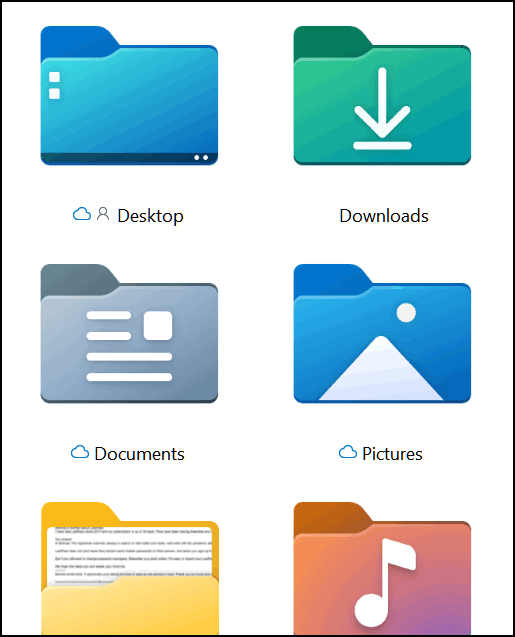
Above: Changing the size of icons in File Explorer.
Below: Changing the size of icons on the Desktop.
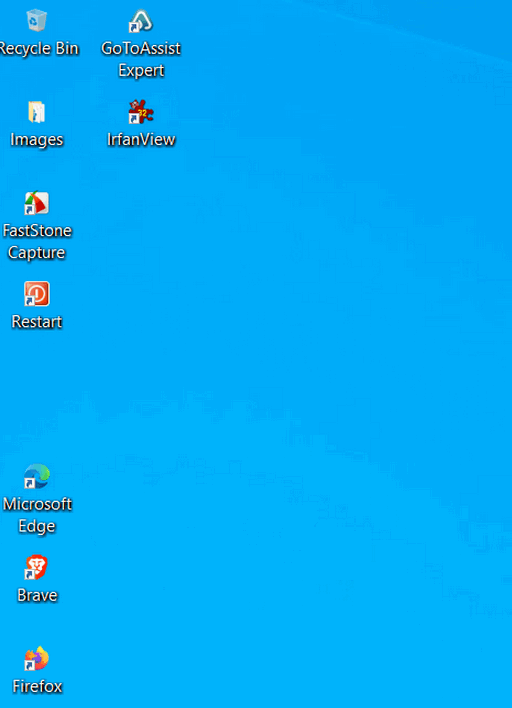
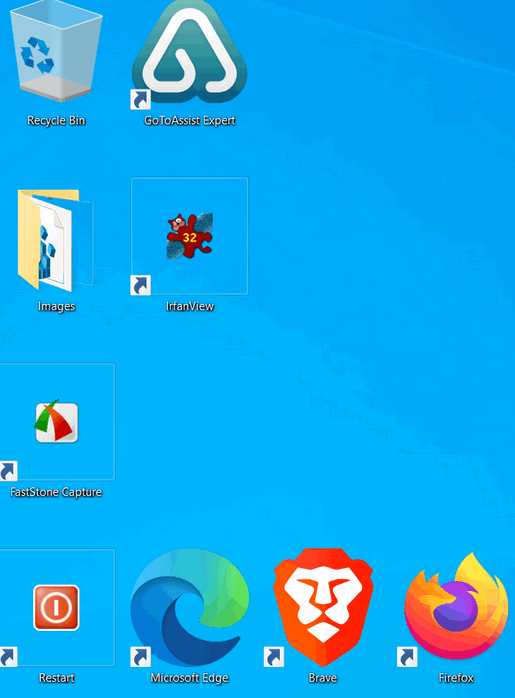
Now you know how to use Zoom Power to make the text and content in emails and web pages larger (or smaller). And how to use Zoom Power to increase or decrease the size of items in File Explorer and/or make your desktop icons bigger or smaller.
IYKYK!

Want more
tips, tricks, and information?
We have thousands of Windows tips, tricks, and more on our InfoAve website.
Subscribe to our free InfoAve Daily newsletter.
THANK YOU!
Your gifts help us continue our mission to keep you informed, separate the truth from the hyperbole, and help you stay safer online. We provide support to thousands of people. Every week we help dozens of people via email at no charge. Thanks to donations, we do a lot more than provide this free newsletter. We help you recognize online threats, fight for your online privacy, provide you with the knowledge you need to navigate the Web safely and help you get more out of your PC. Help us keep up the good fight with a small donation.
After you donate, you will receive an invitation to become a Cloudeight Booster.
Help us keep up the good fight with a small donation.
Interested in making an automatic monthly gift? Visit this page.
Help us keep helping you and helping you stay safe on the Web. Thank you so much!

AbleWord: A Free, All-In-One Word Processor & PDF Editor
While many modern word processors have become cluttered with complex ribbons and expensive subscription models, AbleWord stays true to what most of us actually need: a fast, clean, and completely free way to write and edit.
Also, many readers have asked about converting PDF to MS Word docs and converting MS Word docs to PDF. Newer versions of MS Word (and most word processing programs in free office programs) can open PDF files and save them as Word Docs. But very few can open Word Docx files and convert them to PFF files. AbleWord can.
So, if you don’t want to install a modern, fancy, full-blown office program full of AI tools and integrated cloud connections, and you’d prefer an old-fashioned, really nice, light-weight, MS Word-like word processor that can create, open, and edit both PDF and Word documents, you’ll find AbleWord worth a look.
The folks at AbleWord describe it this way:
AbleWord is a very capable word processing application that can read and write most popular document formats, including PDF’s. It is fully featured, supporting image formatting, tables, headers & footers and includes spell checking and print preview functions. Best of all, it is totally free even for commercial use.
And in our tests, it worked extremely well despite being a free program that hasn’t been updated since 2015. But don’t let that worry you. It works on Windows 10 and all versions of Windows 11, even though the website only includes Windows versions up to Windows 10. Don’t you worry! We tested it on Windows 11, and it works well.
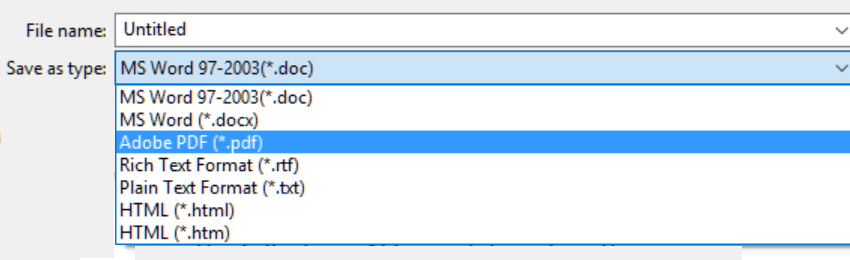
You can create, open, and edit the following formats with AbleWord:
Word.doc
Word.docx
PDF
RTF (Rich Text Files)
TXT (Plain Text Files)
HTM (Web page)
HTML (We page)
More information from the AbleWord Web site:
…AbleWord is highly compatible with popular document formats, including .DOC & .DOCX, but AbleWord can also open and save as a PDF, which makes it a very useful tool to have.
AbleWord is very simple to install and use. It is commonly used as a PDF Editor and also for converting PDF to Word®, but of course, it is also a splendid Word processor and supports most of Microsoft Word® features..."
We found AbleWord very easy to use. The PDF editing function works well on most common PDF files, but is so-so on more complex ones. So, we’re not saying that it’s as good as an expensive, professional PDF editor like Adobe Acrobat Pro. But AbleWord doesn’t cost hundreds of dollars either. It’s 100% free. Yay!
While it hasn’t been updated in eleven years, AbleWord still looks great. It has a nice, simple, almost quaint but functional, easy-to-use interface.
Here are some screenshots:


If you have MS Office or MS365 installed, listen up! AbleWord will
try to associate itself with MS Word DOC and DOCX, which is great if
you don’t have MS Office installed or some other Office program that
handles DOC and DOCX formats installed. BUT If you have MS Office or
another office program installed, you might want to uncheck this
during installation.
If you’re looking for a free, functional, easy-to-use Word processor that can edit both Word documents and PDF files, then AbleWord might be just what you’re looking for.
Read more about, and/or download it from the AbleWord Website.
If you’re concerned about downloading AbleWord from a non-HTTPS (not secure) website, you can download it from SnapFiles.

The Best Computer Care and Repair - Anywhere!
We can fix your computer while you watch. You never have to leave your home. Just sit back, relax, and watch us work. Get PC service from folks you trust at the best prices you'll find anywhere.
Get more information here.

The Hope of Spring
Winter is a dark, brutal season, particularly for those of us gently navigating our later years. In the northern climes, snow and ice do more than just chill the air; they form the gloomy, frozen backdrop of life. They isolate us, turning a simple trip to the mailbox or corner store into a heart-wrenching physical challenge, and can often distance us from the warmth of family and friends.
In the deep throes of winter, it often seems the world has surrendered, given up, grown bitter, and died. The vibrant leaves are gone, the flowers decayed into the frozen soil, and the fields stand barren under a petulant gray sky.
While animals hide from the cold...
Read the rest of this essay here.

What is the Run Command?
Sometimes I'll be helping EB with something, and she'll ask me to run to the store for more beer or cigars for her. No! No! No! Windows Run Command is a command line where you can enter specific commands, thereby impressing your friends and avoiding shortcuts and icons. You can look cool if you press Windows Key + R and type EXPLORER.EXE, and File Explorer magically opens. Why your friends will think you've gone geeky! Amaze them even more by typing CALC and hearing them gasp in amazement when the Windows Calculator opens. Or dazzle them by typing in NOTEPAD and watch their eyes bulge as Notepad mysteriously appears on your screen. Or type CONTROL and press enter, and they'll genuflect as the Control Panel opens.
It can be used for serious stuff too, like running SERVICES.MSC (Windows Services), CLEANMGR (Disk Cleanup), or MSCONFIG (System Configuration Utility - but MSCONFIG isn't so hot on Windows 10 or Windows 11).
In short, the Run Command allows you to, err, um. Ah, run commands! Glory be!

Sales of the following products and services help support our newsletters, websites, and free computer help services we provide.
Cloudeight Direct Computer Care:
Always a great deal. Cloudeight Direct Computer Care is like having PC insurance.
Get more information here.
Emsisoft Anti-Malware: Emsisoft is the only Cloudeight-endorsed and recommended Windows security program. It provides users with a complete antivirus, antimalware, anti-ransomware,
and anti-PUPs solution. We offer single Emsisoft licenses and multi-computer licenses at discount prices. Also, we offer our exclusive Emsisoft with Cloudeight installation & setup.
Get more information here.
Reg Organizer: Reg Organizer is the Swiss Army Knife of Windows tools. It's far more than just a registry optimizer and cleaner... it's a Windows all-in-one toolkit. Reg Organizer helps you keep your computer in tip-top shape and helps you solve annoying Windows problems. Reg Organizer works great with Windows 10
and Windows 11!
Get more information about Reg Organizer (and get our special discount prices) here.
MORE IMPORTANT STUFF!
Your InfoAve Weekly Members' Home Page is located here.
Help us Grow! Forward this email newsletter to a friend or family member - and have them sign up for InfoAve Weekly here!
Get our free daily newsletter! Each evening we send a short newsletter with a tip or trick or a computer-related article - it's short and sweet - and free. Sign up right now.
We have thousands of Windows tips and tricks and computer articles posted on our Cloudeight InfoAve website. Our site has a great search engine to help you find what you're looking for too! Please visit us today!
Help us by using our Start Page. It costs nothing, and it helps us a lot.
Print our Cloudeight Direct Flyer and spread the word about our computer repair service! If you want to help us by telling your friends about our Cloudeight Direct Computer Care service, you can download a printable flyer you can hand out or post on bulletin boards, etc. Get the printable PDF Cloudeight Direct Computer Care flyer here.

We'd love to hear from you!
If you have comments, questions, a tip, a trick, a freeware pick, or just want to tell us off for something, let us know.
If you need to change your newsletter subscription address, please see "Manage your subscription" at the very bottom of your newsletter.
We received hundreds of questions for possible use in IA news. Please keep in mind we cannot answer all general computer questions. We try to personally answer as many as we can. We can only use a few in each week's newsletter, so keep this in mind. If you have a support question about a service or product we sell, please contact us here.
Subscribe to our Daily Newsletter! Get computer tips & tricks every night. Our daily newsletter features a computer tip/trick or two every day. We send it out every night around 9 PM Eastern Time (USA). It's short and sweet, easy to read, and FREE. Subscribe to our Cloudeight InfoAve Daily Newsletter!
We hope you have enjoyed this issue of Cloudeight InfoAve Weekly. Thanks so much for your support and for being an InfoAve Weekly subscriber.
Have a great weekend... be safe!
Cloudeight InfoAve Weekly - Issue #1171
Volume 23 Number 22
March 20. 2026
Not a subscriber? Subscribe to our FREE Cloudeight InfoAve Weekly Newsletter here.
"Cloudeight InfoAve Weekly" newsletter is published by:
Cloudeight Internet LLC
PO Box 73
Middleville, Michigan USA 49333-0073
Read our disclaimer about the tips, tricks, answers, site picks, and freeware picks featured in this newsletter.
Copyright ©2026 by Cloudeight Internet