
Cloudeight InfoAve Weekly
Issue #1172
Volume 23 Number 23
March 27. 2026
Dear Friends,
Welcome to Cloudeight InfoAve Weekly Issue #1172. Thank you very much for subscribing and for being a part of our Cloudeight family. We appreciate your friendship and support very much! Please share our newsletters and our website with your friends and family.

If you're not getting our InfoAve Daily newsletter, you're missing out on a lot of good stuff!
It's free, and it only takes a few seconds to sign up. We'd love to have you with us. Visit this page to sign up for our Cloudeight InfoAve Daily Newsletter.

Our Spring Donation Drive is
Underway!
Make a small donation and help us to keep on helping you!
Our annual spring donation drive is underway. Sales of our products and services help keep the lights on at Cloudeight. But if you don’t need any of our products or services right now, please help us with a donation. Even the smallest gift is appreciated. Every donation helps us to provide useful information that helps you with your computer as well as helps to keep you safe on the Internet. We offer free help to thousands of people every year… and we offer an honest and inexpensive computer repair service too. We do everything we can to help you with your computer and to help you stay safe too.
So, if you don’t need any of our products or services right now, please consider helping us with a small donation.
Please help us by donating right now.
Interested in making a monthly gift? Visit this page. Help us keep helping you!
Thank you so much for your support!
Help us keep helping you and helping you stay safe on the Web. Thank you so much!

Andi wants "Copy to" and "Move to"
back on the right-click menu
A few years ago, during a computer fix-it session, you added a function
to Windows Explorer that, upon right click, offered "copy to folder" and
"move to folder". Is this available in Windows 11? The only fix I could
find was adding text to the Registry, which I don't feel comfortable
doing. Thank you for all you do for us!
Our answer
Hi Andi. We're happy to tell you that you can put “Copy to” and “Move
to” back on your Windows 11 right-click menu with a simple, safe
registry tweak. Here is how to do it.
Click here to download the c2m2.zip file. Save the zip file to your computer and unzip it. Double-click the c2m2.reg file to run it. You’ll receive two warnings; the file is safe, so you can click Run to the first warning and Yes to the second.
If you’re using Emsisoft, you may get a warning from it because the file will modify your registry (that’s what it’s supposed to do). Click on “Wait, I think this is safe.” (or similar).
The registry file will change your registry so that “Copy to folder” and “Move to folder” appear on your Windows 11 right-click context menu. To use it, you’ll need to right-click on the file(s) or folder(s) you want to copy or move and choose “Show more options” before you can see “Copy to folder” and “Move to folder” on your right-click context menu.
I hope this helps, Andi.
Grace says, "Help! They're
controlling my computer remotely!"
I received an email, supposedly from the IRS, and opened it and got
scammed. They are controlling my computer remotely. I have everything
disconnected, except to check a couple of times a day. Is this
something that you can help me with? My e-mail is: grace****@****.com
and phone number is: (removed for safety). I would be so happy if
you could find the source of the remote. Your reply will be greatly
appreciated.
Our answer
Hi Grace. Relax a bit. I can assure you that no one is controlling your
computer remotely. This is one of the oldest scams in the book. You need
to restart your computer. Then, when your browser opens and asks if you
want to reconnect to sites that were open, you must click 'No'. If you
click "Yes," you'll go right back into the loop where scammers tell you
that they're controlling your computer. After you do this, you must
clear your browser's history and cache and then reboot again.
Here's our tutorial on how to clear History and Cache in Edge,
Chrome, or Firefox. Once you clear your browser's history and cache,
restart your computer. You'll find you've also gotten rid of the
hooligans trying to trick you and take your money.
Keep in mind that U.S. Government departments like the IRS and Social Security never contact you by email asking for money. I hope this helps you, Grace.
Helen says Apple is promoting
"Incogni" and wants to know more about it
Would you mind speaking about this? From Apple: "Incogni removes your
data from brokers and keeps it off the market—so criminals can't
weaponize it against you. Protect your identity."
Can you tell me if this really does what Apple is saying it does? Thank you so much, and by the way, the two of you are amazing at what you do and how you help people. Warmly, Helen.
Our answer
Hi Helen. Incogni is one of many so-called data scrubbers. There are
many "data scrubbers" like Incogni, DeleteMe, and their ilk. They
promise to hunt down the shadowy data brokers who trade our personal
info like phone numbers, our home addresses, and our shopping habits
like baseball cards. They offer us a clean slate, a chance to be
"un-indexed" and forgotten by the digital world. In other words, wipe
every trace of our personal details from the web.
But the problem with these services is that they are trying to drain a rain bucket in the middle of a rainstorm. As soon as you pay your subscription and they successfully "wipe" your data from hundreds of different sites, the bucket starts to fill back up. The moment you use a credit card, sign up for a grocery store loyalty program, request info, buy something online, or even just browse the web, your data is harvested all over again. The cycle is endless.
These brokers aren't just libraries storing old books; they are like vacuum cleaners, always running and sucking up every new scrap of "you" that appears on the web from hundreds of different sources.
To get the "best" wiping—the kind of deep-scrubbing surveillance that actually keeps pace with the brokers—you have to pay a premium. It’s expensive. It becomes like a permanent privacy tax that we are forced to pay just to maintain a little bit of the anonymity we once took for granted. It's like paying a monthly ransom to a middleman to fix a problem created just by using the Internet.
In the end, you have to wonder if it's worth the price. Is it better to spend a small fortune trying to stay "invisible," or do we simply accept that in the 21st century, our "digital selves" are public property? One thing is certain: as long as the internet is free to harvest our lives, the rain is never going to stop falling, and that bucket will never stay empty.
Here is the cost for the level of data scrubbing (Incogni) you'd need just to even try to keep up with all the data being collected about you:
Individual Unlimited: Approximately $29.98 per month if you pay as you go. If you pay for a full year upfront, they drop it to about $14.99 per month (billed as one lump sum of roughly $180). If you want to protect your whole family (up to 5 people), the Family Unlimited plan jumps to about $45.98 per month, or $275.88 if paid annually.
So, Helen, is it worth it? Only you can decide. I personally think it is not.

We've helped hundreds and hundreds of you with your computers since we started our Cloudeight Direct Computer Care Service! If you're having computer problems - we CAN help you!
We all know that sooner or later our computers are going to start having problems. We can help you with any computer need -- from diagnosing and fixing Windows problems - to cleaning up malware and viruses - to cleaning up your computer and optimizing it -- and more. We can do just about anything need done and we guarantee our work - you're either satisfied or we'll refund your money.
We will connect to your computer via the Internet and fix any problems you may be having. You can watch us work and chat with us while we do. If you have any computer questions you'd like to ask we'll be glad to answer them for you. We don't just fix your computer, we explain what we're doing and why we're doing it and we are right there with the entire time. Since we've started we've helped hundreds of you with your computer problems and we've received dozens of referrals and testimonials from our readers and customers.
We offer many other computer services too! If you have a problem with your computer - we can fix it!
Get more information about Cloudeight Direct Computer Care and / or get your repair keys here.
David wants to know what those
little green leaves mean in the Task Manager
I recently moved over to Windows 11. I'm still trying to cope with all
the changes. I'm confused by something I noticed in the Task Manager.
When I open it up to see what’s running, I see these tiny green leaf
icons next to some of my programs in the 'Status' column. I don't
remember seeing those in Windows 10. Do those little green leaves mean
something is wrong?
Our answer
Don't worry, David—those little leaves are actually a good thing. That
icon indicates that a process is running in Efficiency Mode. Windows 11
is much smarter about power management than previous versions. When it
sees an app that you aren't actively using—like a background sync tool
or a browser tab you haven't clicked on in a while—it puts it in
Efficiency Mode to save your battery, reduce your RAM (memory) usage,
and keep your CPU from working harder than it needs to.
It’s just Windows' way of trying to improve your PC's performance and keep your PC running smoothly.
Bonnie wants to know how to get the
Show desktop "sliver" back on her taskbar
I’ve been using Windows 11 for a while now, and I finally got used to
the taskbar being in the middle. But I really miss being able to see my
desktop quickly without minimizing every single window one by one. I
remember there used to be a tiny sliver in the far right corner of the
taskbar in Windows 10 that did this, but it seems to be missing or not
working in Windows 11. Is there a way to get my 'Show Desktop' sliver
(or button) back?
Our answer
Hi Bonnie. You aren't imagining things—Microsoft did change how that
works. In Windows 11, that 'sliver' is still there at the very far right
edge of your taskbar (past the clock), but it is often disabled by
default or very hard to see.
Let's fix it.
Right-click on an empty space on your Taskbar and select Taskbar settings.
Click on the Taskbar behaviors section to expand it.
Look for the box labeled Select the far corner of the taskbar to show the desktop and make sure it is checked.
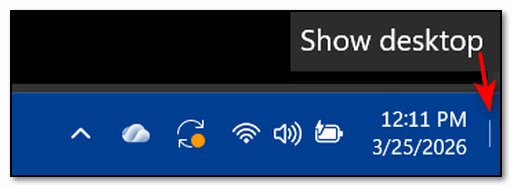
Now, if you click that tiny space (sliver) at the very end of the bar, all your open windows will hide instantly! When you click it again, all the windows reappear. You can also use the keyboard shortcut Windows Key + D to do the same thing.
Hope this helps, Bonnie.
Scott asks our opinion of "Cloaked"
What is your opinion about using Cloaked to remove your presence on the
internet?
Our answer
Hi Scott. The biggest challenge is that your information is already out
there. For years, data brokers—companies like Whitepages, Spokeo,
Acxiom, and others —have been collecting your real name, address, and
phone number from public records and previous app sign-ups for years.
Cloaked is a masking service. It creates digital decoys (fake emails and numbers) for new accounts you create. It doesn't have the authority or the technical mechanism to go into the databases of these third-party brokers and hit "delete" on information they already own. You can pay hundreds of dollars to a data removal service to try to remove all the information about you from the internet and get varying results. But Cloaked doesn't do anything to remove the info about you already stored all over the internet.
To decide if it's a good investment for you, you have to look at what it actually solves versus what it doesn't. It creates working aliases—unique emails, phone numbers, and even virtual credit cards, but it does not remove your data from the web.
If you update an old Netflix, Amazon, or other online accounts with a Cloaked email address, that company still has your historical data linked to your identity. Changing the "label" on the account doesn't erase the years of tracking data they've already associated with your real identity. Cloaked is like wearing a mask to a party where half the people already know your face—it stops new people from recognizing you, but it doesn't make the people who already know you forget who you are.
Armed with the facts about Cloaked, only you can decide if Cloaked is worth $15 a month ($120 a year). And remember, in the end, you have to trust Cloaked with your "real" data. You're essentially moving your trust from dozens or hundreds of individual companies to a single company. If Cloaked itself were ever compromised, your real phone number, address, or primary email would be at risk.
Hope this helps you, Scott.

Now available: Reg Organizer 9.88
If you purchased or renewed Reg Organizer through Cloudeight within
the last 12 months, you're entitled to a free version upgrade to Reg
Organizer 9.88. Reg Organizer works great with Windows 10 and Windows
11.
Save $14 on Reg
Organizer right now!
Reg Organizer -
A Swiss Army Knife of Windows Tools - Works Great on Windows 10 and
Windows 11.

How to Use Windows' Print to PDF
Feature
Windows 10 / Windows 11
If you’re using Windows 10 or Windows 11, you don’t need no stinkin’ program to convert files to PDF! You have the power to convert files to PDF format at your fingertips, I tells ya!
We’re going to show you a few examples of how easy it is to convert a file to PDF using the Windows “Print to PDF” feature.
OK. Ready? Let’s convert an image file to a PDF file
Pick an image, any image, on your computer and open it with your favorite image viewer. Once it’s open, press CTRL+P, choose “Microsoft Print to PDF” as the selected printer, and then click Print.
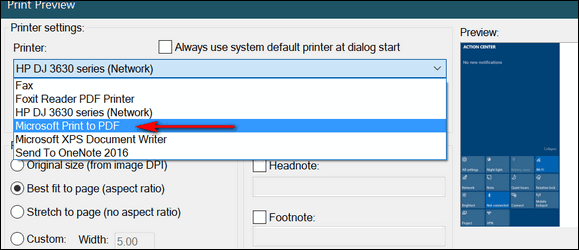
(Above the Print dialog in our favorite image viewer,
IrfanView. Your image program will have a similar print dialog.)
Now, let’s convert a text file to a PDF file.
Pick a text file, any text file, and open it. Now press CTRL + P, choose “Microsoft Print to PDF” as the selected printer, and then click Print.
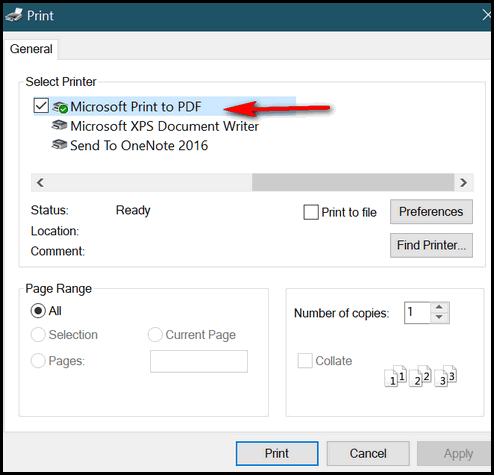
(Above- The Print dialog in Notepad.)
How about converting a Word document to a PDF file?
Pick a Word document, any Word document, open it, and use the CTRL + P shortcut to open the Print dialog. Now choose “Microsoft Print to PDF” as the selected printer and then click Print.
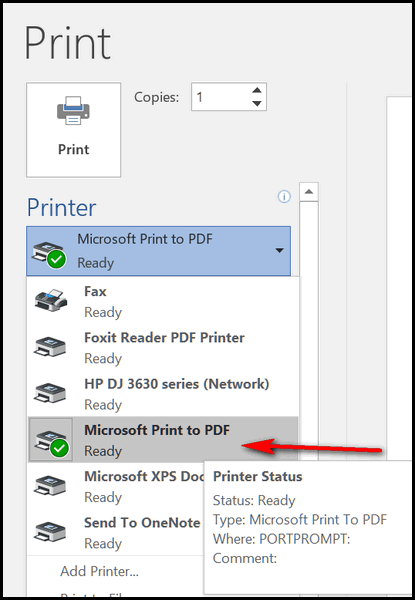
(Above – The Print dialog in MS Word.)
Are you seeing a pattern here? You can turn almost any image file, text file, or document into a PDF file without downloading or using any third-party apps. And best of all, it is easy to do.
Think of Windows' “Print to PDF” as “Convert to PDF” because it converts many file types to PDF format. If you’re using Windows 10 or Windows 11, now you know how to convert almost any file to PDF format using Windows' “Print to PDF” feature.
Quick Machine Recovery: What It Is &
How to Turn It On
Windows 11
Think of Quick Machine Recovery as a built-in “Self-Repair” system for Windows 11. It is designed for those times when your computer won’t start up at all—usually due to a bad software update or a corrupted system file.
Instead of needing technical help or a specialized recovery USB drive, the computer attempts to fix itself using the internet.
How QMR (Quick Machine Recovery) works
When Windows fails to start several times in a row, it automatically enters a “Recovery Mode.” If this feature is active, the following happens:
1. The computer connects to the internet before Windows even loads.
2. It “phones home” to Microsoft’s servers to see if there is a fix for why it is crashing.
3. If a solution is found (like a replacement for a corrupted Windows system file), it downloads and replaces that specific file and installs it.
4. The computer restarts and attempts to load Windows normally again.
Quick Machine Recovery preserves your data.
Unlike a “Factory Reset,” or a full “Windows Reset,” which can wipe your apps and files, this feature only looks for the specific “broken” parts of the operating system and tries to fix them.
It is intended to run automatically in the background, meaning you don’t have to navigate complicated menus or search for solutions on the internet to get the computer running again.
Because it retrieves the latest fixes from Microsoft servers on the internet, it can fix brand-new problems that weren’t known when the computer was first built.
For Quick Machine Recovery to work, the computer must be plugged into a power source and have internet access (either via a network cable or Wi-Fi). And, Quick Machine Recovery must be turned on.
Here’s how to turn on Quick Machine Recovery on your Windows 11 PC
First, let’s check whether Quick Machine Recovery is enabled.
Click the Start button and select the Settings gear icon (or press Windows Key + I).
On the left side, make sure “System” is selected.
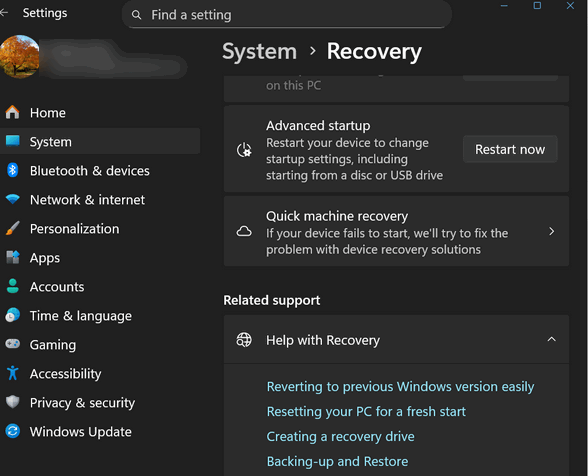
Scroll down on the right side and click on Recovery.
Under the recovery options, you should see a section titled Quick machine recovery.
If the switches are on, the feature is active. If they are off, you can turn on Quick Machine Recovery by turning the switches on:
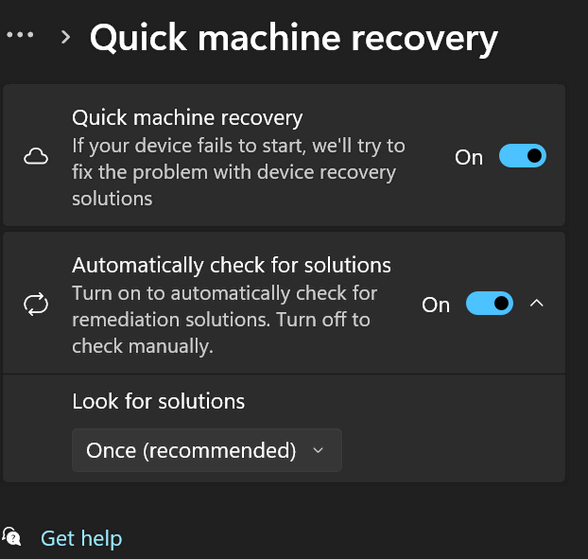
Note: QMR (Quick Machine Recovery) is available in the latest versions of Windows 11 (specifically version 24H2 and later). If you don’t see this option, your version of Windows might not support it yet.
All About Your Laptop Battery
Windows 10 / Windows 11
Today, we’ll show you how to learn all about your laptop battery. You’ll see how the battery’s charge capacity has changed since your laptop (or battery) was new. Like most rechargeable batteries, laptop batteries’ capacity and performance degrade with age. An older laptop battery cannot hold as much charge as a newer battery. The lower the battery’s capacity, the less time you’ll have to use your device while on battery power.
Both Windows 10 and 11 allow you to check your battery's health quickly and learn more about your laptop battery than you probably ever wanted to know.
It’s easy to do.
1.) Type CMD in the taskbar search
2.) When the Command Prompt appears at the top, right-click on it and choose “Run as administrator.”
3.) When the command prompt window opens, type the following command at the prompt:
POWERCFG /BATTERYREPORT
Make sure you leave a space before the slash. Press Enter:
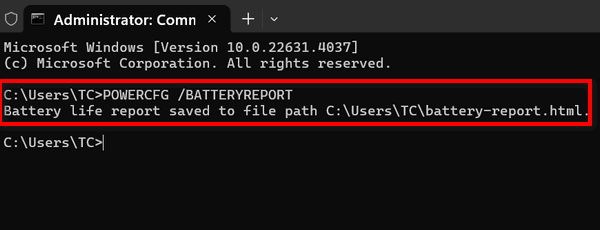
Windows 10 – After a few seconds, you’ll see that Windows has generated a battery-report.html file and saved it in C:\Windows\System32\battery-report.html. In File Explorer, navigate to C:\Windows\System 32 and find the file named “battery-report.html”. Hint. Once you navigate to C:\Windows\System32, type battery in the File Explorer search, and the file will appear at the top.
Windows 11 – After a few seconds, you’ll see that Windows has generated a battery-report.html file and saved it in C:\Users\Your Username\battery-report.html. All you need to do is navigate to the file using File Explorer and double-click to open it.
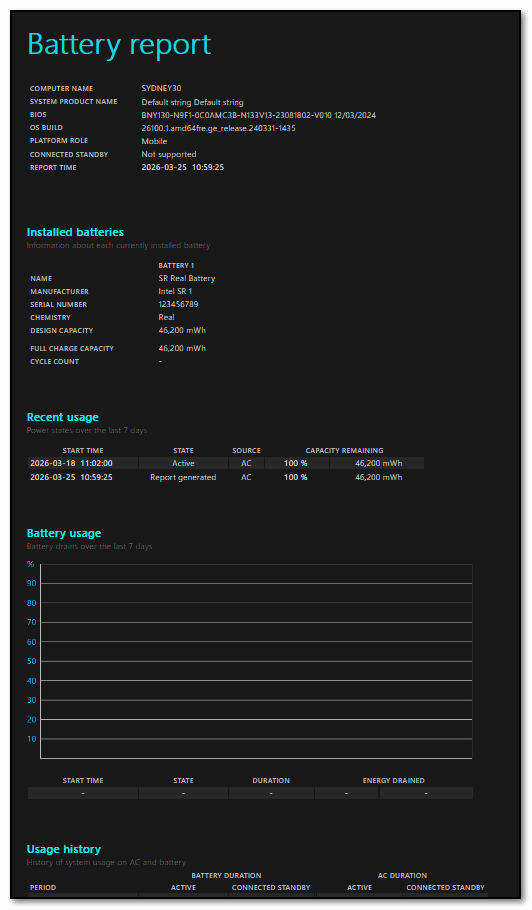
But wait! This is only the beginning! You can learn much more about your battery, including estimates on how long it will last. The full report is too long to post here, so I’ve uploaded it. You can see the full battery report here.
If you’re wondering what a Lion battery is, it’s a short name for lithium-ion.
So, how’s your battery? Are you charged up now?
IYKYK!

Want more tips, tricks, and
information?
We have thousands of Windows tips, tricks, and more on our InfoAve website.
Subscribe to our free InfoAve Daily newsletter.

THANK YOU!
Your gifts help us continue our mission to keep you informed, separate the truth from the hyperbole, and help you stay safer online. We provide support to thousands of people. Every week we help dozens of people via email at no charge. Thanks to donations, we do a lot more than provide this free newsletter. We help you recognize online threats, fight for your online privacy, provide you with the knowledge you need to navigate the Web safely and help you get more out of your PC. Help us keep up the good fight with a small donation.
After you donate, you will receive an invitation to become a Cloudeight Booster.
Help us keep up the good fight with a small donation.
Interested in making an automatic monthly gift? Visit this page.
Help us keep helping you and helping you stay safe on the Web. Thank you so much!

TC’s Amazin’ Stuff – Part I
So, every week, Darcy and/or I search for a freeware pick or site pick to feature in our weekly newsletter. Yeah, it’s basically a non-technical technical newsletter for non-technical people who use Windows. We feature computer tips, how-tos, freeware picks, computer advice, and a lot of other stuff, as most of our subscribers know.
This week, I (TC), decided to take the bull by the horns – so to speak – do something different, and create my own “Site of the Week”. Well, maybe more accurately “Page of the week”.
So, while Darcy is off (again!) with her crew of young men on her luxury yacht “The Bellerophon” sailing the sunny, warm Caribbean, good, ol’ TC put his shoulder to the wheel, his nose to the grindstone, and his fingers on the keyboard, and came up with something different for you.
To enjoy Part #1 of “TC’s Amazin’ Stuff"... click here!
Our Spring Donation Drive is
Underway!
Make a small donation and help us to keep on helping you!
Our annual spring donation drive is underway. Sales of our products and services help keep the lights on at Cloudeight. But if you don’t need any of our products or services right now, please help us with a donation. Even the smallest gift is appreciated. Every donation helps us to provide useful information that helps you with your computer as well as helps to keep you safe on the Internet. We offer free help to thousands of people every year… and we offer an honest and inexpensive computer repair service too. We do everything we can to help you with your computer and to help you stay safe too.
So, if you don’t need any of our products or services right now, please consider helping us with a small donation.
Please help us by donating right now.
Interested in making a monthly gift? Visit this page. Help us keep helping you!
Thank you so much for your support!
Help us keep helping you and helping you stay safe on the Web. Thank you so much!

A Funeral
I know this is not a title that is going to draw you in, but if you'll allow me to explain, I will.
Last weekend, I said goodbye to a woman I’ve known for decades. She was a kind soul who smiled through years of chronic illness. Having dealt with my own health struggles recently, I know how hard that smile is to maintain. She didn't throw pity parties; she offered hugs and kind words to everyone she met.
I digress. This wonderful lady always had a smile and a kind word for everyone. She always had a smile and a hug for me.
Her final two years were spent in a nursing home—the place every senior dreads...
Read the rest of this essay here.

Computer Fundamentals
Hardware
This is the physical stuff you can touch. If you can drop it or plug it
in, it’s hardware. Examples include your keyboard, monitor, and the
chips inside the case.
Software
These are the invisible instructions that tell the hardware what to do.
Your web browser, games, and even the "Start" menu are all software.
Operating System (OS)
This is the "boss" software that manages everything else. It’s the
bridge between you and the hardware. Common examples are Windows, macOS,
Linux, Apple iOS, and Android.
Processor (CPU)
Often called the "brain," the Central Processing Unit handles all the
calculations. Every time you click a mouse, the CPU processes that
command.
RAM (Random Access Memory)
This is the computer's short-term memory or "countertop." It holds the
apps and files you are using right now so the CPU can get to them
quickly. When you turn the computer off, the RAM clears out.
Storage (Hard Drive/SSD)
This is the long-term memory or "pantry." This is where the "shelves"
are that store your photos, documents, and programs, even when the power
is off.

Sales of the following products and services help support our newsletters, websites, and free computer help services we provide.
Cloudeight Direct Computer Care: Always a great deal. Cloudeight Direct Computer Care is like having PC insurance. Get more information here.
Emsisoft Anti-Malware: Emsisoft is the only Cloudeight-endorsed and recommended Windows security program. It provides users with a complete antivirus, antimalware, anti-ransomware, and anti-PUPs solution. We offer single Emsisoft licenses and multi-computer licenses at discount prices. Also, we offer our exclusive Emsisoft with Cloudeight installation & setup. Get more information here.
Reg Organizer: Reg Organizer is the Swiss Army Knife of Windows tools. It's far more than just a registry optimizer and cleaner... it's a Windows all-in-one toolkit. Reg Organizer helps you keep your computer in tip-top shape and helps you solve annoying Windows problems. Reg Organizer works great with Windows 10 and Windows 11! Get more information about Reg Organizer (and get our special discount prices) here.
MORE IMPORTANT STUFF!
Your InfoAve Weekly Members' Home Page is located here.
Help us Grow! Forward this email newsletter to a friend or family member - and have them sign up for InfoAve Weekly here!
Get our free daily newsletter! Each evening we send a short newsletter with a tip or trick or a computer-related article - it's short and sweet - and free. Sign up right now.
We have thousands of Windows tips and tricks and computer articles posted on our Cloudeight InfoAve website. Our site has a great search engine to help you find what you're looking for too! Please visit us today!
Help us by using our Start Page. It costs nothing, and it helps us a lot.
Print our Cloudeight Direct Flyer and spread the word about our computer repair service! If you want to help us by telling your friends about our Cloudeight Direct Computer Care service, you can download a printable flyer you can hand out or post on bulletin boards, etc. Get the printable PDF Cloudeight Direct Computer Care flyer here.

We'd love to hear from you!
If you have comments, questions, a tip, a trick, a freeware pick, or
just want to tell us off for something,
let us know.
If you need to change your newsletter subscription address, please see
"Manage your subscription" at the very bottom of your newsletter.
We received hundreds of questions for possible use in IA news. Please keep in mind we cannot answer all general computer questions. We try to personally answer as many as we can. We can only use a few in each week's newsletter, so keep this in mind. If you have a support question about a service or product we sell, please contact us here.
Subscribe to our Daily Newsletter! Get computer tips & tricks every night. Our daily newsletter features a computer tip/trick or two every day. We send it out every night around 9 PM Eastern Time (USA). It's short and sweet, easy to read, and FREE. Subscribe to our Cloudeight InfoAve Daily Newsletter!
We hope you have enjoyed this issue of Cloudeight InfoAve Weekly.
Thanks so much for your support and for being an InfoAve Weekly
subscriber.
Have a great weekend... be safe!
Cloudeight InfoAve Weekly - Issue #1172
Volume 23 Number 23
March 27. 2026
Not a
subscriber? Subscribe to our FREE Cloudeight InfoAve Weekly Newsletter
here.
"Cloudeight InfoAve Weekly" newsletter is published by:
Cloudeight Internet LLC
PO Box 73
Middleville, Michigan USA 49333-0073
Read our disclaimer about the tips, tricks, answers, site picks,
and freeware picks featured in this newsletter.
Copyright ©2026 by Cloudeight Internet