
Issue #1179
Volume 23 Number 30
May 15, 2026
Dear Friends,
Welcome to Cloudeight InfoAve Weekly Issue #1179. Thank you very much for subscribing and for being a part of our Cloudeight family. We appreciate your friendship and support very much! Please share our newsletters and our website with your friends and family.

If you're not getting our InfoAve Daily newsletter, you're missing out on a lot of good stuff!
It's free, and it only takes a few seconds to sign up. We'd love to have you with us. Visit this page to sign up for our Cloudeight InfoAve Daily Newsletter.

THANK YOU FOR HELPING US!
When you support us with a small gift, you help us continue our mission to keep you informed, separate the truth from the hyperbole, and help you stay safer online. Plus, our computer tips make your computer easier to use.
Did you know that we provide support to thousands of people? Every week, we help dozens of people via email at no charge. The questions and answers you see in our newsletters are from the email answers and help we provide to everyone free of charge.
Thanks to your gifts, we do a lot more than provide this free newsletter. We help you recognize online threats, fight for your online privacy, provide you with the knowledge you need to navigate the Web safely, provide you with suggestions for safe, free software and websites, and help you get more out of your PC.
Please help us keep up the good fight with a small gift.
Interested in making an automatic monthly gift? Visit this page. Help us keep helping you... and help us keep you safe on the Web.
Help us keep helping you and helping you stay safe on the Web. Thank you so much!

Debra is trying to organize her
scattered photos, but the "Photos" app is acting up.
Hi there! I’ve followed your advice for years, and you’ve never steered
me wrong. I’m currently on Windows 11 and I’m trying to use the built-in
Photos app to import pictures from my phone. Every time I try to open
the app, it splashes the logo for a second and then just disappears.
I’ve tried clicking it a dozen times and restarted my computer, but it
simply won't stay open. I really don't want to have to reinstall my
whole Windows system to look at my vacation pictures! Is there a way to
"fix" just this one app? Thanks for always being a lifesaver!
Our answer
Hi Debra. You don't need to reinstall Windows! You can try to "Repair"
or "Reset" the specific app. Go to Settings > Apps > Installed Apps,
find Microsoft Photos, click the three dots, and choose Advanced
options. Try the Repair button first (which keeps your data); if that
doesn't work, hit Reset.
We hope this gets your Photos app working, Debra.
David wants to move his personal
folders to a new drive to save space.
Hello! I’m so thankful for this community. I recently bought a small,
fast SSD for my Windows 10 "C:" drive, but it's already almost full. I
have a huge 2TB "D:" which is a totally empty drive. I want to move my
"Documents" and "Pictures" folders to the D: drive so they stop taking
up space on my C: drive, but I’m afraid if I just "cut and paste" them,
Windows won't be able to find my files anymore. What is the "official"
way to move these system folders without breaking everything?
Our answer
Hi David. You're right to be cautious—standard cutting and pasting can
confuse Windows! The proper way is to right-click your Documents folder,
select Properties, and go to the Location tab. Click Move, select a
folder on your D: drive, and click Apply. Windows will then ask if you
want to move all existing files to the new location; say "Yes."
Repeat this for your Pictures, Music, Videos etc. Just be sure not to move them to the "root" of the D: drive—create folders for them first!
We hope this frees up some space for you, David.
Clarence is struggling with a
Windows 11 Taskbar that won't stop hiding.
Hi! You guys are the best. I just moved to Windows 11, and I’m having a
frustrating time with the Taskbar. I have it set to "Automatically
hide," which I like, but lately, it refuses to pop back up when I move
my mouse to the bottom of the screen. I have to press the Windows key on
my keyboard just to see my open apps. I’ve checked the settings, and
"Automatically hide" is definitely on. Is this a bug in the new version?
Thanks for the help!
Our answer
Hi Clarence. This is a common glitch! Often, an app in the background is
"demanding attention" (like a flashing notification you can't see),
which freezes the Taskbar's behavior. A quick fix is to restart the
Windows Explorer process. Right-click the Start button, open Task
Manager, find "Windows Explorer" in the list, right-click it, and choose
Restart. This usually "unsticks" the Taskbar immediately without needing
a full reboot. We hope this keeps your Taskbar popping up properly,
Clarence.

We've helped hundreds and hundreds of you with your computers since we started our Cloudeight Direct Computer Care Service! If you're having computer problems - we CAN help you!
We all know that sooner or later our computers are going to start having problems. We can help you with any computer need -- from diagnosing and fixing Windows problems - to cleaning up malware and viruses - to cleaning up your computer and optimizing it -- and more. We can do just about anything need done and we guarantee our work - you're either satisfied or we'll refund your money.
We will connect to your computer via the Internet and fix any problems you may be having. You can watch us work and chat with us while we do. If you have any computer questions you'd like to ask we'll be glad to answer them for you. We don't just fix your computer, we explain what we're doing and why we're doing it and we are right there with the entire time. Since we've started we've helped hundreds of you with your computer problems and we've received dozens of referrals and testimonials from our readers and customers.
We offer many other computer services too! If you have a problem with your computer - we can fix it!
Get more information about Cloudeight Direct Computer Care and / or get your repair keys here.
Danny is frustrated by a stubborn
"Update and Shutdown" loop on his Windows 10 laptop.
Hello! I’ve relied on your expertise for a long time, and I’m hoping you
can help me with a weird loop. Every night for a week, I click "Update
and Shutdown." The computer goes through the update screen, turns off,
but when I turn it on the next morning, it says "Updates could not be
completed, undoing changes." Then, when I go to bed, the "Update and
Shutdown" button is back again! It's like the movie Groundhog Day. How
do I break this cycle without losing my mind?
Our answer
Hi Danny. It sounds like your Windows Update cache is corrupted, causing
the update to fail and "roll back" every time. You need to clear the
"SoftwareDistribution" folder where Windows stores these temporary
update files. To do this, you’ll need to stop the Windows Update
service, delete the contents of C:\Windows\SoftwareDistribution, and
then start the service again. This forces Windows to download a fresh,
uncorrupted copy of the update.
We have a simple script you can run to do this automatically right
here.
https://thundercloud.net/downloads/updatereset.bat
Hopefully, this ends the loop for you, Danny.
Tim is worried about a "Disk Usage
100%" error slowing down his Windows 10 PC.
I’ve gained so much insight from you over the years! My Windows 10 PC
has become incredibly slow lately. When I open the Task Manager, the
"Disk" column is at 100% and highlighted in bright red, even when I’m
not doing anything. It stays that way for twenty minutes after I start
the computer. It makes opening even a simple Chrome window take forever.
I’ve tried defragmenting the drive, but it didn't help. Do I need a new
hard drive?
Thanks so much for the help!
Our answer
Hi Tim. This is a common headache on Windows 10, especially if you are
using a traditional mechanical hard drive rather than an SSD. Often, a
service called SysMain (formerly Superfetch) or Windows Search is
"indexing" files in the background and hogging the disk.
Try disabling SysMain. Open the "Services" app (type SERVICES.MSC in the taskbar search), find SysMain, right-click it, select Properties, change the "Startup type" to Disabled, and click Stop. If your speed returns to normal immediately, that was the culprit!
If that doesn't fix it, you can try disabling Windows search. Open the Services app as above. Right-click on Windows Search and choose "Stop". Then right-click on Windows Search again. select "Properties" and change the startup type to "Manual". Restart your computer.
We hope this speeds things up, Tim.
Imogene was using Windows Photos,
but wants to try something else
I was using Windows Photos in Windows 10, but a local computer place was
able to upgrade my old Windows 10 to Windows 11, and the MS Photos
stopped working. I found on YouTube, one named LAP, project's GitHub
releases page, an open source standalone application with no account
setup or cloud configuration required, as that is what I want. Is it
safe? Thank you, Imogene.
Our answer
Hi Imogene. The "LAP" (Lap Photo Manager) project you found is a
legitimate, newer piece of software created specifically for people who
want to keep things simple and private. It is generally considered safe,
but with a few small "safety first" tips:
1. As long as you are downloading it from the official GitHub releases page (the one you found), you are getting the real version. Avoid downloading it from random "free software" websites.
2. This app is well-regarded by tech experts because it doesn't try to "talk" to the internet. It keeps your photos on your computer where they belong. Since it is a newer project, you might occasionally see a small error or a button that doesn't work perfectly. It isn't "broken"; it’s just still being developed and polished.
If you just want to look at your pictures and organize them without a Microsoft account or a "cloud" getting in the way, LAP is a great choice. It’s fast, clean, and respects your privacy. Those interested in LAP can read more here.
Hope this helps you make a great choice, Imogene.

Now available: Reg Organizer 9.88
If you purchased or renewed Reg Organizer through Cloudeight within the last 12 months, you're entitled to a free version upgrade to Reg Organizer 9.88. Reg Organizer works great with Windows 10 and Windows 11.
Save $14 on Reg Organizer right now!
Reg Organizer - A Swiss Army Knife of Windows Tools - Works Great on Windows 10 and Windows 11.

An Easy Tip to Make Windows Easier
to Use
Windows 10 / Windows 11
A Quick Quiz for You…
What is the quickest way to access all the following items in Windows?
Apps & Features/Installed apps, Mobility Center, Power Options, Event Viewer, Device Manager, Network Connections, Disk Management, Computer Management?
A. Settings
B. Control Panel
C. Start Menu
D. Hidden Start Menu
E. None of these
Who said D? You’re right!
The hidden start menu, also known as the right-click Start menu or the Power users’ menu, is the fastest way to access Device Manager, Power Options, Event Viewer, Disk Management, etc. You can access this menu by right-clicking the Windows start button, or, if you’re a keyboard shortcut fan like us, you can open this menu by holding down the Windows key and tapping X. In Windows 11, the way you access the menu makes a difference.
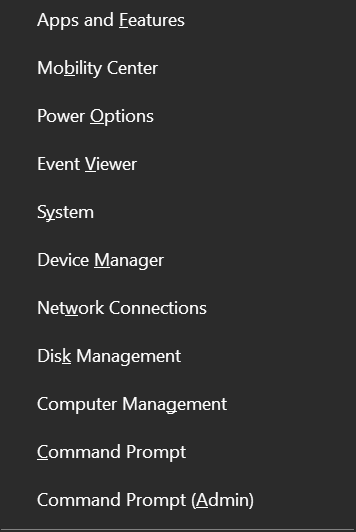
Above: The right-click or hidden Start menu (Windows 10).
Below: The right-click or hidden Start menu (Windows 11) when you right-click the Start button.
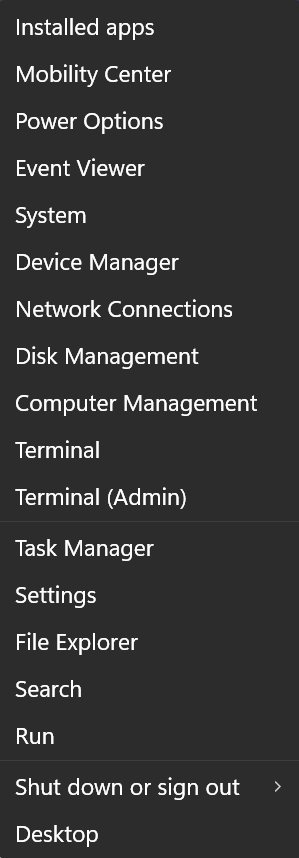
Below is the right-click or hidden Windows 11 Start menu you’ll see when you use the Windows key shortcut Windows Key + X. Do you see the difference? Underlined letters let you use shortcuts to select an item from the menu. For instance, with the menu open, tap the Y key to access “System” or tap “M” to open “Device Manager”.
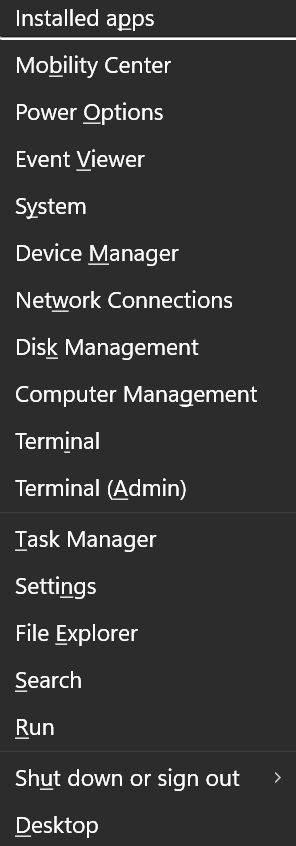
Now you know an easy way to access some important Windows features with only a click or a Windows Key shortcut.
How to Scan and Repair Your Hard
Drive Without Adding Any 3rd-Party Software
Windows 10/Windows 11
Over time, computers can develop small file errors due to power flickers or improper shutdowns. Windows includes built-in tools to find and fix these errors before they cause bigger problems.
Method 1: The Simple “Error Checking” Tool
This is the easiest way to perform a basic check-up on your drive.
Open File Explorer: Look at the taskbar at the bottom of your screen and click the icon that looks like a yellow file folder.
Find “This PC”: In the list on the left-hand side of the window, scroll down and click on This PC.
Open Properties: Find your main hard drive (usually labeled Windows C:). Right-click the drive icon and select Properties at the very bottom of the menu.
Go to Tools: In the small window that opens, click the Tools tab at the top.
Check for Errors: Under the “Error checking” section, click the Check button.
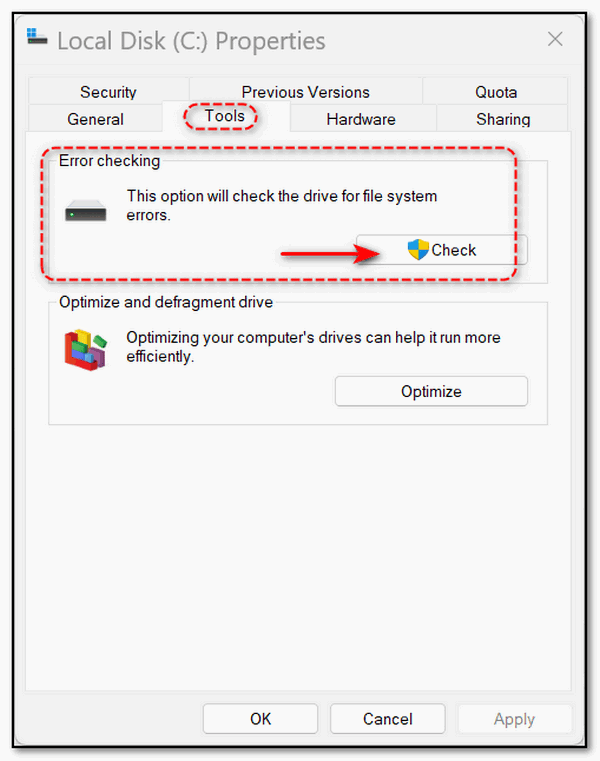
Scan the Drive: If Windows says you don’t need to scan, you can still click Scan drive to run a manual check. If no errors are found, click Close.
“The Fix” (Using Command Prompt)
If the first method didn’t resolve your issues or it found problems, you can use a direct command to tell Windows to repair the drive.
Open Command Prompt as Administrator:
Type CMD into the Taskbar search.
On the right side of the results, click Run as administrator. This is required to make repairs.
Enter the Repair Command: A black window will appear. Type the following command exactly as shown, including the spaces:
chkdsk c: /f
Understanding that Command:
chkdsk: Tells the computer to “Check Disk.”
c: Identifies your main hard drive.
/f: Tells the computer to “Fix” any errors it finds.
Schedule the Restart: Windows will say it cannot run the command because the drive is currently in use. It will ask if you want to schedule the scan for the next time you restart.
Type Y and press Enter.
Close your programs and restart your PC. Before Windows opens, you will see a screen showing the scanning and repairing process. Do not turn off your computer during this time.
Once the process reaches 100%, your computer will finish booting into Windows automatically.
A Guide to Keeping Your Windows
Computer Healthy
Windows 10 / Windows 11
Even when your computer seems to be running smoothly, a lot is happening “under the hood.” Over time, small errors can creep into your system files due to power fluctuations, interrupted updates, minor software glitches, or just using your computer every day.
Think of SFC and DISM as a routine wellness check or a little preventative maintenance for your PC. Running them every few months ensures that your Windows foundation remains solid.
Why run these scans as part of your routine maintenance plan?
1. It is much easier to fix a corrupted file error now than to recover a crashed system later.
2. Windows Updates are more likely to install correctly if the underlying system files are healthy.
3. Cleaning up corrupted system data can prevent those “stutters” or brief freezes that we often just ignore.
4. Knowing your core system files match the original Microsoft versions ensures your computer’s security and stability are intact.
You should start with the Deployment Image Servicing and Management tool, commonly known as DISM. While SFC (System File Checker) checks your local files, DISM goes a step further by checking the “Master Copy” of Windows on your hard drive against Microsoft’s official files to make sure they match.
To start, right-click your Start button and select Terminal (Admin) or Command Prompt (Admin). You can also type COMMAND in the taskbar search, press Enter, and choose Run as Administrator.
Type the command
DISM /Online /Cleanup-Image /RestoreHealth
Exactly as shown, and press Enter.
You will see a progress bar that may seem to “stick” at 20% or 80%, which is normal. Let it finish until it says the operation completed successfully.
Once we know the “Master Copy” is healthy, we can use the System File Checker, or SFC, to scan your active system files and repair any corrupted or missing system files.
In the same window, type
sfc /scannow
and press Enter. This scan usually takes five to ten minutes to complete.
You’ll likely see one of these scan results:
No integrity violations: This means your PC is in perfect health, and no action is needed.
Successfully repaired files: This is very common and means the tool did its job by finding and fixing minor errors.
Unable to fix files: If you see this, simply restart your computer and try running the DISM command followed by the SFC scan one more time.
Taking a few minutes to run these commands every three months is an excellent habit. It keeps your operating system clean and ensures that those small glitches don’t turn into big trouble down the road.

Want more tips, tricks, and information?
We have thousands of Windows tips, tricks, and more on our InfoAve website.
Subscribe to our free InfoAve Daily newsletter.

THANK YOU!
Your gifts help us continue our mission to keep you informed, separate the truth from the hyperbole, and help you stay safer online. We provide support to thousands of people. Every week we help dozens of people via email at no charge. Thanks to donations, we do a lot more than provide this free newsletter. We help you recognize online threats, fight for your online privacy, provide you with the knowledge you need to navigate the Web safely and help you get more out of your PC. Help us keep up the good fight with a small donation.
After you donate, you will receive an invitation to become a Cloudeight Booster.
Help us keep up the good fight with a small donation.
Interested in making an automatic monthly gift? Visit this page.
Help us keep helping you and helping you stay safe on the Web. Thank you so much!

Create Your Own “Flame-Grilled” Logo and “Have it Your Way!”
Wasting time is not a bad pursuit if your mind is cluttered with the stuff of daily life – bills, doctors, etc. So, once in a while, we like to feature a totally meaningless site of the week, just for the fun of it. We’re sure you’ll have fun with this one!
If you have spent any time on the internet lately, you might have noticed people sharing custom logos that look suspiciously like the classic Burger King logo. Whether it is someone’s name, a favorite hobby, or a silly inside joke, these retro-styled graphics are popping up everywhere. It is all thanks to a simple, “just for fun” tool that lets you step into the shoes of a graphic designer without needing any actual artistic skill.
The appeal of the Burger King Logo Generator lies in its nostalgia. The specific design being used is the iconic 1994 “bun halves” look—the one with the red text sandwiched between two golden buns. For many of us, this logo represents the classic era of fast food, and there is something inherently funny about seeing a serious word or a personal name styled like a Whopper.
Easy to Use
You don’t need to sign up for an account or download any complicated software. You simply type your text into a box, and the website does the rest.
Shareable
Once you create your masterpiece, you can download the image to your computer. It’s perfect for sending in an email to a friend or using as a profile picture for a laugh.
Totally Free
These generators are fan-made projects created just for entertainment, so you can make as many versions as you like without spending a dime.
To get started, you can visit the most popular version of this tool at https://pixelframe.design/burger-king-logo-font-generator/. This website lets you type two lines of text that fit perfectly within the bun shapes, plus a tagline below them. Because the tool uses the exact “Hamburger” font and color palette from the 90s, the results look surprisingly official.


The logo looks best when you use short words. If the text is too long, it can get a bit squished and hard to read.
Check the preview: The generator shows you changes in real-time, so you can tweak the spelling or spacing until it looks just right.
While it won’t help you organize your files or speed up your computer, taking a few minutes to play with a logo generator is a great way to break the daily grind. It is a reminder that the internet can still be a place for lighthearted creativity. Go ahead and give it a try—you might find that your name looks surprisingly good in “flame-grilled” red and gold!
You deserve a break today! Oops, wrong slogan. Have it your way!
THANK YOU FOR HELPING US!
When you support us with a small gift, you help us continue our mission to keep you informed, separate the truth from the hyperbole, and help you stay safer online. Plus, our computer tips make your computer easier to use.
Did you know that we provide support to thousands of people? Every week, we help dozens of people via email at no charge. The questions and answers you see in our newsletters are from the email answers and help we provide to everyone free of charge.
Thanks to your gifts, we do a lot more than provide this free newsletter. We help you recognize online threats, fight for your online privacy, provide you with the knowledge you need to navigate the Web safely, provide you with suggestions for safe, free software and websites, and help you get more out of your PC.
Please help us keep up the good fight with a small gift.
Interested in making an automatic monthly gift? Visit this page. Help us keep helping you... and help us keep you safe on the Web.
Help us keep helping you and helping you stay safe on the Web. Thank you so much!

All About Time
And in the end, all that matters is time. Money, fame, beauty, empires,
mansions, squalor, hunger, power, memories all pass away with the
ticking of a clock.
Great cities razed, great beauty turned to dust, generations upon
generations buried under the compacted dirt. And yet we live as though
time were only a measurement for our convenience. Some unseen helper
that exists to tell us when it’s time to do something: attend a meeting,
a church service, wake up, go to bed, go to school, make dinner, or see
the doctor.
Time does not exist as the helpful watchman who benignly watches over
our days. No. Indeed, time is that ruthless killer dressed in sheep’s
clothing, hiding in plain sight, ready and waiting to tear our lives and
bodies apart and shove them mercilessly down the endless throat of
eternity.
As Seneca once wrote,,,
Read
the rest of this essay here.

What is Ransomware?
Ransomware is a type of malicious software (malware) that encrypts a victim's files or data, making it inaccessible. Attackers then demand a ransom payment in exchange for providing the decryption key to unlock the data.
Here's a breakdown of how ransomware works:
Infection: The user unknowingly installs ransomware through various methods like phishing emails, infected attachments, or malicious websites.
Encryption: Once installed, the ransomware scans the victim's device and encrypts essential files like documents, photos, and videos.
Ransom Demand: A notification pops up, informing the victim that their files are encrypted and demanding a ransom payment, often in cryptocurrency, to regain access.
Pressure Tactics: The message often includes threats to permanently delete the files or leak them online if the ransom is not paid within a specific timeframe, creating urgency and fear.
The severity of the impact depends on the type of data encrypted. For individuals, it can mean losing personal photos, documents, and other irreplaceable memories. For businesses, it can lead to disrupted operations, financial losses, and reputational damage.
Using a good antivirus/antimalware application like Emsisoft, staying vigilant, and practicing safe online behavior are essential.

Sales of the following products and services help support our newsletters, websites, and free computer help services we provide.
Cloudeight Direct Computer Care: Always a great deal. Cloudeight Direct Computer Care is like having PC insurance. Get more information here.
Emsisoft Anti-Malware: Emsisoft is the only Cloudeight-endorsed and recommended Windows security program. It provides users with a complete antivirus, antimalware, anti-ransomware, and anti-PUPs solution. We offer single Emsisoft licenses and multi-computer licenses at discount prices. Also, we offer our exclusive Emsisoft with Cloudeight installation & setup. Get more information here.
Reg Organizer: Reg Organizer is the Swiss Army Knife of Windows tools. It's far more than just a registry optimizer and cleaner... it's a Windows all-in-one toolkit. Reg Organizer helps you keep your computer in tip-top shape and helps you solve annoying Windows problems. Reg Organizer works great with Windows 10 and Windows 11! Get more information about Reg Organizer (and get our special discount prices) here.
MORE IMPORTANT STUFF!
Your InfoAve Weekly Members' Home Page is located here.
Help us Grow! Forward this email newsletter to a friend or family member - and have them sign up for InfoAve Weekly here!
Get our free daily newsletter! Each evening we send a short newsletter with a tip or trick or a computer-related article - it's short and sweet - and free. Sign up right now.
We have thousands of Windows tips and tricks and computer articles posted on our Cloudeight InfoAve website. Our site has a great search engine to help you find what you're looking for too! Please visit us today!
Help us by using our Start Page. It costs nothing, and it helps us a lot.
Print our Cloudeight Direct Flyer and spread the word about our computer repair service! If you want to help us by telling your friends about our Cloudeight Direct Computer Care service, you can download a printable flyer you can hand out or post on bulletin boards, etc. Get the printable PDF Cloudeight Direct Computer Care flyer here.

We'd love to hear from you!
If you have comments, questions, a tip, a trick, a freeware pick, or just want to tell us off for something, let us know.
If you need to change your newsletter subscription address, please see "Manage your subscription" at the very bottom of your newsletter.
We received hundreds of questions for possible use in IA news. Please keep in mind we cannot answer all general computer questions. We try to personally answer as many as we can. We can only use a few in each week's newsletter, so keep this in mind. If you have a support question about a service or product we sell, please contact us here.
Subscribe to our Daily Newsletter! Get computer tips & tricks every night. Our daily newsletter features a computer tip/trick or two every day. We send it out every night around 9 PM Eastern Time (USA). It's short and sweet, easy to read, and FREE. Subscribe to our Cloudeight InfoAve Daily Newsletter!
We hope you have enjoyed this issue of Cloudeight InfoAve Weekly. Thanks so much for your support and for being an InfoAve Weekly subscriber.
Have a great weekend... be safe!
Cloudeight InfoAve Weekly - Issue #1179
Volume 23 Number 30
May 15, 2026
Not a subscriber? Subscribe to our FREE Cloudeight InfoAve Weekly Newsletter here.
"Cloudeight InfoAve Weekly" newsletter is published by:
Cloudeight Internet LLC
PO Box 73
Middleville, Michigan USA 49333-0073
Read our disclaimer about the tips, tricks, answers, site picks, and freeware picks featured in this newsletter.
Copyright ©2026 by Cloudeight Internet