
Cloudeight InfoAve Weekly
Issue #1188
Volume 23, Number 29
July 17, 2026.
Dear Friends,
Welcome to Cloudeight InfoAve Weekly Issue #1188. Thank you for subscribing and for being a part of our Cloudeight family. We appreciate your friendship and support very much! Please share our newsletters and our website with your friends and family.

If you're not getting our InfoAve Daily newsletter, you're missing out on a lot of good stuff!
It's free and it only takes a few seconds to sign up. We'd love to have you with us. Visit this page to sign up for our Cloudeight InfoAve Daily Newsletter.

Carol is having driver issues with
her computer
My PC is an HP Pavilion 590-
model5QA68AA #. It is updated with the latest 11 updates. When I
start my PC, it will be blank, then after a bit, it will start up.
How do I fix this problem? I get this message: "Program
Compatibility Assistant. A driver cannot load on this device.
Driver: HWiNFO64A.SYSHWiNFO64A.SYSA security setting is detecting
this as a vulnerable driver and blocking it from loading. You'll
need to adjust your settings to load this driver."
Our answer
Hi Carol. Here are 2 suggestions for
you:
#1. Uninstall the Problem Program HWINFO
If you don't know what the program is or don't use it, you can remove it. Open Settings > Apps > Installed apps and look for HWINFO. Click on the 3 dot to the far right and choose "Uninstall". Restart your computer.
#2. Turn off Core Isolation > Memory Integrity
Type WINDOWS SECURITY in the taskbar search and press Enter. In Windows Security, look for Core Isolation > Memory Integrity and turn the switch under it to "Off". (This does not normally put your computer at risk - this setting was turned off by default in Windows 10.) Restart your computer.
Hope this helps you, Carol.
Patt has 2 questions about
Emsisoft & McAfee
1. I purchased Emsisoft for
multiple computers. Unfortunately, not the version that helps
get rid of previous programs, in my case, "McAfee". I thought I
could just delete that program, and I found out I couldn't.
Because my husband's laptop also has a McAfee program, I have
not tried to install Emsisoft on his computer. Can I pay or
purchase an addition to Emsisoft to get rid of "McAfee??
2. When I first start my
computer, I get the following:
"Cloudeight/Emsisoft...We have
added capabilities to protect you from malware-distributing
websites and phishing attempts. To enable, please install the
Browser Security extension in your browser (Edge Chromium).
Don't Install/Later/Install Now." Is this really from you? Do
I need it, as I mainly use Chrome as my browser? Do you
recommend I install it? Love your Newsletter. Thoroughly
read them all!
Our answer
Hi Patt. Thanks so much.
Have we helped you with your computer or helped you by answering your questions? Would you like to help us?

Hi Linda. Thank you for the kind words!
You can breathe a sigh of relief because your Samsung Galaxy S24 does not actually need a third-party antivirus app. The pop-up you saw telling you that your phone has viruses was a fake... just a bad-guy scare tactic, usually triggered by a sneaky advertisement on a website you were browsing. These fake alerts are designed to cause you to panic and download unnecessary apps or, worse, trick you into giving up your personal information.
Your phone is already safe because Samsung builds a powerful, free virus scanner directly into your settings. Since you already use the optimization settings every day, you are just one tap away from it. To find it, go to your phone's Settings, tap on "Battery and device care" (it might just say "Device care"), and look for the option called "Device protection." Inside that menu, you will see a button that says "Scan phone." Samsung partners with security experts to run this feature, and it will thoroughly check every single app and file on your phone for real threats completely for free.
If you ever want a second opinion, just to be certain, you do not need to pay for anything. The official Google Play Store on your phone has a built-in safety net called Google Play Protect. You can find it by opening the Play Store app, tapping your profile picture in the top right corner, and selecting "Play Protect." Running a scan will double-check your phone against Google's entire security database.
Between Samsung's built-in scanner and Google Play Protect, you have great tools available already on your phone, without having to download any extra junk apps that will just slow your device down. You are doing a great job taking care of your phone, so keep doing exactly what you are doing and ignore those nasty internet pop-ups.
Please let us know if you need anything else.

We can fix your Windows computer... check out our low prices here!
Darryl has a folder and isn't sure what it is or if it's safe to delete
I noticed on my Windows 11 computer, I have a folder called System Backup(32). What is it, and can I delete it?
Hi Darryl. That folder you found is a leftover file directory from a backup utility on your computer. It is not an official Windows 11 system folder, which means the computer does not require it to run properly. It was most likely created by a third-party backup program, an external hard drive software, or a recovery tool provided by the manufacturer of your computer. The number 32 usually means it's an older 32-bit software program.
You can safely delete this folder, but you should do a quick check before you drop it in the recycle bin. Open the folder and look at the dates on the files inside. If the files are months or years old, it is just wasted space, and you can throw them away. However, if the files have today's date on them, it means a backup program is actively using that folder right now, and deleting it might interrupt your current backup schedule.
If you decide you want to get rid of it but feel a little nervous about deleting it permanently, just right-click the folder and choose the Rename option. Change the name to something like "Test Delete" and leave it alone for a week. If your computer and all your programs run perfectly fine for a few days, you will know for sure that it is safe to right-click it and delete it for good.
Let me know if you have any questions.
Brenda asks about open source apps
On YouTube, they often mention open source apps. What are they, and are they safe?
Hi Brenda. Basically, open source apps are programs where the creators make the original code completely public and free for anyone to use or modify. Instead of being locked away by a big corporation, the software is usually built and maintained by a global community of independent developers. You probably already use some without realizing it, like the Firefox web browser or the VLC media player. They are generally very safe, and often actually safer than regular corporate software. Because the code is completely public, thousands of independent security experts can inspect it daily. If there is a security flaw or a privacy issue, the community usually spots it and fixes it immediately, whereas flaws in private software can sometimes go unnoticed for years.
The only major safety rule to keep in mind is to always download them directly from their official, verified websites or official app stores. Because the code is free, scammers will sometimes copy a popular app, infect it with malware, and host it on a sketchy website to trick people. As long as you grab it straight from the official source, it is perfectly safe to use.
Hope this helps clear things up, but let me know if you have any other questions.
Have we helped you with your computer or helped you by answering your questions? Would you like to help us?
Joyce asks how to stop Windows from downloading and updating drivers
Hi. I seem to remember you having something in a Newsletter about Windows wanting to install drivers. Well, I am getting these update notices for me to install drivers, and it seems you had a way of fixing it. Please, if you do, help! Thanks. Joyce.
Our answer
Hi Joyce. For something as insignificant as a mouse
driver, I wouldn't worry about it. If it's something
major like a sound or graphics driver, it may be
worth stopping Windows from installing drivers and
only installing drivers from the manufacturer's site
when necessary.

Now available: Reg Organizer 9.88
If you purchased or renewed Reg Organizer through Cloudeight within
the last 12 months, you're entitled to a free version upgrade to Reg
Organizer 9.8.8. Works great with Windows 10 and Windows 11.
Save $14 on Reg Organizer right now!
Reg Organizer - A Swiss Army Knife of Windows Tools - Works Great on Windows 10 and Windows 11.

Let’s Make Those Nearly
Invisible Scrollbars Easier to See
Windows 10 /
Windows 11
By design, Windows 10 and 11 make scrollbars nearly invisible until you hover over them. While this is supposed to be a cool GUI feature, it makes scrollbars harder to see, and many find it annoying. You’ll be glad to know it’s easy to make scroll bars more visible in both Windows 10 and Windows 11.
To make your scrollbars visible all the time and easier to see, do this…
Windows 11
1. Press & hold down the Windows key and tap the U key to open Accessibility.
2. In Windows 11 >Settings > Accessibility, look under “Visual effects”. Next to “Always show scrollbars,” turn the switch on.
See the screenshot below.

Windows 10
Press & hold down the Windows key and tap the U key to open Ease of Access.
Under Ease of Access, locate the “Simplify and personalize Windows” section and turn the switch next to “Automatically hide scroll bars in Windows” to “Off”. See the screenshot below.
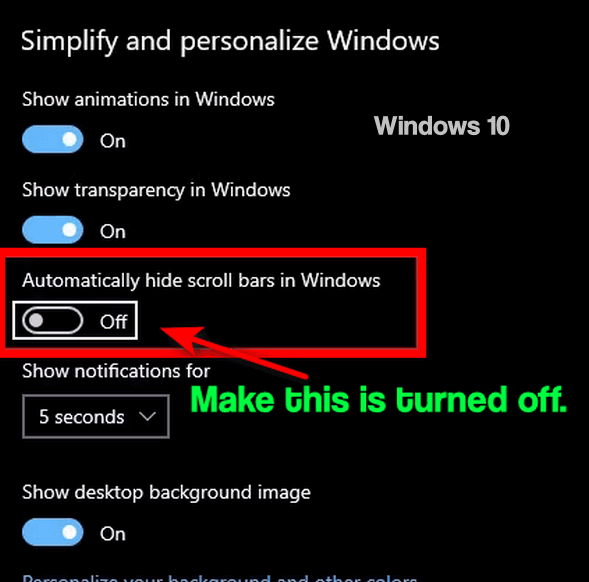
And that’s all there is to making scrollbars easier to see and your Windows a little less “cool” but more functional.
You’re
Invited! (You’re invited to have your email account hacked, that
is!)
A warning
for everyone
Have you received a digital invitation lately? Maybe a beautiful email asking you to join a lovely gathering, a party, or a cookout? Before you click that “RSVP” button to say yes to the potato salad, hold your horses!
There is a massive wave of phishing scams making the rounds right now. Scammers are doing a masterful job of impersonating popular online invitation services like Paperless Post, Evite, and Punchbowl.
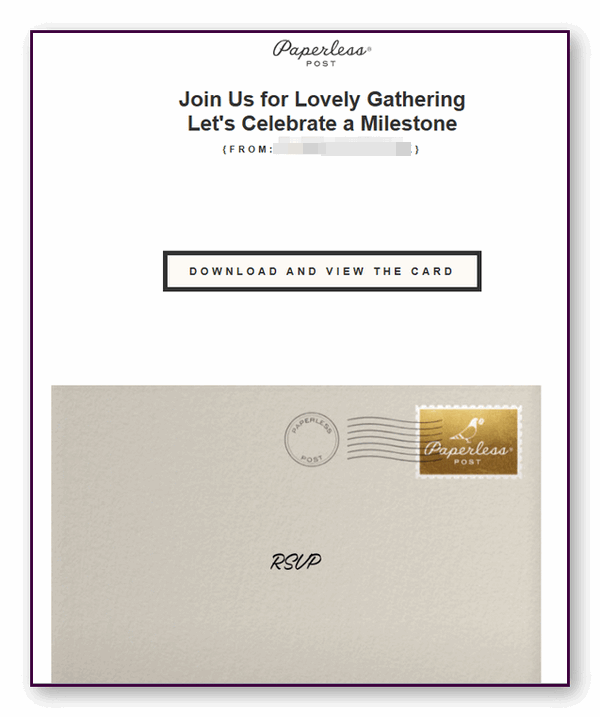
Here is what you need to know to keep your computer—and your email account—safe.
The Bait: “You’re Invited!”
Most scams try to scare you into clicking a link (like threatening to shut down your bank account). But this one plays on your good nature and curiosity. The scammers are using lovely, polite subject lines to get you to lower your guard. Watch out for emails with subjects like:
-
“Please join us for a lovely gathering…”
-
“Shhhhh… It’s a surprise!”
-
“You’re invited!”
-
“You’re invited to a graduation celebration”
They look polished, they look professional, and worst of all, they often look like they came from a friend, a family member, or someone from your church.
How the Miscreants Pull It Off
These fake invitations look exactly like the real thing. They steal the logos, colors, and layouts of the real company. But the moment you click that “View Invitation” or “RSVP” button, the trap springs.
Depending on the version of the scam, one of three things happens:
-
The Password Trap: You’re taken to a fake page that claims you need to “log in with your email and password” just to see the invitation. (Spoiler: The moment you type it, the bad guys have your password!)
-
The Verification Trick: They ask you to enter a one-time code sent to your phone or email, allowing them to bypass your security.
-
The Malware Delivery: The site tries to sneak a nasty malware download onto your computer or redirects you through a maze of malicious websites.
Why is it so convincing? In many cases, the friend who “sent” you the invite actually got hacked themselves. The scammers used their real email address to send the fake invite to everyone in their address book.
How to Spot the Fakes
You don’t have to be tech-savvy to beat these guys. Just use these simple rules of thumb:
-
Check the Sender’s Address: This is the easiest giveaway. A real invitation will come directly from the company’s official domain (like paperlesspost.com or evite.com). If the invitation comes from a regular personal email account (like your friend’s personal @gmail.com or @yahoo.com address), do not click it.
-
The Golden Rule: A legitimate invitation from Paperless Post or Evite will never ask you to enter your email password to open and view the card. If it asks for a password, close the tab immediately!
-
Look Before You Leap: Hover your mouse cursor over the RSVP button without clicking it. Look at the bottom corner of your screen to see where the link is trying to take you. If it doesn’t point to the company’s official website, it’s a scam. DO NOT CLICK THAT LINK!
What the Real Companies (and the FTC) Are Saying
The folks at Evite and Paperless Post want you to know that their systems have not been breached. The hackers are just copying their brands. They recommend never entering your email credentials to open a card and contacting the host through another method if you’re unsure whether an invitation is genuine.
Even the Federal Trade Commission (FTC) issued an official warning about this exact “You’re Invited” scam. They advise everyone to keep their guard up, never click unexpected links, and to ensure you have Two-Factor Authentication (2FA) turned on for your email accounts. If you did accidentally type your password into one of these fake invites, change your email password immediately!
This is serious stuff. We know of several people who were locked out of their Gmail accounts because a hacker hijacked their accounts and used them to send a massive amount of spam. After that, they had to jump through hoops to get their Gmail accounts back. It’s best just to avoid the hassle in the first place.
BE SMART AND THINK BEFORE YOU CLICK!

Do You Have a Smart TV? It’s
Smarter Than You Think!
Everyone with a smart TV
On a smart TV, ACR stands for Automatic Content Recognition.
To put it bluntly, ACR is the technology your TV uses to watch you while you watch it. It acts like a built-in “Shazam” app for your screen, constantly identifying exactly what you’re watching.
How ACR Works
Every few seconds, ACR takes tiny acoustic or visual “fingerprints” (snapshots of pixels or sound clips) of whatever is currently playing on your screen. It matches those snippets against a massive database to recognize the specific movie, show, video game, or commercial you are watching.
The most important thing to know is that ACR does not care where the video is coming from. It tracks you equally whether you are using:
A built-in streaming app (like Netflix or YouTube)
Cable or satellite TV
A streaming stick (like a Roku, Fire Stick, or Apple TV)
A gaming console (like a PlayStation or Xbox)
Why Is It on Your TV?
TV manufacturers include ACR for two main reasons:
1. The “Helpful” Reason: It allows your TV to suggest other shows you might like based on your viewing habits.
2. The Real Reason (Money): It tracks your habits to target you with highly specific advertisements. For example, if ACR catches you watching a football game, the ads on your TV’s home screen might suddenly switch to fast food, beer, or sportswear. TV brands make an immense amount of money by bundling this data and selling it to advertisers.
Should You Turn It Off?
Most privacy experts strongly recommend turning ACR off. It doesn’t affect your TV’s ability to stream your favorite shows; it just stops the manufacturer from cataloging your daily viewing habits.
Because TV brands know people don’t love being tracked, they rarely call it “ACR” in the settings menu. They hide it behind deceptive names.
If you want to turn it off on your TV, look for these specific settings:
Samsung: Go to Settings > Terms & Privacy > Privacy Choices and uncheck Viewing Information Services.
LG: Go to Settings > All Settings > General > System > Additional Settings and turn off Live Plus.
Roku TVs (TCL, Hisense, etc.): Go to Settings > Privacy > Smart TV Experience and uncheck Use info from TV inputs.
Sony (Google TV): Go to Settings > Device Preferences > Usage & Diagnostics or look for Samba Interactive TV and toggle it off.
Amazon Fire TV: Go to Settings > Preferences > Privacy Settings and disable Device Usage Data.
Make sure you’re the only one watching and that no one is watching you.
Want more tips, tricks, and information?
We have thousands of Windows tips, tricks, and more on our InfoAve website.
Subscribe to our free InfoAve Daily newsletter.

THANK YOU FOR HELPING US!
When you support us with a small gift, you help us continue our
mission to keep you informed, separate the truth from the hyperbole,
and help you stay safer online. Plus, our computer tips make your
computer easier to use.
Did you know that we provide support to thousands of people? Every
week, we help dozens of people via email at no charge. The questions
and answers you see in our newsletters are from the email answers and
help we provide to everyone free of charge.
Thanks to your gifts, we do a lot more than provide this free newsletter. We help you recognize online threats, fight for your online privacy, provide you with the knowledge you need to navigate the Web safely, provide you with suggestions for safe, free software and websites, and help you get more out of your PC.
Please help us keep up the good fight with a small gift.
Interested in making an automatic monthly gift? Visit this page. Help us keep helping you... and help us keep you safe on the Web.

Bringing Back a Legend: How to Get Windows Movie Maker on Windows 11
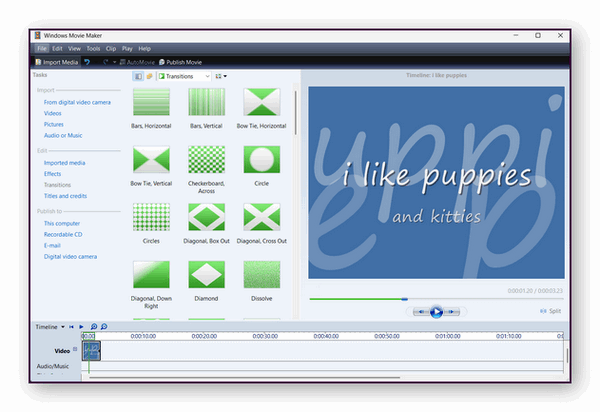
Back in January 2017, Microsoft officially retired its classic video editing app, Windows Movie Maker, leaving a lot of everyday PC users in the lurch. It certainly wasn’t Hollywood-grade software, but its simple, drag-and-drop design meant absolutely anyone could cut, splice, and edit home videos without a steep learning curve.
Microsoft tried to replace it with a basic “Video Editor” tucked inside the Windows Photos app, but it fell completely flat. Then, in 2021, Microsoft bought Clipchamp and made it the default video editor for Windows 11. While Clipchamp is decent, it is a heavy web-based app that isn’t everyone’s cup of tea – and it uses a ton of RAM.
The Good News: Movie Maker is Back!
If you miss the good old days of Windows Movie Maker, you can actually run it on Windows 11 right now. Thanks to a clever preservation effort by a user named @skylerdagirl (and spotted by Windows Latest), Windows Movie Maker version 6.0 is available as a completely free download via the Internet Archive.
The downloadable installer file has been thoroughly tested and runs smoothly on both Windows 10 and Windows 11.
Why Switch Back?
Nostalgia isn’t the only reason to grab this classic download. According to performance tests, this lightweight version of Windows Movie Maker uses a whopping 97 percent less RAM than modern Clipchamp.
If you are trying to edit video clips on an older laptop, a budget PC, or a weaker machine, going back to the classic Movie Maker will give your system a massive performance boost. It is fast, efficient, and just as easy to use as you remember.
You can download an updated version of Windows Movie Maker that will work on Windows 10 and Windows 11 from the Internet Archive.
Here’s the direct link to the Windows Movie Maker installer.

Keep the Fire Burning
He left the candle burning, just as she had asked him to do.
Though it had been seven years since she went away, he would
light a candle every evening at nightfall. Every night while he
tried to sleep through his pain and his loneliness, the candle
flickered silently, casting dancing shadows upon the walls in
the quiet hours.
He lit the candle again, wiped a tear from his cheek, and fell
into bed exhausted. Yet he knew that this night, like most other
nights, sleep would not come.
He lay awake watching the ballet of shadows – again. Some nights
he’d listen to the wind breathing in the boughs of the barren
branches of the tree she had planted outside their bedroom
window – one spring day long ago… and now, so far away. Other
nights he’d watch the shivering shadows dance...
Read the rest of this essay here.

What is doxing?
Doxing is when someone finds and publicly shares private personal information about you online, without your permission, usually intending to harass, embarrass, or harm you.
This information can include things like your home address, phone number, workplace, or even details about your family. It's essentially taking someone's "docs" (documents/personal info) and "dropping" them online for everyone to see.

Sales of the following products and
services help support our newsletters, websites, and free computer
help services we provide.
Cloudeight Direct
Computer Care: Always a great deal. Cloudeight Direct Computer
Care is like having PC insurance.
Get more information here.
Emsisoft Anti-Malware:
Emsisoft is the only Cloudeight-endorsed and recommended Windows
security program. It provides users with a complete antivirus,
antimalware, anti-ransomware, and anti-PUPs solution. We offer single
Emsisoft licenses and multi-computer licenses at discount prices.
Also, we offer our exclusive Emsisoft with Cloudeight installation &
setup. Get more
information here.
Reg Organizer: Reg
Organizer is the Swiss Army Knife of Windows tools. It's far more than
just a registry optimizer and cleaner... it's a Windows all-in-one
toolkit. Reg Organizer helps you keep your computer in tip-top shape
and helps you solve annoying Windows problems. Reg Organizer works
great with Windows 10 and Windows 11!
Get more information about Reg Organizer (and get our special discount
prices) here.
MORE IMPORTANT STUFF!
Your InfoAve Weekly Members' Home Page is located here.
Help us grow! Forward this email newsletter to a friend or family member - and have them sign up for InfoAve Weekly here!
Get our free daily newsletter! Each evening, we send a short newsletter with a tip or trick or a computer-related article - it's short and sweet - and free. Sign up right now.
We have thousands of Windows tips and tricks and computer articles posted on our Cloudeight InfoAve website. Our site has a great search engine to help you find what you're looking for, too! Please visit us today!
Help us by using our Start Page. It costs nothing, and it helps us a lot.
Print our Cloudeight Direct Flyer and spread the word about our computer repair service! If you want to help us by telling your friends about our Cloudeight Direct Computer Care service, you can download a printable flyer you can hand out or post on bulletin boards, etc. Get the printable PDF Cloudeight Direct Computer Care flyer here.

We'd love to hear from you!
If you have comments, questions, a tip, a trick, a freeware pick, or just want to tell us off for something, let us know.
If you need to change your newsletter subscription address, please see "Manage your subscription" at the very bottom of your newsletter.
We received hundreds of questions for possible use in IA news. Please keep in mind we cannot answer all general computer questions. We try to personally answer as many as we can. We can only use a few in each week's newsletter, so keep this in mind. If you have a support question about a service or product we sell, please contact us here.
Subscribe to our Daily Newsletter! Get computer tips & tricks every night. Our daily newsletter features a computer tip/trick or two every day. We send it out every night around 9 PM Eastern Time (USA). It's short and sweet, easy to read, and FREE. Subscribe to our Cloudeight InfoAve Daily Newsletter!
We hope you have enjoyed this issue of Cloudeight InfoAve Weekly. Thanks so much for your support and for being an InfoAve Weekly subscriber.
Have a great weekend. Be safe!
Darcy & TC
Cloudeight InfoAve Weekly - Issue #1188
Volume 23, Number 29
July 17, 2026
Not a subscriber? Subscribe to our FREE Cloudeight InfoAve Weekly Newsletter here.
"Cloudeight InfoAve Weekly" newsletter is published by:
Cloudeight Internet LLC
PO Box 73
Middleville, Michigan, USA 49333-0073
Read our disclaimer about the tips, tricks, answers, site picks, and freeware picks featured in this newsletter.
Copyright © 2026 by Cloudeight Internet