
Cloudeight InfoAve Weekly
Issue #1191
Volume 23, Number 32
August 7, 2026
Dear Friends,
Welcome to Cloudeight InfoAve Weekly Issue #1191. Thank you for subscribing and for being a part of our Cloudeight family. We appreciate your friendship and support very much! Please share our newsletters and our website with your friends and family.

If you're not getting our InfoAve Daily newsletter, you're missing out on a lot of good stuff!
It's free and it only takes a few seconds to sign up. We'd love to have you with us. Visit this page to sign up for our Cloudeight InfoAve Daily Newsletter.

Barbara asks: “My desktop
icons are huge and out of order! Did I break something?”
Help! I opened my laptop this morning, and all the
icons on my desktop are suddenly enormous and jumbled up. I
must have pressed something by mistake. How do I get them
back to normal size without dragging every single one
around? — Barbara
Our answer
Hi Barbara. You didn't break a thing, and this happens to
people all the time.
What usually causes this is a little feature built into Windows: if you accidentally hold down the Ctrl key on your keyboard while scrolling the wheel on your mouse (or pinching the touchpad on a laptop), Windows automatically zooms your desktop icons in or out.
Here are two quick ways to fix it:
The Mouse Wheel Trick (Fastest)
Click anywhere on a blank space on your desktop. Press and hold the Ctrl key on your keyboard, and slowly scroll your mouse wheel downward (toward you). You will see the icons shrink back down in real-time! Stop when they look right.
The Right-Click Menu (Easiest):
-
Right-click on any empty space on your desktop screen.
-
Hover your mouse over View.
-
Click on Medium icons (or Small icons if you like them compact).
To get them back in neat rows automatically, right-click that empty space on your desktop again, go to "View," and make sure "Auto arrange icons" has a checkmark next to it. Windows will snap everything back into neat, tidy rows for you!
Carole asks: “Where did
my Downloads folder go?”
Whenever I download a PDF or a picture from an email, I
used to see a little folder on the left side of File
Explorer called 'Downloads.' It has completely
disappeared from my sidebar! I know the files are on my
PC, but I can't find the folder shortcut anywhere. How
do I get it back? — Carole
Our answer
You are not alone, Carole! When Windows updates, it
occasionally unpins favorite folders from the Quick
Access sidebar in File Explorer, driving everyone nuts
trying to find their files.
Here is how to get your Downloads shortcut pinned right back where it belongs:
Press the Windows Key + E on your keyboard to open File Explorer.
In the address bar at the top (where it displays folder paths), type or copy/paste this exact text and press Enter:
%userprofile%\Downloads
This will instantly take you straight inside your missing Downloads folder!
Now, look at the left-hand sidebar where your shortcuts are shown. Find Quick Access (or Home in Windows 11) at the top of that left list.
Right-click on an empty spot inside your actual Downloads window, or right-click the word Downloads in the top address bar, and select Pin to Quick Access (or Pin to Home).
That's it! Your Downloads folder shortcut will be locked back onto your left sidebar menu, so you never have to search for it again.
Have we helped you with your computer or helped you by answering your questions? Would you like to help us?

Gene asks: “How
can I keep my PC awake during a long transfer
without changing my sleep settings?”
I often copy large photo albums to an external
drive or run big backups. If I walk away,
Windows goes to sleep after 10 minutes and
pauses the whole process! I don't want to
permanently change my power settings every time
I do this. Is there a simple, temporary way to
keep Windows awake? — Gene
Our answer
That is a great question, Gene! Digging through
Windows Settings just to change your sleep timer
back and forth every time you run a long task is
a real chore.
Here are two fantastic solutions:
The Built-In "PowerToys Awake" Tool (Recommended)
Microsoft actually makes a free, official suite of handy utilities called Microsoft PowerToys (available right in the Microsoft Store). It includes a tiny tool called Awake. Once installed, a tiny blue cup-of-coffee icon appears down by your clock. Right-click the coffee cup, set it to "Keep awake temporarily" for 1 or 2 hours, and walk away! Windows will stay fully awake until the timer runs out, then return to your normal sleep settings automatically. Read more about Power Toys here.
Option 2: The Video Trick (No Software Required)
If you don't want to install anything, here is an old power-user trick: open YouTube or any media player, play a long video (like a 10-hour relaxing nature or fireplace video), minimize the browser window, and start your file transfer. Windows natively prevents the system from going to sleep as long as a video is actively playing in the background!
Hope this helps you, Gene!

We can fix your Windows computer... check out our low prices here!
Mitch asks: “Why
is my C: Drive filling up when I barely save
anything to it?”
My main C: drive is nearly full and showing a
red warning bar, but I keep all my personal
photos and documents stored on a second hard
drive. I ran Disk Cleanup, but it barely freed
up anything. What hidden junk is taking up all
my space, and how do I clean it out safely? —
Mitch
Our answer
This is a classic Windows mystery, Mitch. When
your main drive fills up mysteriously, the
culprit is usually hidden system clutter that
standard Disk Cleanup skips over—specifically
old Windows Update installation files, system
restore caches, or shadow copies.
Here is a moderately advanced, two-step way to reclaim gigabytes of space safely:
Step 1: Run Disk Cleanup in "System Files" Mode
Type Disk Cleanup into your Windows search bar, right-click it, and select Run as administrator.
Select your C: drive and click OK.
When the window opens, look near the bottom left and click the button that says Clean up system files.
Windows will rescale the drive. Now, scroll down the list and check the box for Windows Update Cleanup (this alone can often hold 5 GB to 20 GB of old update installer files!) and Delivery Optimization Files.
Click OK to delete them.
Step 2: Use the Free "TreeSize Free" Tool to Find Hidden Giants
If your drive is still mysteriously full, download a free, safe utility called TreeSize Free (from JAM Software).
When you run TreeSize as Administrator, it scans your C: drive and arranges every folder by size, from largest to smallest.
It takes out all the guesswork! You can immediately spot if an old program backup, a forgotten video folder, or a bloated temp file is hiding in a deep subfolder so you can safely remove it. Read more about TreeSize here.
Hope this helps, Mitch!
Terry asks, "Is
WinZenith any good?"
Hello, Cloudeight. Is this worthwhile? Thanks,
Terry.
Our answer
Hi Terry, WinZenith is a free,
open-source utility tool designed for Windows 10
and 11. It essentially bundles together a
collection of PC maintenance features—like
system junk cleanup, a startup manager, a
software/driver updater, and a duplicate file
finder—into one single interface.
Have we helped you with your computer or helped you by answering your questions? Would you like to help us?
Hi Sharon. It sounds like you've run into two completely separate issues that just happened at the same time, which can definitely be confusing.Let's get both of them cleared up for you.
First, regarding that Google User PEH / Platform Experience Helper you found in the Task Scheduler: Yes, you should definitely go ahead and disable it.
The "white rectangle" issue Brenda asked about in InfoAve is a recent, widespread bug caused by this exact Google Chrome background task. When you log in or unlock your computer, a glitch causes that empty, non-responsive white box to get stuck on the desktop. Disabling this task will safely stop the glitch from happening, and it will not harm your computer or break Google Chrome at all. It just stops that specific background helper from misbehaving at startup.
As for Bitwarden, your experience is actually unrelated to Brenda's issue. What you are seeing—the small pop-up window automatically expanding to full screen after a few seconds—is a known behavior with recent Bitwarden extension updates.
Bitwarden recently changed how it handles the login/unlock form, often forcing it into its own separate window to prevent other parts of your browser from interfering with it. If you use Windows Hello (like a PIN or fingerprint) to unlock Bitwarden, it can also cause a brief delay or window resizing while it waits for Windows to respond. It's an annoying quirk of the new update rather than something broken on your PC! Try using the shortcut CTRL + SHIFT + Y to open (and close) Bitwarden.
I hope this helps set your mind at ease, Sharon. Please let me know if you have any other questions.

Now available: Reg Organizer 9.93
If you purchased or renewed Reg Organizer through Cloudeight within
the last 12 months, you're entitled to a free version upgrade to Reg
Organizer 9.93. Works great with Windows 10 and Windows 11.
Save $14 on Reg Organizer right now!
Reg Organizer - A Swiss Army Knife of Windows Tools - Works Great on Windows 10 and Windows 11.

The Hidden
“Emergency Restart” Feature in Windows 11
Windows 11
We’ve all been there: the computer screen freezes, and nothing works. The keyboard and screen are frozen, and the computer is unresponsive. So, the only option was to shut down the PC using the power button and then restart.
But did you know that there’s a hidden feature in Windows 11 that makes it easier to restart when everything is frozen? It’s called “Emergency Restart”. Now you don’t have to use the power button to shut down the PC and risk data corruption. Windows 11’s “Emergency Restart” feature is accessible through the security screen.
Here’s How to Access the Security Screen
Press the Ctrl + Alt + Delete keys simultaneously.
This action should interrupt the frozen application and bring up the full-screen Windows security menu, which offers options like Task Manager, Sign Out, and Shutdown.
How to Trigger the Emergency Restart
Locate the Power icon (the circle with a vertical line) in the bottom-right corner of the screen.
Hold down the Control (Ctrl) key.
While holding Ctrl, click the Power icon.
A warning box will pop up confirming the action.
Confirm and Proceed
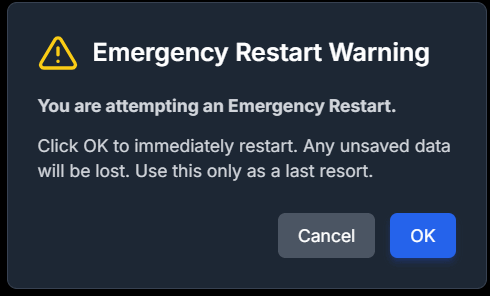
The warning will state: “Click OK to immediately restart. Any unsaved data will be lost. Use this only as a last resort.”
Click OK to execute the Emergency Restart. Your system will immediately reboot, hopefully resolving the issues that caused the freeze.
Now you know all about the new Windows 11
restart feature; let’s hope you never have
to use it!
How to
Remove Most Telemetry and Advertising in Windows
11
Windows 11
Windows 11 relies on data collection to make money. You are the product. It also generates income for Microsoft using integrated advertising throughout the operating system. However, you can significantly reduce both telemetry and promotional content while increasing your privacy without resorting to complex, high-risk third-party tools.
Here is the easiest and safest way to remove most telemetry and advertising in Windows 11, focusing entirely on built-in settings.
Disable Privacy & Telemetry Settings
These settings are the core of Microsoft’s data collection. Turning these off limits what data is sent back to the company.
General Privacy Controls
Go to Settings (Windows Key + I).
Navigate to Privacy & security.
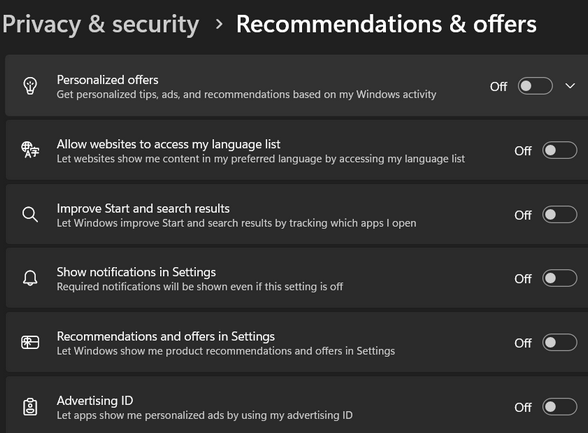
Click Recommendations and offers.
Turn off all six toggles:
“Personalized offers”
“Allow websites to access my language lists.”
“Improve speech and search results.”
“Show notifications in settings.”
“Show recommendations and offers in settings.”
“Advertising ID”
Diagnostic Data
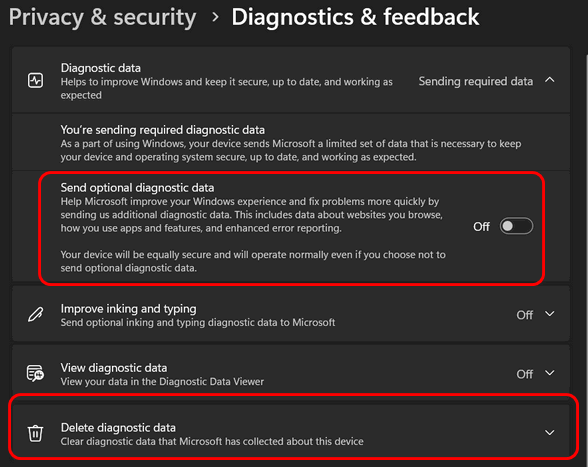
In Privacy & security, click Diagnostics &
feedback.
Set “Send optional diagnostic data” to Off.
If you want to be thorough, click Delete diagnostic data to wipe any data currently stored on your device that hasn’t been sent.
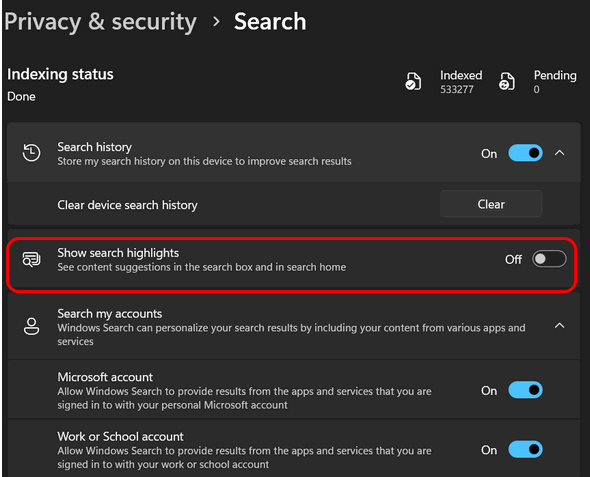
Turn off Search highlights.
Search highlights are basically ads that show in the search box on the taskbar.
In Privacy & security, click on “Search”.
Turn the toggle off next to “Show search highlights”.
Start Menu Suggestions
Windows often uses the Start Menu and Taskbar to recommend apps or services (which are essentially ads).
Go to Settings (Windows Key + I).
Navigate to Personalization > Start.
Turn off the toggle for “Show recommendations for tips, shortcuts, new apps, and more.”
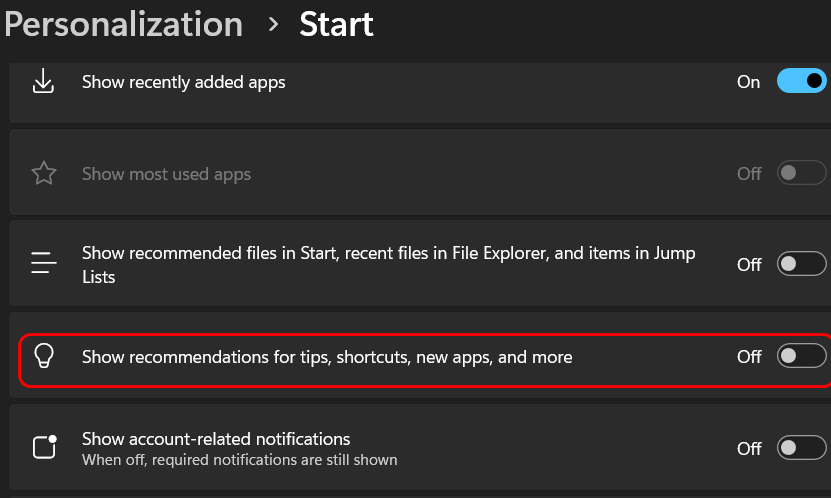
Next, go to Personalization > Lock screen.
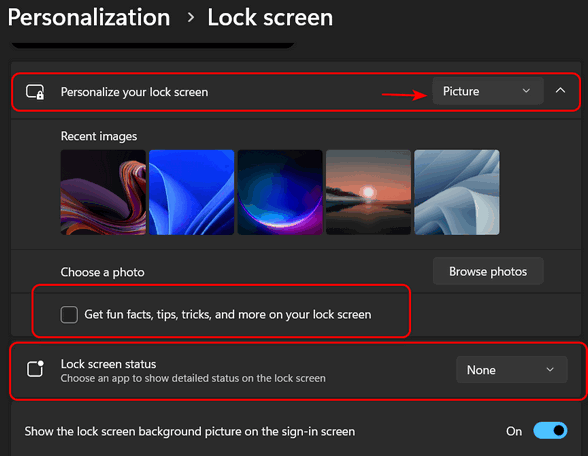
Next to “Personalize your lock screen,” choose “Picture” – do not choose Windows Spotlight (you’ll see ads).
Uncheck “Get fun facts, tips, tricks, and more on your lock screen.”
Change Lock screen status to “None”.
Remove Pre-Installed Promotional Apps
Windows 11 comes with several apps pre-installed that serve promotional content. You can safely remove most of them.
Open the Start Menu.
Right-click on any app you don’t use (common candidates are Xbox, Microsoft Teams, Solitaire, News, or Spotify).
Select Uninstall.
If an app cannot be uninstalled via the right-click menu, it’s generally best to leave it alone.

Our Ten
Commandments of Safe Computing
Windows 10 / Windows 11
We could write a book (you know us) about computer safety (and we have). But we wanted to pare down our list and create the Ten Commandments of Safe Computing. Our missions are to help you with your computer, help you safely navigate the web, and keep you safe from scammers and other online criminals. We want you all to enjoy your computers and your other internet-connected devices.
Here are our Ten Commandments of Safe Computing
1. Fortify Your Defenses: Install strong antivirus/anti-malware software and keep it updated. We use and recommend Emsisoft. Emsisoft automatically updates and keeps your computer protected with a minimum amount of fuss.
2. Guard Your Gateway: Secure your home router with a unique password. Routers come with default passwords. Make sure you change yours to something strong and unique.
3. Think Before You Click: Always verify the legitimacy of websites and senders before clicking links or opening attachments. Hover over links to see the true destination URL. NEVER CLICK LINKS IN EMAILS UNLESS YOU ARE SURE YOU KNOW WHO SENT THEM.
4. Windows Updates: Don't Procrastinate: Update your operating system whenever updates become available to patch security vulnerabilities.
5. Craft Unbreakable Passwords: Create complex passwords with a mix of upper and lowercase letters, numbers, and symbols. Make them unique for each account. And use a password manager. We recommend three. All have free versions. Bitwarden, LastPass, and RoboForm. There are others, too. The important thing is to use one. Better yet, use Passkeys wherever you can.
6. Beware of Online Phishing: Be cautious of suspicious emails, links, and attachments. Don't fall for phishing scams or click on unknown sources. Again... NEVER CLICK LINKS IN EMAILS UNLESS YOU ARE SURE YOU KNOW WHO SENT THEM.
7. Backup Regularly, Breathe Easy: Regularly back up your important data to an external drive or cloud storage for peace of mind. We recommend OneDrive. For $9.99 a month, you get one terabyte of cloud backup & storage space, plus you get the latest version of MS365 (MS Word, MS Excel, MS PowerPoint, MS Outlook & more). Nope. Microsoft does not pay us to recommend OneDrive. We have been using it for years now, and it makes moving to a new computer as easy as pie.
8. Be Wary of Public Wi-Fi: Avoid using public Wi-Fi for sensitive activities like online banking or entering passwords. If necessary, use a free browser-based VPN for added security.
9. Privacy Matters: Manage Settings: Consider disabling unused camera and microphone permissions to prevent unauthorized access.
10. Scammers and scams are everywhere. If someone tries to pressure you or threaten you into acting immediately or paying with gift cards, disconnect from the internet and wait a few minutes before reconnecting. If something seems too good to be true, there's a 99.9% chance it is too good to be true.
Want more tips, tricks, and information?
We have thousands of Windows tips, tricks, and more on our InfoAve website.
Subscribe to our free InfoAve Daily newsletter.

THANK YOU FOR HELPING US!
When you support us with a small gift, you help us continue our
mission to keep you informed, separate the truth from the hyperbole,
and help you stay safer online. Plus, our computer tips make your
computer easier to use.
Did you know that we provide support to thousands of people? Every
week, we help dozens of people via email at no charge. The questions
and answers you see in our newsletters are from the email answers and
help we provide to everyone free of charge.
Thanks to your gifts, we do a lot more than provide this free newsletter. We help you recognize online threats, fight for your online privacy, provide you with the knowledge you need to navigate the Web safely, provide you with suggestions for safe, free software and websites, and help you get more out of your PC.
Please help us keep up the good fight with a small gift.
Interested in making an automatic monthly gift? Visit this page. Help us keep helping you... and help us keep you safe on the Web.

Freeware/Site Pick of the Week: Perchance AI Image Generator
If you’ve been curious to play around with AI art but hate the hassle of creating yet another account—or handing over your email address—Perchance is your new favorite toy.
What is Perchance?
It’s a super simple, web-based image maker over at perchance.org. There is nothing to download, nothing to install, and zero accounts to make. You just hop on the page, type in what you'd like to see, click a button, and watch your picture pop up on the screen. That’s really all there is to it!
Why we think you'll love it
Let’s be honest: most "free" AI generators come with annoying fine print. Usually, you run into credit limits, giant watermarks slapped over your picture, or endless pop-ups begging you to pay for a subscription. Perchance skips all of that. It’s truly free—no catches, no daily limits, and no hidden fees.
Who is it good for?
If you're brand new to AI or a little skeptical about the whole thing, this is the perfect playground. The layout couldn't be simpler: just one text box and one button. You can hand this link to a total beginner, and they’ll be creating fun pictures in less than a minute.
A little heads up here
Because it’s completely community-run, it can take a little extra time to generate pictures during busy hours. It also won't give you hyper-polished, museum-quality masterpieces like some of the fancy paid programs. Think of it more as "fun and surprising" rather than a professional studio tool. It's built for giggles and lighthearted exploring!
Ye olde summary!
If you want to see what AI image making is all about without any hassle, Perchance is about as easy as it gets. Type a fun idea, see what pops up, and enjoy the creative magic—no strings attached. Head on over to Perchance and start creating... if we can do it, you can too!
The proof!

Darcy's first computer

TC's first computer.

Darcy's yacht.
Come on. Have some fun. All you have to do is type in what you want to create, choose a style, and wait a few minutes. You'll be surprised. You'll be on the site longer than you think you will!
Visit the Perchance AI Image Generator. All you need to have fun are ideas.
https://perchance.org/ai-text-to-image-generator

The Scammer's Secret: Quiet Shame
Today's essay is something different. Just for this week, we are going to concentrate on helping everyone who follows up or reads our newsletters to avoid losing money or having their life savings stripped away to the dregs of the Earth: Phone Scammers.
After Microsoft ruined the good old stationery days, we made a name for ourselves helping people with their Windows computers and keeping them up-to-date with the latest tips and tricks,
However, over the years, we realized we didn't spend enough time writing about the plethora of scams always around. We realized that all the digital security and troubleshooting tips in the world are completely useless against a simple phone call. You can build a fortress out of firewalls and antivirus apps, but if a scammer tricks you into opening the front door over the phone, the fortress falls anyway.
What makes phone scams uniquely sinister isn't their sophistication, but their cruel target selection. Criminals have systematically zeroed in on older adults, draining staggering, incomprehensible sums from a generation that earned every single cent through decades of hard work. Official FBI reports put the recent toll at an eye-watering $7.7 billion lost by adults over 60 in just a single year. But as horrifying as that number is, it pales in comparison to the hidden truth: experts estimate that for every dollar actually reported, tens of billions more are stolen in complete silence. Tens of billions of dollars—poof, gone—never accounted for because the victims were simply too heartbroken, shaken, and embarrassed to admit to their families or the law that they had been scammed.
Scammers count on your quiet shame.
They target seniors for reasons that have nothing to do with intelligence and everything to do with character. Older generations were raised in a world where answering the phone politely was a basic social courtesy. To a scammer, that ingrained decency
Read the rest of this essay here...


Sales of the following products and
services help support our newsletters, websites, and free computer
help services we provide.
Cloudeight Direct
Computer Care: Always a great deal. Cloudeight Direct Computer
Care is like having PC insurance.
Get more information here.
Emsisoft Anti-Malware:
Emsisoft is the only Cloudeight-endorsed and recommended Windows
security program. It provides users with a complete antivirus,
antimalware, anti-ransomware, and anti-PUPs solution. We offer single
Emsisoft licenses and multi-computer licenses at discount prices.
Also, we offer our exclusive Emsisoft with Cloudeight installation &
setup. Get more
information here.
Reg Organizer: Reg
Organizer is the Swiss Army Knife of Windows tools. It's far more than
just a registry optimizer and cleaner... it's a Windows all-in-one
toolkit. Reg Organizer helps you keep your computer in tip-top shape
and helps you solve annoying Windows problems. Reg Organizer works
great with Windows 10 and Windows 11!
Get more information about Reg Organizer (and get our special discount
prices) here.
MORE IMPORTANT STUFF!
Your InfoAve Weekly Members' Home Page is located here.
Help us grow! Forward this email newsletter to a friend or family member - and have them sign up for InfoAve Weekly here!
Get our free daily newsletter! Each evening, we send a short newsletter with a tip or trick or a computer-related article - it's short and sweet - and free. Sign up right now.
We have thousands of Windows tips and tricks and computer articles posted on our Cloudeight InfoAve website. Our site has a great search engine to help you find what you're looking for, too! Please visit us today!
Help us by using our Start Page. It costs nothing, and it helps us a lot.
Print our Cloudeight Direct Flyer and spread the word about our computer repair service! If you want to help us by telling your friends about our Cloudeight Direct Computer Care service, you can download a printable flyer you can hand out or post on bulletin boards, etc. Get the printable PDF Cloudeight Direct Computer Care flyer here.

We'd love to hear from you!
If you have comments, questions, a tip, a trick, a freeware pick, or just want to tell us off for something, let us know.
If you need to change your newsletter subscription address, please see "Manage your subscription" at the very bottom of your newsletter.
We received hundreds of questions for possible use in IA news. Please keep in mind we cannot answer all general computer questions. We try to personally answer as many as we can. We can only use a few in each week's newsletter, so keep this in mind. If you have a support question about a service or product we sell, please contact us here.
Subscribe to our Daily Newsletter! Get computer tips & tricks every night. Our daily newsletter features a computer tip/trick or two every day. We send it out every night around 9 PM Eastern Time (USA). It's short and sweet, easy to read, and FREE. Subscribe to our Cloudeight InfoAve Daily Newsletter!
We hope you have enjoyed this issue of Cloudeight InfoAve Weekly. Thanks so much for your support and for being an InfoAve Weekly subscriber.
Have a great weekend. Be safe!
Darcy & TC
Cloudeight InfoAve Weekly - Issue #1191
Volume 23, Number 32
August 7, 2026
Not a subscriber? Subscribe to our FREE Cloudeight InfoAve Weekly Newsletter here.
"Cloudeight InfoAve Weekly" newsletter is published by:
Cloudeight Internet LLC
PO Box 73
Middleville, Michigan, USA 49333-0073
Read our disclaimer about the tips, tricks, answers, site picks, and freeware picks featured in this newsletter.
Copyright © 2026 by Cloudeight Internet