
Cloudeight InfoAve Weekly
Issue #1163
Volume 23 Number 14
January 23, 2026
Dear Friends,
Welcome to Cloudeight InfoAve Weekly Issue #1163. Thank you very much for subscribing and for being a part of our Cloudeight family. We appreciate your friendship and support very much! Please share our newsletters and our website with your friends and family.

If you're not getting our InfoAve Daily newsletter, you're missing out on a lot of good stuff!
It's free, and it only takes a few seconds to sign up. We'd love to have you with us. Visit this page to sign up for our Cloudeight InfoAve Daily Newsletter.

Our Winter Donation Drive is underway!
This week, we were happy to help dozens of people resolve their computer issues via email quickly and at no charge.
Make a small donation and help us help you!
If you don't need any of our products or services right now, please help us with a donation. Even the smallest gift is appreciated. Every donation helps us to provide useful information that helps you with your computer as well as helps us to keep you safe on the Internet. We offer free help to thousands of people every year... and we offer an honest and inexpensive computer repair service too. We do everything we can to help you with your computer and keep you safe too.So if you don't need any of our products or services right now, please help us by making a donation right now.
Interested in making a monthly gift? Visit this page. Help us keep helping you!
Thank you so much for your support!

David wants to know about
sharing large files using Google
Drive
Hi TC. I liked your post in
issue #1158 re "How to Share
Large Files Using Google Drive," but
I would like you to write a post to
explain, at the other end, how a
recipient accesses the "Shared
File". Perhaps for those who have
Gmail and for those who don't?
Our answer
Hi David. Google generates a secure
link to the file that only gives the
person, i.e., recipient(s), access
to the file, not to the sender's
Google account. Once the file is
selected to share, Google will
generate a link you can copy and
send to the recipient(s). All they
have to do is click the link to
download the file. The link is
secure, and the recipient can't
access anything other than the file
or files you want to share. If you
choose, you can also set an
expiration date for the link so that
it expires in a day or two... once
the expiration date has passed, the
link will no longer work.
You can share the link with anyone - they don't need to have a Google account or Gmail to download the file(s).
I hope this answers your questions, David.
Mildred often can't find the mouse
cursor on her new PC
Dear TC and EB. I love my new computer,
but sometimes that little white mouse
arrow just disappears on me! I wiggle
the mouse around like crazy, but I can’t
find where it’s hiding. Is there an
easier way to find that little arrow?
Our
answer
Hi Mildred. We know how frustrating
losing the mouse cursor can be. Now with
the new, high-resolution screens, that
little pointer can be harder to find
than ever.
Here is a tip that will help you:
Open your Settings (Windows key + I ).
Go to Accessibility (Windows 10) or Ease of Access (Windows 11)
Click on Mouse Pointer.
Look for the "Size" slider. You can slide that to the right to make your cursor (arrow) as big as you want!
Bonus Tip: In those same settings, look for "Additional mouse settings" and find the box that says "Show location of pointer when I press the CTRL key." If you turn that on, all you have to do is tap the Ctrl key on your keyboard, and a little circle will ripple around your mouse like the ripples around a duck in a pond!
We hope this helps you, Mildred.
Arthur says his screen is
too bright... at night
Hello, you two! I enjoy
reading the news on my
laptop late at night, but
the bright blue light from
my monitor really bothers my
eyes. My grandson told me
there’s a way to adjust it,
but now I can't remember his
instructions. Can you help
an old guy out?
Our Answer
Hi Arthur. Your grandson is
correct. There is a way to
adjust your screen to tone
down that blue light. That
bright blue light can
actually trick your brain
into thinking it’s daytime,
which makes it hard to fall
asleep later.
Luckily, Windows has a built-in feature called Night Light, and it’s just what you're looking for.
Right-click any empty spot on your Desktop and choose Display Settings.
Look for the switch that says Night Light and toggle it to On.
Click on "Night Light Settings" right below it, and you can use the slider to make the screen varying shades of amber.
You can even set a schedule so it turns on automatically at sunset and off at sunrise. Your eyes just might thank you.
We hope this helps you, Arthur.

We've helped hundreds and hundreds of you with your computers since we started our Cloudeight Direct Computer Care Service! If you're having computer problems - we CAN help you!
We all know that sooner or later our computers are going to start having problems. We can help you with any computer need -- from diagnosing and fixing Windows problems - to cleaning up malware and viruses - to cleaning up your computer and optimizing it -- and more. We can do just about anything need done and we guarantee our work - you're either satisfied or we'll refund your money.
We will connect to your computer via the Internet and fix any problems you may be having. You can watch us work and chat with us while we do. If you have any computer questions you'd like to ask we'll be glad to answer them for you. We don't just fix your computer, we explain what we're doing and why we're doing it and we are right there with the entire time. Since we've started we've helped hundreds of you with your computer problems and we've received dozens of referrals and testimonials from our readers and customers.
We offer many other computer services too! If you have a problem with your computer - we can fix it!
Get more information about Cloudeight Direct Computer Care and / or get your repair keys here.
Linda hates the location of
the Start button on Windows
11
Dear TC and EB. I upgraded
to Windows 11, and it's not
as bad as I feared. However,
one thing I do hate is that
the Start button is right in
the middle of the taskbar.
I’ve been clicking the
bottom-left corner for
years, and now I keep
clicking empty space. Is
there a way to move the
start button back where it
belongs?
Our answer
Hi Linda. When Windows 11
first came out, everyone's
first question was: "Why is
the Start button in the
middle of the screen?" Well,
who knows?
The good news is that Microsoft has a quick fix for those of us who like the classic look:
Right-click on any empty spot on your Taskbar and choose Taskbar settings.
Scroll down to the bottom and click on Taskbar behaviors.
Look for Taskbar alignment. It will say "Center"—just click that and change it to Left.
Just like that, your Start button will be back to the left corner where it’s been for the last 30 years. Now you can click away without even looking!
We hope this helps you. Linda.
Frank's Windows clock is never
right
Hello, you two! My computer
clock is always about ten
minutes behind the actual time.
I try to fix it, but it just
drifts back. Is my computer's
battery running out of steam, or
is there a "sync" button I’m
missing?
Our
answer
Hi Frank. A Windows clock that
is seldom right and keeps
drifting back can be a real
pain. While older computers do
have a tiny battery inside (the
CMOS battery) that can wear out,
usually it's just a matter of
Windows forgetting to "call
home" to a "Time server" to
check the time.
Let’s see if this gets your drifting clock fixed:
Right-click on the Time and Date in the bottom-right corner of your screen.
Choose Adjust date/time.
Look for the button that says "Sync now" under the "Synchronize your clock" section.
Make sure the switch for "Set time automatically" is also turned to On.
Once you click that sync button, Windows will contact a super-accurate atomic clock time server on the internet and fix itself. You should be back on schedule in no time!
Noreen is
sick of all the pop-ups
Every time I turn on my new
computer, little boxes pop up in the
corner telling me about news,
sports, and many other things I
never asked for. It feels like my
computer is trying to annoy me when
I just want to check my email or
play a game of Solitaire! Is there a
way to stop all those pop-ups?
Thanks in advance.
Our answer
Hi Noreen. Those little boxes are
called Notifications, and sometimes
they can get a bit annoying.
Here is how to take control of them.
Click your Start button and go to Settings (the gear icon).
Click on System, then find Notifications & actions (it might just say Notifications on Windows 11).
You can turn the big switch at the top to Off to stop all of them, or you can scroll down and pick and choose which apps are allowed to "pop up."
If you choose to shut them all off, it won't cause any problems, but it will give you more peace and quiet.
It’s your computer, Noreen—you are in control.

Now available: Reg Organizer 9.88
If you purchased or renewed Reg Organizer through Cloudeight within the
last 12 months, you're entitled to a free version upgrade to Reg
Organizer 9.88. Reg Organizer works great with Windows 10 and Windows 11.
Save $14 on Reg
Organizer right now!
Reg
Organizer - A Swiss Army Knife of Windows Tools - Works Great on Windows
10 and Windows 11.

Let’s Make
the Control Panel Easier to Find
Windows 10 / Windows 11
In Windows 11, many important settings remain buried in the Control Panel, yet Microsoft has made the classic Control Panel a bit harder to find in favor of the newer “Settings” app. However, you can still easily pin the Control Panel to your desktop or taskbar to make it easier to open.
Here are two easy ways to put a shortcut to the Control Panel on your desktop:
Method 1: The Official Way
This method uses the built-in Windows settings to add the official system icon to your desktop.
Right-click on any empty space on your desktop and select Personalize.
In the menu that opens, click on Themes.
Scroll down to the “Related settings” section and click on Desktop icon settings.
A small window will pop up. Check the box next to Control Panel.
Click Apply, then click OK. The classic Control Panel icon will now appear on your desktop.
Method 2: The Fastest Way
If you prefer to create a traditional shortcut file that you can move or rename, use this method.
Right-click an empty space on your desktop.
Select New > Shortcut.
In the box that says “Type the location of the item,” type the following exactly:
control.exe
Click Next.
Type “Control Panel” as the name for the shortcut.
Click Finish.
Or even better — pin it to your Taskbar (The best way!)
If your desktop is often cluttered with shortcuts and/or open windows, it might be even more convenient to pin the Control Panel to your Taskbar.
Here’s how to do it.
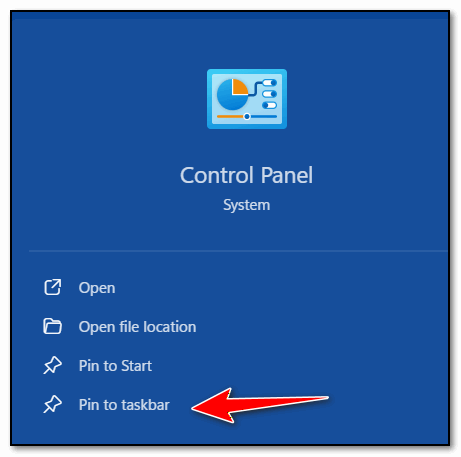
Type “Control Panel.” (no quotes) in the taskbar search and press Enter.
In the search results, Right-click on Control Panel and select Pin to taskbar.
Let’s Make the Text Larger On Your PC
Those of you who have been looking for a way to make the text bigger on your Windows 10 or Windows 11 PC will be happy to know that changing text size is now easier to do.
How to Make the Text Larger (or smaller)
We’ll use screenshots from Windows 11 for this tutorial, but changing the text size in Windows 10 is virtually the same. In Windows 10, the text-size slider is located in a different section of Settings, specifically Ease of Access> Display.
To get started, press and hold down the Windows key and tap the U key. (This shortcut will open Ease of Access on Windows 10 and Accessibility on Windows 11. )
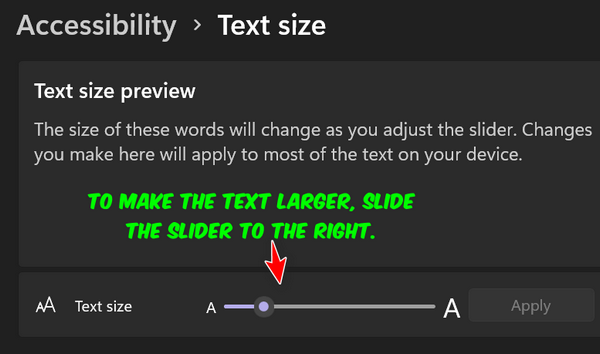
As you move the slider to the right, you’ll see the text size increase. The smallest text size is 100%, and the largest text size you can make your text is 225%. But be cautious, making your text too large can cause problems. When the text gets too large, it might not fit inside a program window or dialog, and you don’t want that.
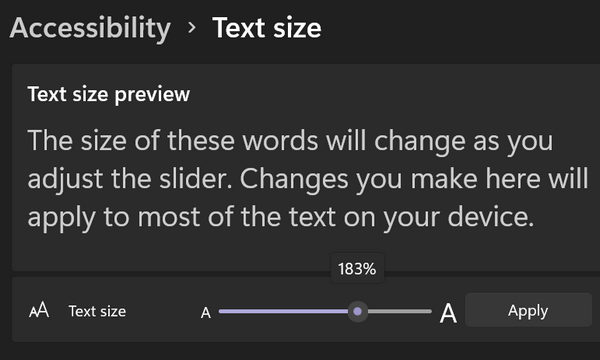
My normal text size setting is 120%.
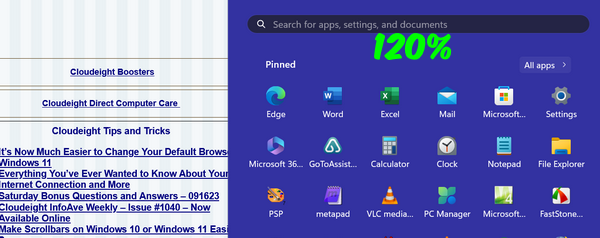 Now
I’m going to move the slider up to 180%.
Notice the text size on the webpage
behind the Start menu at 120% (above)
versus 180% below. Also, note the text
labels on the Start menu at 120% and
180%.
Now
I’m going to move the slider up to 180%.
Notice the text size on the webpage
behind the Start menu at 120% (above)
versus 180% below. Also, note the text
labels on the Start menu at 120% and
180%.
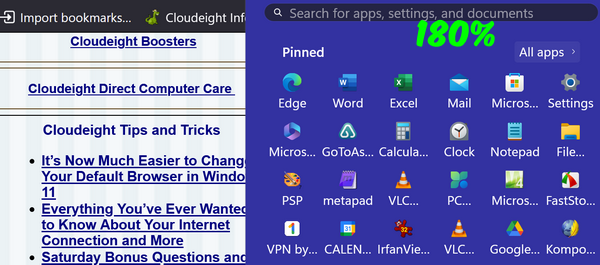
When you change the text size, you must click “Apply” to make the change. When you click apply, you’ll see a blue screen telling you to “Please wait” while the changes are being made. When the blue screen disappears, your news settings have been applied. And they’ll remain that way unless you change the text size settings again.
Keep in mind that not all programs will be affected by this change, but many will. If you’re like me, you’ll have to play with this setting to get the text size that works best for you and the way you use your computer. The nice part about it is that it’s quick and easy to change. So, experiment and see how you can make the text on your computer easier to read.
If you want to make text bigger on web pages and in emails, see our tip here.
Five
Windows Key Shortcuts We Bet You Don’t Know
Windows 10 / Windows 11
There is nothing we like better than a quicker, faster, easier way to do computer things. Today, we’re going to show you five Windows Key Shortcuts we bet you don’t already know. And if you do, that’s great, this will serve to refresh your memory! Ready? Set? Go!
1. The Clipboard Time Machine (Win + V)
We all know Ctrl + V pastes the last thing you copied. But what if you copied a link ten minutes ago and then accidentally copied something else?
If you’ve turned Clipboard History on (Settings > System > Clipboard), Win + V opens your Clipboard History. Then you can scroll through a list of the last 25 items you copied (text, links, or images) and pick the one you need. You can even “pin” items you use daily (like a complex email signature) to Clipboard History so they stay there forever.
2. Quick Desktop Peek (Win + ,)
Windows Key + , (Windows key + the comma
key) makes all your open windows disappear
while you hold the keys. All the windows
come back when you release the keys.
As soon as you let go of the keys, your
windows snap back to exactly where they
were.
3. The Taskbar Speed-Dial (Win + [Number])
Look at the icons pinned to your taskbar at the bottom of the screen. Pressing Windows key + 1 opens the first app on your taskbar, Win + 2 opens the second, and so on.
4. The “Emergency” Black Screen Wake-up (Win + Ctrl + Shift + B)
Every Windows user has experienced that moment where the screen goes black, or the graphics seem to “freeze,” and the mouse won’t move. (Windows key + CTRL+ SHIFT+ B restarts your graphics driver without rebooting your computer. You’ll hear a short beep, and the screen will flicker for a second. This often “unfreezes” a PC that seems like it has crashed, saving you from having to hold down the power button to turn off the PC and lose your work.
5. The Snipping Tool (Win + Shift + S)
Windows key + SHIFT + S instantly dims the screen and lets you draw a box around exactly what you want to capture on your screen. The “snip” is immediately saved to your clipboard. You can then just hit Ctrl + V to paste that specific image into an email, a Word doc, a chat, Microsoft Paint, or any image editor. It’s the fastest way to share something on your screen.

Want more tips, tricks, and information?
We have thousands of Windows tips, tricks, and more on our InfoAve website.
Subscribe to our free InfoAve Daily newsletter.
Our Winter Donation Drive is underway! This week, we were happy to help dozens of people resolve
their computer issues via email quickly and at no charge.
Make a small donation and help us help you!
If you don't need any of our products or services right now, please help
us with a donation. Even the smallest gift is appreciated. Every
donation helps us to provide useful information that helps you with your
computer as well as helps us to keep you safe on the Internet. We offer
free help to thousands of people every year... and we offer an honest
and inexpensive computer repair service too. We do everything we can to
help you with your computer and keep you safe too.
So if you don't need any of our products or services right now,
please help us by making
a donation right now.
Interested in making a monthly gift?
Visit
this page. Help us keep helping you!
Thank you so much for your support!

Easy Context Menu: The Easy Way to Take Control of Your Windows Context Menu
The best things in life are free… And it is often true that the best things in the world of software are free, too! When we found this little freeware gem, we realized it does so many things that it would be impossible to cover them all in one short post, but with the help of the developer, we’re going to try.
A Quick and Easy Context Menu Editor
We were looking for a quick and easy context menu editor to help folks remove all the useless entries on the Windows context menu (right-click menu). If you don’t know what a context menu is, it’s the menu that appears when you right-click a folder or your desktop.
Here’s an example of a context menu…
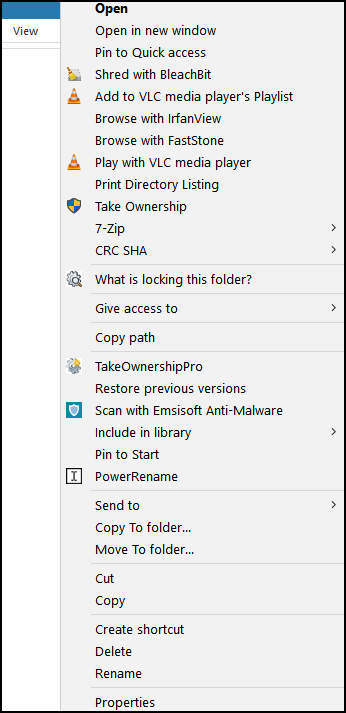
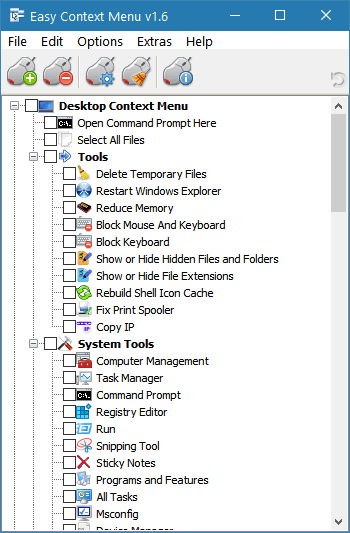
And Easy Context Menu makes that so amazingly simple to edit your context menu and remove unwanted items, that we can describe it with one screenshot and just a few words:
How to Clean the Right-Click Menu
Everyone who’s been using Windows for a while knows that many programs you download think they’re so important that you need them to create context menu items for them. It’s rarely true. However, after you’ve been using your computer for a while and downloading and installing software, you’ll notice your context menu gets long and full of things you’ll never use.
Easy Context Menu has a context menu cleaner that makes it super easy to remove any unwanted entries from the context menu.
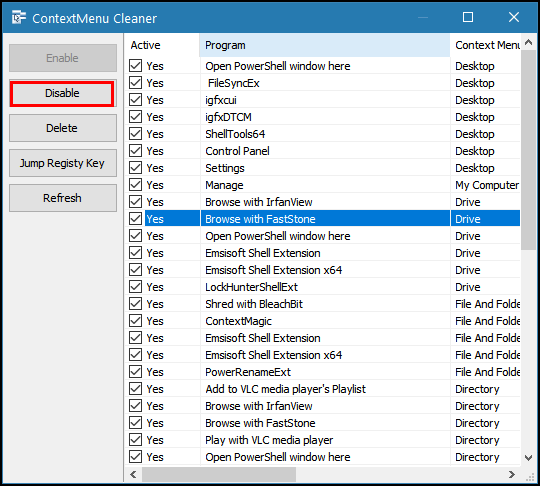
Select an unwanted entry and click the Delete button to remove it from your context menu. It’s that simple.
But wait, there’s more!
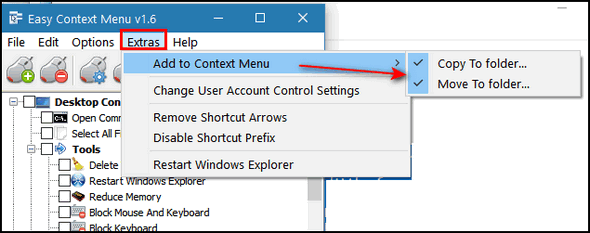
(Above – Easy Context Menu lets you add
“Copy to” and “Move to” entries to your
right-click menu.)
Here’s the developer’s description to tell you more about Easy Context Menu…
Easy Context Menu (ECM) lets you add a variety of useful commands and tweaks to the Desktop, My Computer, Drives, File, and Folder right-click context menus. This enables you to access the most used Windows components quickly and easily. Simply check the box next to the items you wish to add. Once added, just right click and the select the component shortcut to launch it. Easy Context Menu is both portable and freeware.
How to use
Extract the ZIP to the folder of your choice, and then run the program. Select your desired context menu entries by ticking the adjacent checkbox, then click the Apply Changes button.
Easy Context Menu has six main categories and three sub-categories:
1. Desktop Context Menu
2. My Computer Context Menu
2a: Tools
2b: System Tools
2c: Turn Off options
3. Drives Context Menu
4. Folder Context Menu
5. File Context Menu
6. EXE file Context MenuFound within are all of Sordum’s small tools: Delete Temp Files, Restart Windows Explorer, Show or Hide Hidden Files/Folders, Show or Hide File Extensions, Rebuild Shell Icon Cache, Select All Files, Copy IP address, Reduce Memory, Fix Print Spooler, Take Ownership (which has no UAC problem, and it also works in Windows XP).
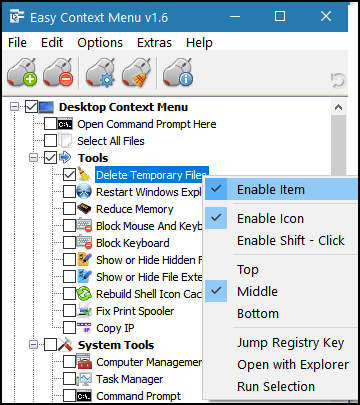
You can elect to show or hide the icon for any item by right-clicking on it and selecting “Enable Icon”. Click “Enable Icon” again to toggle it back off.
The same menu allows you to arrange icon positions (Top, Middle or Bottom) or jump directly to the registry key for that item. The “Enable Shift-Click” option sets the item as hidden on the menu until you press the Shift key, which then makes it visible.
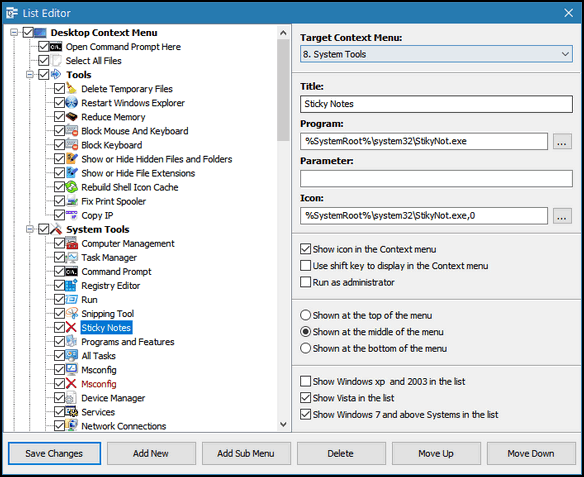
Add any program to your context menu
With Easy Context Menu, it is very easy to add any program to your right click menu. To do so:
1. Open the List Editor
2. Drag and drop your desired program into the editor
3. Click the “Save Changes” button and close then List Editor
4. Now you will see the newly added program in ECM’s main window. Just select it and click the Apply Changes button.
For more information about using Easy Context Menu, please visit the developer’s website. It will be worth your time.
Easy Context Menu is freeware. You don’t need to install it, just unzip the file, and click on EcMenu_x64. Easy Context Menu works on Windows 10 and Windows 11.
The download button is at the bottom of the Easy Context Menu website… here.
The direct download link is here.

We can fix your computer while you watch. You never have to leave your home. Just sit back, relax, and watch us work. Get PC service from folks you trust at the best prices you'll find anywhere.
Get more information here.

One might think that I was going to attempt to emulate a Stephen King horror story about a clothes dryer run amuck. Perhaps escaping from its normal confines the dryer set out to eat Manhattan or perhaps terrorize drivers on Route 66. But, I'm sorry to say, nothing so thrilling as that will appear in my little screed today. However if you're getting older you might want to keep reading as there may be some things that hit home.
So, why is this essay called "The Dryer". Well, because it is about a clothes dryer - an American clothes dryer.. I have articles about how our friends in Britain don't like clothes dryers and tend to dry their clothes. That's what Google says, anyway:
"While many British households do own a tumble dryer, they are often viewed as a "last resort" rather than a daily necessity. If you’ve ever noticed "clothes horses" (drying racks) in every UK living room or seen laundry hanging out even in chilly weather, it’s due to a mix of architecture, economics, and a bit of cultural stubbornness. "
Now, keep your cool and don't blow up at me, That's what Google said. I have no idea what's really going on over there, as I have never had the pleasure of visiting Great Britain.
This essay is called The Dryer becasue it's about a clothes dryer...
Read the rest of this essay here.

Browsers vs. Search Engines
These two terms get swapped all the time, but they are very different tools.
The Browser is the "vehicle" you use to get onto the internet. Examples are Microsoft Edge, Google Chrome, or Firefox.
The Search Engine is the "map" or the "library" inside that vehicle. Examples are Google, Bing, or DuckDuckGo.
You open your Browser to go to a Search Engine so you can find a website. It’s like using a car (the browser) to drive to a library (the search engine) to find a specific book (the website).

Sales of the following products and services help support our newsletters, websites, and free computer help services we provide.
Cloudeight Direct Computer Care: Always a great deal. Cloudeight Direct Computer Care is like having PC insurance. Get more information here.
Emsisoft Anti-Malware: Emsisoft is the only Cloudeight-endorsed and recommended Windows security program. It provides users with a complete antivirus, antimalware, anti-ransomware, and anti-PUPs solution. We offer single Emsisoft licenses and multi-computer licenses at discount prices. Also, we offer our exclusive Emsisoft with Cloudeight installation & setup. Get more information here.
Reg Organizer: Reg Organizer is the Swiss Army Knife of Windows tools. It's far more than just a registry optimizer and cleaner... it's a Windows all-in-one toolkit. Reg Organizer helps you keep your computer in tip-top shape and helps you solve annoying Windows problems. Reg Organizer works great with Windows 10 and Windows 11! Get more information about Reg Organizer (and get our special discount prices) here.
MORE IMPORTANT STUFF!
Your InfoAve Weekly Members' Home Page is located here.
Help us Grow! Forward this email newsletter to a friend or family member - and have them sign up for InfoAve Weekly here!
Get our free daily newsletter! Each evening we send a short newsletter with a tip or trick or a computer-related article - it's short and sweet - and free. Sign up right now.
We have thousands of Windows tips and tricks and computer articles posted on our Cloudeight InfoAve website. Our site has a great search engine to help you find what you're looking for too! Please visit us today!
Help us by using our Start Page. It costs nothing, and it helps us a lot.
Print our Cloudeight Direct Flyer and spread the word about our computer repair service! If you want to help us by telling your friends about our Cloudeight Direct Computer Care service, you can download a printable flyer you can hand out or post on bulletin boards, etc. Get the printable PDF Cloudeight Direct Computer Care flyer here.

We'd love to hear from you!
If you have comments, questions, a tip, a trick, a freeware pick, or just want to tell us off for something, let us know.
If you need to change your newsletter subscription address, please see "Manage your subscription" at the very bottom of your newsletter.
We received hundreds of questions for possible use in IA news. Please keep in mind we cannot answer all general computer questions. We try to personally answer as many as we can. We can only use a few in each week's newsletter, so keep this in mind. If you have a support question about a service or product we sell, please contact us here.
Subscribe to our Daily Newsletter! Get computer tips & tricks every night. Our daily newsletter features a computer tip/trick or two every day. We send it out every night around 9 PM Eastern Time (USA). It's short and sweet, easy to read, and FREE. Subscribe to our Cloudeight InfoAve Daily Newsletter!
We hope you have enjoyed this issue of Cloudeight InfoAve Weekly. Thanks so much for your support and for being an InfoAve Weekly subscriber.
Have a great weekend... be safe!
Cloudeight InfoAve Weekly - Issue #1163
Volume 23 Number 14
January 23, 2026
Not a subscriber? Subscribe to our FREE Cloudeight InfoAve Weekly Newsletter here.
"Cloudeight InfoAve Weekly" newsletter is published by:
Cloudeight Internet LLC
PO Box 73
Middleville, Michigan USA 49333-0073
Read our disclaimer about the tips, tricks, answers, site picks, and freeware picks featured in this newsletter.
Copyright ©2026 by Cloudeight Internet