
Cloudeight InfoAve Weekly
Issue #1166
Volume 23 Number 17
February 13, 2026
Dear Friends,
Welcome to Cloudeight InfoAve Weekly Issue #1166. Thank you very much for subscribing and for being a part of our Cloudeight family. We appreciate your friendship and support very much! Please share our newsletters and our website with your friends and family.

If you're not getting our InfoAve Daily newsletter, you're missing out on a lot of good stuff!
It's free, and it only takes a few seconds to sign up. We'd love to have you with us. Visit this page to sign up for our Cloudeight InfoAve Daily Newsletter.

Your gifts help us continue our mission to keep you informed, separate the truth from the hyperbole, and help you stay safer online. We provide support to thousands of people. Every week we help dozens of people via email at no charge. Thanks to donations, we do a lot more than provide this free newsletter. We help you recognize online threats, fight for your online privacy, provide you with the knowledge you need to navigate the Web safely and help you get more out of your PC. Help us keep up the good fight with a small donation.
After you donate, you will receive an invitation to become a Cloudeight Booster.
Help us keep up the good fight with a small donation.
Interested in making an automatic monthly gift? Visit this page.
Help us keep helping you and helping you stay safe on the Web. Thank you so much!

Daniel
wants to get rid of the "Blur
Effect" in Windows 11
Hi TC, I have a question. How do I
turn off the background blur on the
Windows 11 sign-in screen? I know
there was a way to do it in Windows
10, but I don't remember how, nor do
I know if it's the same in Windows
11. Thank you for all your help; you
guys are amazing.
Our answer
Hi Daniel. Thanks!
This "blur" effect is what Microsoft calls Acrylic, and it’s meant to help you focus on the password box. There are several ways to turn off the blur, but only one easy way, which is the only way we recommend. The others involve editing the registry or using the Group Policy Editor, which is only included in Windows 11 PRO.
Here is the quickest and easiest method to eliminate the blur. But keep in mind that this method turns off transparency effects everywhere in Windows (like on your Taskbar and Start menu). But most people won't notice or don't care.
Go to Settings > Personalization > Colors.
Find the toggle for Transparency effects and switch it to Off.
Lock your computer (Windows Key + L), and you’ll see the background on the login screen is now crystal clear.
We hope this helps you, Daniel.
Dianne
wants to know if Copilot is
spying on her
I just had an update and noticed
a new window titled personal
question. Is this to do with
Copilot? Just wondering if it
can see all I do on my PC? Ifr
it is, I don't do anything
wrong, but it feels like someone
is watching over my shoulder...
KINDA FREEKY!
Our
answer
Hi Dianne. You're seeing
Microsoft’s new "ambient AI"
push. That "Personal Question"
window is part of the Copilot
Vision or Copilot Voice setup,
where the system tries to learn
her preferences to "personalize"
Copilot.As part of the recent
2026 Windows updates, Microsoft
has been rolling out a more
"conversational" setup process.
Here is what is happening:
That "Personal Question" window
is Copilot directly integrated
into the Windows Update and
Setup experience. Microsoft says
it wants to "get to know" how
you use your computer so it can
pre-configure Copilot to be more
helpful to you. It might ask
things like, "What do you
primarily use this PC for?"
(e.g., Work, Gaming, Creative,
or Personal) or ask for
permission to use your data to
"personalize" your AI responses.
This window often pops up
immediately after a major update
because the update has "reset"
or added new AI features that
need your initial input to
activate.
It is a legitimate part of
Windows. However, we always
preach a "Privacy First" policy.
You don't have to answer these
questions to use your computer.
If you don't want Microsoft
"personalizing" your experience
based on your habits, look for a
"Skip," "Not Now," or "Decline"
button at the bottom of that
window. If you find the window
annoying and just want to get
back to your desktop, look for
the "Skip" or "X": Most of these
"Personal Question" screens have
a small "Skip for now" link in
the bottom corner. If the window
is part of the new "Copilot
Voice" or "Copilot Vision" demo,
you can simply click the X in
the top right of that specific
pane.
You can also turn off the "Hey
Copilot" wake word. If the
window keeps appearing because
it thinks you're talking to it,
you can go to Settings >
Personalization > Copilot and
toggle off the "Wake Word".
If you want to stop Windows from
asking her those "personal
questions" about how you use
your PC:
Open Settings
Go to Privacy & security >
General.
Turn off "Show me suggested
content in the Settings app" and
"Let Windows improve Start and
search results by tracking app
launches." This usually tells
Windows to stop asking setup
questions.
You can also remove Copilot
completely. In the newest 2026
updates, Microsoft has made
Copilot an "Installed App" for
most users, which means you can
actually remove it like a normal
program:
Go to Settings > Apps >
Installed apps.
Search the list for Microsoft
Copilot.
Click the three dots (...) next
to it and select Uninstall.
We hope this helps you. Dianne.
Annette has a question
about 0patch on Windows 10
I have a Windows 10 computer, and bought (and
thought I installed Opatch after reading your article).But
when I look at all the programs on my computer, O Patch
isn’t listed. I wonder if I did something wrong.I do have
a Cloudeight key I have not used, if it would be easier for
you to take a look.Thank you for your help! Annette.
Hi Annette. 0patch is not a regular app or program; it is a bit of a "ghost" program by design. It’s an "Agent," not a standard app or program. Standard programs /apps (like Word or Chrome) have big folders and shortcuts. 0patch is technically a "service" called the 0patch Agent.Also, it doesn't behave like a traditional program because of how it works. Here is why it isn’t showing up in the usual spots and how you can verify it’s actually there:
It hides its icon in the System Tray. Because 0patch is designed to run silently in the background without bothering the user, it doesn't always pin itself to the Start Menu. Look at the bottom-right corner of the screen near the clock. Click the small up arrow (the "Show hidden icons" menu). You should see a small green "0" icon. If she double-clicks that, the 0patch Console will pop up.
To see it in the "official" Windows list, you need to go to Control Panel > Programs > Programs and Features. It is listed there simply as "0patch Agent" rather than just "0patch."
0patch doesn't "install" updates on the hard drive. This is the most common source of confusion. Unlike Windows Update, which downloads huge files and changes your computer's permanent code, 0patch uses "micropatches." These patches only exist in the computer's memory (RAM) while it's running. Because it never touches the actual files on your hard drive, you won't see 0patch updates listed in the "View Installed Updates" section of Windows Settings.
If you want some peace of mind, try this:
Press Ctrl + Shift + Esc to open the Task Manager. Click the Services tab at the top. Look for "0patchService". If the status says "Running," You are fully protected, even if you can't find a shortcut on your desktop.
If you still want me to look at your computer and do a checkup/cleanup, I'd be glad to. I need your time zone and the best days/times for you to schedule a session.
I hope this helps ease your mind, Annette.

We've helped hundreds and hundreds of you with your computers since we started our Cloudeight Direct Computer Care Service! If you're having computer problems - we CAN help you!
We all know that sooner or later our computers are going to start having problems. We can help you with any computer need -- from diagnosing and fixing Windows problems - to cleaning up malware and viruses - to cleaning up your computer and optimizing it -- and more. We can do just about anything need done and we guarantee our work - you're either satisfied or we'll refund your money.
We will connect to your computer via the Internet and fix any problems you may be having. You can watch us work and chat with us while we do. If you have any computer questions you'd like to ask we'll be glad to answer them for you. We don't just fix your computer, we explain what we're doing and why we're doing it and we are right there with the entire time. Since we've started we've helped hundreds of you with your computer problems and we've received dozens of referrals and testimonials from our readers and customers.
We offer many other computer services too! If you have a problem with your computer - we can fix it!
Get more information about Cloudeight Direct Computer Care and / or get your repair keys here.
I have a Windows 11 computer (updated from Windows 10). How can I install AtlasOS without losing everything I have installed? Will AtlasOS be updated periodically like Windows 11? Thanks! Rusty.
Hi Rusty. Be careful. Many articles about Atlas OS are clickbait written by technical writers to make it sound like Atlas OS is the cure for Windows 11, and all you have to do is a quick install. I'm here to tell you the truth. Short answer: I would not do it. Most people who find Windows 11 inefficient, bulky, or slow are trying to run it with less than 8GB of RAM. Windows 11 needs at least 8 GB of RAM to run efficiently, with 12 to 16 GB highly recommended. Many people who upgraded from Windows 10 to Windows 11 only have 4 to 6 GB of RAM.
Long answer: Installing AtlasOS is a bit of a "good news, bad news" situation when it comes to keeping your files. Because AtlasOS is a deep modification of Windows 11 rather than just a simple app, the installation process is more rigorous than a standard software update.
Can you really stall it without losing everything? Technically, yes, but it’s risky.
While there are ways to run the Atlas "Playbook" on an existing installation, the developers strongly recommend a fresh install of Windows. Applying AtlasOS to a system that has been used for a while (especially one upgraded from Windows 10) often leads to problems. Residual files from Windows 10 or previous software can conflict with Atlas’s optimizations. Many of the speed boosts won't work correctly because the "old" registry settings are still there. You might find that basic things like Wi-Fi or certain apps stop working unexpectedly.
If you want to keep your files, the best method is to use the "Windows.old" method. During a clean Windows 11 reinstall, you can choose to keep your files (but not your apps). Windows will move your documents and photos into a folder called C:\Windows.old, allowing you to move them back once Atlas is installed. You will, however, have to reinstall all your programs. At its best, this is very time-consuming, and there are no guarantees.
AtlasOS is updated periodically, but the way it updates is different from standard Windows.
AtlasOS allows you to keep receiving Microsoft Security Updates. This is important so your PC stays protected against new threats. AtlasOS typically disables major Windows Feature Updates (like moving from version 23H2 to 24H2) by default. These major updates often "break" the Atlas optimizations, essentially turning your PC back into a standard, bloated version of Windows.
The Atlas team releases new "Playbooks" (their configuration files) periodically to support newer versions of Windows and add new features. To get the absolute latest Atlas features, you often have to re-run the installer when a major update is released.
If you attempt to install Atlas OS, make sure that you back up your data to an external drive or cloud storage. Modifying system files is like surgery—you hope for the best, but you prepare for the worst. Sometimes the patient doesn't survive the surgery.
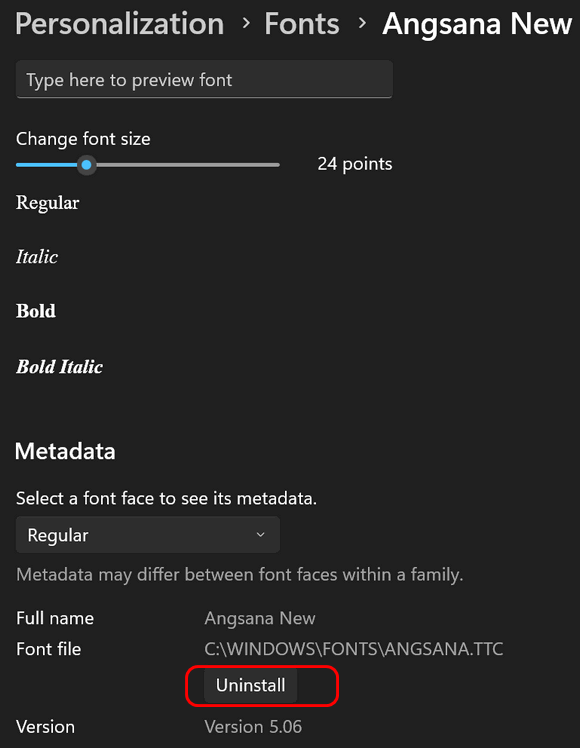
In your February 13 issue, you told us how to see all the fonts we have installed. Is there a way to delete some that I no longer want?
Hello CloudEight. With the onslaught of many DNS clients, which are you recommending? I'm using Cloudflare, but it seems many more different DNS clients are being advertised, for example, DNSCrypt, which was a tech headline on your site. Terry.
Hi Terry. Remember, our Thursday Tech Headlines feature just provides a list of articles we found interesting. It does not mean we approve of any recommendations made. These are not "Cloudeight recommended" programs or sites; they are just interesting new articles we found that we may or may not agree with.We don't have a favorite. I've used Open DNS, Google DNS, and Cloudflare. Honestly, I didn't see any difference. I'm not saying it's not a good idea to use a DNS service, but if you're looking for privacy, you just aren't going to find it on the Internet. DNS tracking is only one of many tracking ploys employed by those seeking to invade your privacy for some kind of financial or information gain. DNS services are only one way to "prevent" your ISP from tracking the sites you visit; a VPN is another. But then you have to wonder who is keeping logs of all this activity. And then you realize just about everyone, including the VPNs that claim they don't keep logs or DNS service promoting privacy, all keep logs. Most of the time, you have to inherently trust those who claim they don't keep logs. I've seen numerous criminals who were apprehended when their "We don't keep logs" VPN service suddenly turned over the logs they don't keep to authorities, who then used the information contained therein to arrest the criminal.
It's good to do all you can to protect your privacy, as long as you understand that when using the internet, you cannot expect privacy. Everywhere you go, everything you do is logged.
So don't spend too much time wondering which DNS will protect you best; they all basically do the same thing.

Now available: Reg Organizer 9.88
If you purchased or renewed Reg Organizer through Cloudeight within the
last 12 months, you're entitled to a free version upgrade to Reg
Organizer 9.88. Reg Organizer works great with Windows 10 and Windows 11.
Save $14 on Reg
Organizer right now!
Reg
Organizer - A Swiss Army Knife of Windows Tools - Works Great on Windows
10 and Windows 11.

Our Ten
Commandments of Safe Computing
Windows 10 / Windows 11
We could write a book (you know us) about computer safety (and we have). But we wanted to pare down our list and create the Ten Commandments of Safe Computing. Our missions are to help you with your computer, help you safely navigate the web, and keep you safe from scammers and other online criminals. We want you all to enjoy your computers and your other internet-connected devices.
Here are our Ten Commandments of Safe Computing
1. Fortify Your Defenses: Install strong antivirus/anti-malware software and keep it updated. We use and recommend Emsisoft. Emsisoft automatically updates and keeps your computer protected with a minimum amount of fuss.
2. Guard Your Gateway: Secure your home router with a unique password. Routers come with default passwords. Make sure you change yours to something strong and unique.
3. Think Before You Click: Always verify the legitimacy of websites and senders before clicking links or opening attachments. Hover over links to see the true destination URL. NEVER CLICK LINKS IN EMAILS UNLESS YOU ARE SURE YOU KNOW WHO SENT THEM.
4. Windows Updates: Don't Procrastinate: Update your operating system whenever updates become available to patch security vulnerabilities.
5. Craft Unbreakable Passwords: Create complex passwords with a mix of upper and lowercase letters, numbers, and symbols. Make them unique for each account. And use a password manager. We recommend three. All have free versions. Bitwarden, LastPass, and RoboForm. There are others, too. The important thing is to use one. Better yet, use Passkeys wherever you can.
6. Beware of Online Phishing: Be cautious of suspicious emails, links, and attachments. Don't fall for phishing scams or click on unknown sources. Again... NEVER CLICK LINKS IN EMAILS UNLESS YOU ARE SURE YOU KNOW WHO SENT THEM.
7. Backup Regularly, Breathe Easy: Regularly back up your important data to an external drive or cloud storage for peace of mind. We recommend OneDrive. For $9.99 a month, you get one terabyte of cloud backup & storage space, plus you get the latest version of MS365 (MS Word, MS Excel, MS PowerPoint, MS Outlook & more). Nope. Microsoft does not pay us to recommend OneDrive. We have been using it for years now, and it makes moving to a new computer as easy as pie.
8. Be Wary of Public Wi-Fi: Avoid using public Wi-Fi for sensitive activities like online banking or entering passwords. If necessary, use a free browser-based VPN for added security.
9. Privacy Matters: Manage Settings: Consider disabling unused camera and microphone permissions to prevent unauthorized access.
10. Scammers and scams are everywhere. If someone tries to pressure you or threaten you into acting immediately or paying with gift cards, disconnect from the internet and wait a few minutes before reconnecting. If something seems too good to be true, there's a 99.9% chance it is too good to be true.
How
to Use AI to Make Life Easier – Here are
Five Examples
A tip for everyone
We, like most others, are concerned about the exponential growth of artificial intelligence (AI). But no matter how we feel about it, it’s here to stay, and it’s going to become more and more a part of our daily lives.
But it’s not all Grim Reaper stuff. AI can do many things to make your life easier, even if you’re not technically inclined and even if you have no idea how AI works. Don’t fear it, don’t fight it – use it!
Today, we’re going to show you five ways you can use AI to make your life easier and maybe even better.
Our current AI of choice is Google’s Gemini, but you can use ChatGPT or Copilot on any of the many other AI “chatbots” floating around out there.
Search Smarter
Rather than wade through pages and pages of search results (and ads) trying to find what you’re looking for, try using AI for searching. If you have a Google account, try using https://gemini.google.com/ to search. If you don’t have a Google account, try using Windows Copilot or ChatGPT. You’ll most likely find what you’re looking for without having to sift through pages of results and ads.
For instance, I wanted to know the difference between twilight, civil twilight, and nautical twilight. Rather than googling it, I asked Gemini to explain the differences. I got the answer without sifting through pages of results.
Twilight is the period between sunrise and sunset, or sunset and sunrise when the sun is below the horizon but the sky is still illuminated. However, there are different degrees of twilight depending on how far below the horizon the sun is. Here’s a breakdown of the three main types:
Astronomical Twilight: (Faintest – Needs Darkness Adapted Eyes)
Sun is between 18 and 30 degrees below the horizon.
Faintest twilight, only the brightest stars and planets are visible.
Naked eye cannot distinguish between day and night.
Useful for astronomers observing very faint objects.Nautical Twilight: (Dim – Requires Some Artificial Light)
Sun is between 6 and 12 degrees below the horizon.
Horizon is still visible, but faint.
Brighter stars and planets become visible.
Artificial light may be required for some outdoor activities.
Historically important for sailors using stars for navigation.Civil Twilight: (Brightest – Outdoor Activities Possible)
Sun is between 0 and 6 degrees below the horizon.
Horizon is clearly visible.The sky is still bright, with some residual colors from sunrise or sunset.
Outdoor activities are still possible without needing artificial light.
Most people associate “twilight” with this phase.
Here’s an analogy to visualize the difference: Think of the sun as a light bulb in a room.
Astronomical Twilight: The light bulb is off, but there’s a faint glow from sunlight creeping in through a window (requires dark adaptation to see anything).
Nautical Twilight: The light bulb is very dim, but you can still make out the shape of the room and larger furniture.
Civil Twilight: The light bulb is on a low setting, the room is clearly visible, but it’s not brightly lit.
Find shows and movies to watch
Stuck in “what to watch?” purgatory? AI on streaming services recommends shows and movies based on your past choices, keeping you entertained for hours. For instance, I really like film noir, so when I asked Gemini to give me some suggestions for movies to watch, it suggested these:
The Maltese Falcon (1941)
Double Indemnity (1944)
The Third Man (1949)
Touch of Evil (1958)
Sunset Boulevard (1950)
I’ve seen the first three but not the last two. Plus, if I asked for more than these, I would get several more. I’m off to watch Double Indemnity.
Looking for new recipes? AI can be your best friend.
If you’re looking for a new recipe or just want to see what kinds of meals you can make with what you have on hand. AI can help. I was looking for an easy and simple coleslaw recipe the other day, and used Gemini to help me. And here’s the recipe it suggested and that I used…
Shredded cabbage (coleslaw mix from the store works great too!)
Mayonnaise
Vinegar (apple cider or white vinegar)
SugarHere’s how to make it:
In a large bowl, combine shredded cabbage with mayonnaise, vinegar, and sugar.
Season with salt and pepper to taste (optional).
Toss well to coat and refrigerate for at least 30 minutes before serving. This allows the flavors to meld.Tips:
For a creamier slaw, add a bit more mayonnaise.
Want a tangier slaw? Add a little more vinegar.
Play around with the proportions of sugar and vinegar to find your perfect balance of sweet and tart.
Plan a trip anywhere… How about we use AI to plan a 3-day trip to Paris?
Day 1: Bonjour, Paris!
Morning: Start your day with a quintessential Parisian breakfast at a local cafe. Grab a buttery croissant, a pain au chocolat (chocolate croissant), or a tartine (bread with jam or butter) along with a cup of coffee or creamy cafe au lait.
Eiffel Tower: Ascend the iconic Eiffel Tower, a symbol of Paris. Marvel at the panoramic city views from the top, and capture breathtaking photos.
Seine River Cruise: Embark on a scenic Seine River cruise, taking in the beauty of the city from a different perspective. Glide past famous landmarks like the Louvre Museum and Notre Dame Cathedral.
Lunch: Enjoy a leisurely lunch at a restaurant near the Champs-Élysées, the famous Parisian avenue known for its high-end shops and vibrant atmosphere.
Restaurant Option: Le Coupe-Choux (French Bistro): This lively bistro offers classic French fare with a modern twist. Indulge in dishes like steak frites, escargot, or a decadent boeuf bourguignon (beef stew).
Well, you get the idea. Using AI is a great way to plan an itinerary for your next trip, including suggestions for sightseeing and great places to eat.
Find restaurants and things to do near you.
Just ask your favorite AI: “Find restaurants and places of interest within xx miles of (enter your zip code or location).”
I searched my area and found 2 restaurants I didn’t even know existed and found out that the fish hatchery, which had been closed for quite a while, is now open to visitors again. It might not sound exciting but it is an idyllic setting featuring one of five “bottomless” natural pools in the area, and it’s interesting to see how they hatch and raise the different types of fish. So give AI a try – you might find restaurants and interesting places near you that you didn’t know existed or you’d forgotten about.
AI is here to stay, whether we like it or not. And it’s going to become more and more part of our lives. You don’t need to be a geek or technically inclined to use AI; everyone can use it right now – all you need to know is how to type and ask questions. And most AI agents like Gemini allow you to use your voice to ask questions, so you don't even have to type.
Consolidate over 200+ Windows System
Settings and Administrative Tools Into One,
Easily Searchable List
Windows 10 / Windows 11
It seems that with every “newer and better” Windows version, the more difficult it is to find the most important settings.
Windows 11, like Windows 10, attempts to simplify things using a stylish “Settings” menu, which appears to be attempting to cancel out the trusty old Control Panel. But not so fast! The Control Panel still contains a host of important options.
We wish we could rename GodMode to something else, but we can’t, as Windows 11 (as of now) will not show the correct icon unless it’s called GodMode. But take heart, GodMode is not a game mode where the gamer has the power to walk through walls, etc. GodMode gives you easy access to almost every Windows 10 or Windows 11 setting, all with a single click.
While you can create a shortcut to GodMode anywhere, we think it’s best to create the shortcut on the desktop since it will be more accessible. GodMode is more than a shortcut; it’s a special “magic” folder.
Here’s how to create a God Mode shortcut in Windows 10 or Windows 11
1. Create a new folder on your desktop (Right-click on an empty space on your desktop and click “New” then “Folder”.
2. Right-click on the newly created folder, choose “Rename”, and rename it exactly as below.
GodMode.{ED7BA470-8E54-465E-825C-99712043E01C}
(On Windows 11, you’ll have to click “See more options” to find “Rename” or simply press the Windows key + F2 to rename the folder. We also recommend you copy the GodMode folder name and then paste it as the folder name.)
3. When you’re done, you’ll have an icon on your desktop that looks like this – yes looks like a Control Panel icon.
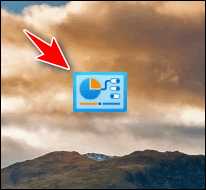
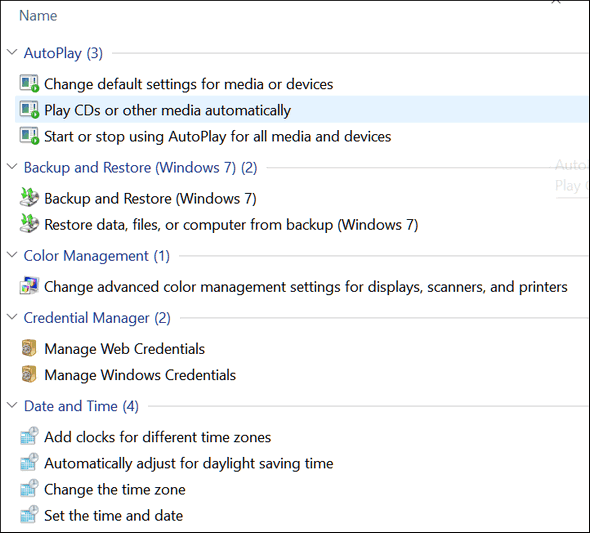
When you click it, you can access almost any Windows setting. Here are some screenshots from Windows 11:
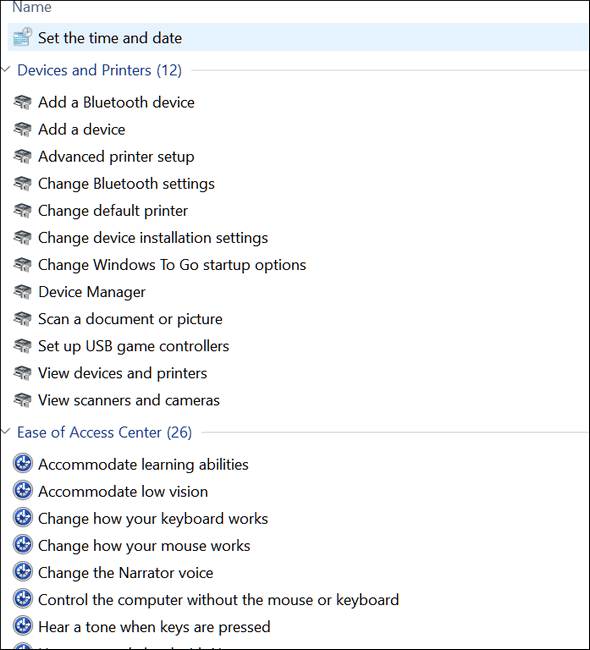

And here’s one from Windows 10…
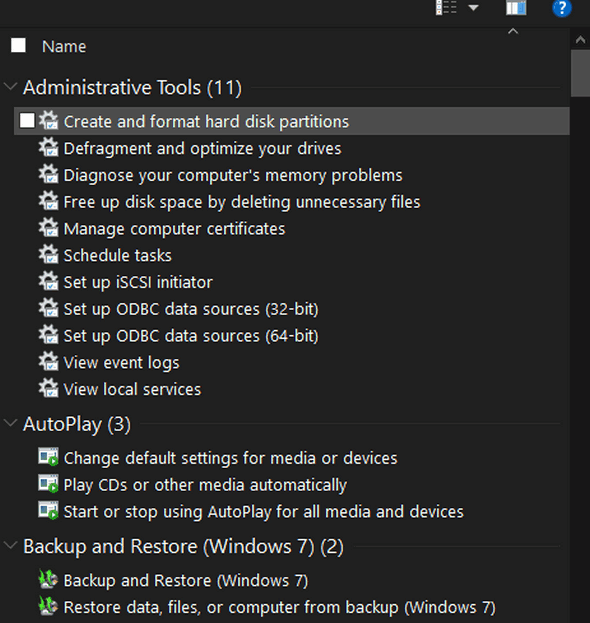
And there are a lot more settings than we show here. A virtual plethora of settings – all available to you when you empower yourself with GodMode.
If you want to see almost every setting available in GodMode, take a look at this page.

Want more tips, tricks, and information?
We have thousands of Windows tips, tricks, and more on our InfoAve website.
Subscribe to our free InfoAve Daily newsletter.
Your gifts help us continue our mission to keep you informed, separate the truth from the hyperbole, and help you stay safer online. We provide support to thousands of people. Every week we help dozens of people via email at no charge. Thanks to donations, we do a lot more than provide this free newsletter. We help you recognize online threats, fight for your online privacy, provide you with the knowledge you need to navigate the Web safely and help you get more out of your PC. Help us keep up the good fight with a small donation.
After you donate, you will receive an invitation to become a Cloudeight Booster.
Help us keep up the good fight with a small donation.
Interested in making an automatic monthly gift? Visit this page.
Help us keep helping you and helping you stay safe on the Web. Thank you so much!

Windows 11 Privacy Made Easier with DoNotSpy11
As most of you know, privacy is a precious commodity in this day and age. We’re constantly bombarded with targeted ads, data collection, and invasive tracking. Windows 10 and 11 offer some privacy controls, but they’re not set with your privacy in mind, plus they are often convoluted and buried deep within the Settings menus. This is where DoNotSpy11 can help you sort things out.
DoNotSpy11 is a free (there is a “freemium” version available starting at $5) Windows application that empowers you to take control of your privacy. It provides a user-friendly interface to manage a vast array of settings, making it easy to disable telemetry, location tracking, targeted advertising, and more.
DoNotSpy11 allows you to:
* Manage privacy settings for Windows, Microsoft Edge, Office, and various other applications.
* Tweak individual settings to achieve the desired level of privacy.
* A simple and intuitive interface makes it accessible for users of all technical levels.
* Safely change Windows privacy settings. Color coding helps you decide which tweaks are safer than others. Those in blue are listed as safe, those in orange require more reading, and those in red are not recommended.
DoNotSpy11 is a lightweight app that doesn’t hog system resources and runs quietly in the background.
If you’re concerned about your privacy on Windows, DoNotSpy11 is worth considering. It’s a powerful tool that makes it easy to take back control of your data and keep more of your precious data private. But remember… Some settings will affect the functionality of certain Windows features. You must decide whether you value privacy over convenience.
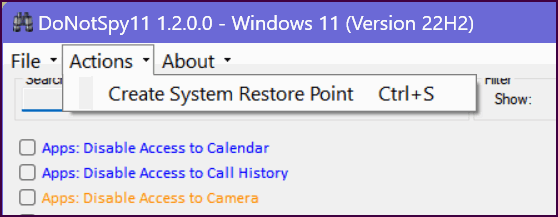
Here are some screenshots of DoNotSpy11.
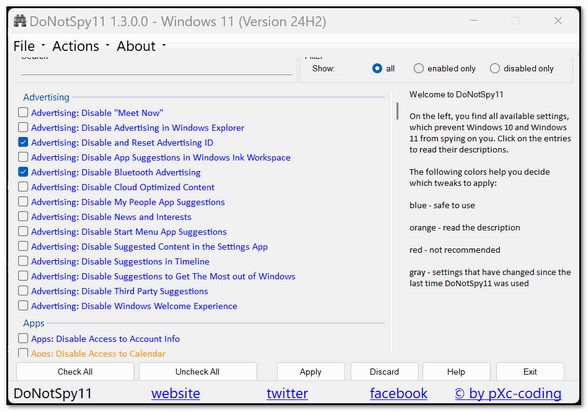
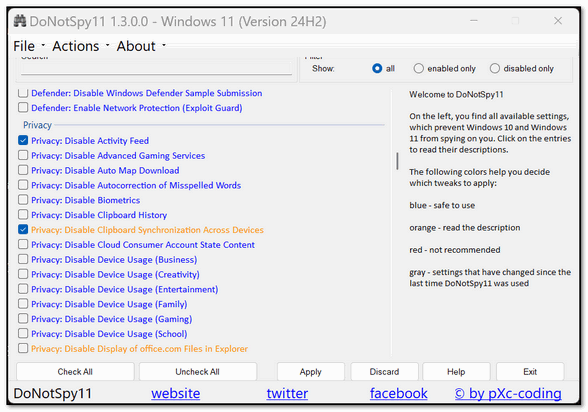
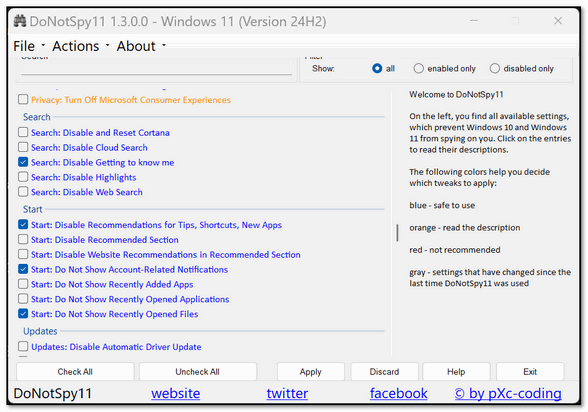
We recommend clicking on Actions (on the top toolbar) and creating a restore point before applying any changes. That way, if something goes awry or you don’t like the changes made, you can quickly revert to your original settings. We also recommend that you take time to read the documentation before you make any changes.
Now we’ll let the developer of DoNotSpy11 tell you more about the program:
DoNotSpy11 is the successor of DoNotSpy10, the world’s first antispy tool for Windows 10. Its straight-forward user interface allows you to manage how Windows 10, Windows 11, Microsoft Edge and Microsoft Office respect your privacy. Microsoft introduced many new “diagnostic” features with Windows 10. These services help Microsoft collect usage data and thus to provide a better service. However, collecting and sharing your data with one of the world’s leading technology companies puts your privacy at risk. There are services which are able to record your keyboard input, your speech and any other user interactions. Others share your WiFi credentials with your contact or connect you to networks shared by your contacts.
DoNotSpy11 provides you with the opportunity to easily manage what you want to share and what not. While many of the settings represent what you can configure using the Settings and various other apps, there are also tweaks that are not easily accessible through the apps Windows provides. DoNotSpy11 combines them all in one application – it’s time to protect your privacy, let’s start!
Read more about and/or download DoNotSpy11 from MajorGeeks here.

We can fix your computer while you watch. You never have to leave your home. Just sit back, relax, and watch us work. Get PC service from folks you trust at the best prices you'll find anywhere.
Get more information here.

There are a lot of things about getting old that are difficult. Most of us old folks realized we were old when we woke up one morning and looked in the mirror and said, "Oh, My Gosh! Is that really me?"
A friend who dropped off (unexpectedly) a few years ago had a webcam before they were ubiquitous. He said one day he turned on his computer and forgot his webcam was hooked up and jumped out of his chair in fright when he saw a withered-up old codger looking back at him from the computer screen. It was him.
Most of us never thought we would be old, and now look at us. I would rather you didn't. The young don't even know we exist. Hah! I was young once, and I never thought I'd be old. I thought 30 was long enough to live when I was 15. My teachers who were in their 30s and 40s, looked like old shriveled prunes to me.
Now look at me...Actually, I would prefer you not...
Read the rest of this essay here.

What's the first thing I should do if I start to have problems with my computer?
This will be, mercifully, one of the shortest answers you'll ever see written by TC.
The first thing you should do if you start having computer problems is:
Restart Your Computer.
If that does not work, shut down your computer - make sure it's powered off and no power lights are on. Wait five minutes and then turn your computer back on.
That's it. You'll be surprised how many PC problems one or the other of these quick tips will fix.

Sales of the following products and services help support our newsletters, websites, and free computer help services we provide.
Cloudeight Direct Computer Care: Always a great deal. Cloudeight Direct Computer Care is like having PC insurance. Get more information here.
Emsisoft Anti-Malware: Emsisoft is the only Cloudeight-endorsed and recommended Windows security program. It provides users with a complete antivirus, antimalware, anti-ransomware, and anti-PUPs solution. We offer single Emsisoft licenses and multi-computer licenses at discount prices. Also, we offer our exclusive Emsisoft with Cloudeight installation & setup. Get more information here.
Reg Organizer: Reg Organizer is the Swiss Army Knife of Windows tools. It's far more than just a registry optimizer and cleaner... it's a Windows all-in-one toolkit. Reg Organizer helps you keep your computer in tip-top shape and helps you solve annoying Windows problems. Reg Organizer works great with Windows 10 and Windows 11! Get more information about Reg Organizer (and get our special discount prices) here.
MORE IMPORTANT STUFF!
Your InfoAve Weekly Members' Home Page is located here.
Help us Grow! Forward this email newsletter to a friend or family member - and have them sign up for InfoAve Weekly here!
Get our free daily newsletter! Each evening we send a short newsletter with a tip or trick or a computer-related article - it's short and sweet - and free. Sign up right now.
We have thousands of Windows tips and tricks and computer articles posted on our Cloudeight InfoAve website. Our site has a great search engine to help you find what you're looking for too! Please visit us today!
Help us by using our Start Page. It costs nothing, and it helps us a lot.
Print our Cloudeight Direct Flyer and spread the word about our computer repair service! If you want to help us by telling your friends about our Cloudeight Direct Computer Care service, you can download a printable flyer you can hand out or post on bulletin boards, etc. Get the printable PDF Cloudeight Direct Computer Care flyer here.

We'd love to hear from you!
If you have comments, questions, a tip, a trick, a freeware pick, or just want to tell us off for something, let us know.
If you need to change your newsletter subscription address, please see "Manage your subscription" at the very bottom of your newsletter.
We received hundreds of questions for possible use in IA news. Please keep in mind we cannot answer all general computer questions. We try to personally answer as many as we can. We can only use a few in each week's newsletter, so keep this in mind. If you have a support question about a service or product we sell, please contact us here.
Subscribe to our Daily Newsletter! Get computer tips & tricks every night. Our daily newsletter features a computer tip/trick or two every day. We send it out every night around 9 PM Eastern Time (USA). It's short and sweet, easy to read, and FREE. Subscribe to our Cloudeight InfoAve Daily Newsletter!
We hope you have enjoyed this issue of Cloudeight InfoAve Weekly. Thanks so much for your support and for being an InfoAve Weekly subscriber.
Have a great weekend... be safe!
Cloudeight InfoAve Weekly - Issue #1166
Volume 23 Number 17
February 13, 2026
Not a subscriber? Subscribe to our FREE Cloudeight InfoAve Weekly Newsletter here.
"Cloudeight InfoAve Weekly" newsletter is published by:
Cloudeight Internet LLC
PO Box 73
Middleville, Michigan USA 49333-0073
Read our disclaimer about the tips, tricks, answers, site picks, and freeware picks featured in this newsletter.
Copyright ©2026 by Cloudeight Internet