
Cloudeight InfoAve Weekly
Issue #1169
Volume 23 Number 20
March 6, 2026
Dear Friends,
Welcome to Cloudeight InfoAve Weekly Issue #1169. Thank you very much for subscribing and for being a part of our Cloudeight family. We appreciate your friendship and support very much! Please share our newsletters and our website with your friends and family.

If you're not getting our InfoAve Daily newsletter, you're missing out on a lot of good stuff!
It's free, and it only takes a few seconds to sign up. We'd love to have you with us. Visit this page to sign up for our Cloudeight InfoAve Daily Newsletter.

THANK YOU SO MUCH!
Your gifts help us continue our mission to keep you informed, separate the truth from the hyperbole, and help you stay safer online. We provide support to thousands of people. Every week we help dozens of people via email at no charge. Thanks to donations, we do a lot more than provide this free newsletter. We help you recognize online threats, fight for your online privacy, provide you with the knowledge you need to navigate the Web safely and help you get more out of your PC. Help us keep up the good fight with a small donation.
After you donate, you will receive an invitation to become a Cloudeight Booster.
Help us keep up the good fight with a small donation.
Interested in making an automatic monthly gift? Visit this page.
Help us keep helping you and helping you stay safe on the Web. Thank you so much!

Carol wants to know our
opinion of VPNs
Hi TC and Darcy.
Hope all is well. My
daughter forwarded
this article to me.
What do you think about
the VPNs?
Our answer
Hi
Carol. Thanks for
your kind words and
for your long-time
support.
June is having problems with her Wi-Fi connection
Hi Guys I have a question. My PC windows 11, 2 years old, is starting to lose internet connection. There is nothing wrong with the router; the lights are always on bright. It happens when I wake it up in the morning after sleeping. I have to turn it off and reboot to get it to connect. It won't even restart either. I have to turn it off anyway. As soon as it comes on, it connects immediately. It seems to be getting more frequent. Any ideas? I appreciate you guys. Thanks, June.
Hi June. If you're sure the modem and router are working, then the only thing I can think of that may be causing your problems is your Wi-Fi adapter inside your computer. It would be strange for that to go bad since your computer is relatively new, but I've had it happen to me on newer computers. Luckily, the fix is inexpensive and easy. USB Wi-Fi adapters plug into a USB port on your PC, work well, and don't cost much. We've written an article that will give you even more info to guide you, and even give you links to some inexpensive USB Wi-Fi adapters that work on Windows 10 and 11 computers.
I hope this helps you, June.
I followed your directions to put “Copy To” and “Move To” on Windows 11’s right-click menu, but I get a pop-up window that says Smart App Control blocked a file that may be unsafe. The options to choose on the pop-up are OK, send feedback, or get apps from the store. I'm not sure how to proceed safely. HELP! I miss this feature!
Our answer
Hi Sharon. Someone must have turned on Smart App Control on your
computer; it's not turned on by default. As long as it's turned on,
you cannot add "Copy to and Move to" to your right-click menu. It's
not a dangerous file, but it's not one that Smart App Control
recognizes, so it blocks it. It will block all reg edits and all
other apps it does not recognize. As long as SAC is turned on, you
can't add "Copy to and Move to" to the Windows right-click context
menu.

We've helped hundreds and hundreds of you with your computers since we started our Cloudeight Direct Computer Care Service! If you're having computer problems - we CAN help you!
We all know that sooner or later our computers are going to start having problems. We can help you with any computer need -- from diagnosing and fixing Windows problems - to cleaning up malware and viruses - to cleaning up your computer and optimizing it -- and more. We can do just about anything need done and we guarantee our work - you're either satisfied or we'll refund your money.
We will connect to your computer via the Internet and fix any problems you may be having. You can watch us work and chat with us while we do. If you have any computer questions you'd like to ask we'll be glad to answer them for you. We don't just fix your computer, we explain what we're doing and why we're doing it and we are right there with the entire time. Since we've started we've helped hundreds of you with your computer problems and we've received dozens of referrals and testimonials from our readers and customers.
We offer many other computer services too! If you have a problem with your computer - we can fix it!
Get more information about Cloudeight Direct Computer Care and / or get your repair keys here.
Barbara needs a new router
Our answer
I was just reading the weekly newsletter (Issue #1168) about Storage Sense Clean Up. Since I am currently dealing with this (and even had you help me a short time ago) I thought "How wonderful it would be to have this printed out on a poster so I could put it somewhere I could look at it as I go through the process." Would that be something you could do and offer for sale? Thanks, Sidney.
Our answer
Hi
Sidney. No,
I'm sorry we
can't print
posters, but
you can
create and
print a PDF
file of that
article to
keep handy
for
reference.
Once you've printed it, you'll have a handy reference to help guide you through the different Storage Sense options.
Hi Sharon. Since I don't know the model number of your HP All-In-One, I'll show you how to find out more about your RAM and your PC's RAM capacity limit.
Most
computers
allow
you
to
add
more
RAM,
but
not
all.
Doesn't
matter
if
it's
a
desktop,
laptop,
or
all-in-one.
However,
you
shouldn't
all
of a
sudden
run
out
of
RAM
as
you
did.
If
you're
low
on
RAM,
it's
usually
because
you
didn't
have
enough
RAM
to
begin
with,
you
have
too
many
programs
starting
with
Windows,
you
have
malware,
or
you're
trying
to
do
too
much
multitasking.
Finding
out
your
RAM
specs
is
easy
to
do
without
ever
opening
your
computer
case.
You
can
get
almost
all
this
information
right
from
the
Task
Manager,
and
one
quick
command
will
tell
you
the
rest,
such
as
how
many
slots
you
have
(and
how
many
are
open).
Windows
has
a
built-in
tool
to
let
you
"see"
your
motherboard
for
you.
Press
Ctrl
+
Shift
+
Esc
to
open
the
Task
Manager.
Click
the
Performance
tab
on
the
left
(it
looks
like
a
little
heart
rate
graph).
Click
Memory
and
look
at
the
bottom
right.
You will see Slots used. Example: "1 of 2" means you have two slots total, and one is empty (open).
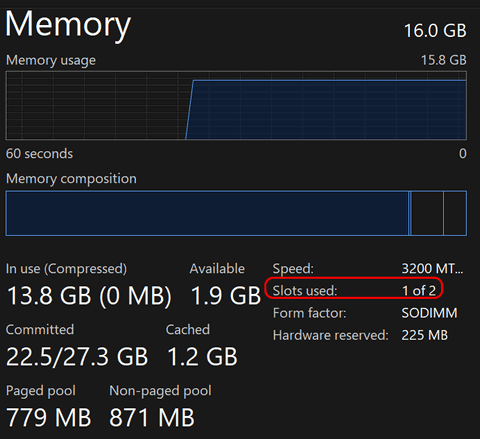
Example: "2 of 4" means you have four slots total, and two are empty.
If
you
hover
your
mouse
over
the
"Slots
used"
text,
Windows
will
show
you
exactly
which
slots
have
a
RAM
stick
in
them
and
how
big
each
stick
is
(e.g.,
"Slot
1:
16
GB").
How
to
tell
how
much
RAM
your
computer
can
use.
This
is
the
"Maximum
Capacity"
your
motherboard
supports.
To
find
this,
you'll
need
to
use
a
quick
command:
Press
the
Windows
Key
+ R,
type
cmd,
and
press
Enter.
Type (or copy and paste) this exact command and hit Enter:
wmic memphysical get maxcapacity, memorydevices
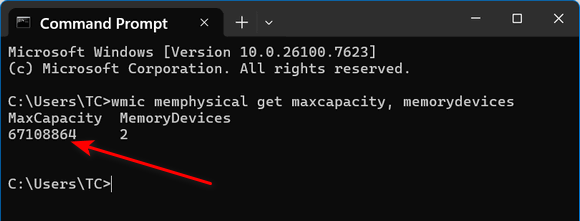
You
will
get
a
large
number
under
MaxCapacity.
Mine
says
67108864
KB,
which
is
64
GB.
This
number
is
always
in
Kilobytes.
To
get
Gigabytes
(GB),
divide
that
number
by
1,048,576.Example:
If
you
see
33554432,
divide
by
1048576
= 32
GB
maximum.
If
your
number
is...Your
Max
RAM
is...
4,194,304
4GB
8,388,608
8KB
16777216
16
GB
33554432
32
GB
67108864
64
GB
Make
sure
you
don't
have
a
bunch
of
programs
starting
with
Windows;
the
more
programs
starting
with
Windows,
the
less
available
RAM
you
have.
See
our
article
here
to
learn
how
to
control
startup
programs.
And
see
our
article
here
to
learn
how
to
find
out
what's
taking
up
all
your
disk
space.
I
hope
this
helps,
Sharon.

Now available: Reg Organizer 9.88
If you purchased or renewed Reg Organizer through Cloudeight within the
last 12 months, you're entitled to a free version upgrade to Reg
Organizer 9.88. Reg Organizer works great with Windows 10 and Windows 11.
Save $14 on Reg
Organizer right now!
Reg
Organizer - A Swiss Army Knife of Windows Tools - Works Great on Windows
10 and Windows 11.

DEFCON-1
Windows 10 /
Windows 11
DEFCON is government mumbo-jumbo for a defense alert status. But today, we’re borrowing that term to show you Control key + D, E, and F shortcuts. These are shortcuts that will save you a lot of time. These 3 essential shortcuts will turn you into a Windows power user!
Ctrl
+ D
Depending on
where you are,
it serves two
very different
(but equally
vital) purposes:
In your web browser, it’s the “Don’t Forget” button. Pressing it instantly bookmarks the current page. No more digging through menus to save that recipe or computer tip!
In File Explorer, it’s the shortcut to delete a highlighted file or folder. It’s the fastest way to clear the clutter, sending unwanted junk straight to the Recycle Bin. Use with care!
Ctrl + E
In File Explorer, pressing Ctrl+E immediately jumps your cursor to the Search Box. Instead of hunting through folders, just hit Ctrl + E and start typing the name of that missing document.
In your browser, it does the same thing. It takes you straight to the Address Bar/Search Bar so you can start a new search or type in a URL.
Ctrl + F
This is one of the most powerful tools in your Windows arsenal.
Ctrl + F stands for Find. Whether you are looking at a 50-page PDF, a huge spreadsheet, or a long, yammering news article, Ctrl + F opens a small search window. Type in a keyword, and Windows will highlight every single instance of that word on the page.
If you’re on a webpage and looking for a specific price or name, don’t scroll up and down and all around. Just Ctrl + F, type the name, word, or price you’re looking for, and let your computer do the searching for you.
CTRL + D, E, and F. DEFCON!
Make Scrollbars
Easier to See
Windows 10 / Windows
11
By design, Windows 10 and 11 make scrollbars nearly invisible until you hover over them. While this is supposed to be a cool GUI feature, it makes scrollbars harder to see, and many find it annoying. You’ll be glad to know it’s easy to make scroll bars more visible in both Windows 10 and Windows 11.
To make your scrollbars visible all the time, and easier to see, do this…
Windows 11
1. Press & hold down the Windows key and tap the U key to open Accessibility.
2. In Windows 11 >Settings > Accessibility, look under “Visual effects”. Next to “Always show scrollbars,” turn the switch on.
See the screenshot below.

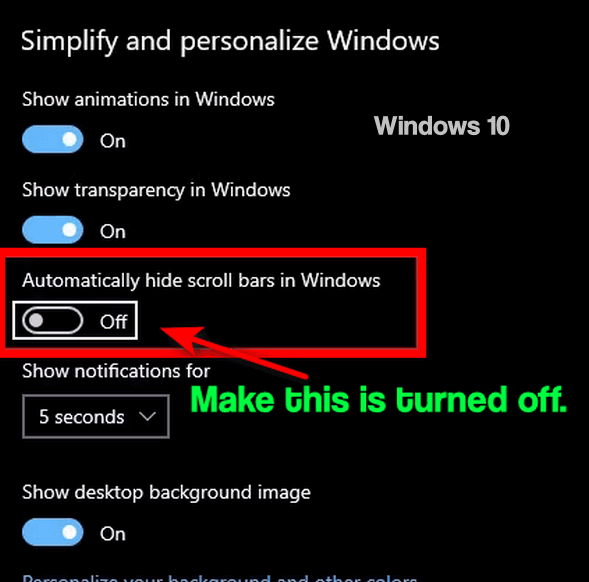
Windows 10
Press & hold down the Windows key and tap the U key to open Ease of Access.
Under Ease of Access, locate the “Simplify and personalize Windows” section and turn the switch next to “Automatically hide scroll bars in Windows” to “Off”. See the screenshot below.
And that’s all there is to making scrollbars easier to see and your Windows a little less “cool” but more functional.
Two
Basic Tips Every
Windows 10 and
Windows 11 User
Should Know
Windows 10 /
Windows 11
Many times, we feature tips for Windows that are not basic Windows tips, but recently we’ve received questions about some fundamental Windows functions that we’ve overlooked because we thought everyone knew them. But that’s our fault for assuming and failing to realize that not everyone knows the basics of Windows. So, today we’re going to feature basic Windows skills that many of you know – but based on questions we’ve recently received, not all of you do. So, for those of you who don’t know these two basic Windows tips, this is for you.
You don’t need no stinkin’ unzip program
Since the days of Windows XP, Windows users have everything they need to extract (unzip) zipped files without downloading anything. We assumed everyone knew this – but looking back at the number of people still using “WinZip” (now bundled software and a PUP) and questions we’ve recently received, apparently, not everyone knows you can unzip files in Windows without a third-party unzip program.
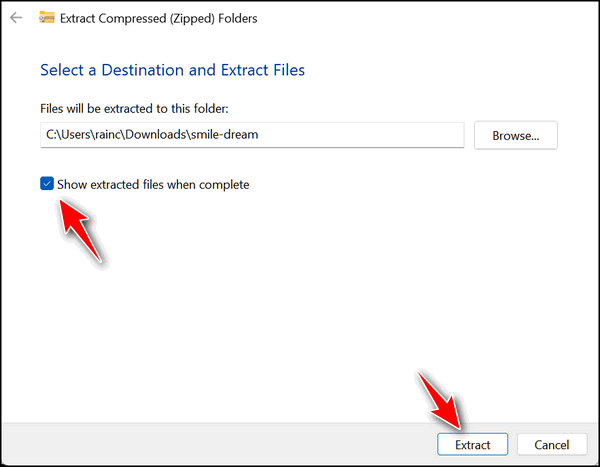
If you’re using Windows 10 or Windows 11, all you need to do is right-click on a zipped file, make sure “Show extracted files when complete" is checked, and click “Extract”. See?
And for those who need to unzip exotic zip file formats, you’ll be glad to know that you can now extract RAR files without a 3rd-party program, and some versions of Windows 11 have added support for 7-zip format too.
The Windows Key and Windows Key Shortcuts
Over the years we’ve published dozens and dozens of Windows key shortcuts. They are time-savers and every Windows user can benefit from knowing a few good Windows key tips.
Windows key tips are tips that require you to hold down the Windows key while tapping another key to perform a function. These tips are written Windows key + with a letter to tap shown after a plus sign. For instance:
Windows key +
R opens a run
box.
Windows key + I
opens Windows
settings
Windows key + U
opens Ease of
Access (called
Accessibility on
Windows 11)
Windows key + E
opens File
Explorer
Windows key + L
locks your
computer
Windows key + Q
opens search
Want to see
more?
Check out this
page.
Note: In the examples above we used Uppercase letters for clarity. Lowercase letters work just as well and are preferred.
All Windows key shortcuts always require you to hold down the Windows key while tapping another key, except the one to open the Windows Start menu. Tapping the Windows key opens the Start menu and tapping it again closes the Start menu.
So, if you’re trying to do a Windows key shortcut and the start menu keeps popping up you’re not alone. Just remember to hold down the Windows key while tapping another key for all Windows key shortcuts – unless you want to use the Windows key to open and close the Windows Start menu.

Want more tips, tricks, and information?
We have thousands of Windows tips, tricks, and more on our InfoAve website.
Subscribe to our free InfoAve Daily newsletter.
THANK YOU!
Your gifts help us continue our mission to keep you informed, separate the truth from the hyperbole, and help you stay safer online. We provide support to thousands of people. Every week we help dozens of people via email at no charge. Thanks to donations, we do a lot more than provide this free newsletter. We help you recognize online threats, fight for your online privacy, provide you with the knowledge you need to navigate the Web safely and help you get more out of your PC. Help us keep up the good fight with a small donation.
After you donate, you will receive an invitation to become a Cloudeight Booster.
Help us keep up the good fight with a small donation.
Interested in making an automatic monthly gift? Visit this page.
Help us keep helping you and helping you stay safe on the Web. Thank you so much!

GlassWire: A Window to Your Wireless Network
Have you ever felt like your computer was keeping secrets from you? We’ve all been there—wondering why the internet is suddenly sluggish or why that little light on your modem is blinking like crazy when you aren’t even browsing the web. In the digital age, what you don’t see can sometimes be just as important as what you do.
That is why we are so fond of GlassWire. Think of it as a set of high-tech “X-ray specs” for your computer’s internet connection. It turns all that invisible “computer-talk” into an easy-to-understand picture so you can see exactly who is visiting your PC and where your data is going.
Traffic Monitor
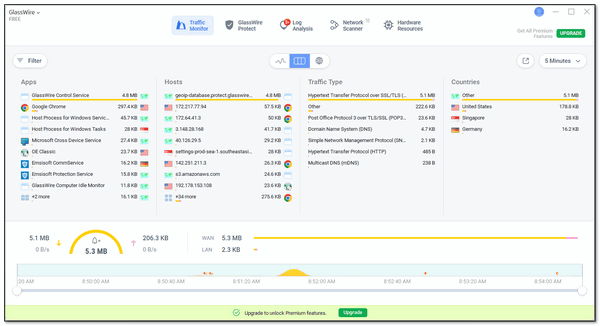
The heart of GlassWire is the Traffic Monitor. Instead of long lists of
numbers, it shows you a simple graph of your internet activity. If
you’re watching a video, you’ll see a tall mountain of data; if you’re
just typing an email, it’s a very small hill. It even shows you the
different countries your apps are “talking” to. It’s a great way to spot
if a program is sending your information somewhere it shouldn’t be!
GlassWire Protect
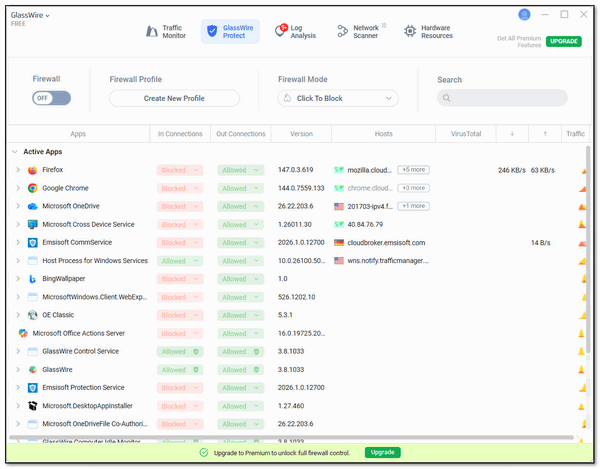
Every home needs a good lock on the door, and that’s what GlassWire
Protect (the firewall) does for your PC. It’s much simpler than the
standard Windows tools. If you see an app you don’t recognize trying to
use your internet, you can block it with one click. We especially like
the “Ask to Connect” feature—GlassWire will pop up a friendly note
asking your permission before letting any new program go online.
Log Analysis: What was going on while you were away?
Ever wonder what your computer does while you’re not looking? The Log Analysis section (formerly called Alerts) keeps a history for you. It records the first time any app connects to the web and warns you if a program’s “ID” has changed, which is often the first sign of a virus or malware trying to hide. It’s like having a security guard who’s always on duty.
Network Scanner: Who’s on Your Wi-Fi?
Is your neighbor “borrowing” your wireless signal? The Network Scanner is the easiest way to find out. It gives you a simple list of every phone, tablet, and smart gadget currently using your Wi-Fi. It will even send you a quick “heads up” notification the moment a new device joins your network, so you can make sure your connection stays private and fast.
GlassWire is easy on your computer’s resources. It’s designed to use very little of your computer’s “brainpower” (CPU and RAM). While it’s busy working, it stays in the background; it never slows down your computer.
If you want a clearer, safer view of your wireless internet connection, GlassWire is a great addition to your toolkit. It’s friendly, it’s free for basic use, and it puts you back in charge of your wireless network.
GlassWire works on Windows 10 and Windows 11.
Read more about GlassWire and/or download it here.

The Best Computer Care and Repair - Anywhere!
We can fix your computer while you watch. You never have to leave your home. Just sit back, relax, and watch us work. Get PC service from folks you trust at the best prices you'll find anywhere.
Get more information here.

In the dimly lit windows of the passing train, I can see the faces of strangers peering out into the night. They are all heading toward different destinations, destinations not so different, really, than my own. Though they and the train are moving quickly through the night, and I stand motionless on a worn wooden platform, I realize we are all moving in the same direction and toward the same destination.
In seconds, the train has passed, and the strangers’ faces have faded into the darkness of the night. I watch them disappear into the silence as I climb down the creaking wood and metal stairway that leads from the platform to the sidewalk and the quiet street below.
It’s cold, and it starts to snow. At first, just tiny frozen misty droplets colliding with my winter jacket… tick, tick, tick. Then, almost magically...

What is Windows Safe Mode?
Safe Mode is a diagnostic startup mode that runs Windows with only the bare minimum files and drivers. It is used to troubleshoot your PC by preventing non-essential programs and malware from starting, making it easier to fix errors or delete stubborn files.
To enter Safe Mode using your keyboard, the most reliable shortcut is to use the Shift + Restart method.
Hold down the Shift key on your keyboard.
While holding Shift, click the Start button, then the Power icon, and select Restart. You can also do this from the Login screen if you can't get into Windows.
Your PC will reboot to a blue screen.
Click Troubleshoot > Advanced options > Startup Settings > Restart.
Once it restarts, press the 4 or F4 key to start in Safe Mode.

Sales of the following products and services help support our newsletters, websites, and free computer help services we provide.
Cloudeight Direct Computer Care:
Always a great deal. Cloudeight Direct Computer Care is like having PC insurance.
Get more information here.
Emsisoft Anti-Malware: Emsisoft is the only Cloudeight-endorsed and recommended Windows security program. It provides users with a complete antivirus, antimalware, anti-ransomware,
and anti-PUPs solution. We offer single Emsisoft licenses and multi-computer licenses at discount prices. Also, we offer our exclusive Emsisoft with Cloudeight installation & setup.
Get more information here.
Reg Organizer: Reg Organizer is the Swiss Army Knife of Windows tools. It's far more than just a registry optimizer and cleaner... it's a Windows all-in-one toolkit. Reg Organizer helps you keep your computer in tip-top shape and helps you solve annoying Windows problems. Reg Organizer works great with Windows 10
and Windows 11!
Get more information about Reg Organizer (and get our special discount prices) here.
MORE IMPORTANT STUFF!
Your InfoAve Weekly Members' Home Page is located here.
Help us Grow! Forward this email newsletter to a friend or family member - and have them sign up for InfoAve Weekly here!
Get our free daily newsletter! Each evening we send a short newsletter with a tip or trick or a computer-related article - it's short and sweet - and free. Sign up right now.
We have thousands of Windows tips and tricks and computer articles posted on our Cloudeight InfoAve website. Our site has a great search engine to help you find what you're looking for too! Please visit us today!
Help us by using our Start Page. It costs nothing, and it helps us a lot.
Print our Cloudeight Direct Flyer and spread the word about our computer repair service! If you want to help us by telling your friends about our Cloudeight Direct Computer Care service, you can download a printable flyer you can hand out or post on bulletin boards, etc. Get the printable PDF Cloudeight Direct Computer Care flyer here.

We'd love to hear from you!
If you have comments, questions, a tip, a trick, a freeware pick, or just want to tell us off for something, let us know.
If you need to change your newsletter subscription address, please see "Manage your subscription" at the very bottom of your newsletter.
We received hundreds of questions for possible use in IA news. Please keep in mind we cannot answer all general computer questions. We try to personally answer as many as we can. We can only use a few in each week's newsletter, so keep this in mind. If you have a support question about a service or product we sell, please contact us here.
Subscribe to our Daily Newsletter! Get computer tips & tricks every night. Our daily newsletter features a computer tip/trick or two every day. We send it out every night around 9 PM Eastern Time (USA). It's short and sweet, easy to read, and FREE. Subscribe to our Cloudeight InfoAve Daily Newsletter!
We hope you have enjoyed this issue of Cloudeight InfoAve Weekly. Thanks so much for your support and for being an InfoAve Weekly subscriber.
Have a great weekend... be safe!
Cloudeight InfoAve Weekly - Issue #1169
Volume 23 Number 20
March 6, 2026
Not a subscriber? Subscribe to our FREE Cloudeight InfoAve Weekly Newsletter here.
"Cloudeight InfoAve Weekly" newsletter is published by:
Cloudeight Internet LLC
PO Box 73
Middleville, Michigan USA 49333-0073
Read our disclaimer about the tips, tricks, answers, site picks, and freeware picks featured in this newsletter.
Copyright ©2026 by Cloudeight Internet